Stratos | Windows, PC, Mac OS, and Linux
If you haven't already read the Flight Operations chapter, we recommend you do so now before continuing.
Other Trackers
Do not run Stratos with smartCARS 3 or Flight Tracker XP running; please make sure you close those applications completely.
Download, Support
To download Stratos for PC, Mac, or Linux, please visit here: https://skyvexsoftware.com/download
If you require support with Stratos, Walker Air Transport staff and community members may be able to assist with general questions and basic troubleshooting through the Stratos Beta channels in the Walker Air Transport Discord. For technical issues, bug reports, account problems, feature requests, or more in-depth troubleshooting, please use the internal Stratos Support Centre and help desk system.
Stratos Internal Help Desk
Click the  'Life Ring' icon at the bottom left corner of the application. Inside, you can create a new ticket and/or read your existing tickets.
You can view the official user manual for Stratos here: https://docs.skyvexsoftware.com/introduction
We also recommend reading these documents as well:
- Flight Phases & Transitions: https://docs.skyvexsoftware.com/guide/flight-phases
- Landing Rate Detection: https://docs.skyvexsoftware.com/guide/landing-rates
Using Stratos
The following details below will walk you through the application from the perspective of a pilot at Walker Air Transport. There are features in the Stratos user manual that we will/do not deploy in our virtual airline.
Logging into Stratos
After installing Stratos, you will be asked to pick your Virtual Airline. You will select "Walker Air Transport"
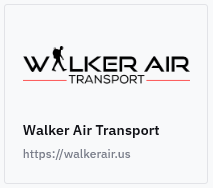
Stratos uses OAuth Single Sign-On (SSO) for authentication. Simply click the “Login with Walker Air Transport” button and sign in using your Walker Air credentials. You’ll be redirected to Walker Air Transport CrewOps to authorize your login securely, eliminating the need to enter your username and password multiple times.
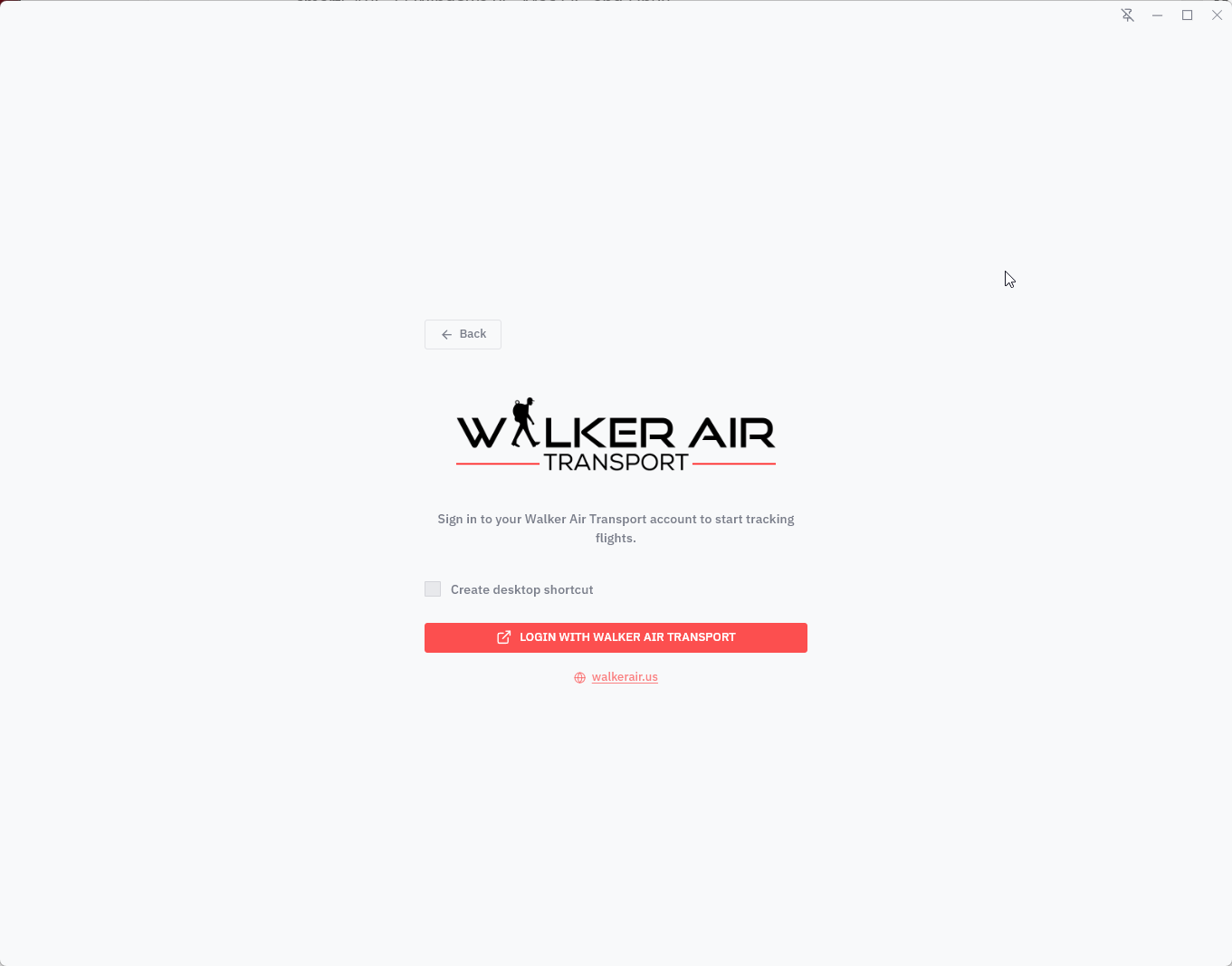
If you are already logged into CrewOps, you will be taken directly to the OAuth approval page. Otherwise, you will first log in and then be presented with the approval page. Simply click “Authorize” to grant access, and you will automatically be issued a token and logged into Stratos.
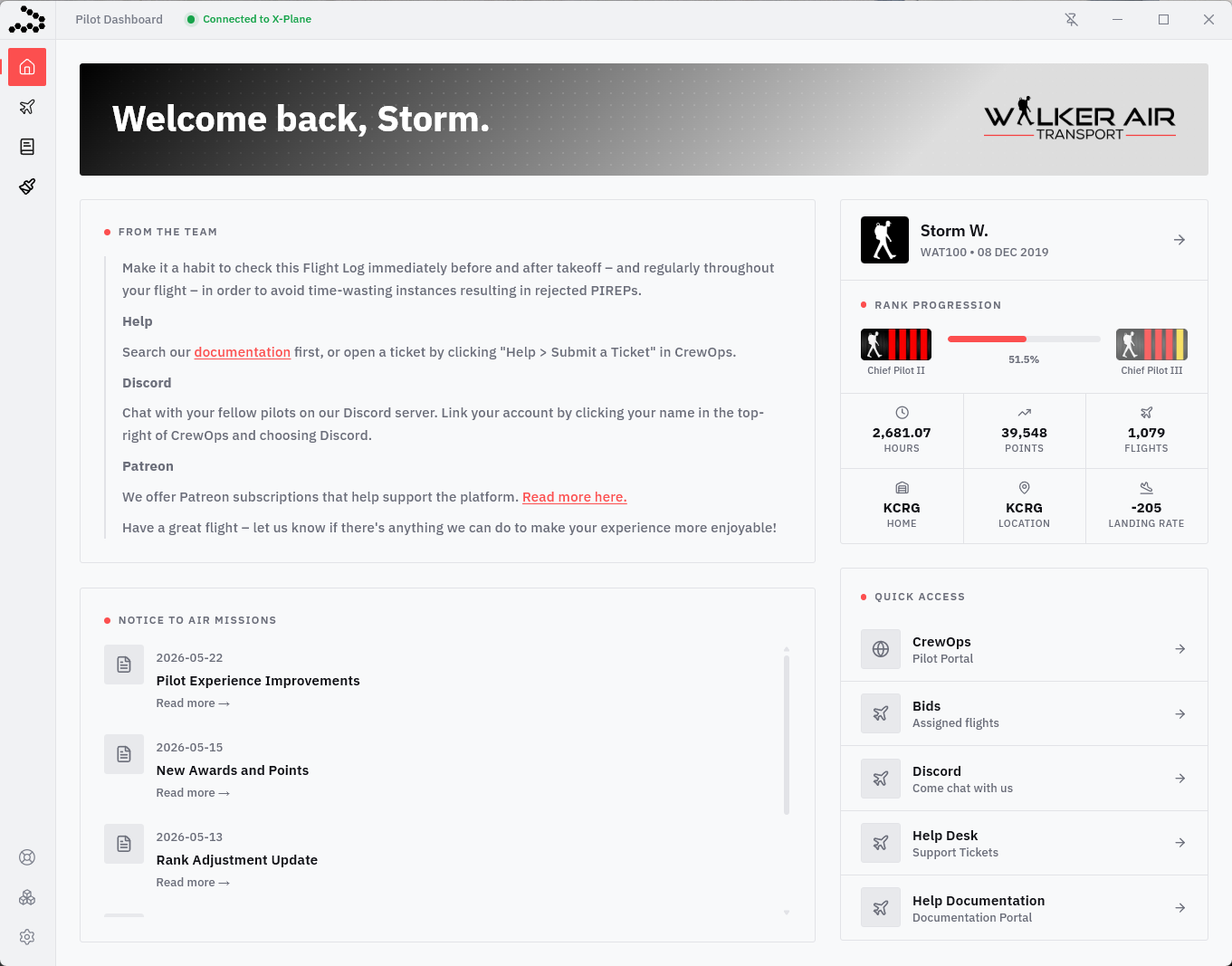
Pilot Dashboard
The Pilot Dashboard is the main home screen of Stratos and provides a quick overview of your Walker Air activity. From here, you can view important notices from the team, recent NOTAMs, your current rank progression, pilot statistics, and quick-access links to CrewOps, bids, Discord, support, and documentation. This page is designed to keep key information and tools easily accessible before and during your flight operations.
For a new, first time Pilot, these fields will be blank because no flights have been completed.
To navigate through the remaining sections within Stratos, click the icons in the left column. You can drag these icons around as well to create your preferred menu layout.
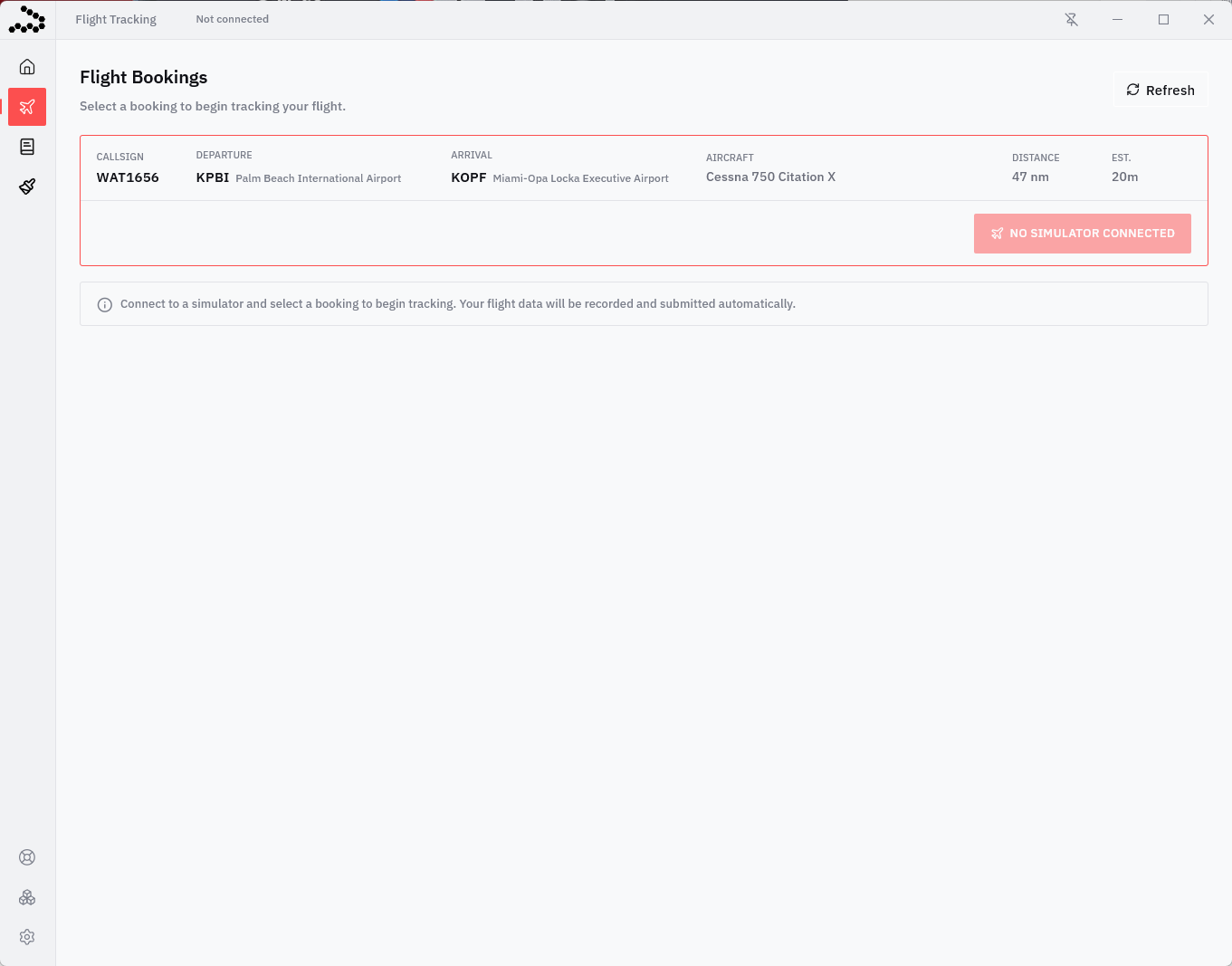
Flight Bookings
The Flight Tracking page is where you select and monitor your active flight booking. Once connected to your simulator, click on a booking to expand it and reveal the Start Tracking button. Clicking Start Tracking will begin recording your flight automatically. Stratos will track your flight data in real time and submit your PIREP automatically upon completion. This page also provides a quick overview of your route, aircraft, distance, and estimated flight time before departure.
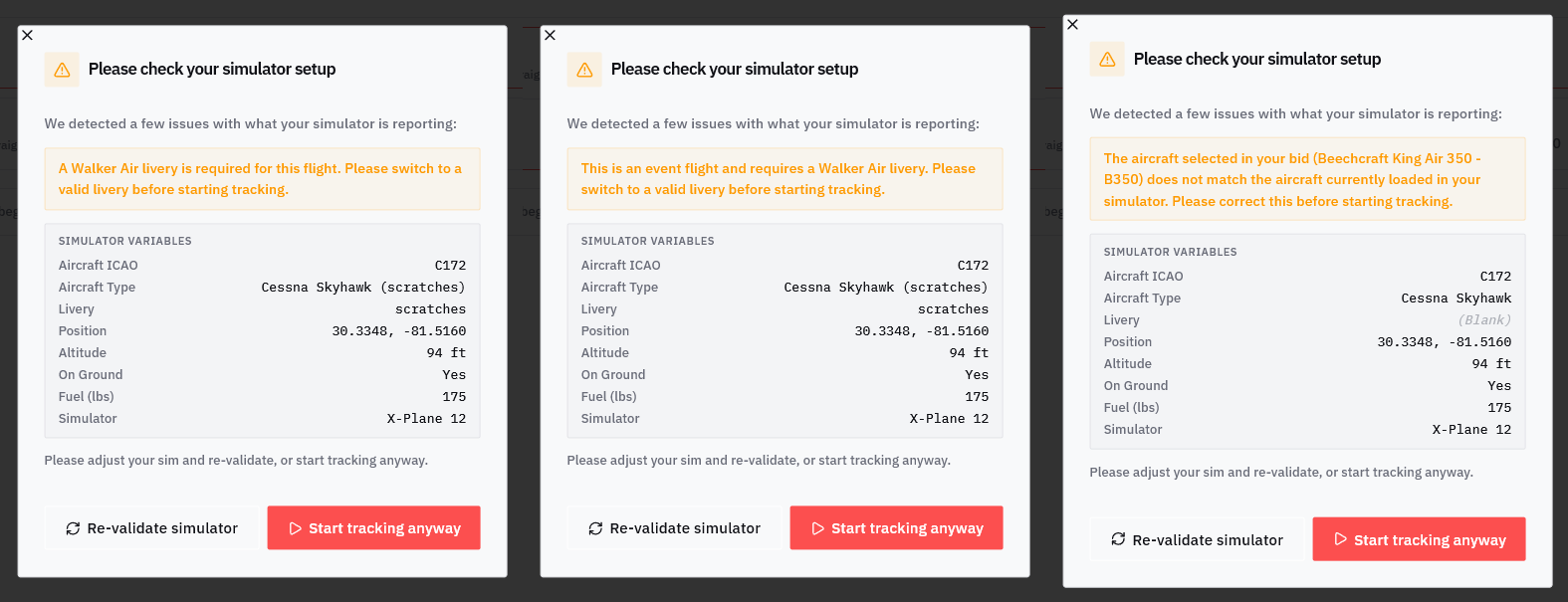
Walker Air Transport Validation System
The following validation checks are specific to Walker Air Transport and are designed to help prevent invalid PIREPs, reduce tracking issues, and ensure compliance with Walker Air policies before a flight begins.
Aircraft Validation
Verifies that the aircraft loaded in your simulator matches the aircraft assigned to your bid.
Event Validation
Checks that you are using an approved Walker Air livery when flying an official event.
Livery Validation
Checks that you are using a valid Walker Air livery when required.
Please pay close attention to the following simulator values:
- Aircraft ICAO
- Aircraft Type
- Livery
These fields are critical for validation. If any of them display as (Blank) or do not match your bid requirements, validation will fail and should be corrected before tracking begins.
If an issue is detected, Stratos will display a warning and allow you to either:
- Correct the issue and click Re-validate Simulator
- Continue by clicking Start Tracking Anyway
⚠️ Selecting Start Tracking Anyway does not bypass Walker Air policies or validation requirements. Flights that do not meet requirements may still be automatically rejected by our systems. These warnings are provided to help identify issues before your flight begins.
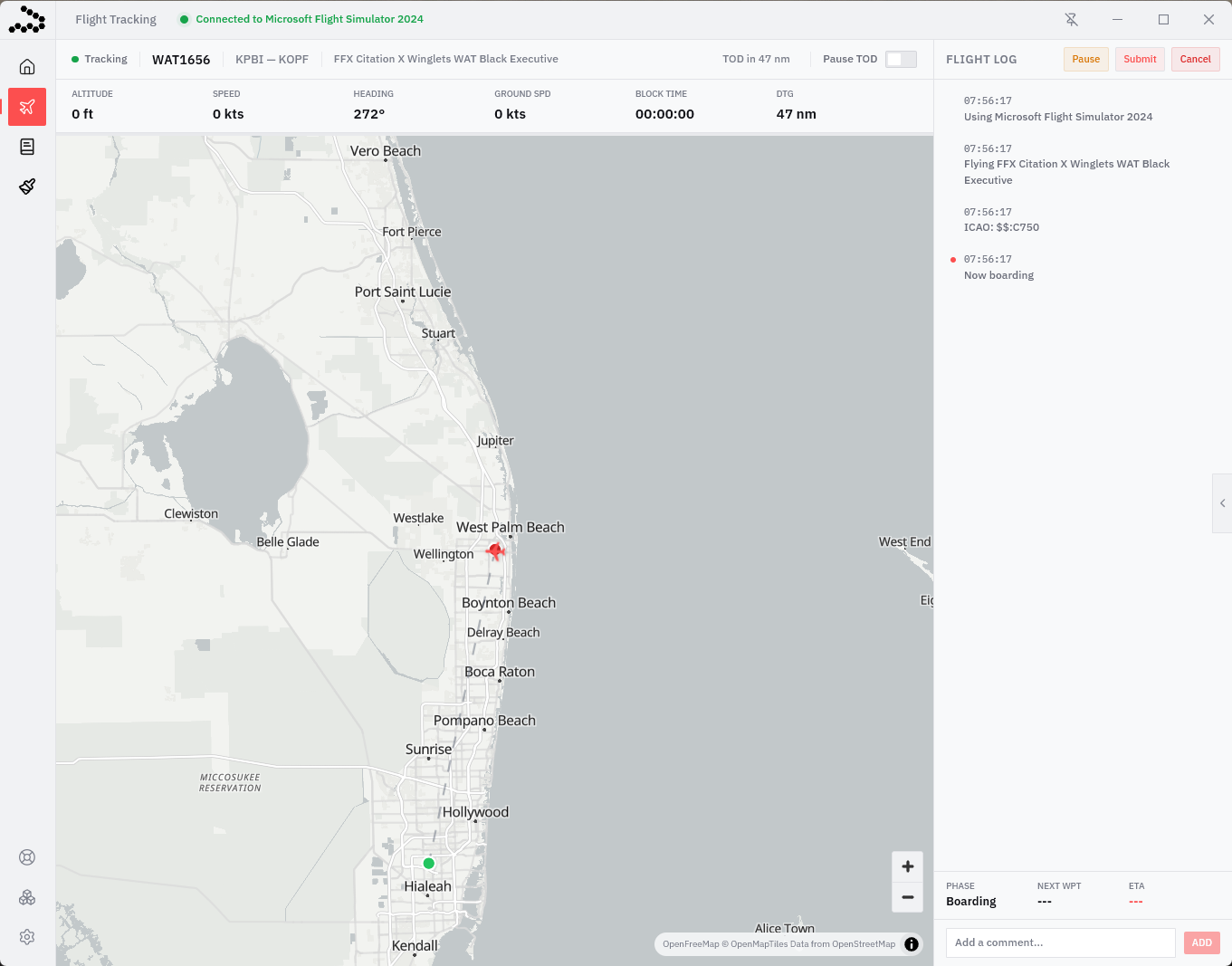
Flight Tracking
If you successfully pass the Walker Air Transport Validation System, you will be taken to the active Flight Tracking screen. This is where Stratos records your flight in real time from boarding to shutdown.
The main map displays your live aircraft position and flight path, while the top status bar provides important flight information including altitude, speed, heading, ground speed, block time, and remaining distance. The right-side Flight Log records major flight events as they occur, such as boarding, engine start, taxi, takeoff, cruise, descent, and landing.
Additional controls allow you to pause tracking, pause Top of Descent calculations, submit your PIREP, or cancel the flight if needed. The bottom-right panel also displays your current flight phase, next waypoint, and estimated arrival information. This screen serves as the primary real-time tracking interface throughout your flight.
Flight Tracking - Top of Descent Pause
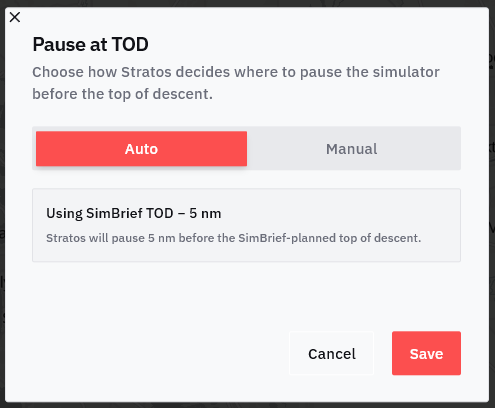
The Pause at TOD feature allows Stratos to automatically pause your simulator before reaching Top of Descent (TOD). This is useful for long-haul flights, overnight flights, or situations where you may step away from your computer and want additional time to prepare for descent and arrival.
Auto Mode
In Auto mode, Stratos uses your SimBrief flight plan data to automatically determine the Top of Descent point. You can configure how many nautical miles before TOD the simulator should pause. In the example shown, Stratos will automatically pause the simulator 5 nm before the SimBrief-planned TOD.
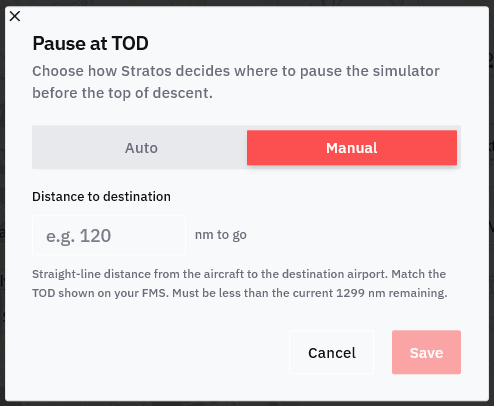
Manual Mode
In Manual mode, you manually enter the remaining distance to destination where you want the simulator to pause. This uses straight-line distance to the arrival airport and should generally match the TOD shown in your aircraft FMS or flight planning software.
Once the configured distance is reached, Stratos will automatically pause the simulator, allowing you time to return and prepare for descent procedures.
|
|
|
|
|
|
Flight Completion & PIREP Submission
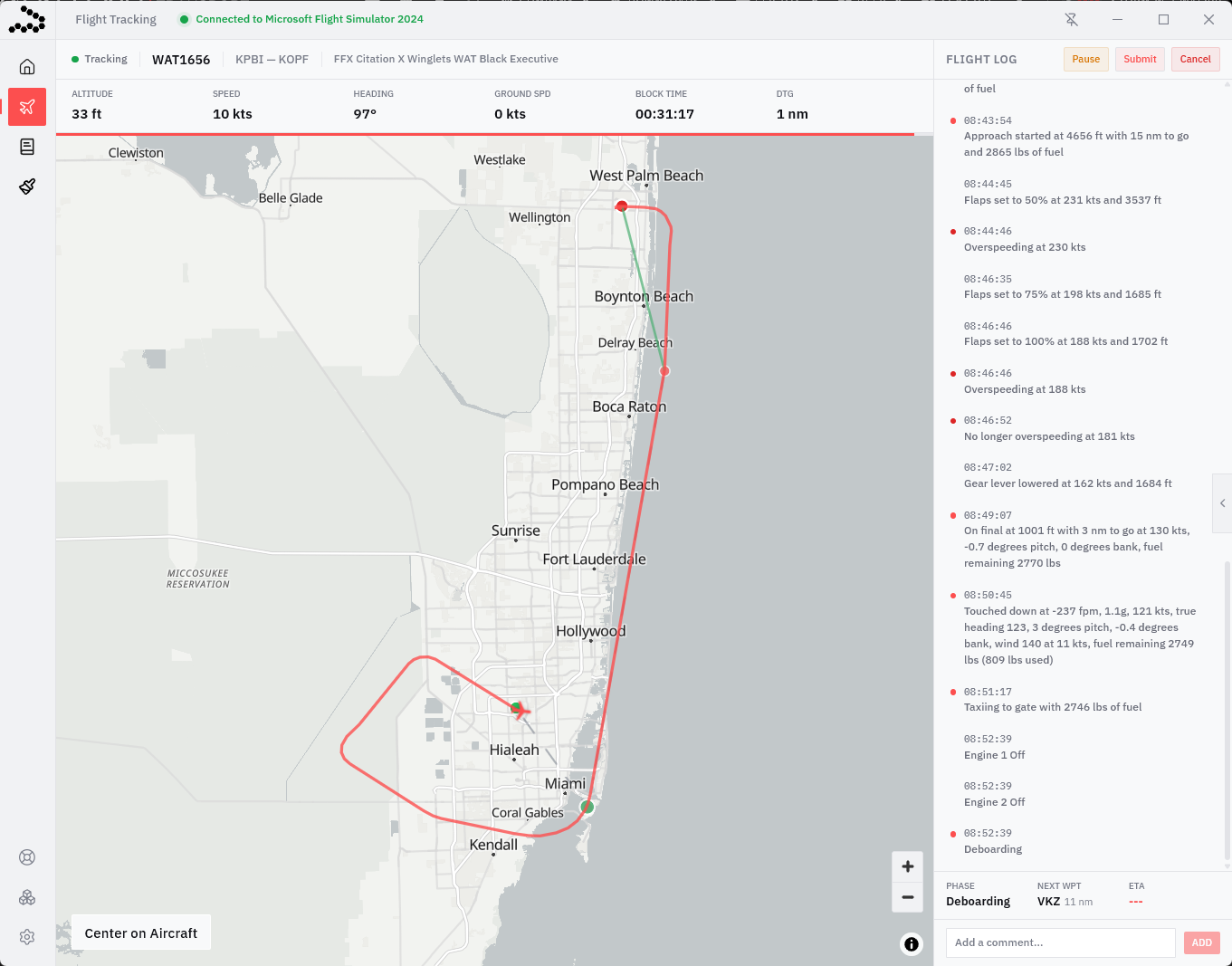
Once your flight has been completed, Stratos will transition into the arrival and deboarding phases while continuing to record final flight events. During this stage, the Flight Log will display important arrival details such as approach configuration changes, touchdown information, taxi events, engine shutdown, and deboarding activity.
The map will display your completed flight path, allowing you to review your full route from departure to arrival. Your final flight statistics, including landing rate and fuel remaining, are also recorded in the activity log for reference.
When you are satisfied that the flight is complete, click the Submit button in the top-right corner to finalize and submit your PIREP to Walker Air Transport. Once submitted, your flight data, statistics, and log entries will be uploaded and processed by CrewOps.
If Auto-Submit Flight is enabled in Settings, Stratos may automatically submit the flight for you once all required conditions have been met.
If you didn’t exceed our flight requirements and/or standards, your PIREP will be automatically approved – and that will be verified by its presence in your Logbook.
Logbook
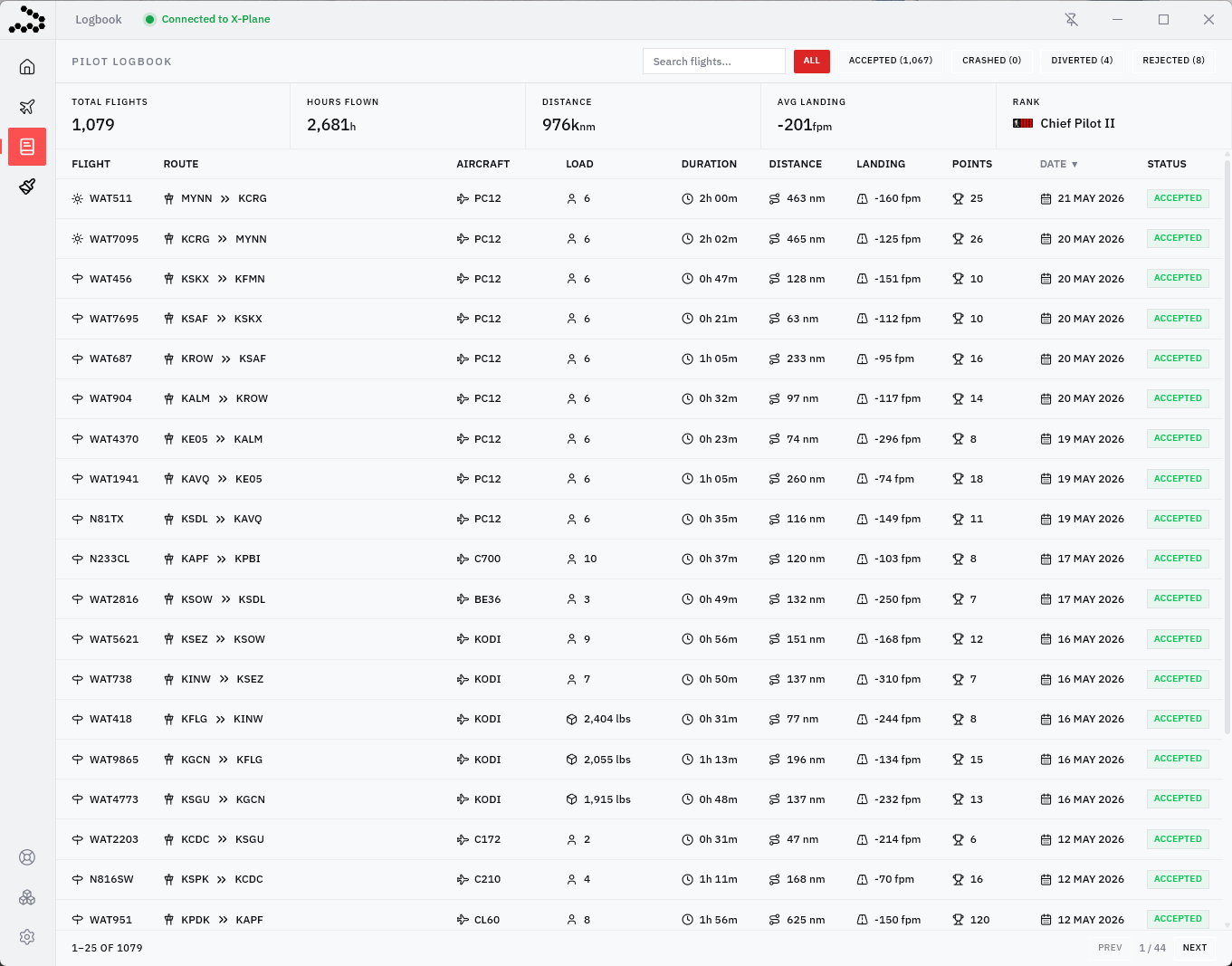
The Logbook page provides a complete history of your flights flown through Walker Air Transport. At the top of the page, you’ll find overall pilot statistics including total flights, hours flown, total distance, average landing rate, and current rank. Below that is a detailed list of your PIREPs showing route information, aircraft used, flight duration, landing rate, points earned, and flight status.
Flights can be filtered by status such as Accepted, Crashed, Diverted, or Rejected, and the search bar allows you to quickly locate specific flights. This page serves as your personal flight history and performance tracker within Stratos.
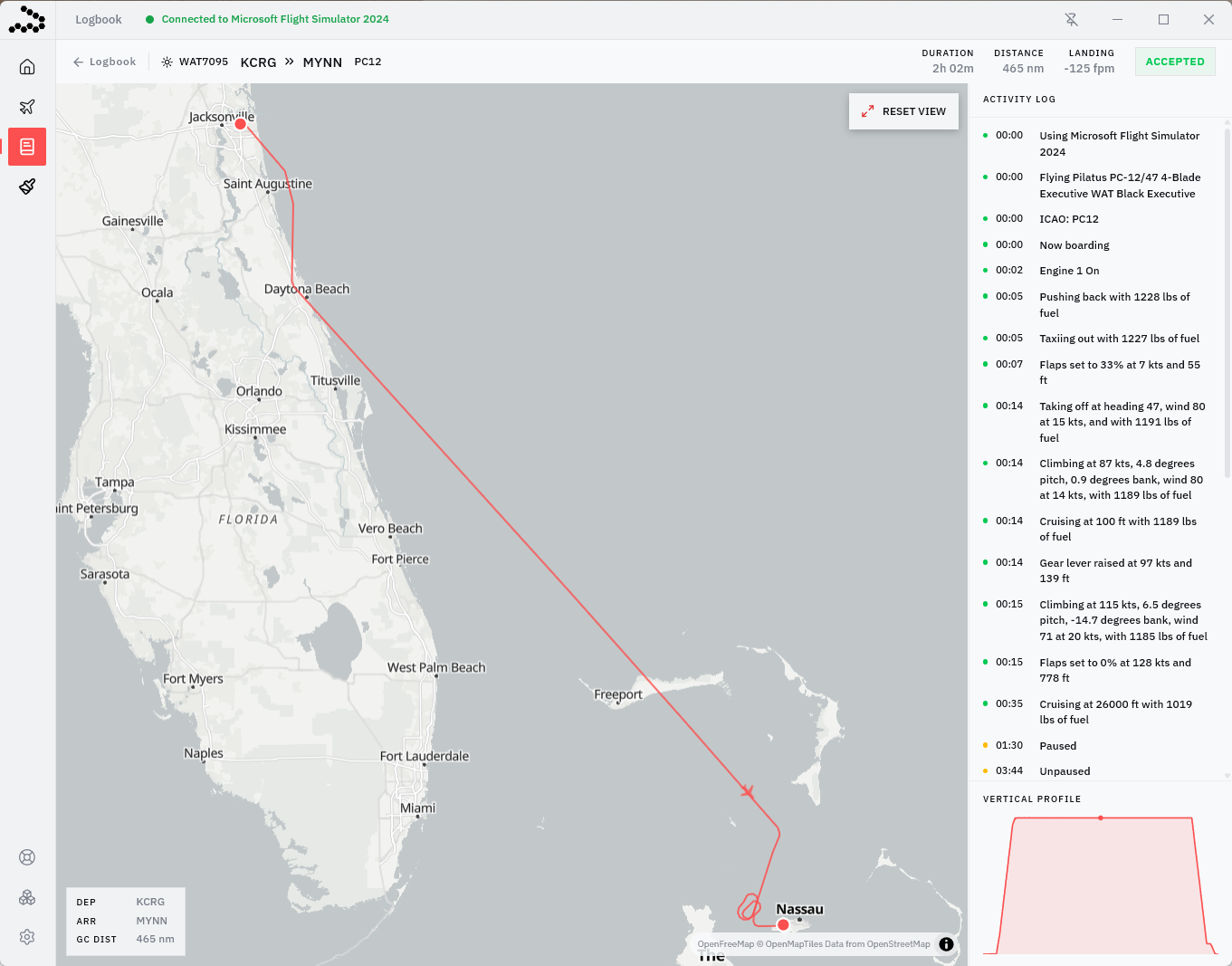
The detailed Logbook view provides a full replay and breakdown of an individual flight. The interactive map displays your recorded flight path from departure to arrival, while the activity log on the right shows a timeline of key events such as boarding, engine start, taxi, takeoff, cruise, pauses, and landing information.
At the top of the page, you can quickly view important flight statistics including duration, distance flown, landing rate, and final PIREP status. The vertical profile graph displays your altitude changes throughout the flight, allowing you to review your climb, cruise, and descent performance. This page is designed to give pilots a complete post-flight review and analysis experience.
Landing Analyser
The Landing Analyser is a Stratos plugin and is not developed, maintained, or supported by Walker Air Transport. Any questions regarding installation, operation, scores, calculations, missing data, crashes, bugs, feature requests, or discrepancies in results must be directed to the Stratos Support Centre. Walker Air Transport staff are unable to troubleshoot, diagnose, or provide support for Landing Analyser issues.
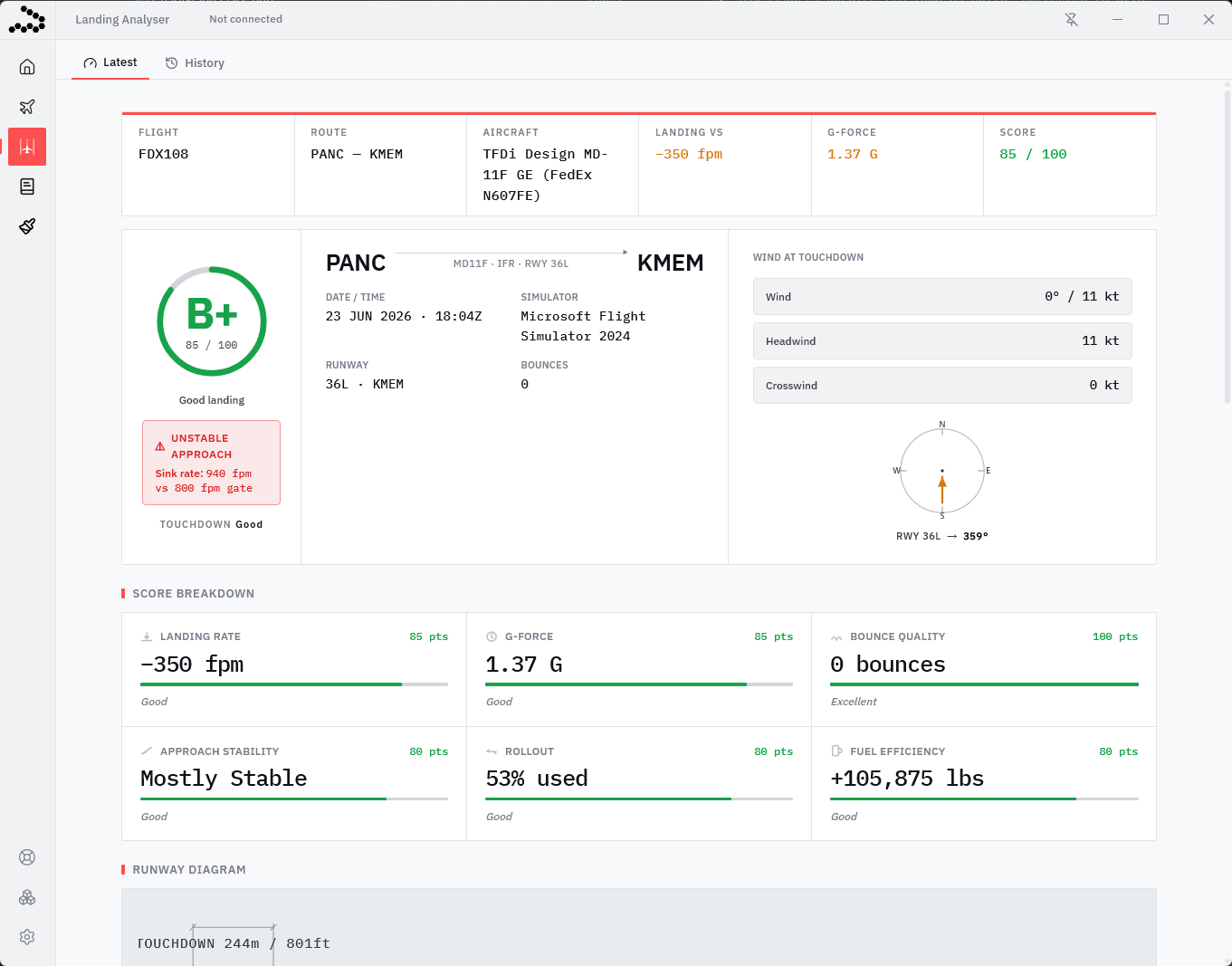
The Landing Analyser is a post-flight analysis tool available through the Stratos ecosystem. It provides pilots with additional insight into their landing performance, including metrics such as landing rate, G-force, bounce detection, approach stability, rollout usage, touchdown location, and environmental conditions at touchdown.
The analyser is intended as an informational and training aid only. Scores and grades generated by the analyser are not used by Walker Air Transport for pilot discipline, acceptance decisions, ranking, or awards unless explicitly stated elsewhere in Walker policy.
Support Centre
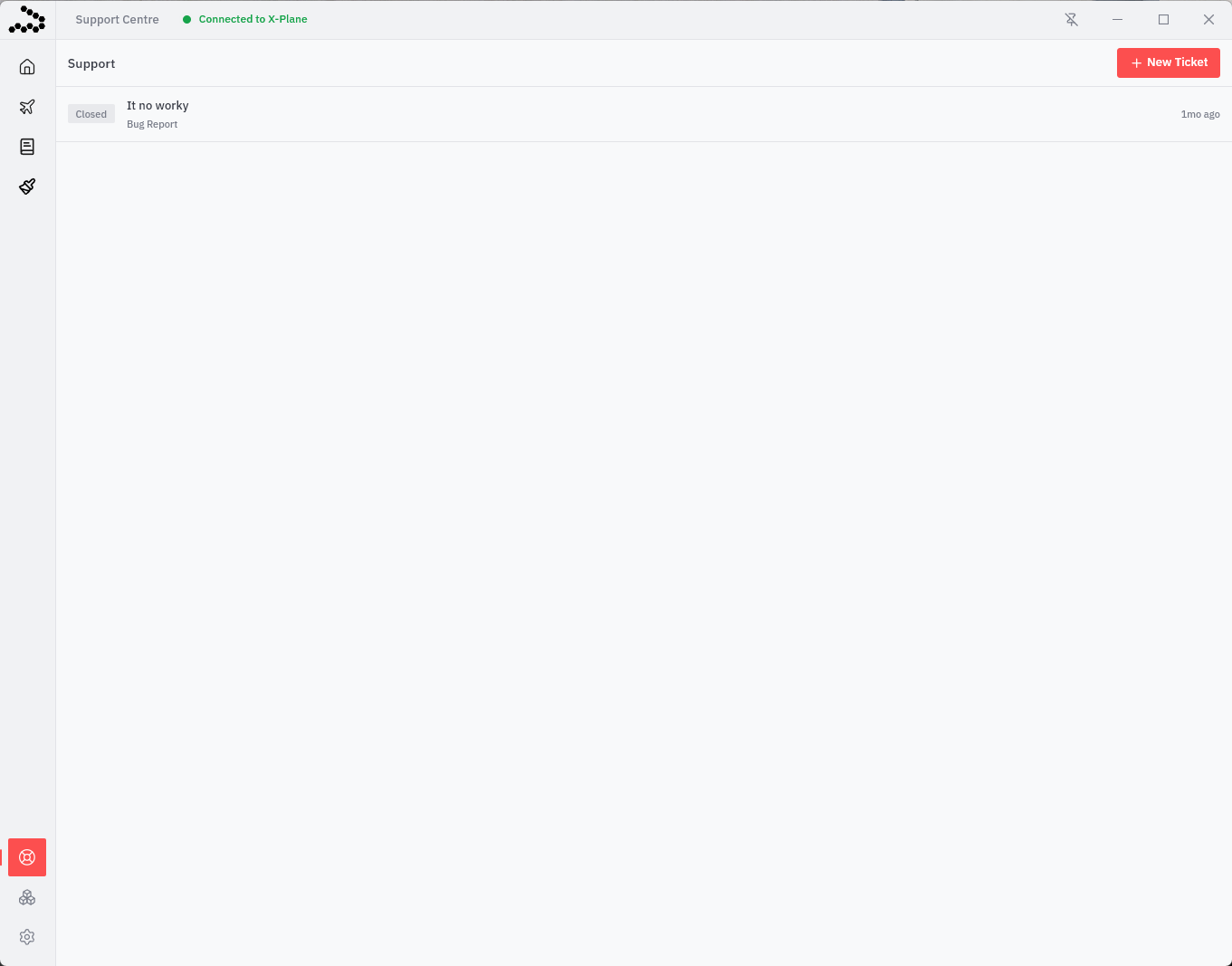
The Support Centre allows you to create and manage support tickets directly within Stratos. From this page, you can view the status of existing tickets, track responses from Stratos, and review previous issues or bug reports.
To open a new support request, click the New Ticket button in the top-right corner. This system is intended for reporting bugs, requesting assistance, or getting help with issues related to Stratos.
Plugins
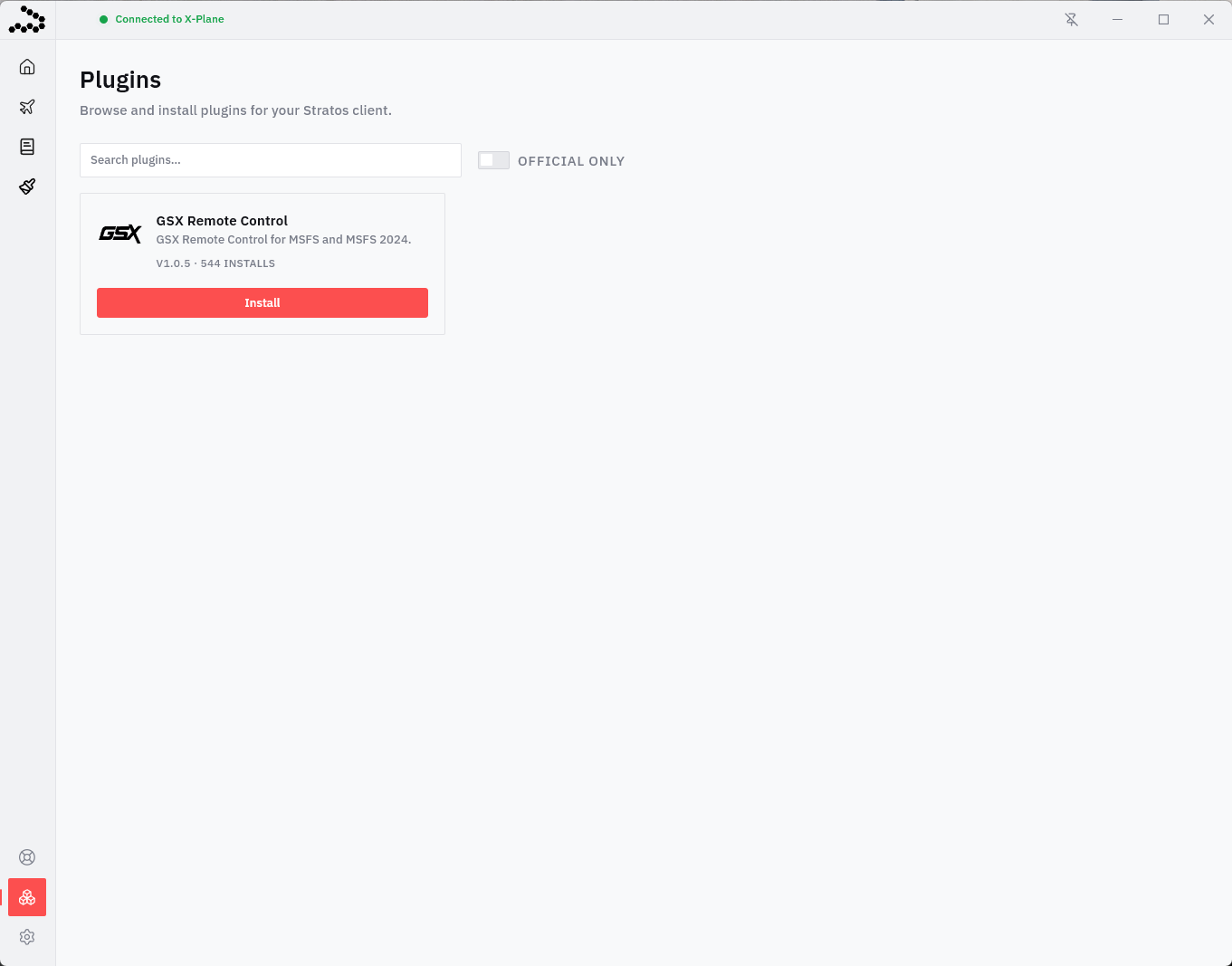
The Plugins page allows you to browse and install optional add-ons for your Stratos client. These plugins extend functionality and can provide integrations, automation tools, or enhanced simulator features. Simply browse the available plugins, review their descriptions and install counts, and click Install to add them to your client.
You can also search for specific plugins or filter to show only official plugins published by trusted developers. Installed plugins are managed directly through Stratos, making it easy to expand your flight experience with additional features.
Settings
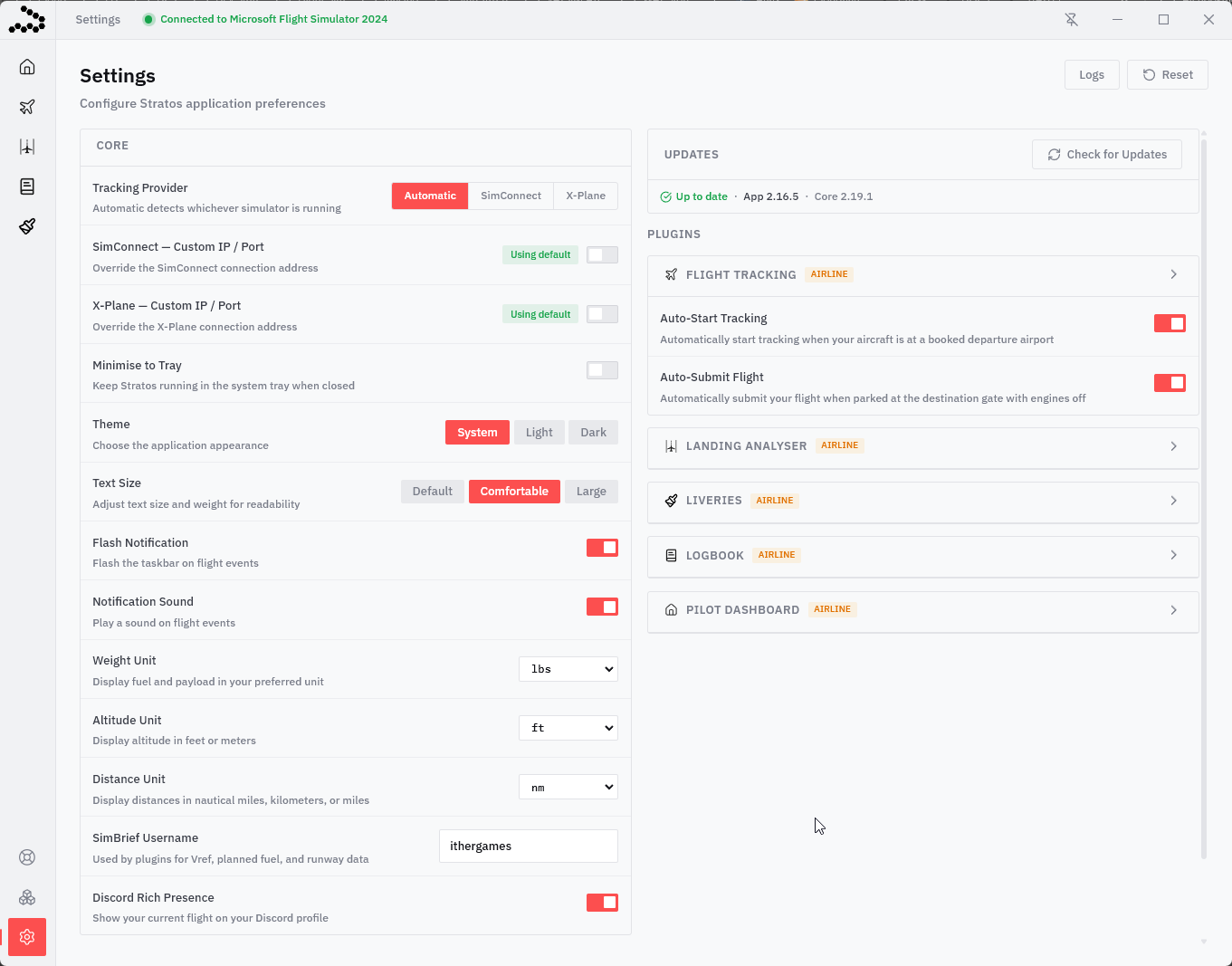
The Settings page allows you to configure your Stratos client preferences and simulator integration settings. From here, you can select your simulator connection type, customize application appearance, adjust text sizing, configure notifications, and choose preferred measurement units for fuel, altitude, and distance.
Additional options include Discord Rich Presence integration, analytics preferences, SimBrief integration, and flight automation features such as Auto-Start Tracking and Auto-Submit Flight. The right side of the page also provides plugin-specific configuration options and access to application updates, logs, and reset tools. This page is designed to let you personalize Stratos to match your simulator setup and flying preferences.
| Tracking Provider | You can set this to Automatic, SimConnect, or X-Plane. Automatic will let you move between simulators without having to touch the settings. |
| Auto-Start | Automatically begins flight tracking after the Walker Air Transport Validation System passes successfully. Stratos will attempt validation up to 3 times within 30 seconds. If validation cannot be completed successfully, a warning message will be displayed. Otherwise, tracking will automatically begin without requiring manual input. |
| Auto-Submit |
Automatically submits your PIREP once all arrival conditions have been met:
This allows Stratos to complete and submit your flight automatically at the end of your operation. |
Reconnecting Your Flight (Crash to Desktop)
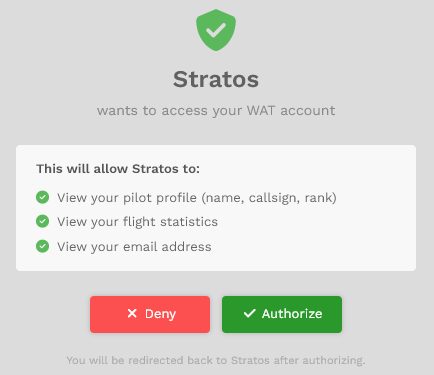
If your simulator disconnects or crashes during a flight, Stratos will automatically pause tracking and enter Recovery Mode. This system is designed to help you safely resume your flight without immediately losing your progress.
The recovery window displays important information from your last known simulator state, including:
- Callsign and route
- Aircraft type
- Last known fuel quantity
- Aircraft position
- Altitude, heading, and speed
- Distance from your previous position
Once your simulator reconnects, Stratos will compare your current aircraft position to the last recorded position. If everything is within acceptable limits, you may resume tracking by clicking Resume Flight. Once you click Resume Flight, Stratos will ask for final confirmation before tracking resumes from your current aircraft position.
If supported, Stratos may also provide an Auto Reposition option to help place your aircraft back near its last recorded location before resuming the flight.
⚠️ Recovery Mode is intended to assist with simulator crashes, disconnects, or accidental closures. It is not intended to bypass Walker Air policies or flight requirements. Significant position changes, aircraft changes, or unrealistic recovery behavior may still result in automatic PIREP rejection or staff review.