
SimBrief
simBriefSimBrief enables Pilots to automatically create an Operational Flight Plan (OFP) based on the details of their intended flight – and, with only a few clicks, easily integrate it into our System.
You must have an active simBriefSimBrief account in order to use the integration.
If you don't have an account, visit simBriefSimBrief to create it.
What's the simBriefSimBrief Operational Flight Plan?
The simBriefSimBrief OFP, also known as the Operational Flight Plan, is essentially a dispatch packet. It simulates a real world experience with Pilots receiving information about their flight, weather, routing, fuel usage, weights, etc. – everything required to ensure they're operating within the performance standards of the aircraft they're flying.
simBriefSimBrief does a good job adding to the realism of simulated flying by offering this service. That's why we encourage you to sign up for an account and, when possible, use it.
simBriefSimBrief: https://www.simbrief.com/home/index.php
If you need help understanding the OFP and how to use it, ask your fellow Pilots.
The information contained here is very useful for setting up your aircraft's Flight Management Computer to make your flight as realistic as possible.
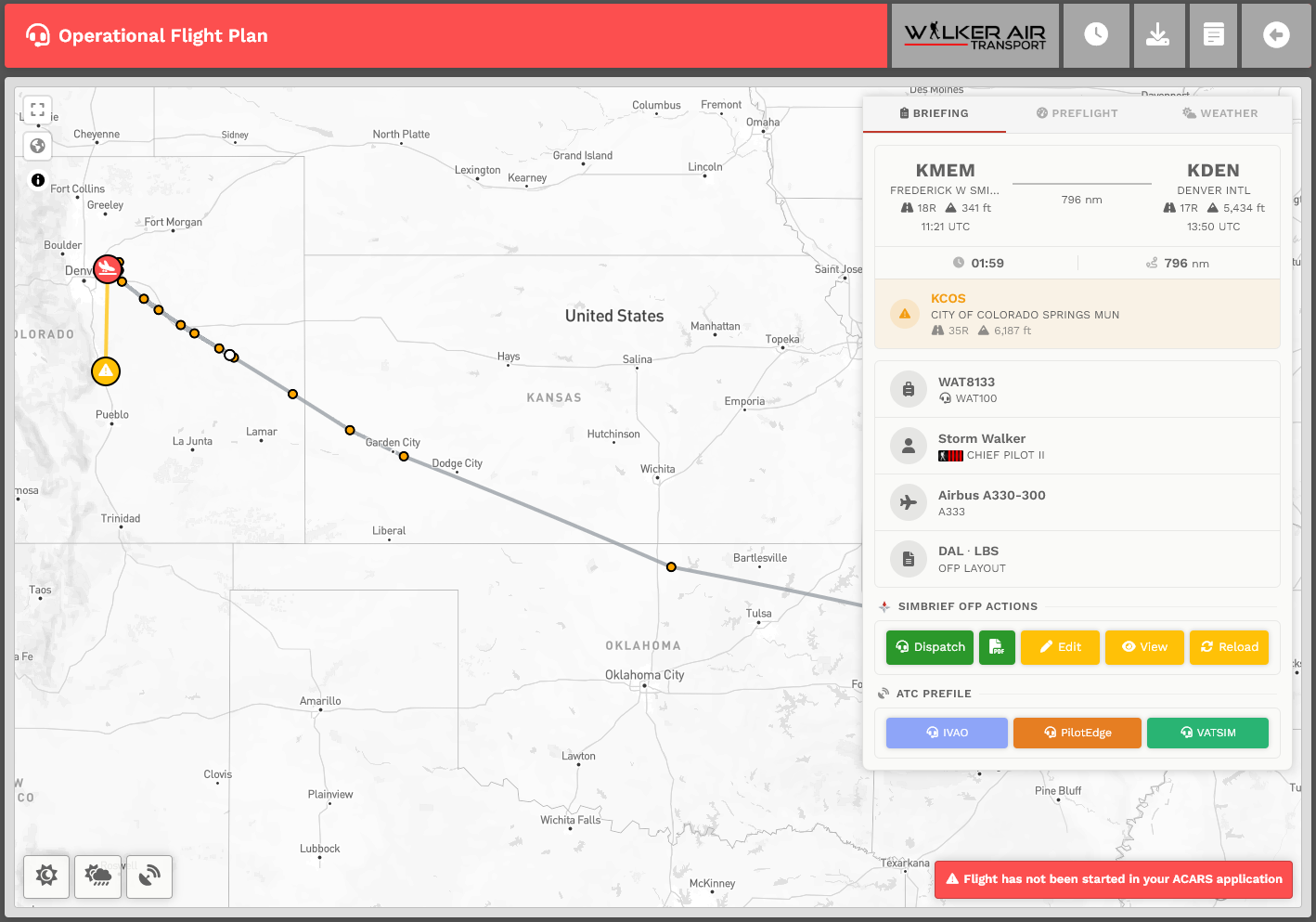
Let's take a look at a number of items:
| 1. |
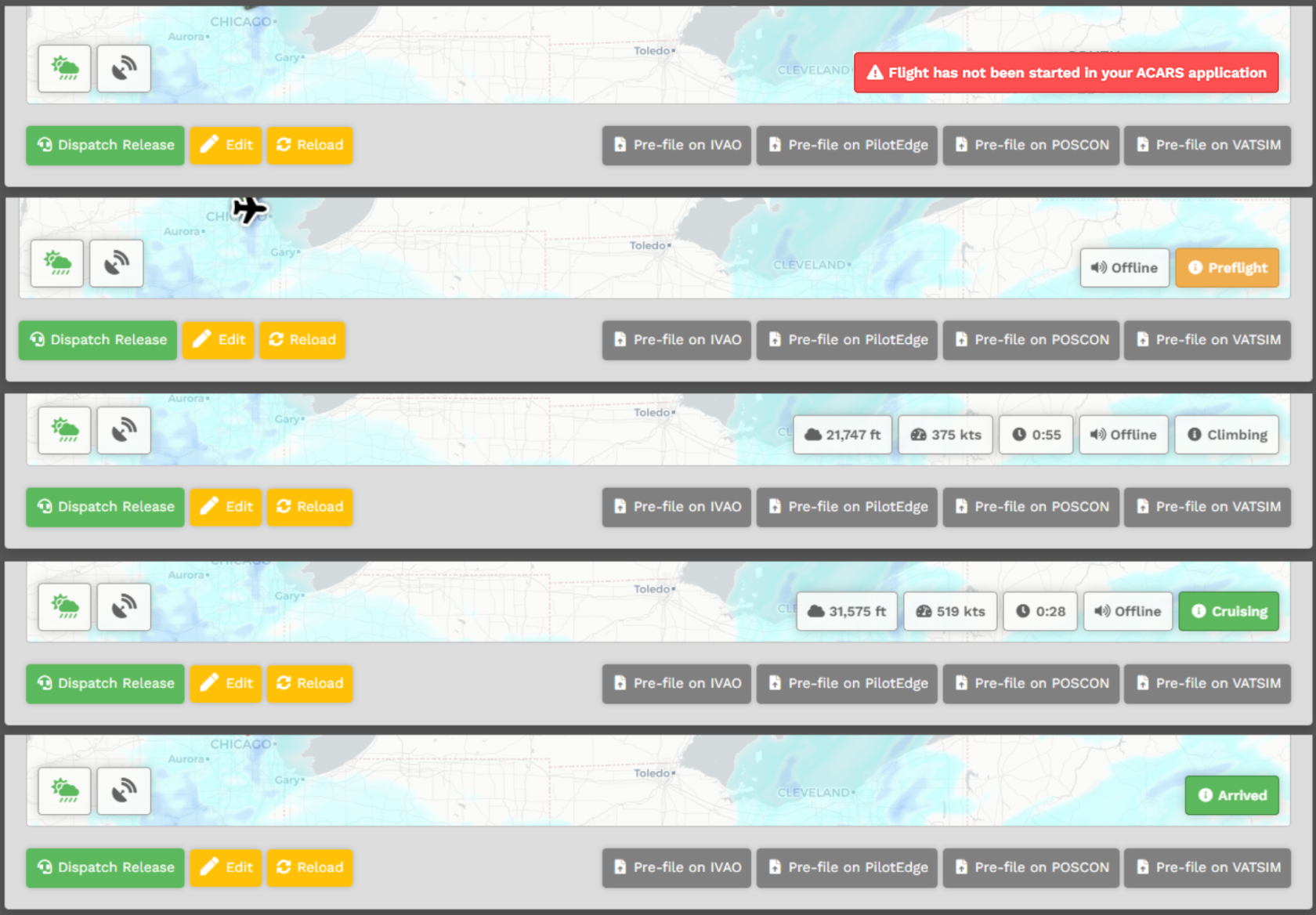
Flight Tracking – When you start your ACARS application – Stratos, smartCARS 3 or FlightTrackerXP – you'll see your aircraft on the map and it'll show your flight path as you are flying.
If you want your flights to reflect your ATC network status, you must add your Network ID(s) to your profile. If you do not, your flights and PIREPS will all be listed as "offline." Click here to read on how to set this up. |
| 2. |
Route Copy – Click the icon next to the route to copy it to your clipboard. |
| 3. |
Pre-File – These buttons take you to their respective online ATC sites with a pre-filled form to submit your flight plan. |
| 4. |
FlightAware and SkyVector – View active real flights leaving your departure airport – or – open the flight plan route in SkyVector. |
| 5. |
Dispatch Release – View the raw OFP print out. |
| 6. |
Edit – This opens |
| 7. |
Reload – After completing your OFP edit, you must click the Reload button to refresh its data in the template. |
| 8. |
Flight Status – A number of informational items regarding the real-time status of your current flight are displayed on the map.
NOTE: The data updates every 10 seconds.
|
| 9. |
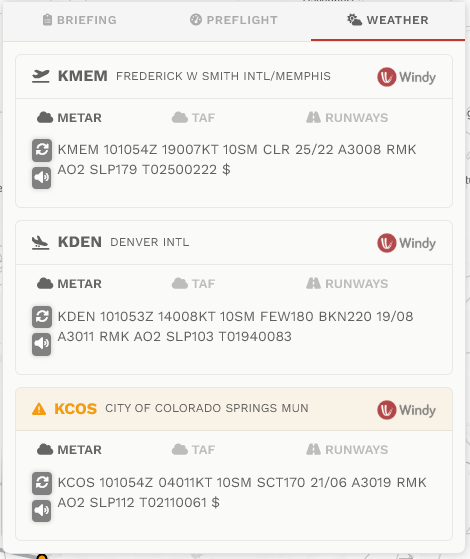
Weather and Runways This area will allow you to review the METAR, TAF, and Runway information for your departure, arrival, and alternate airfields.
In case of airports with no METAR available, we provide you with a geolocated button directing you to Windy, an external site that will provide you with the local conditions of the airport. You can access this by hitting the Windy logo at the bottom.
|
Flight has not been started in your ACARS application
This section is relevant if you use the "Import Latest simBriefSimBrief OFP" function. If you simply click the green button, you can proceed past this section.
If you see this message and you are using the "Import Latest simBriefSimBrief OFP" then you have entered incorrect information. You must fix the following information in your simBriefSimBrief OFP before you import it to the CrewCenter. Failing to do so will result in the message below showing for the duration of your flight.

Click the "Edit" button on the OFP page and ensure that the following fields match your information!
|
|
The Airline and Flight Number box must match the flight prefix and number of the flight you bid. If you are flying WAT1554, you will enter "WAT" in Airline and "1554" in Flight Number. |
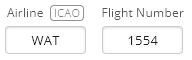
If you do not match these 2 boxes, the 'Flight has not been started...' message will remain.
Settings – simBriefSimBrief
In order to use our integration, a few things will need to be configured on the Crew Center website before you proceed.
To access your settings:
| 1 | Click your name at the top right of the Navigation Bar; |
| 2 | Scroll down and select Settings; |
| 3 | Click |
| 4 | Complete your user Username and Operational Flight Plan settings: |
|
a. Username – You must enter your |
|
|
b. Plan Format – Our default OFP plan is DAL. If you wish to use something else, choose it from the list provided. |
|
|
c. Weights – Weights for |
Settings – Operational Flight Plan (OFP)
To reflect the freedoms you have when flying for us, simBrief'SimBrief's OFP settings can be customized to your own preferences.
These are the settings usually appearing on the right side of your Pilot Briefing (before you use 'simBrief'sGenerate OFP' New Flight screen..)
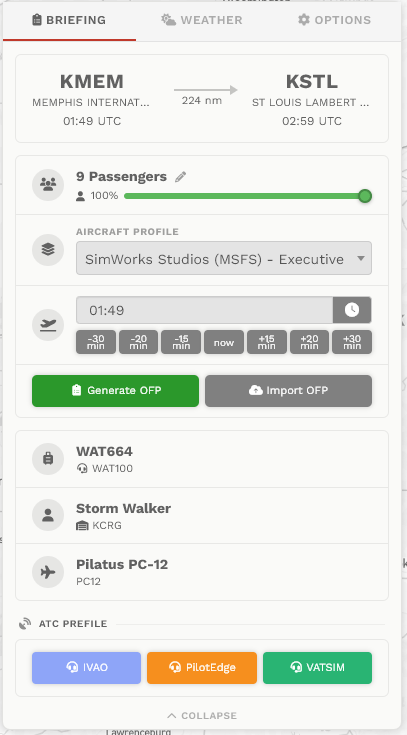
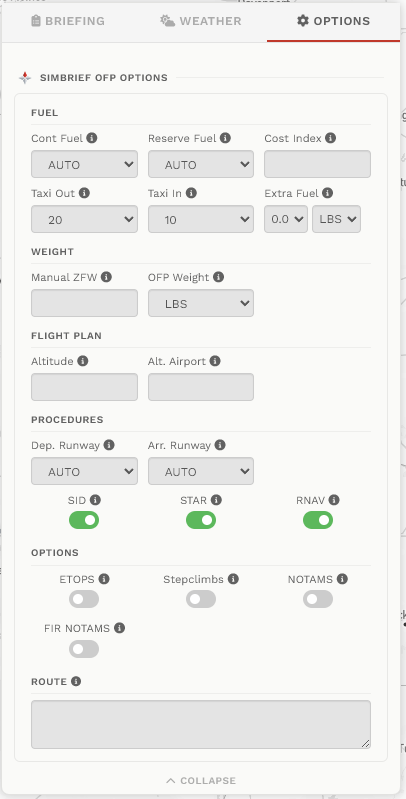
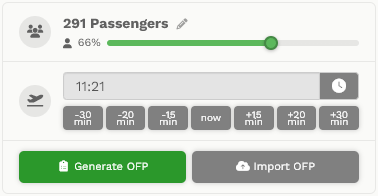
PressingAircraft theProfile cogis buttononly will show more options for your flight plan - such as extra fuel load,visible if you wanthave stepclimbs1+ custom profiles for a particular aircraft. If you have none, or not,only any1, customthis routeselection variables,box is not visible and numberyour ofsingle passengersprofile oris weightused ofby cargodefault.
If you click on Options you will be able to make changes before your generate the OFP, effectively overriding your default settings in your pilot profile.
To customize your OFP settings permanently, follow these steps.
1. Go to your Profile settings in the Crew Center website.
Click simBriefSimBrief.
Scroll down to the Operational Flight Plan section.
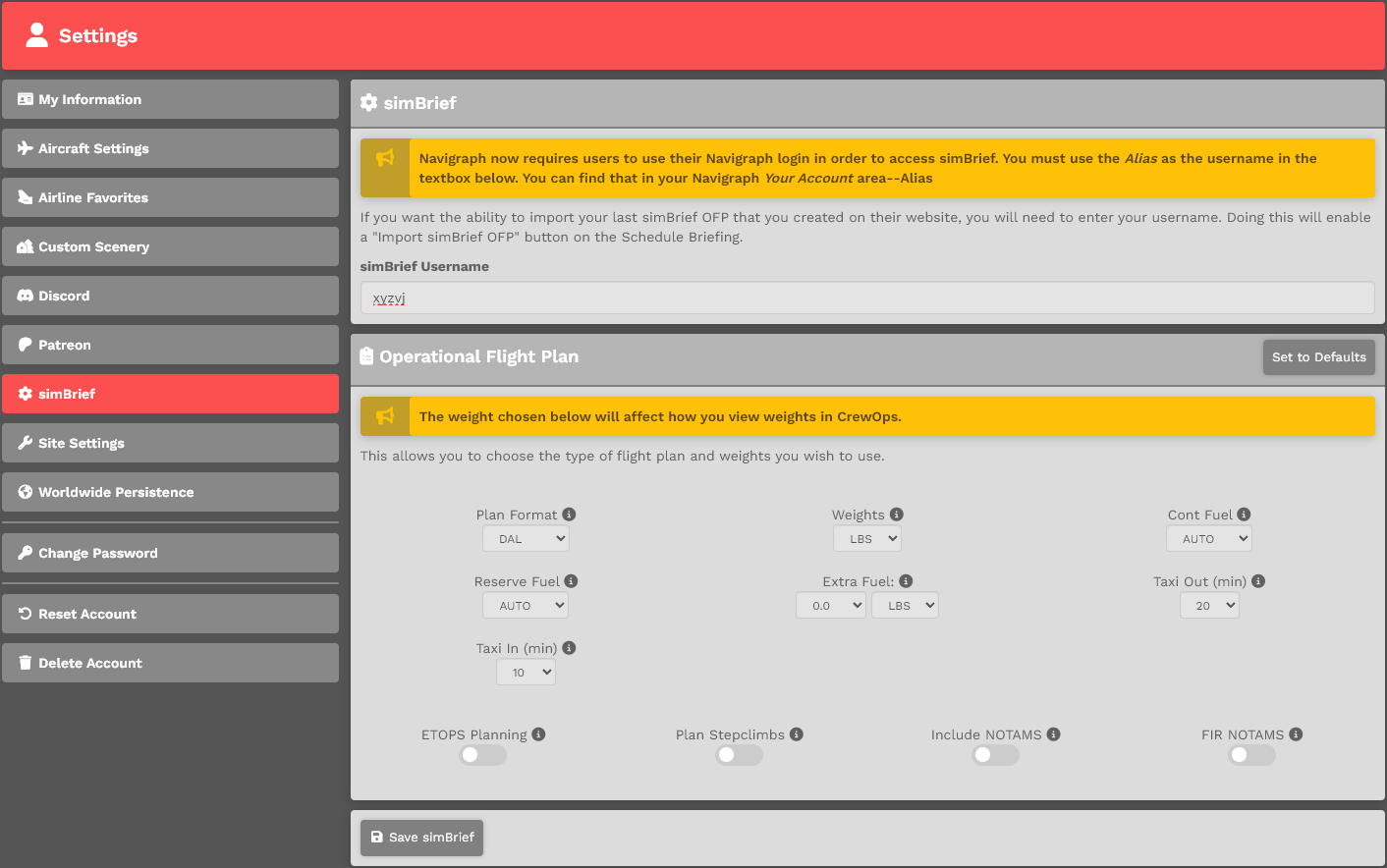
2. Make your preferred selections.
You should be familiar with all of the options shown, so their explanations will not be detailed here.
For more information, review the simBriefSimBrief User Guide.
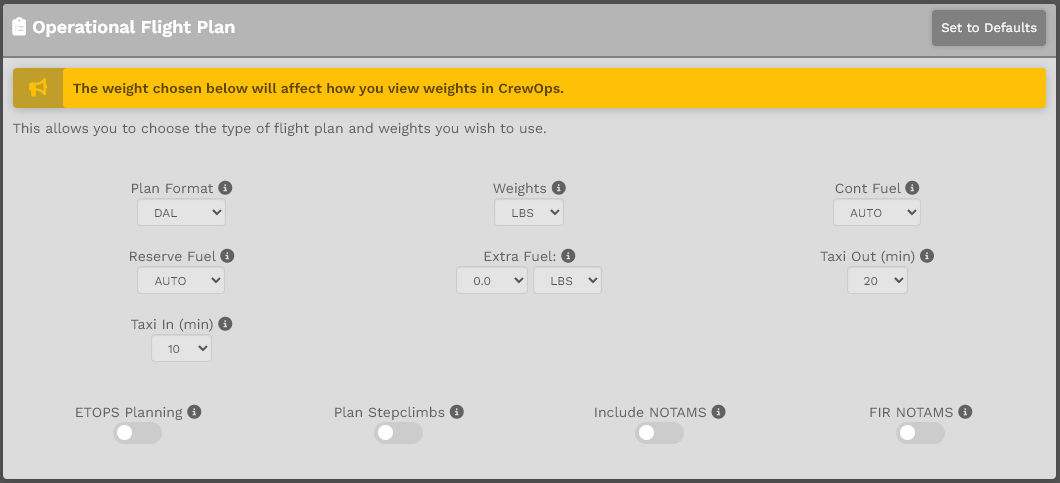
3. Once you've made your selections, scroll to the bottom of the page. Click the Save SimBrief button.
If you forget to click the Save SimBrief button, your preferences will not be saved.
How do I generate a simBriefSimBrief Operational Flight Plan?
This is the Pilot Briefing for the flight you selected. It'll provide you with your flight information, weather and a route map. The top right section of the map provides the simBriefSimBrief status – it's either Available or Not Available.
| Available | Not Available |
|
If
To learn more about Custom Airframes, scroll down to its section below.
|
If
To learn more about Custom Airframes, scroll down to its section below. |
|
|
COMMENT:
|
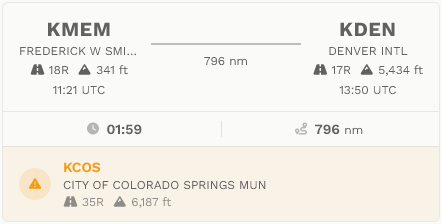
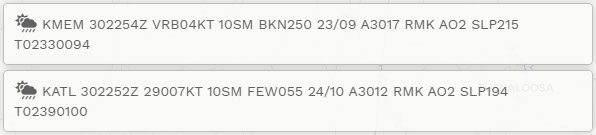
The bottom left section of the map will contain the METAR for your departure and arrival airports. If one, or both, are unavailable you'll see 'NO METAR DATA'.
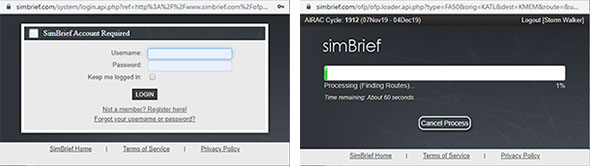
To generate your OFP, click on the 'Green Clipboard'. You'll get a popup window asking you to log into simBrief.
Click on the at top right to see the options you can modify. Once you've finished, click on the icon to return.
NOTE: If you don't understand what the option means, place your mouse over it for more information.
To generate your OFP, click on the 'Green Clipboard'. You'll get a popup window asking you to log into SimBrief.
You're logging directly into simBriefSimBrief through an API. As a result, your credentials are not transmitted through our servers.
simBriefSimBrief Import
If you entered your simBriefSimBrief Username in settings, you'll see an Import Latest simBriefSimBrief OFP option available. This allows you to create an OFP on the simBriefSimBrief website and import it back into our system so it can be viewed with our OFP template.
There are, however, a few things you must to do to enable that to happen. You must:
- generate the OFP on the
simBriefSimBrief website; - ensure Airline equals the prefix of your flight (ex. WAT); and,
- ensure Flight Number equals the number on your bid.
- ensure ATC Callsign matches your Pilot ID
|
|
The Airline and Flight Number box must match the flight prefix and number of the flight you bid. If you are flying WAT1076, you will enter "WAT" in Airline and "1076" in Flight Number. |
|
|
The ATC Callsign must match your Pilot ID in order for the same callsign to be carried over into your online flying pre-files. If you leave this blank, SimBrief will use your flight number above as ATC callsign which will not follow our online flying rules.
This does not apply to members of the Walker Patron program as they are allowed to fly any airline/callsign outside of Event flights. |
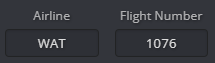
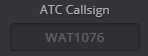
If you do not match these boxes the import process will stop and you will be notified.
Once you complete your changes, return to the Pilot Briefing. Select Important Latest simBriefImport OFP. You'll then see our Template with your updated changes.

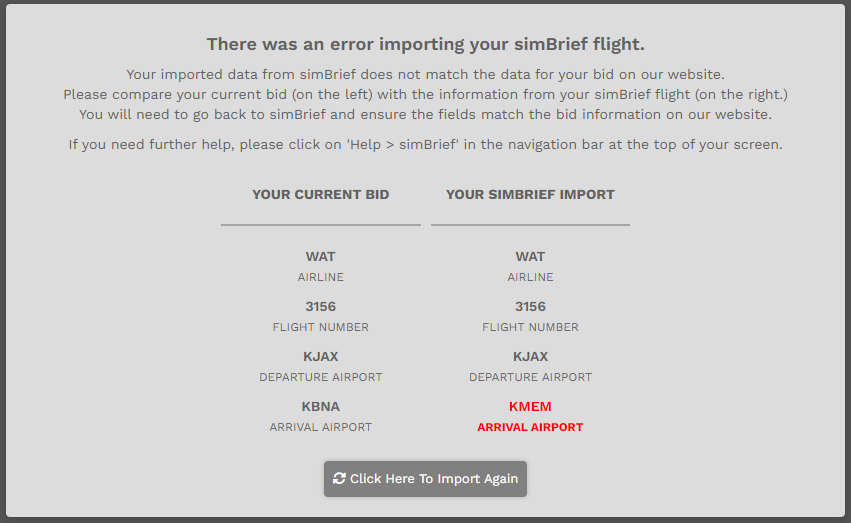
If you happen to put in the wrong information, you will be taken to an error page indicating where you made an error.
How do I access the Pilot Briefing?
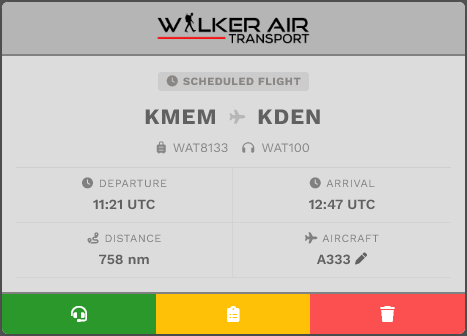
In order to access your Pilot Briefing, use the same navigation described above and select Flights > My Bids. Once there, click the Clipboard icon in the yellow box for your flight.
Returning To Your simBriefSimBrief Operational Flight Plan
If you leave the OFP page, you can return to it later. Go to My Bids. Click the Headset icon in the green box and it'll return you to the simBriefSimBrief OFP.

Custom Airframes
To learn more about the Custom Airframe system, see the simbriefSimBrief Guide (Dispatch Fleet Page).
Custom Airframes allow the flight characteristics of your aircraft to be more in-line with your performance expectations. When you generate a simBriefSimBrief Flight Plan using a Custom Airframe for a specific aircraft you've stored in the Crew Center, it will be used instead of the simBriefSimBrief default when selected for a fligtht.
These instructions will assume you've created a Custom Airframe – or have an ID from one shared with you.
Before you begin this process, determine the Fleet assignment of the aircraft for which you wish to create a Custom Airframe – Cargo, Charter or Scheduled.
1. Log in to simBriefSimBrief. Go to Dispatch > Saved Airframes.
For our example, we'll use the Daher Kodiak 100.
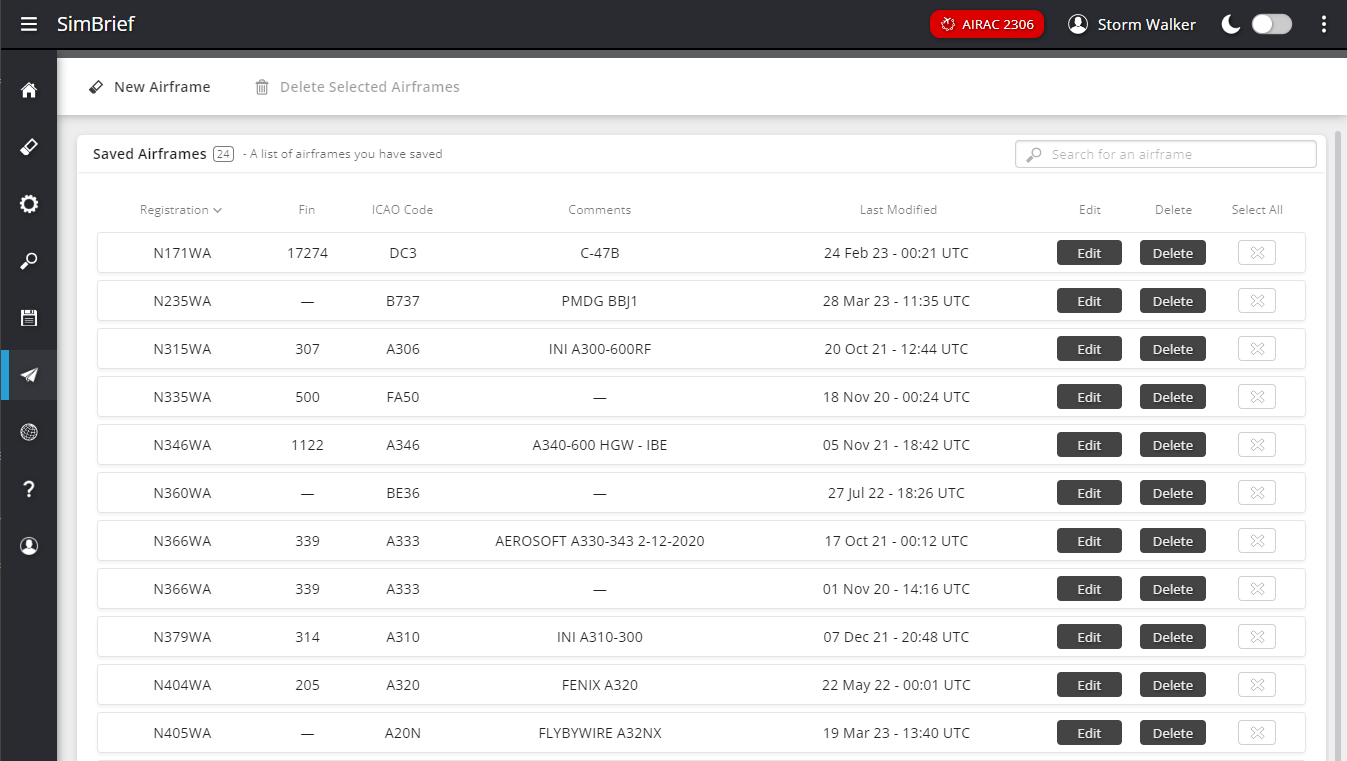
2. Click the Edit button next to the Custom Airframe you want to use.

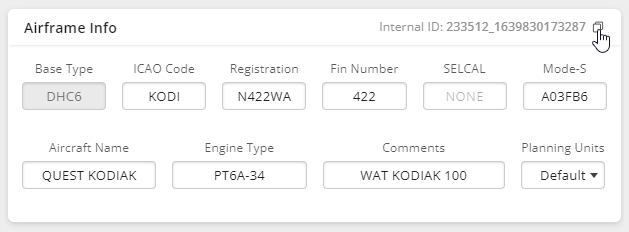
3. Copy the Internal ID from the Airframe Info, there is a handy "clipboard" button you can click.
4. Go to your Profile settings in the Crew Center website.
Click Aircraft Settings.
If you wish to read more about Aircraft Settings (and the additional options it provides), please click here.
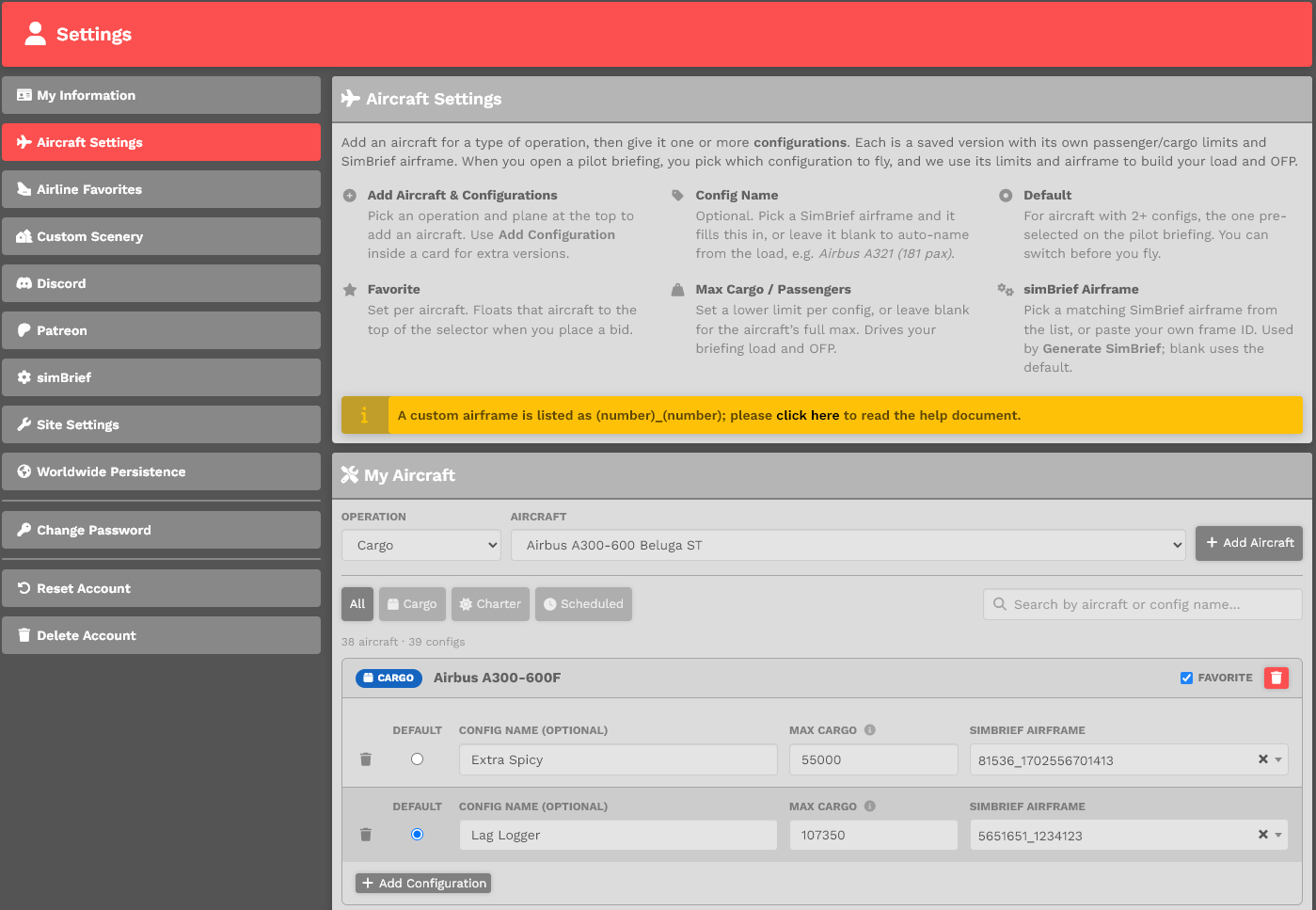
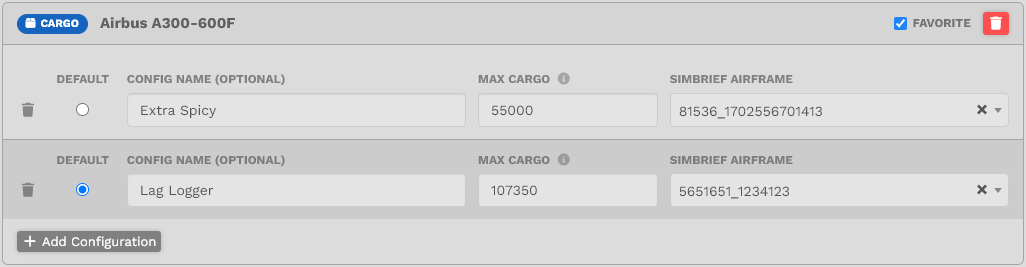
5. EachYou Companycan add aircraft isby assigned to a specific Fleet. Becausechoosing the Daherappropriate Kodiak"Fleet", isand then find the aircraft you want (if you already added that aircraft, if it will not be visible in the Charterdropdown), Fleetand (Charter Operations),then click the'+ CharterAdd tab.Aircraft' ThisYou iscan why knowingsearch the FleetAircraft assignmentdrop ofdown yourto aircraftmake isit important.
quicker.
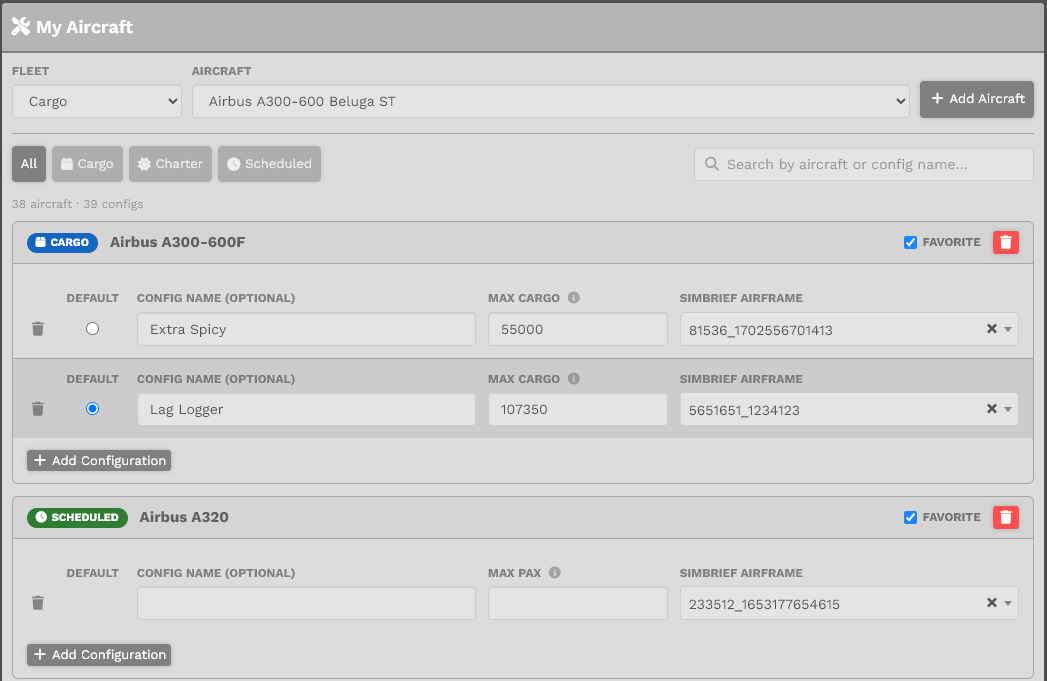
6. LocateYou yourcan choose to favorite the aircraft in(places the listing. Please note: that favorited aircraft at always locatedit at the top.top Inof theyour Textbid Boxaircraft selection group under the"Favorite columnAircraft", simBriefcreate Airframe,multiple pasteprofiles thewith Internalconfig IDname, youmax copiedload in(it Stepwill 3.either be cargo, cargo/passenger, or just passenger), and your SimBrief airframe.
7. Scroll to the bottom of the page. Click the Save Aircraft Settings button.
If you forget to click the Save Aircraft Settings button, your Custom Airframe will not be saved.