
Overview
When on the Crew Operations website, zoom in or out as necessary to better view the details presented there.
The Crew Operations website – also known as Crew Ops – is the place from which all activity flows at Walker Air Transport.
Here, we'll get you logged in so you can explore all of its features and functionality – and perhaps even surprise you by the wealth of information available to you. By knowing what's within the site, we know you'll be better positioned to enjoy your experience with us.
Within this document, we'll explore the sections of the Navigation Bar at the top of the screen and each of the areas beneath it.
What you see below, in a zoomed out view, is what opens after you log in to the Crew Ops website.
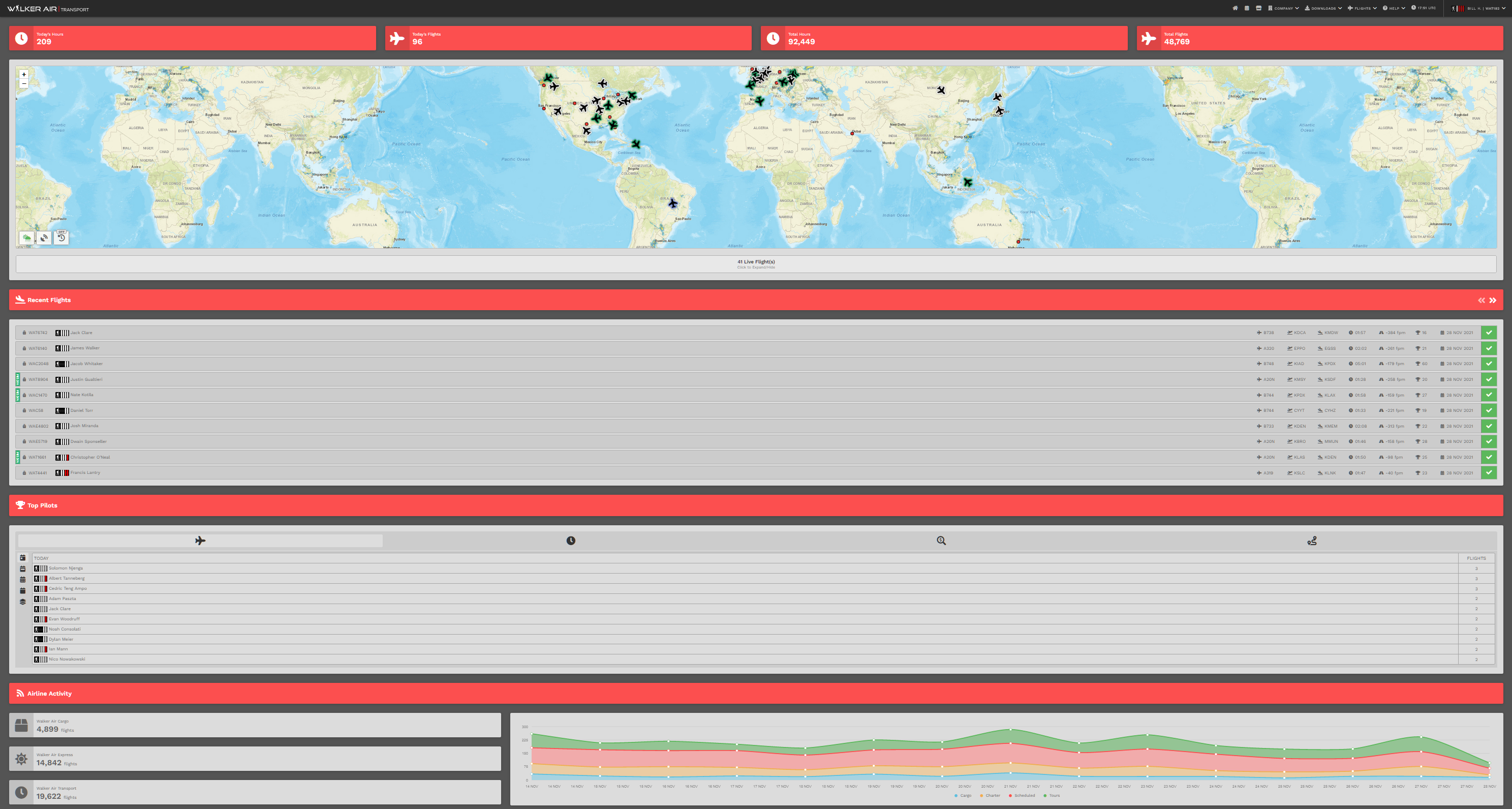
Let's dive in...
Logging In
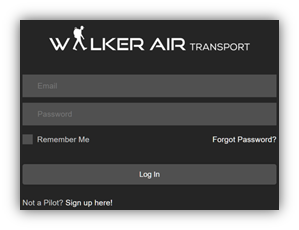
Before you can begin flying with us – and in order to proceed with this orientation process – you’ll need to login as a Crew Member by clicking Crew Login in the website’s Navigation Bar. If you’ve already done that, then skip to the next item.Link: https://walkerair.us/

If you've not already done that, then follow these steps:
Getting Familiar With The Website | Upper Section
Return to the HOME page from anywhere within the website by clicking the Walker Air Transport logo at the top of each page.
Home
After clicking the Log In button, the Crew Member | HOME page opens. From here, you have full access to the website’s vast features and functionality. To return to the HOME page at any time, click on the HOME icon – or – the Walker Air Transport logo in the Navigation Bar.
On the right side of the Navigation Bar, you’ll see these items across the top of the screen.

By clicking on an item in the Navigation Bar, its contents are revealed. The contents – some of which are drop-down menus – may be seen in the following illustrations.
Let’s explore each one in some detail…
Events
|

This is the Events page. Here, you‘ll see a schedule of Company-sponsored events taking place in the month indicated. Scroll as necessary to see what’s available for the month you’ve selected.
Click on an entry to learn more about it.
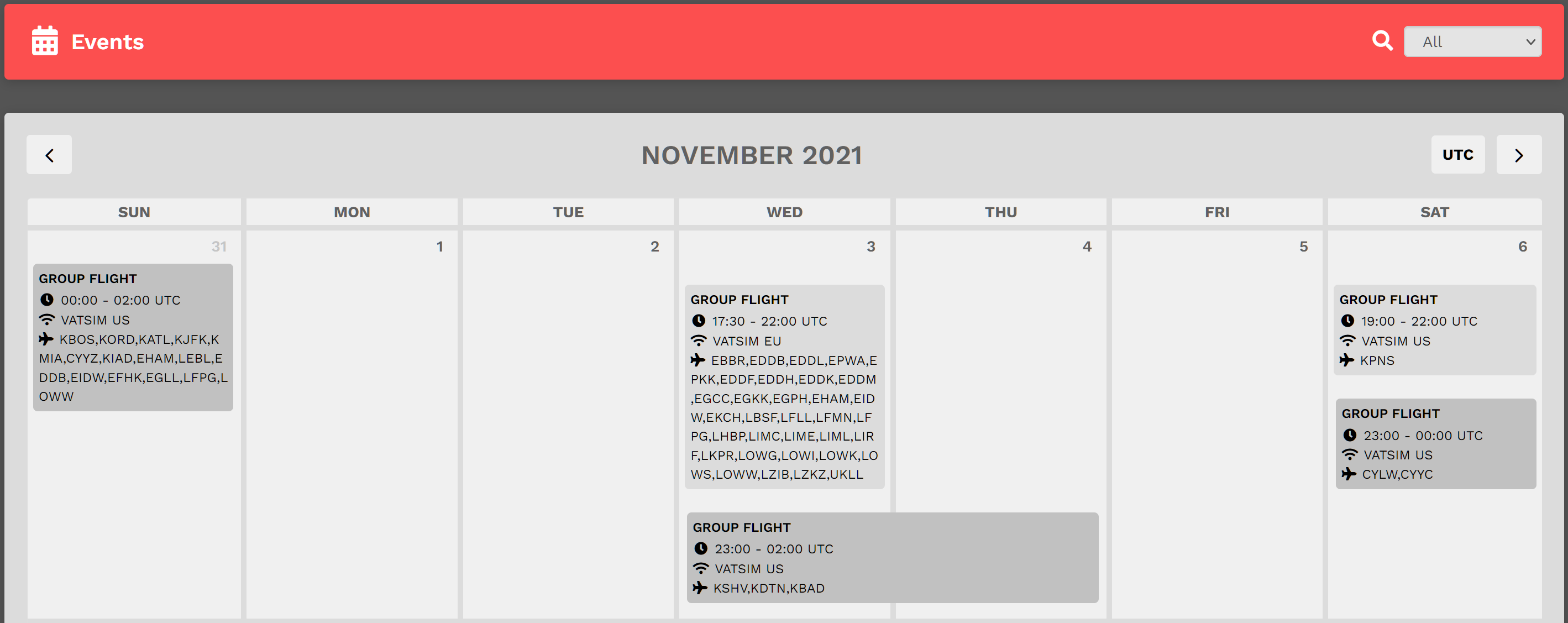
By clicking on an Event, its details will appear. This is the upper section of what appeared after clicking on the VATSIM US flight scheduled for Wednesday, 3 November.
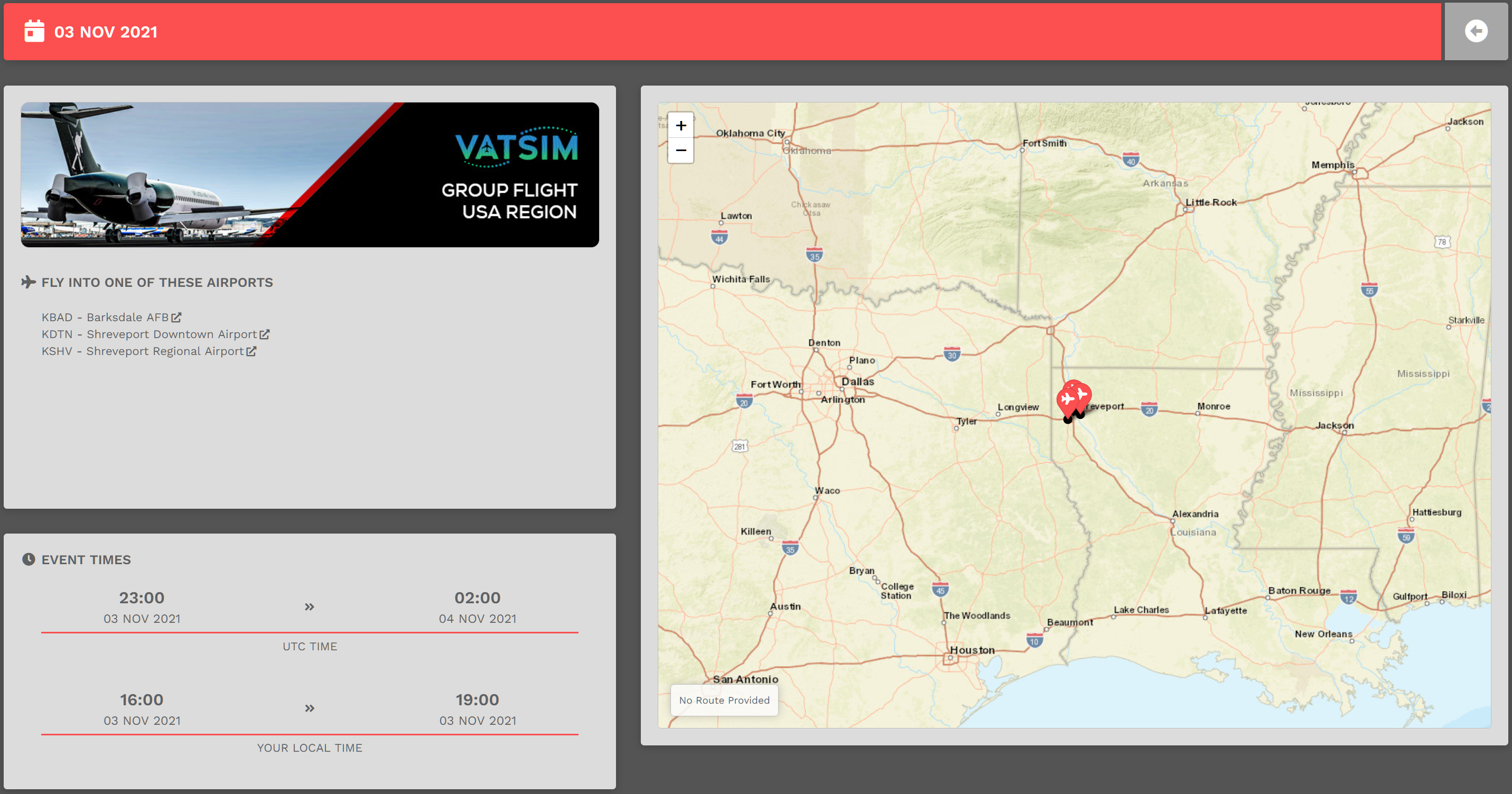
This is the lower section of what appeared – and on your screen, you may need to scroll down to see all of it.
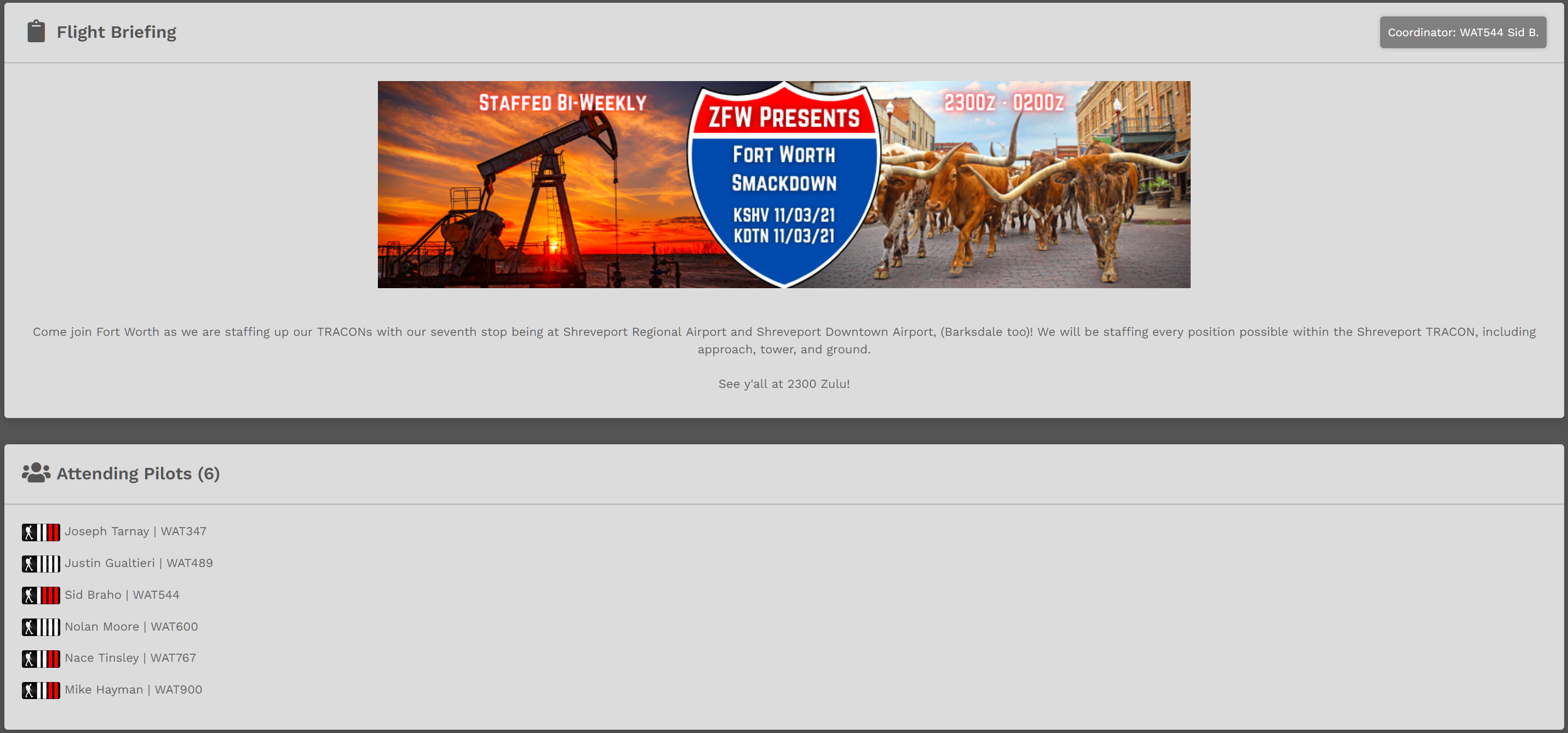
To fly the Event, you must complete a Bid. Instructions on how to do that for a Cargo, Charter and/or Scheduled flight can be found at this link: https://docs.walkerair.us/books/help/chapter/flight-operations
The Company Store
The Company Store closed on 1 January 2022. Because it may re-open at a future date, this section will remain a part of our Orientation.
 |

Company
|
This page contains information about the Company’s three [3] Airlines/Fleets:
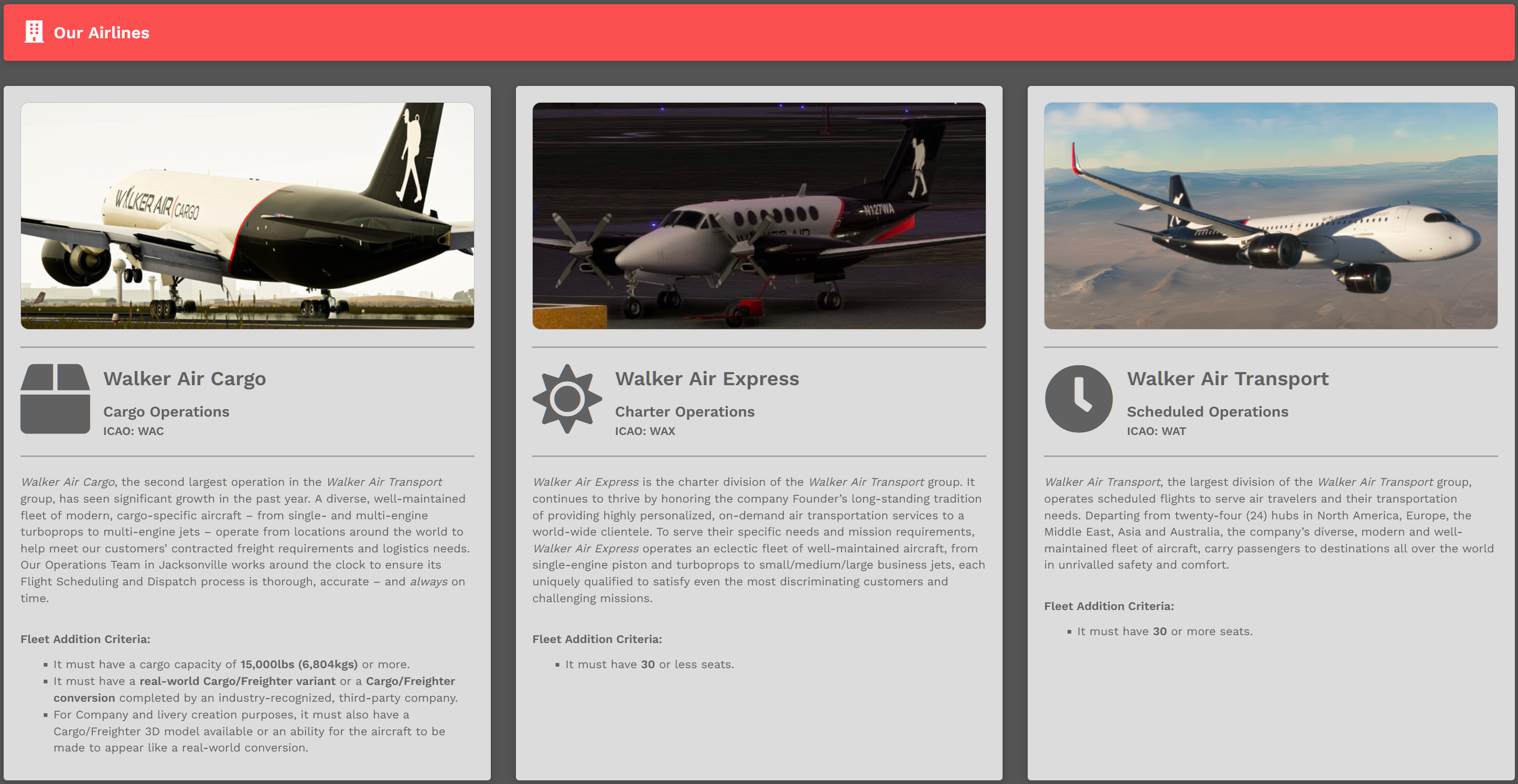
At the bottom of each of these descriptions, you'll see the criteria we use to add new aircraft to it. Should you ever request a Fleet addition, keep them in mind.
There are multiple areas within this page you may find helpful when planning flights.
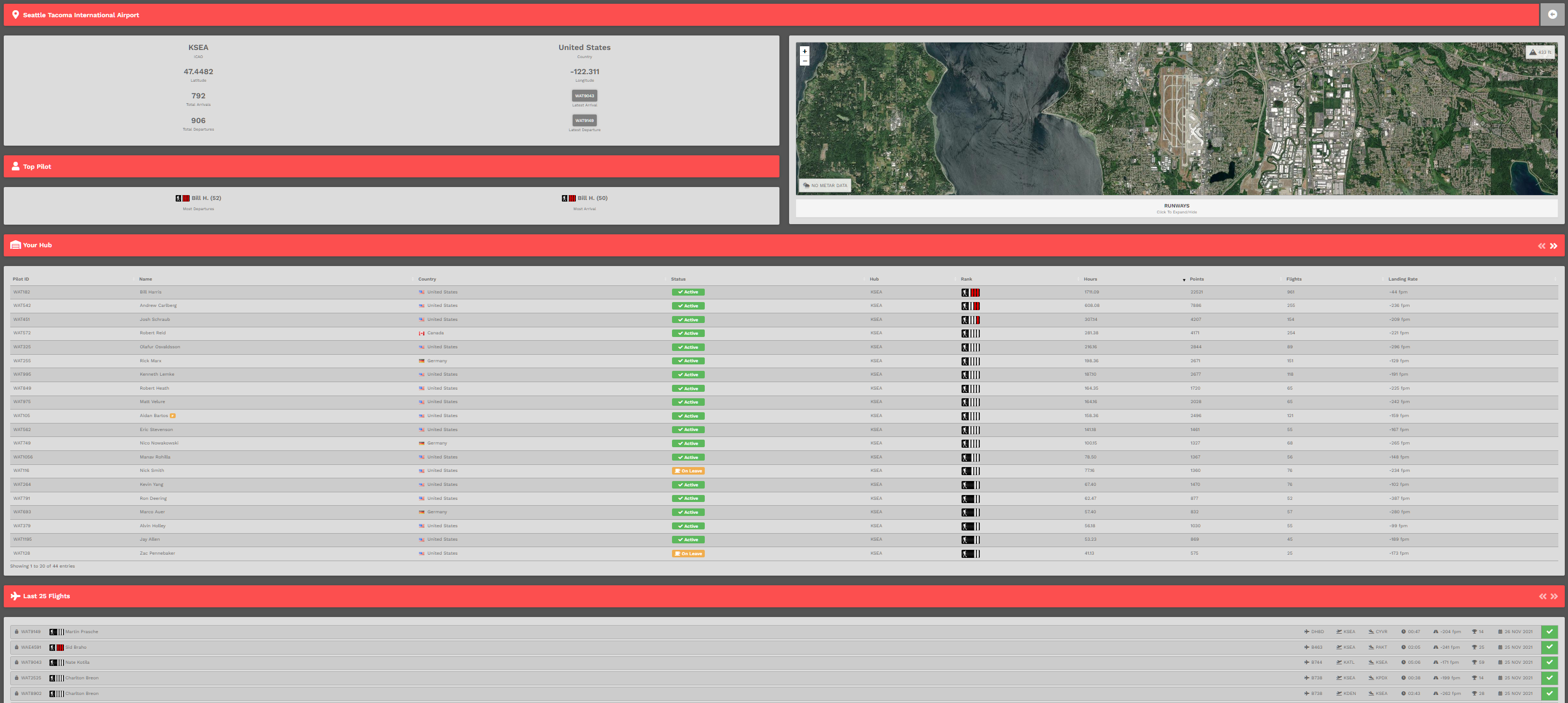
Let's take a closer look at each of this page's areas...
This is the Airport Search Area. Enter an airport’s name or ICAO Code in the Text Box and view detailed information about its activity.

EXAMPLE: KSEA | Seattle Tacoma International Airport
Type KSEA in the Text Box and touch Enter.

This is the Page Identification Bar. Here, it shows the name of the airport who's information is displayed.
To return to the Airports page at any time, click the arrow icon in the grey box at the right end of the Bar.

This is the Airport Details area.
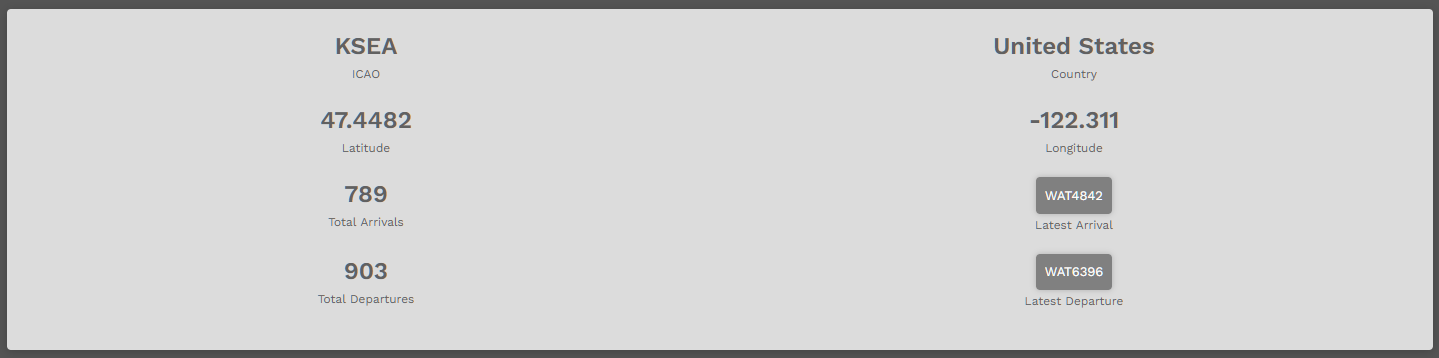
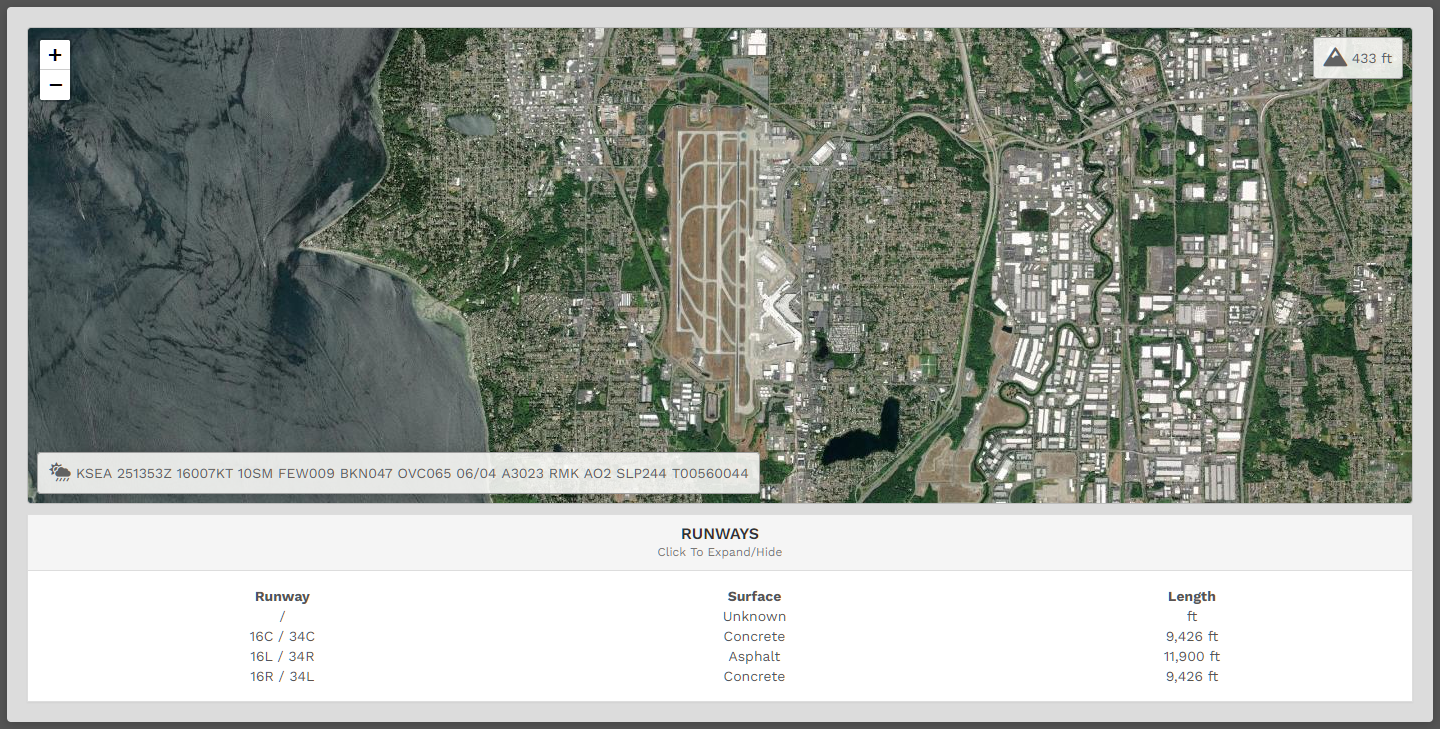
This is the Map View. The Runways | Click To Expand/Hide area is also illustrated. In addition to an overhead view, the airport's field elevation and current METAR are shown.
This is the Top Pilot area. The name of the Company Pilot with the greatest number of Departures and Arrivals at this airport will be noted here. In our example, the Pilot for each just happens to be the same. That will not always be the case.

To view a Top Pilot's Profile/Logbook, click on their name.
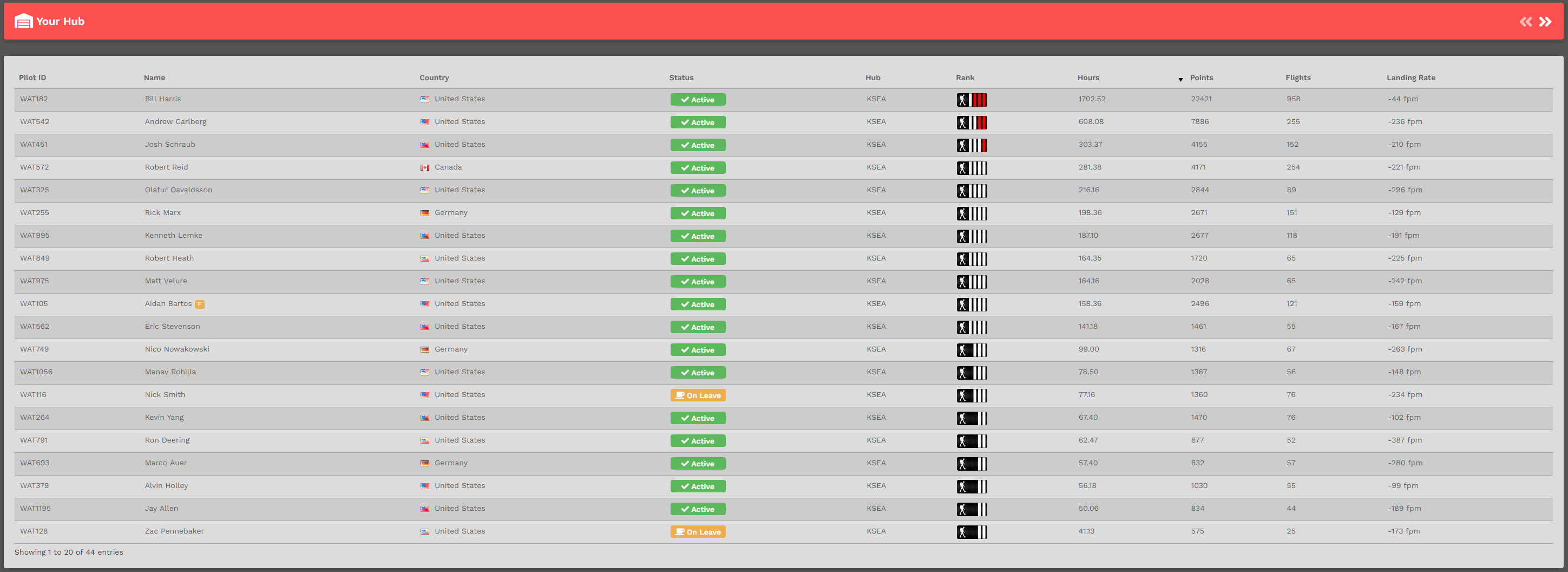
OPTIONAL :: KSEA is a Company Hub – and for each of them, there's a Your Hub area. This area, however, does not exist for non-Hub airports. Here, the stats for all Pilots assigned to this Hub are displayed, 25 Pilots to a page. Because there are more than that number assigned here – as noted by the 'Showing' verbiage in the lower left corner – you'll have to click the chevrons on the right end of the Title Bar to see them all.
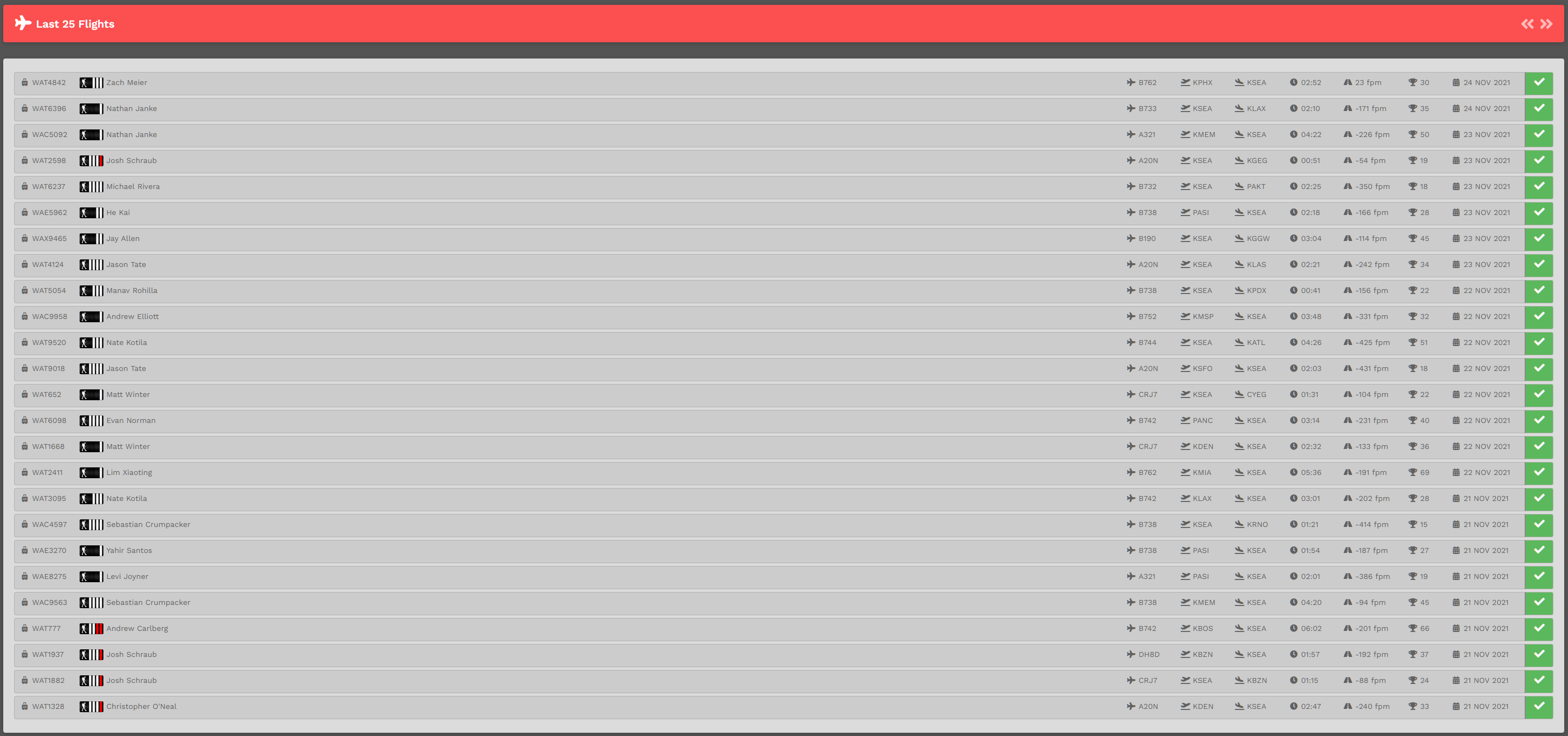
This is the Last 25 Flights area.
To see more detail about any of these flights and/or the Pilots flying them, click the Flight Number, Pilot Name or Colored Box at the end of a row.
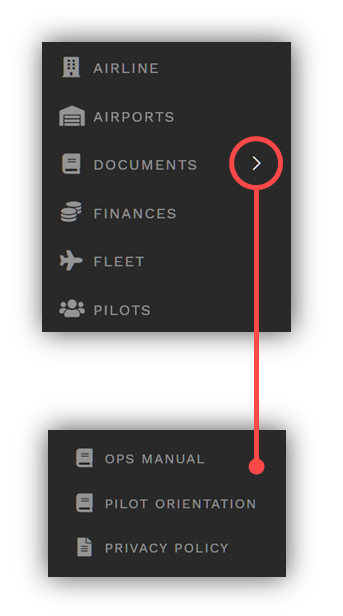
Clicking the chevron [red circle in the original image at the top of this section] will open a sub-menu containing links to the documents noted below. Click on the document’s name in the menu to open it.
Operations Manual | Pilot Orientation | Privacy Policy
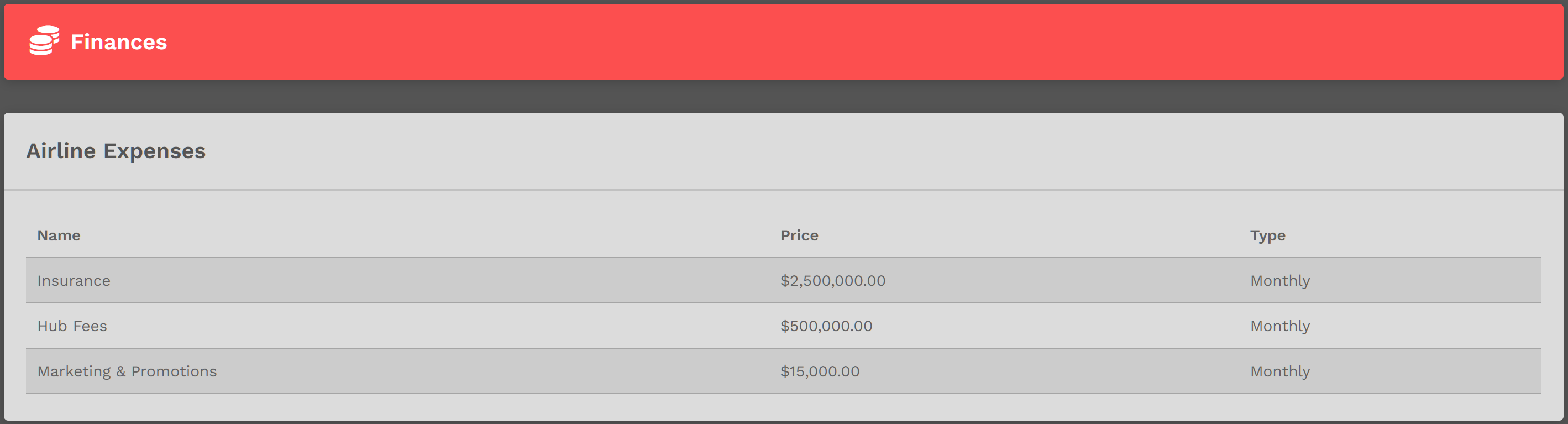
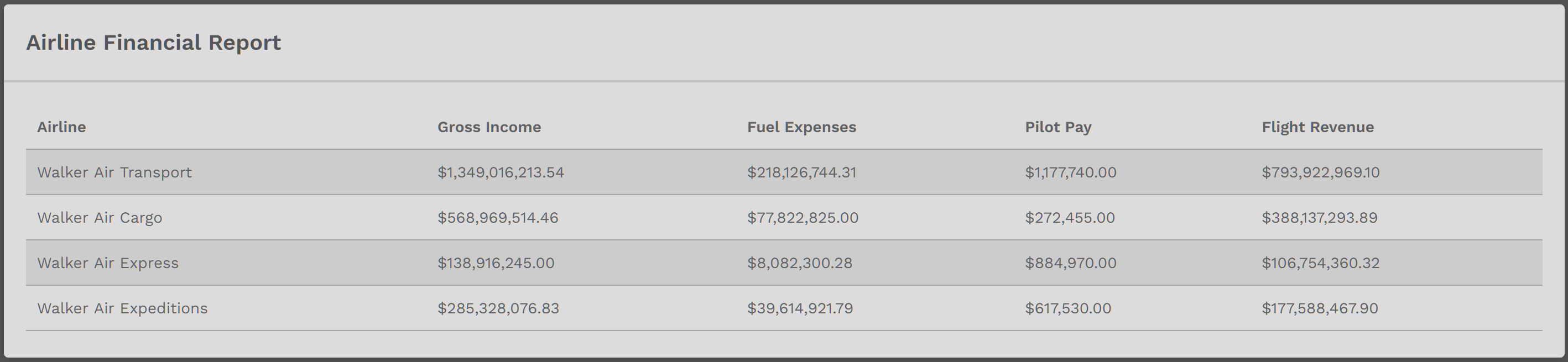
There are five [5] sections on this page, each providing a perspective on financial performance – of the Company and you.
These three [3] are at the Company Level.
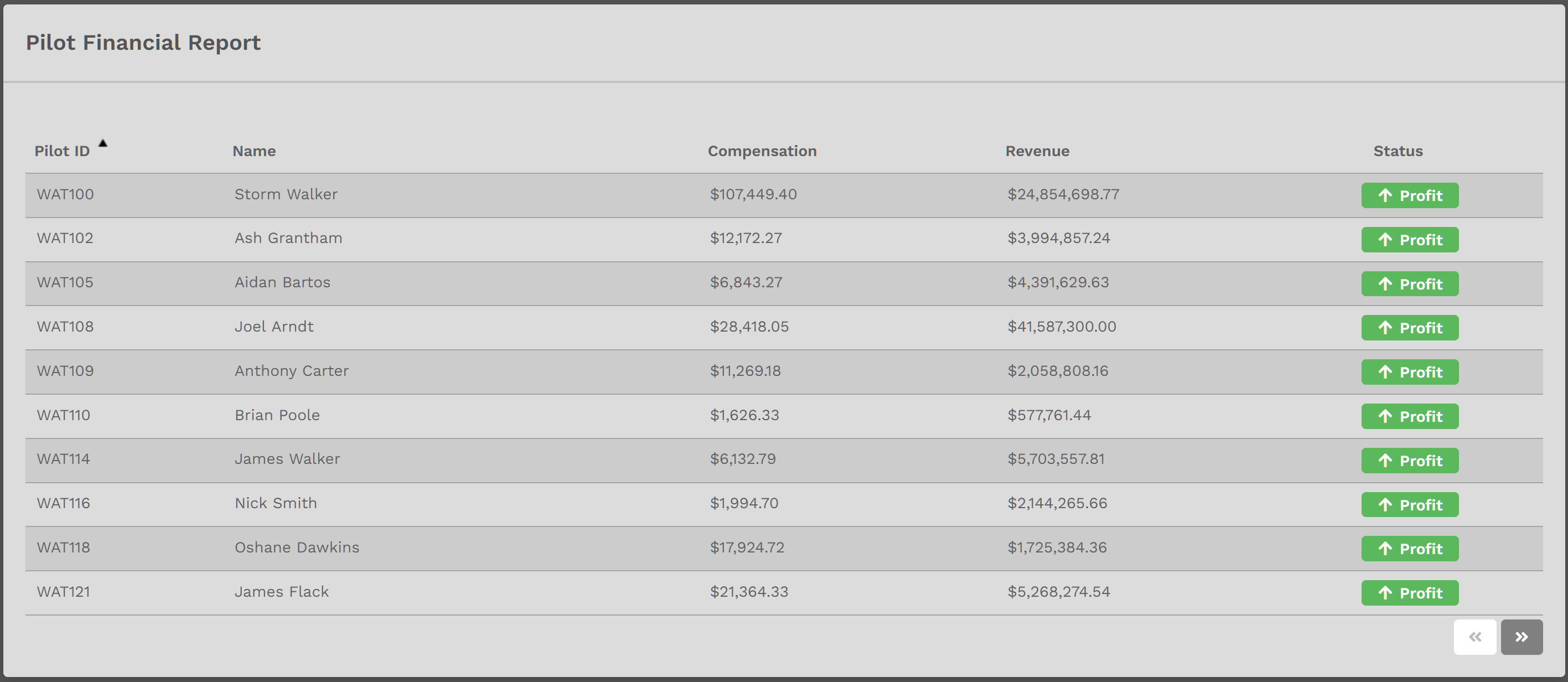
In the Pilot Financial Report, a Company Pilot's totals-to-date for Compensation and Revenue are noted.
The list can be sorted. Click on the column header to do so. To return to the default view, refresh the page – or – click the Pilot ID column header.
Click on a Pilot's Pilot ID to view their Profile/Logbook.
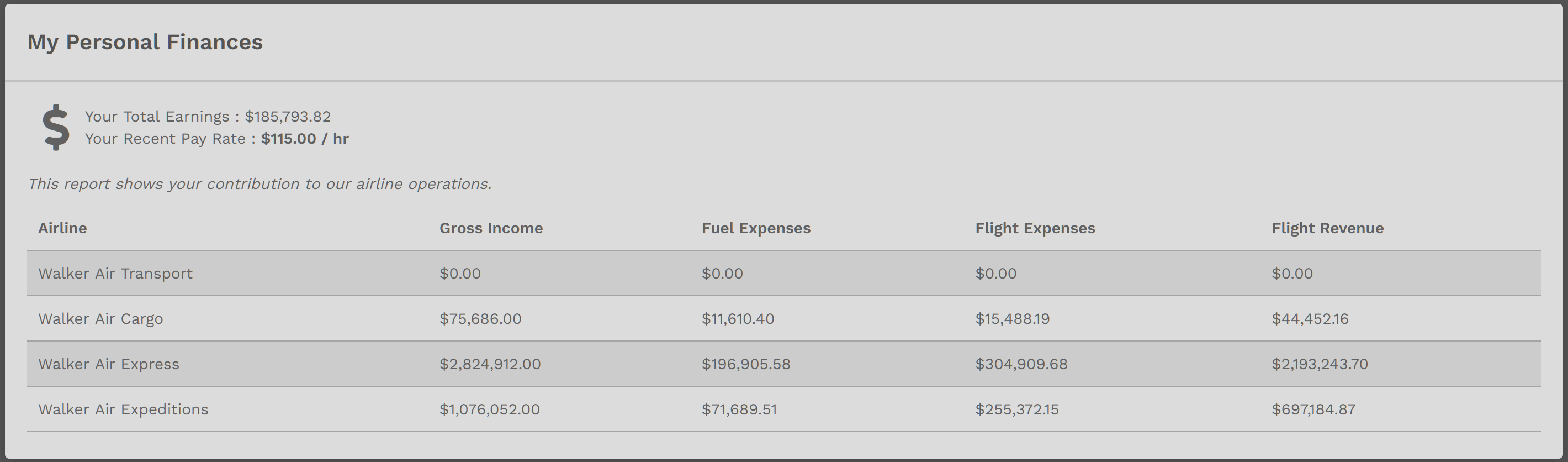
These two [2] are at the Personal Level.
In addition to your Total Earnings, you'll also see your Pay Rate and financial performance for flights you've completed in each of the Company's Airlines/Fleets. In this example, the Pilot has not flown any Walker Air Transport flights; hence, the reason why the row shows no figures.
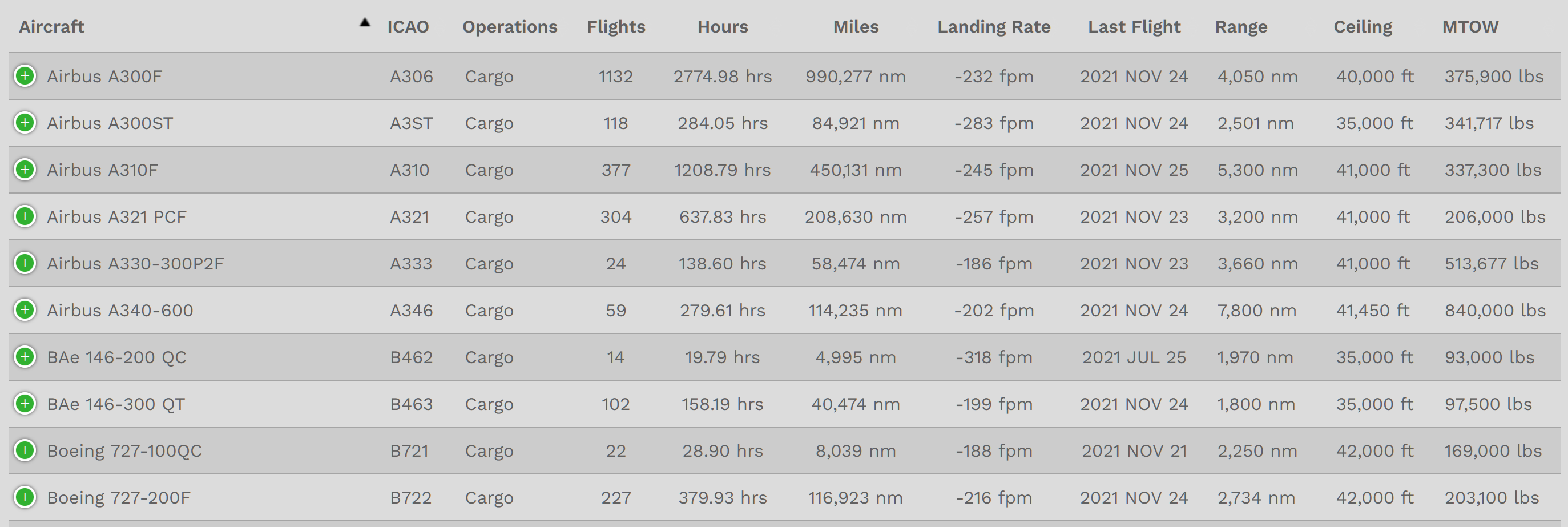
This is a listing of all aircraft in the Company’s three [3] Fleets containing operational details about each one.

It can also be sorted in any of these ways noted in the graphic below. All is the default. Select any other Fleet Name from those in the drop-down to view only those aircraft in that Fleet. Your choices are as follows:
All | Cargo | Charter | Scheduled
These are the Average Landing Rates for all aircraft in their respective Fleets.

These are the stats available for every Company aircraft. What's shown below are all aircraft in our Cargo Fleet.
The list can be sorted. Click on the column header to do so. To return the to the default view, refresh the page – or – click the Aircraft column header.
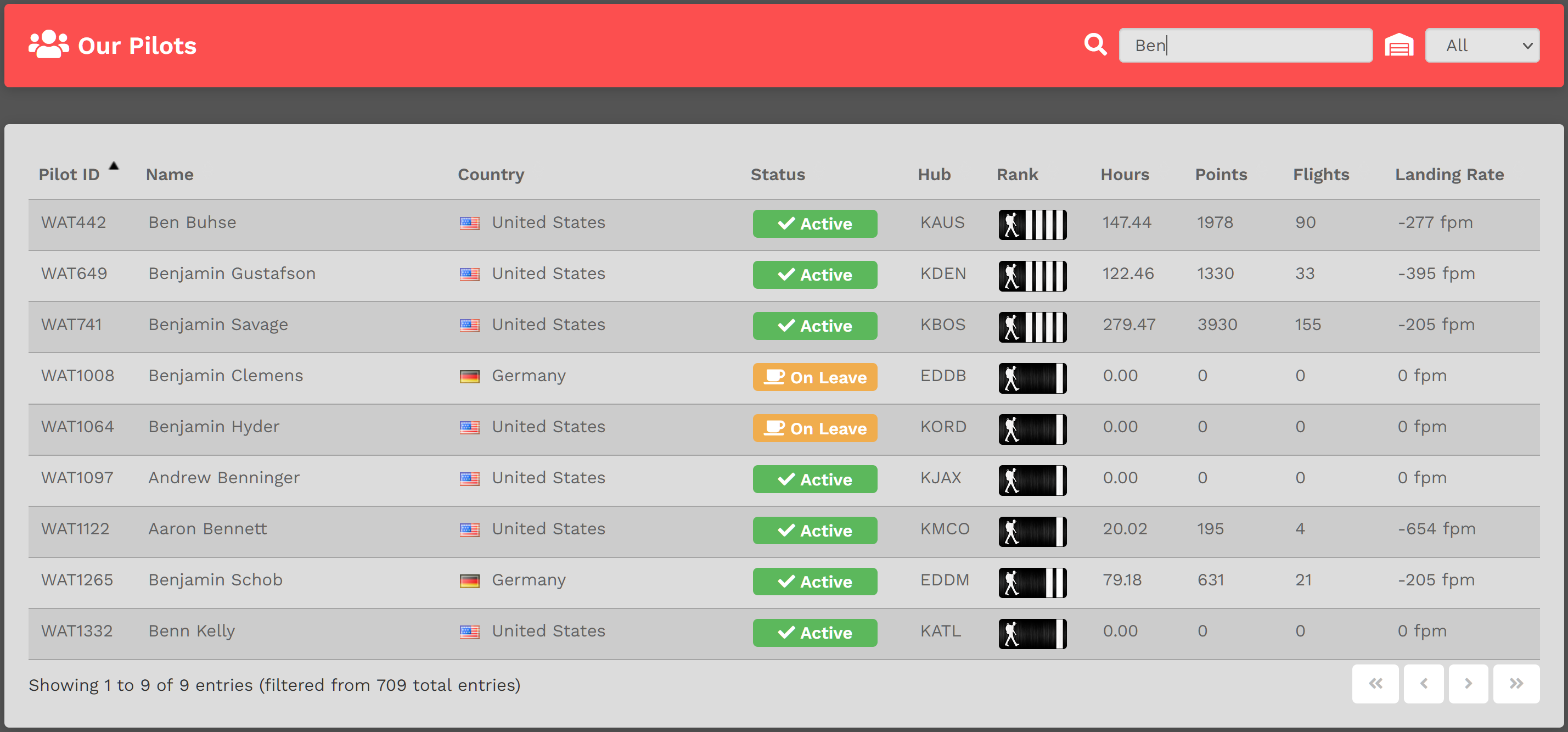
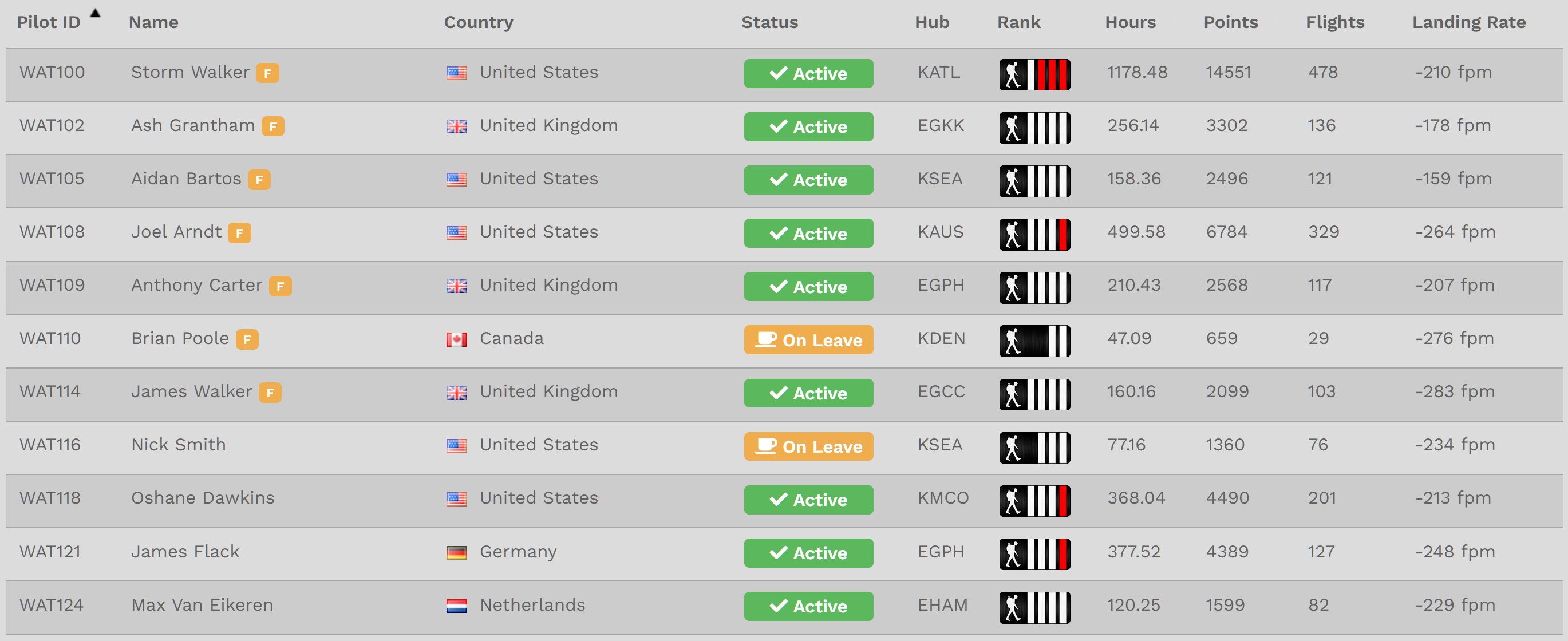
The Our Pilots page is a listing of all Company Pilots on Active and On Leave status.

To search for a specific Company Pilot, in the Text Box to the right of the magnifying glass icon, enter as many letters of their First Name or numbers in their Pilot ID as you can until the one you're seeking appears in list beneath it. In this example, Ben was entered and these results were produced.
If you wish to see all Pilots assigned to a specific Hub, click the down arrow in the area to the right of the hanger icon to reveal your choices in a drop-down menu. Click on the desired Hub. A list of Pilots assigned to it will be produced.
The list can also be sorted. Click on any column header to do so. To return the to the default view, refresh the page – or – click the Pilot ID column header.
Downloads
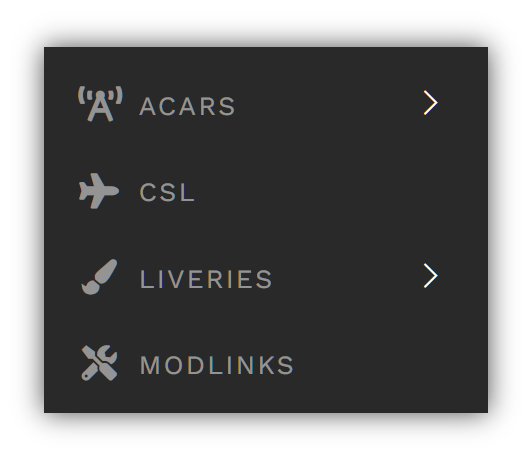 |
In Downloads, you can obtain the software and liveries you’ll need to operate your Company aircraft. Click on any item for details on what it is and how to download and install it.
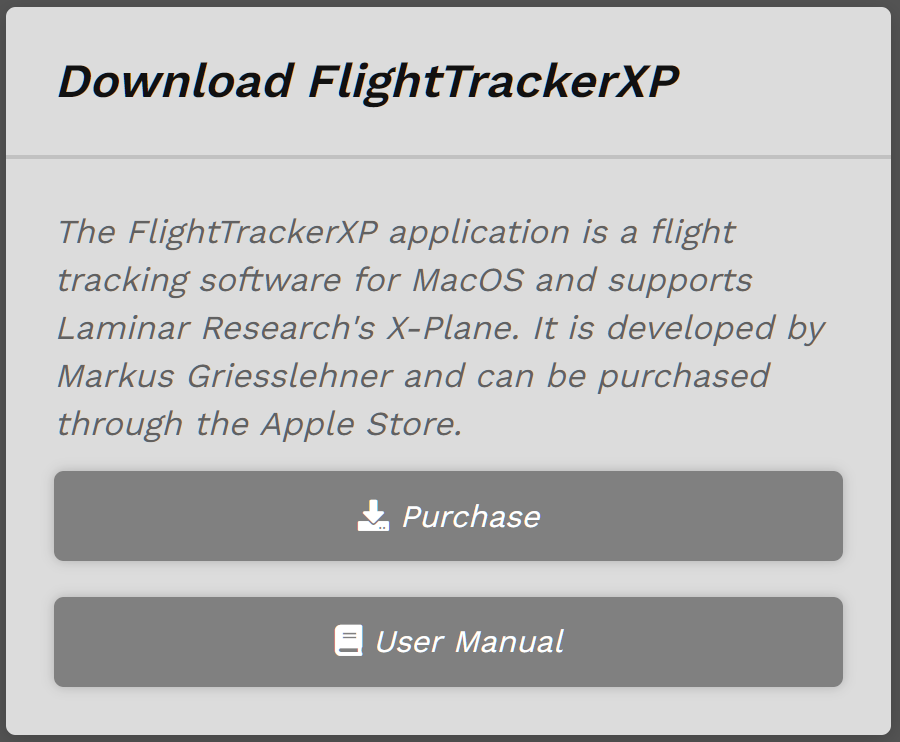
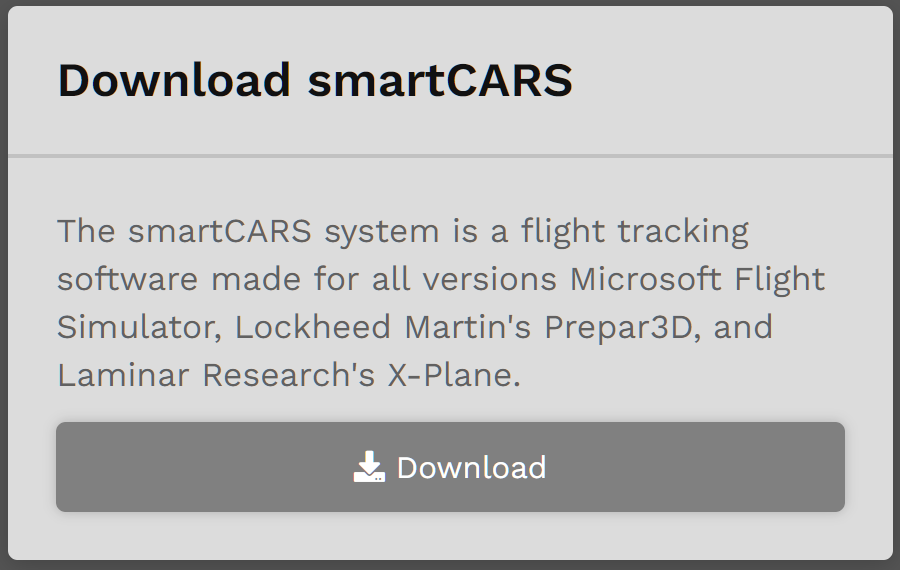
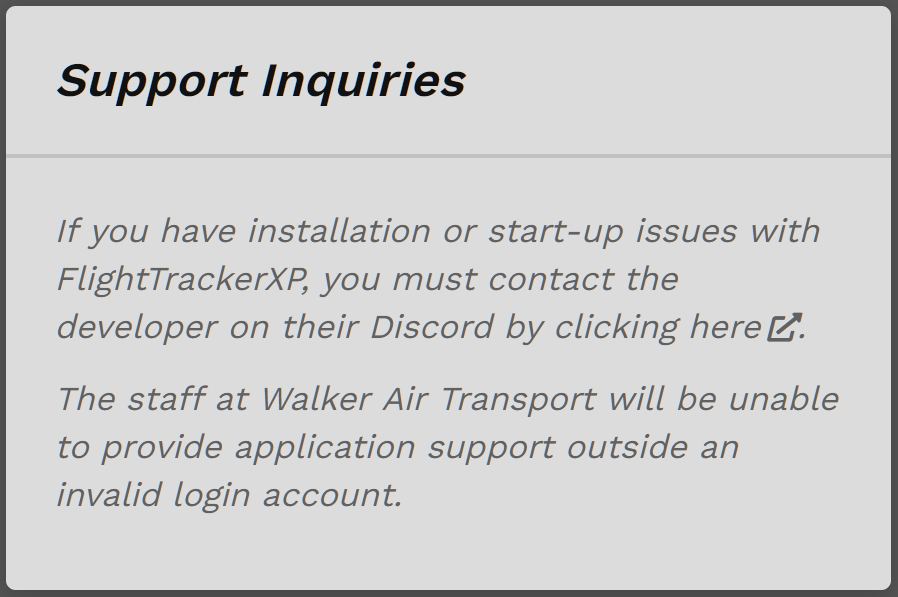
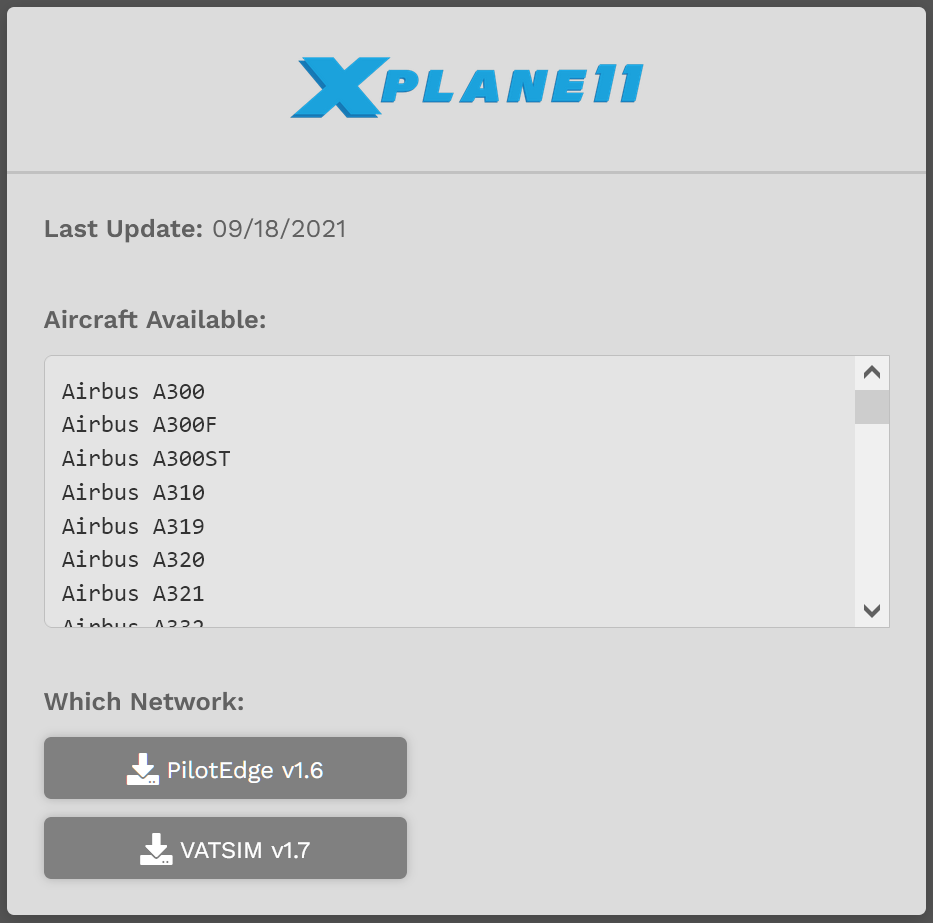
In order to fly with us, you'll need to download Flight Tracking Software. Click on the one your System/Flight Simulator requires and follow the prompts.
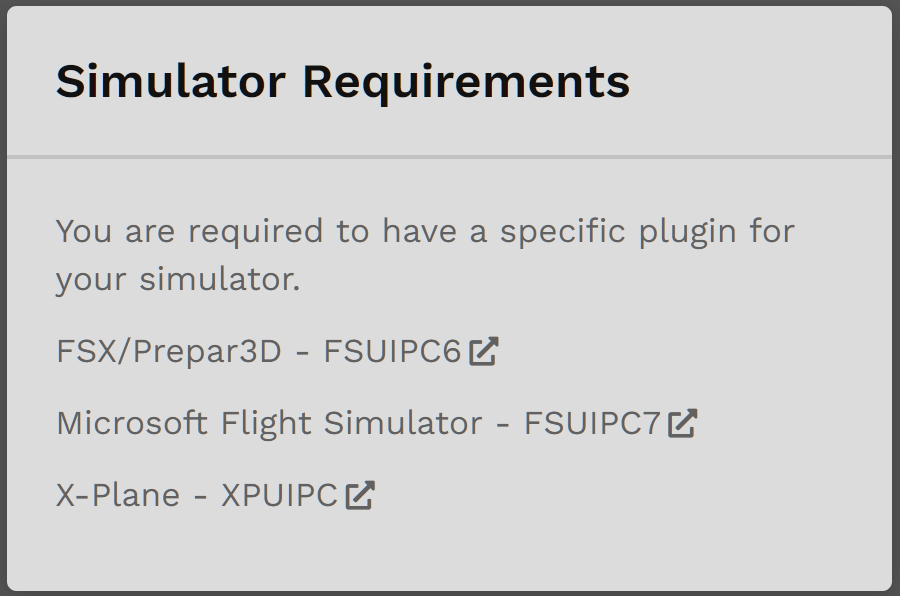
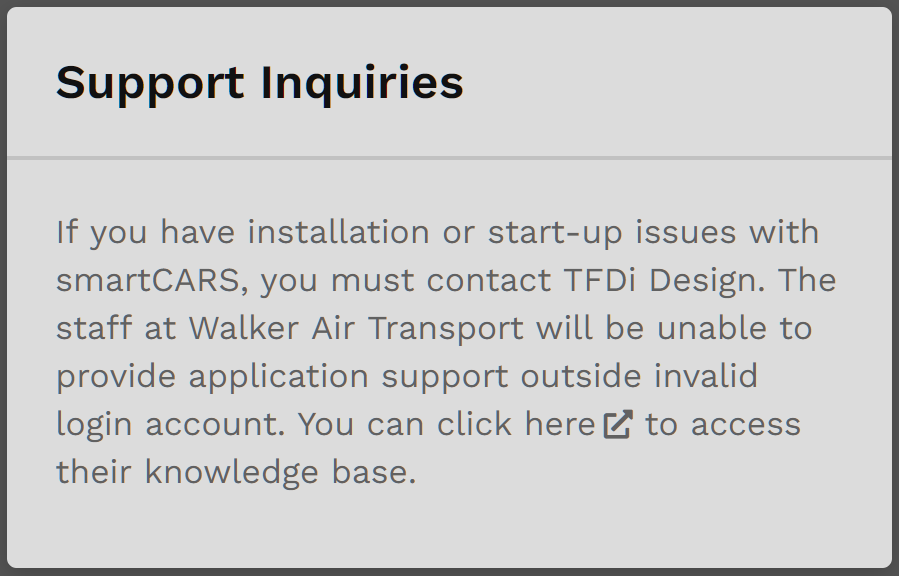
Once installed, it'll need to be configured. That topic is covered here.
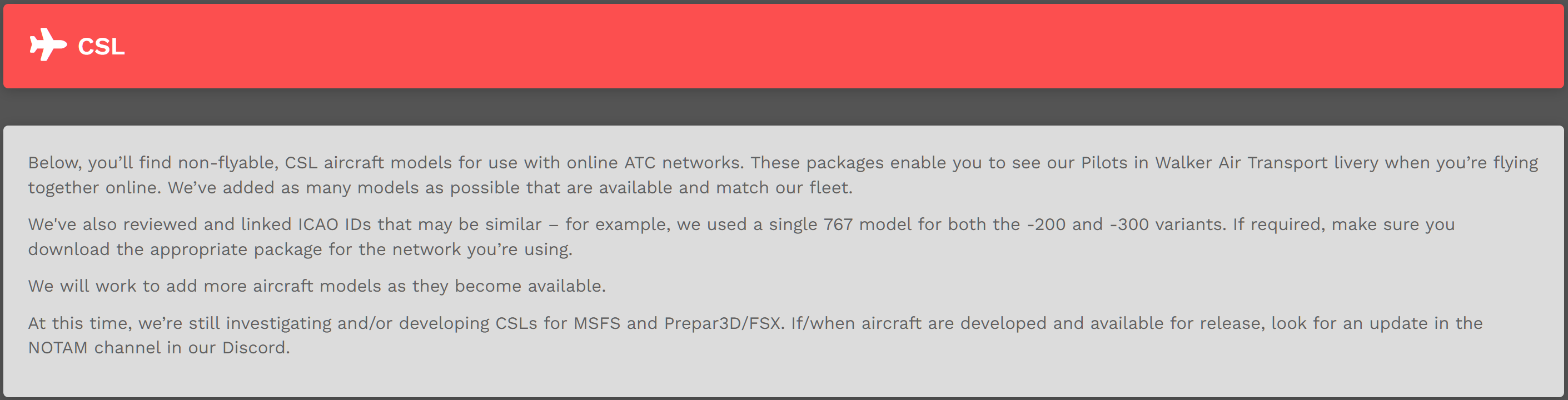
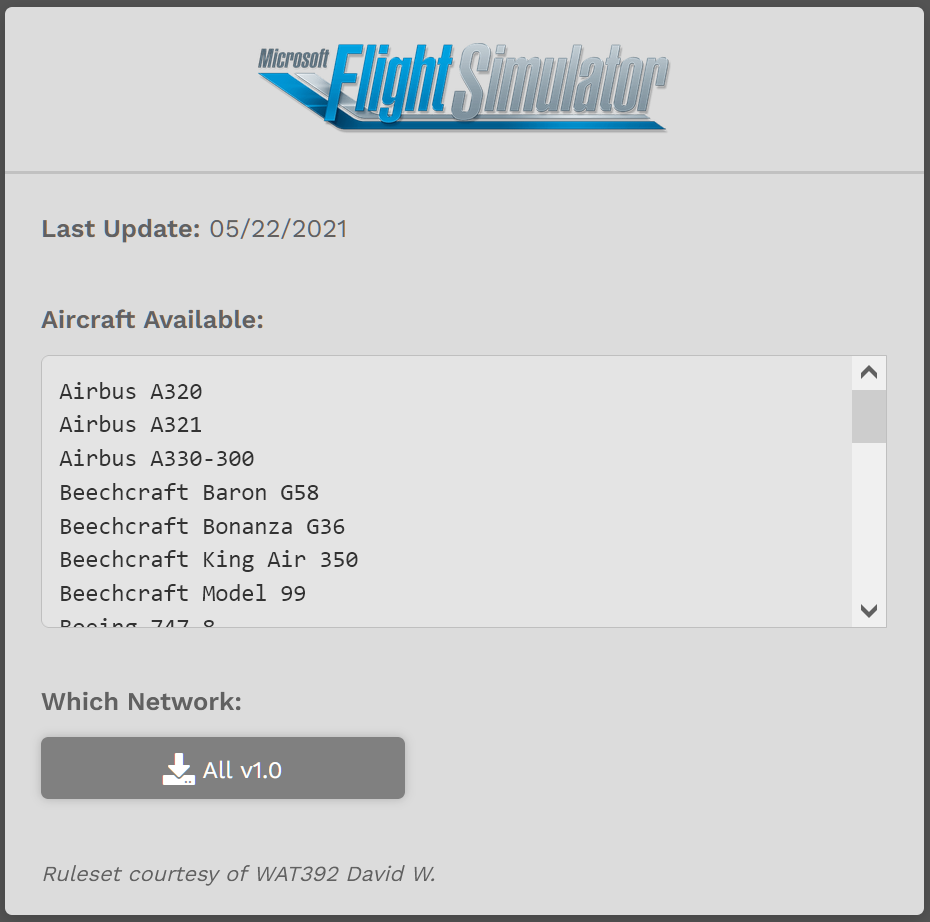
On this page, you'll find non-flyable, CSL aircraft models for use when flying in online Air Traffic Control [ATC] Networks. Having them enables Walker Air aircraft to be visible to others while flying there.
|

When flying for the Company using ACARS, all aircraft are to be flown in Company ‘colors’.
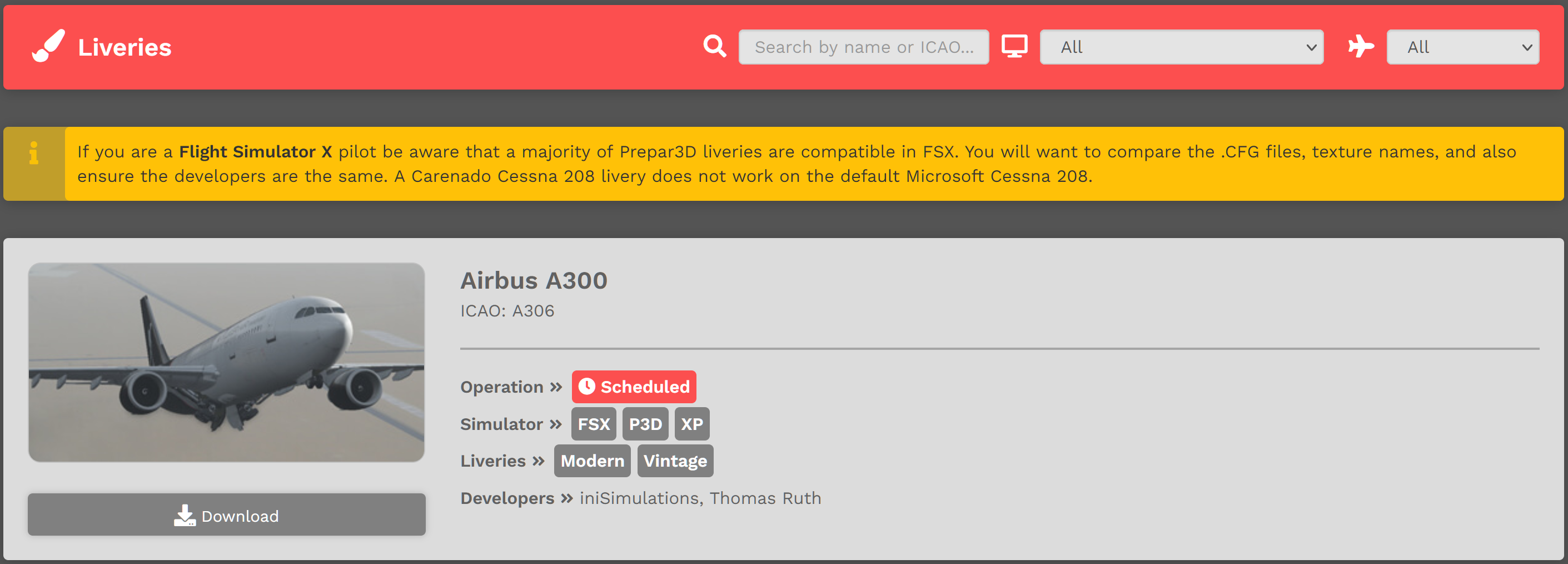
Custom-designed, Company-branded liveries for all Fleet aircraft can be found and downloaded here.
To locate a livery for a specific aircraft, enter its name or ICAO Code in the Text Box next to the magnifying glass icon.
Liveries are also searchable by Flight Simulator and Company Fleet.
Downloading and installing liveries is covered elsewhere in our documents. Instructions for doing so may be found at these links:
https://docs.walkerair.us/books/3-help/page/charter
https://docs.walkerair.us/books/3-help/page/scheduled
When flying for the Company using ACARS, all aircraft are to be flown in Company ‘colors’.
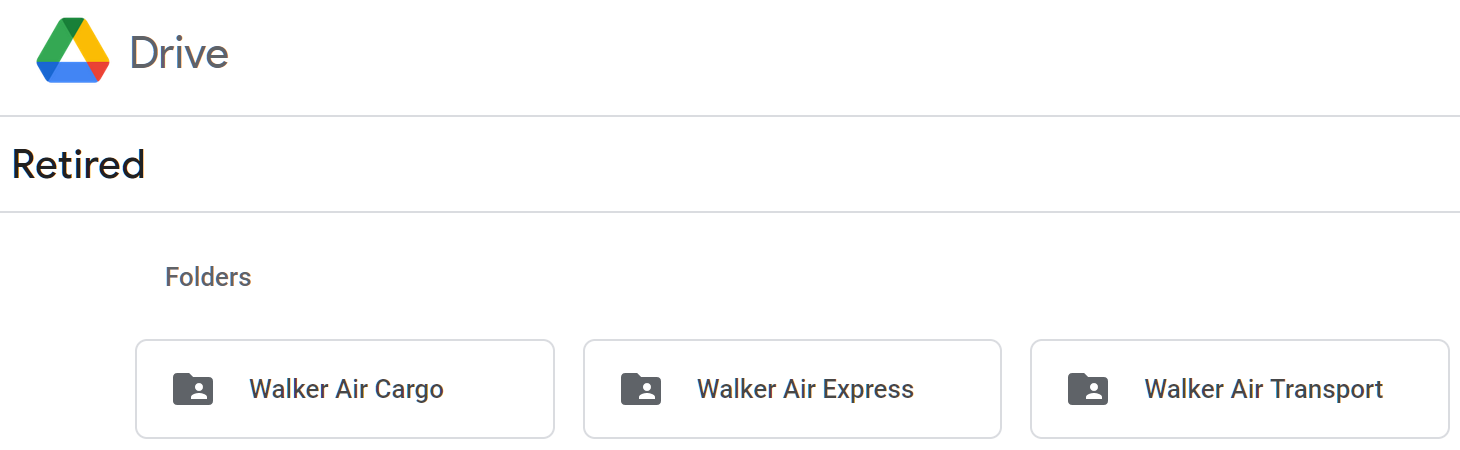
A number of the Company's Custom-designed, Company-branded liveries have been formally retired; however, they may still be used. As seen in the image below, the liveries are organized by Fleet. To view the retired liveries for a Fleet, click on its Folder.
 |
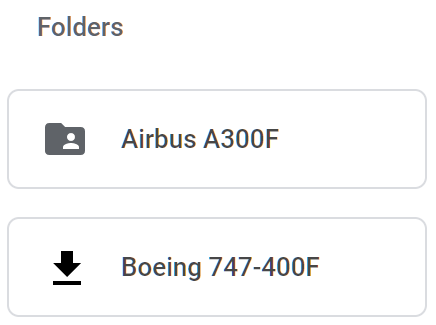
Within each Fleet folder, individual aircraft will have their own folders – like those illustrated below from the Cargo folder.
 |
Downloading and installing liveries is covered elsewhere in our documents. Instructions for doing so may be found at these links:
https://docs.walkerair.us/books/3-help/page/charter
https://docs.walkerair.us/books/3-help/page/scheduled
When flying for the Company using ACARS, all aircraft are to be flown in Company ‘colors’.
On very special occasions, a Custom-designed, Company-branded livery may be created. To view a Special livery, click on its Folder.
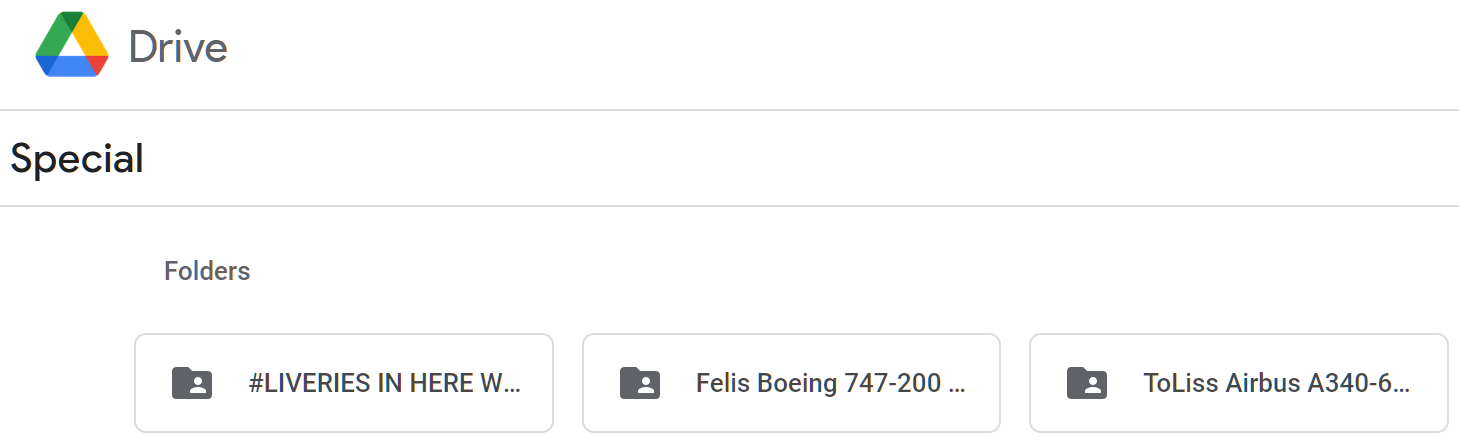 |
Downloading and installing liveries is covered elsewhere in our documents. Instructions for doing so may be found at these links:
https://docs.walkerair.us/books/3-help/page/charter
https://docs.walkerair.us/books/3-help/page/scheduled
Modlinks is a Community-driven database containing links to all kinds of things a Pilot may find useful when flying for the Company.
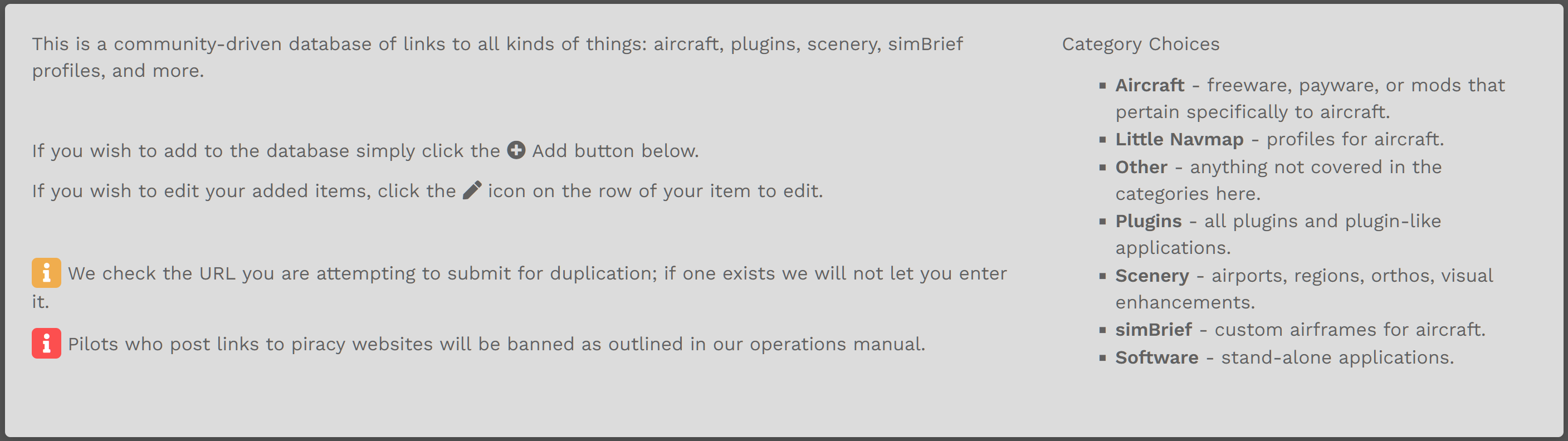
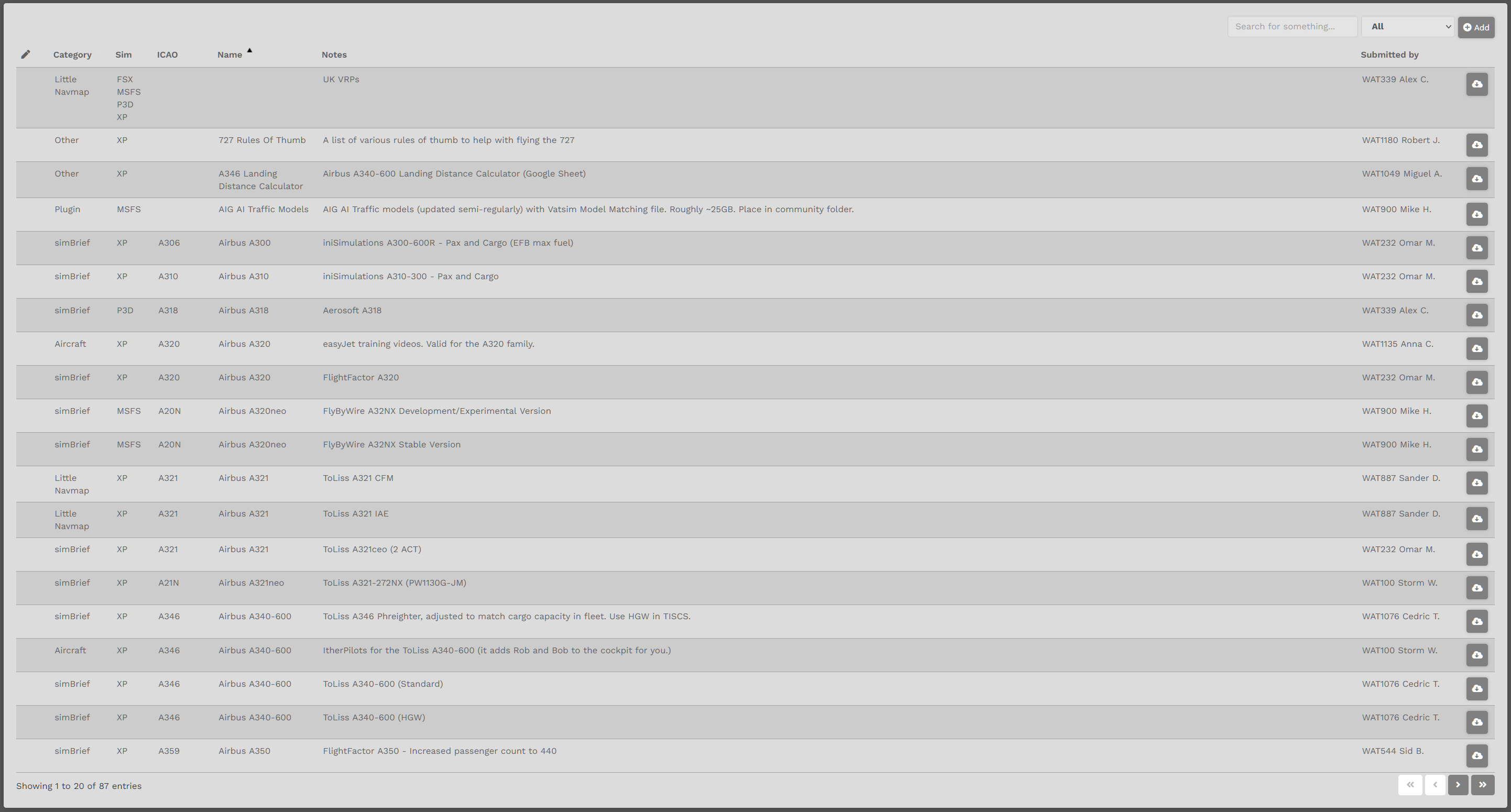
This is a Single Row view (so detail can be seen)...

... and this is the Full Page view. Scroll through the listings – or – use the Search for something... Text Box to locate an item.
Each column can be sorted. Refresh the page to return to the default view.
Flights
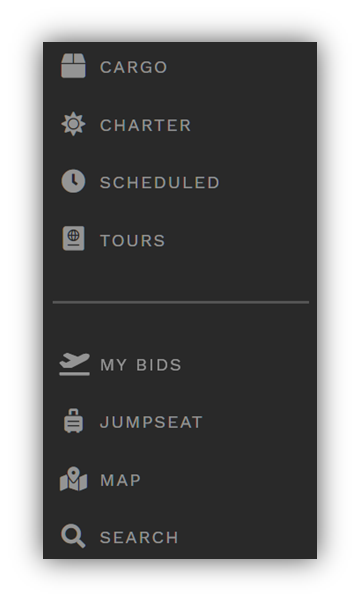 |
This is the where you’ll schedule and bid your flights.
Cargo | Charter | Scheduled | Tours
Within each section are very detailed instructions for doing so. Click on the category name of the flight type you want to fly and follow the completion steps.
To learn how to complete a Bid, use a link below to do so for the flight type of your choice.
Flights upon which you’ve bid will be listed here.
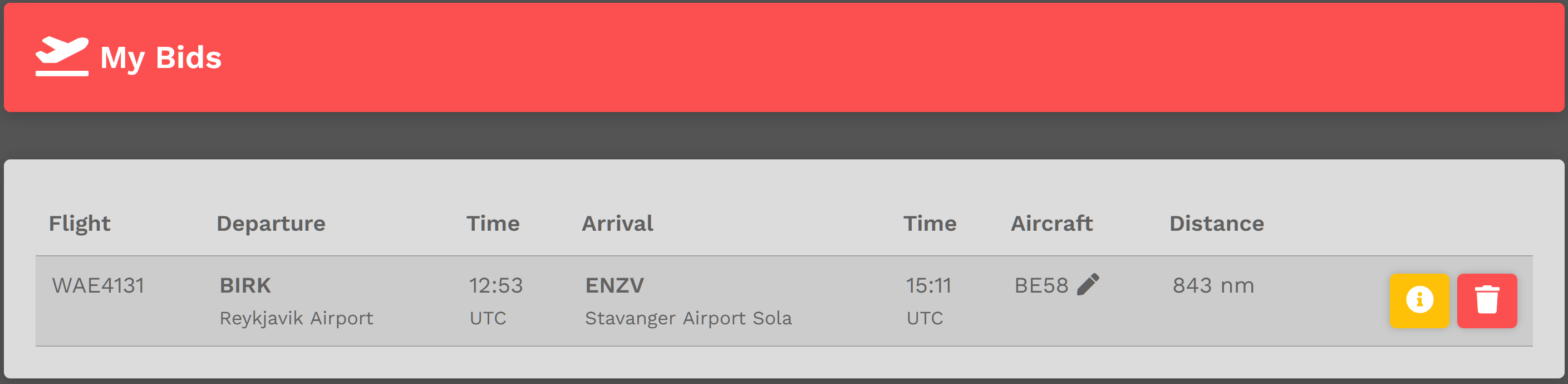
To view a Bid's Pilot Briefing, click the yellow 'i' icon button.
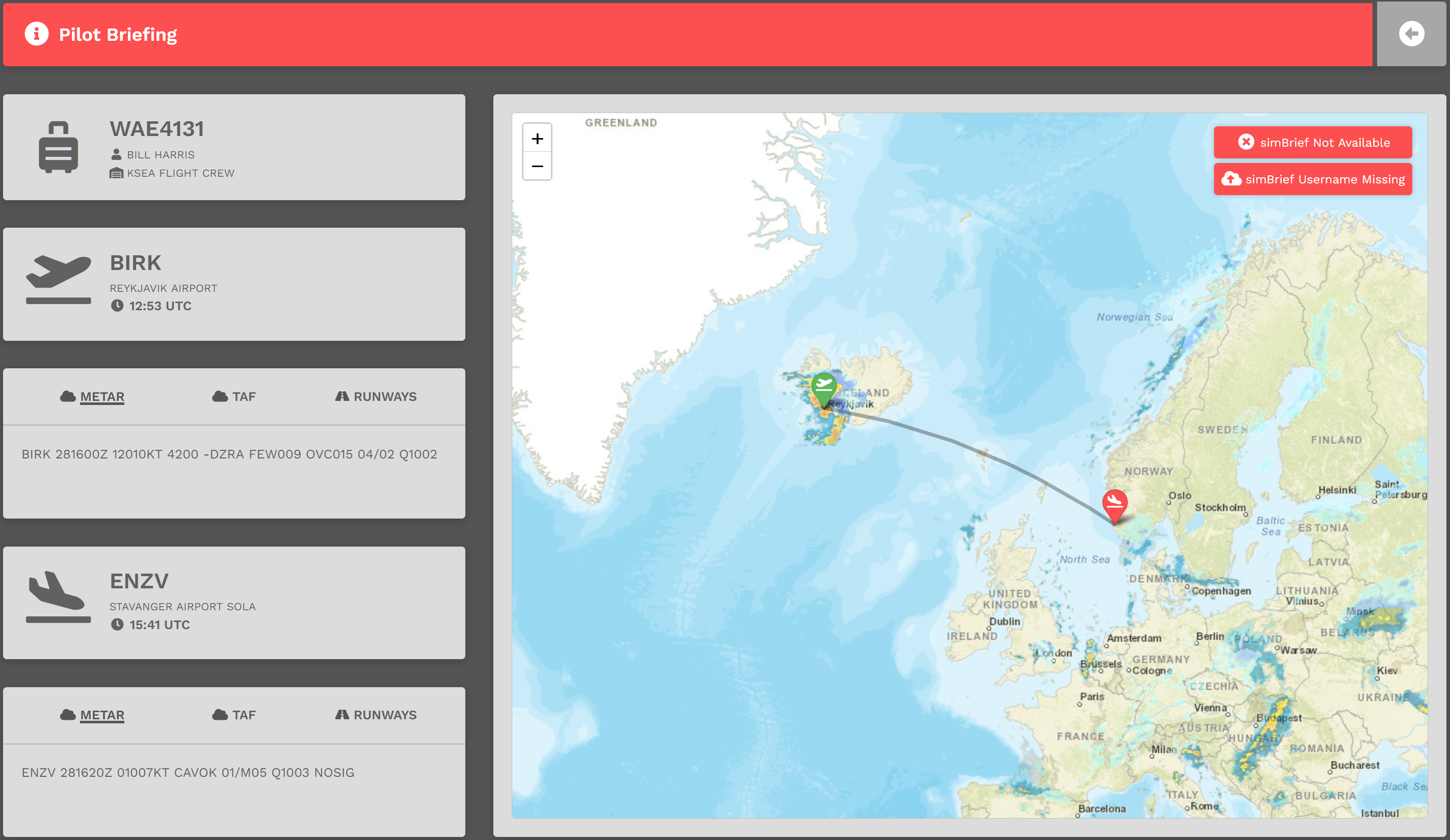
After doing so, the screen below will open providing some valuable information about your planned flight. If you're using simBrief, click the red button for more information. In this example, simBrief is not available. If it were available, you'd be able to create or view your Operational Flight Plan (OFP).
Jumpseats can be purchased to move from one airport to another for Cargo and Scheduled flights – and for Charter flights when Worldwide Persistence is enabled.
After clicking Jumpseat, the screen below opens. Your current location airport is already in the Current Location screen.
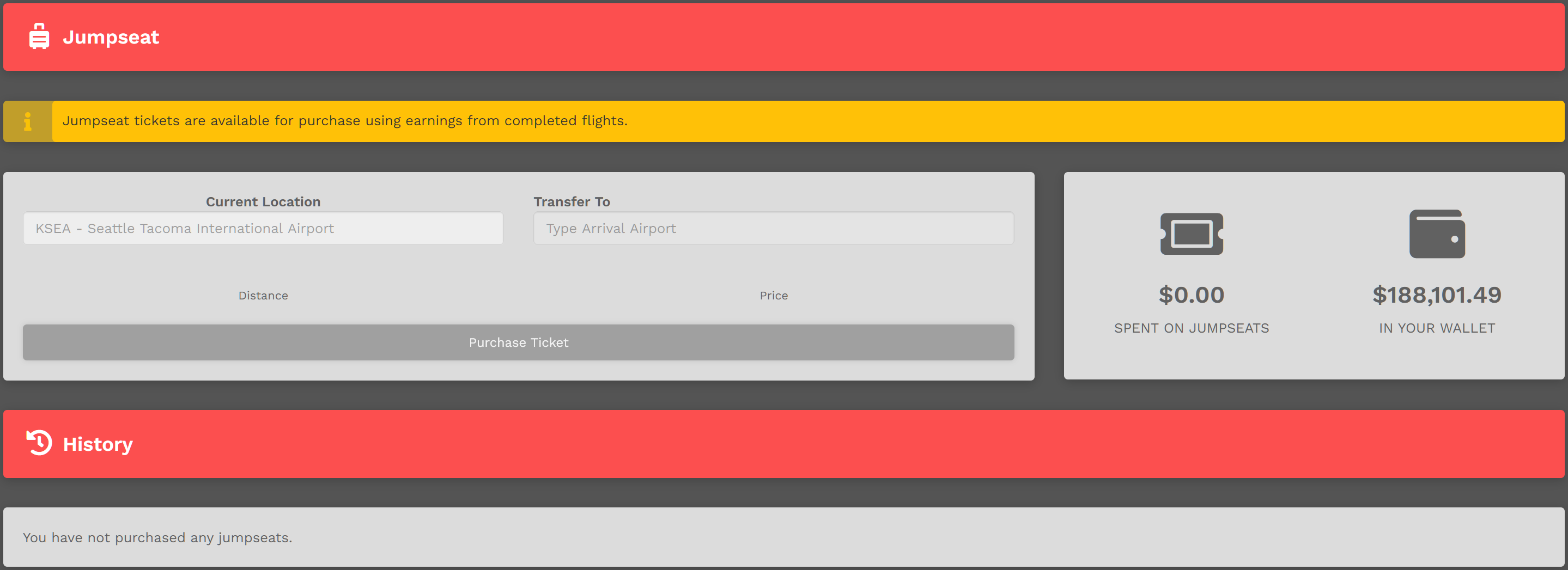
Enter the name or ICAS Code of the airport to which you'd like to move in the Transfer To Text Box. After doing so, the Distance between the airports will be noted along with the Price of the ticket.


This map provides our route availability in the Cargo and Scheduled operations. It’s very useful for planning flights from our Hubs to other airports around the world – and it can help you avoid having to purchase a Jumpseat when you're 'out on the road'.
This is the map's default view. Zoom out and reposition it to view the part of the world you're interested in viewing.
Choose an Operation Type by clicking its button at bottom left of the map.


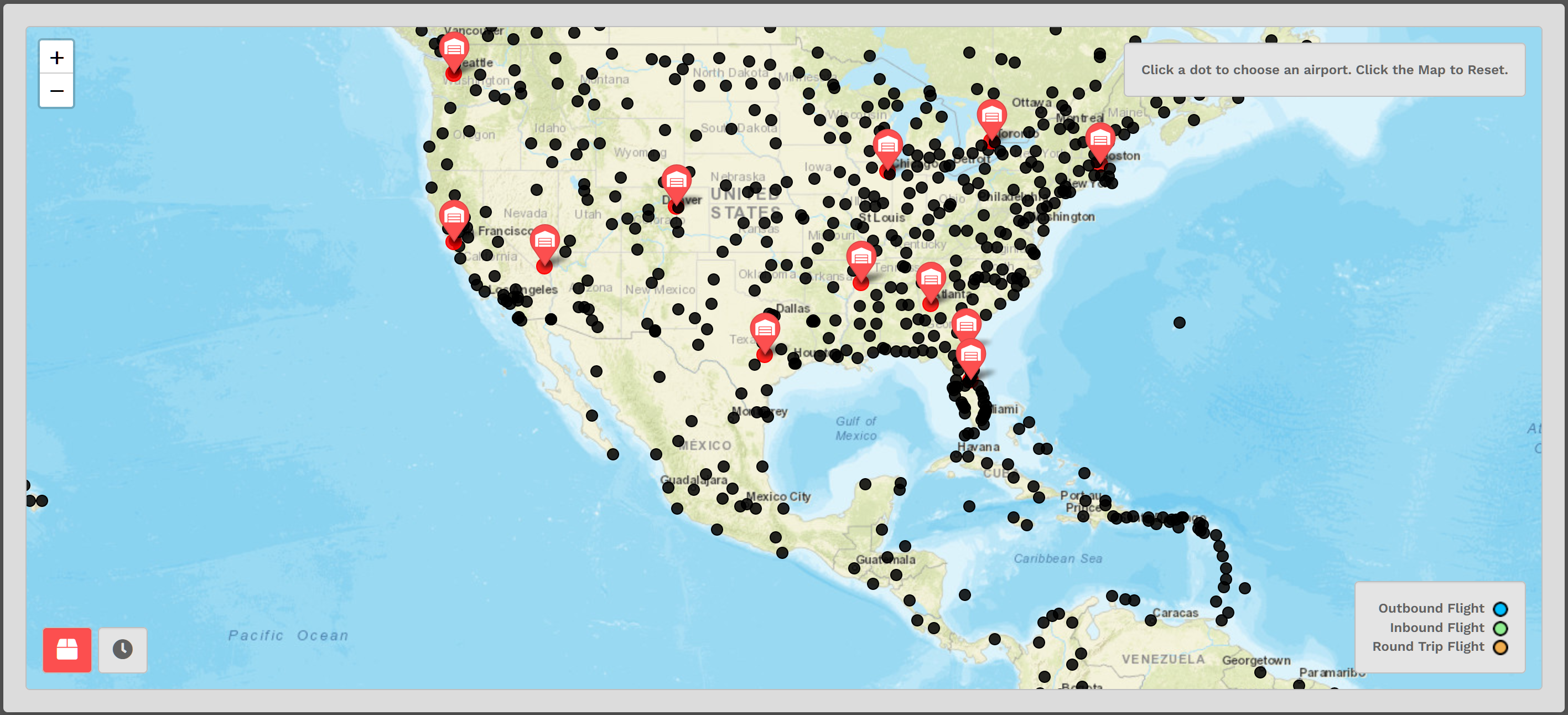
Choose a Hub and click it. For an example, let's use KAUS | Austin International Airport (Green Map Pin).
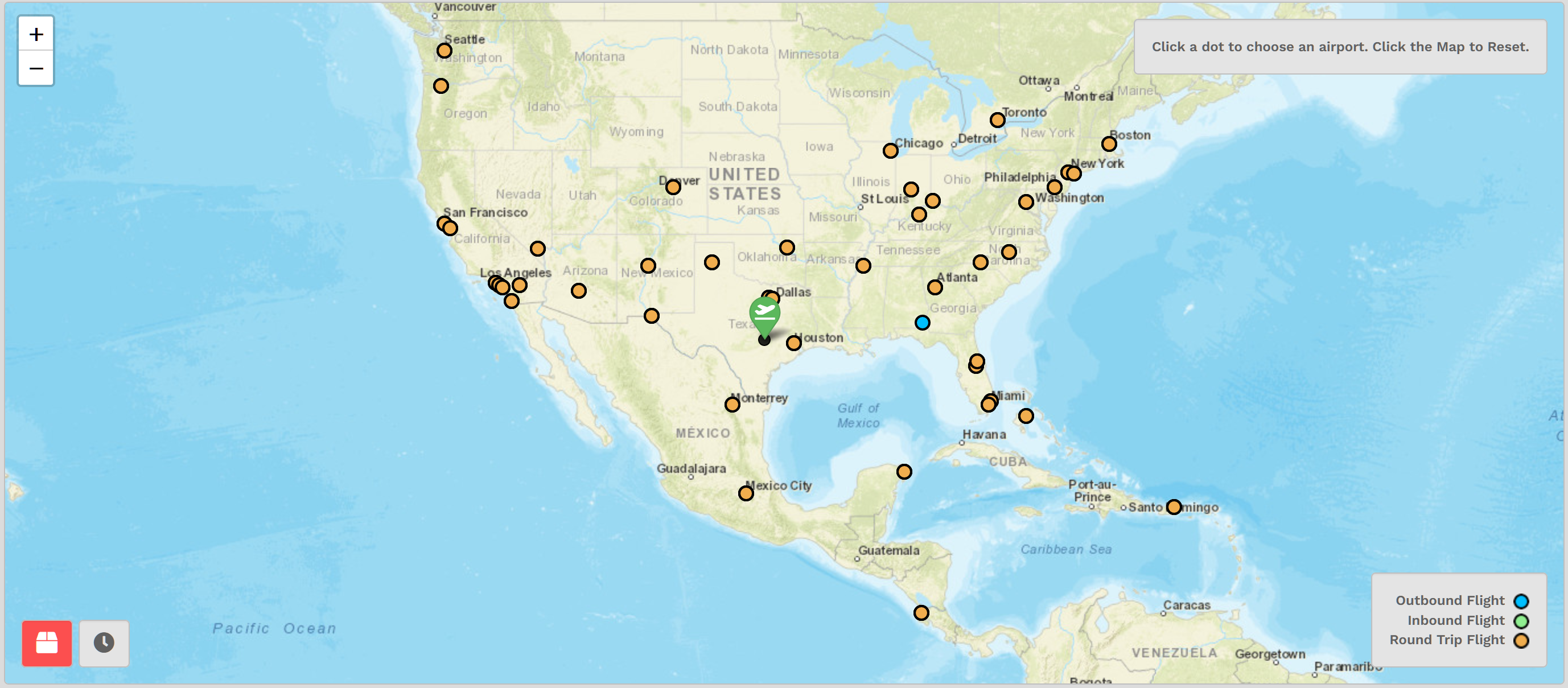
The color legend in the lower right corner privides a visual reference for the status of flights for this airport. Using that legend, we can see there are a significant number of Round Trip Flights available; a single Outbound flight; and, no Inbound Flights.
Hover your mouse over a colored dot. In this case, let's use KDEN | Denver International Airport. This Box appears.
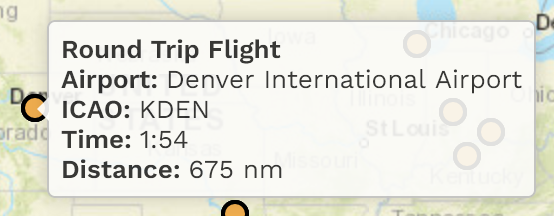
Click it, and the screen below appears. Here, every destination within the United States and portions of other areas from KDEN can be seen.
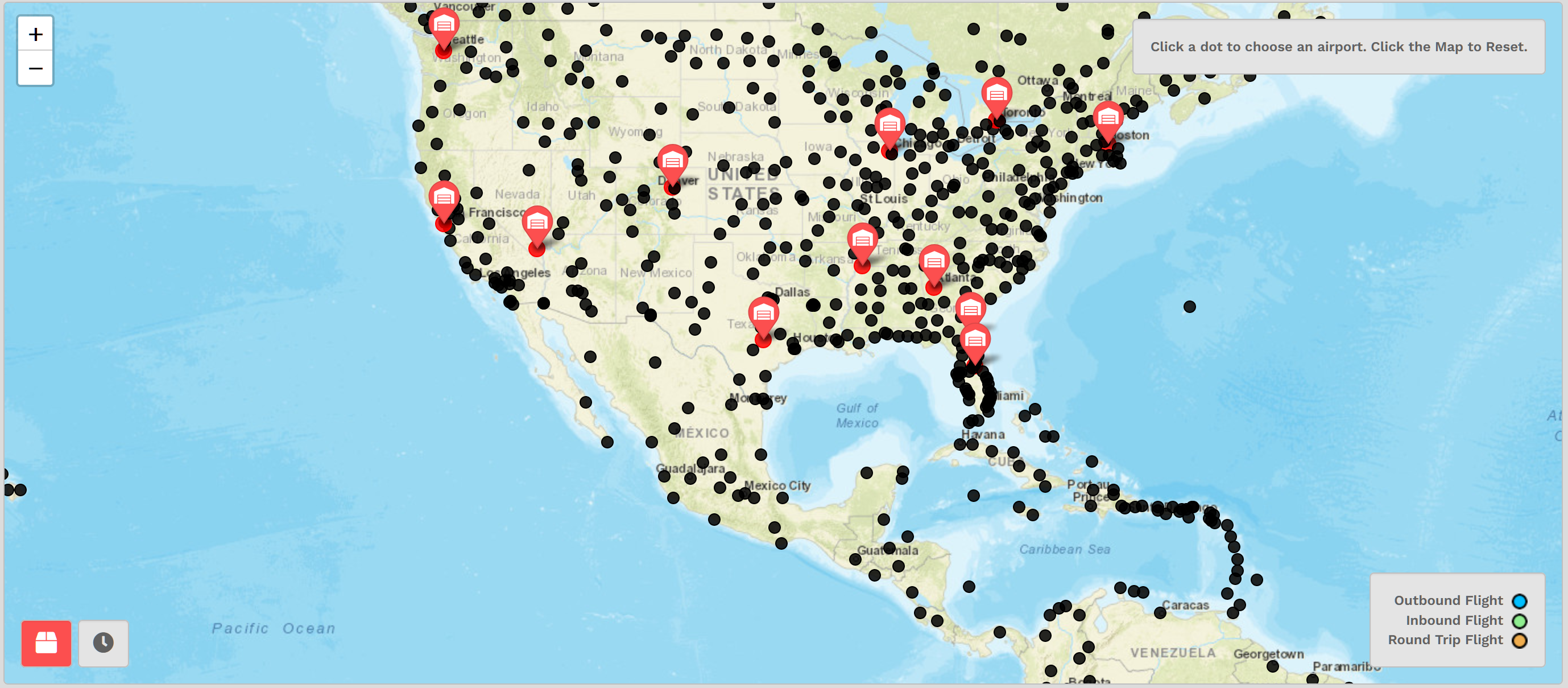
Hover your mouse over a black dot. In this case, let's use KMSP | Minneapolis-St. Paul International Airport. This Box appears.

This tells you there's at least one (1) Cargo route available between these airports, and that from your destination, there are also a number of outbound flights. Knowing thiswill enable you to be more efficient and effective in planning your flights.

This search feature provides details about what flights are available in our Cargo and Scheduled operations.
You cannot bid on a flight from here.
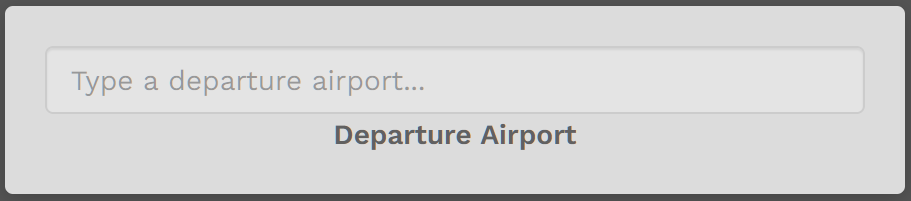
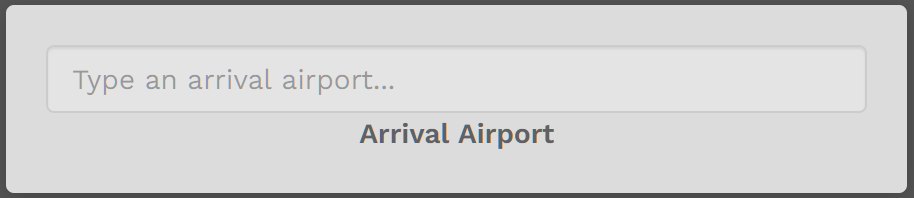
Let's use our previous example of looking for Cargo flights from KDEN | Denver International Airport to KMSP | Minneapolis-St. Paul International Airport.

After completing your final entry, the System will search the database for flights meeting this criteria – and it may take a few moments to return flight options to you. As you can see in the lower left of the screen, there are over 640,000 entries in the database!
The list of available flights will then appear. Each column in that list is sortable to help you decide which flight to fly.
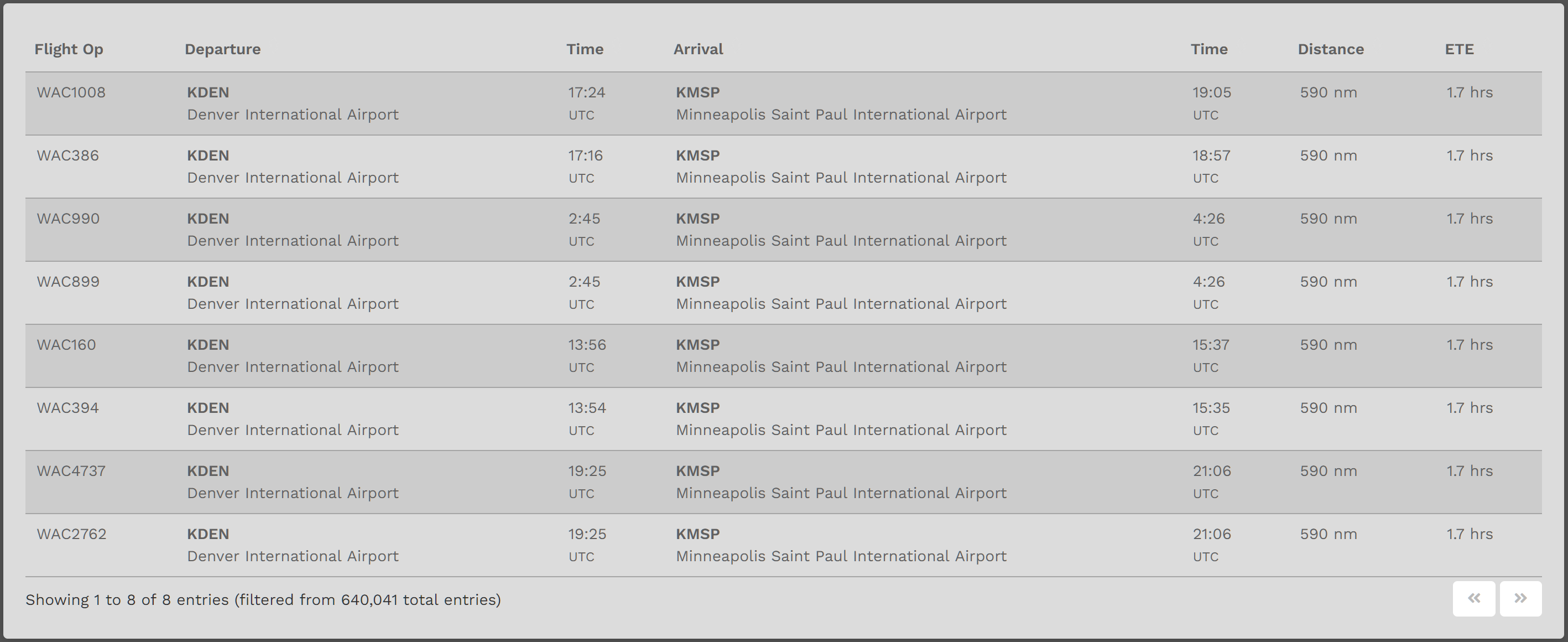
Once you decide on that flight, you can then create its Bid. To learn how to complete one, use a link below to do so for the flight type of your choice.
Help
|
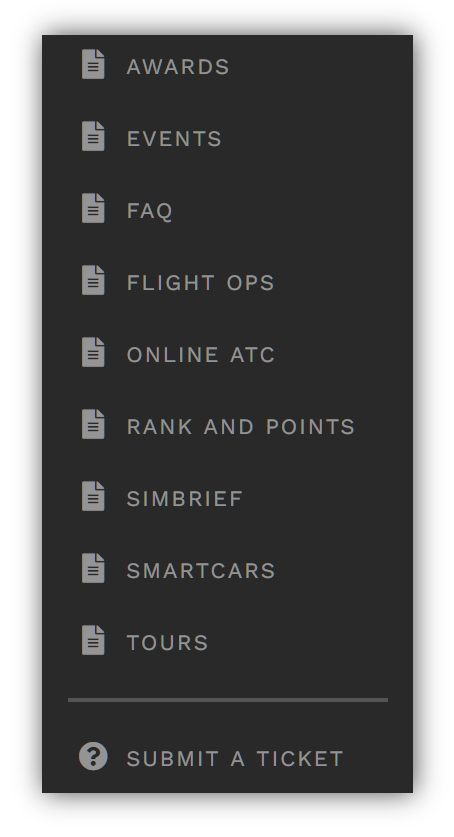
Information on all of these topics can be found at this link: https://docs.walkerair.us/books/3-help
Submitting a Help Ticket is how you can report an issue, request a feature and/or leave us feedback.
Click Help > SUBMIT A TICKET from anywhere in Crew Ops to do so.
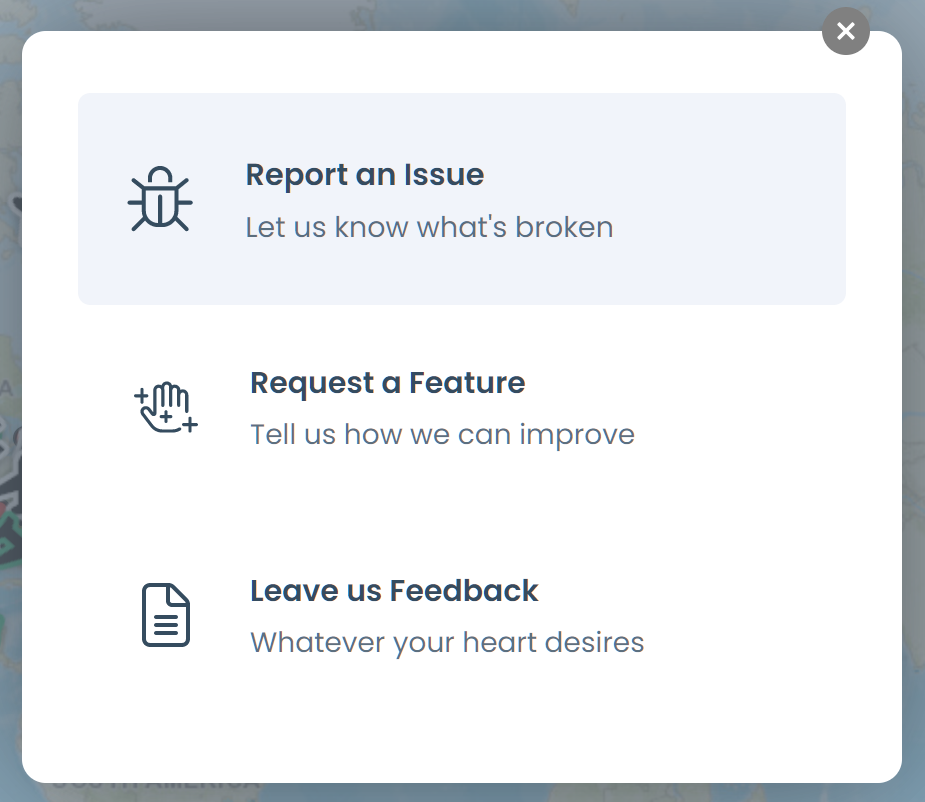
After clicking Submit A Ticket, this will open in your screen. To report an issue, click Report an Issue.
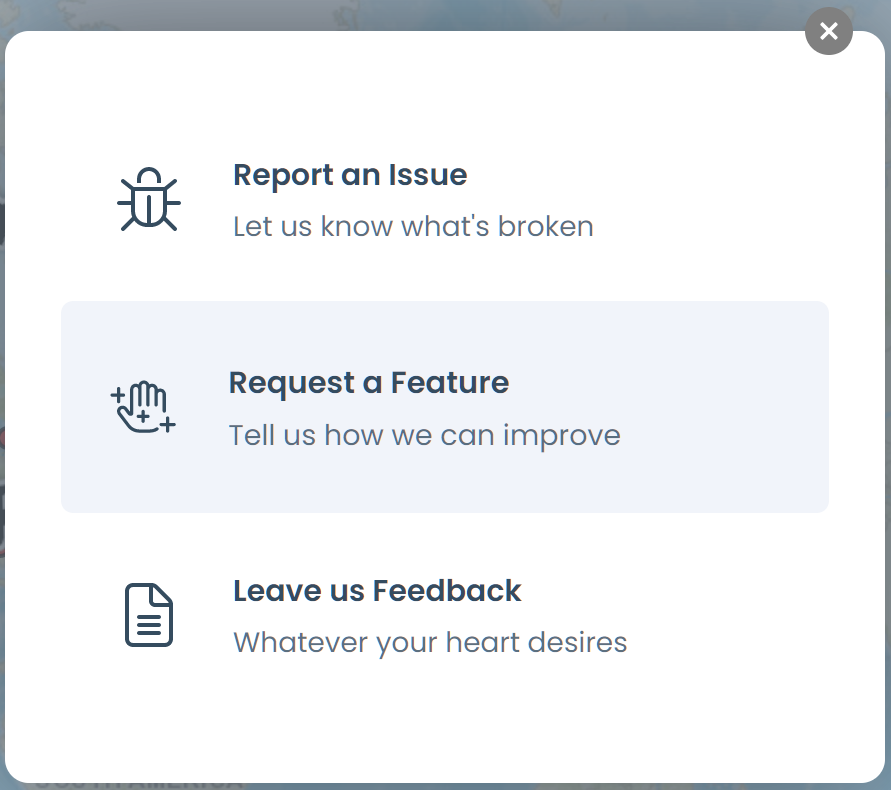
After clicking Submit A Ticket, this will open in your screen. To request a feature, click Request a Feature.
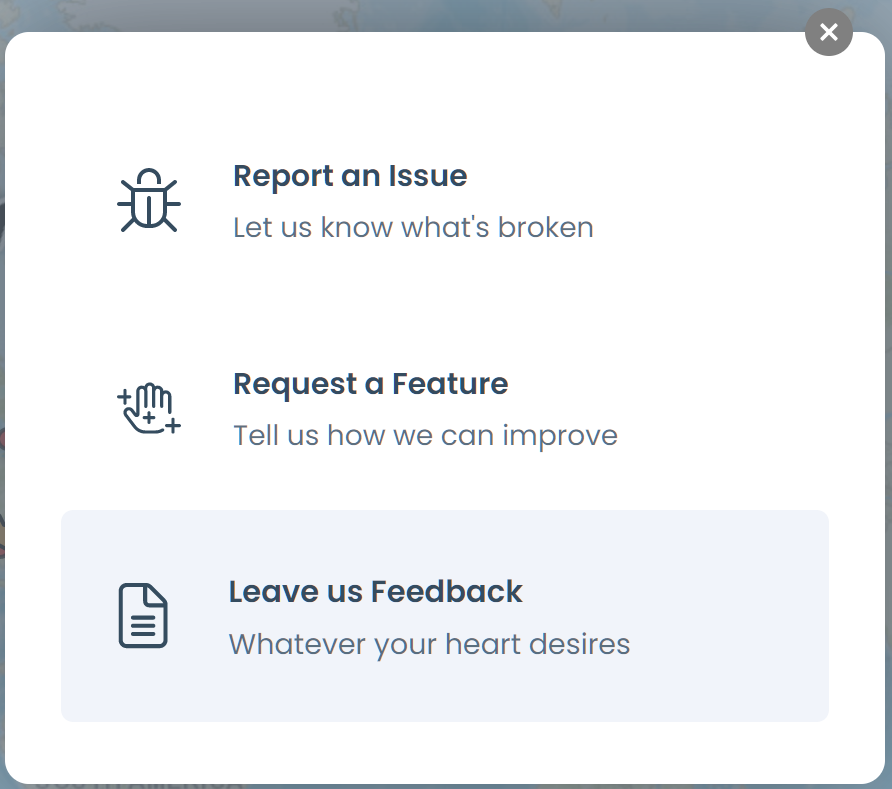
After clicking Submit A Ticket, this will open in your screen. To leave us feedback, click Leave us Feedback.
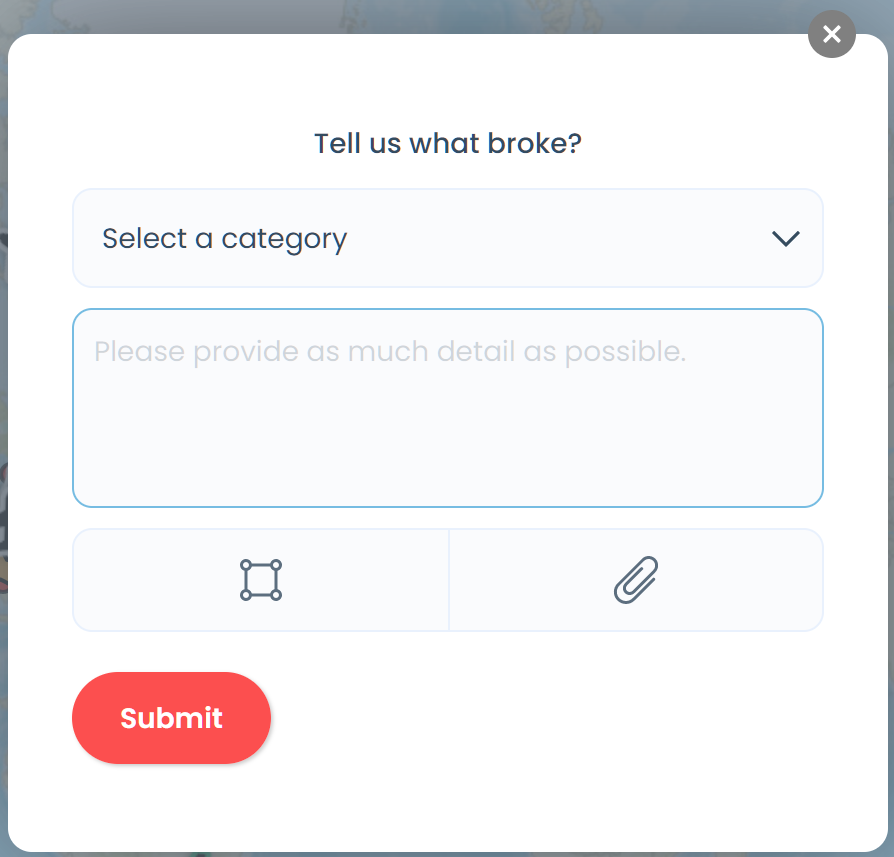
After doing so, Tell us what broke? will open in your screen. Select a category into which your issue falls from the list available.
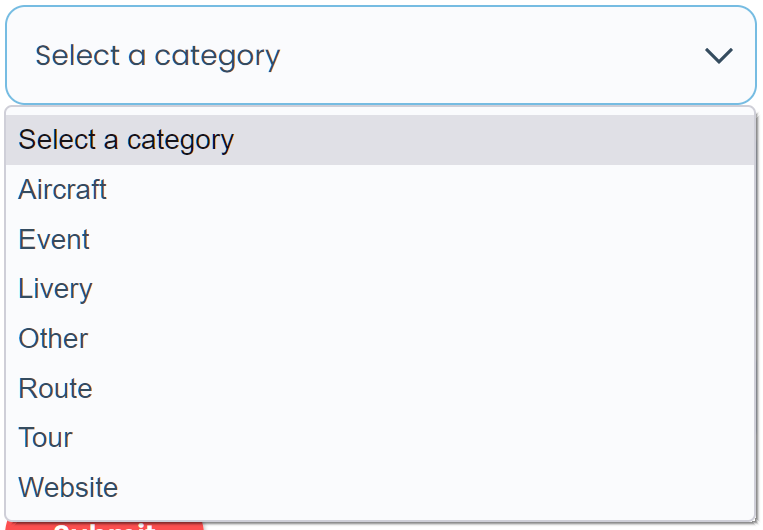
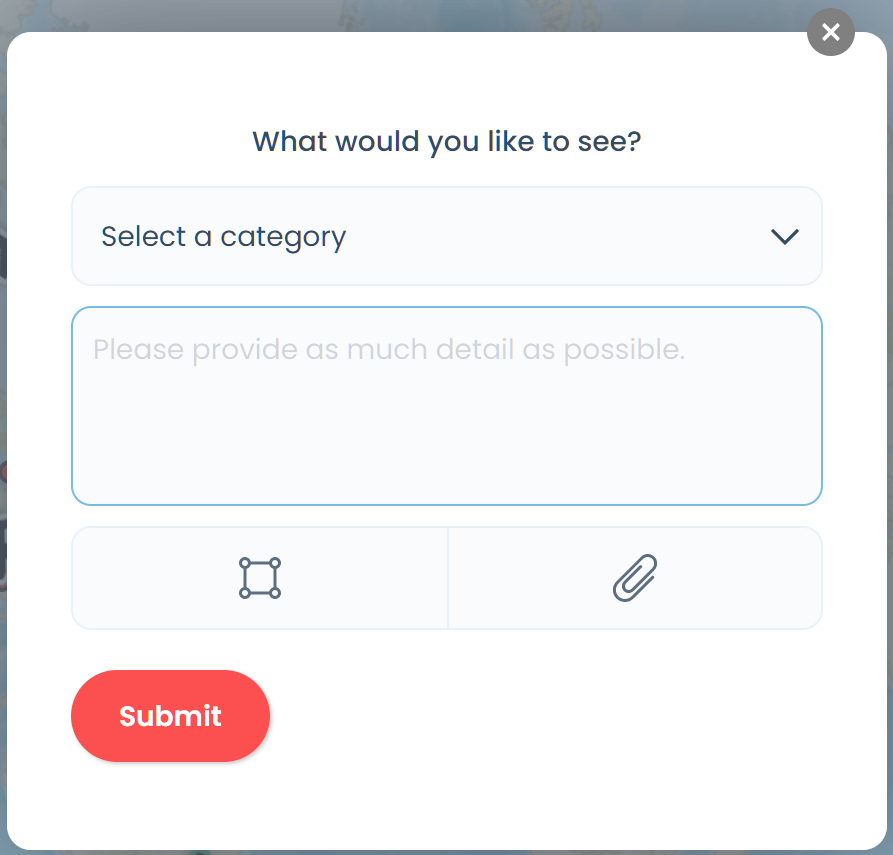
After doing so, What would you like to see? will open in your screen. Select a category into which your issue falls from the list available.
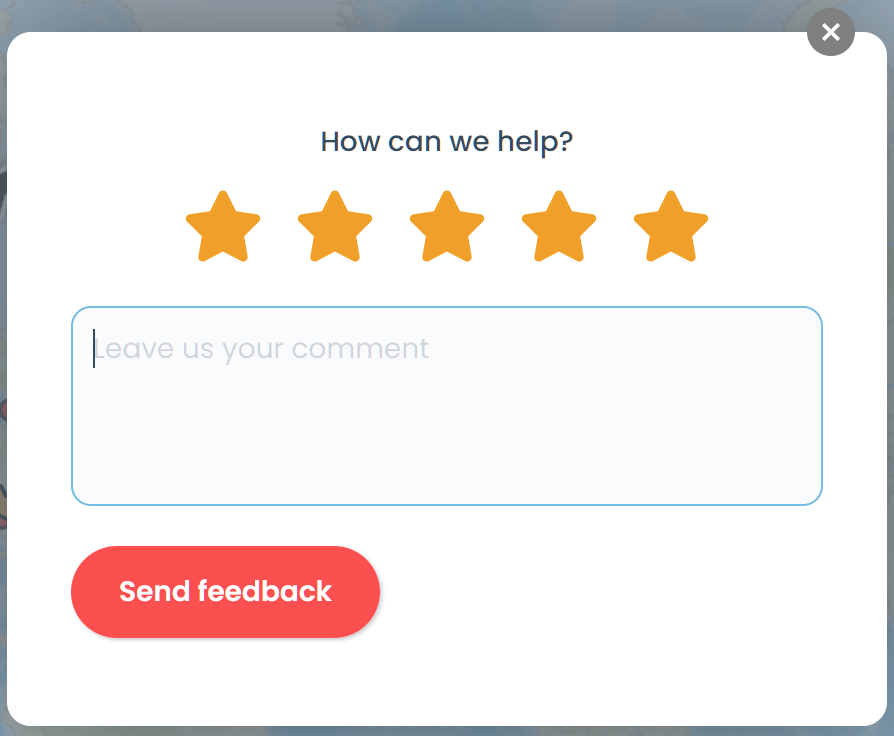
After doing so, you'll be asked to rate your feedback in the How can we help? screen that opens on a 1-star to 5-star scale where 5 is excellent and 1 is poor.

After selecting a category, let us know more about the issue by describing it to us in the Please provide as much detail as possible Text Box. If necessary, you may also attach a file and/or a photo.
Click the Submit button.
After your submission, a Thank You message will appear on your screen signifying your Help Ticket has been submitted.
After selecting a category, let us know more about your feature request by describing it to us in the Please provide as much detail as possible Text Box. If necessary, you may also attach a file and/or a photo.
Click the Submit Button.
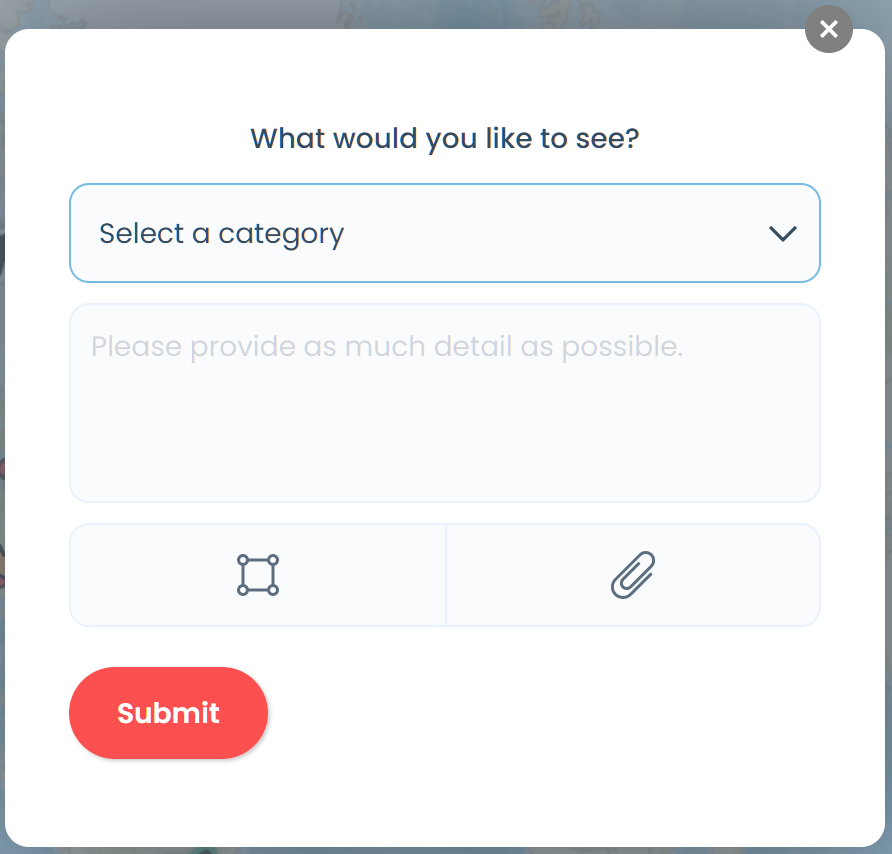
After your submission, a Thank You message will appear on your screen signifying your Help Ticket has been submitted.
After providing your rating, let us know how we can help by describing it in the Leave us your comment Text Box.
Click the Send feedback button.
After your submission, a Thank You message will appear on your screen signifying your Help Ticket has been submitted.
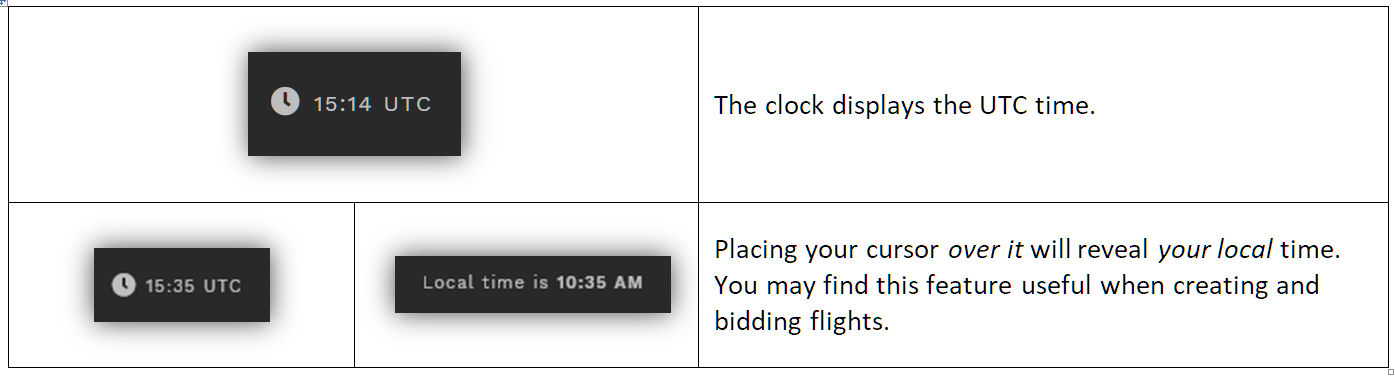
|
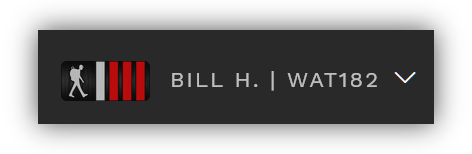
Your personal statistics may be found in the final item on the right side of the Navigation Bar.
In this example, the Crew Member is Bill H., his Pilot ID is WAT182 and his Pilot Rank is shown.
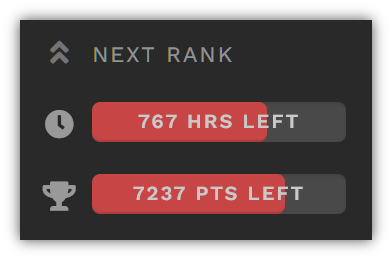
Graphics showing the number of flight hours and points you must obtain before you can be promoted to the next higher rank.
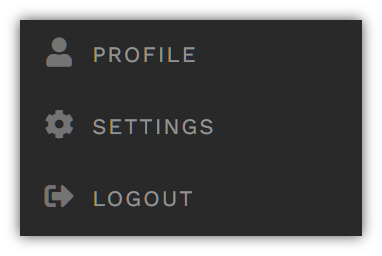
Admin: This section is for Business Office members only.
Profile: A Pilot’s written and visual operations history with the Company is found here – in addition to the Awards received, their Logbook, Ledger and Type Ratings. It may also be viewed by any other Company Pilot. See the next section for additional details.
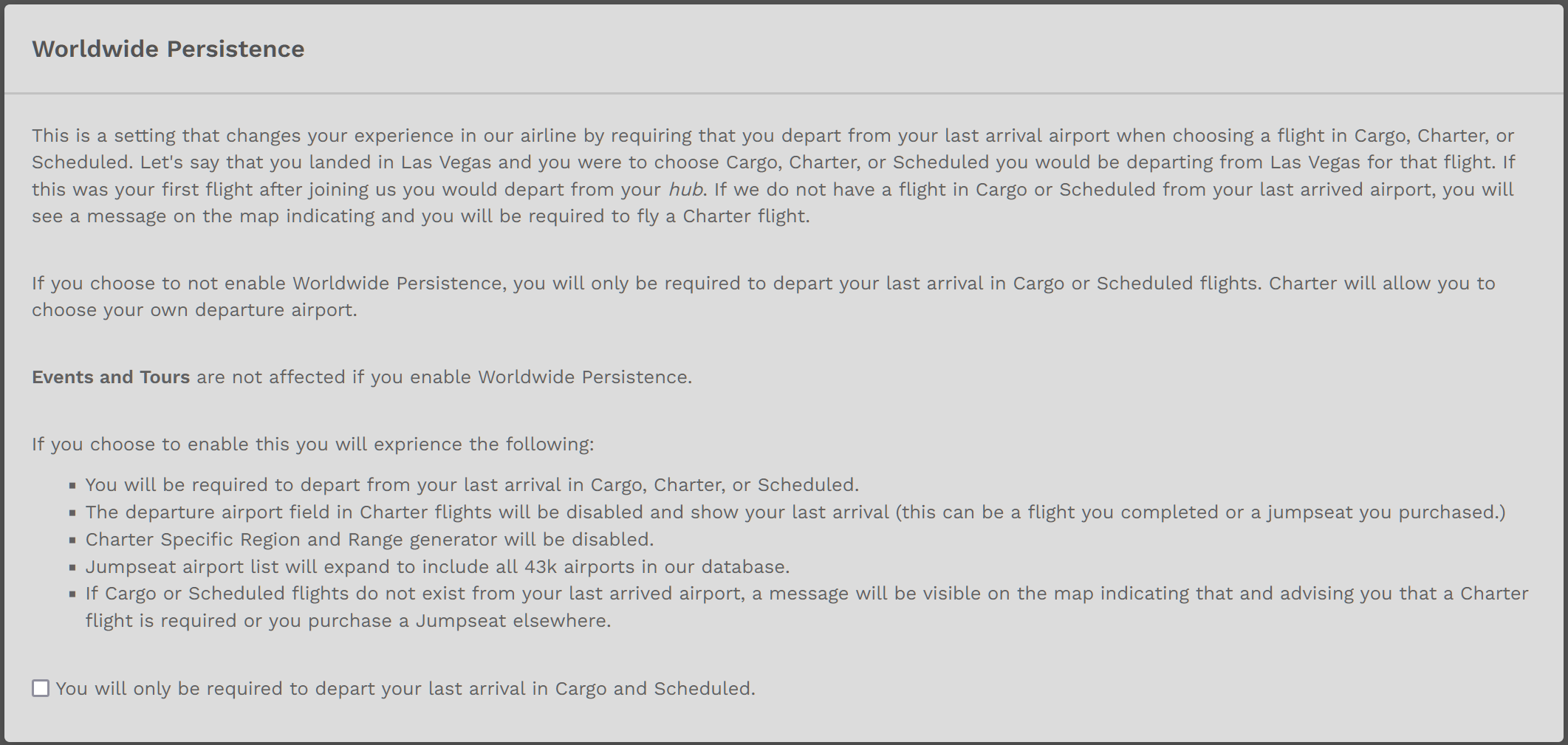
Settings: Your personalized Company and website settings are found here. Steps to create Favorite Aircraft within Company Fleets and engaging Worldwide Persistence [mandatory departure from your previous flight’s arrival airport] are also found here.
Clicking Logout will return you to the Login You may also close your Internet Browser to end your session.

Discord: Clicking on Discord will open an invitation for you to join the Company’s Discord While not mandatory, all Pilots are strongly encouraged to join. The Pilot Community there is very active and all are welcome – as active participants or ‘lurkers’. It’s the best and fastest way to keep with the Company’s operations.
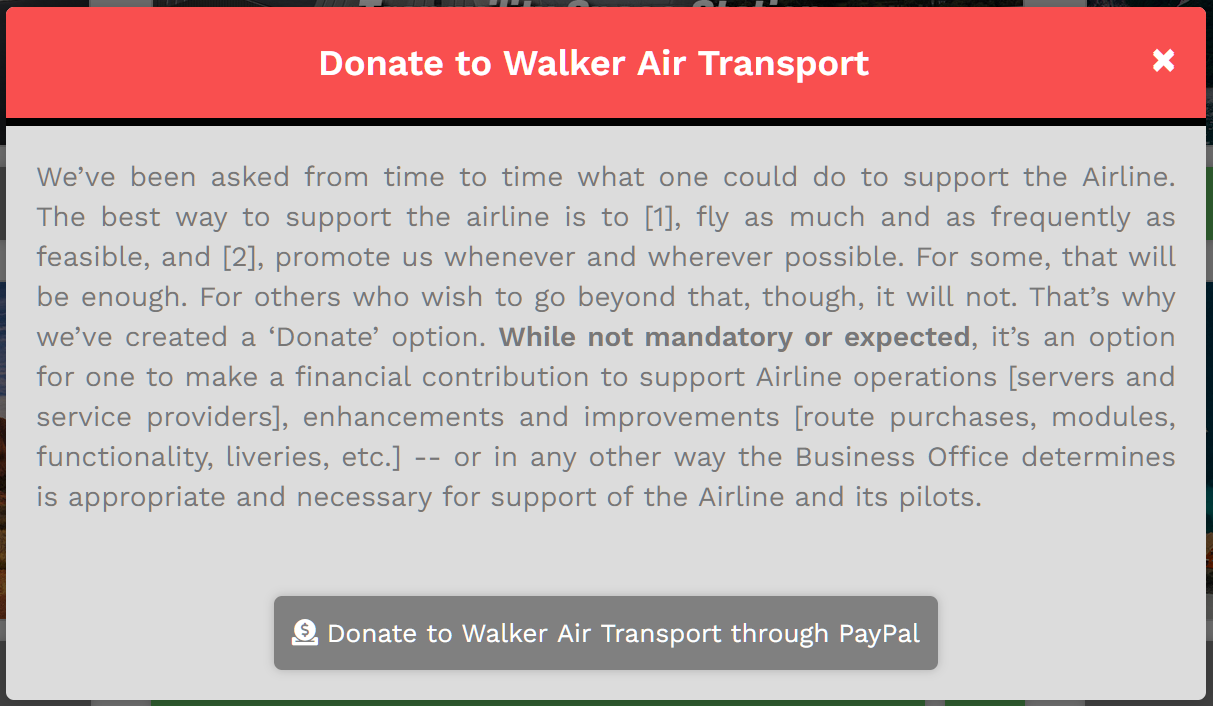
Donate: While not mandatory or expected, it’s an option for one to make a financial contribution to support Airline operations [servers and service providers], enhancements and improvements [route purchases, modules, functionality, liveries, etc.] – or in any other way the Business Office determines is appropriate and necessary for support of the Airline and its Pilots.
Pilot Profile
Your Pilot Profile page is where all of your personal stats are kept. When you click Profile in the drop-down menu, the screen below will open.
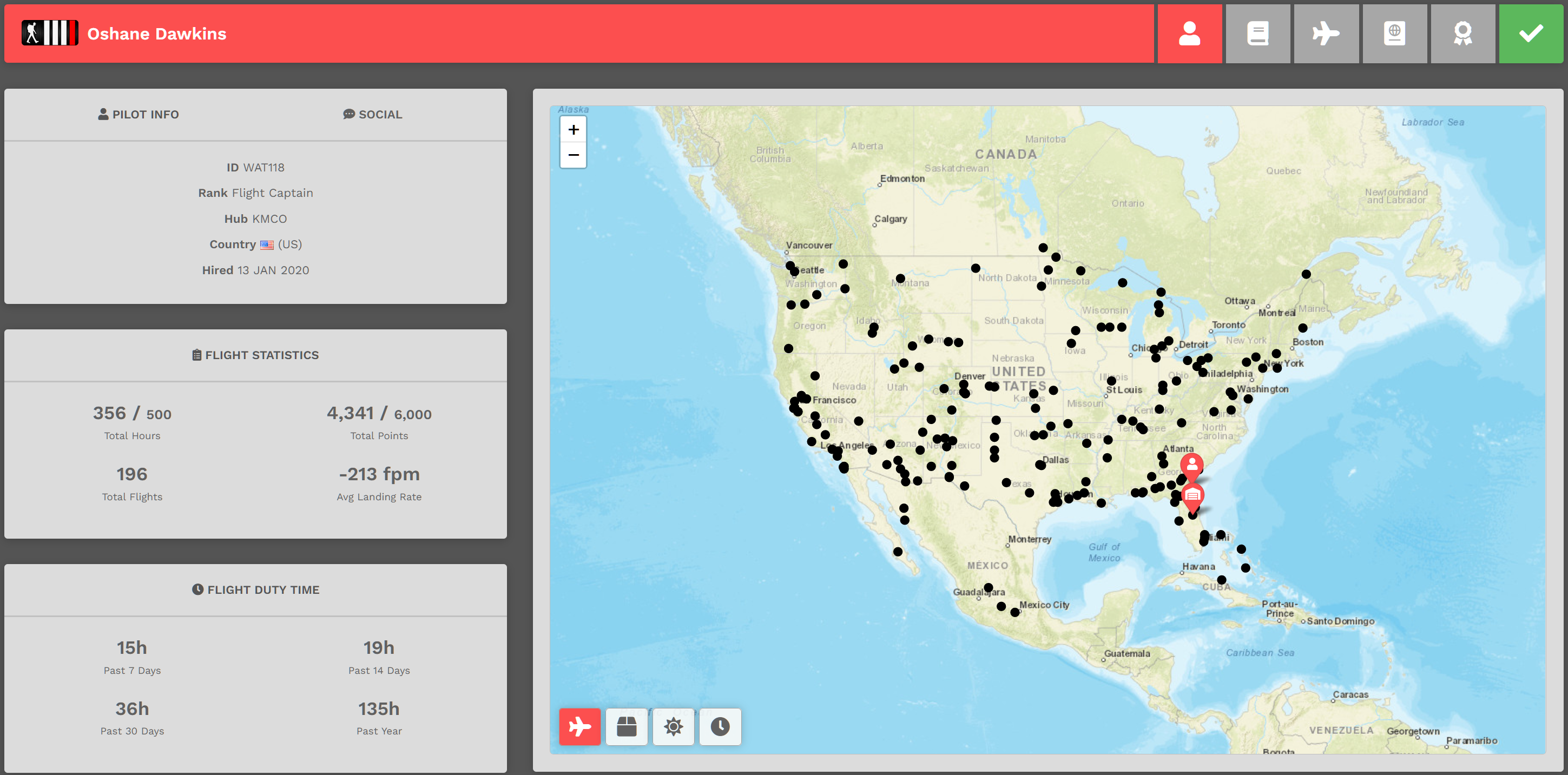
Title Bar
In the Title Bar, you'll find your rank insignia and name on the left. On the right, you'll find these icon buttons.
The icon for the page you're currently viewing will always be red to provide an additional visual reference for your current location.

Left to right, they are as follows: Profile | Logbook | Type Ratings | Passport | Awards
Click them to explore the reporting generated by our Flight Data System from data collected and submitted to us by ACARS.
Logbook
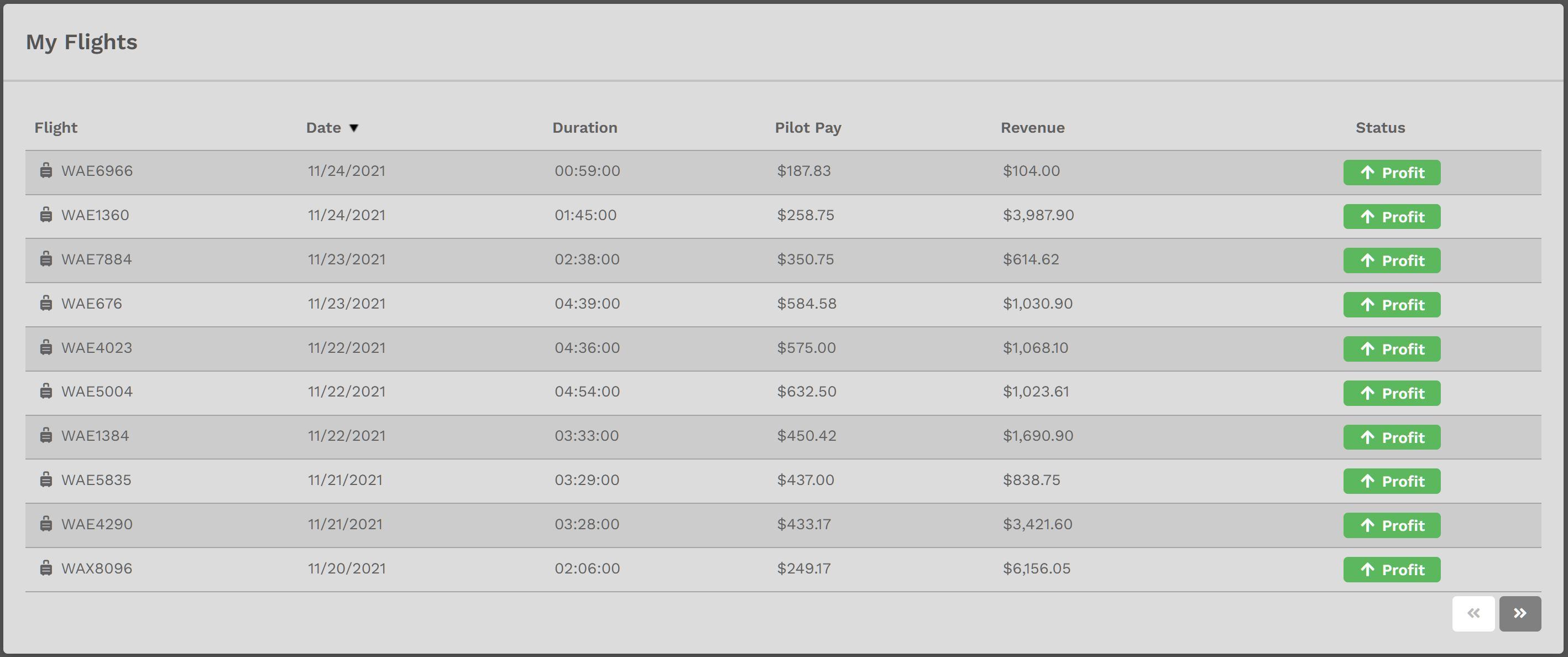
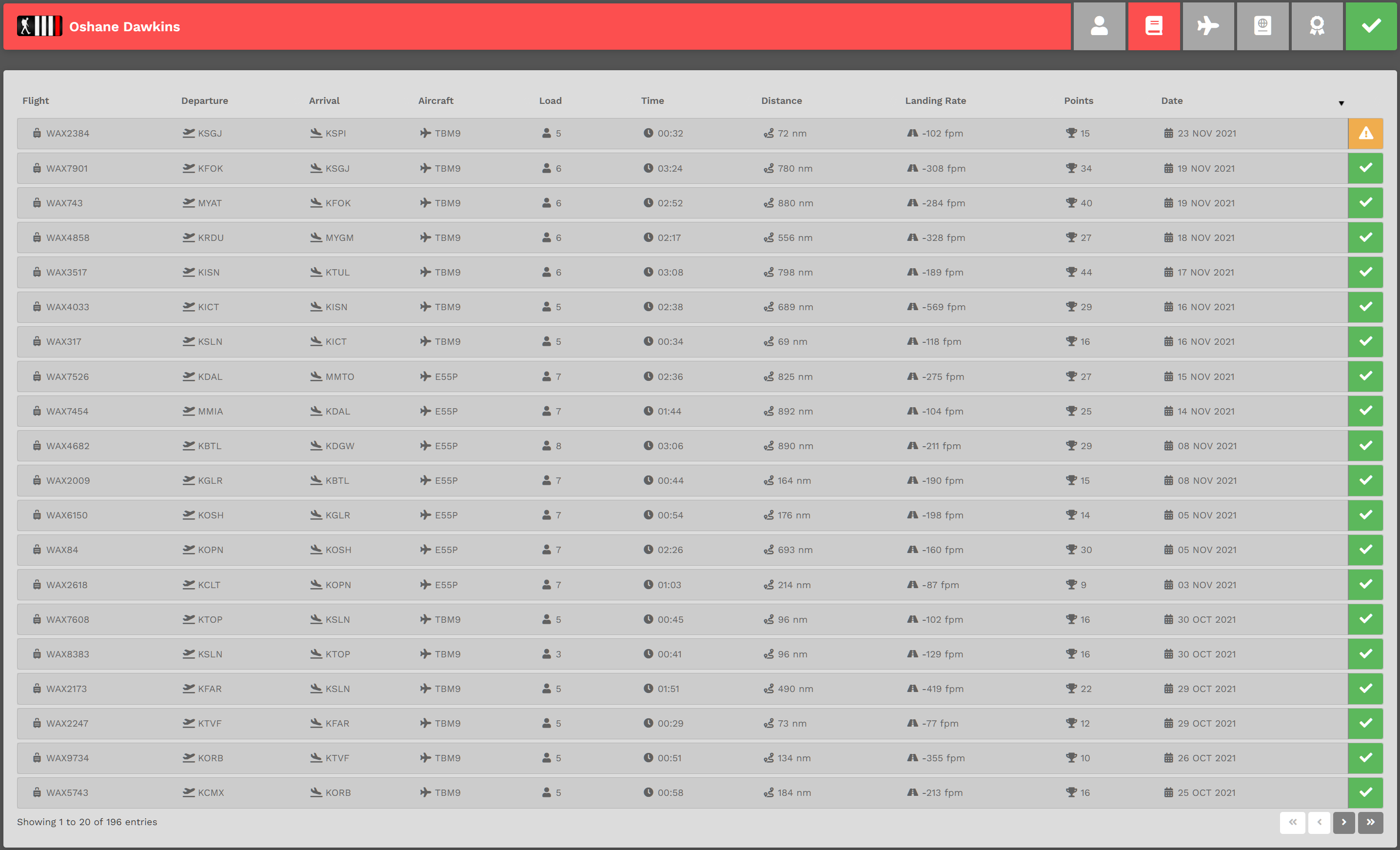
In your Logbook, you'll find a record of all of your flights. Each line contains high-level information about a flight you completed. If you want to examine it in greater detail, click the Flight Number in the Flight column or the icon at the right end of the line. Each column may be sorted to simplify any analysis work you wish to do. Clicking the Arrow buttons at the bottom right of the screen enables you to scroll through all of your flights.
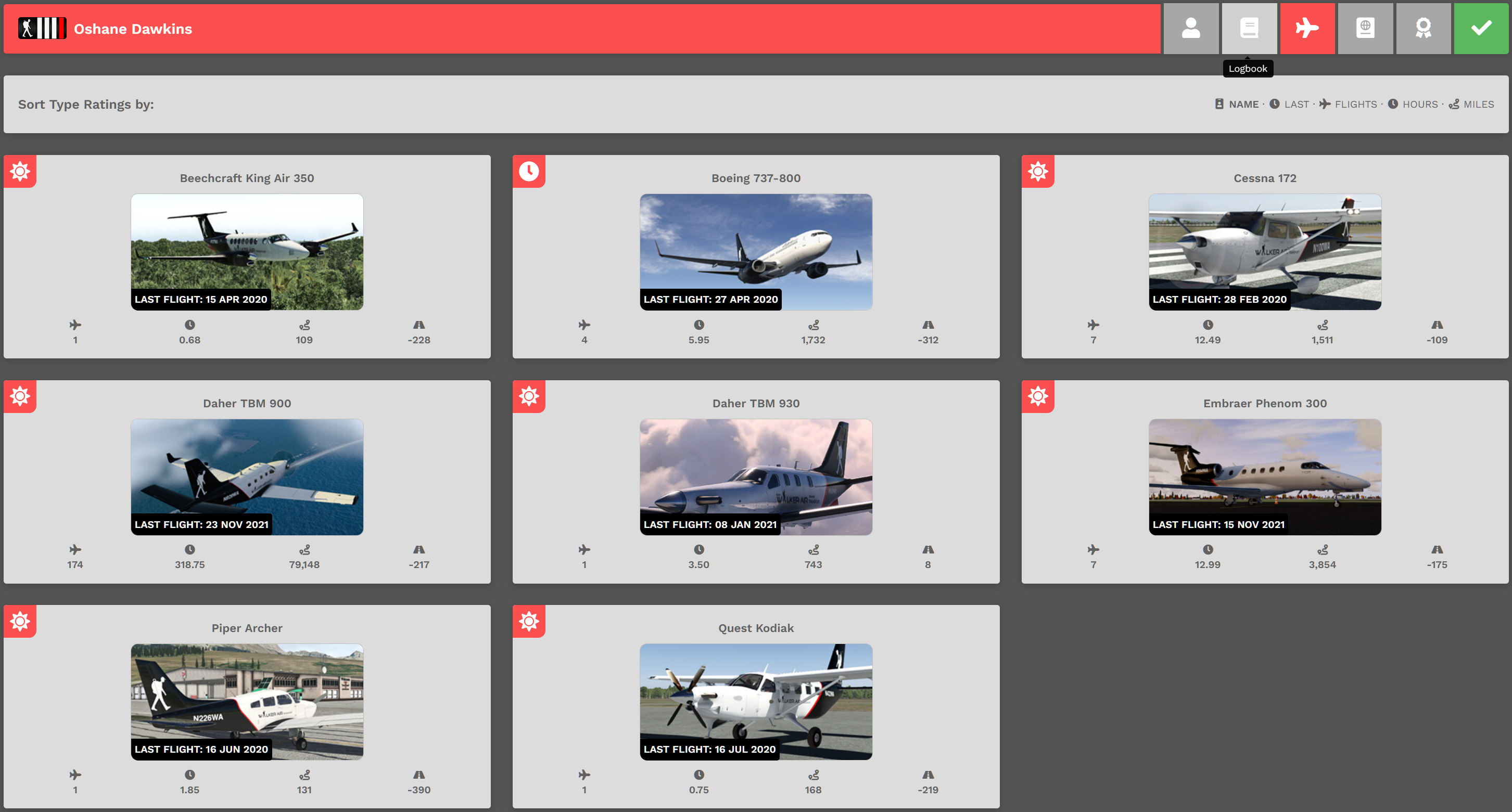
Type Ratings
On the Type Ratings page, you'll find a listing of all aircraft for which you've completed a flight. Additionally, you'll also have some additional information about each one.
Let's use the Embraer Phenom 300 from this Pilot's Type Ratings as an example.
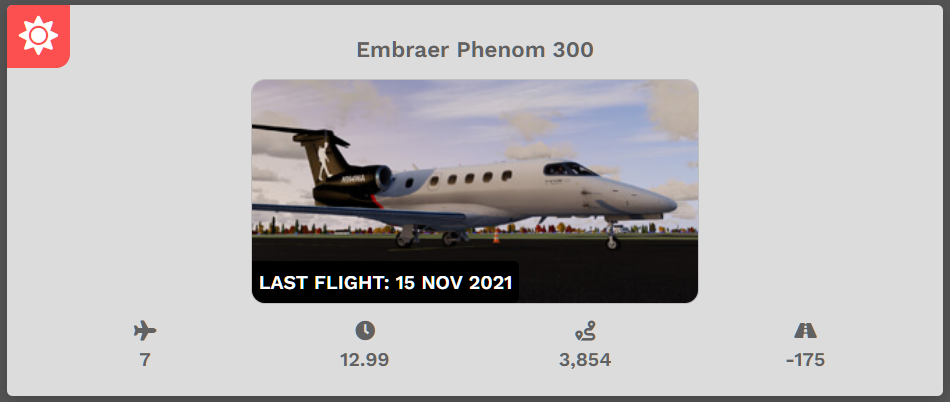
The Phenom 300 has been flown 7 times, for a total of 12.99 hours and 3,854 miles. The average landing rate is -175fpm, and it last flew on 15 November 2021.
And to make this data even more useful, the aircraft may be sorted by Name, Last Flown, Number of Flights, Total Flight Hours or Total Miles Flown by simply clicking their titles on the right side of the Sort Type Ratings By section.

Passport
On the Passports page, you'll find a visual reference for where you've been in your world-wide travels.
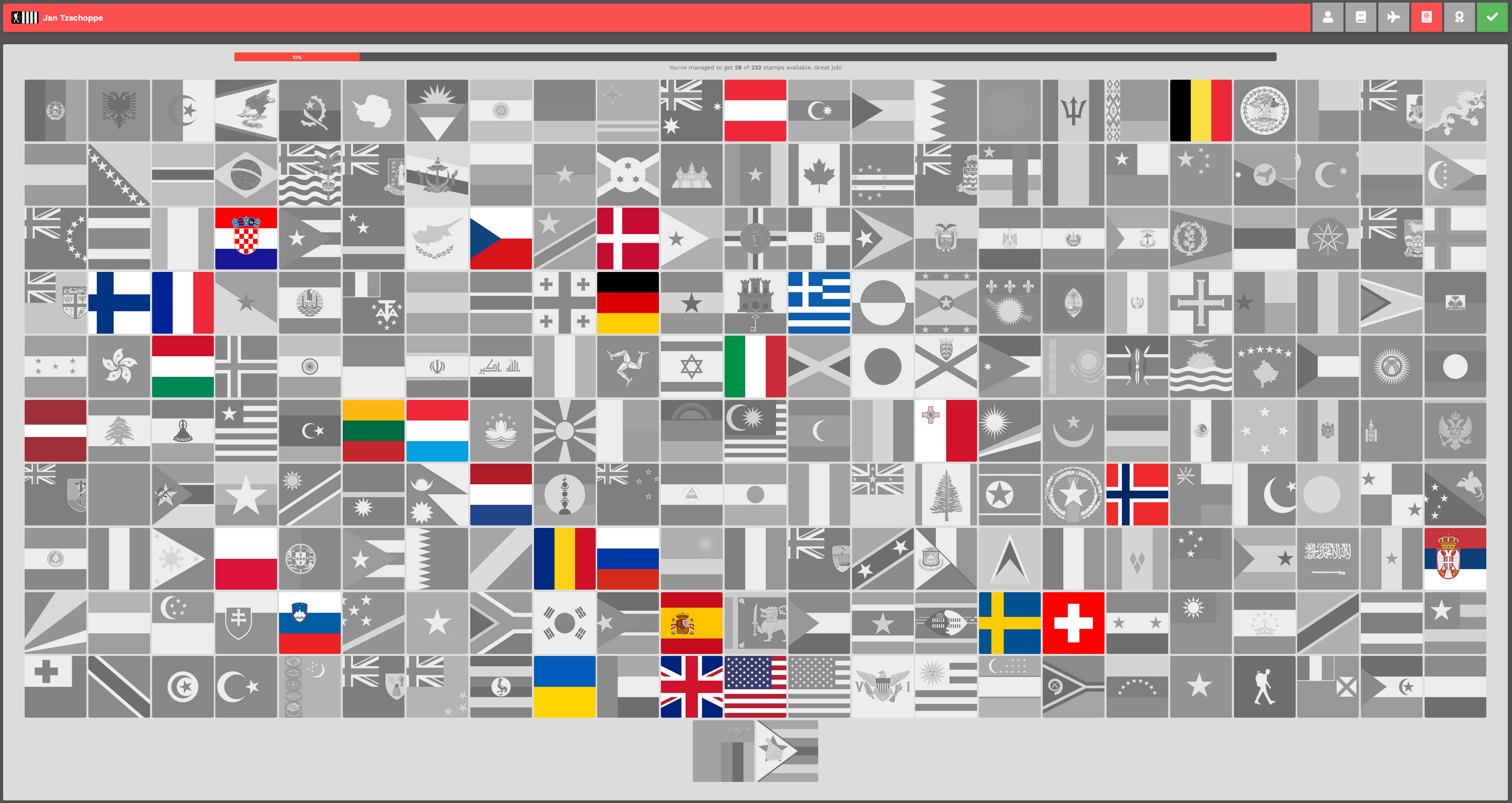
Along the top, you'll see a Progress Bar.

Awards
On the Awards page, you can see which ones you've earned.
For more details on Awards – what they are and how you can earn them, click this link:https://docs.walkerair.us/books/help/page/awards
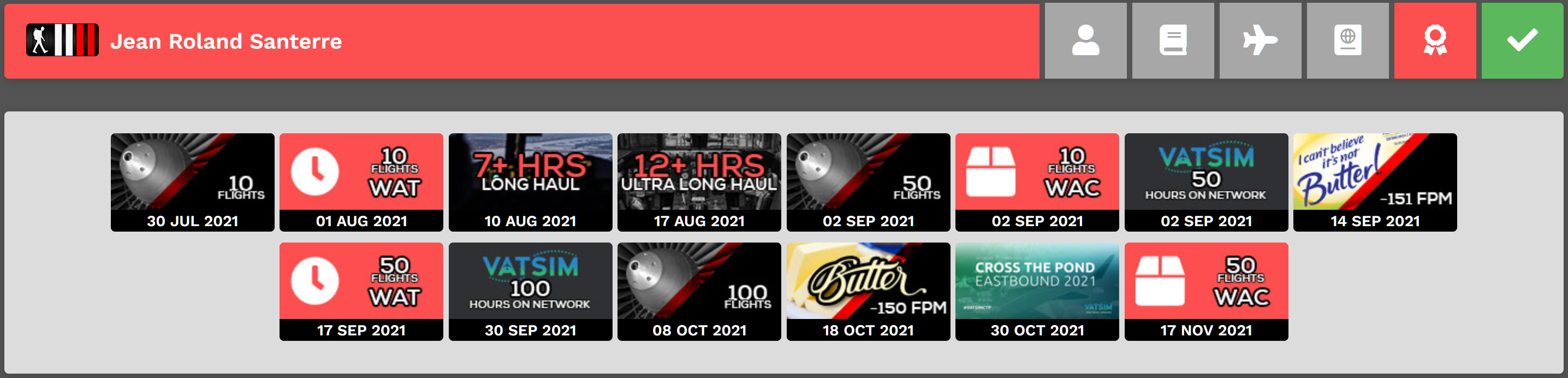
Pilot Status
The final icon on the Title Bar visually indicates your current Pilot Status.
 |

Settings
There are six (6) areas within your Settings.
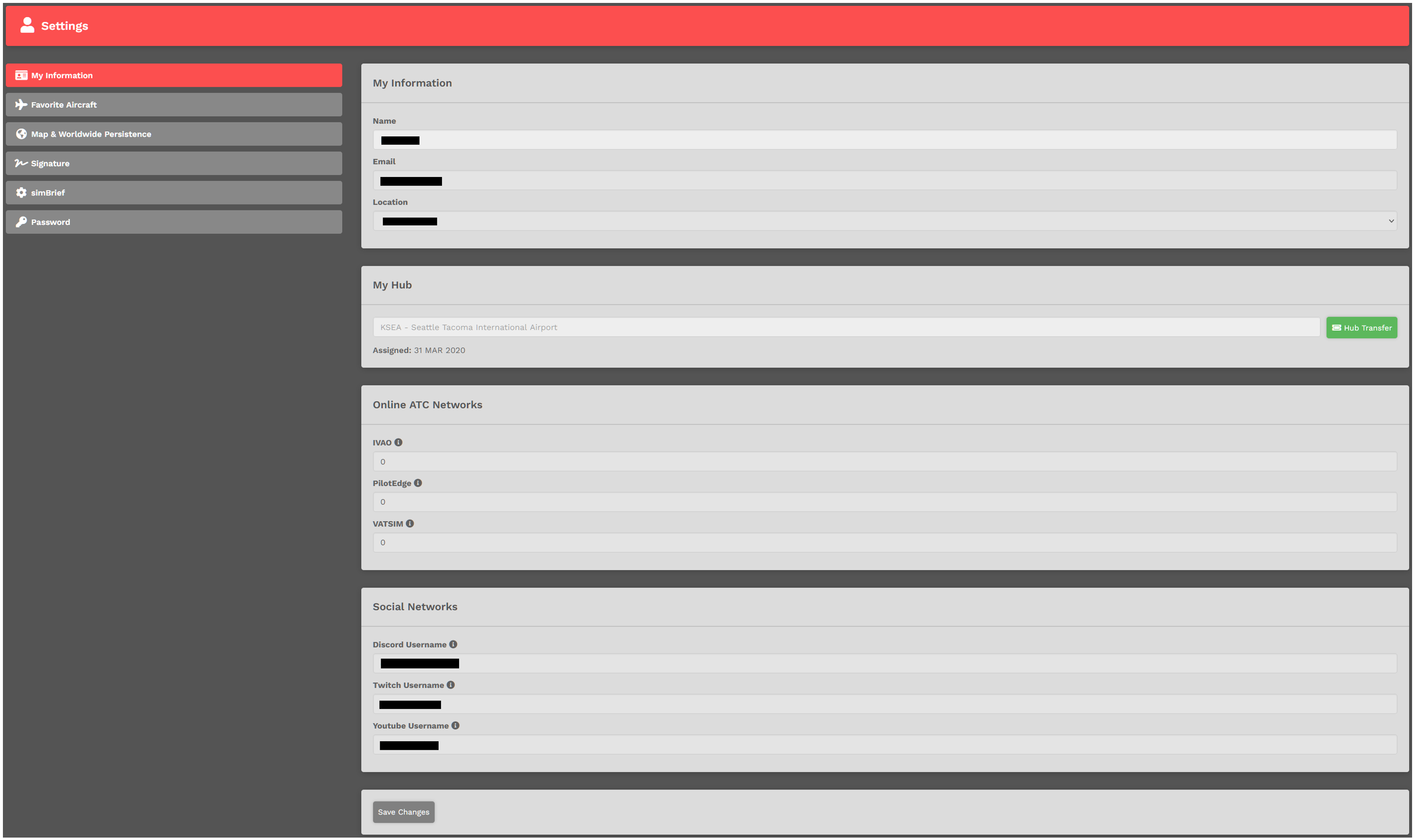
My Information
Within this section, you can view a number of personal information items.
This section contains your Name, Email Address and Location.
Your name can't be changed. Your Email Address and Location can be changed.
This section notes the name of your Hub and the date it was assigned.
You also have the option to change it. To do so, click the Hub Transfer button. After doing so, the screen below opens.EXAMPLE: Your current Hub is KSEA | Seattle-Tacoma International Airport. You want a Hub Transfer to KBOS | Boston Logan International Airport.
In the Please select a new hub... Text Box, click the down chevron and scroll through the list to locate KBOS | Boston Logan International Airport. Click on it.
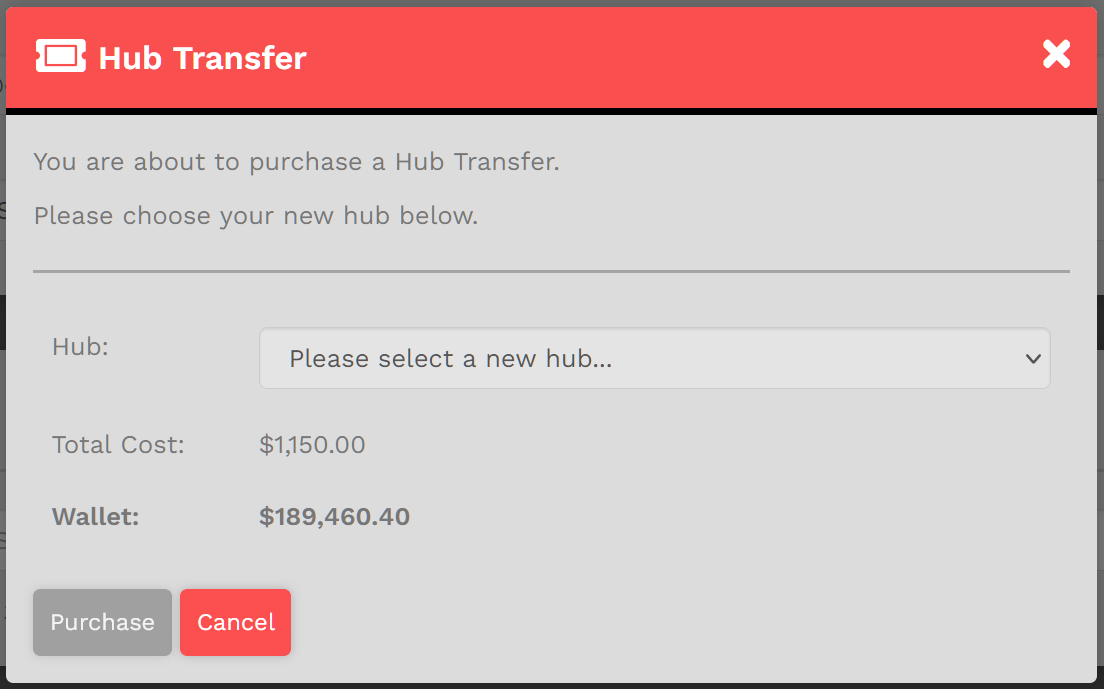
Afterwards, your screen will look like the one below.
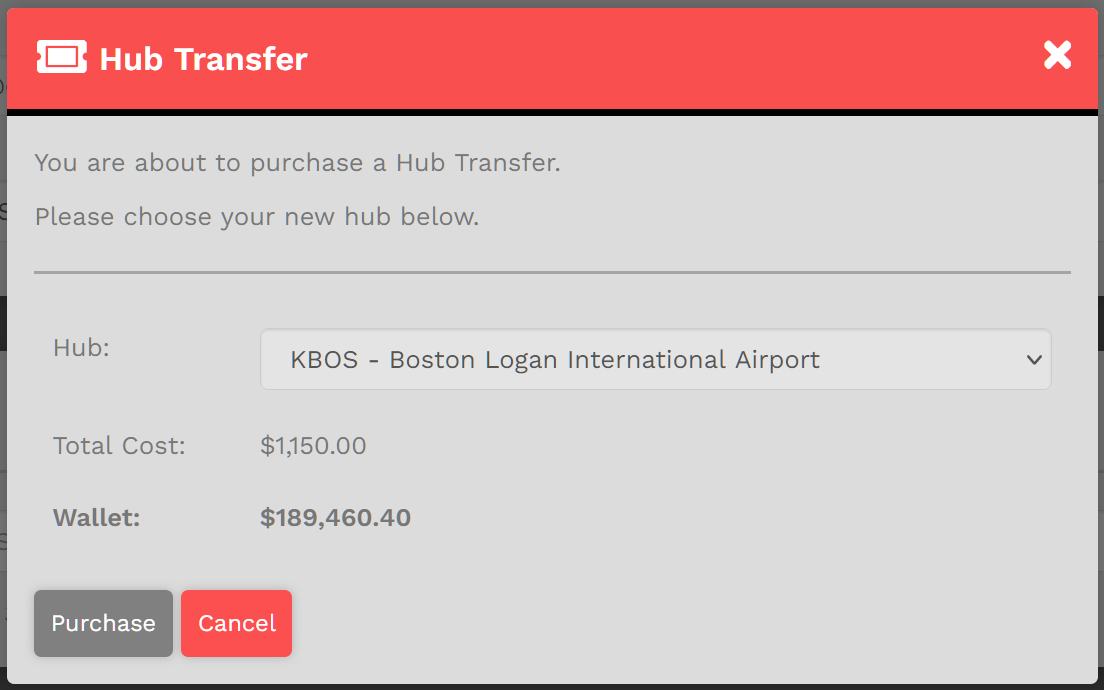
The Total Cost of the Hub Transfer is $1,150.00.
If the Total Cost is greater than the amount of money in the Wallet, the Hub Transfer can't be completed. In this case, that's not a problem because the Wallet balance exceeds the Total Cost of the Hub Transfer.
To Purchase the Hub Transfer, click the Purchase button. It will take effect immediately – and you can do this as often as you like, as long as your Wallet contains enough money to pay for each Hub Transfer.
To Canel the Hub Transfer, click the Cancel button.
If you use online ATC Networks – IVAO, PilotEdge and/or VATSIM – enter your credentials in the spaces provided.
These may be left blank.
If you use a Social Network – Discord, Twitch and/or YouTube – enter your credentials in the spaces provided.
These may be left blank.
To save any changes you made, click the Save Changes button.
Favorite Aircraft
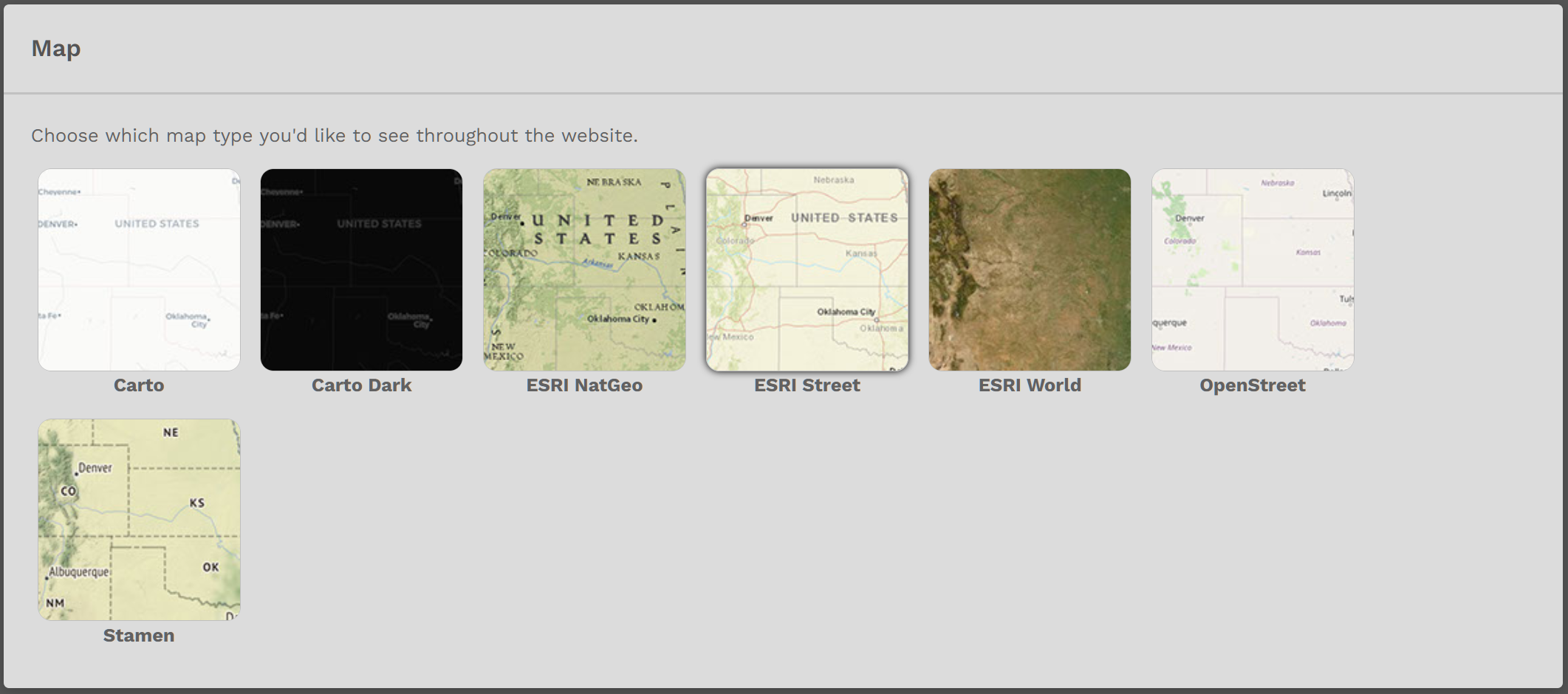
Map & Worldwide Persistence
Signature
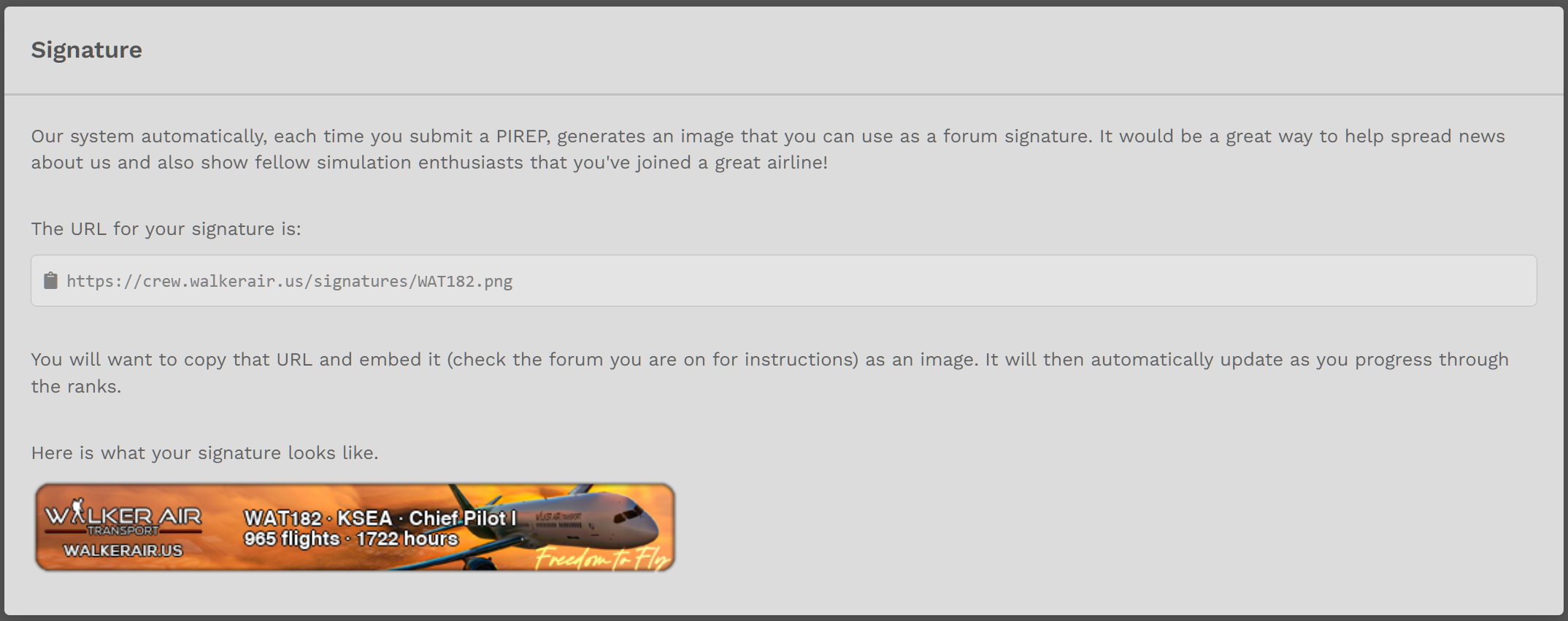
In some online Forums, signature customization/personalization is allowed. If allowed, a URL is provided that may be used for that purpose. The example below is the one created for WAT182.
simBrief
Password
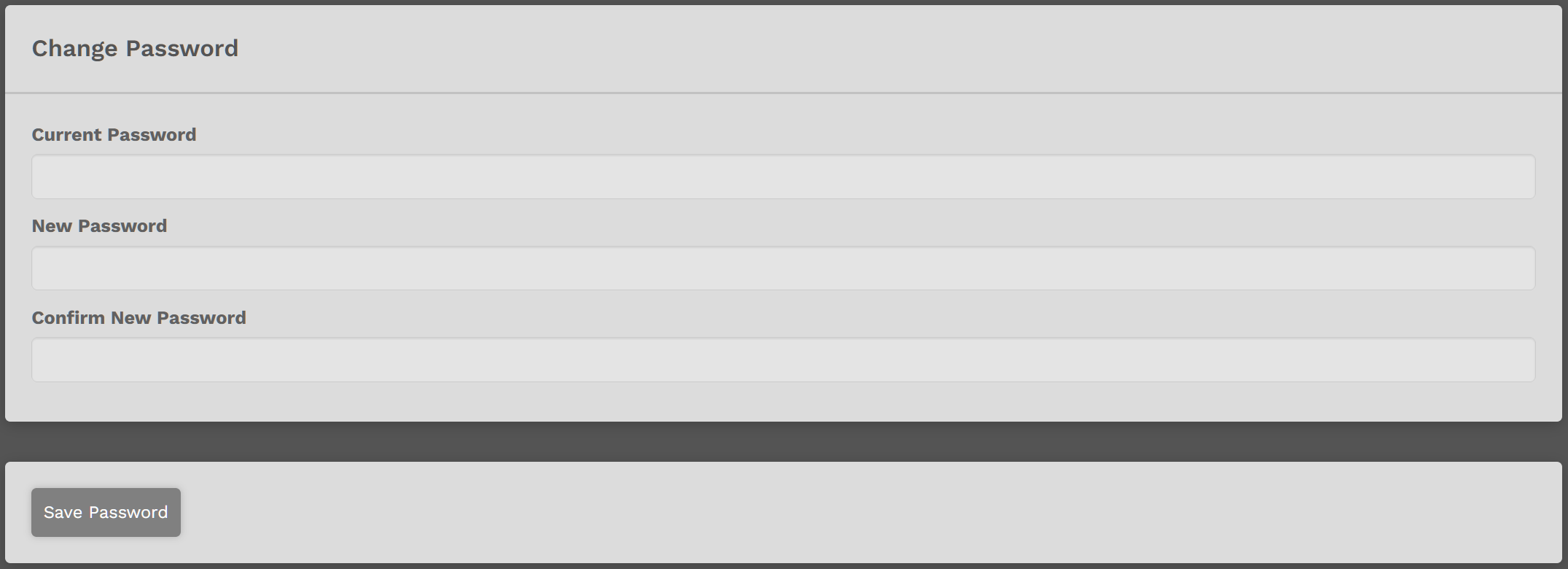
In this tab, you can change your Password.
Enter your Current Password. Enter your New Password. Confirm your New Password by entering it a second time. If they don't agree, re-enter your New Password again
Click the Save Password button to save it.
Discord
Click Discord in the menu. The screen below will open. In the USERNAME Text Box, enter the name by which you'd like to be known/called.
Click the Continue button.
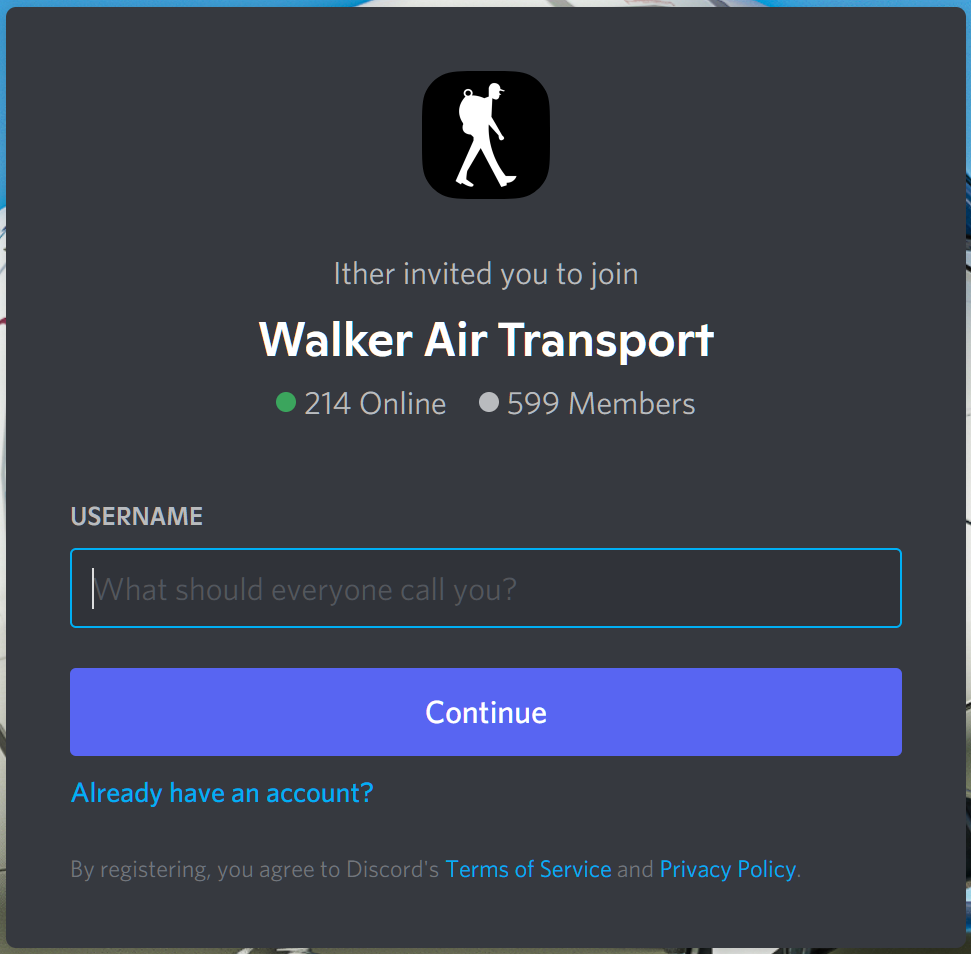
At this point, you'll be presented with a number of additional screens related to security and account setup. Follow the prompts you're given. Eventually, you'll reach this screen.
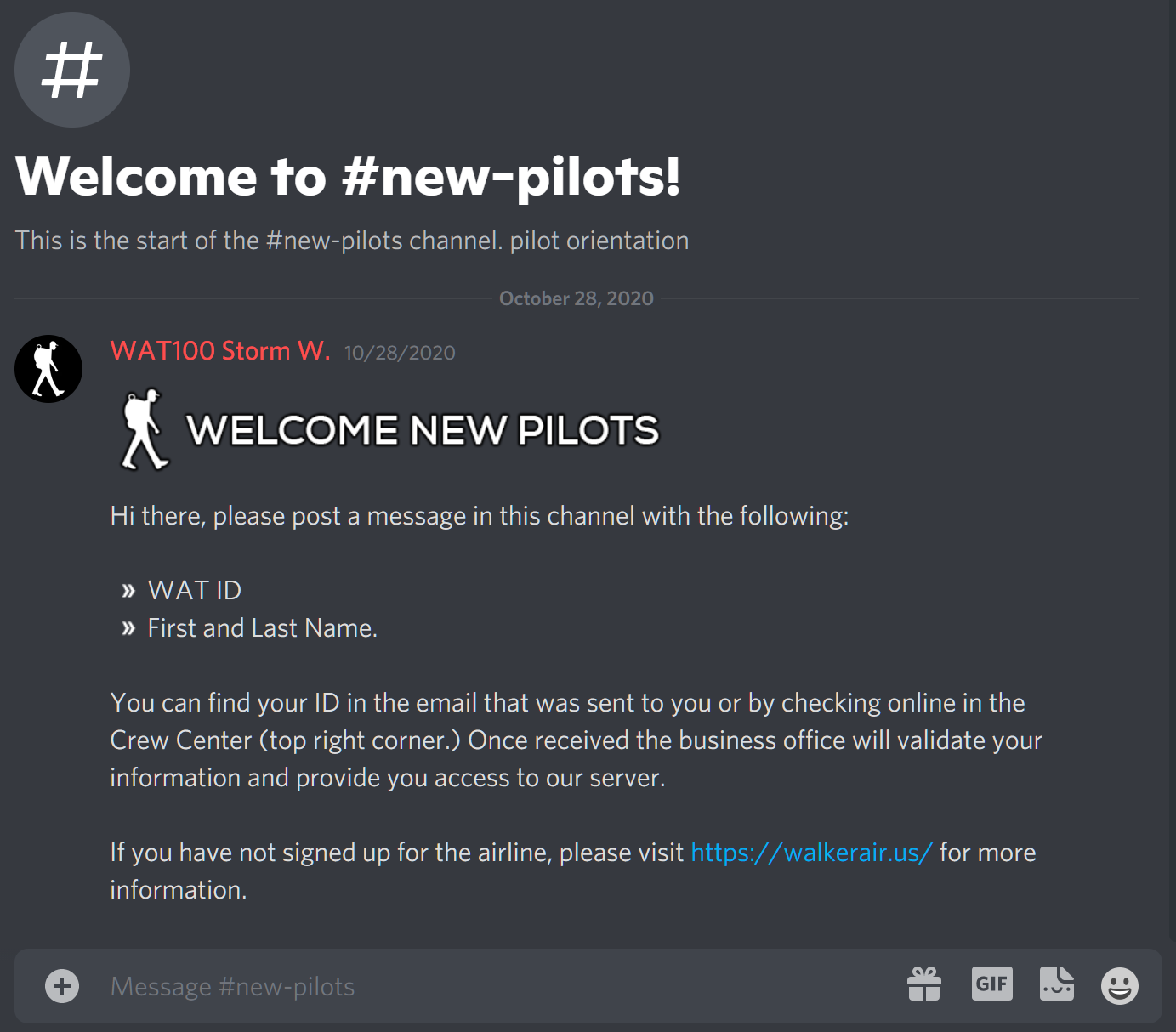
As instructed, enter the Pilot ID you were given in the Acceptance Email you received and your first and last name.EXAMPLE: Storm Walker, WAT100

Touch the Enter key. Soon afterwards, your presence will be acknowledged by a member of the Business Office or a Marshaller.
You'll then see this message in the #general channel.
This is an example of what WAT1252 received.
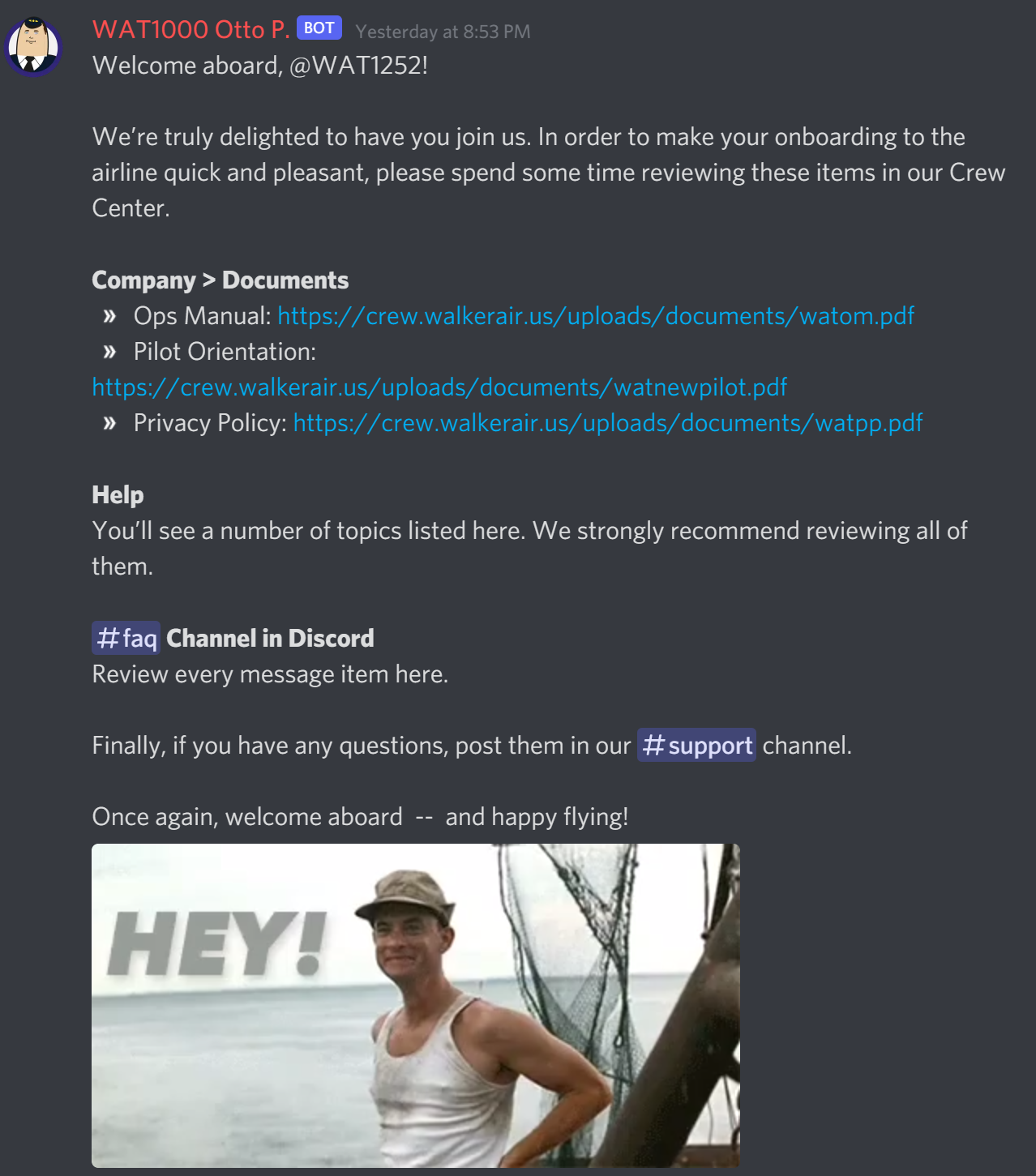
Review its contents carefully and make your onboarding quicker and easier by completing the reading you're asked to do.
You're all set to go in our Discord. Click through the channels to familarize yourself with what's there.
Whether just lurking or being an active participant (or finding a place in between), we encourage you to engage with your fellow Pilots at a level of involvement with which you're comfortable.
Donate
If you wish to donate to the Airline, here's a way for that to be done. The details noted below explain what it is and how it works.
Getting Familiar With The Website | Lower Section
The lower section of the Home Page is divided into five [5] separate Areas. They’re identified below as follows:
Area 1 | Area 2 | Area 3 | Area 4 |Area 5
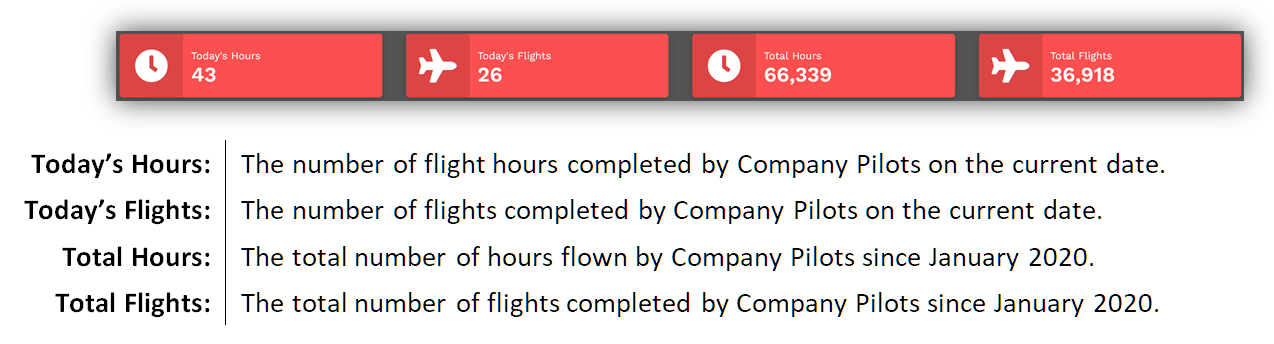
Area 1 – Flight Activity
Area 1 displays information related to the Company’s Flight Activity. These figures are updated in real time throughout the day.
Area 2 – World Map
Area 2 displays a world map showing all flights currently being flown by company Pilots.
The colored dots represent the locations of the Airline’s Hubs.
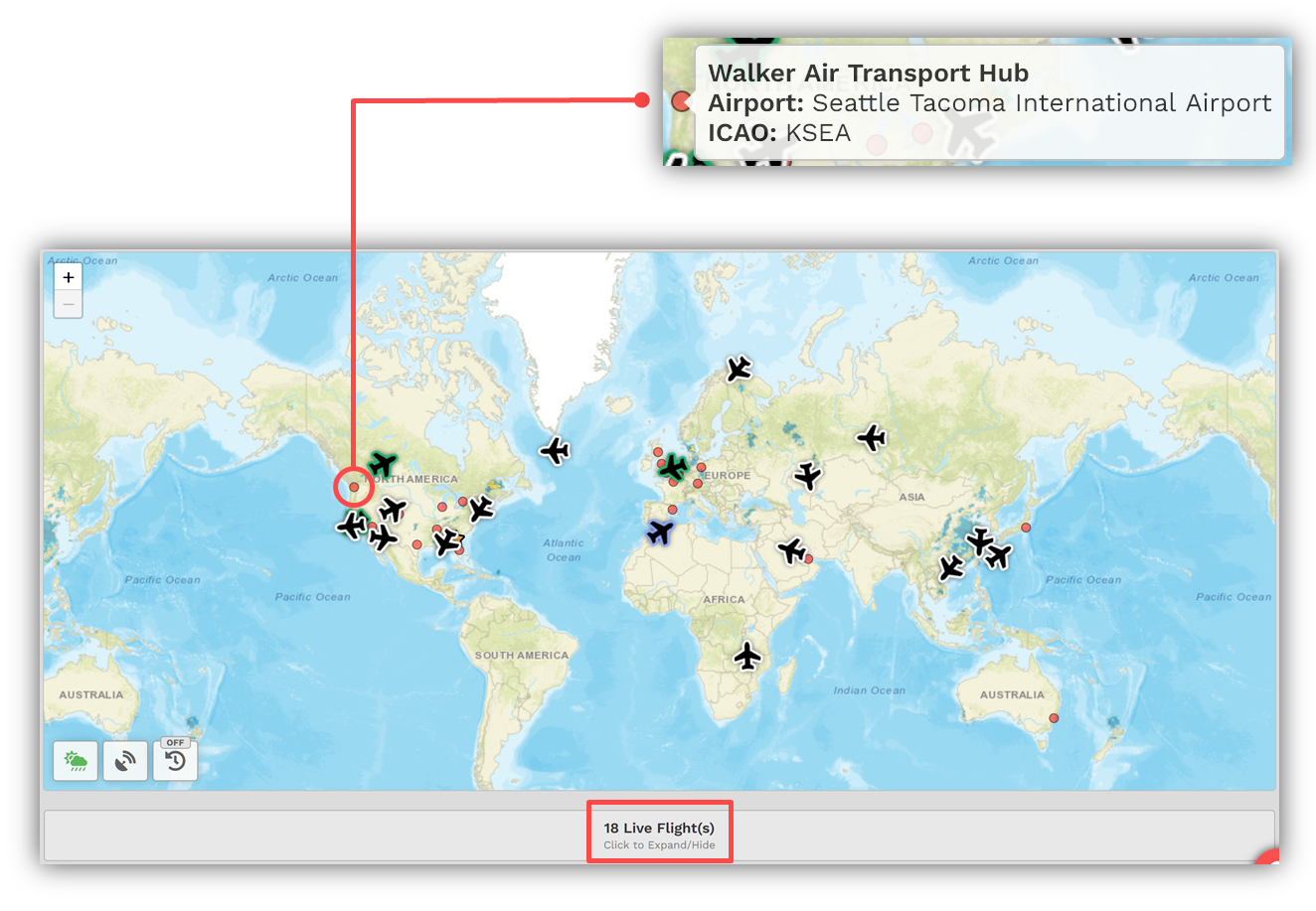
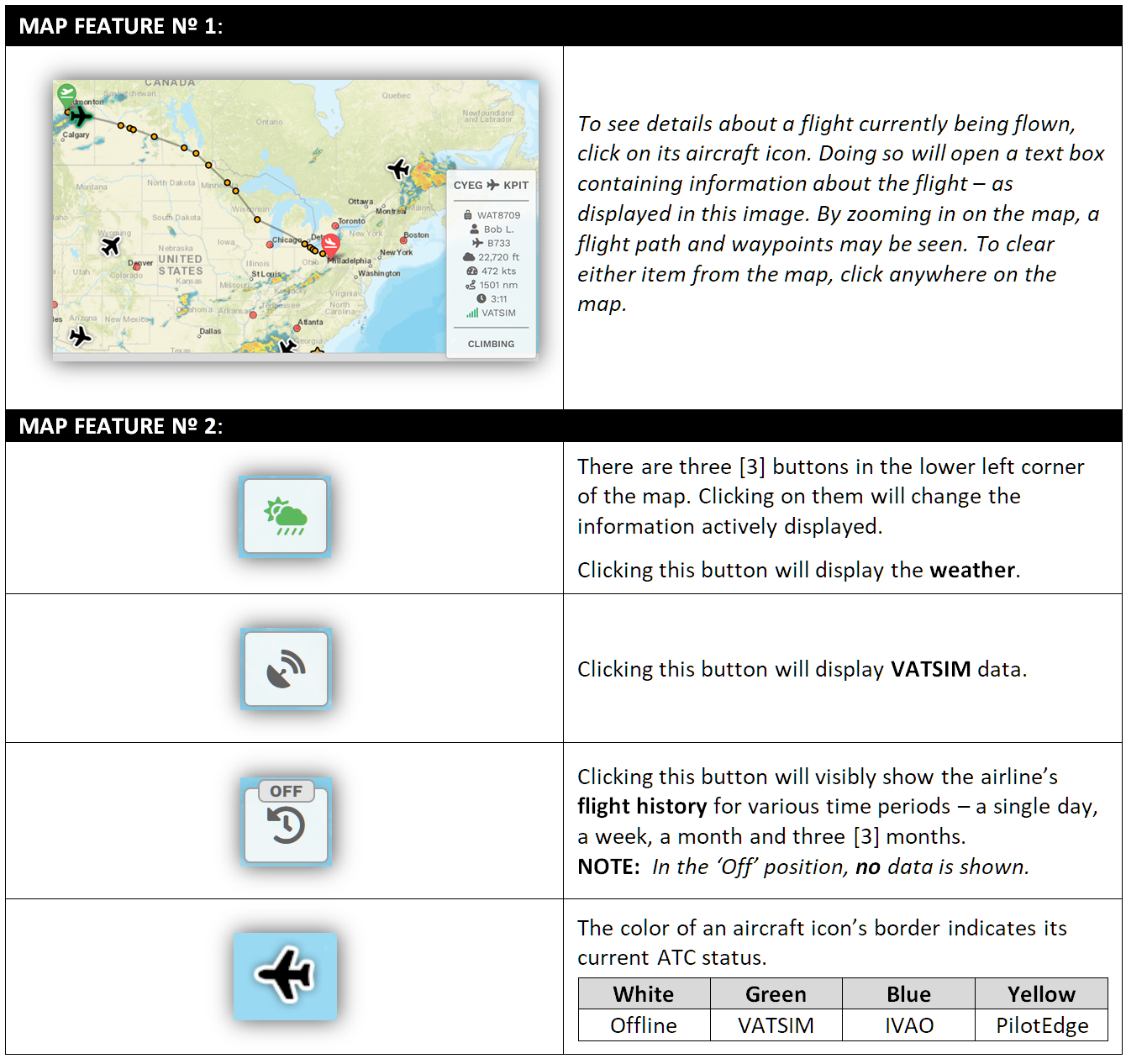
Click Live Flights [red box in the image above] and the screen below will appear. Click it again and the screen will disappear. Once expanded, the status of each flight can be seen in detail [red box in the image on the next page]. Hover your cursor over a variety of entries on your screen to see even more detail about each flight. Clicking on a Pilot’s name in that area will take you to their Pilot Profile.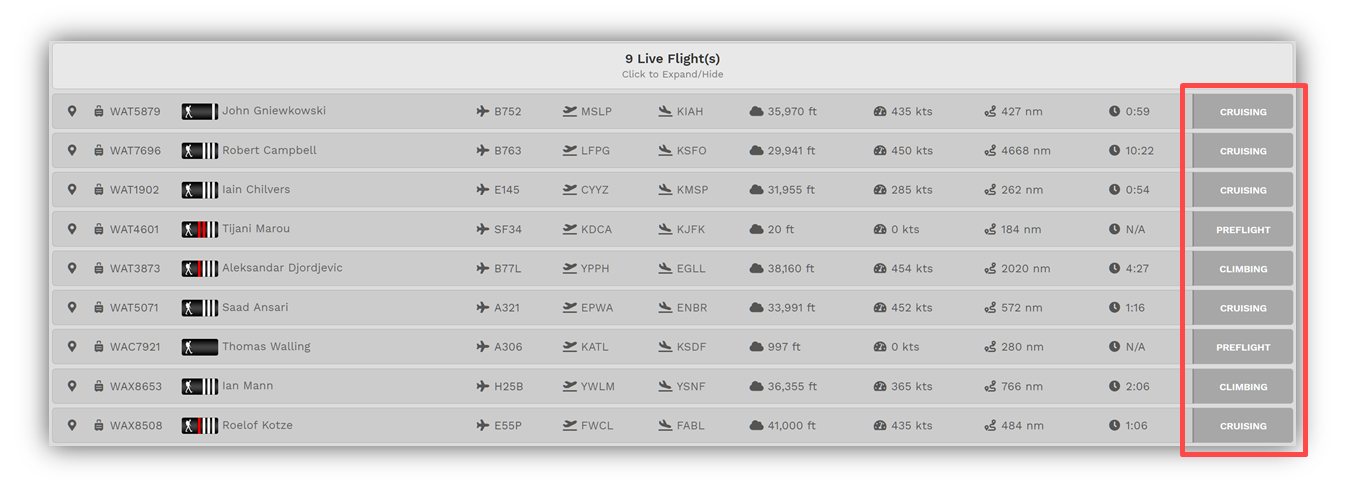
Area 3 – Recently Completed Flights
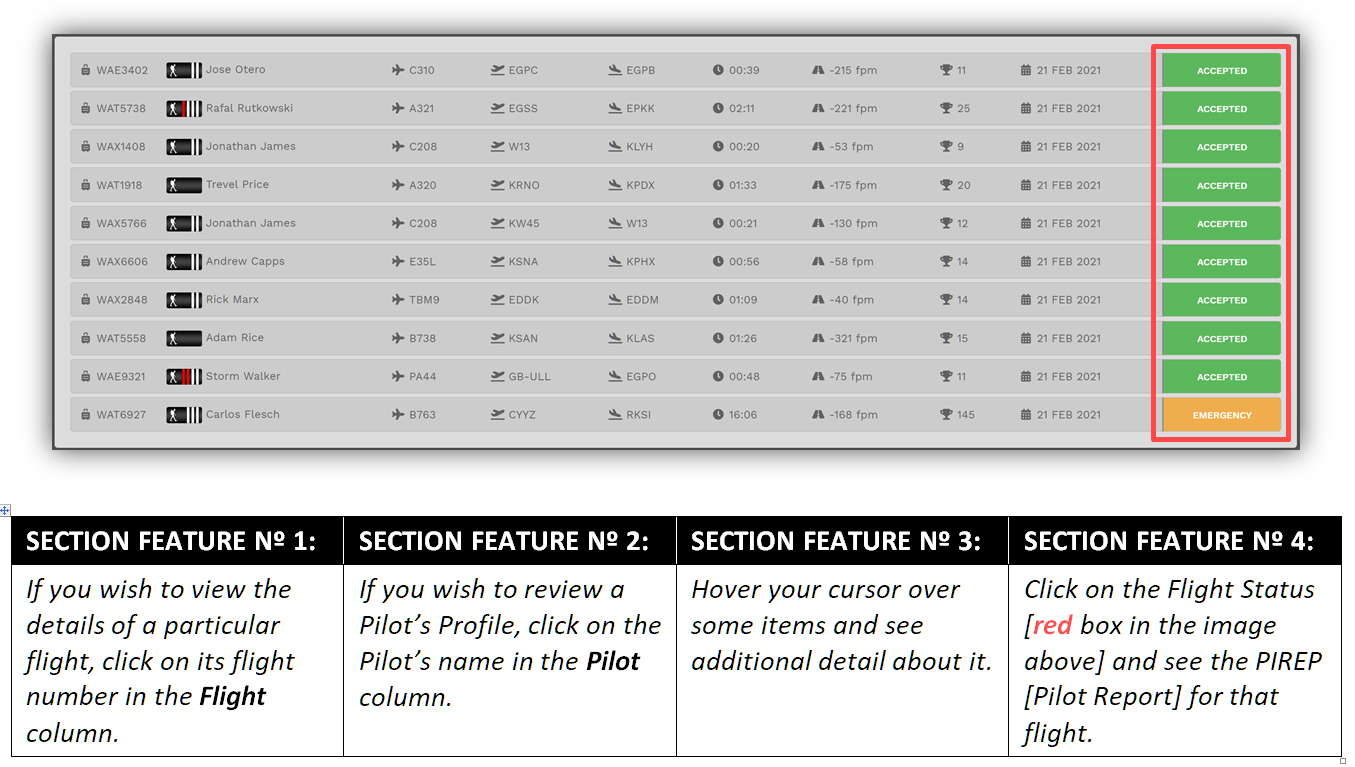
Area 3 displays a list of the fifty [50] most recently-completed flights and their final status – Completed [Green], Emergency [Yellow] or Rejected [Red]. Click the chevrons in this Section’s header to advance through these flights.
Area 4 – Top Pilots
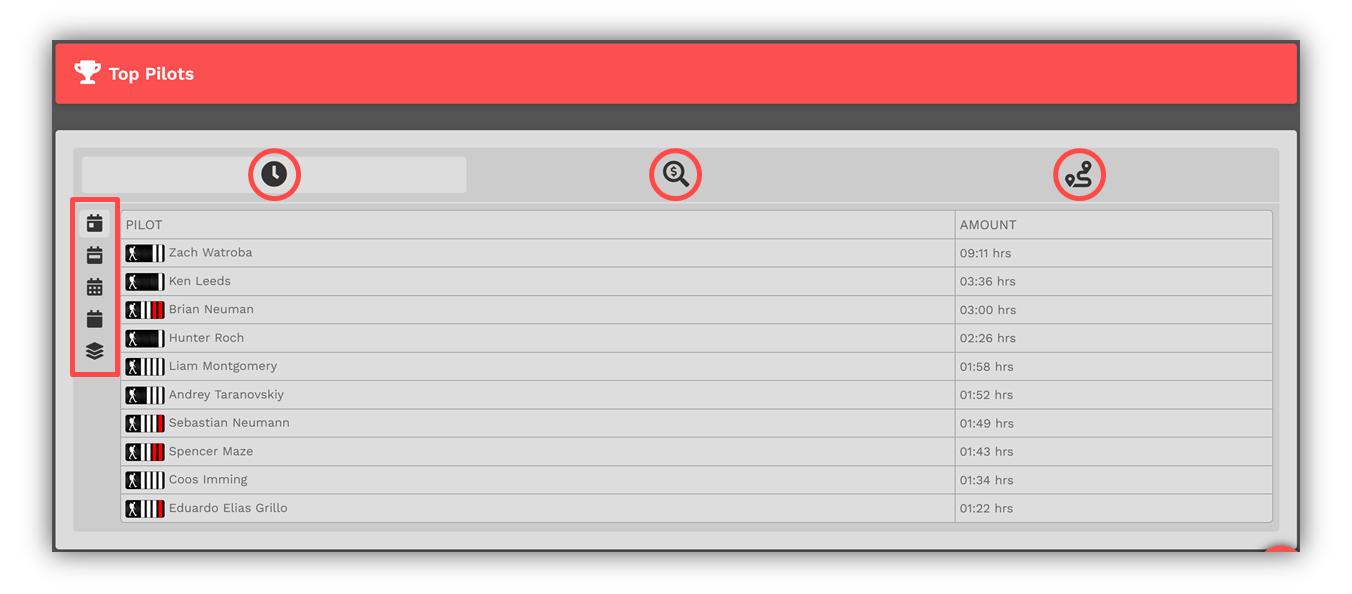
Area 4 displays information related to the company’s Top Pilots. These figures are updated in real time throughout the day.

Click through the various Performance Items [top – red circles] and Time Periods [left – red box] to see how our Pilots are performing.
Area 5 – Historical Performance
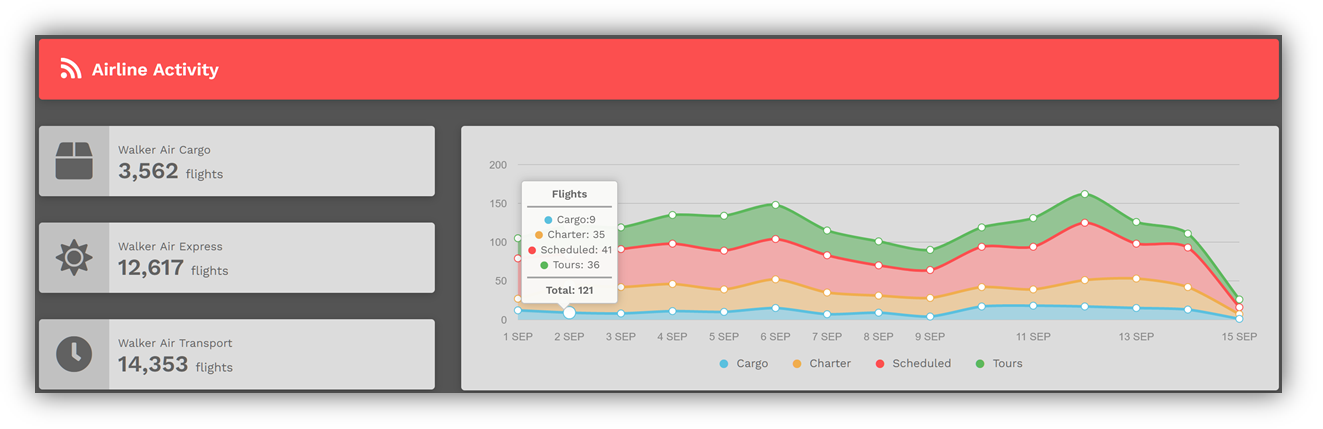
Area 5 displays current and historical information related to the company’s activity. By placing your cursor over any date, the Total Flights metric displayed in Section 1 is broken down to show the totals for each of the company’s divisions – Cargo, Charter [Walker Air Express] and Scheduled [Walker Air Transport]. Day-by-day flight activity is graphically displayed on a rolling two [2] week basis. These figures are updated in real time throughout the day.
Freely explore this page and its many sections by clicking anything and everything you see. To reset the page to its normal state, click the HOME button or refresh the page.
Reading Our Company Documents
Read through the documents listed elsewhere within our Document Management System to get acquainted with our Company’s culture, along with our Policies and Procedures.