
Tours
A Tour provides an opportunity for a pilot to discover the world in a new and unique way. Each one is themed, and unless specified differently, can be completed in an aircraft from any of the company's fleets. They are comprised of planned legs, each of which must be flown in the order specified. Once all legs have been completed, an award is posted to a pilot's Logbook. and the pilot is awarded 5 bonus points for each leg of the tour.
The bonus points is only awarded at the end of the tour, and not everytime you finish one leg. Additionally, this will only be added after you complete another flight (after the last tour flight) or during the server's maintenance refresh.
Tours are Worldwide Persistence-agnostic. You do not have to be at the airport location in order to start any leg of a tour.
Tour flights do not change your location upon landing.
To explore our Tours offerings, click Tours.
The default view is for all Tours to be displayed. Once you begin flying them, though, you may find it useful and/or convenient to be able to sort them. InWe thehave Textan Boxassortment of fields for you to thenarrow rightdown your options.
The numbers beside some of the magnifyingdrop glassdown icon,options indicate the number of tours that are under that filter - however note that if you canhave selectmultiple anyfilters sortingselected, optionit fromwill thestill drop-downonly menu.show what satisfies that single filter, and not all filters.

|
|
|

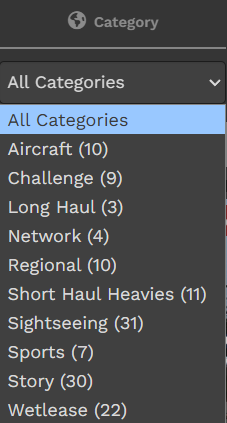
AvailableCategory - These are general categories that we have, based on the tour.
- Aircraft - These are tours themed around a certain aircraft and its operations.

InRegion Progress- What area of the world will you find yourself flying in while doing the tour
CompletedLegs - Number of legs in the tour
Distance- Combined total distance of all legs in the tour
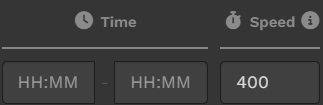
Time and Speed - Time filters by expected tour duration, however this is reliant on the speed (in kts) that you enter on the speed box. This allows you to finetune whether you plan to fly GA, heli, prop or jets.
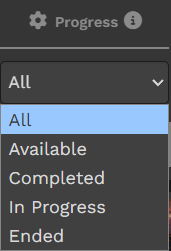
Progress - This lets you filter tours as per the dropdown options.
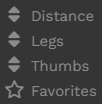
Sort Buttons - This allows you to sort the currently filtered tours by distance, number of legs, number of thumbs (community upvotes) and favorites (future feature) that you have marked.
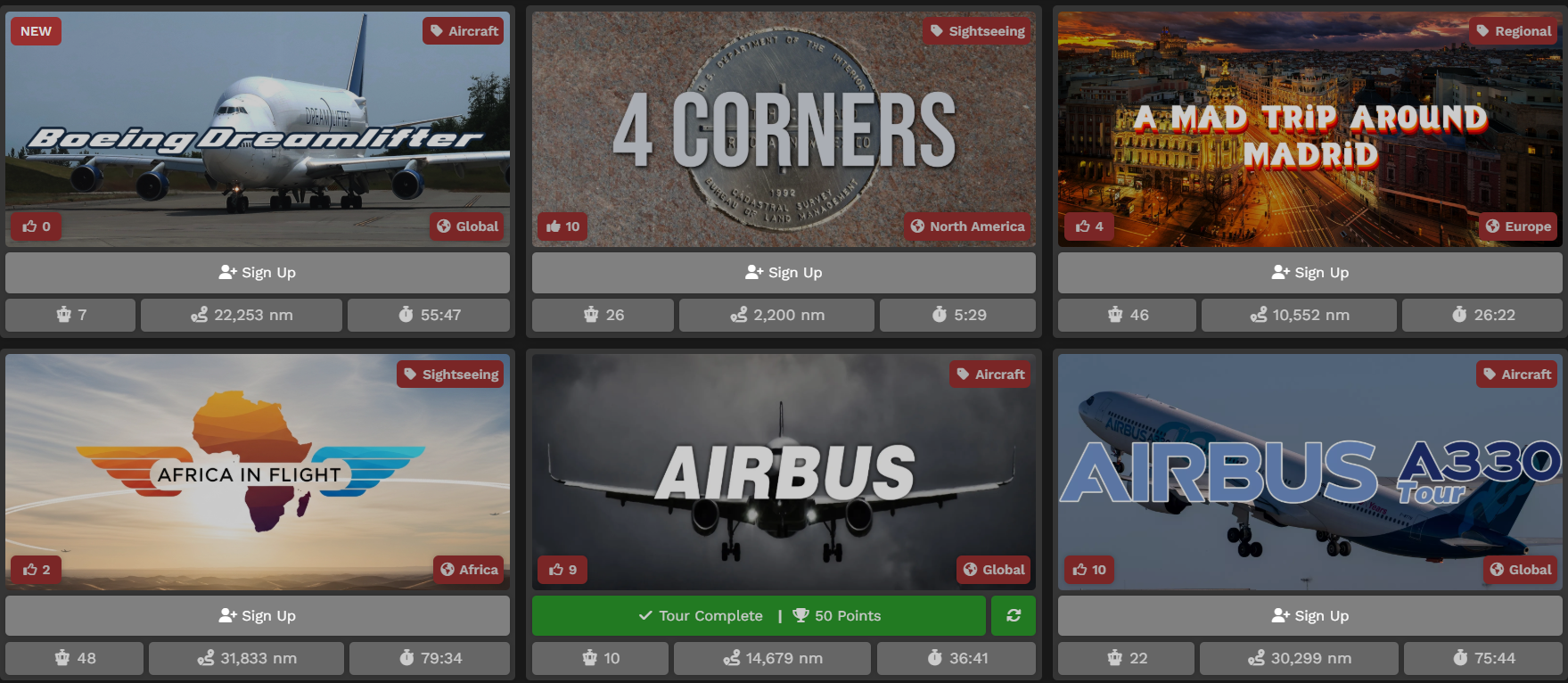
BeneathEach tour panel will show you a number of information.
On the TitleImage Baritself
Upper aboveLeft are- ourThis Tours.will Theseshow area fromred box with NEW if the Alltour viewhas –been recently launched.
Upper Right - This will show the category of tour, as you can see from the Text Boxdiscussed in the Titlesection Bar.
Lower
They'reLeft - This will show a like icon, showing how many other pilots upvoted the tour. You can also displayedhit inthis alphabeticalbutton order.
Theadd Toursyour shownvote below- aredoing onlythis awill smallfill portionthe icon in.
Lower Right - This shows the region of the entiretour, offerings.as Pleasediscussed proceed toin the Tourssection page in CrewOps for the whole listabove.
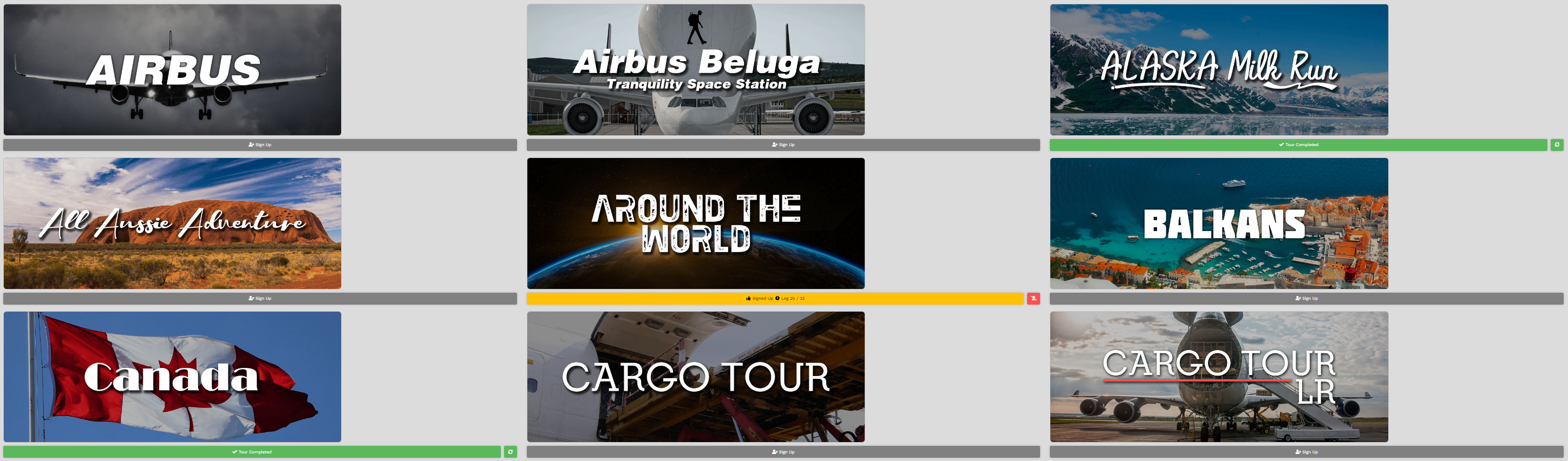
Each Tour has a status. It's either Available, In Progress or Completed – and each is anchored by a colored bar providing you a visual indicator of its status.
For Available tours, clicking this bar will allow you to sign up for the tour.
For In Progress tours, the bar will show your current progress as the loading bar, your next tour leg, and the distance of your next leg.
For Completed tours, it will show you the amount of bonus points you earned by completing the tour.
| Tour Status: | Available | In Progress | Completed |
| Completion Status: | Grey | Yellow | Green |
Below are samples of what you may see in your tours page.
| Available | In Progress | Completed |
|
|
|
|
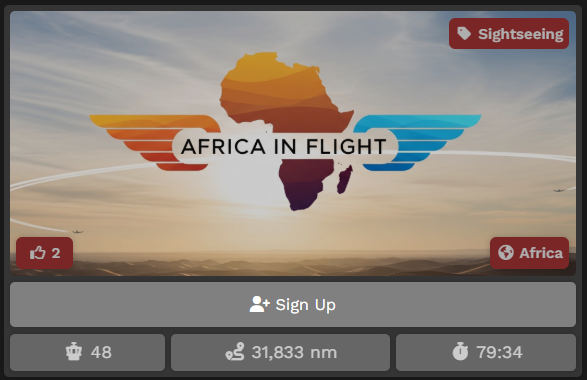
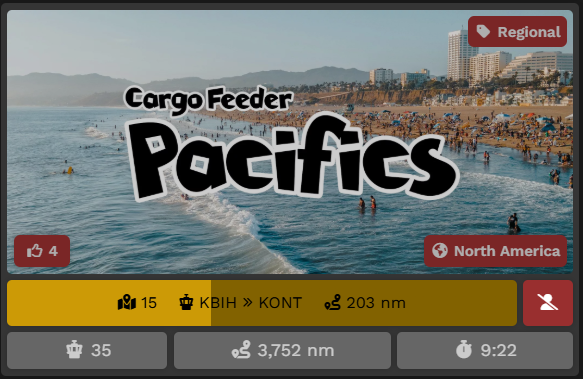
Available
Individua Referring to the Tour Page image above, you can see the Airbus Tour is Available because the Sign Up bar is Grey.

To learn more about thisa specific Tour, click its image on the Tour page.
After doing so, the screen below will open. In it, there are three areas on the page.
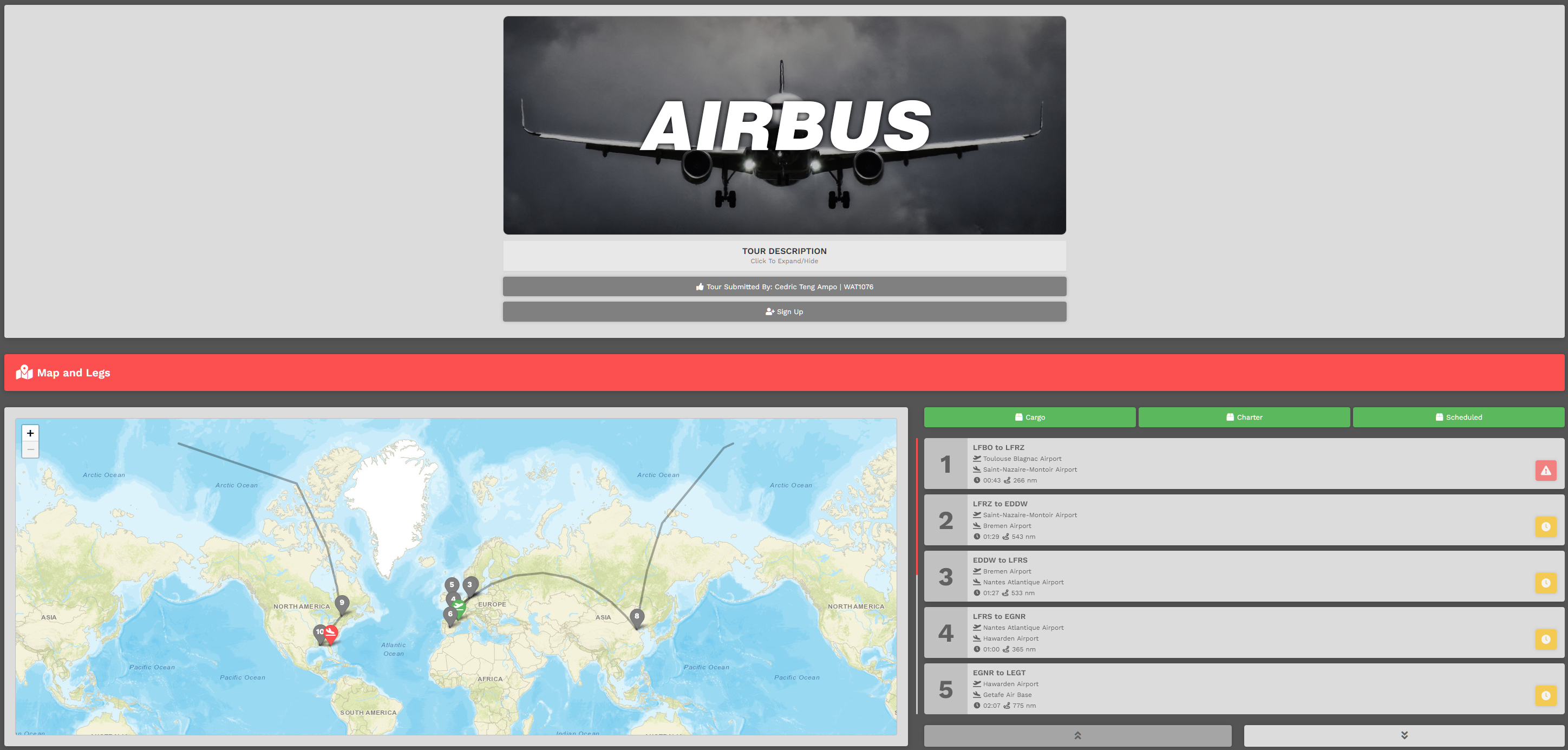
Area 1 | Tour Description
Click Tour Description beneath the Tour Image. After doing so, its description will appear. This will provide an narrative overview of the Tour. If you see a yellow Tour Description notice, as below, you are highly enjoined to open the tour description as it contains information regarding add-on mods required, or possible ICAO differences in certain simulators.

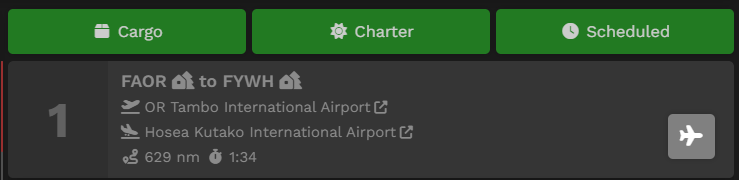
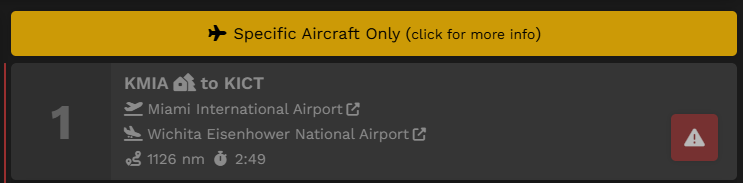
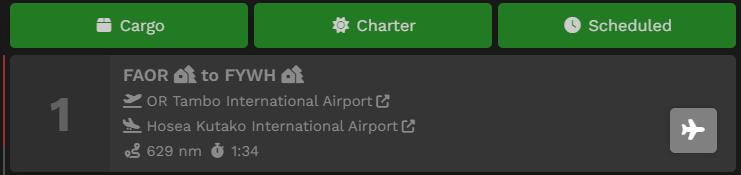
You may see the allowed aircraft for the tour by hovering over the three green boxes or the "Specific Aircraft Only" buttons on the right, on top of the legs list.
If you wish to sign up for the Tour, click the Sign Up bar. After doing so, you'll note two new things in the page that opens.
| 1. |
If you change your mind about completing the Tour at any time after signing up for it, click the Leave this Tour? button and you'll be removed from it.
|
| 2. |
The Tour's First Leg will now have a grey aircraft icon button. That means you may bid this leg. |

Tour Legs must be completed in the order they're sequenced. You will not be able to skip around once you begin.
To bid a Tour Leg, click the grey aircraft icon button.
Afterwards, the screen below will open. From here, it is the standard flight bidding process. You may refer here if unfamiliar.
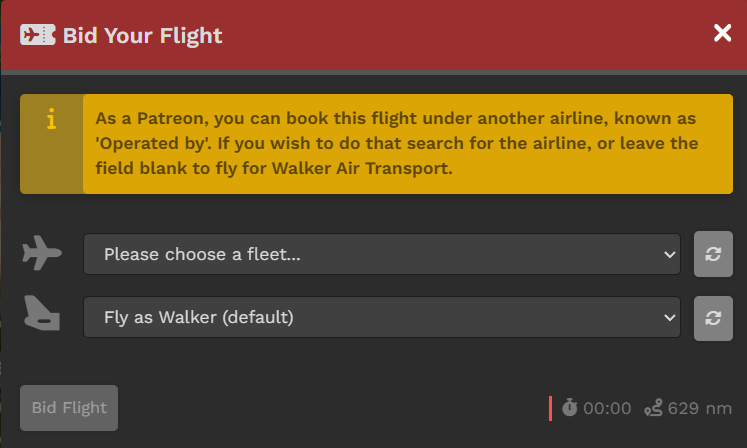
IfNote that if you are a member of the Patreon program, you may use any livery you want for the tour.
From the drop-down (click the chevron in the right corner of the text box), selectnot a FleetPatreon, – Cargo, Charter or Scheduled (as appropriate - some toursyou will not have athe fleetsecond dropdown box available due to the tour restrictions.)
Once selected, the dropdownand will refreshinstead with the aircraft available in your selected fleet.
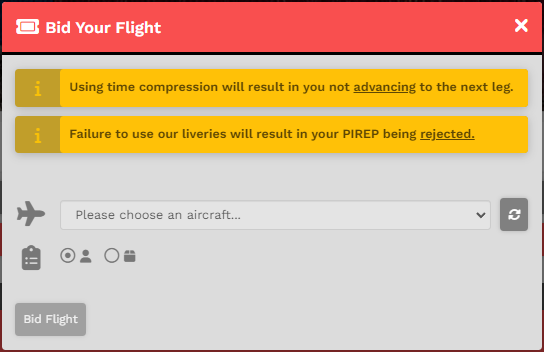
Select the aircraft you wish to fly from those in the drop-down menu (click the chevron in the right corner of the text box).
In this example,see a Beechcraftnotice Baronabout 58livery use. from the Charter Fleet will be flown for this Tour Leg.
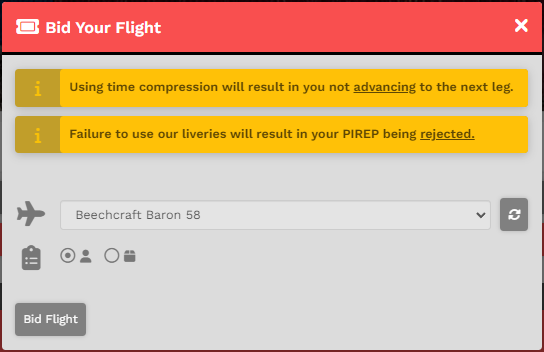
If you wish to return and pick another fleet, click on the 'Reset Aircraft' to the right of the drop down box.
Otherwise, click "Bid Flight" to continue.
You now have three options regarding this Tour Leg.
After clicking the Bid Flight button, the Tour Leg will appear in My Bids. You may then operate the flight.
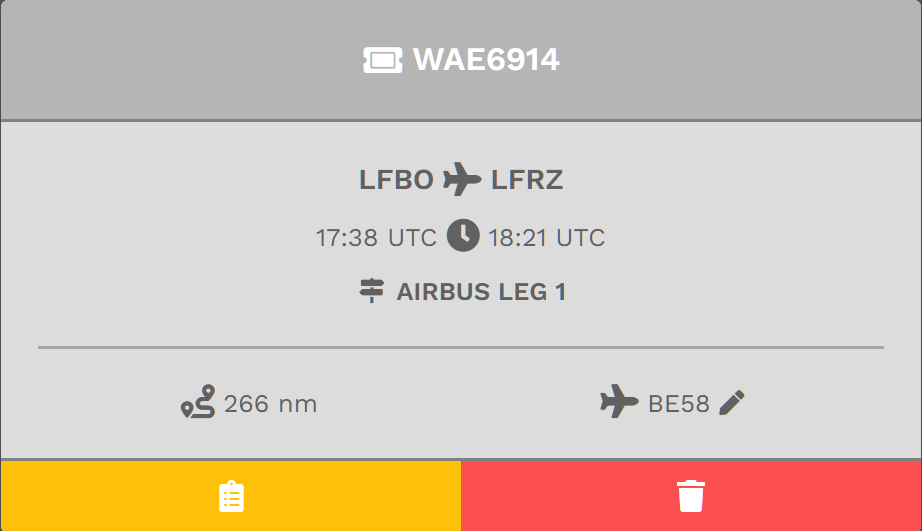
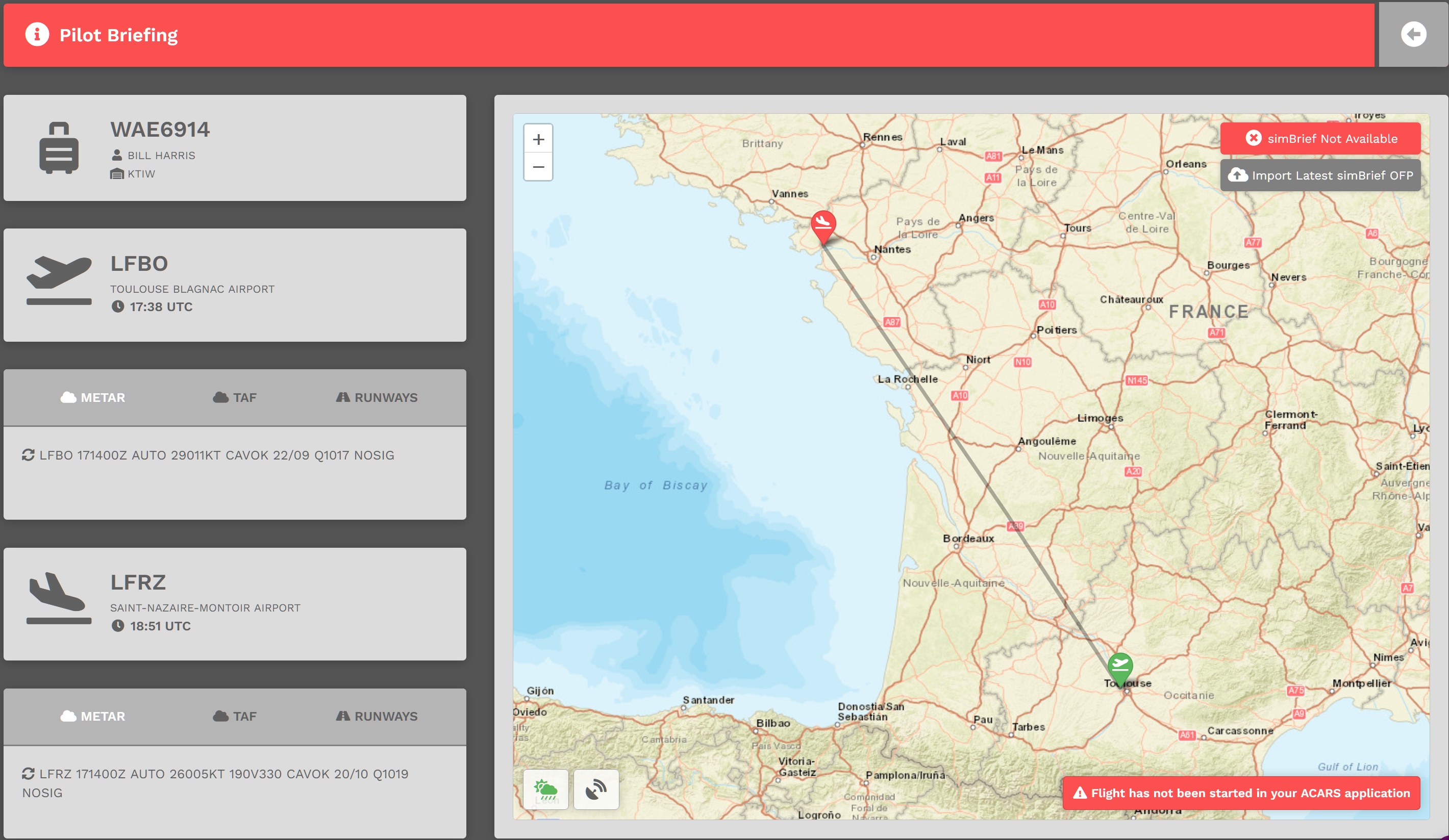
To view the Pilot Briefing for this flight, click the yellow button. Use this information to assist you in planning your flight and its flight route.
To delete this Bid, click the red button.
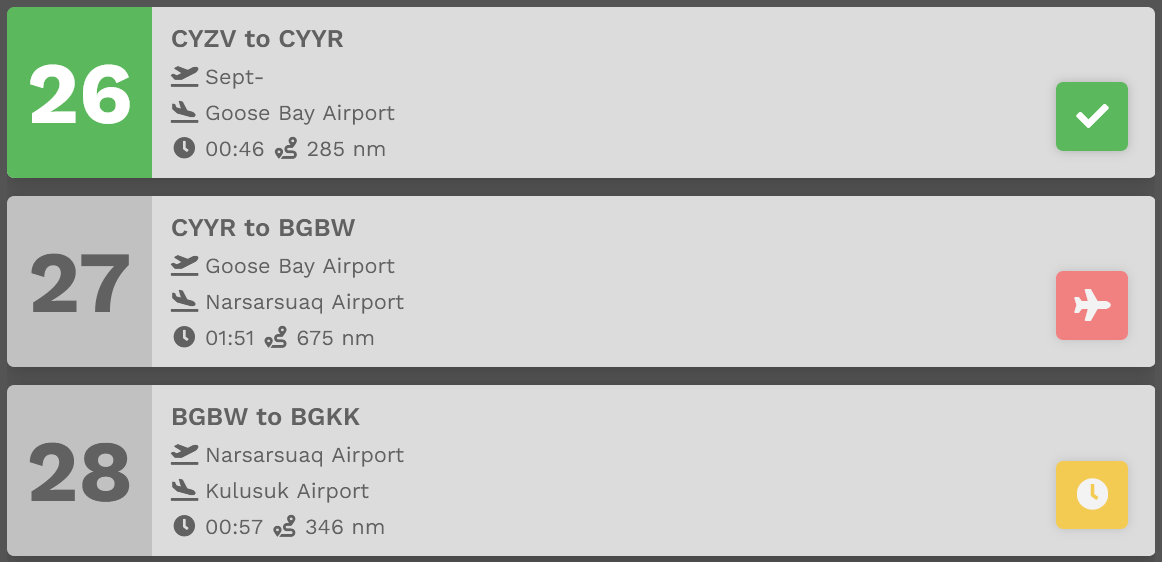
And about the colored buttons... Here's another example of a Pilot currently flying a Tour we can use as an illustration:
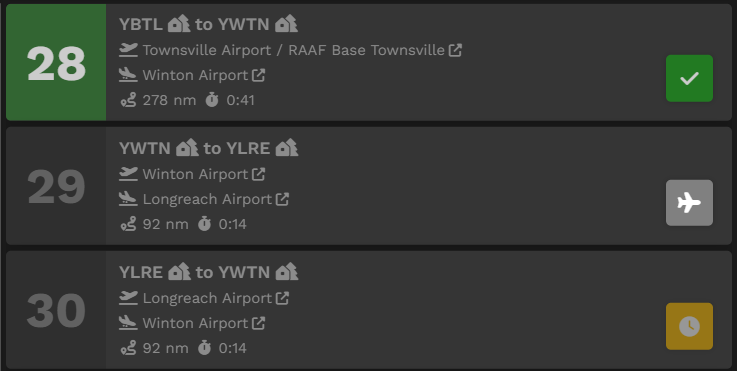
Leg 2628 has a green check mark icon indicating that leg has been Completed.
Leg 2729 has a redgray aircraft icon indicating that leg hascan alreadybe been bidbidded and is available to be flown. ItOnce cannot bea bid again.is in place, the icon will turn red. 
Leg 2830 has a yellow clock icon indicating it may not be bid upon unless/until Leg 27'29's flight has been completed.
This color coding has been implemented for all Tours.
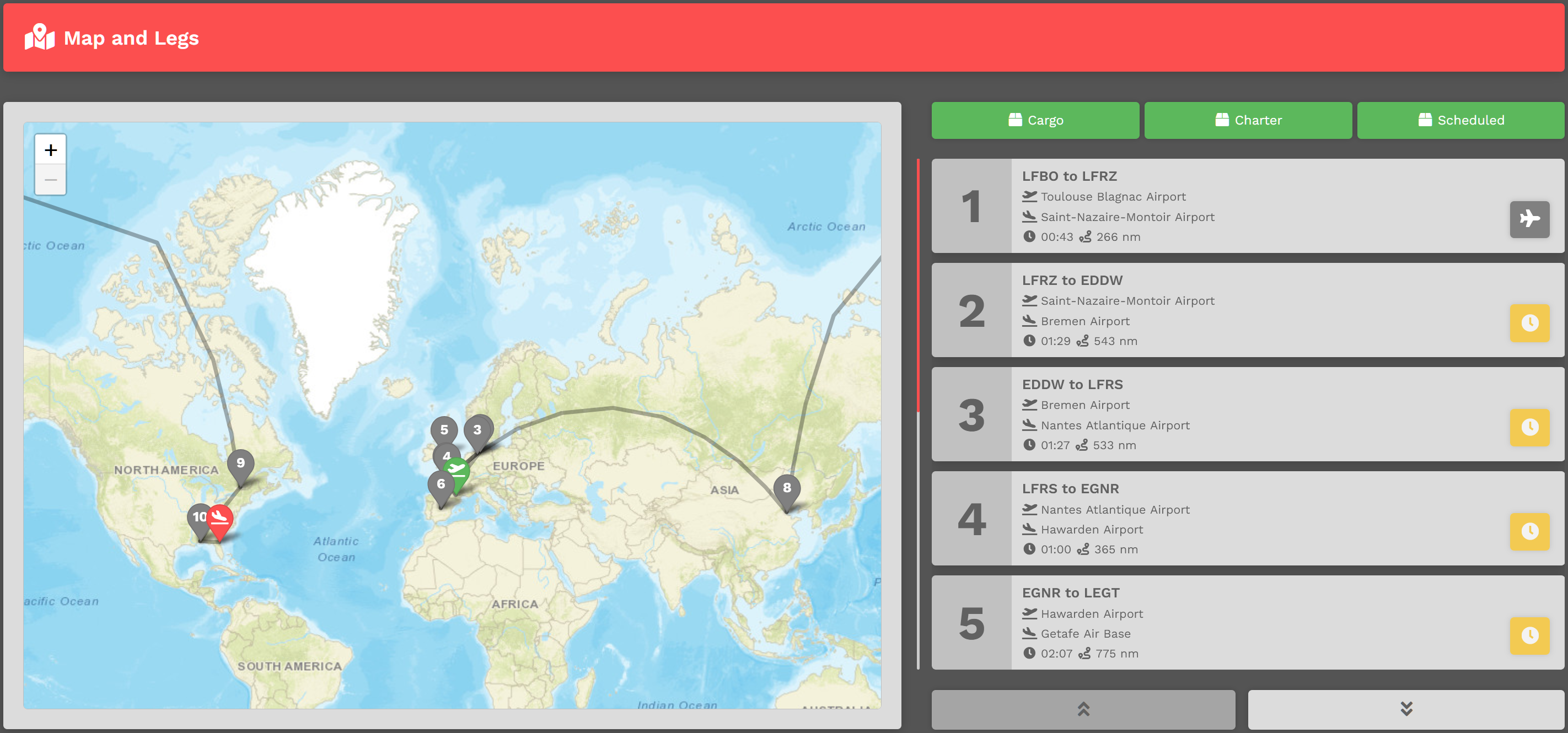
Area 2 | Tour Map & Legs
In this area of the Tour Page, a map identifying the Legs and their location is presented.
To its right is the list of Tour Legs. Each is numbered and must be flown in that order. The Aircraft Type allowed in this Tour can be seen by clicking the green Cargo, Charter and Scheduled buttons.
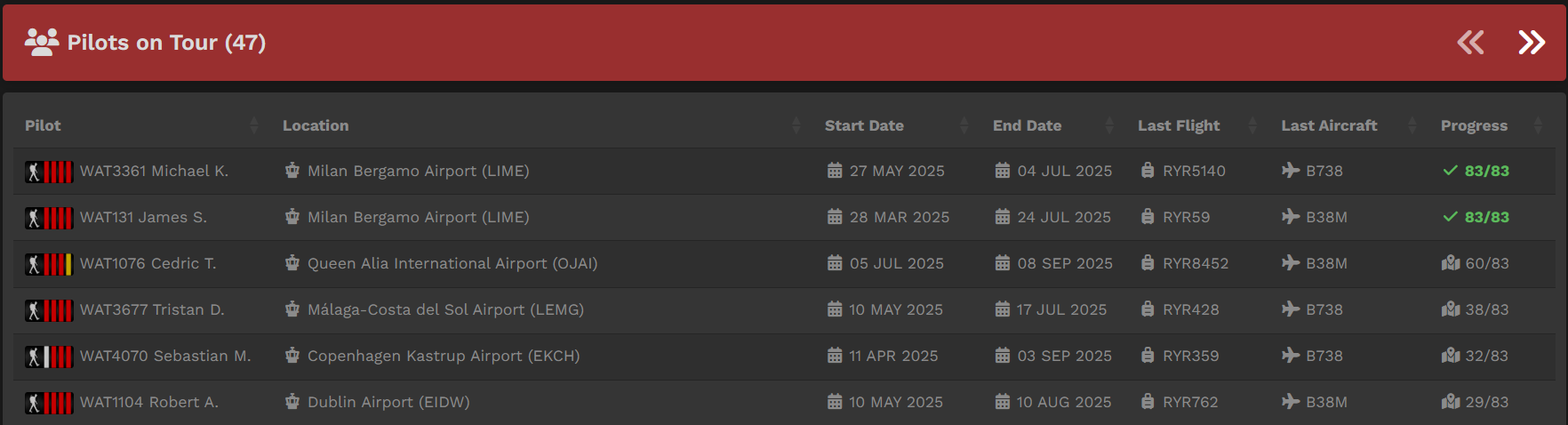
Area 3 | Pilot Status On Tour
In this area, the status of all Pilots flying the Tour are noted – Pilot Name, Location, Last Flight, Last Aircraft and Progress. If desired, you can measure your progress against others flying the Tour and view their most recent PIREPs.
For pilots who have completed the tour, they are arranged in order of their date of completion.
InReflying Progressa Tour
Referring to the Tour Page image above, you can see the Around The World Tour is In Progress because the Sign Up bar is Yellow.

All other visual elements of an Available Tour exist for an In Progress Tour – with two notable exceptions.
A Tour may be canceled at any time. In the image above, clicking the red button will do that.
Completed
Referring to the Tour Page image above, you can see the Alaska Milk RunJapan Tour has been completed because the Sign Up bar is Green.
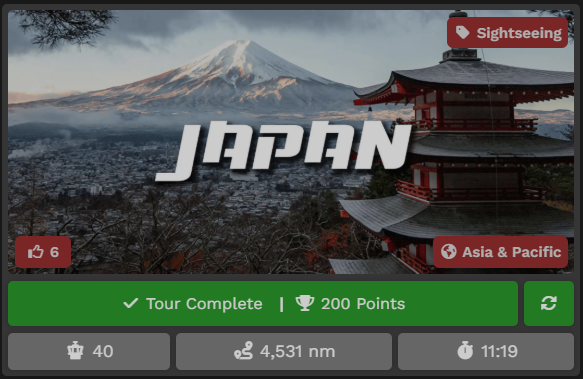
All other visual elements of an In Progress Tour, exist for a Completed Tour – with two notable exceptions.
ONE
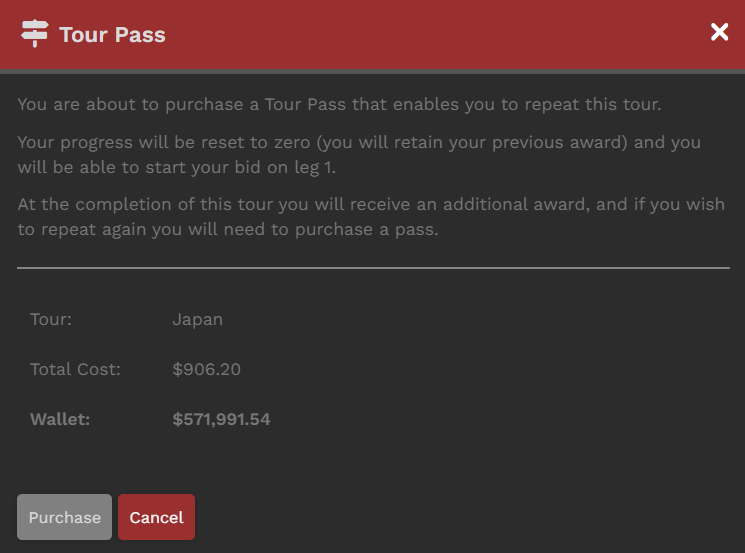
A Tour may be re-flown at any time. In the image above, clicking the green refresh button  will do that. To re-fly a Tour, you'll need to purchase a Tour Pass – and there's a cost for doing that.
After clicking the Green button, the screen below will open. There, you'll see what it'll cost you to re-fly the Tour.
Clicking the Cancel button at any time will cancel the transaction.
|
|
If your Wallet Balance is greater than that cost, the transaction will be approved. You will be allowed to re-fly the Tour.
|
TWO
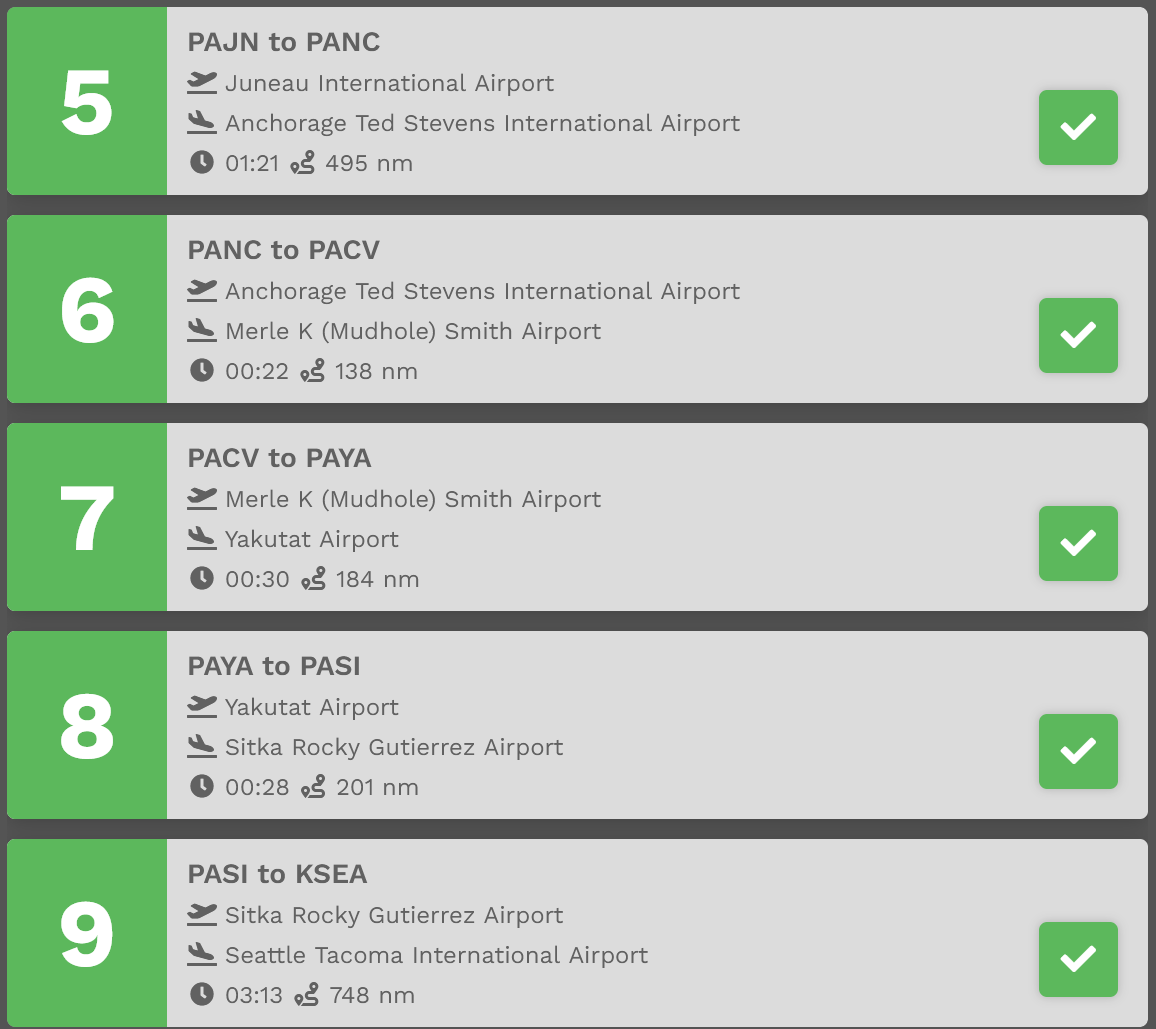
All Tour Legs have been completed. There are no more Tour Legs to fly, so each one has a green check mark.
Tour Pause due to Time Compression // Cleared To Fly
Pilots are allowed to use time compression on tour legs with our new Tour Pause system. When you use TC on a leg, the amount of time remaining after your compression is used to put you in pause mode on that specific tour. This means that on that one tour, you cannot start the next leg until the real-time equivalent has passed. You can, however, move on to another tour and do a leg in time compression. The goal here is to keep pilots from speed running one tour within a few hours, but also allow them to enjoy the longer tours without having to sit at a PC for 8 hours or leave it running overnight.
Example: you fly a 4 hour leg in 2 hours time compressed. You will be paused for 2 hours on our platform and after that 2 hours expires, you can bid the next leg. If you happen to pause the simulator for those 2 hours because you had to step away, when you land the required time is met and you'll immediately open up the next leg.
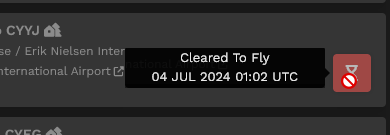
When you are not cleared to fly, you will see this icon and the clearance time (in UTC) will be presented to you in the tooltip.
Please note: you will still be deducted points for time compression per our policy and point chart here: Rank & Points