
Charter
Leveraging a list of all airports around the world, the Charter system allows a pilot to create a flight schedule without the constraints of having to adhere to the company's route map. The only limitation is selecting an aircraft with the range to complete the flight, and that will fit in the airports.
If you find an airport missing from the list, please send in a ticket.
Creating & Bidding a Charter Flight
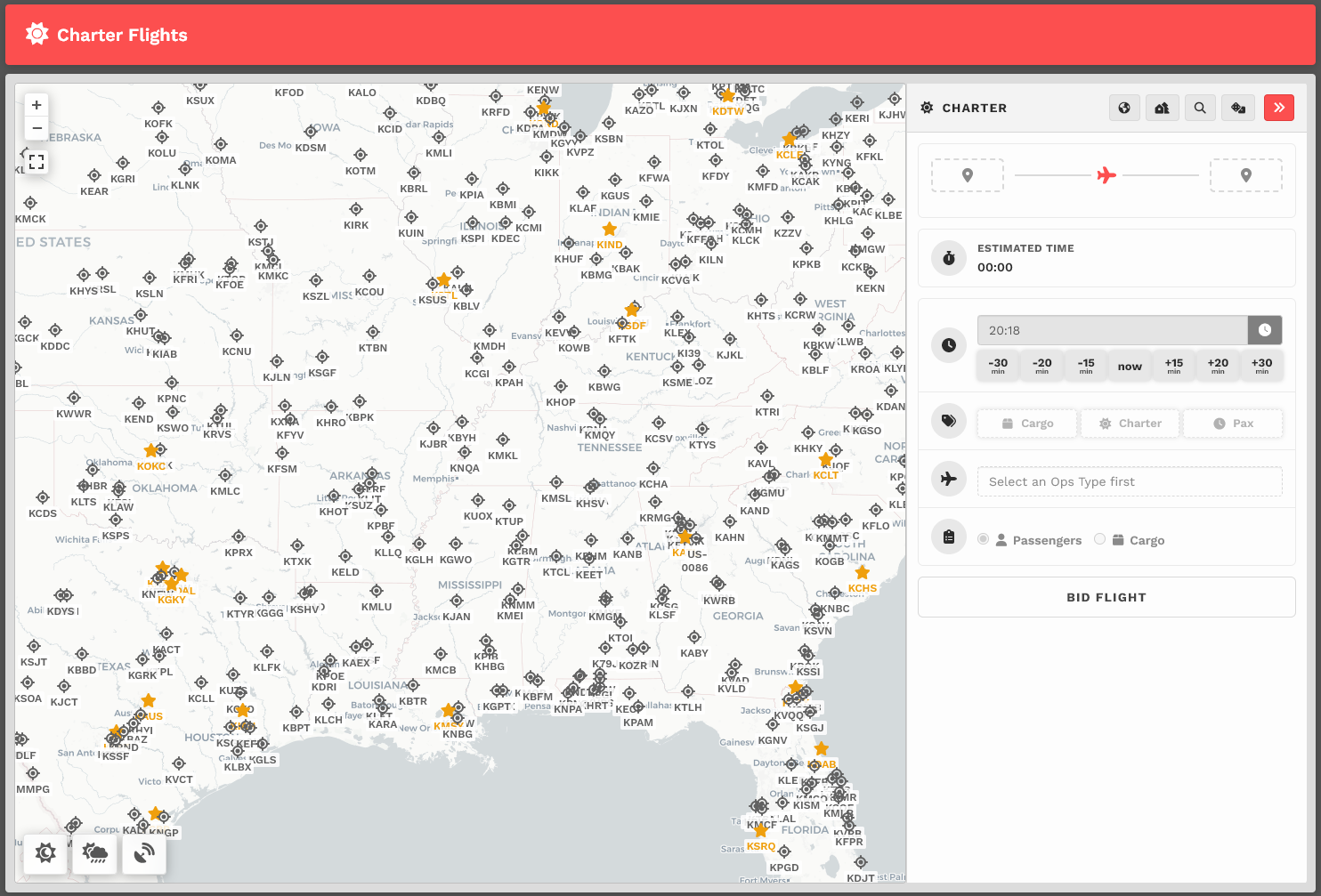
On the Charter Page, there are (2)3) ways you can create a flight.
You can:
Worldwide Persistence users will be locked at their current location. You can

Using the Create-a-Flight, there are seven (9) steps you must complete in order to create and bidFind a CharterFlight flight.

| 1. |
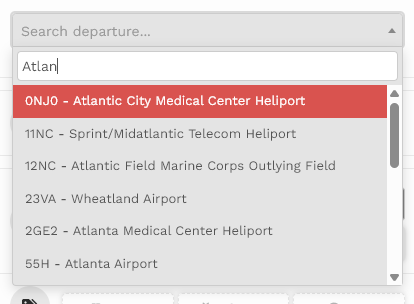
Departure – Enter the Name or ICAO Code of any airport from which you wish to depart.
|
| 2. |
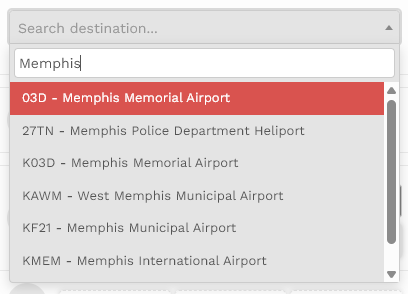
Arrival – Enter the Name or ICAO Code of any airport to which you wish to arrive. This may be the same airport as departures, if you wish to simulate circuit training, sightseeing tours, etc.
|
| 3. |
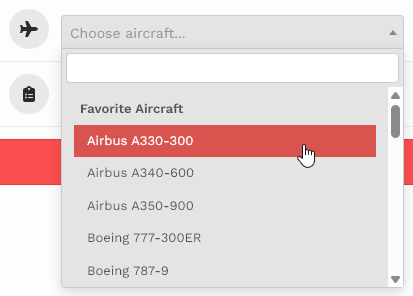
Ops Type – Chose an Ops Type, this will load a pre-defined list of aircraft for that operation.
If you wish to
You can view our entire fleet by operation by visiting CrewOps > Company > Fleet. |
| 4. | Departure Time – Select a departure time – and remember this is UTC time, not local time. You can just leave this as-is, as you do not need to set this time in your flight sim for your flight to count for Walker. |
| 5. | Passengers or Cargo – Choose who or what will be accompanying you on your flight – passengers or cargo. |
| 6. | MEDEVAC – Toggling this will mark your flight as a Medevac and append the necessary information for online ATC network pre-files. It will also show up as an indicator on the live map, recent flights, and logbook. |
| 7, | Search-and-Rescue (SAR) – Toggling this will mark your flight as a SAR and append the necessary information for online ATC network pre-files. It will also show up as an indicator on the live map, recent flights, and logbook. |
| 8. |
Worldwide Persistence – Toggle On or Off To learn more about Worldwide Persistence, click here. |
| 9. |
Click the Create button. |


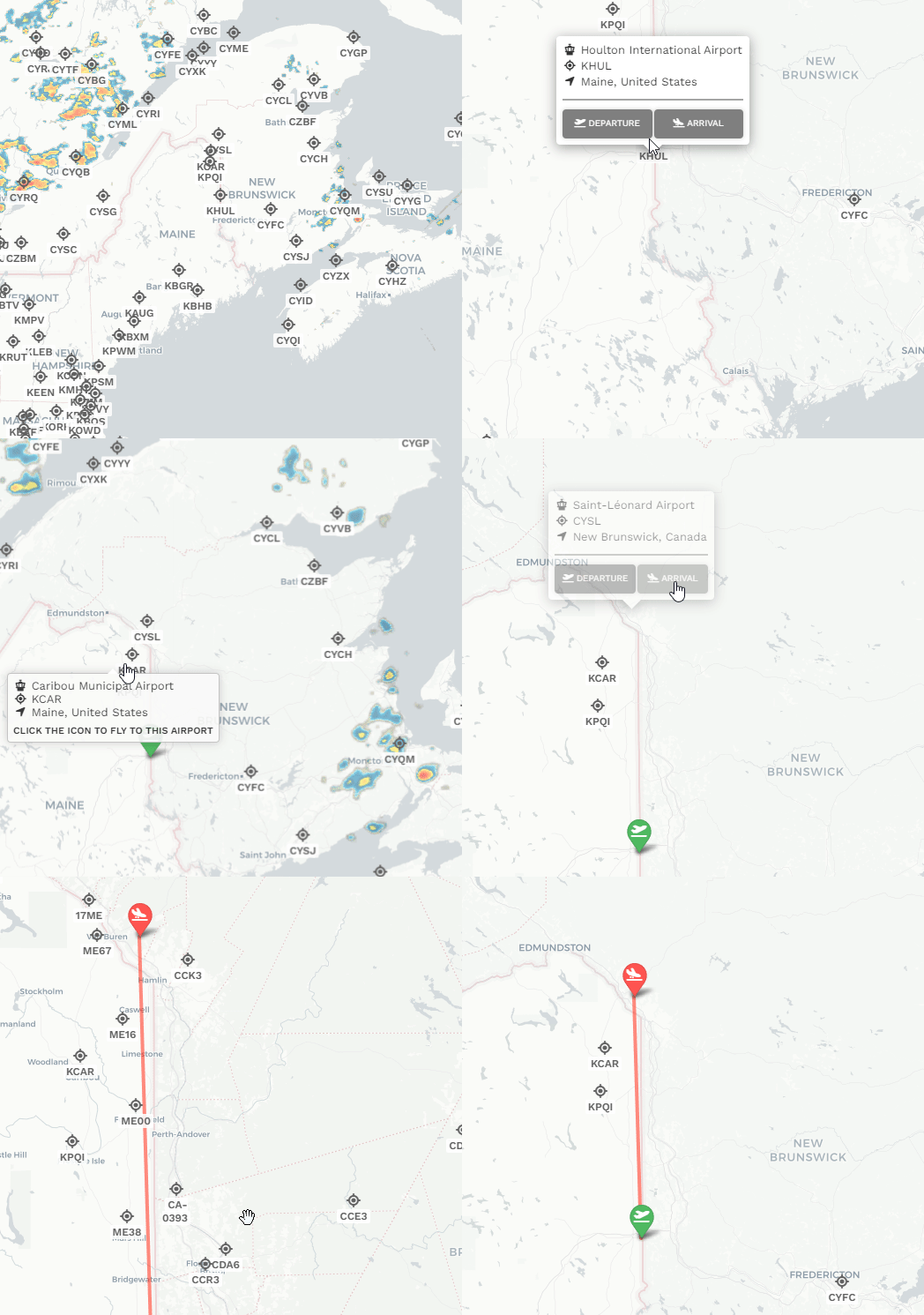
Using the Interactive Map, please note the following details.
- The map automatically displays airports by type, based on your zoom level and panning.
- Further out you are: large airports
- Closer you are: large, and medium airports
- Closer closer you are: large, medium, and small airports
- CLOSE you are: large, medium, small, seaplane, and heliport
- The map now includes icons and ICAO labels.
-
 = Airport
 -
 = Heliport
 -
 = Seaplane
-


 |
|
You can zoom in to any icon, hover over it, and then left mouse click. You will be presented with a box that will enable you to add that airport to either Departure or ICAO. Just click the button as you wish.
The airports can be replaced by simply clicking, and choose the right slot. Over and over. |

It will automatically update the Create-a-Flight section, and then simply pick your aircraft and finish out the rest of the flight information. Lastly, click 'Create Charter' and you are done.
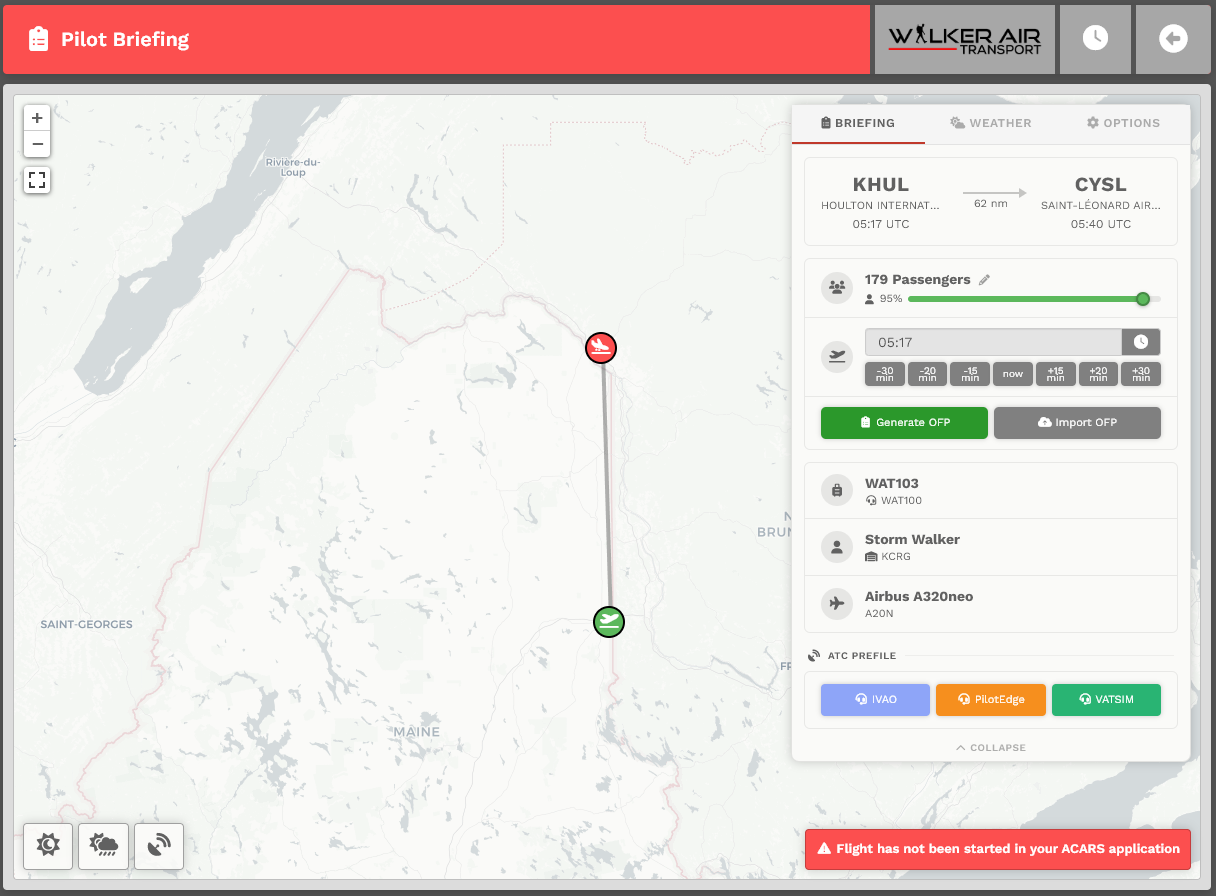
You'll be directed to the Pilot Briefing for the charter flight you just created.
Find a Flight - Random Flight Generator
The Random Generator is an easy way to address the 'Where am I going to fly today?' question... Input a few items and generate a random flight.
You access the Find a Flight by clicking on the search button at the top right of Charter Flights.Charter.
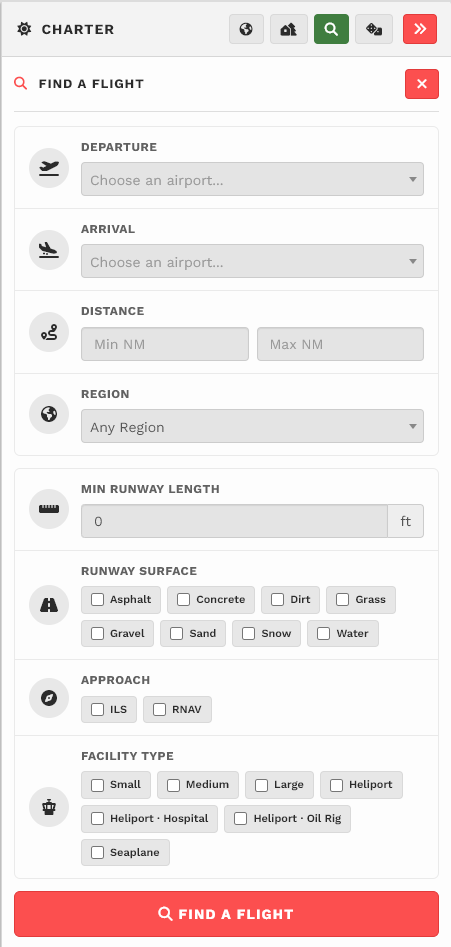
A window will popup that allows you to define details, down to your runway & surfaces, approach & facility types.
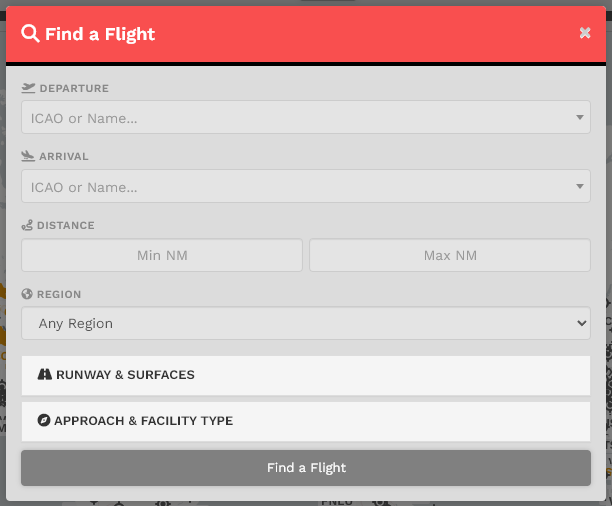
If you're using Worldwide Persistence, your departure airport will be filled in automatically. Otherwise you can fill as many or as little of the following boxes and the system will generate a flight that fits within the constraints you have selected.
Note that if you do not tick any boxes for the runway surface selection and the airport size selection, the system will take this input as allowing all of the options.
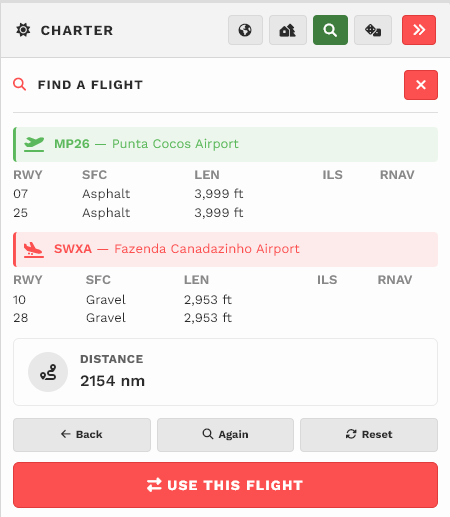
You can click on the Find button as many times as you like until you get a satisfactory result, then you can proceed to hit Transfer to send the airport information to the charter module on the top of the screen.
To clear all entries, click the Clear Generator button or simply refresh the page.