
Events
This is the Events page. Here, you‘ll see a schedule of Company-sponsored Events taking place in the month indicated.
Scroll as necessary to see what’s available for the month you’ve selected – or – use the sort feature if you're looking for a flight specific to an ATC Network.

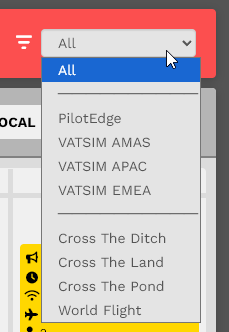
The sorting options are:
All
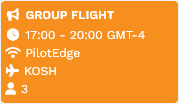
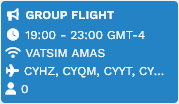
Color Legend:

VATSIM EUAMAS


 The month's current day will be underscored in bold red.
Clicking the UTC button will display all times in UTC.
Universal Coordinated Time (UTC), a successor to Greenwich Mean Time (GMT), is the time standard used in our System. A new day begins at 00:00:00 UTC and ends at 23:59:59 UTC.



Clicking an Arrow button will enable you to move forward or backward in the Calendar.
Click on an entry to learn more about it.
An Event for each ATC Network would appear on a Calendar in a specific color – as illustrated below.
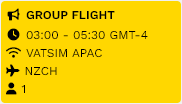
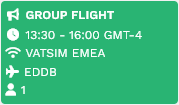
To see even more detail in a monthly grid format, click the Events Icon. After doing so, an image like this will be displayed.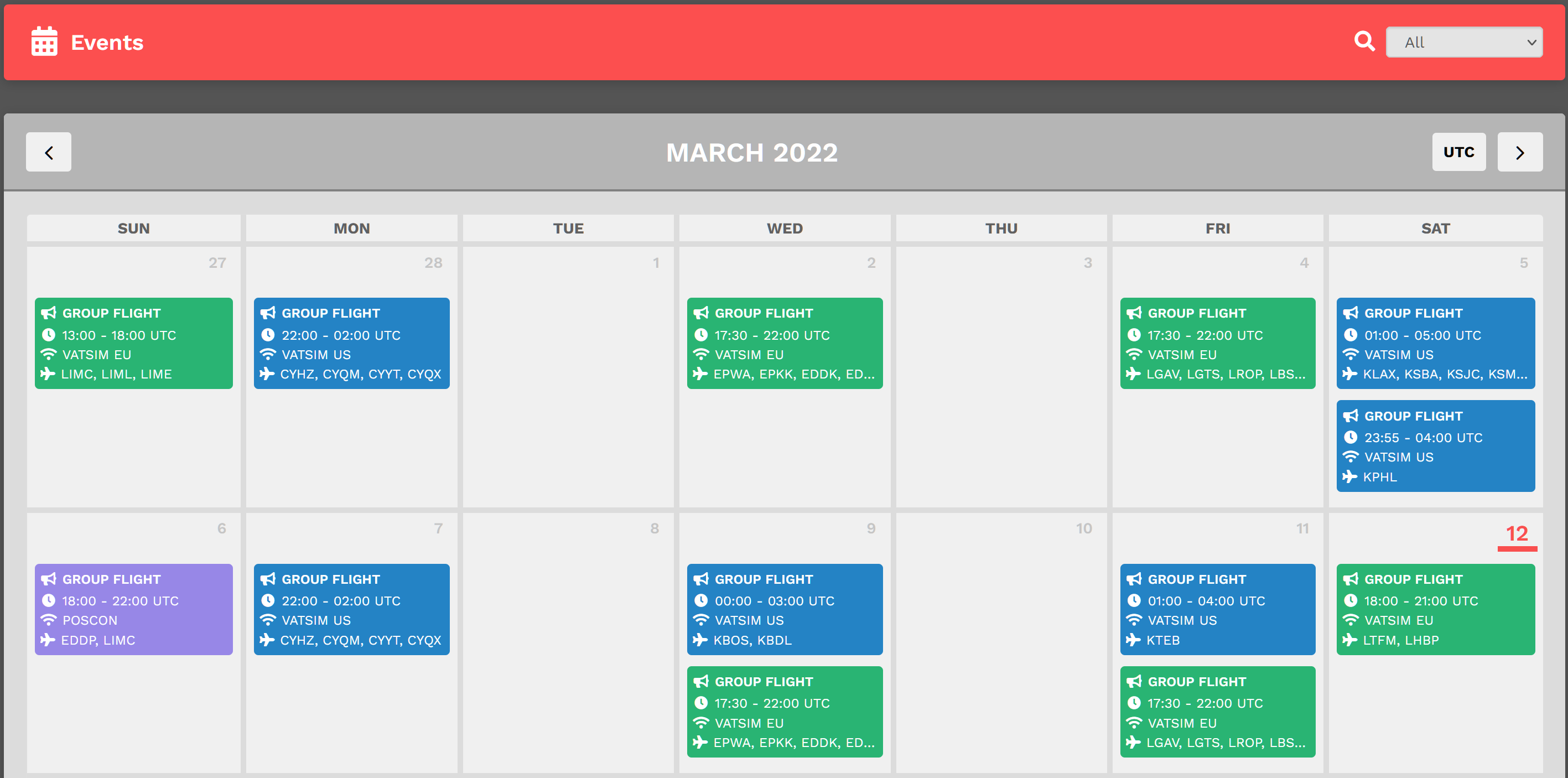
By clicking on an Event, its details will appear.
NOTE: The current date is noted in BOLD RED – 12 March in the graphic above.
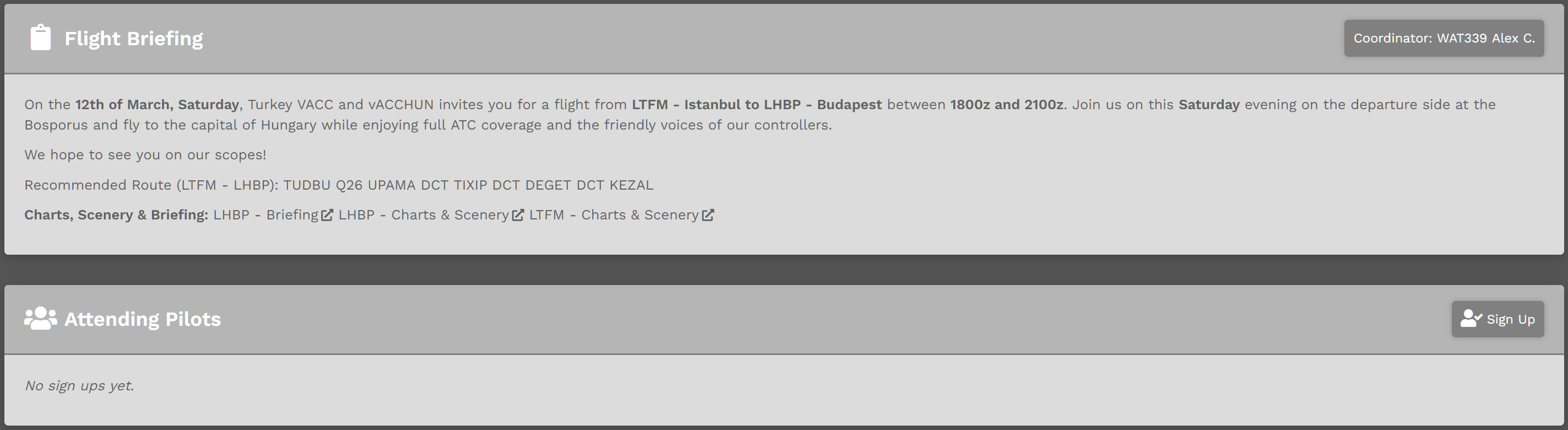
This is the upper section of what appeared after clicking on the VATSIM EU flight scheduled for Saturday, 12 March.
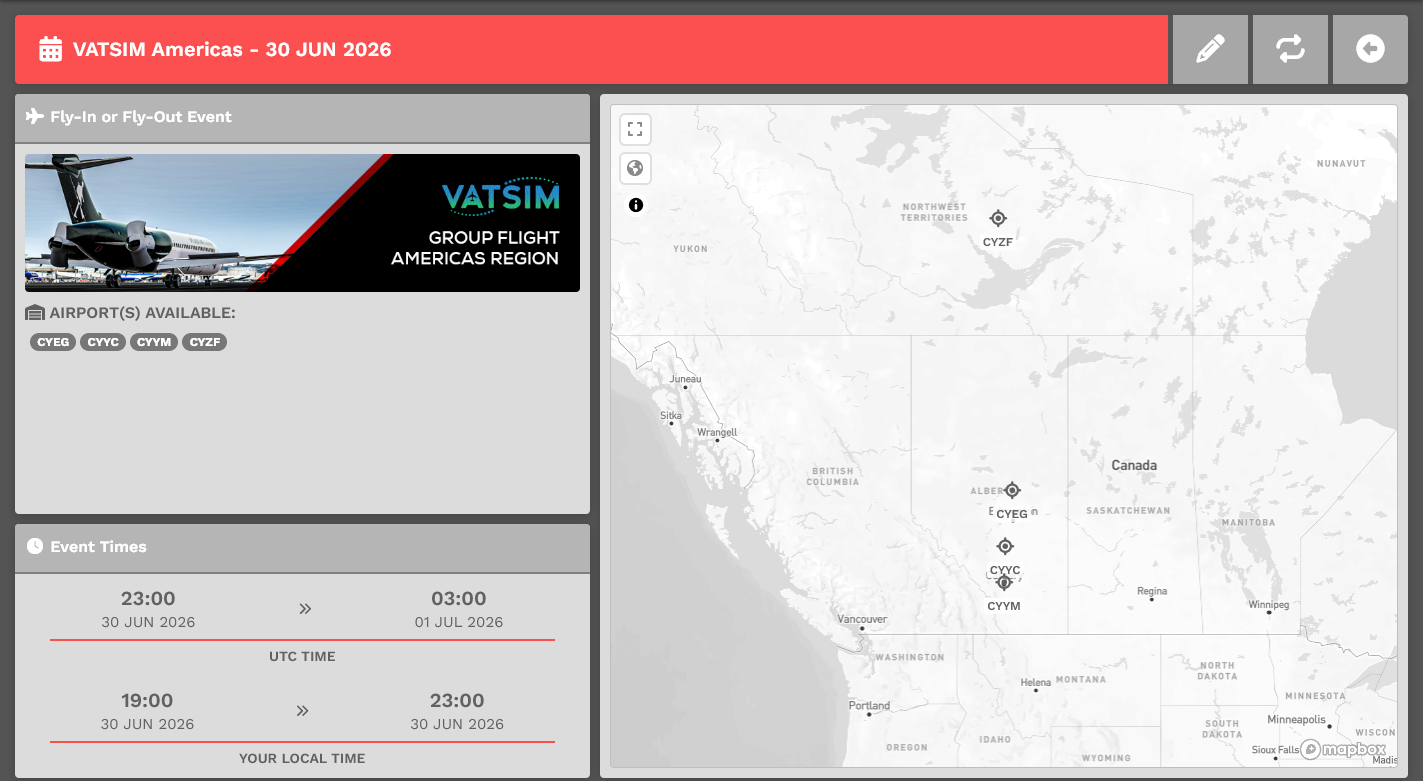
This is the lower section of what appeared – and on your screen, you may need to scroll down to see all of it.
If you have questions about an Event, contact its Coordinator – in this instance, WAT339 Alex C. – in the Company Discord.
NOTE: Contacting a Coordinator using email is not an available option.
How To Sign-Up For An Event
To sign up for the Event, click the Sign Up button. After doing so, you'll be shown in the Attending Pilots section.

How To Bid An Event Flight
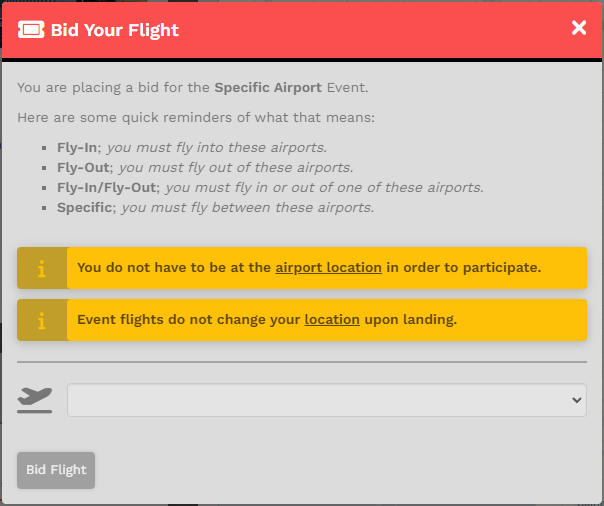
As defined here in bullet #3, bidding is opened 3-hours prior to the start time of the event and closed 30 minutes before the end time of the event. When that time has arrived, the Bid Unavailable button will become green and you'll be allowed to make your flight bid.

If you you bid a flight using Flight > Cargo, Flight > Charter or Flight > Schedule, you will not receive the bonus points and hours; and we will not make exceptions.
Now that bidding is open, let's go through the process...
The type of event (Fly-In, Fly-Out, Fly-In/Fly-Out or Specific) will determine what your bid screen looks like. It's pretty self-explanatory; however, we'll show an example of the Specific event type.

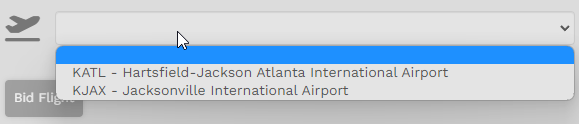
You will see your departure airport in this list. The reason we provide it is that sometimes pilots want to practice area flying and returning to their departure airport while ATC is available during an event. It is OK if you pick the same departure and arrival, if available, during your participation.
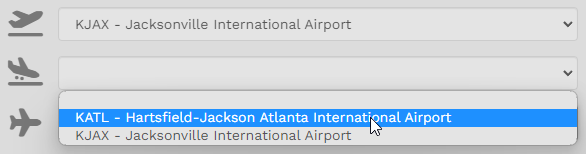
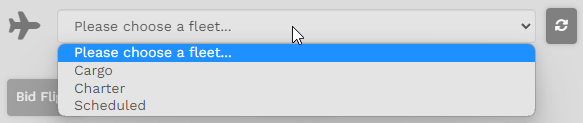
If you wish to return and pick another fleet, click on the 'Reset Aircraft' to the right of the drop down box.

At this point you can continue forward with smartCARS 3 or FlightTrackerXP, begin your flight and receive credit as defined in our Events Procedures here.
You can fly as many flights as you wish during an event window given that you can stay within the hours defined in the Events Standard Operating Procedures. You may only bid 1-flight at a time, so if you return to your Event page and you are currently in-flight, or have a bid, you will see a 'Bid Exists' button. You must either forfeit (remove) or complete that bid in order to bid a new flight.