
Events
This is the Events page. Here, you‘ll see a schedule of Company-sponsored Events taking place in the month indicated.
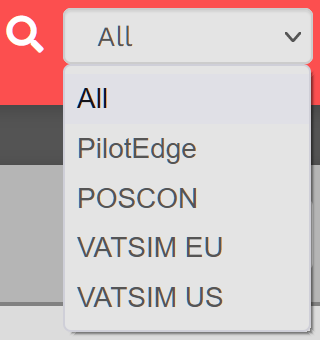
Scroll as necessary to see what’s available for the month you’ve selected – or – use the sort feature if you're looking for a flight specific to an ATC Network.
|
|
Click on an entry to learn more about it. |




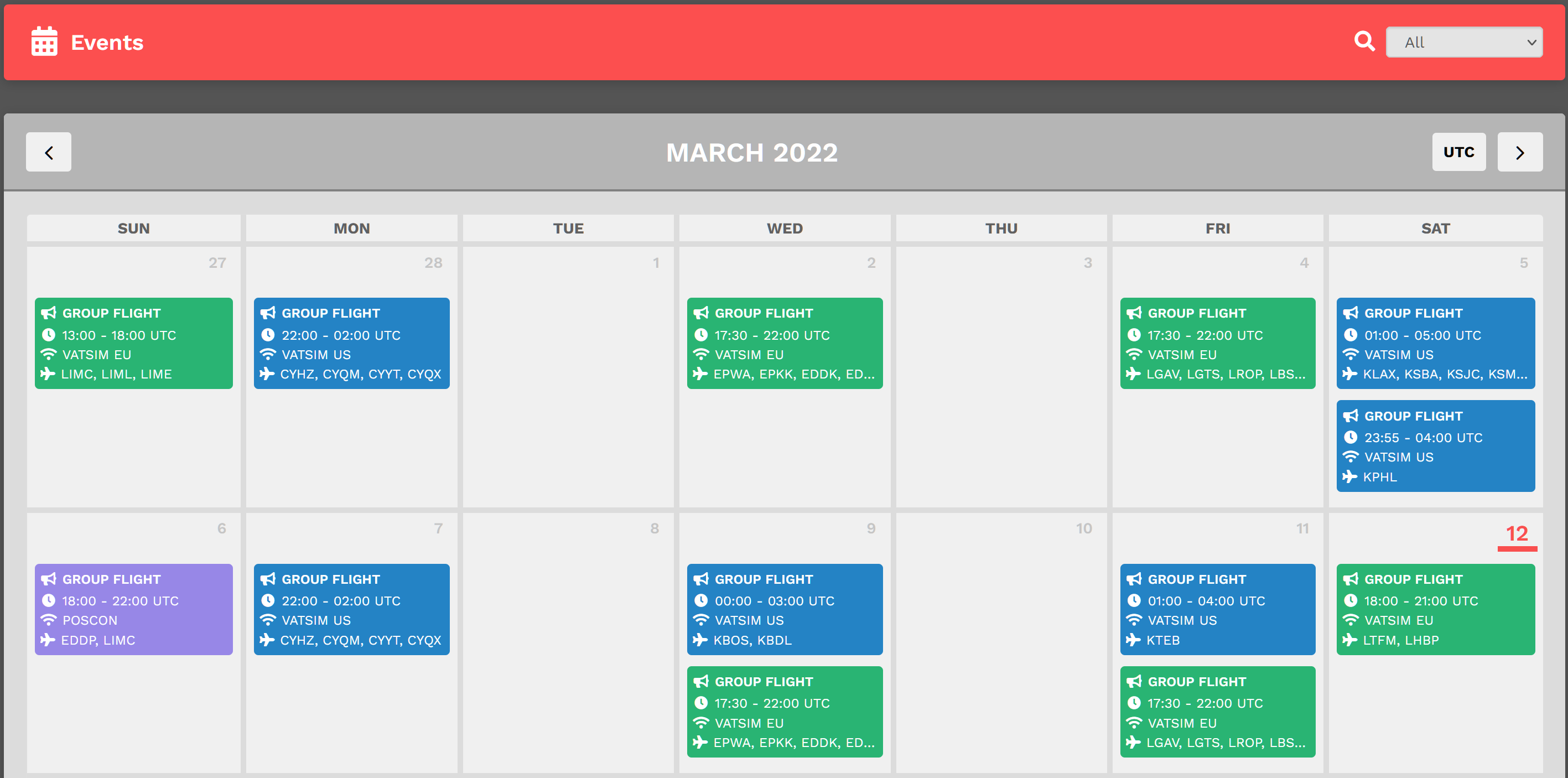
By clicking on an Event, its details will appear.
NOTE: The current date is noted in BOLD RED – 12 March in the graphic above.
This is the upper section of what appeared after clicking on the VATSIM EU flight scheduled for Saturday, 12 March.
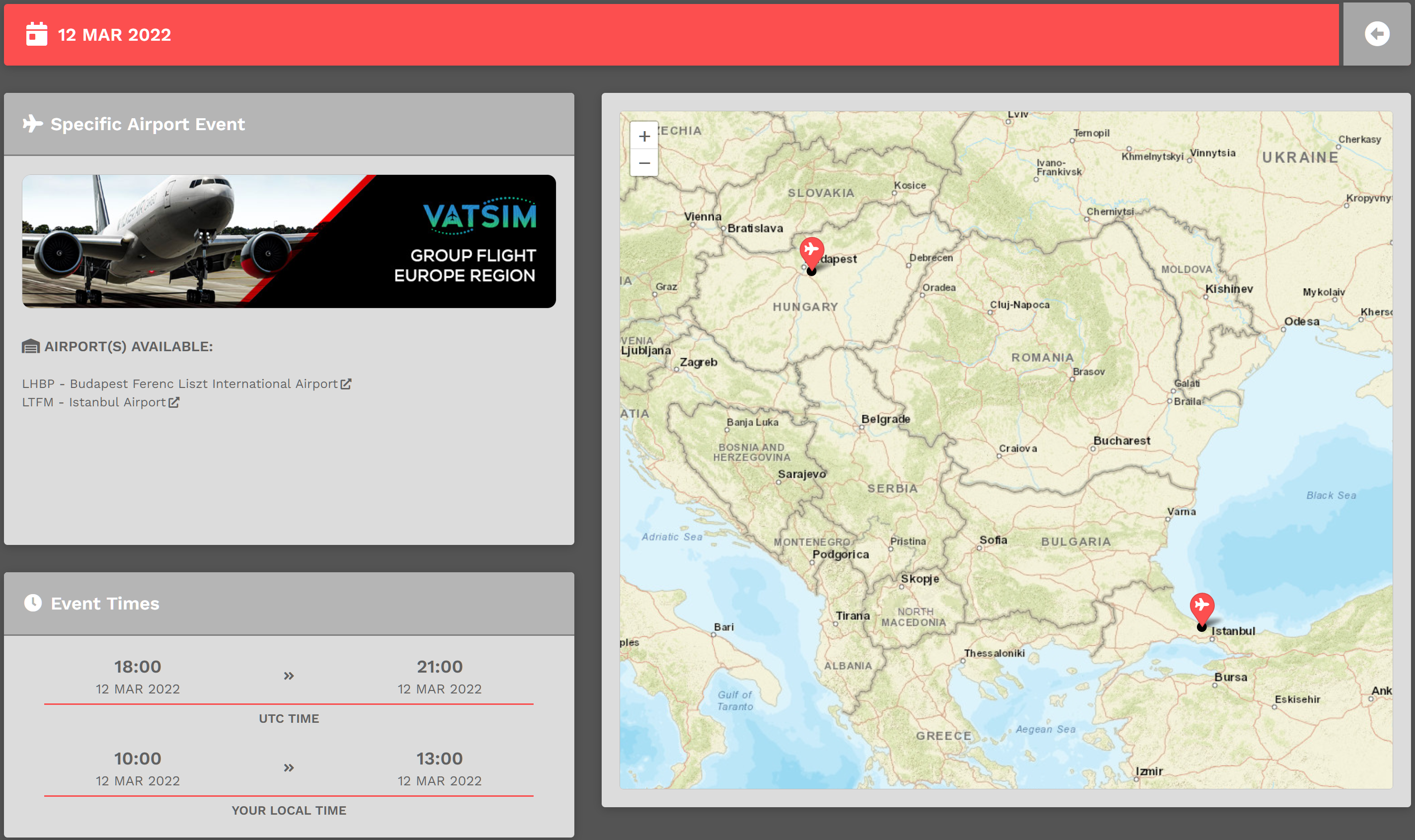
This is the lower section of what appeared – and on your screen, you may need to scroll down to see all of it.
If you have questions about an Event, contact its Coordinator – in this instance, WAT339 Alex C. – in the Company Discord.
NOTE: Contacting a Coordinator using email is not an available option.
How toTo sign-upSign-Up forFor anAn eventEvent
To sign up for the Event, click the Sign Up button. After doing so, you'll be shown in the Attending Pilots section.

How toTo bidBid anAn eventEvent flightFlight
As defined here bullet #3, bidding is opened 3-hours prior to the start time of the event and closed 30 minutes before the end time of the event. When that time has arrived, the Bid Unavailable button will become green and you willyou'll be allowed to make your flight bid.
If you bid a flight using Flight > Cargo, Flight > Charter,Charter or Flight > ScheduleSchedule, you you will not receive the bonus points and hours; and we will not make exceptions.
Now that bidding is open, let's go through the process. ..
The type of event (Fly-In, Fly-Out, Fly-In/Fly-Out or Specific) will determine what your bid screen looks like. It's pretty self-explanatory,explanatory; howeverhowever, we willwe'll show an example of the Specific event type.
- Click
onthe Bid Flight button.
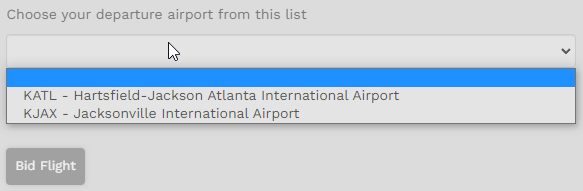
- This event has a specific airport selection
to–beKATL and KJAX.You will pickPick whichairportof these you want to be yourdeparture.departure airport.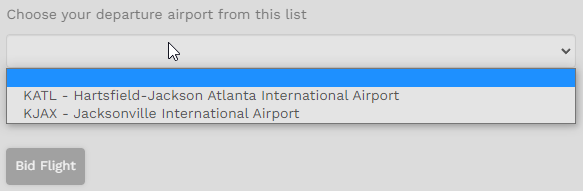
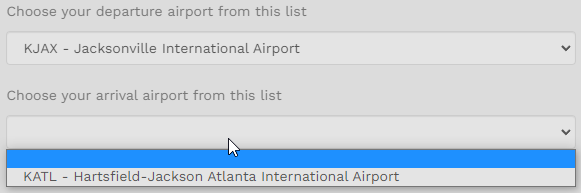
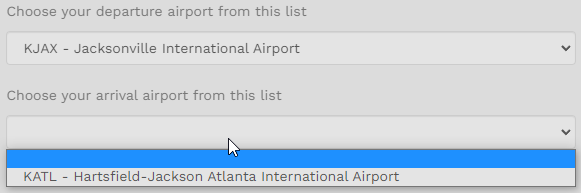
Your next step is to pickPick yourarrival,arrivalbecauseairport. Because this eventisonlyonlyhas two (2)airportsairports, you get one (1) choice.
NOTE:Note:ifIf this was an event with 10 differentairportsairports,you wouldyou'd see all the airports except the one you picked for departure(because you cannot fly to the same airport you left.)
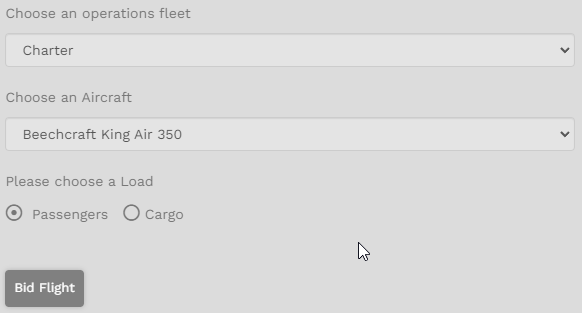
Now we decideDetermine theaircraft (by choosing whichoperationweyouwant)wish to fly – cargo or Passengers – andifselectityourisaircraft.Cargo, or Passengers, and thenAfterwards, clickonthe BidFlight.Flight button.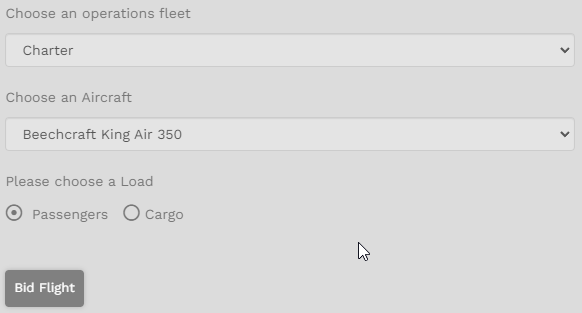
You willYou'll be taken to yourbids,MyandBidsyoupage. There, you'll see yournewlynewly-created Eventbid.Bid.
At this point you can continue forward with smartCARS andyou willreceive credit as defined in our Events Procedures here.
You can fly as many flights as you wish during an event window given that you can stay within the hours defined in the Events Standard Operating Procedures. You may only bid 1-flight at a time, so if you return to your Event page and you are currently in-flight, or have a bid, you will see a 'Bid Exists' button. You must either forfeit (remove) or complete that bid in order to bid a new flight.