
Stratos | Windows, PC, Mac OS, and Linux
If you haven't already read the Flight Operations chapter, we recommend you do so now before continuing.
Invitation Only Beta
Stratos is currently an invitation only beta for Walker Air Transport. If you have not been invited you will be unable to access it. If you would like to participate in the beta, please open a ticket in our help desk system and we will review. We are actively looking for active pilots that want to participate and test. You must be in Discord as that is how we communicate improvements and feature requests. If you are not in Discord, we may reject your request until it is open to the public.
Download and Support
To download Stratos for PC, Mac, or Linux, please visit here: https://skyvexsoftware.com/download
If you require support with the application, you can either request support in the Stratos Beta Channels in the Walker Air Transport Discord, or by using the internal Stratos help desk system.
Stratos Internal Help Desk
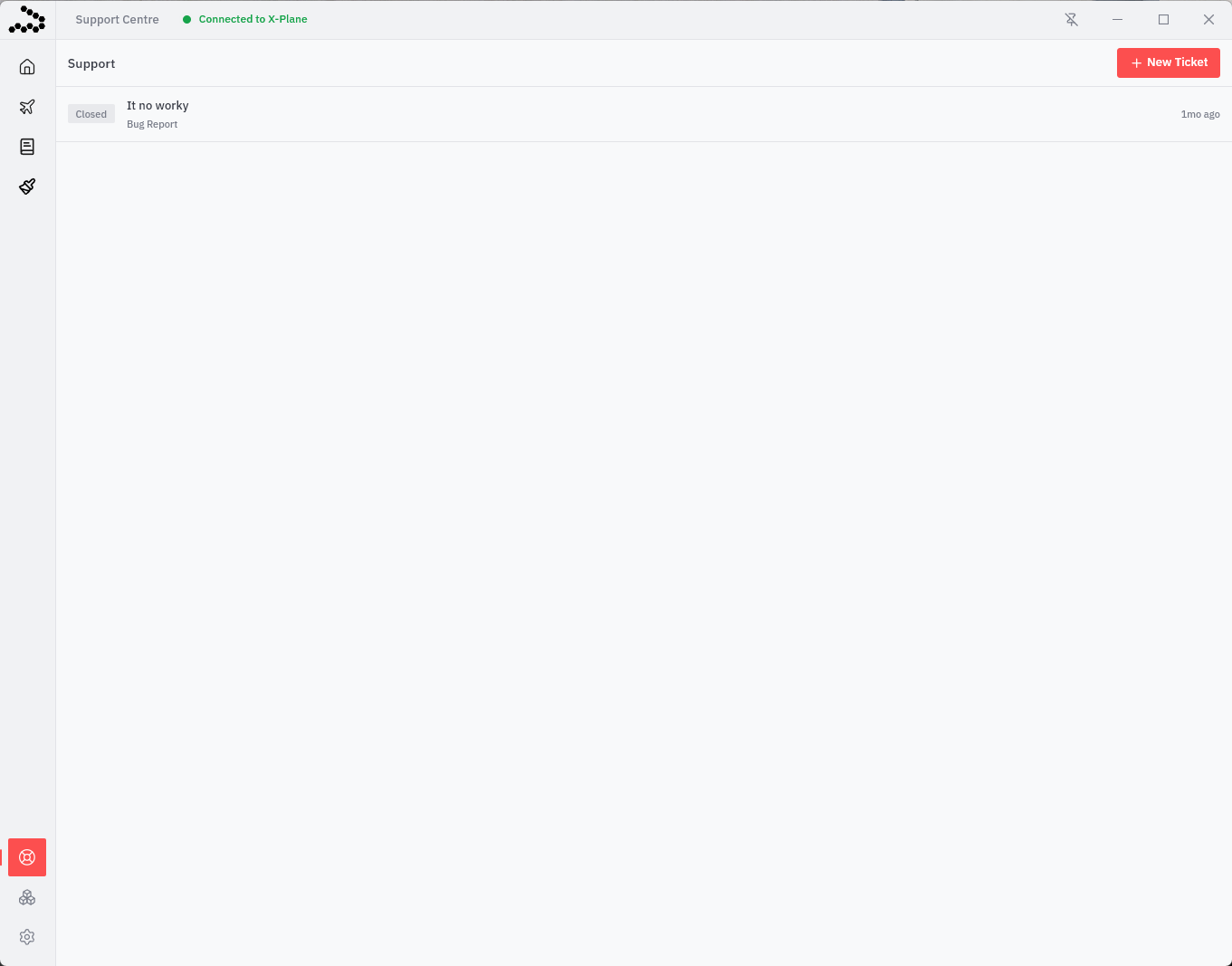
Click the  'Life Ring' icon at the bottom left corner of the application. Inside, you can create a new ticket and/or read your existing tickets.
You can view the official user manual for Stratos here: https://docs.skyvexsoftware.com/introduction
The following details below will walk you through the application from the perspective of a pilot at Walker Air Transport. There are features in the Stratos user manual that we will/do not deploy in our virtual airline.
Simulator Specific Settings
Microsoft Flight Simulator & X-Plane
We recommend that "Automatic PIREP submission" be disabled -- this will resultare in invalidthe flightsprocess beingof submitteddeveloping the auto-switch detection to Walkergo thatbetween will be automatically rejected.
Tracking Provider will be set to "simconnect".

X-Plane
If you have a VPN program installed, it needs to be connected, uninstalled, or you need to adjust the network adapter weight (according to Laminar this is a solution for those who need to retain a VPN but don't use it all the time) so that it will not interfere with XP UDP connectivity to 3rd party apps.
We recommend that "Automatic PIREP submission" be disabled -- this will result in invalid flights being submitted to Walker that will be automatically rejected.
Tracking Provider will be set to "xplane".

2. You cannot run your simulator as administrator. If you have "User Access Control" enabled on your PCSimConnect and you received a popup asking you if you wanted to run X-Plane, MSFS, or Prepar3D and you clicked yes -- your application has been hard set to "run as administrator". If you attempt to try and fly you will be presented with this error.


How can I fix this?
You will need to find your executable file (not your shortcut file), right click and choose properties, compatibility, and uncheck the "Run as Administrator".
Another option is to also completely disable 'User Access Control' but that is your choice. You can watch this video and decide: https://www.youtube.com/watch?v=D2XlznYAcAQ
Plane.
If you continueare toon havea problemsWindows afterPC, doingat this,the moment, you will need to contactmanually TFDiswitch atbetween theyour supporttwo linkstypes above.of simulators.
Choose
SimConnect (for MSFS and P3D) or X-Plane in Settings.
Using smartCARS 3Stratos
Logging into smartCARS 3Stratos
WhenAfter youinstalling launch smartCARS 3,Stratos, you will be asked to log in withpick your TFDiVirtual account.

You do not have to create or login with an account, you can simply click on 'Skip TFDi Design Login.
If you choose to not create and/or login with a TFDi account, you will not be visible on their map under our virtual airline.Airline. You will alsoselect be unable to access your premium features you purchased from TFDi.
On the next screen, choose '"Walker Air Transport'.Transport"

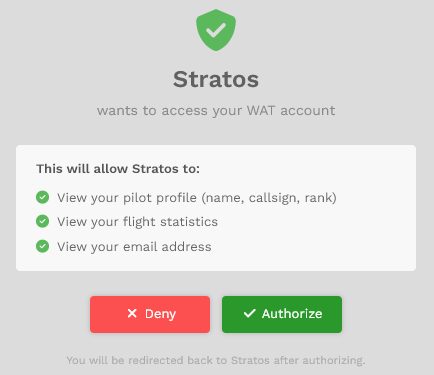
YouStratos canuses nowOAuth logSingle intoSign-On our(SSO) virtualfor airlineauthentication. bySimply click the “Login with Walker Air Transport” button and sign in using your emailWalker orAir pilotcredentials. IDYou’ll numberbe (doredirected notto includeWalker WAT,Air justTransport CrewOps to authorize your login securely, eliminating the need to enter the 3-4 digits.)Theyour username and password heremultiple is the exact same username and password used to log into our website.times.
If you cannot log in, please attempt to log into https://crew.walkerair.us -- if that works then you are typingalready somethinglogged wronginto CrewOps, you will be taken directly to the OAuth approval page. Otherwise, you will first log in smartCARSand 3.then be presented with the approval page. Simply click “Authorize” to grant access, and you will automatically be issued a token and logged into Stratos.
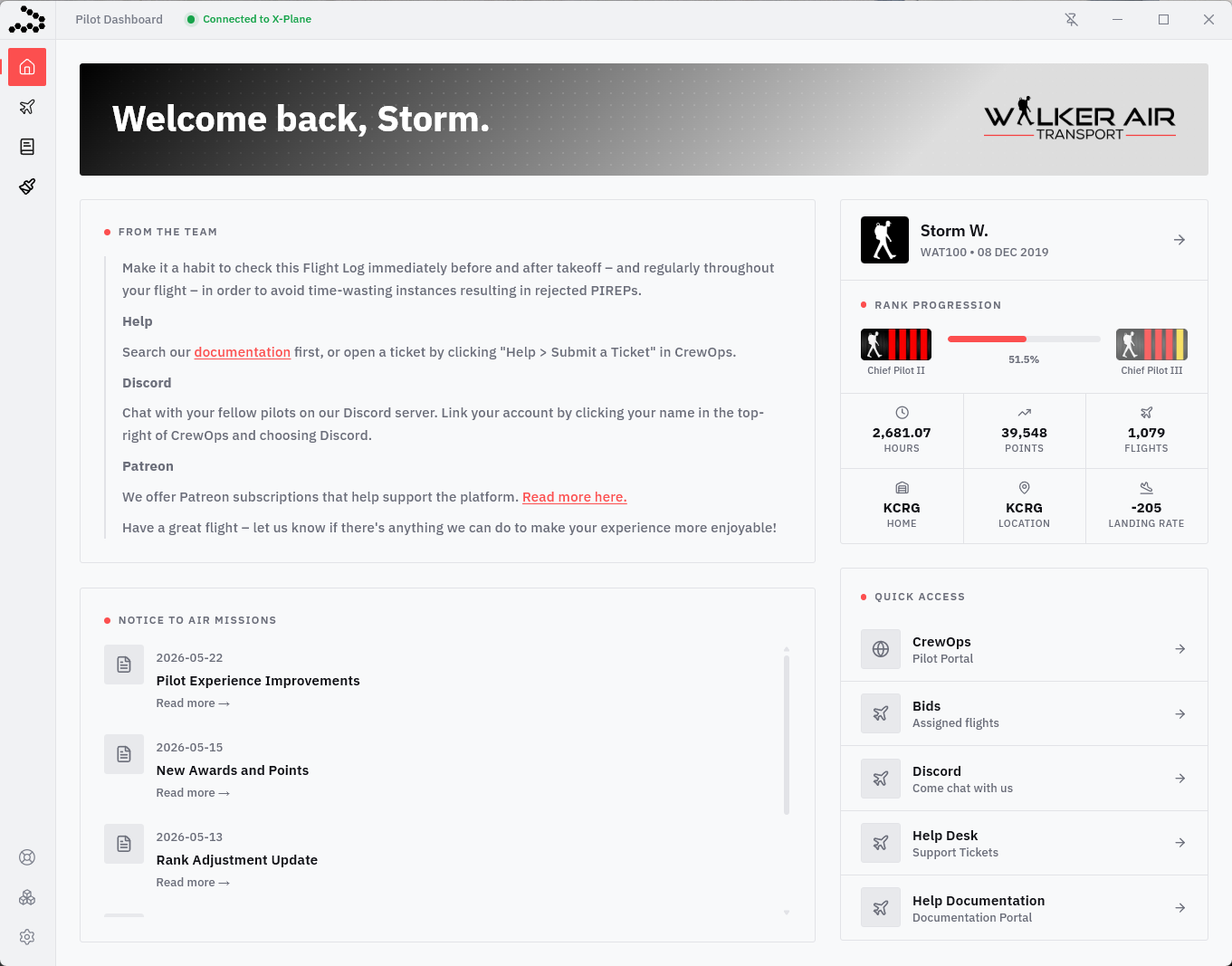
MainPilot PageDashboard
The MainPilot PageDashboard is the main home screen containingof Stratos and provides a quick overview of your name,Walker Air activity. From here, you can view important notices from the team, recent NOTAMs, your current rank progression, pilot ID,statistics, and rankquick-access willlinks appearto togetherCrewOps, withbids, Discord, support, and documentation. This page is designed to keep key information and tools easily accessible before and during your personalflight statistics – total hours, total flights and average landing rate. You will also get notifications in this panel as well as be able to logout using the button under your name and rank.operations.
For a new, first time Pilot, these fields will be blank because no flights have been completed.
To navigate through the remaining sections within smartCARSStratos, click the icons in the left column. You can drag these icons around as well to create your preferred menu layout.
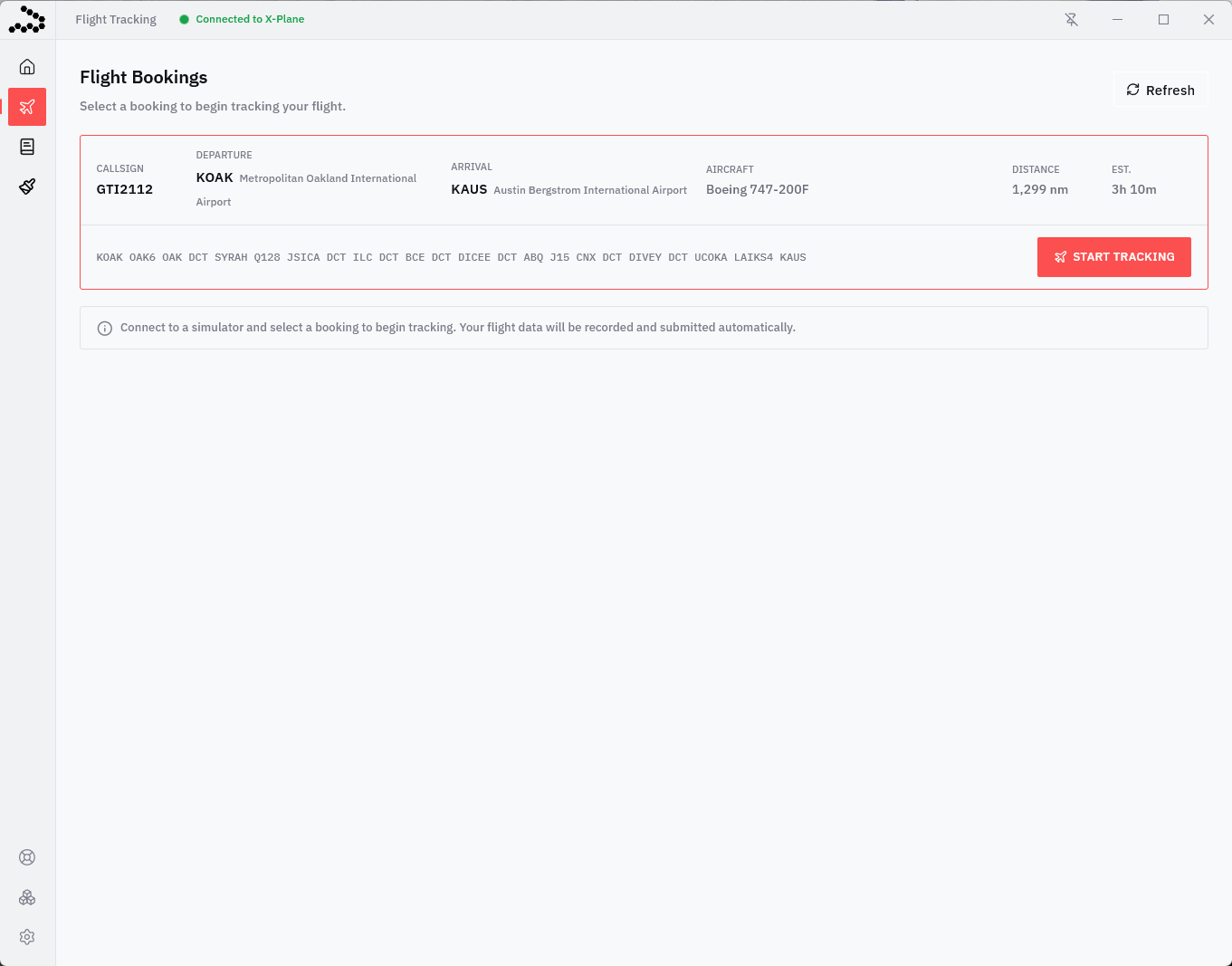
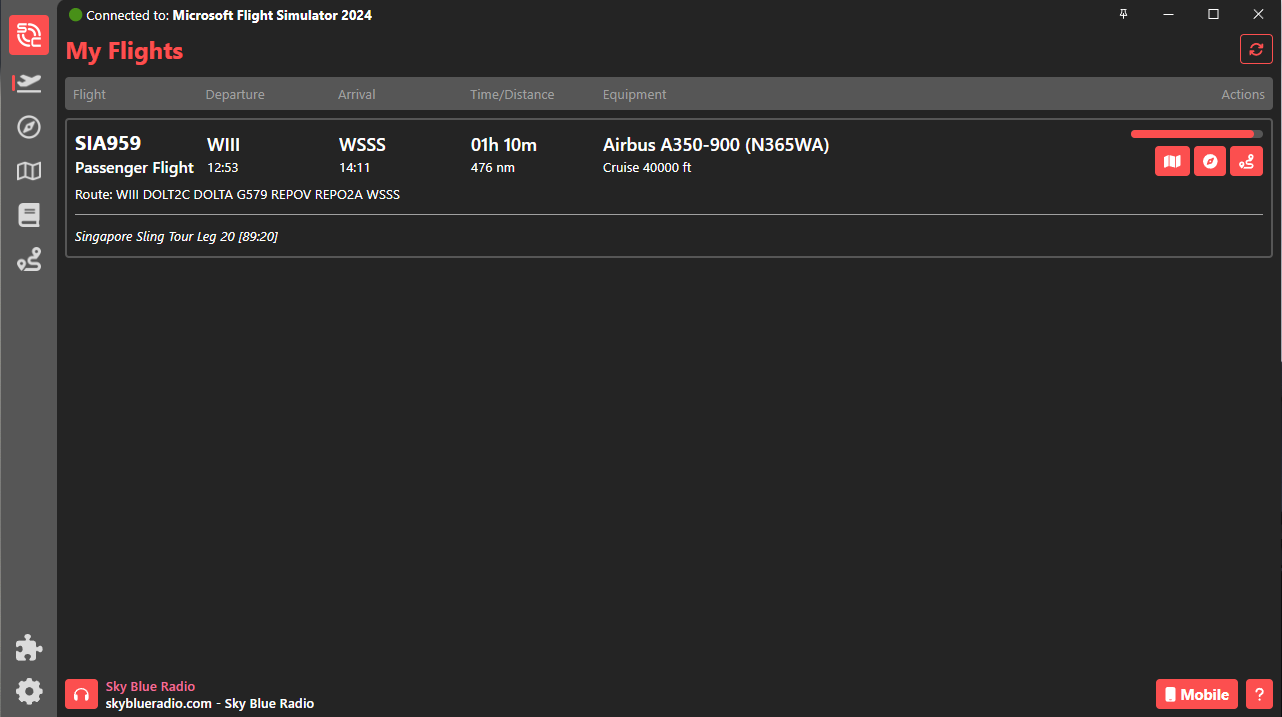
MyFlight FlightsBookings
InThe orderFlight Tracking page is where you select and monitor your active flight booking. Once connected to seeyour the flights that you’ve completed a bid from the crew site,simulator, click on thisa 
iconbooking onto expand it and reveal the leftStart sideTracking button. Clicking Start Tracking will begin recording your flight automatically. Stratos will track your flight data in real time and submit your PIREP automatically upon completion. This page also provides a quick overview of theyour screen.
Youaircraft, nodistance, longerand need to start aestimated flight manually,time smartCars3before should automatically detect you are at the departure airport and start the bid. In case you have multiple bids from the same origin airport, SC3 will ask which bid you would like to use.departure.
NOTE:Walker Air Transport Validation System If you've completed a Bid and it doesn't show up, click the 
icon on the top right.

Pleasefollowing readvalidation thischecks sectionare in it's entirety, the way smartCARS 3 operates is completely different than smartCARS 2.
In smartCARS 3, a pilot is no longer requiredspecific to enter their route, cruise altitude, and load. This information comes from a couple different sources within the Walker Air Transport bidand are designed to help prevent invalid PIREPs, reduce tracking issues, and ensure compliance with Walker Air policies before a flight begins.
Aircraft Validation
Verifies that the aircraft loaded in your simulator matches the aircraft assigned to your bid.
Event Validation
Checks that you are using an approved Walker Air livery when flying an official event.
Livery Validation
Checks that you are using a valid Walker Air livery when required.
Please pay close attention to the following simulator values:
These fields are critical for validation. If any of them display as well(Blank) asor simBrief.
If an issue is detected, Stratos will display a warning and allow you usedto either:
⚠️ Selecting Start Tracking Anyway does not bypass Walker Air policies or validation requirements. Flights that do not meet requirements may still be automatically rejected by our simBriefsystems. integrationThese warnings are provided to buildhelp identify issues before your flight plan, and you have the SimBrief plugin installed and SimBrief ID set in smartCARS 3 settings
Using our simBrief integration (read more here) will ensure that your route and load are prepopulated for your flight.
Notice about Online Networks
Do not select an online network in the “Online Network” dropdown within smartCARS3. We do not use ACARS data to determine whether you are flying on an ATC network.
To appear on our maps and have your PIREPs correctly reflect the network, you must configure your Network ID(s) in your pilot profile.begins.
Click here to read how to add your ID(s) to your pilot profile.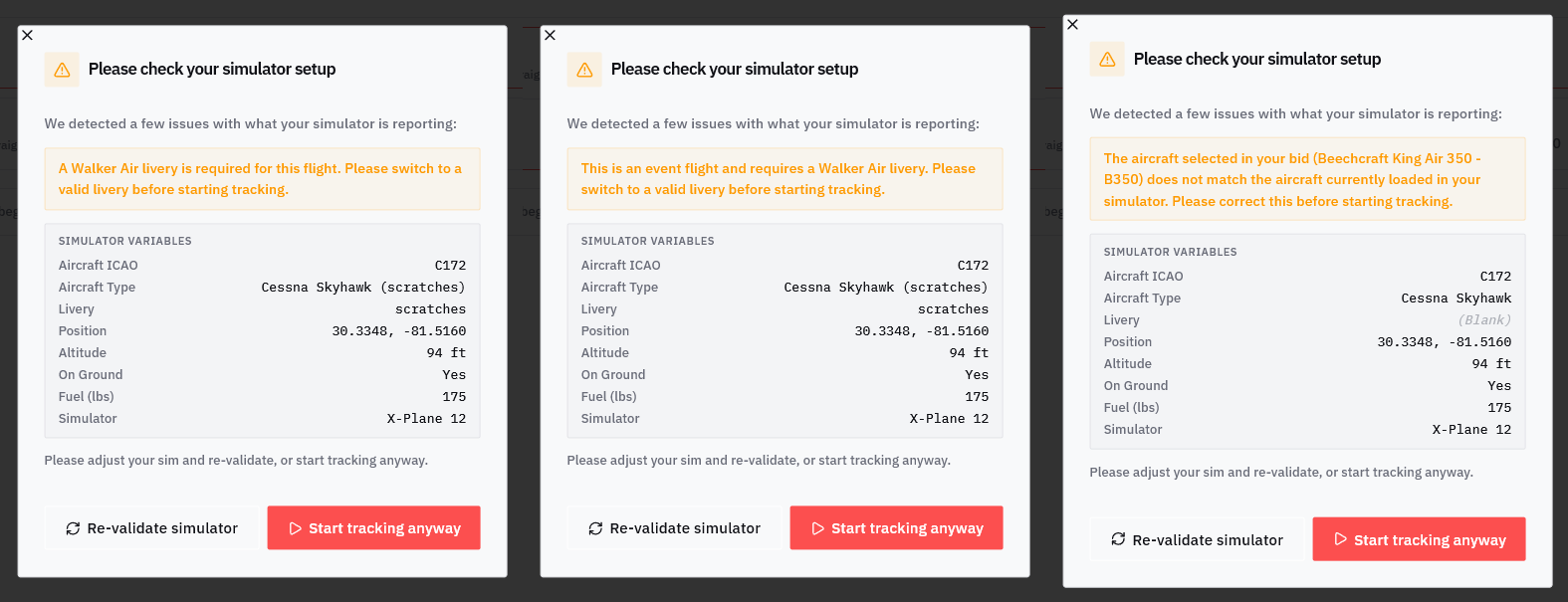
Using the 
button here will also delete your bid in our CrewOps.
Flight Tracking
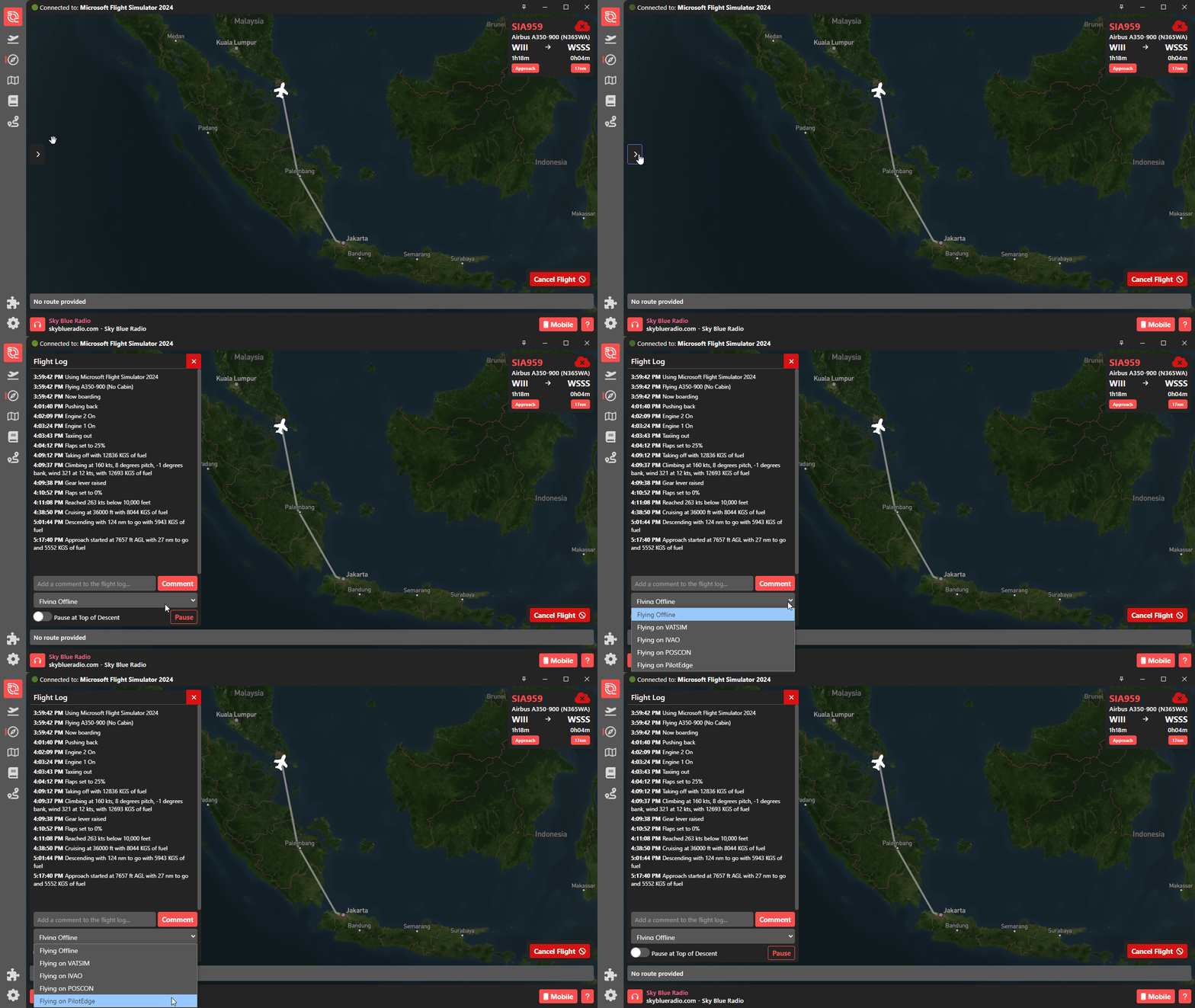
SpawningIf inyou successfully pass the correctWalker originAir airportTransport Validation System, you will bringbe youtaken to the active Flight Tracking page.screen. InThis thisis page,where youStratos can monitorrecords your flight login forreal anytime erroneousfrom logs.boarding Into thisshutdown.
The youmain canmap also changedisplays your routelive (byaircraft clickingposition and flight path, while the Showtop Route)status bar provides important flight information including altitude, speed, heading, ground speed, block time, and addremaining commentsdistance. (byThe typingright-side intoFlight commentLog fieldrecords then pressing enter) to themajor flight log in realtimeevents as needed.they Youoccur, can find these options by opening the flight logsuch as above.boarding, engine start, taxi, takeoff, cruise, descent, and landing.
PauseAdditional at TOD is now the toggle button at the bottom left of the screen, under the comment field.
There is also a drop down that willcontrols allow you to changepause tracking, pause Top of Descent calculations, submit your online network status while in flight. If you are on VATSIMPIREP, or anycancel otherthe onlineflight serviceif needed. The bottom-right panel also displays your current flight phase, next waypoint, and accidentallyestimated forgetarrival toinformation. specifyThis thatscreen atserves as the startprimary ofreal-time tracking interface throughout your flight, you can now do it while in flight.
Your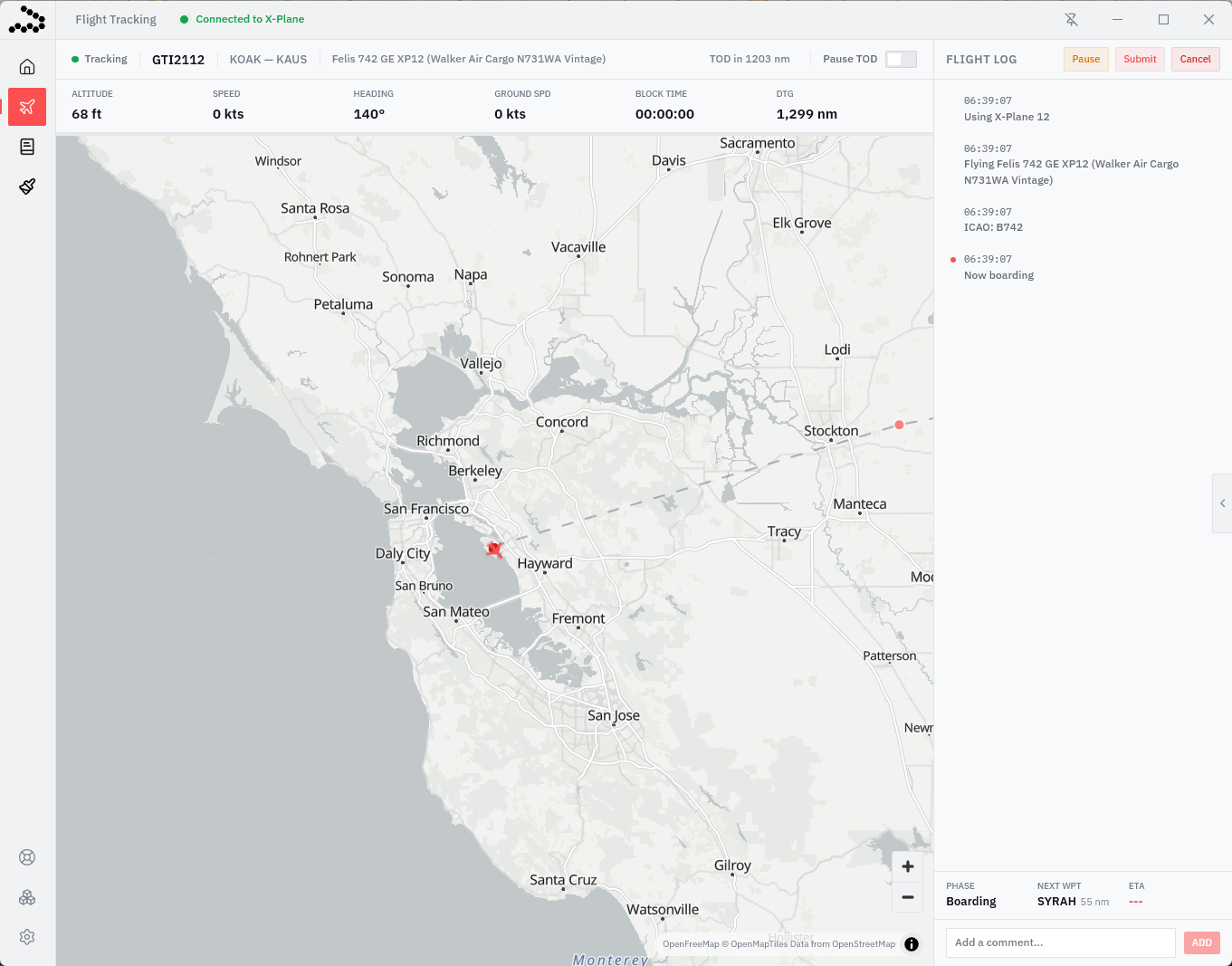
Flight Tracking - Top of Descent Pause
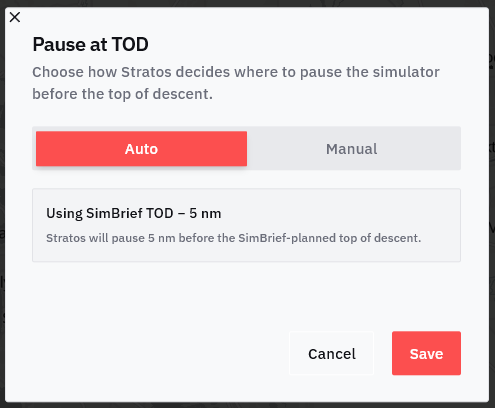
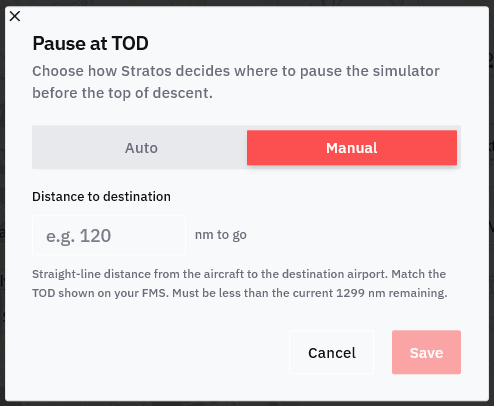
The Pause at TOD feature allows Stratos to automatically pause your simulator before reaching Top of Descent (TOD). This is useful for long-haul flights, overnight flights, or situations where you may step away from your computer and want additional time to prepare for descent and arrival.
Auto Mode
In Auto mode, Stratos uses your SimBrief flight plan data to automatically determine the Top of Descent point. You can configure how many nautical miles before TOD isthe asimulator roughshould approximationpause. byIn the applicationexample basedshown, onStratos yourwill altitudeautomatically pause the simulator 5 nm before the SimBrief-planned TOD.
Manual Mode
In Manual mode, you manually enter the remaining distance to destination where you want the simulator to pause. This uses straight-line distance to the arrival airport and thusshould will not exactlygenerally match the TOD onshown in your aircraft'saircraft NDFMS or flight planning software.
Once the configured distance is reached, Stratos will automatically pause the simulator, allowing you time to return and may,prepare infor certaindescent cases, be after your FMS-calculated TOD.procedures.
{INSERT TOD CIRCLE ON MAP}
Flight Completion & PIREP Submission
After landing at your destination, taxi to the ramp, and come to a complete stop.
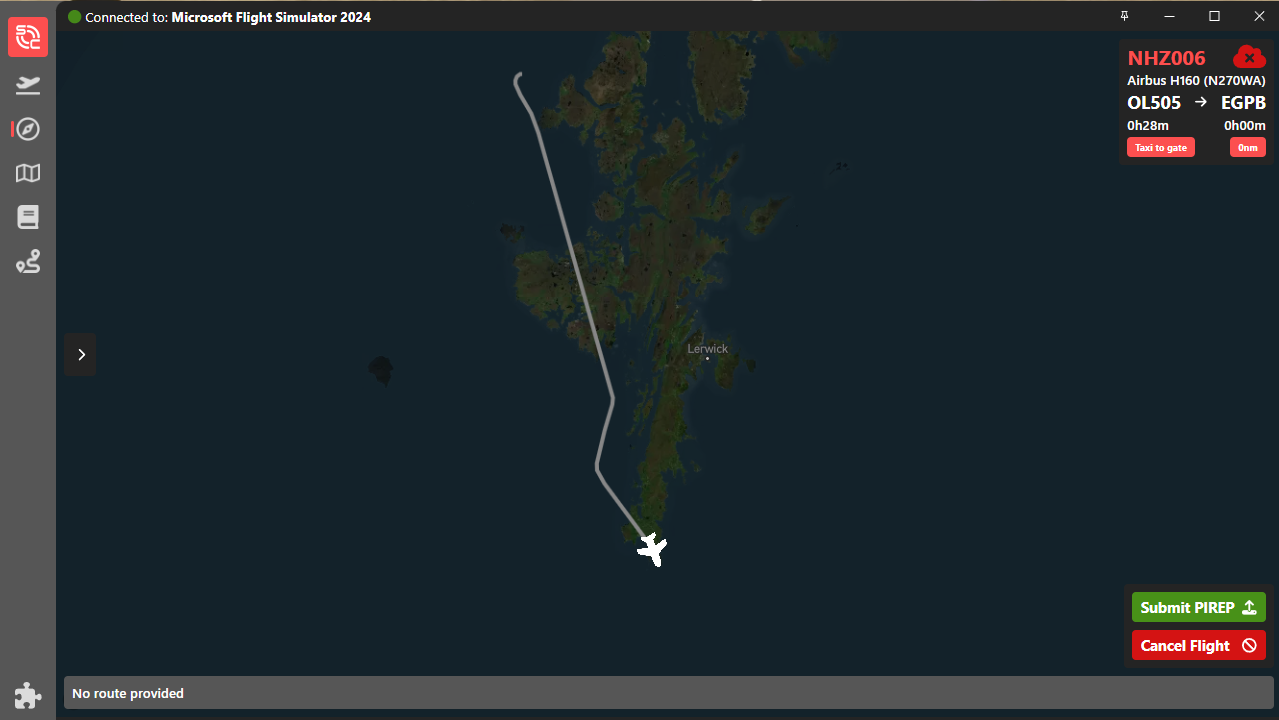
Once stopped, a Submit PIREP button will show on the lower right hand, which once you hit, will send your PIREP to the Walker system. Once it is processed, a confirmatory notification on the bottom right will show up. If you have smartCARS premium, it will also notify that the logs have been sent to TFDi servers. You can also configure smartCARS 3 to autosend your PIREP through its settings.
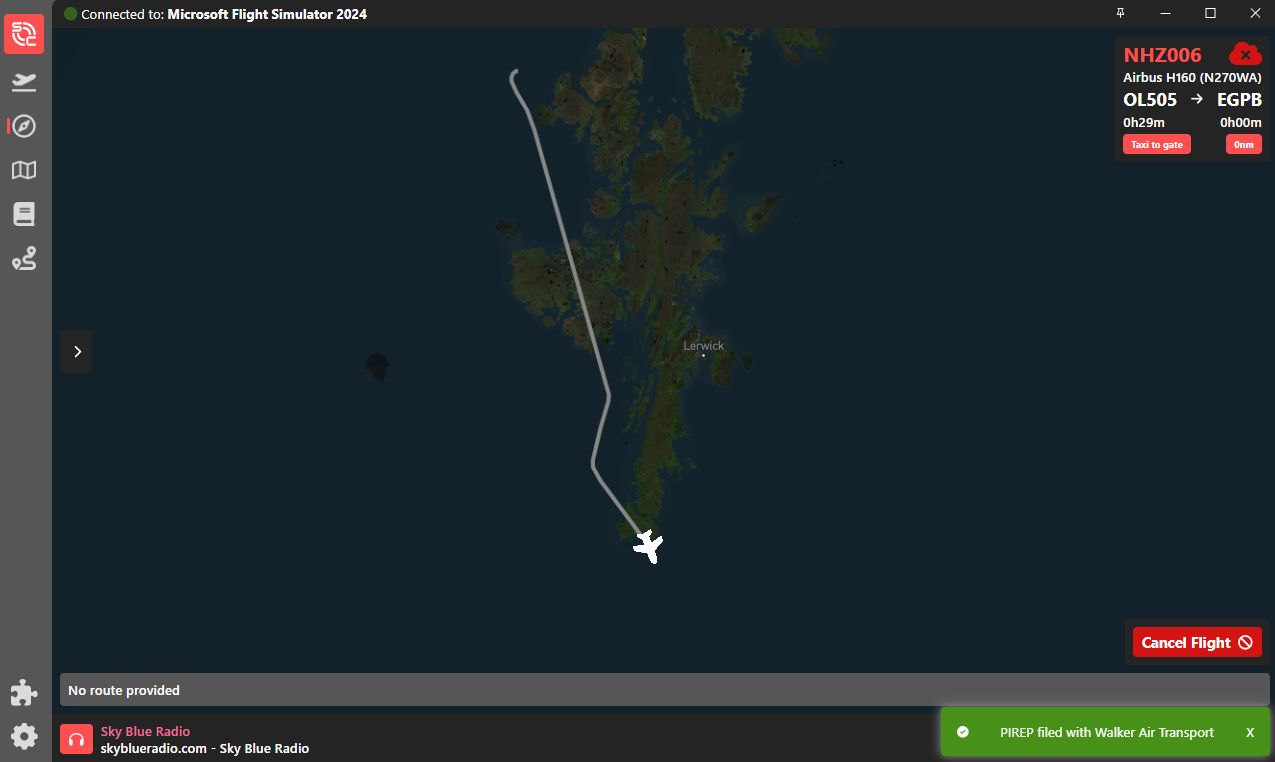
If you didn’t exceed our flight requirements and/or standards, your PIREP will be automatically approved – and that will be verified by its presence in your Logbook.
Flight Length Calculation
Veteran pilots who used smartCARS2 before may be confused with how total flight time is calculated in smartCARS 3 - unlike the previous version where it starts from pushback and ends only once the plane has reached a complete stop, the current version calculates total flight time using off blocks to in blocks.
Map TabLogbook
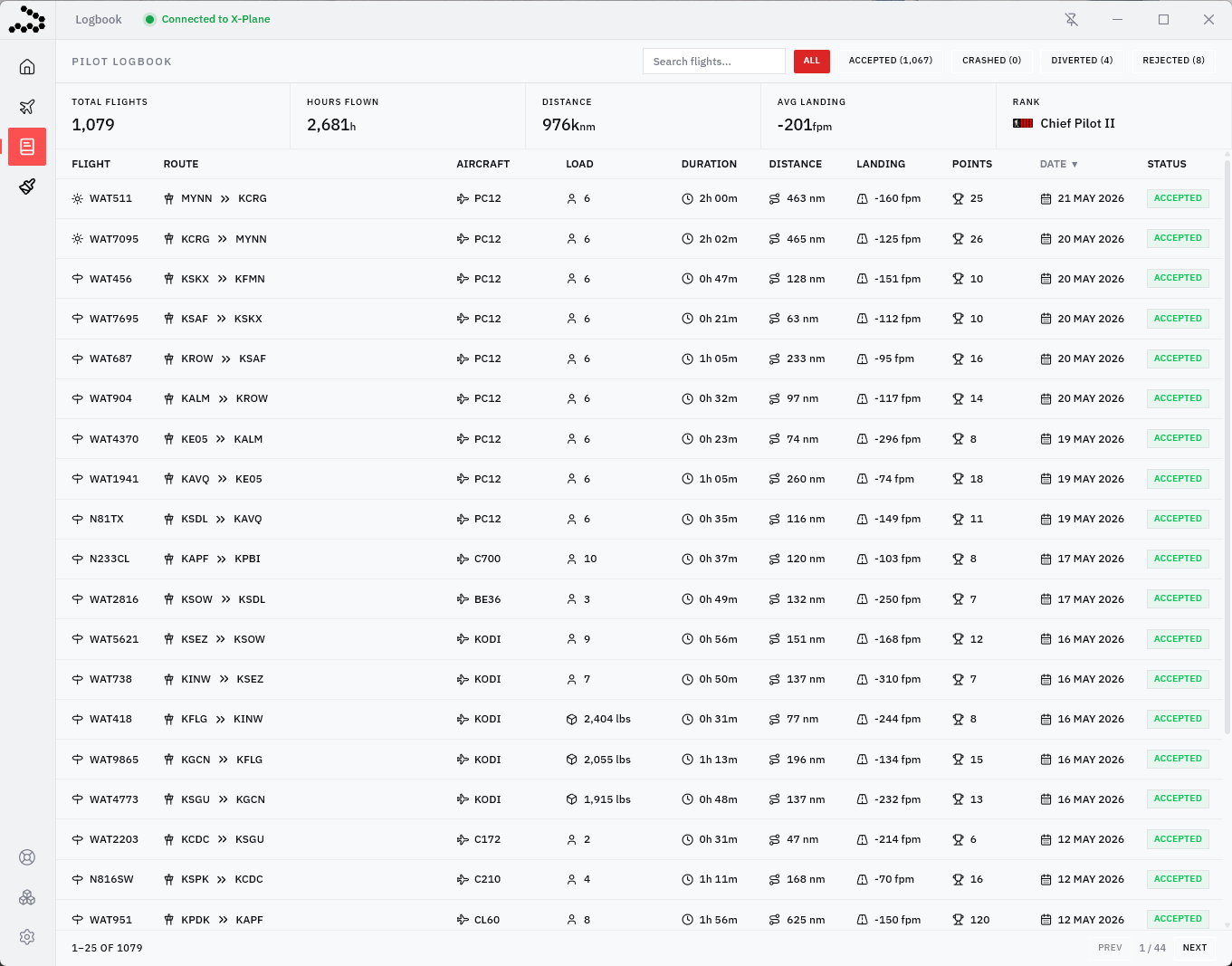
The MapLogbook referencedpage hereprovides isa notcomplete thehistory same one on the Crew Ops website. This shows various densities depending onof your filterflights selectionflown onthrough Walker Air Transport. At the top rightof -the rangingpage, fromyou’ll VA-onlyfind tooverall onlinepilot networks.statistics including total flights, hours flown, total distance, average landing rate, and current rank. Below that is a detailed list of your PIREPs showing route information, aircraft used, flight duration, landing rate, points earned, and flight status.
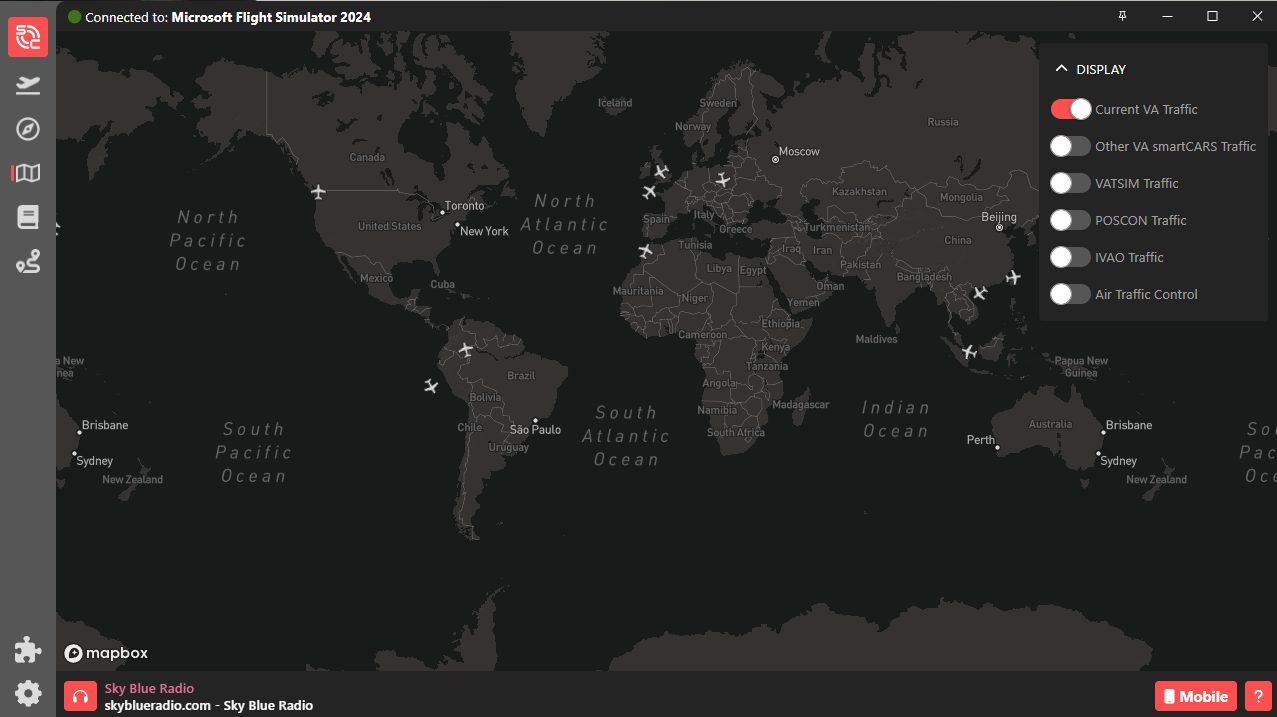
be
Logbook
filtered Thisby pagestatus such as Accepted, Crashed, Diverted, or Rejected, and the search bar allows you to seequickly locate specific flights. This page serves as your previouspersonal loggedflight flightshistory withand performance tracker within Stratos.
The detailed Logbook view provides a full replay and breakdown of an individual flight. The interactive map displays your recorded flight path from departure to arrival, while the VA,activity log on the right shows a timeline of key events such as boarding, engine start, taxi, takeoff, cruise, pauses, and itslanding information.
At the top of the page, you can quickly view important flight statistics including duration, distance flown, landing rate, and final PIREP status. YouThe canvertical alsoprofile usegraph displays your altitude changes throughout the searchflight, allowing you to review your climb, cruise, and filterdescent optionsperformance. ifThis youpage areis lookingdesigned forto give pilots a certaincomplete flight.
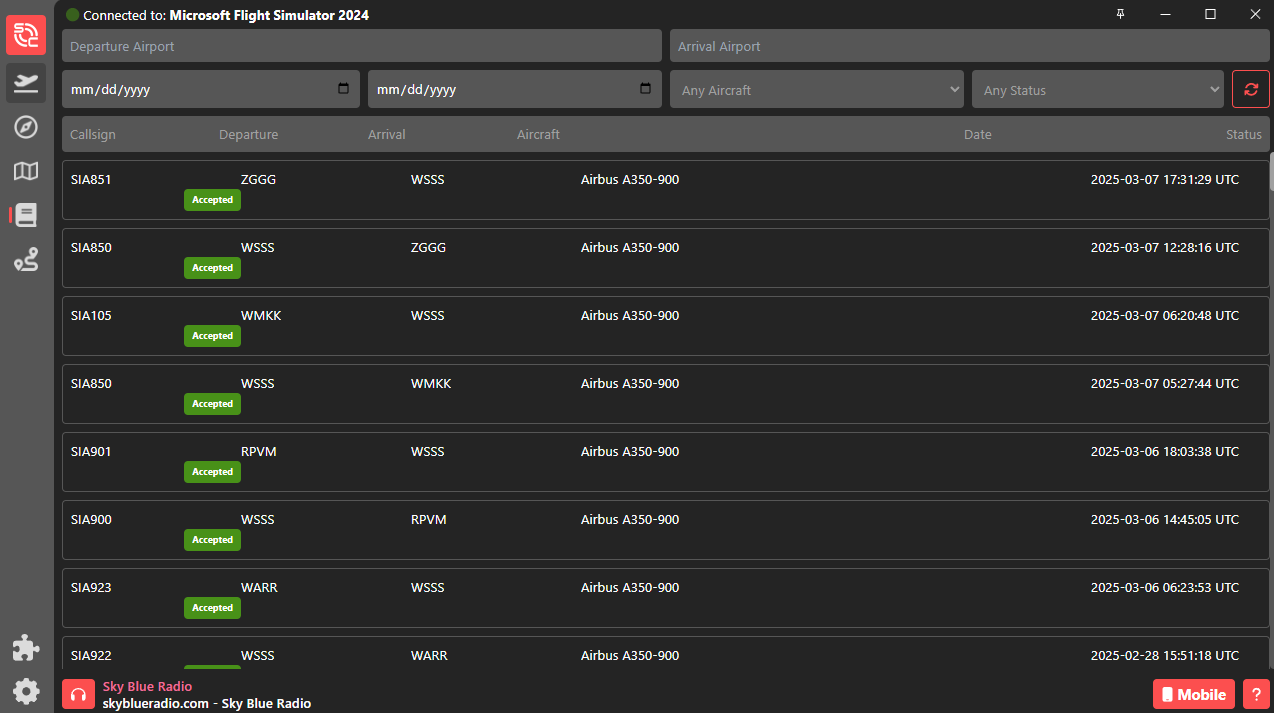
You can click on a post-flight toreview seeand moreanalysis details, including the flight log, map, route, etc.experience.
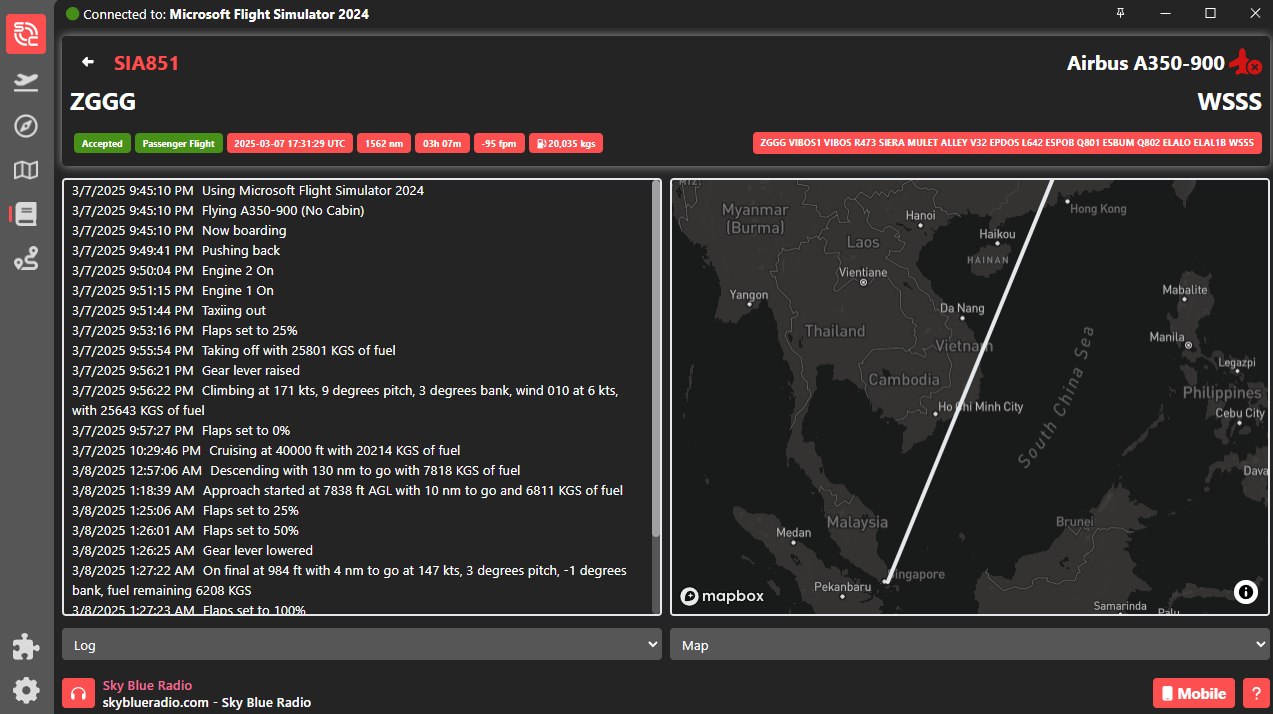
Support Centre
WeThe highlySupport recommendCentre usingallows you to create and manage support tickets directly within Stratos. From this page, you can view the Walker CrewOps Logbook insteadstatus of existing tickets, track responses from staff, and review previous issues or bug reports.
To open a new support request, click the smartCARSNew oneTicket as that provides more detailed information. Further, flights logged with SC2 will not show all detailsbutton in the SC3top-right viewercorner. -This particularlysystem actualis routeintended flownfor onreporting thebugs, map.requesting assistance, or getting help with issues related to Stratos or Walker Air operations.
Plugins
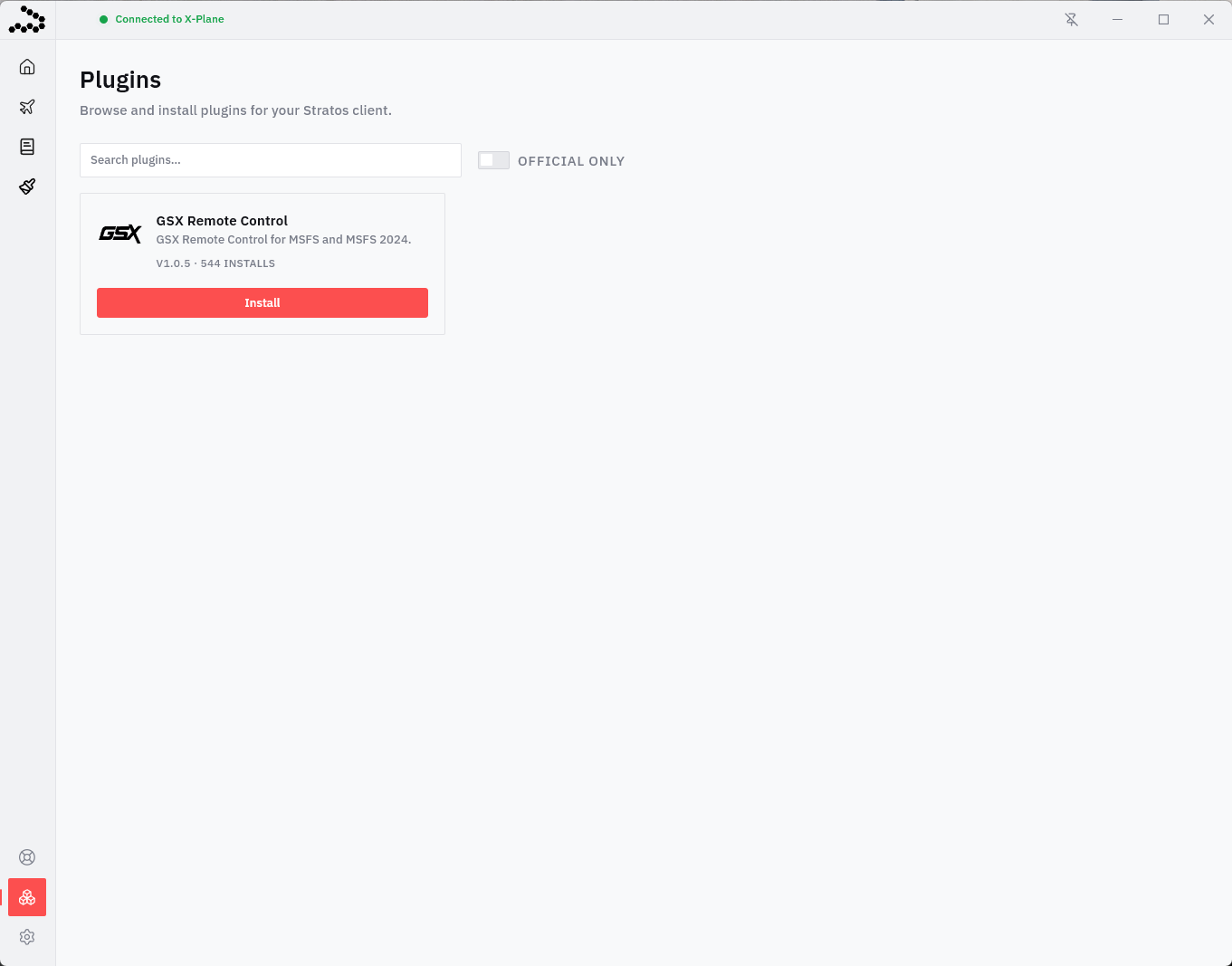
InThe thisPlugins page,page allows you mayto addbrowse community-builtand install optional add-ons for your Stratos client. These plugins toextend enhancefunctionality yourand smartCARScan userprovide experience.
Asautomation oftools, now,or thereenhanced aresimulator nofeatures. Walker-specificSimply plugins added, nor are there any aside from the default ones that you will need to be able to fly for Walker.
Do note thatbrowse the available SimBriefplugins, pluginreview intheir SC3descriptions doesand notinstall communicatecounts, and click Install to add them to your client.
You can also search for specific plugins or filter to show only official plugins published by trusted developers. Installed plugins are managed directly through Stratos, making it easy to expand your flight experience with theadditional Walker website - which means your passenger counts, routes, etc will not automatically sync on the CrewOps OFP page. We highly suggest using Walker's own SimBrief integration available on the CrewOps site, and we will not be liable for any PIREP inaccuracies or rejections resulting from the usage of the SC3 SimBrief plugin.features.
Settings
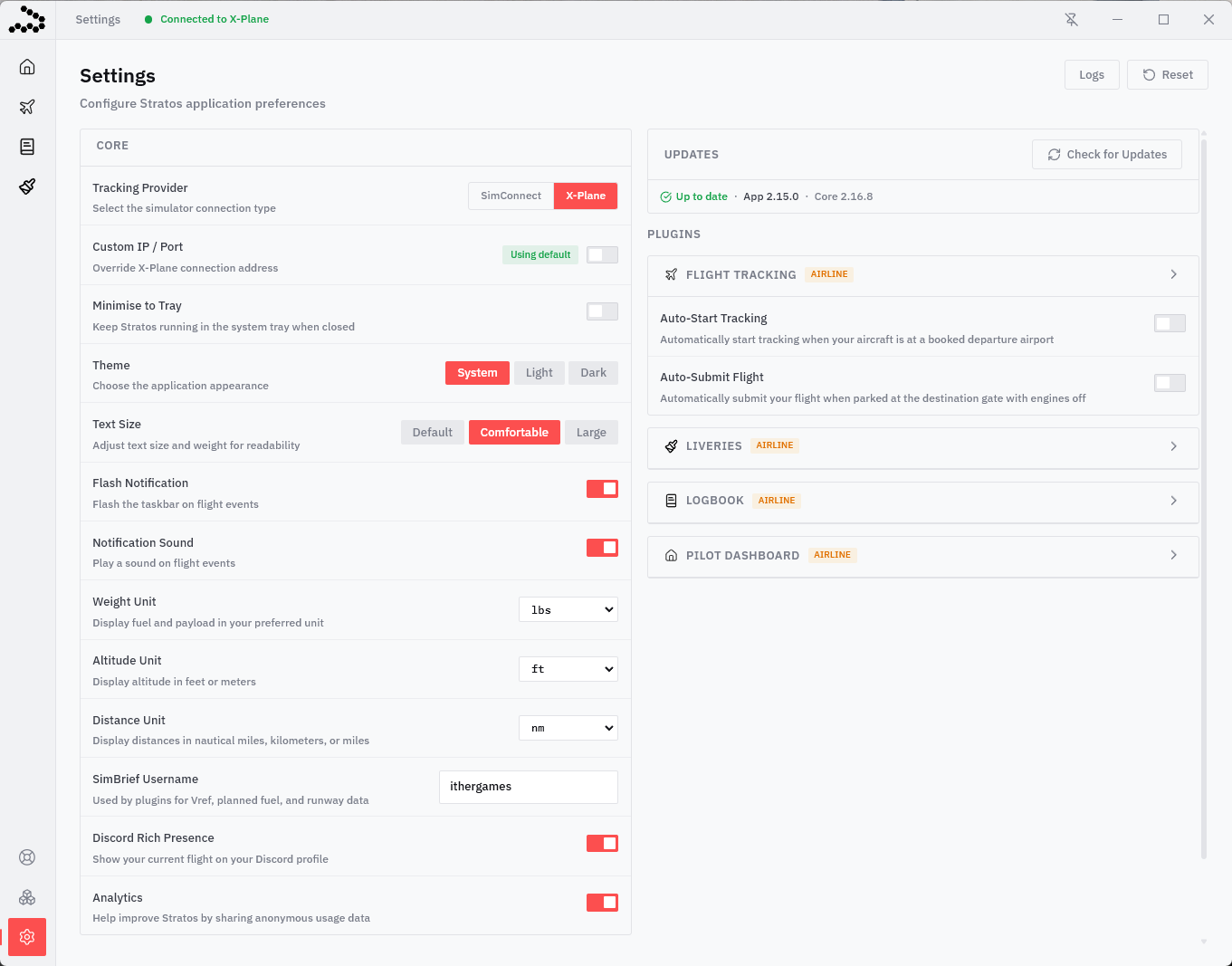
smartCARSThe Settings page allows you to configure your Stratos client preferences and simulator integration settings. From here, you can select your simulator connection type, customize application appearance, adjust text sizing, configure notifications, and choose preferred measurement units for fuel, altitude, and distance.
Additional options include Discord Rich Presence integration, analytics preferences, SimBrief integration, and flight automation features such as Auto-Start Tracking and Auto-Submit Flight. The right side of the page also provides plugin-specific configuration options and access to application updates, logs, and reset tools. This page is designed to let you personalize Stratos to match your simulator setup and flying preferences.
We recommend that "Automatic PIREP submission" be disabled -- this will result in invalid flights being submitted to Walker thatmessage will be displayed. Otherwise, tracking will automatically rejected.begin without requiring manual input.
Automatically submits your PIREP once all arrival conditions have been met:
This allows Stratos to complete and submit your flight automatically at the end of your operation.
Reconnecting viaYour SmartCars3Flight (Crash to Desktop)
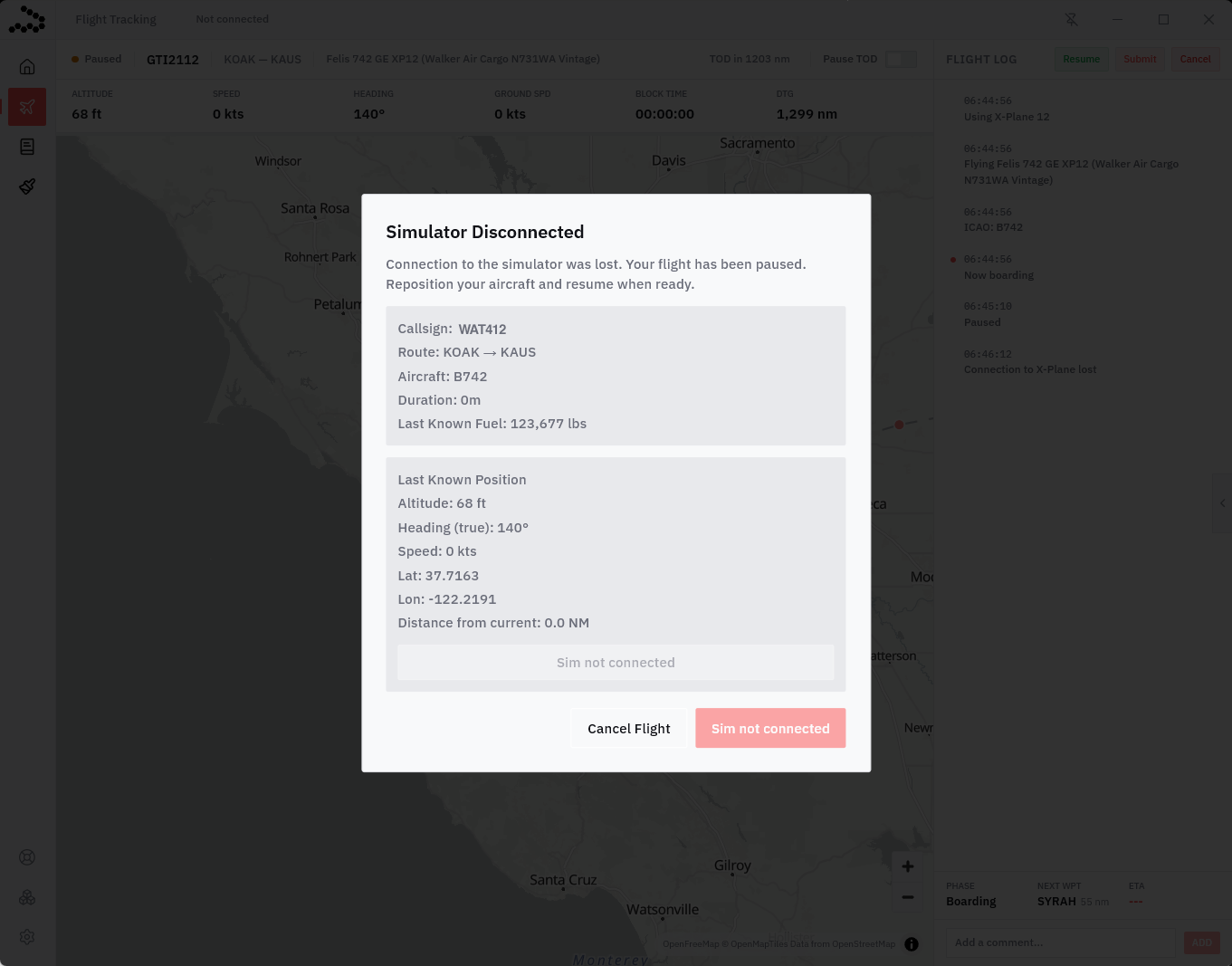
If your simulator crashes,disconnects butor crashes during a flight, Stratos will automatically pause tracking and enter Recovery Mode. This system is designed to help you safely resume your SmartCarsflight doeswithout not,immediately losing your progress.
The recovery window displays important information from your last known simulator state, including:
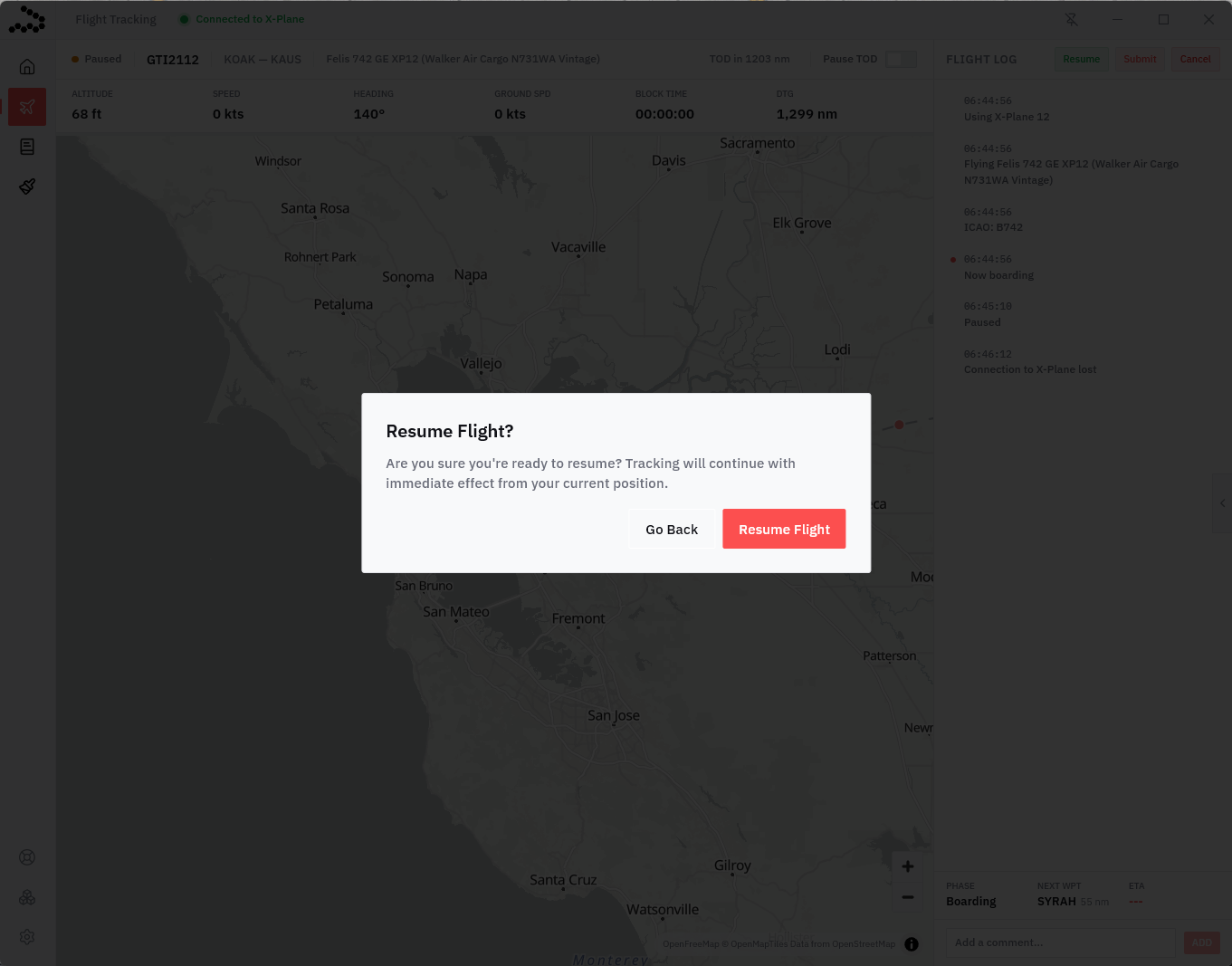
Once your simulator reconnects, Stratos will compare your current aircraft position to the last recorded position. If everything is within acceptable limits, you may attemptresume atracking reconnectby followingclicking belowResume steps.Flight. Once you click Resume Flight, Stratos will ask for final confirmation before tracking resumes from your current aircraft position.
1.If SmartCarssupported, willStratos tellmay youalso theprovide informationan aboutAuto Reposition option to help place your aircraft priorback tonear the crash - please match this as closely as possible and meet the requirement for reconnection (within 5nm and 2000ft ofits last recorded position).location Dobefore NOTresuming clickthe onflight.

⚠️ asRecovery thatMode willis beintended ato rejectedassist with simulator crashes, disconnects, or accidental closures. It is not intended to bypass Walker Air policies or flight sincerequirements. youSignificant didposition notchanges, arriveaircraft atchanges, destination.or unrealistic recovery behavior may still result in automatic PIREP rejection or staff review.
2. Once within the requirement for reconnection, a green button will show up beside 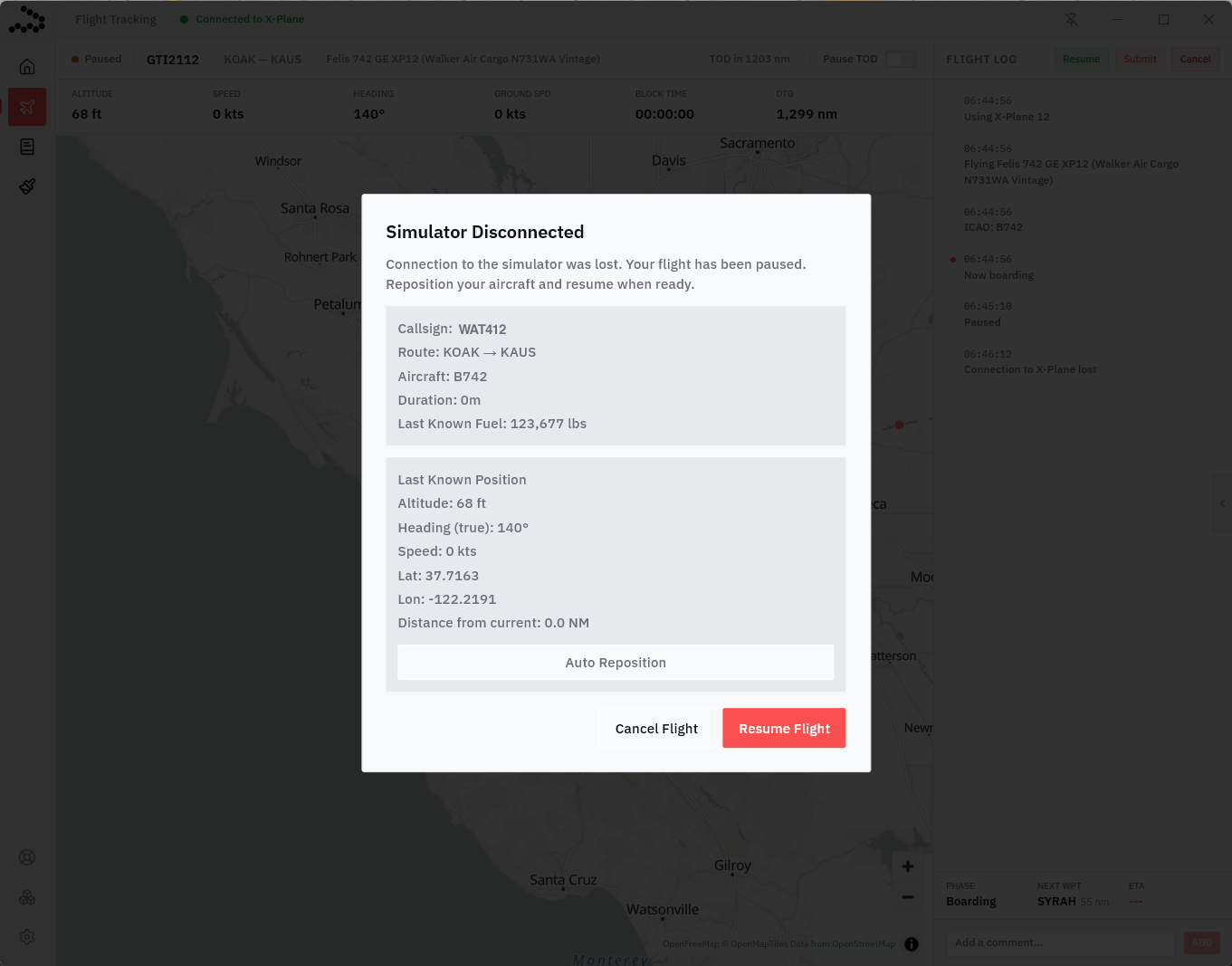
- called  . Click this button to reconnect.
3. Your log should then show "flight tracking reconnected."

4. Once reconnected, confirm with the SmartCars3 moving map and the Walker CrewOps map that you have indeed reconnected, which can be confirmed by seeing your aircraft moving on both maps. If you are not, Alt+F4 the sim and attempt the process again.