
Microsoft Flight Simulator
You will need to locate your Community Folder for Microsoft Flight Simulator. The location depends on how you installed the simulator and whether it is MS Store or Steam.
For the Windows Store install:
C:\Users\[Your User Name]\AppData\Local\Packages\Microsoft.FlightSimulator_8wekyb3d8bbwe\LocalCache\Packages\
For the Steam install:
C:\Users\[Your User Name]\AppData\Local\Packages\Microsoft.FlightDashboard_8wekyb3d8bbwe\LocalCache\Packages\
Important: Windows 10 by default hides the “AppData” folder, so you will have to go to “View” in the menu of File Explorer, and select “Hidden items” so as to see it.
For the Custom install:
If you happened to use a custom location for your Flight Simulator installation, then proceed there.
1. Download the livery that you wish to install from the Walker Air Transport site.
2. Open up the zip file of the downloaded aircraft.

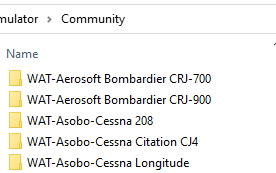
3. Copy the folder to your Community Folder location | All our liveries begin with WAT-ABCD -- if that is not what you see in the Community Folder then you incorrectly copied it and/or nested the folder.
Load MSFS and you should now see our livery for the aircraft you installed.