
Locating Your PIREP
PIREPS are stored in your Logbook. They may be accessed by using the Navigation Bar in the Crew Ops website.
Locate your name on the right side of the Navigation Bar.
Scroll down to Profile and click it.
At the top of the screen opening afterwards, you'll see the Bar below along the top of your screen containing your Insignia, Name and a series of buttons on the right.

To view all of your PIREPS, click this button.

After doing so, the screen below will open. Here, you'll be able to see your 20 most recent PIREPs in Summary Form. Each column contains a piece of data about your flight. To see more detail about a specific flight, click its Flight Number in the Flight column – or – the colored box [green, yellow or red] in the far right-hand column.
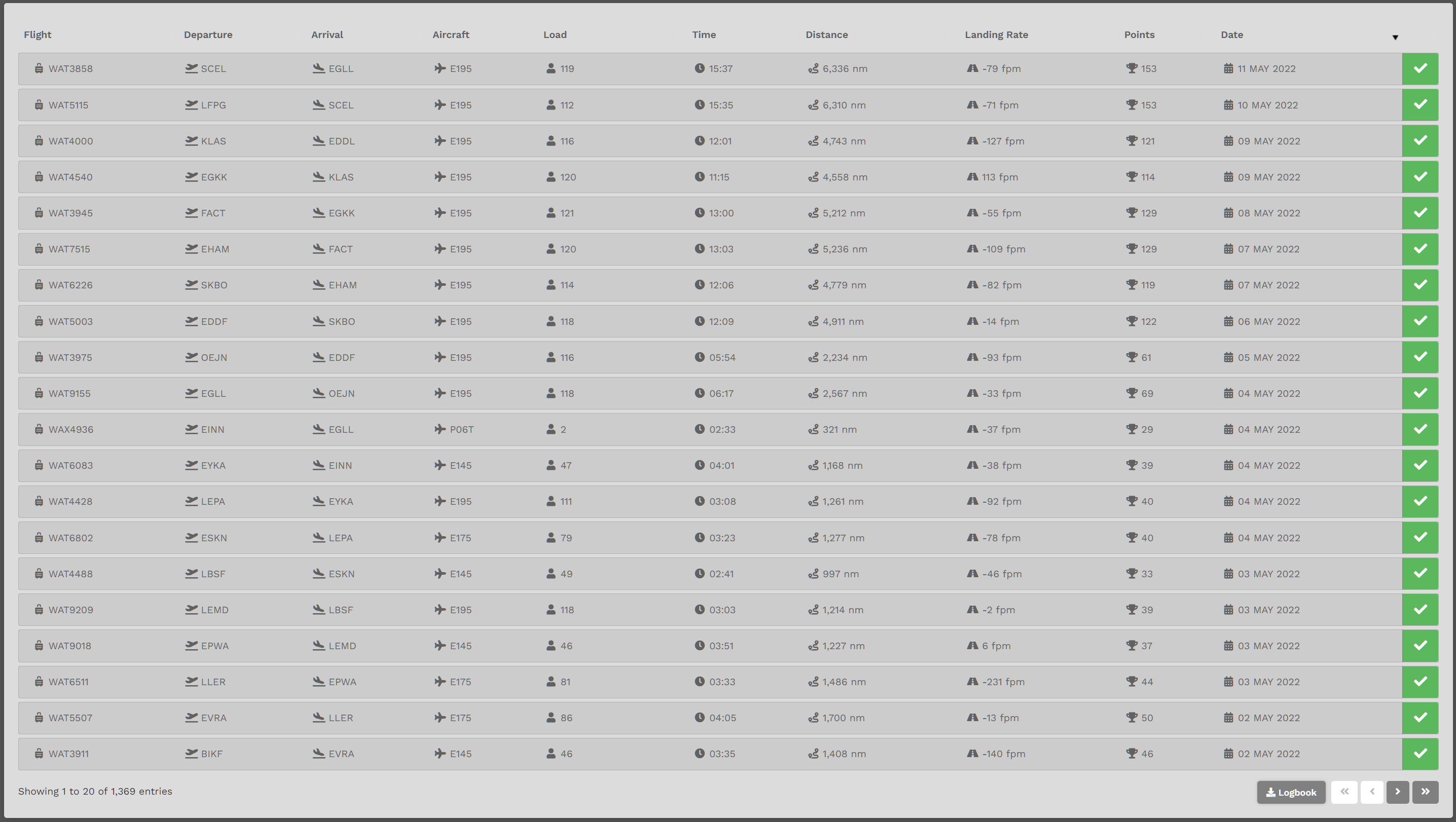
| To view more of your PIREPS, click the arrow buttons at the bottom right of your screen. | To download a .csv file of your Logbook, click the Logbook button. |
By clicking on the last flight listed above (WAT3911), the screen below is revealed.
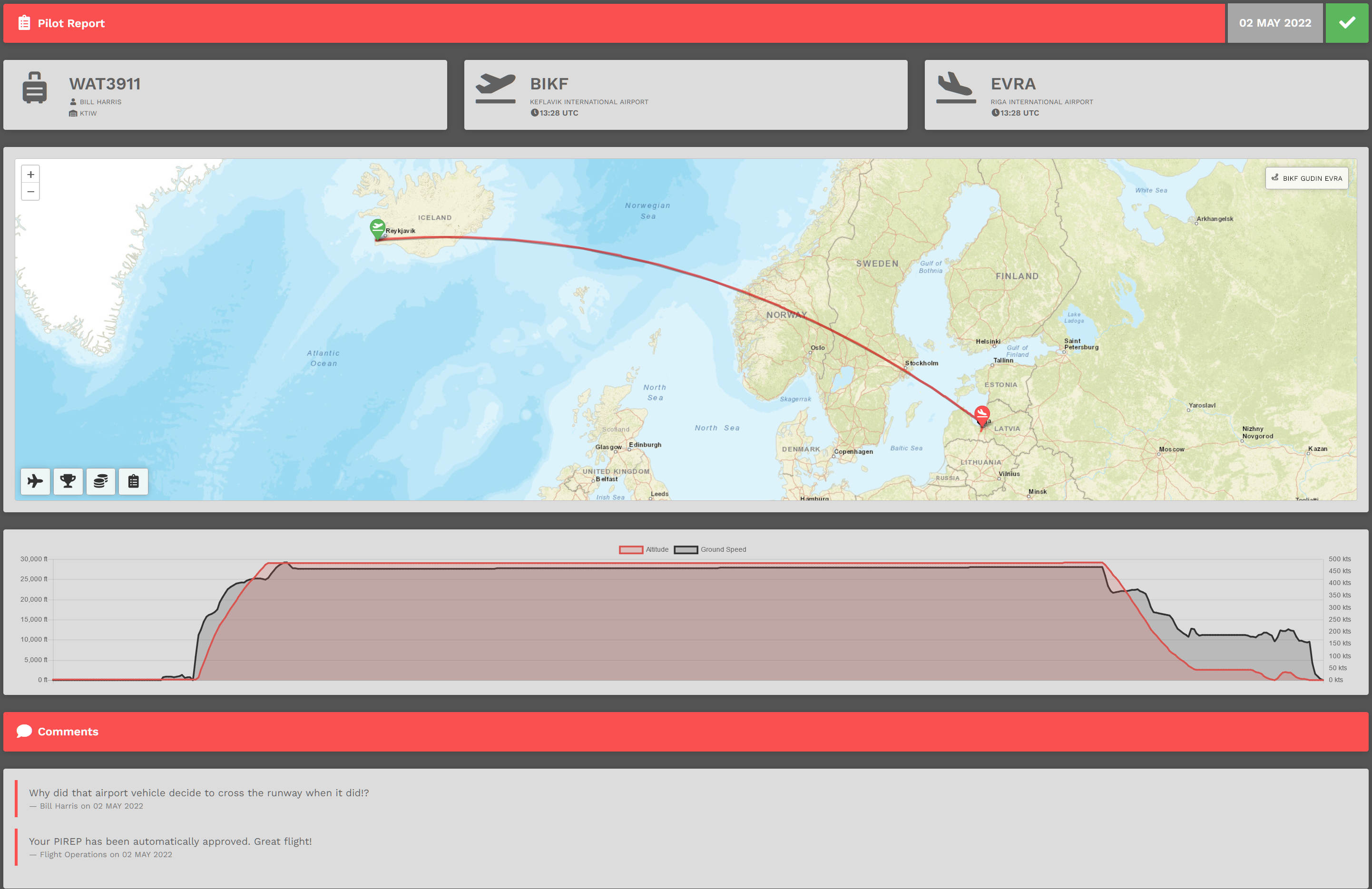
There are four (4) individual sections in the Pilot Report.
Section One:
Section One provides an overview of your flight – your flight number, along with your Pilot Name and Home Base; your Departure Airport Name and departure time; and your Arrival Airport and arrival time.

Section Two:
Section Two shows the route of your flight on a map.
Use your mouse to move the map; use your scroll wheel – or – click the +/- icons to increase or decrease the size of the map.
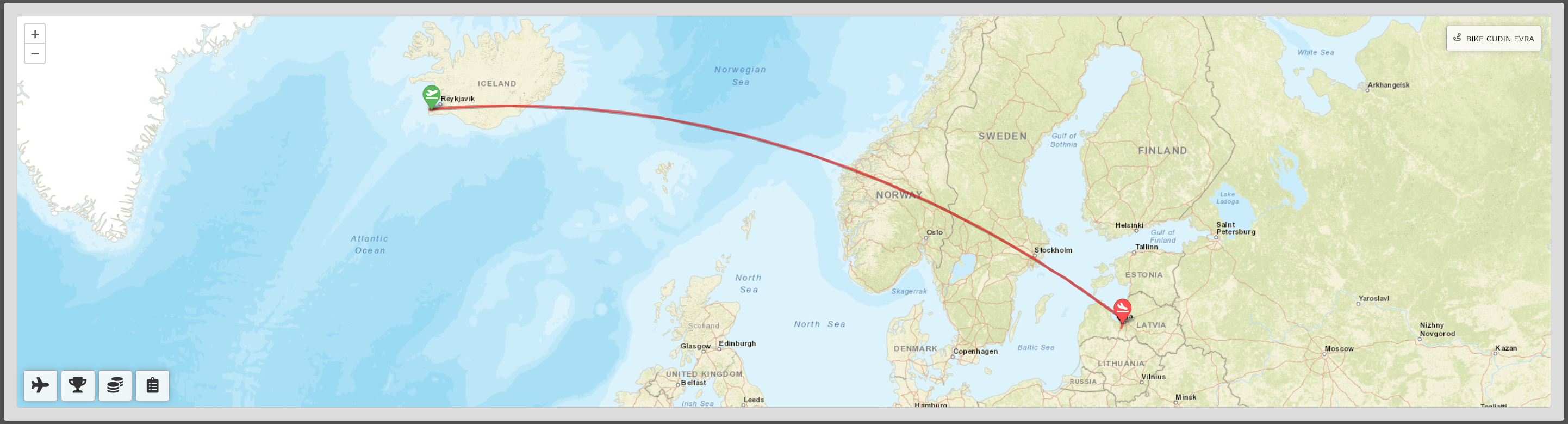
Within the map, there are four (4) buttons:
| Flight Information | Points | Financials | Flight Log |
|
|
|
|
|
|
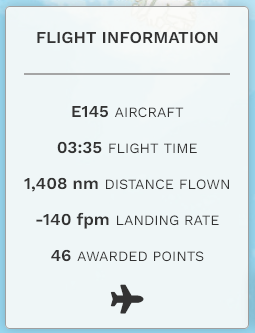
Clicking the Flight Information button will open the pop-up below.
|
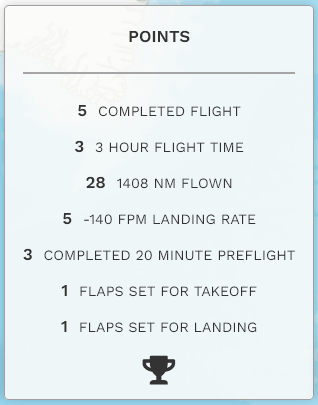
Clicking the Points button will open the pop-up below.
|
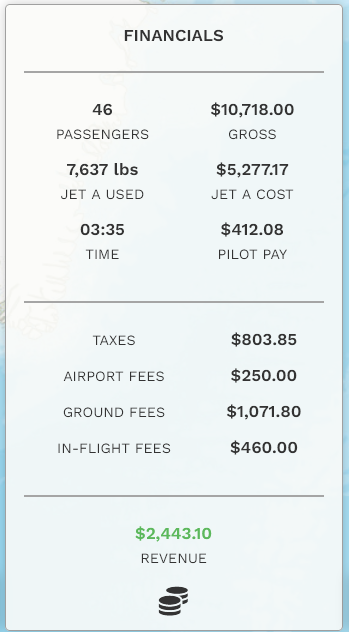
Clicking the Financials button will open the pop-up below.
|
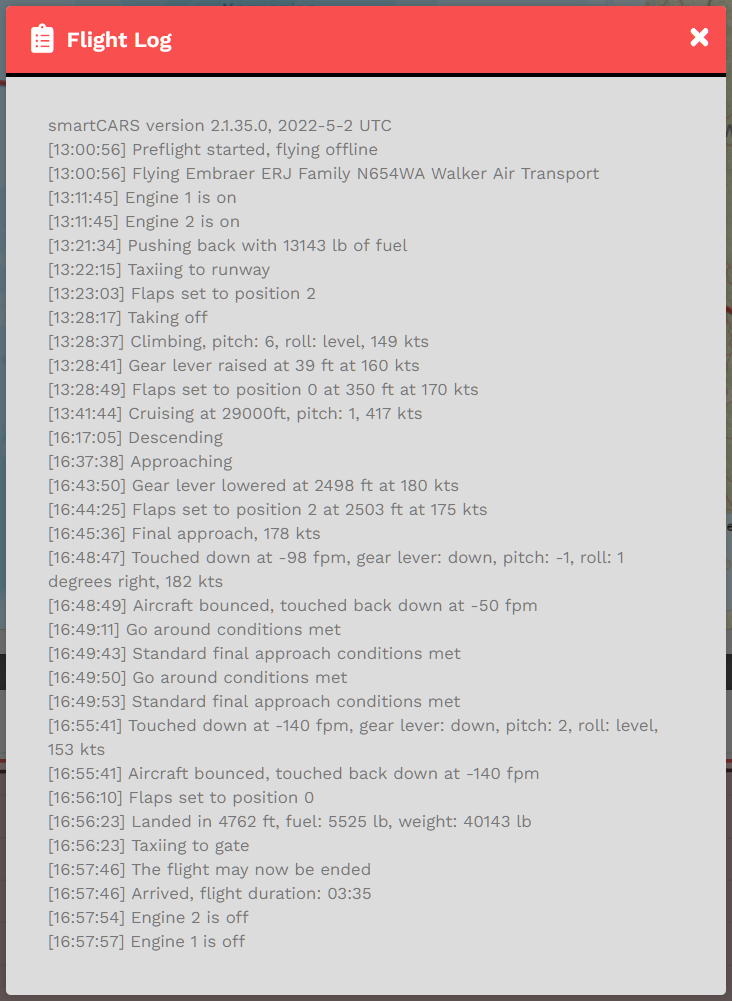
Clicking the Flight Log icon will open the pop-up below.
|
|
|
|
|
|



Section Three
Section Three shows a graph of your flight route using Altitude and Ground Speed.

Section Four
Section Four will contain any Comments you provided in the PIREP Comments text box in ACARS and/or the standard comment provided by Flight Operations.
