
Charter
Leveraging a list of over 42,000 airports around the world using a specific fleet of company aircraft, the Charter system allows a Pilot to create a flight schedule without the constraints of having to adhere to a formal route.
The only limitation?
Selecting an aircraft with the range to complete the flight.
Creating and Bidding a Charter Flight
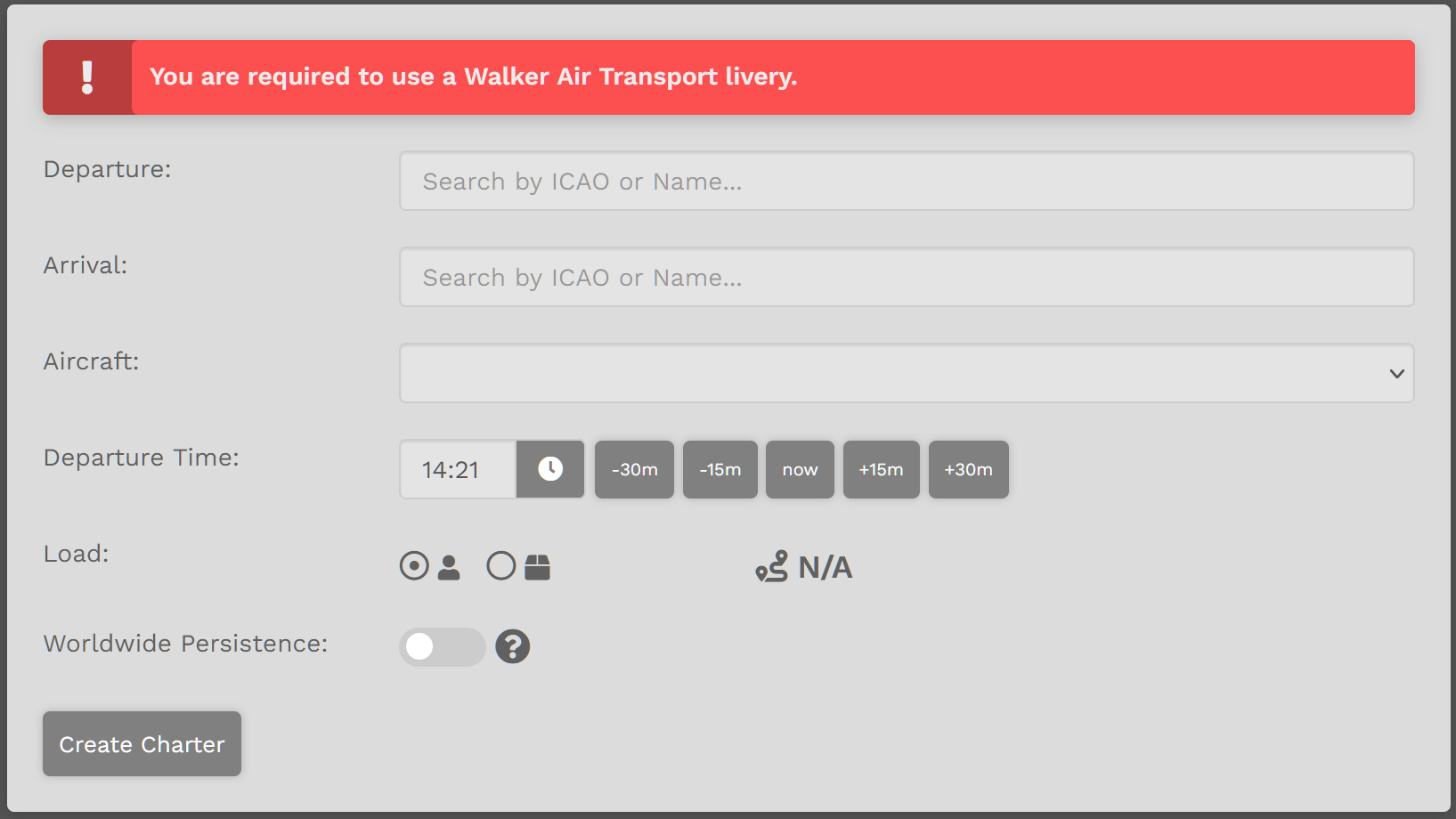
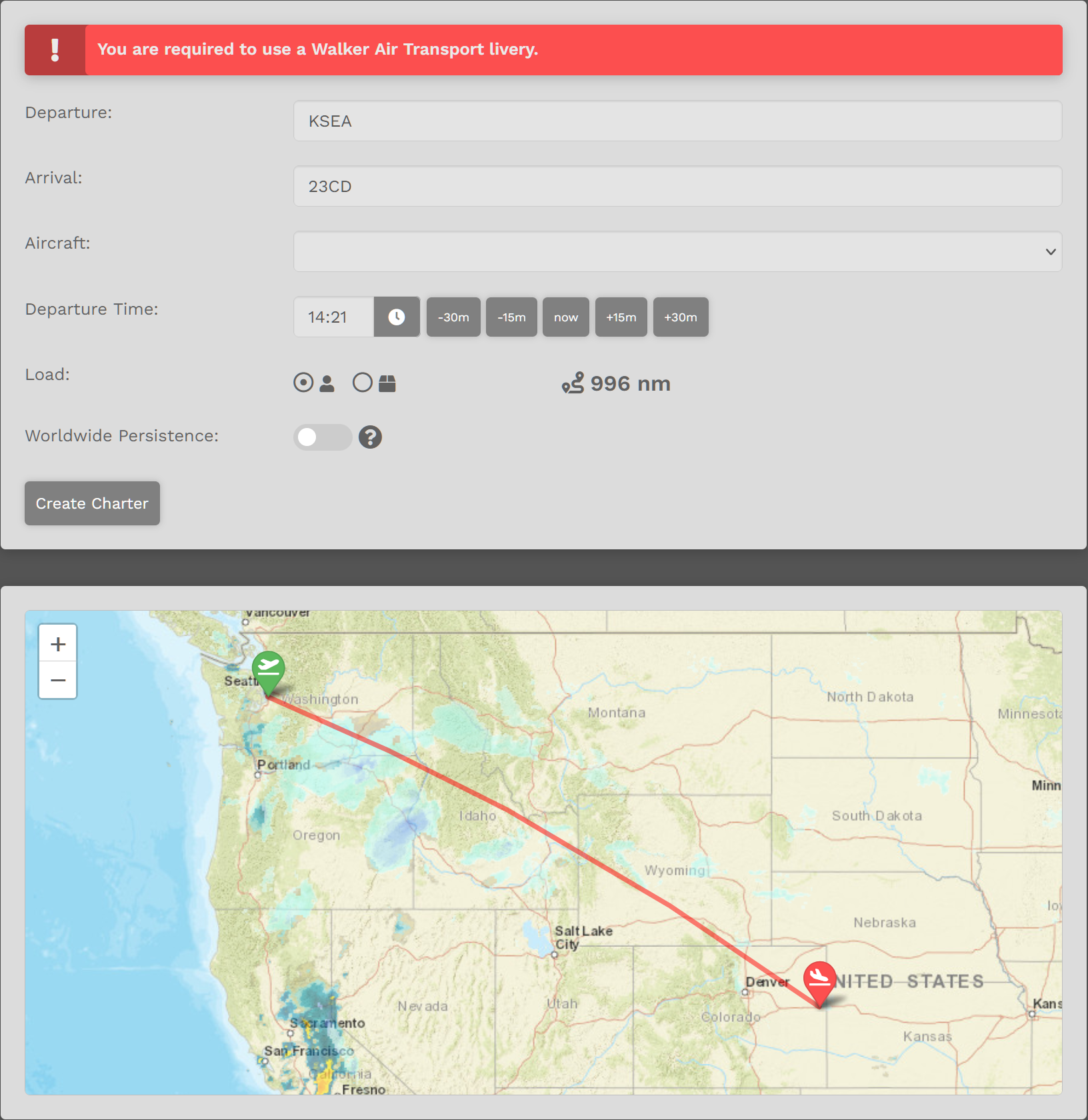
On the Charter Page, there are seven (7) steps you must complete in order to create and bid a Charter flight.
| 1. | Departure – Enter the Name or ICAO Code of any airport from which you wish to depart. |
| 2. | Arrival – Enter the Name or ICAO Code of any airport to which you wish to arrive. |
| 3. | Aircraft – Select an aircraft from our Charter Fleet in the drop-down menu. |
| 4. | Departure Time – Select a departure time – and remember this is UTC time, not local time. |
| 5. | Passengers or Cargo – Choose who or what will be accompanying you on your flight – passengers or cargo. |
| 6. |
Worldwide Persistence – Toggle On or Off NOTE 1: The default position is Off. NOTE 2: To learn more about Worldwide Persistence, click here. |
| 7. |
Click the Create Charter button. |
You'll be directed to Flights > My Bids where the newly-created flight appears.
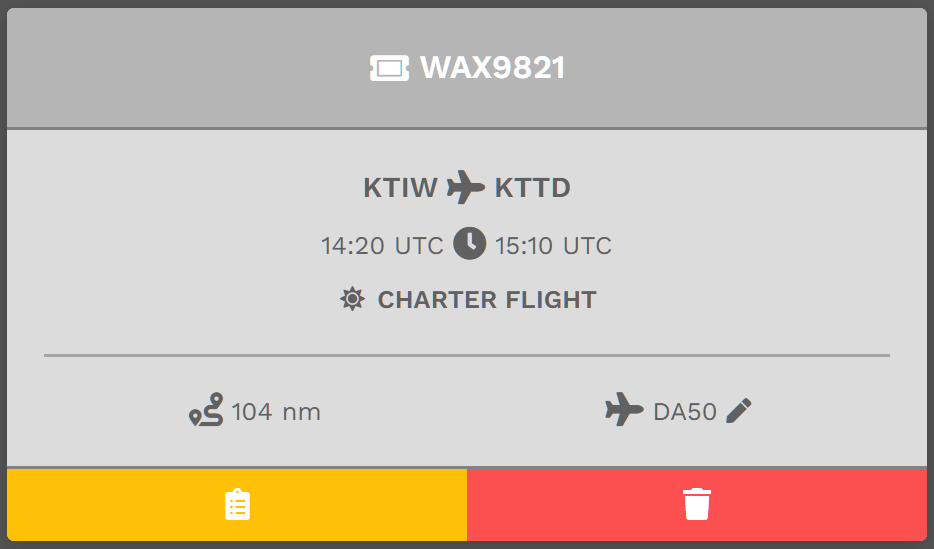
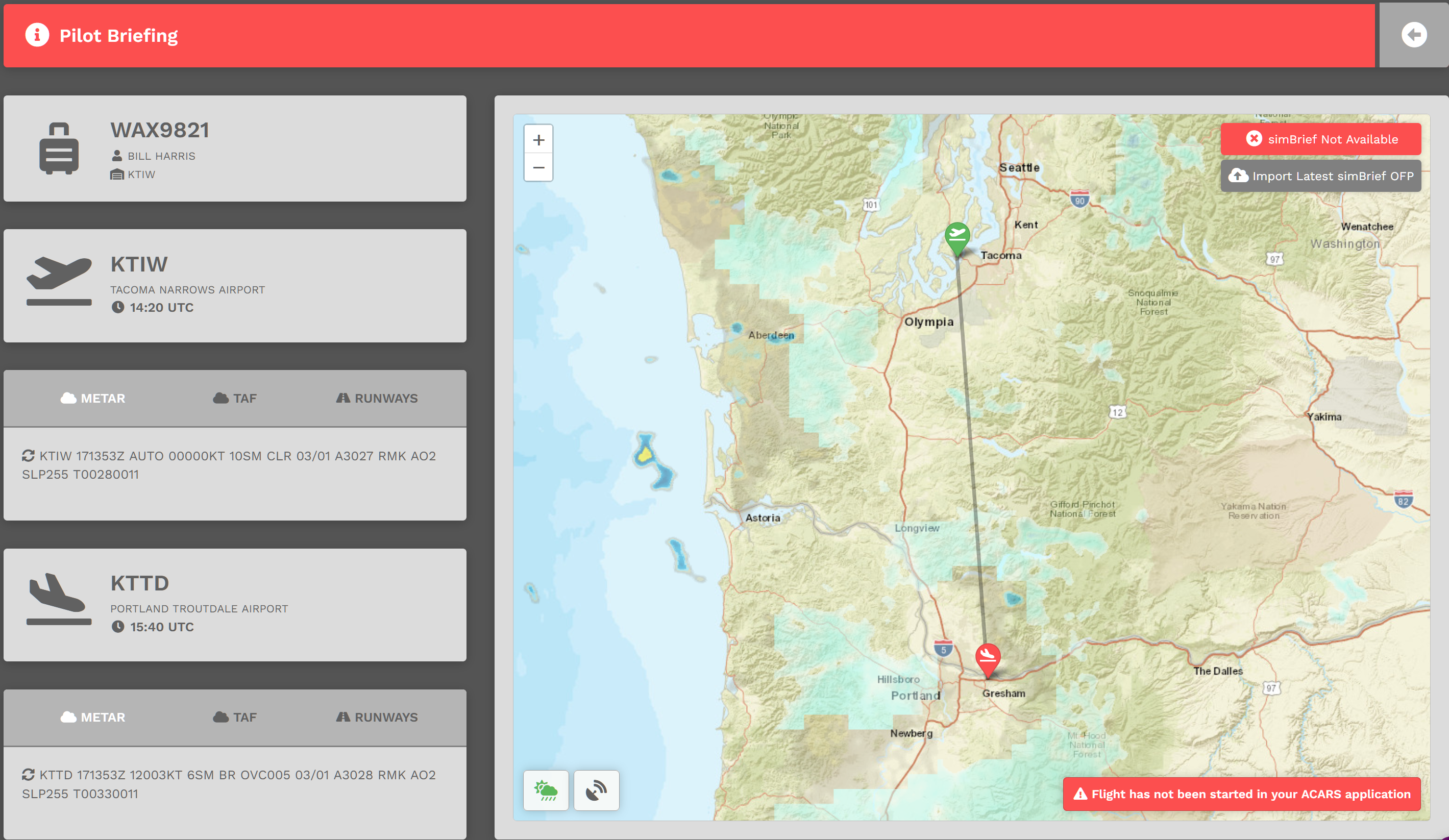
To view the Pilot Briefing for this flight, click the yellow button. Use this information to assist you in planning your flight and its flight route.
To delete this Bid, click the red button.
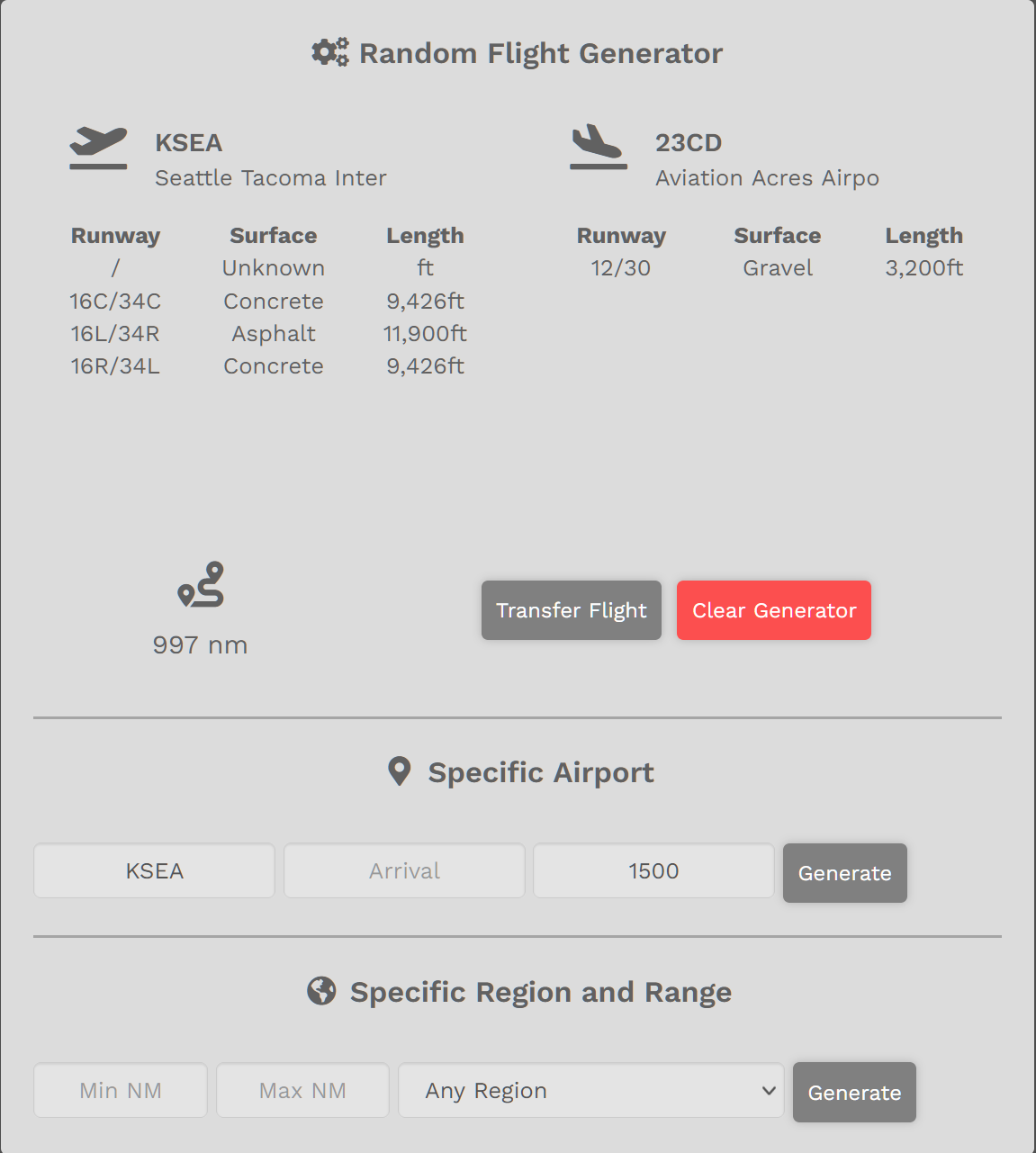
Random Flight Generator
The Random Generator is an easy way to address the 'Where am I going to fly today?' question... Input a few items and generate a random flight.
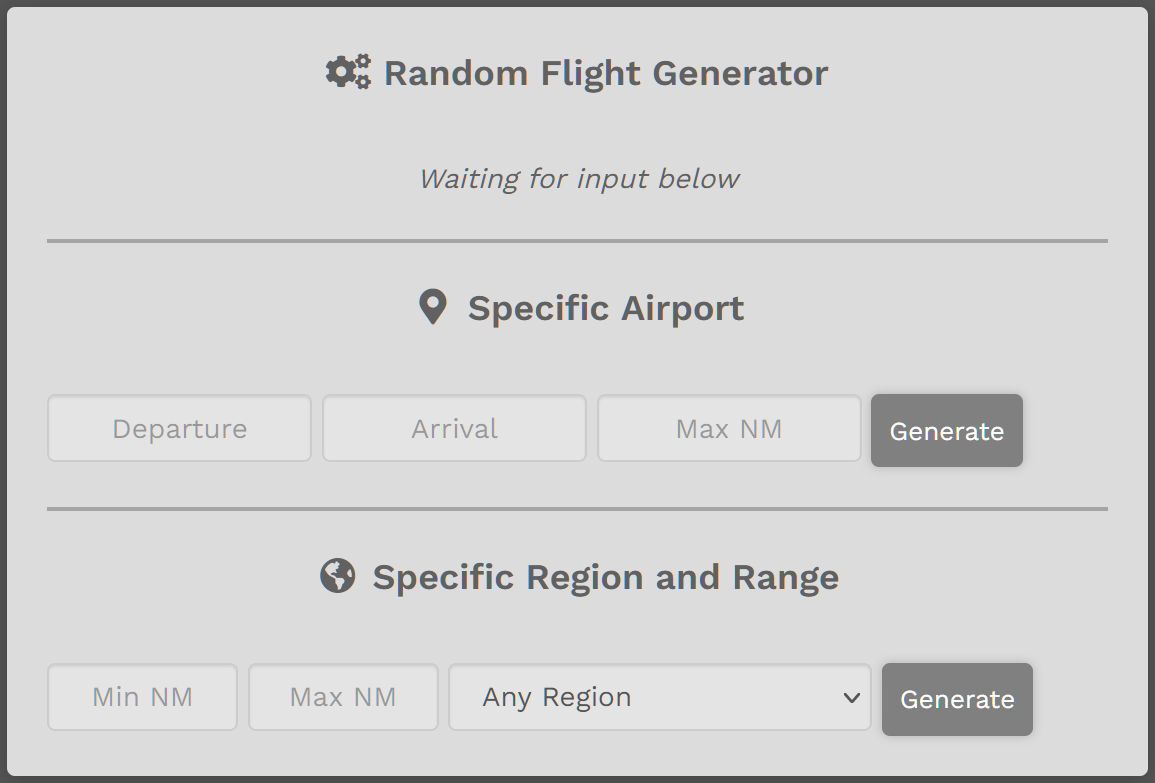
| Specific Airport |
Enter Departure Airport or Arrival Airport – not both. Enter Maximum Nautical Miles. Click Generate button and a random flight will appear.
After clicking the Transfer Flight button, this box will appear.
|
||||
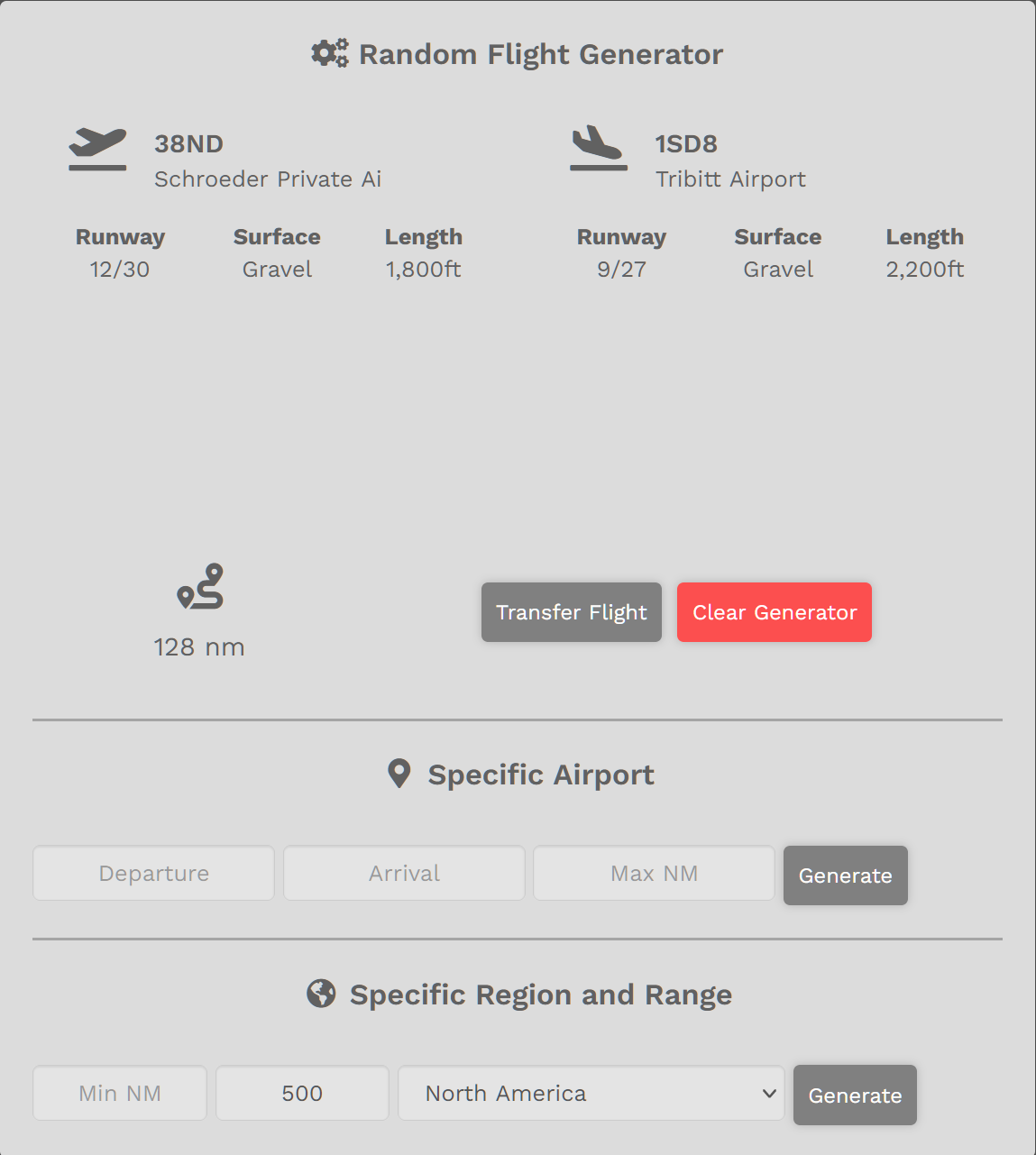
| Specific Region and Range |
Enter desired Range – or leave it blank. Select Region – or leave as Any Region. Click the Generate button. A random flight will appear.
After clicking the Transfer Flight button, this box will appear.
|
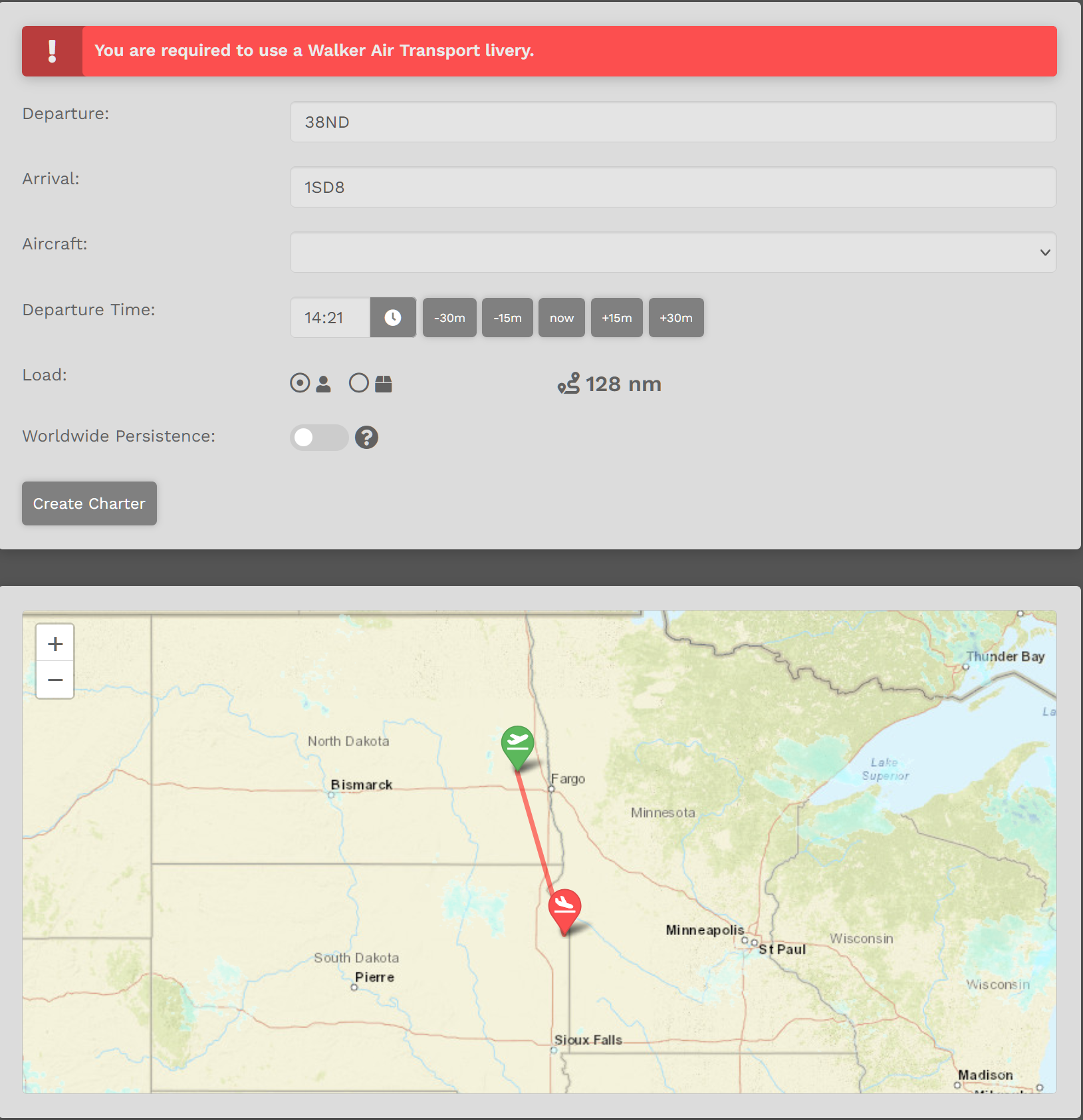
To clear all entries, click the Clear Generator button – or – refresh the page.