
Cargo
The Cargo Flight Module was implemented to givegives Pilots an opportunity to experience life as a 'Freight Dog' for a major Cargo Operation by using real life flight routes, schedules and aircraft.
There are currently 213,542 routes available to you worldwide.
If you wish to depart from another location, purchase a Jumpseat Ticket to transfer to another airport.
Finding a Cargo Flight
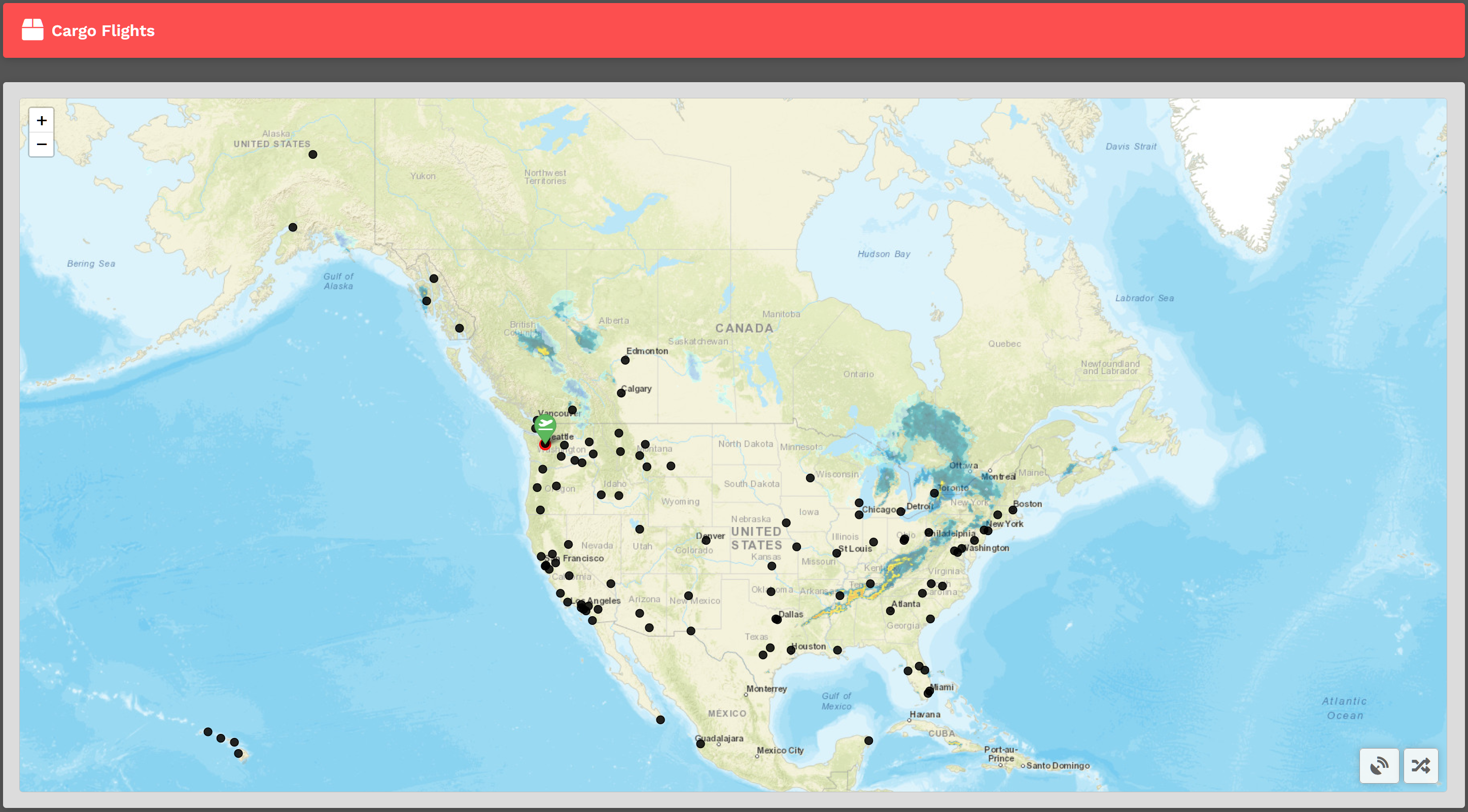
Upon arrival, you'll be presented with a map. You'll see a departure icon (Green Map Pin) and 1 or more arrival pins (Black Dots), as well a Toggle VATSIM and Select Random Arrival button at the bottom right of the screen.
The map seen above represents its default view. To see the rest of the world, place your cursor on the map and, with your control wheel, zoom in or out.
The departure location for your next flight is set as follows:
| New Pilots | All Other Pilots |
| New Pilots taking their first flight depart from the Hub they requested on registration. |
The Arrival Airport of your last Cargo or Scheduled flight. |
Mouse over pins/black dots to see the names of the airports with flights available from your departure airport.
Once you find a place to which you'd like to fly, click on its black dot.
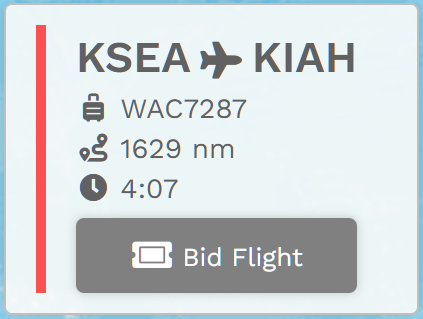
You'll then see your Flight Bid appear listing the Flight Number, Distance and Estimated Time Enroute.
The Estimated Time Enroute is only an estimate and does not reflect the time in the aircraft you select.
Bidding a Cargo Flight
Click the Bid Flight button to bid on the flight.
After doing so, the confirmation window below will appear.
From the drop-down, select an Aircraft Type.
We allow our Pilots to chose their preferred aircraft type rather than restricted them to one assigned to the flight.
Only aircraft capable of flying the distance of the chosen flight will be shown as options.
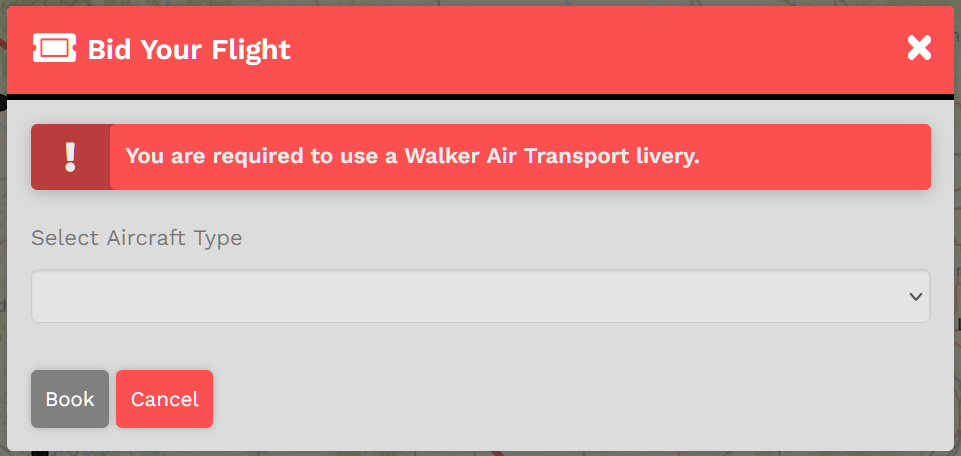
After selecting your aircraft, click Book.
The Pilot Briefing will appear signifying the flight has been added your My Bids page.
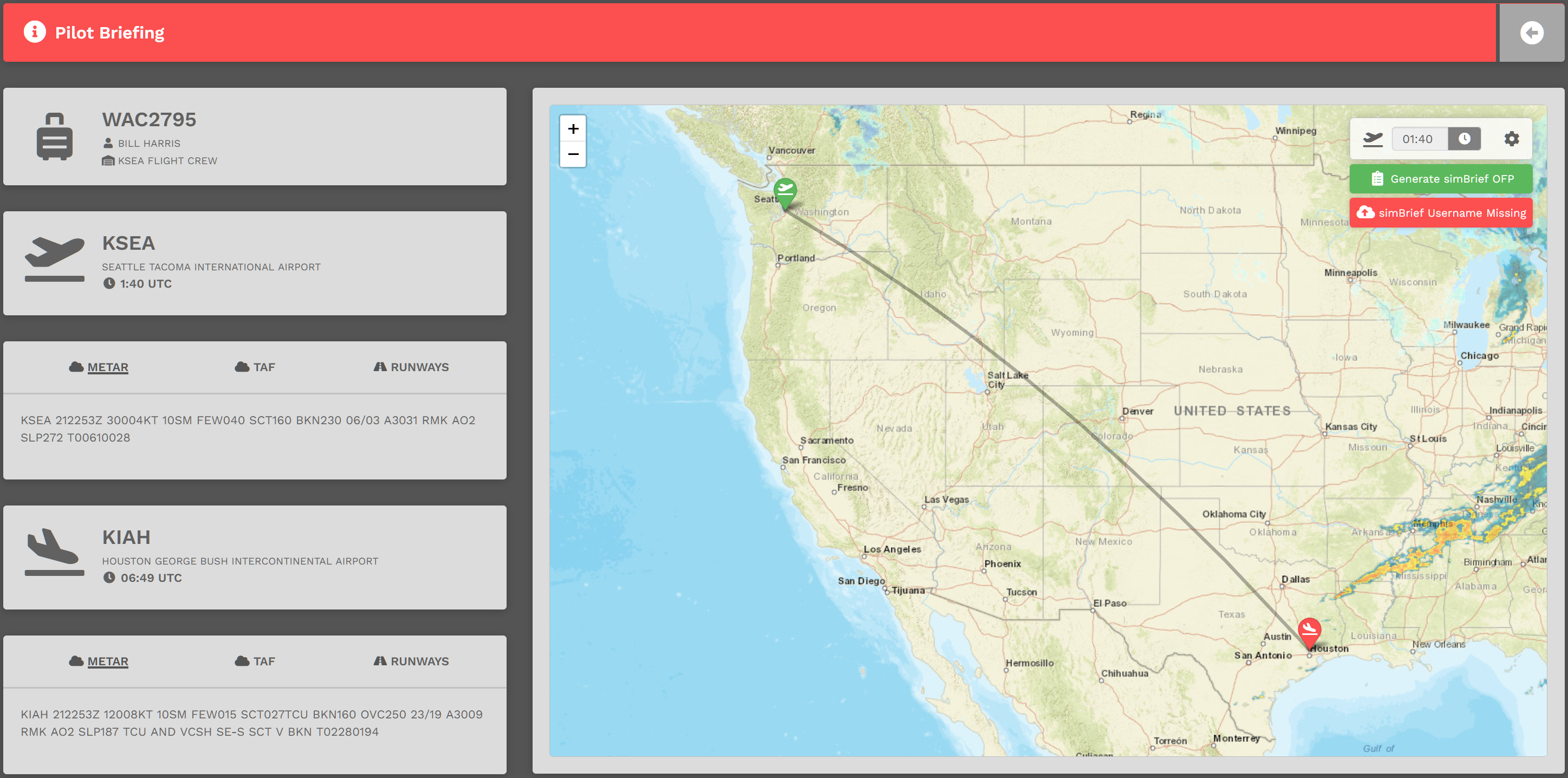
Once you've reviewed the details of your flight, you're ready to go fly it...