Assignments
An Assignment is a route generator where you will receive real-life airline routes, depending on the settings you have selected in the generator. The module also includes additional real-life simulation such as duty time limits. Completion of an assignment rewards pilots with a bonus one point per every flight hour flown.
The bonus points is only awarded at the end of the assignment, and not everytime you finish one leg.
To explore our Tours offerings, click Tours.
The default view is for all Tours to be displayed. Once you begin flying them, though, you may find it useful and/or convenient to be able to sort them. We have an assortment of fields for you to narrow down your options.
This feature is currently available to Patreons only. You may learn more about the Patreon program here.
Generating your Assignment
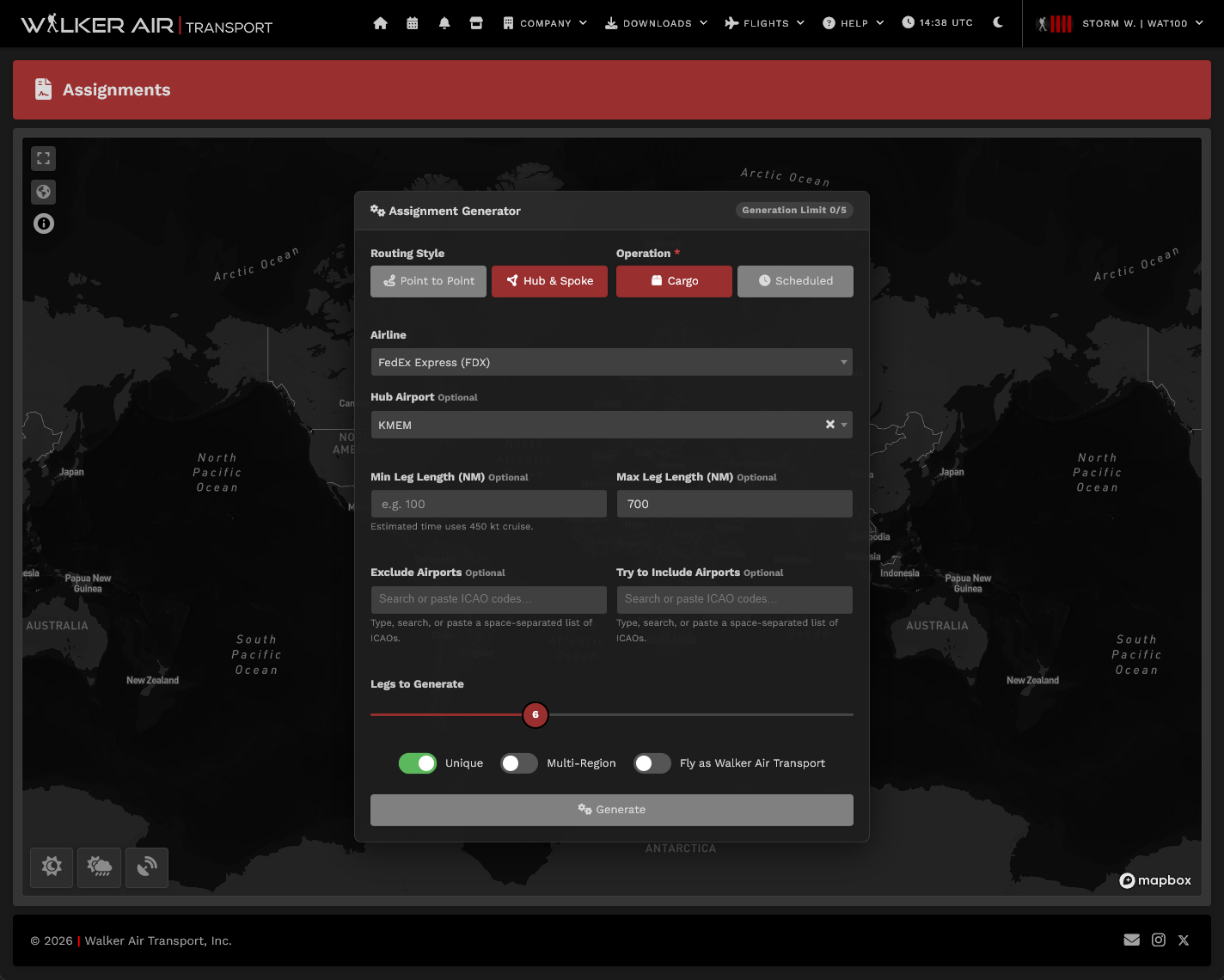
To begin generating your assignment, head over to Flights -> Assignment, which will bring up the initial prompt where you can include your parameters for the assignment to be generated. Some of these are required, while some are optional.
| Parameter |
|---|

Hub & Spoke — strictly alternates hub→spoke→hub→spoke. Must be an even number of legs.
Yes Operation Cargo or Scheduled Yes Airline Limits routes to a single airline if selected. "Random" picks any airline in the database. Yes Legs How many legs to build. In Hub & Spoke mode only even numbers are allowed. Yes Starting Airport or Hub AirportStarting Airport (Point to Point): forces the chain to begin at a specific ICAO; omit for a random start.
Hub Airport (Hub & Spoke): this is the hub — every odd leg departs from here and every even leg returns here. If omitted, a suitable hub is chosen randomly from the airline's network.
Optional Final AirportForces the last leg to land at a specific ICAO, as long as possible.
Not available in Hub & Spoke mode (the chain always ends at the hub).
Optional
(toggle)
Point to Point: no airport may be visited more than once.
Hub & Spoke: no spoke airport may be repeated.
OptionalWhen categorieson, thatat weleast have,one basedarrival onmust be in a different world region than the tour.origin.
Point
Hub & Spoke: at least one spoke must land in a certaindifferent aircraftregion and its operations.

(toggle)
RoutesRegionare -generated What area ofunder the worldchosen willairline's younetwork, find yourself flying in while doingbut the tour
Legs - Number of legs in the tour
Distance- Combined total distance of all legs in the tour
Time and Speed - Time filters by expected tour duration, however thisassignment is reliantstored under Walker Air Transport (WAT). The pilot flies WAT-branded legs on the speedgenerated (in kts) that you enter on the speed box. This allows you to finetune whether you plan to fly GA, heli, prop or jets.
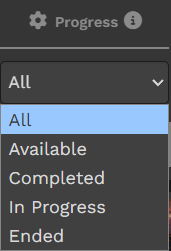
Progress - This lets you filter tours as per the dropdown options.
Sort Buttons - This allows you to sort the currently filtered tours by distance, number of legs, number of thumbs (community upvotes) and favorites (future feature) that you have marked.
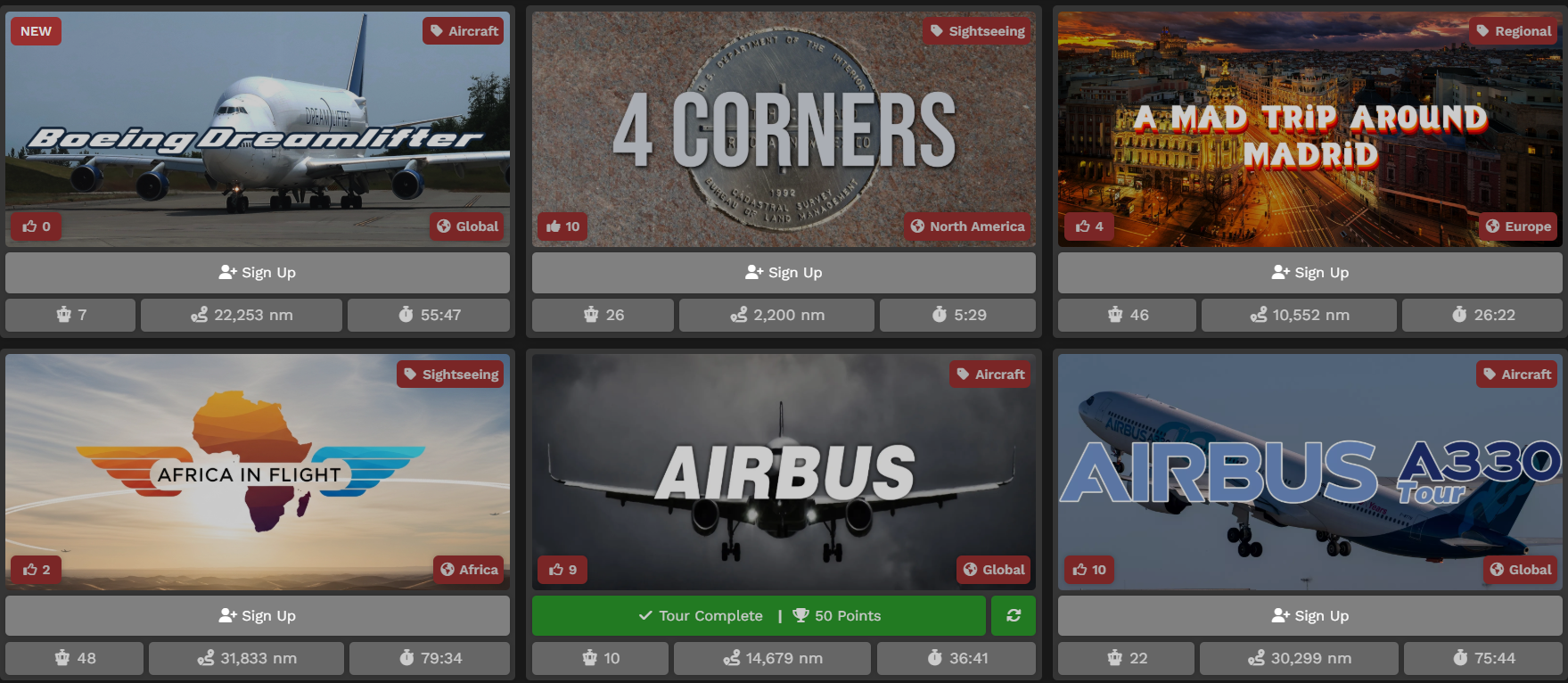
EachWhile tourwe panelstrive to maintain an updated and accurate route database, there will be a few instances of incorrect or old routes generating into your assignment, or newly-launched routes not appearing in the system. The Walker team will continue to push to minimize the instances of these.
Flying your Generated Assignment
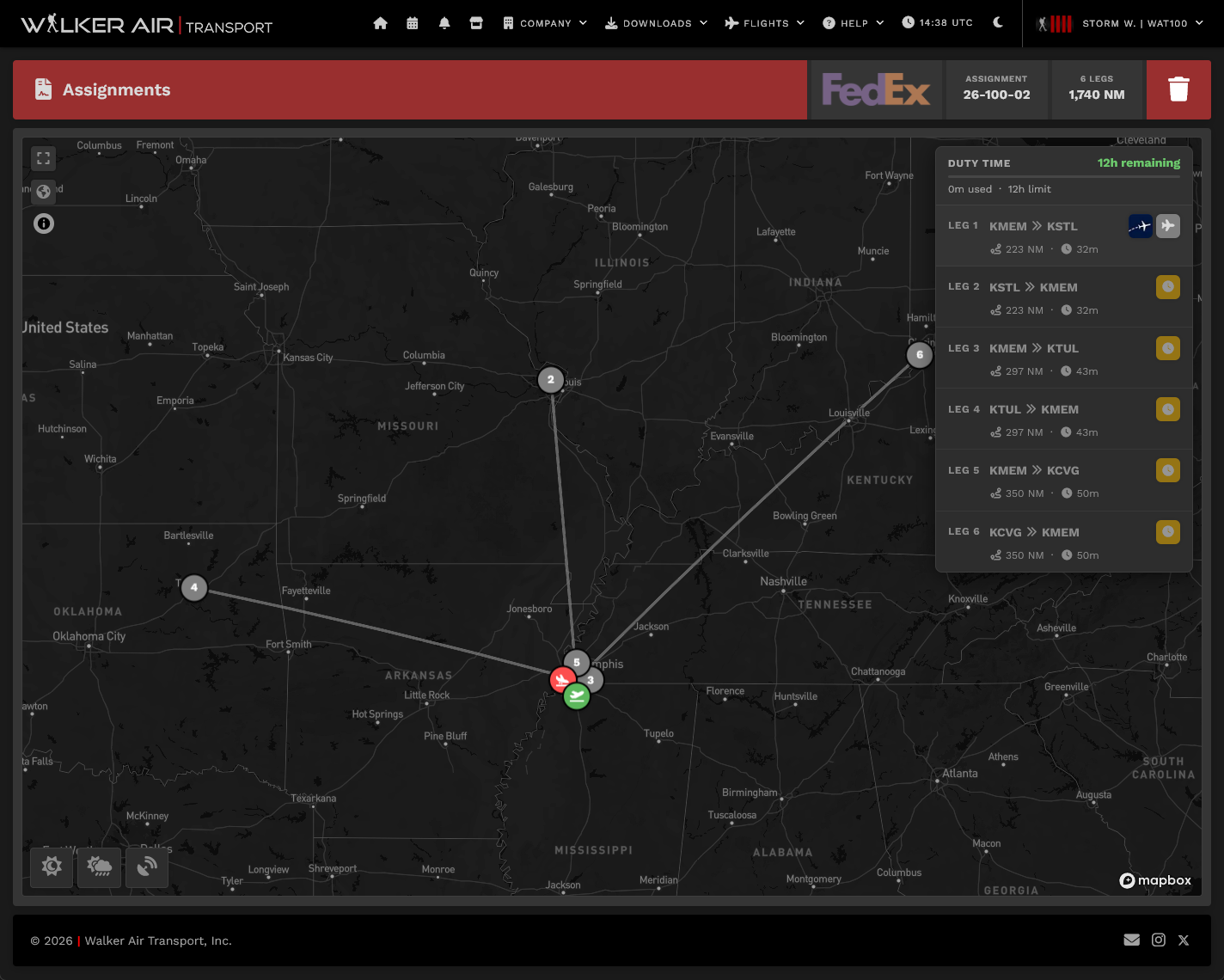
Once you have generated your schedule, the map interface will show up. From here, you acan number of information.
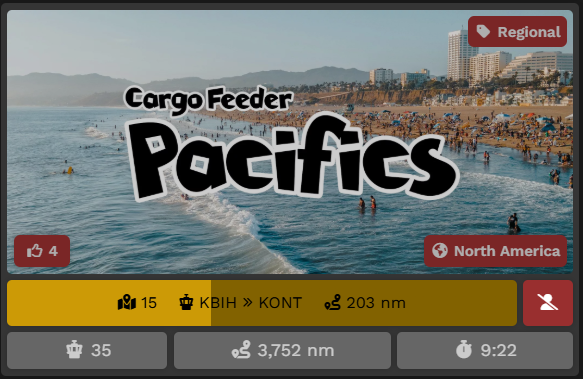
Onreview the Imagegenerated itselfUpperassignment, Leftchoose -to This will show a red box with NEW ifdiscard the tourassignment hasby been recently launched.Upper Right - This will showclicking the category
of tour, as discussed in the section aboveLower Left - This will show a like icon, showing how many other pilots upvoted the tour. You can also hit this button to add your vote - doing this will fill the icon in.Lower Right - This shows the region of the tour, as discussed in the section above.
Status BarEach Tour has a status. It's either Available, In Progress or Completed – and each is anchored by a colored bar providing you a visual indicator of its status.
For Available tours, clicking this bar will allow you to sign up for the tour.For In Progress tours, the bar will show your current progress as the loading bar, your next tour leg, and the distance of your next leg.For Completed tours, it will show you the amount of bonus points you earned by completing the tour.
Below are samples of what you may see in your tours page.


Individual Tour Page
To learn more about a specific Tour, click its image on the Tourupper page.
Afteror doing so,bid the screennext belowflight willby open. In it, there are three areas onclicking the page.

Area 1 | Tour Description
Click Tour Description beneathbeside the Tourcurrently Image.active After doing so, its description will appear. This will provide an narrative overview of the Tour. If you see a yellow Tour Description notice, as below, you are highly enjoined to open the tour description as it contains information regarding add-on mods required, or possible ICAO differences in certain simulators.

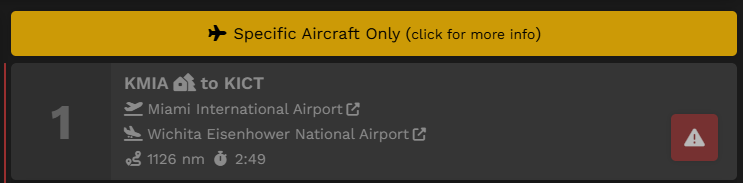
You may see the allowed aircraft for the tour by hovering over the three green boxes or the "Specific Aircraft Only" buttons on the right, on top of the legs list.
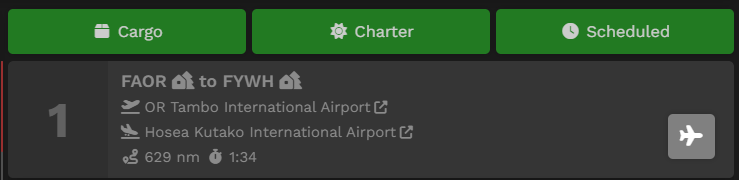
If you wish to sign uplook for thereal Tour,life clickflights flying the Signsame Uproute, bar. After doing so, you'll note two new things inclicking the page
thatbutton opens.
Ifbring you changeto FlightAware's Flight Finder for your mindcurrently about completing the Tour at any time after signing up for it, click the Leave this Tour? button and you'll be removed from it.

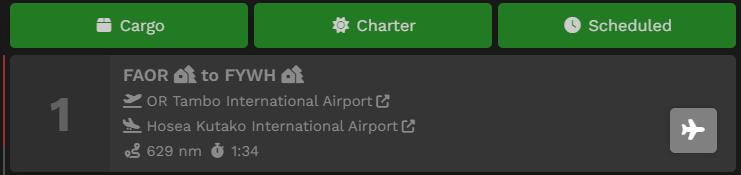
The Tour's First Leg will now have a grey aircraft icon button. That means you may bid thisactive leg.
From
here on, biddingTourwill Legssend mustyou be completed into the orderOFP they'repage sequenced. You will not be able to skip around once you begin.
To bid a Tour Leg, click the grey aircraft icon button.
Afterwards, the screen below will open. From here, itas is the standardcase flightfor biddingour process.other modules.
You may referfreely herecancel ifand unfamiliar.
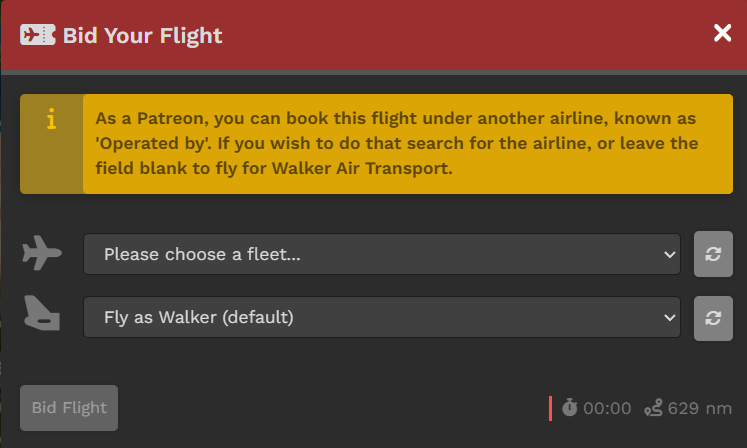
Noteassignment, provided that ifyou have not hit the generation limit AND have not flown the first leg. Cancellations after the first leg will lock the Assignments module for 6 hours for every incomplete leg. (i.e. a 10 leg assignment cancelled after completing leg 3 will lock you areout notfor a42 Patreon,hours you(7 willincomplete legs x 6 hours)
Time Compression
We understand that pilots may not have the secondtime dropdownto boxfly availablelong andhaul willflights insteadat see1x asimulation, noticebut aboutwould liverylike use.
log
Andthese aboutflights. As such, we allow the colored buttons... Here's another exampleuse of aTime Pilot currently flying a Tour we can use as an illustration:
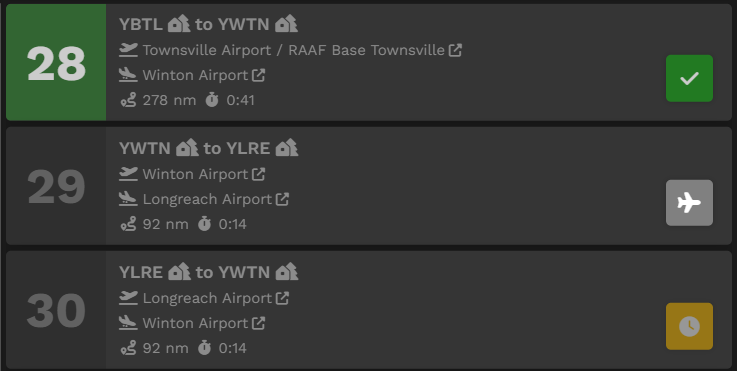
Leg 28 has a green check mark icon indicating that leg has been Completed.
Leg 29 has a gray aircraft icon indicating that leg can be bidded and is available to be flown. Once a bid isCompression in place, the iconAssignment willsystem turn red. 
Leg 30 has a yellow clock icon indicating it may not be bid upon unless/until Leg 29's flight has been completed.
Area 2 | Tour Map & Legs
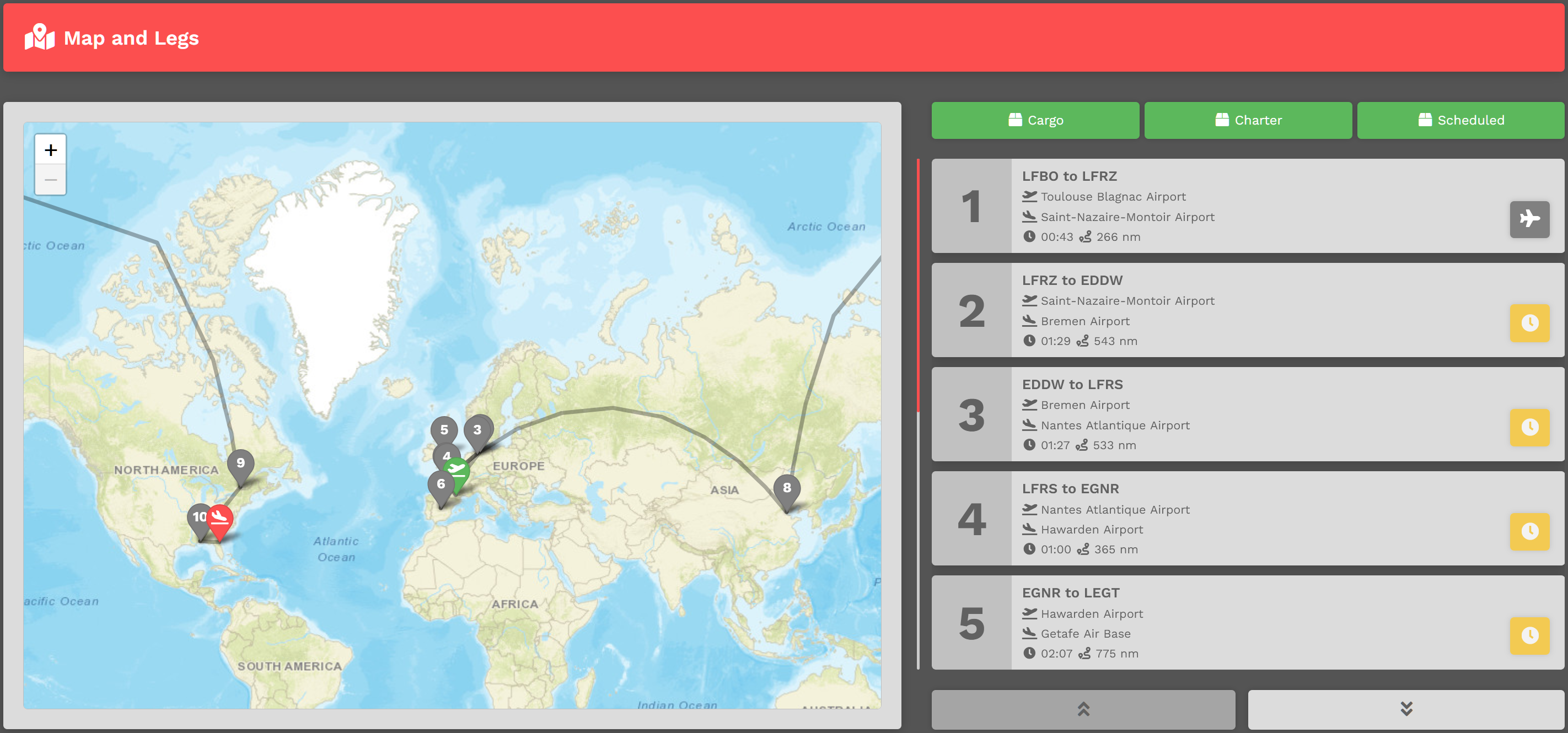
In this area of the Tour Page, a map identifying the Legs and their location is presented.
To its right is the list of Tour Legs. Each is numbered and must be flown in that order. The Aircraft Type allowed in this Tour can be seen by clicking the green Cargo, Charter and Scheduled buttons.
Area 3 | Pilot Status On Tour
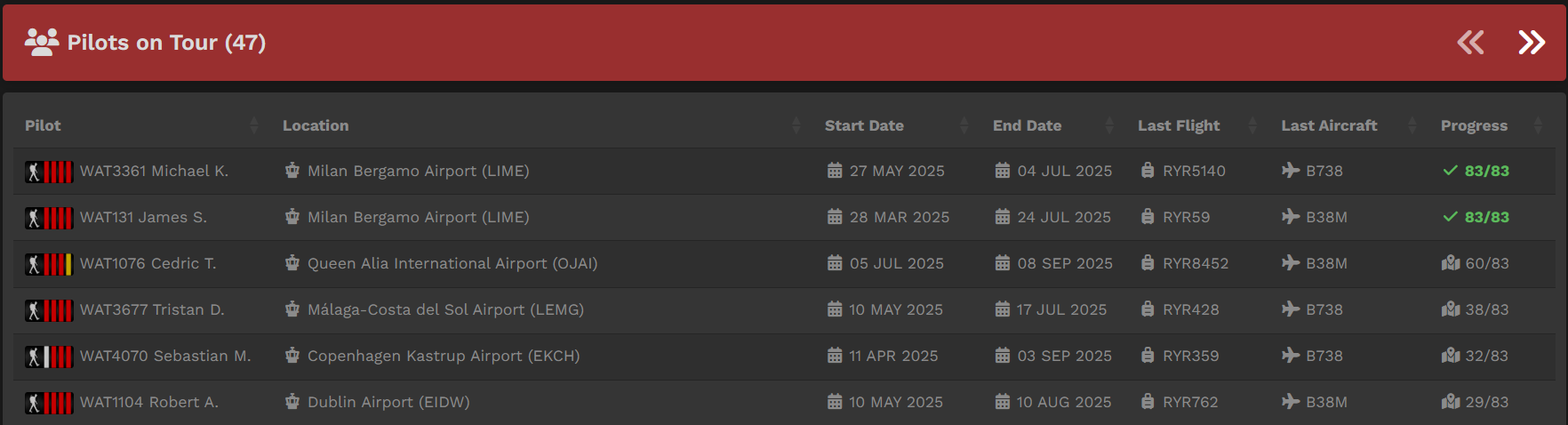
In this area, the status of all Pilots flying the Tour are noted – Pilot Name, Location, Last Flight, Last Aircraft and Progress. If desired, you can measure your progress against others flying the Tour and view their most recent PIREPs.
For pilots who have completed the tour, they are arranged in order of their date of completion.
Reflying a Tour
Referringsimilar to the TourTours Pagesystem, image above, you can seewhere the Japan Tour has been completed because the Sign Up bar is Green.
A Tour may be re-flown at any time. In the image above, clicking the green refresh button 
will do that. To re-fly a Tour, you'll need to purchase a Tour Pass – and there's a cost for doing that.
After clicking the Green button, the screen below will open. There, you'll see what it'll cost you to re-fly the Tour.
Clicking the Cancel button at any time will cancel the transaction.
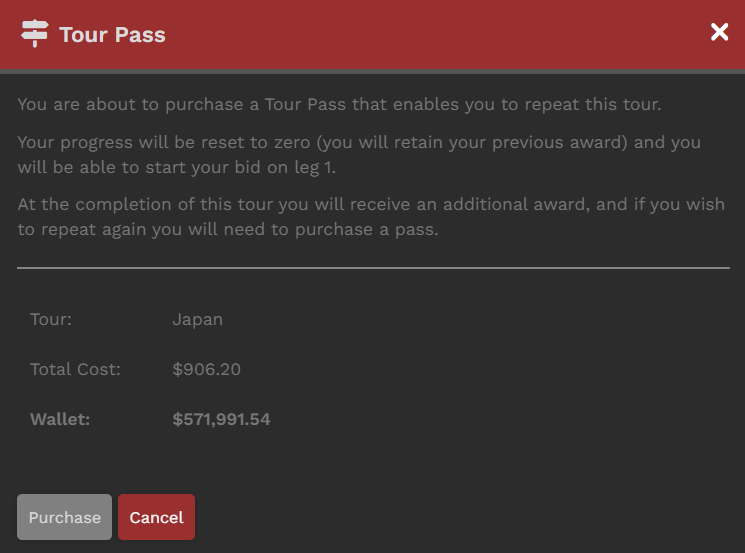
If your Wallet Balance is greater than that cost, the transactionpilot will be approved.locked You will be allowed to re-fly the Tour.
If your Wallet Balance is less than that cost, the transaction will be disapproved. You will not be allowed to re-fly the Tour
In our example, because the Wallet Balance is greater than the Total Cost, the transaction will be approved.
Tour Pause due to Time Compression // Cleared To Fly
Pilots are allowed to use time compression on tour legs with our new Tour Pause system. When you use TC on a leg, the amountout of time remaining after your compression is used to put you in pause mode on that specific tour. This means that on that one tour, you cannot startbidding the next leg until the real-time equivalentit haswould passed.have You can, however, move ontaken to anotherfly tourthe and do aprevious leg in time compression. The goal here is to keep pilots from speed running one tour within a few hours, but also allow them to enjoy the longer tours without having to sit at a1x PCsimulation for 8 hours or leave it running overnight.
Example: you fly a 4 hour leg in 2 hours time compressed. You will be paused for 2 hours on our platform and after that 2 hours expires, you can bid the next leg. If you happen to pause the simulator for those 2 hours because you had to step away, when you land the required time is met and you'll immediately open up the next leg.rate.
When you are not cleared to fly, you will see this icontooltip and the clearance time (in UTC) will be presented to you. You may fly on other Walker modules (Scheduled/Cargo/Charter/Tours) while you are on cooldown in the tooltip.Assignments module.
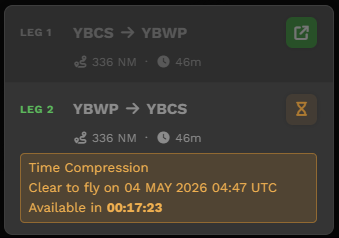
Please note: youYou will still be deducted points for time compression per our policy andon top of the lockout. You may refer to the point chart here: Rank & Points
Duty Hours
Unique to the Assignments module is the simulation of Duty Hours, where pilots are only allowed to fly a maximum of 12 hours in a 24 hour period. Your current "duty day" is shown on the top of the assignments page, and you will only be allowed to bid a flight if the calculated length of the flight is below your remaining duty hours available.
An exception to this is long hauls (flights exceeding 12 hours as calculated), which will allow you to bid as long as you have your whole 12 hour duty time allowance untouched. For these flights, only 12 hours will also be tagged as used in your duty time, to reflect crew rest while airborne.
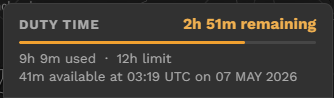
Note that the duty hours are only incurred, and only blocks bids within the Assignments module. This does not affect other modules within Walker.
Calculated flight lengths are based off birds eye distance and the average speed of the fleet in Walker. This may not be reflective of wind conditions, traffic, routing requirements, etc.
Flown duty hours count all flights flown under the Assignments module in the past 24 hours, regardless if it was under an earlier, since completed assignment.
Completed Assignments
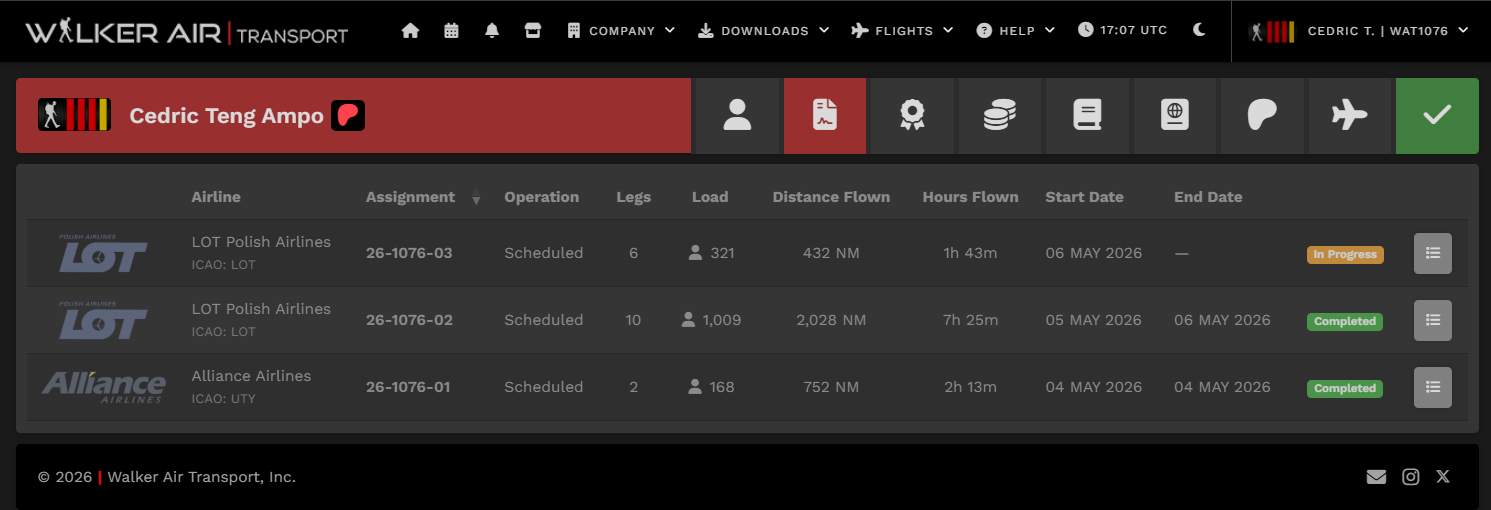
Both completed and in-progress assignments may be viewed in your profile. The hours flown shown here for completed assignments are the basis for your bonus points - rounded up to the nearest hour.