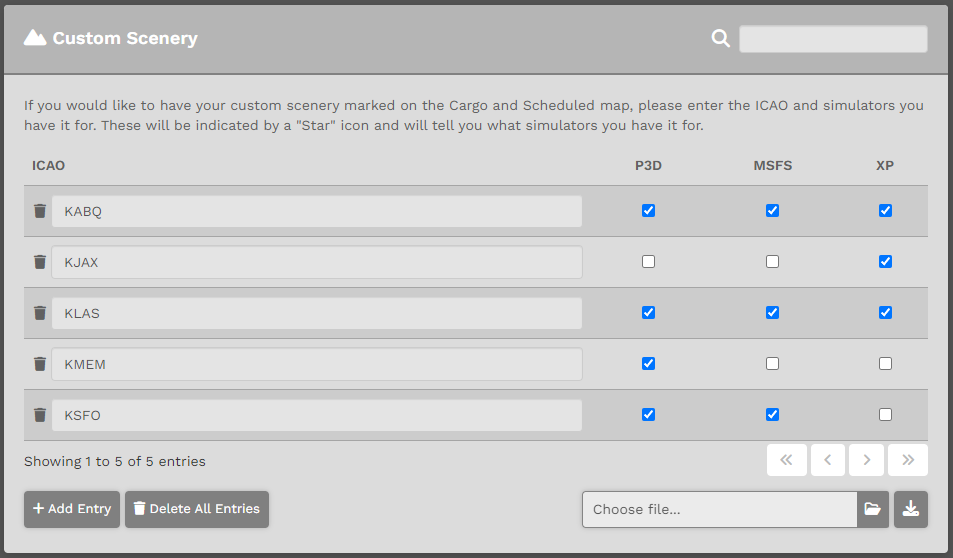
Pilot Profile – Settings > Custom Scenery
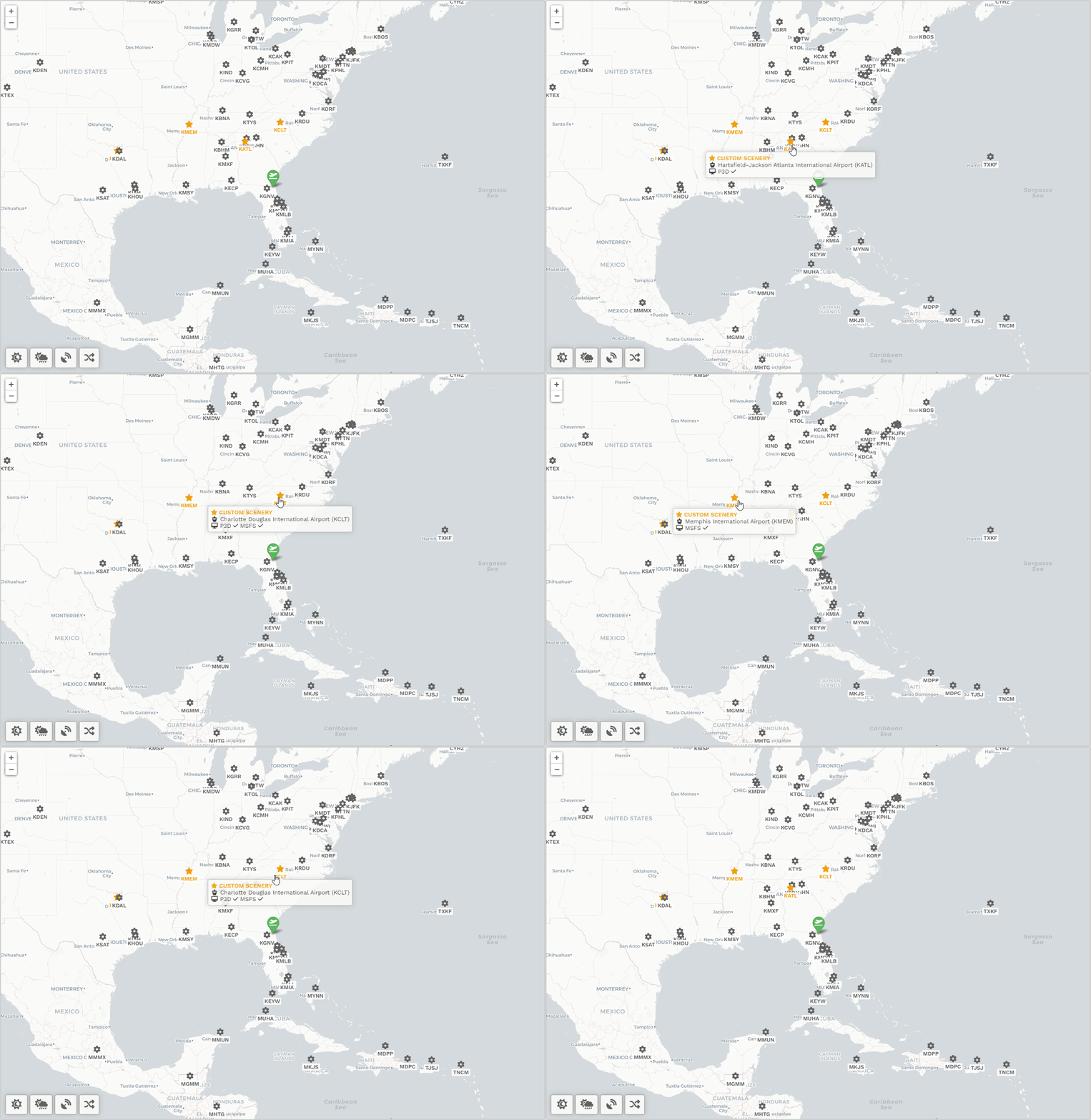
If you would like to have your custom scenery marked on the Cargo and Scheduled map, all you have to do is enter the ICAO and click the appropriate checkmarks. When you are on those maps, the airport for which you own scenery, will be depicted with a 'Star' icon and hovering over that airport will tell you which simulator.
How do I add scenery?
You have two options to add scenery; manual input or CSV upload.
If you only have a few airports, it might be best to simply use the manual process.
Let's walk through the interface and learn how to use it. There is a maximum visible height, and then the scenery list becomes a scrollable box.
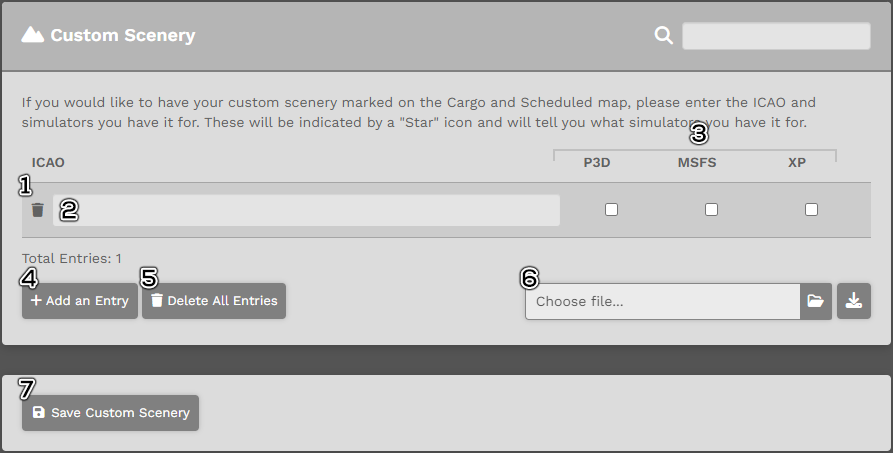
- The "🗑️" next to the ICAO text box will delete that single row.
Deleting all rows, and then clicking "Save Custom Scenery" will completely erase your data. We cannot restore it and you will need to start all over.
Import by CSV
We have an upload option supported by a CSV. You simply need to download the CSV template by clicking on the  button to the right of the "Choose file..." box.
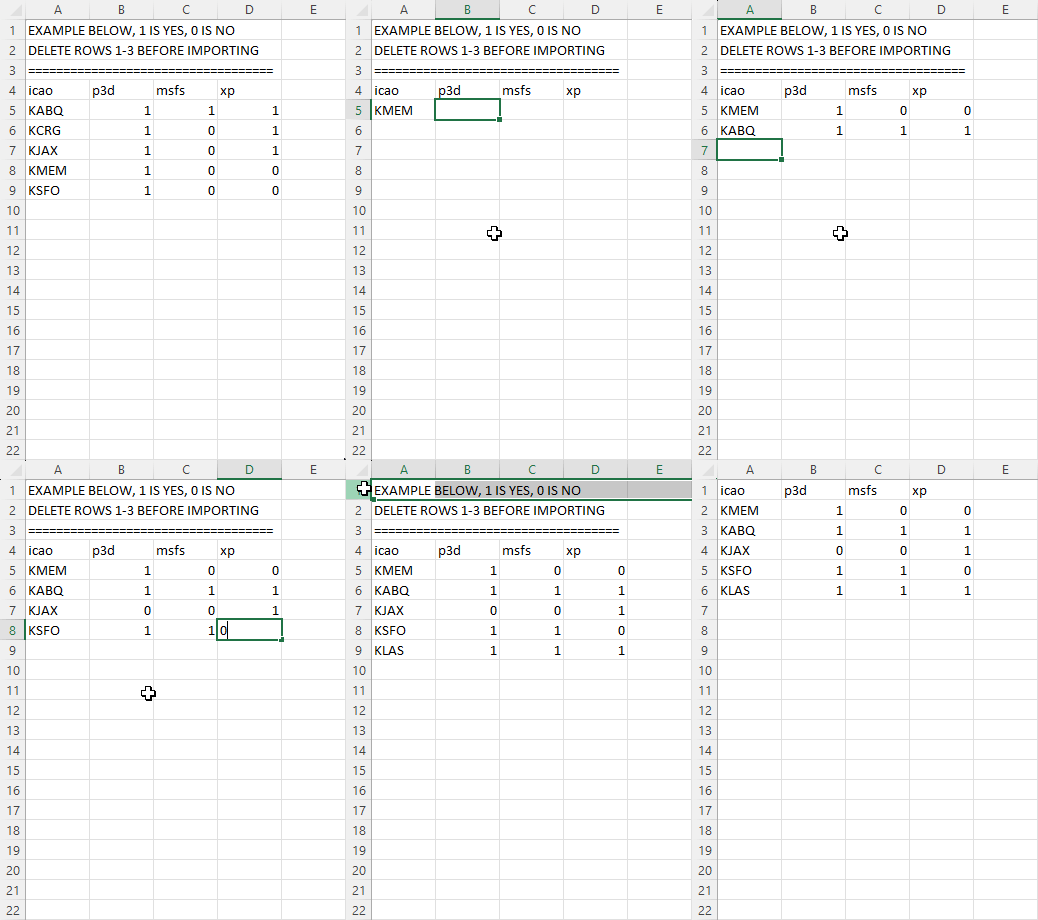
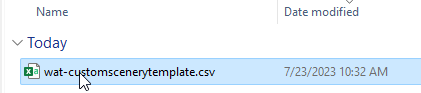
You will download a file called 'wat-customscenerytemplate.csv' that contains a template, and examples of airports.
Please review this animated image on how to work with this file.
Requirements:
- Row 1 must always be the header: icao, p3d, msfs, xp.
After you have formatted your CSV file, save it to your desktop (or somewhere.)
If you made changes to the airport rows through our manual process, please save that before you do an upload. The upload process only adds what is in the CSV file, it will not take changes you've done in the interface. Good way to remember this: You either make manual changes and save, or you upload a CSV and save. You cannot do both!
On the user interface, you will want to click on the "Choose file..." box.

Select your CSV file.
The upload box will reflect the filename, and then click "Save Custom Scenery."


If the file is correct, you will be presented with a success message. You can then go to Custom Scenery and you should see your list.