Pilot Profile – Settings > Aircraft Settings
InThis thissection section,lets you havebuild the ability toand customize your your Aircraft Settings. Instead of a single set of options per aircraft, you can now save one or more configurations for oureach platform.aircraft, and choose which one to fly when you open a pilot briefing.
How it works
Start by adding an aircraft for a type of operation, then add one or more configurations to it. Each configuration is its own saved version of that aircraft, with its own passenger and cargo limits and its own SimBrief airframe. For example, one Airbus A321 can hold several cabin layouts side by side.
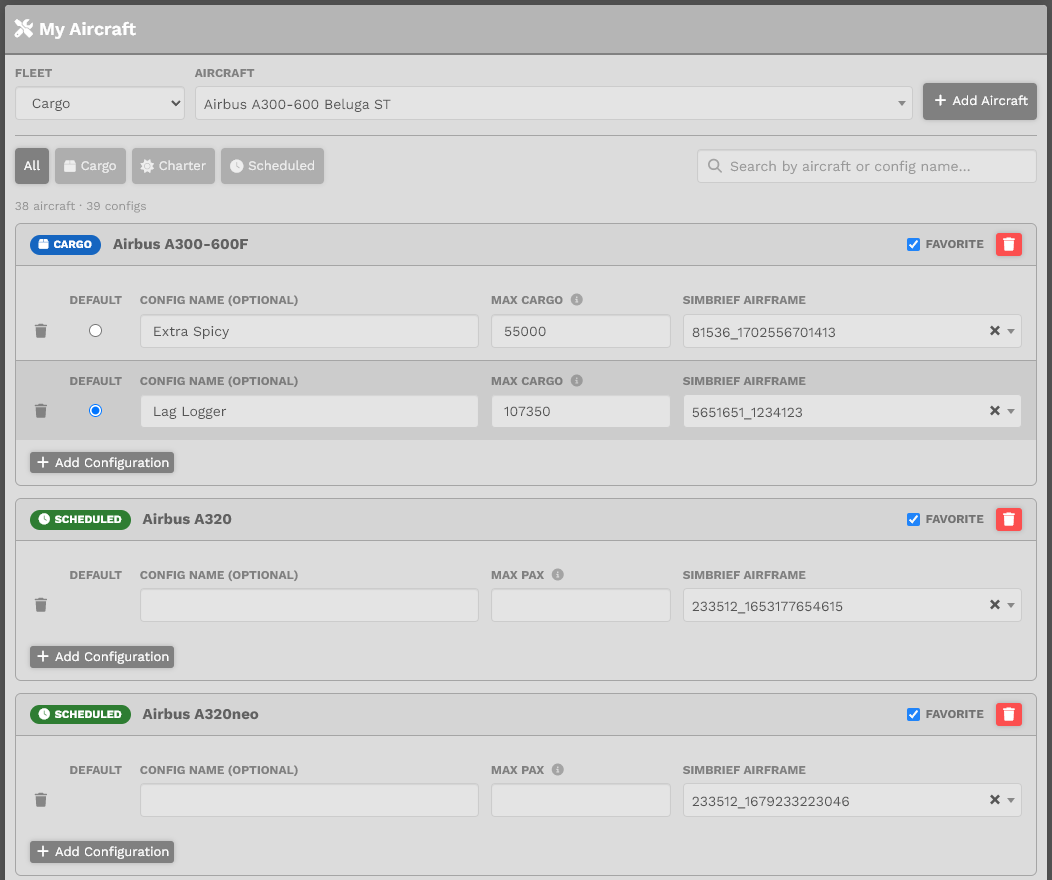
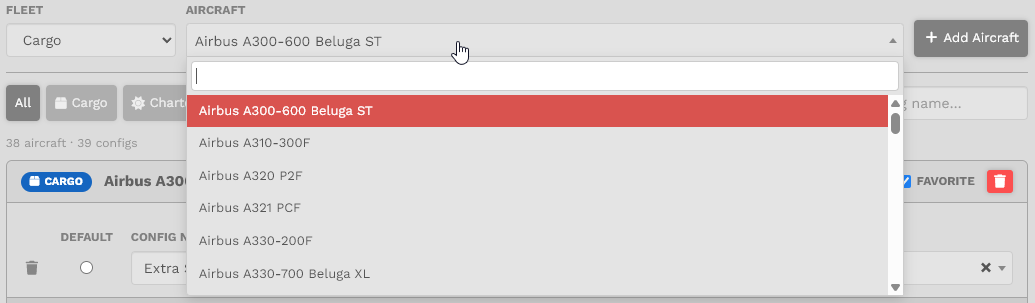
Adding an aircraft and configurations
The settings on each configuration
events. Max Cargo / Max Passengers:
If you have our website configured to use Kilograms (KGS), please enter the cargo value asin KGS. We will properly store theit valuecorrectly in our database accordingly.database.
Max Passengers: All aircraft in our fleet (minus Cargo) have a maximum passenger load defined. This is usually the absolute maximum that the aircraft in particular can take without any cabin layout modifications. You have an option now to select a number, up to the maximum we have defined, as a new maximum just for you. Think of this like a cabin-class configuration. What number you put in this box will impact your load calculation in the pilot briefing and also for our simBrief OFP generator.- simBrief
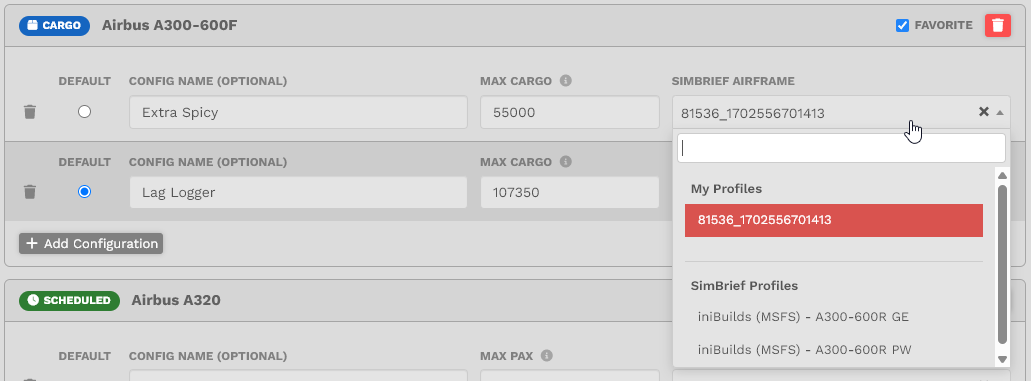
Custom AirframesAirframe: ThisallowsfieldyouliststotheprovideSimBriefacommunity airframes that match the aircraft, grouped under SimBrief Profiles. Pick one and it also fills in the Config Name, or paste your own customaircraftframe IDfrom(yourSimBrief,ownorentriesaappearfellowunderpilot,MyandProfiles).useLeavetheit'Generate SimBrief' option in the Pilot Briefing. If you chooseblank tokeep these values empty we willuse the default SimBriefaircraftvalues,values (if available.)SimplyA
copycustomand paste the Internalairframe IDtolooksthe respected aircraftlike (paynumber)_(number).attention to type of operation) and click 'Save SimBrief' at the bottom. If you wish to remove an airframe simply clear the value and save your settings.
You can cyclecopy throughit from your SimBrief airframe list.
Saving and removing
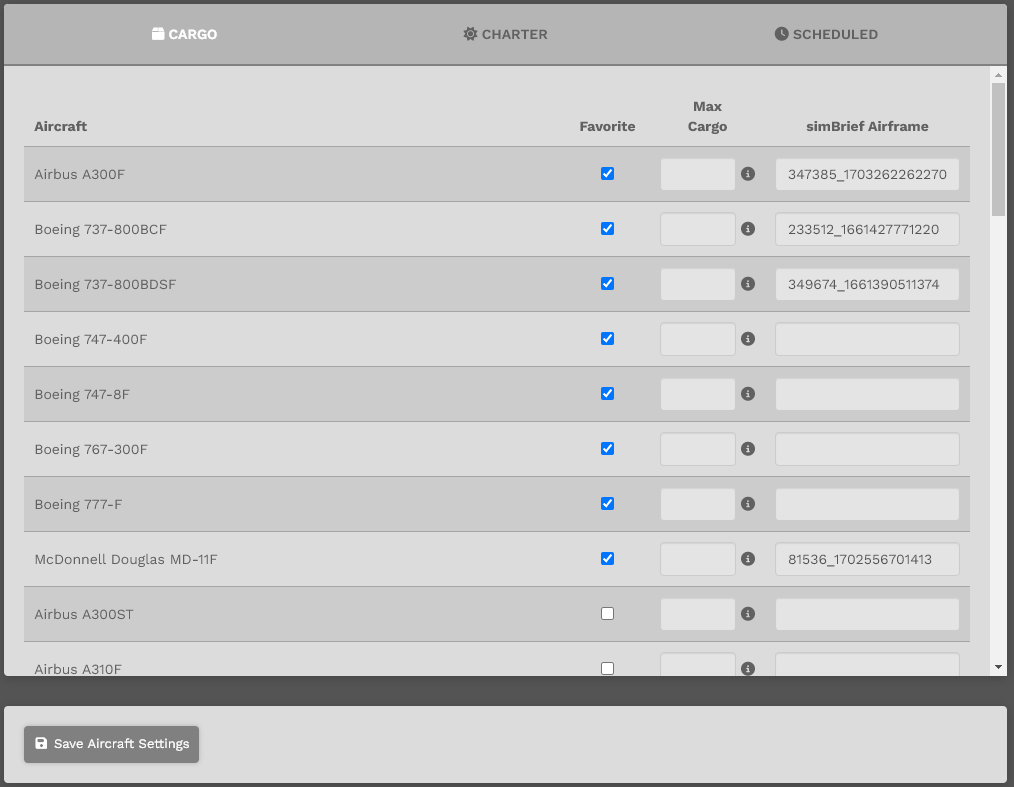
When you have made your changes, click the fleet by clicking the tabs at the top, make your selections, enter your data, and then click Save Aircraft Settings button. button at the bottom.
If you do not click the Save Aircraft Settings, button, your datachanges will not be saved.
Afterwards,configuration, click the trash icon at the start of its row.
Then click Save Aircraft Settings button. to confirm.
Choosing a configuration on the Pilot Briefing
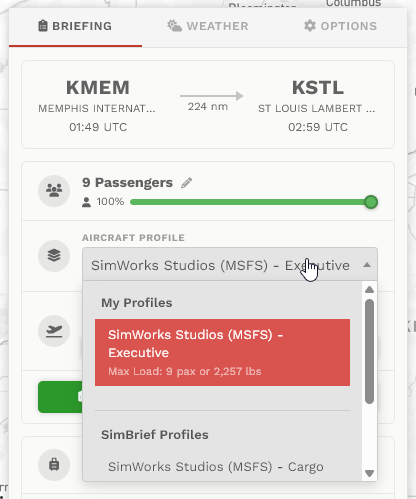
IfWhen you doopen nota clickpilot briefing, the Save Aircraft SettingsProfile selector shows the configurations you saved for that aircraft under My Profiles, button,along with any matching SimBrief community airframes under SimBrief Profiles. Each of your change(s)profiles shows its max load beneath the name.
The configuration you marked as default is selected automatically. Pick a different one before you generate your OFP and we will notrecalculate beyour saved.load and switch the SimBrief airframe to match.
Favorites on the bidding screens
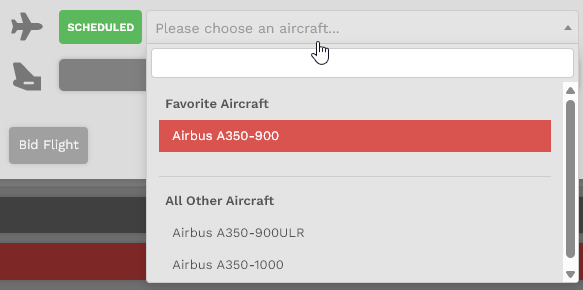
ThisAny is what it looks like whenaircraft you makemarked a bid foras a CargoFavorite flight. The aircraft we selected above as Favorite is convenientlyappears at the top of the list.
All other aircraft inlist when you place a bid, across the CharterCargo, and/orCharter, and Scheduled Fleets you selected as Favorite will appear at the top of the list as well.fleets.