Pilot Profile – Settings > Aircraft Settings
In this section, you have the ability to selectcustomize youryour Aircraft FavoriteSettings Aircraftfor our platform.
You can choose from thosethe following items:
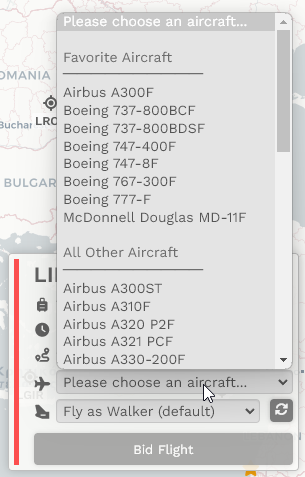
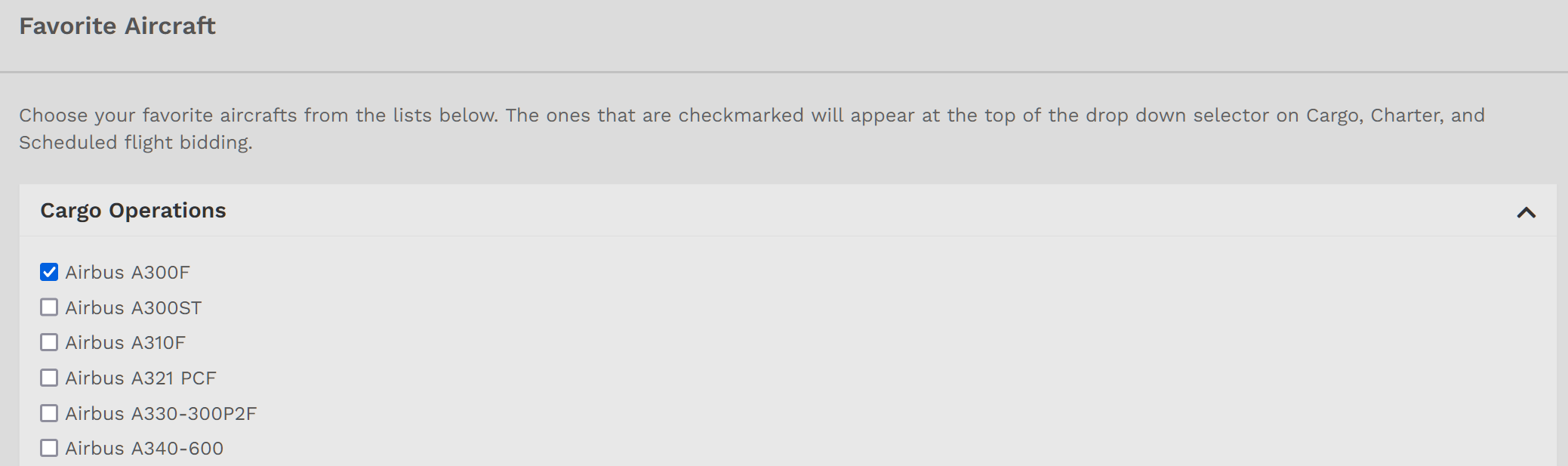
- Favorite: If you want an aircraft to be at the top of the drop down selector, click the checkmark. The next time you place a bid in
eachany of ourFleets.modules, or events, you will see a list of your favorite's at the top followed by the remaining aircraft in that fleet.
Max Passengers: All aircraft
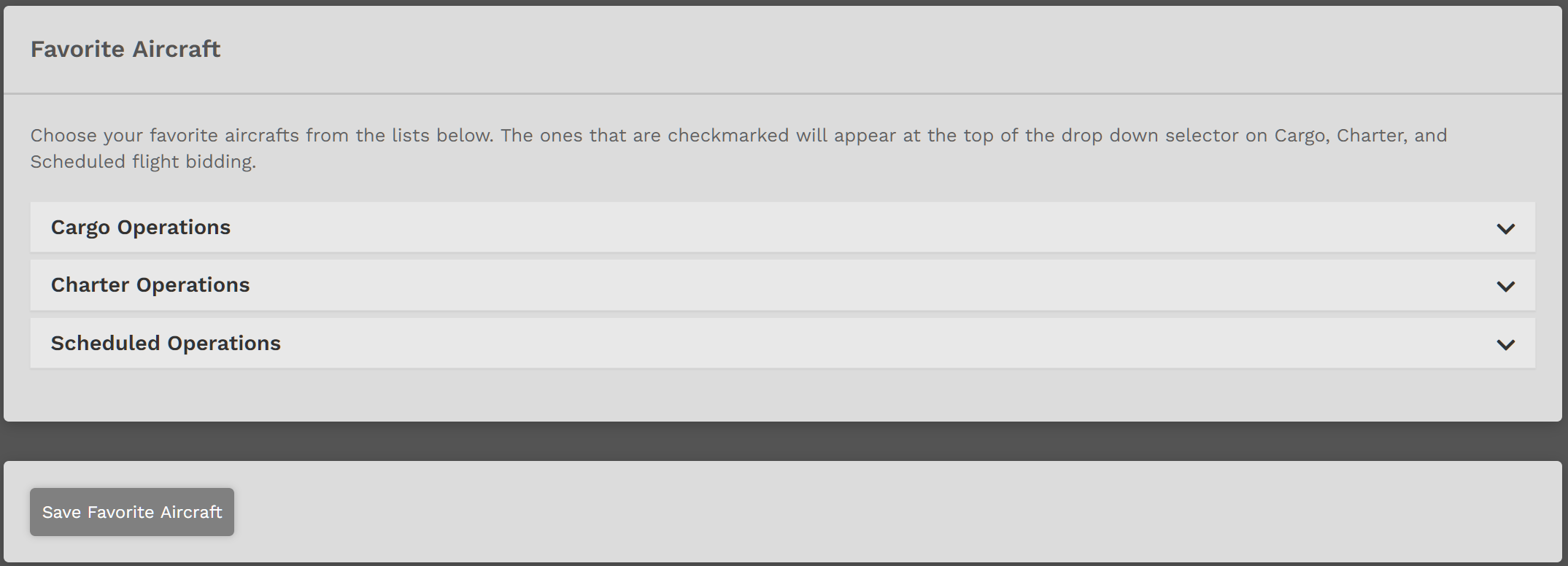
Clickhave a maximum passenger load defined. This is usually the downabsolute chevronmaximum ofthat the Fleetaircraft forin whichparticular youcan wanttake without any cabin layout modifications. You have an option now to select favorite.a We'llnumber, up to the maximum we have defined, as a new maximum just for you. Think of this like a cabin-class configuration. What number you put in this box will impact your load calculation in the pilot briefing and also for our simBrief OFP generator.
Checkand click 'Save SimBrief' at the boxbottom. beside an aircraftIf you wish to designateremove asan aairframe Favorite.simply clear the value and save your settings.
Repeat as many times as necessary within this list of aircraft.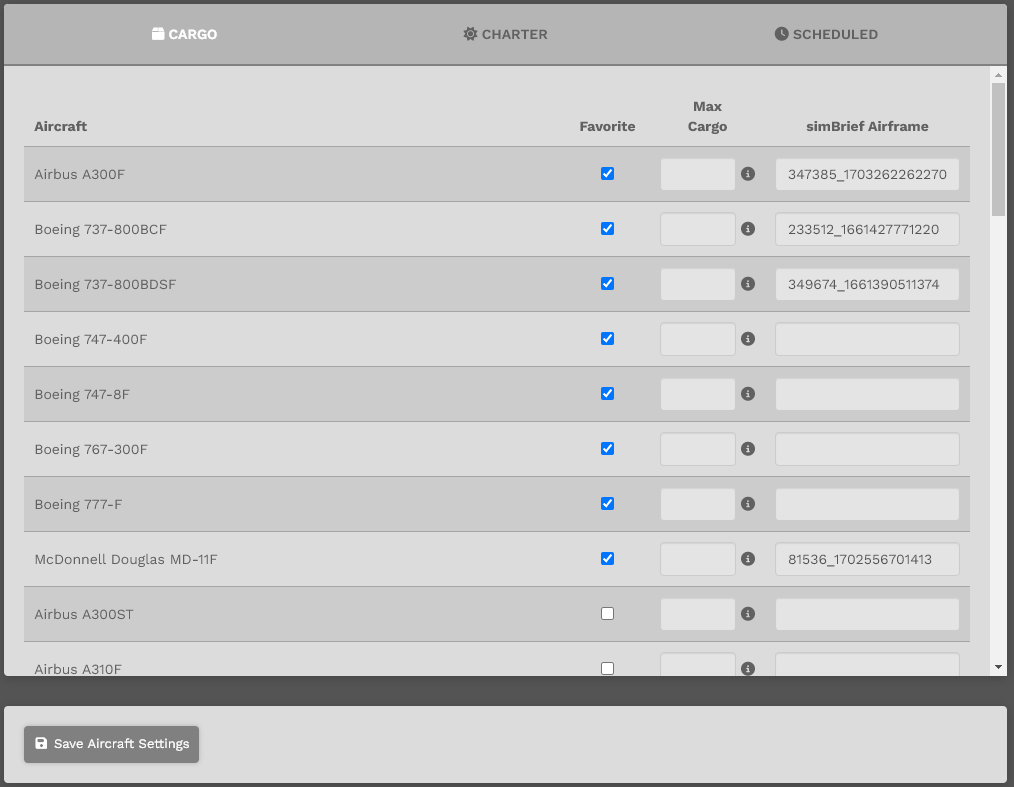
WhenYou donecan –cycle through the fleet by clicking the tabs at the top, make your selections, enter your data, and ifthen desired – open the Charter and/or Scheduled Fleet aircraft listings and repeat the process.
When done, click the click Save FavoriteAircraft AircraftSettings button.
If you do not click the Save FavoriteAircraft AircraftSettings, button, your selection(s)data will not be saved.
To remove anthe aircraftdata, fromsimply youruncheck Favoriteand Aircrafterase list,the fields to return to thisdefault section and uncheck the box.settings.
Afterwards, click the Save FavoriteAircraft Settings Aircraft button.
If you do not click the Save FavoriteAircraft AircraftSettings, button, your change(s) will not be saved.
This is what it looks like when you make a bid for a Cargo flight. The aircraft we selected above as a Favorite – the Airbus A300F – is conveniently at the top of the list.
All other aircraft in the Charter and/or Scheduled Fleets you selected as Favorite will appear at the top of the list as well.