Pilot Profile – Overview
When you click Profile in the drop-down menu, the screen below will open.
We'll use WAT538 Tysen Pina's Profile for our example.
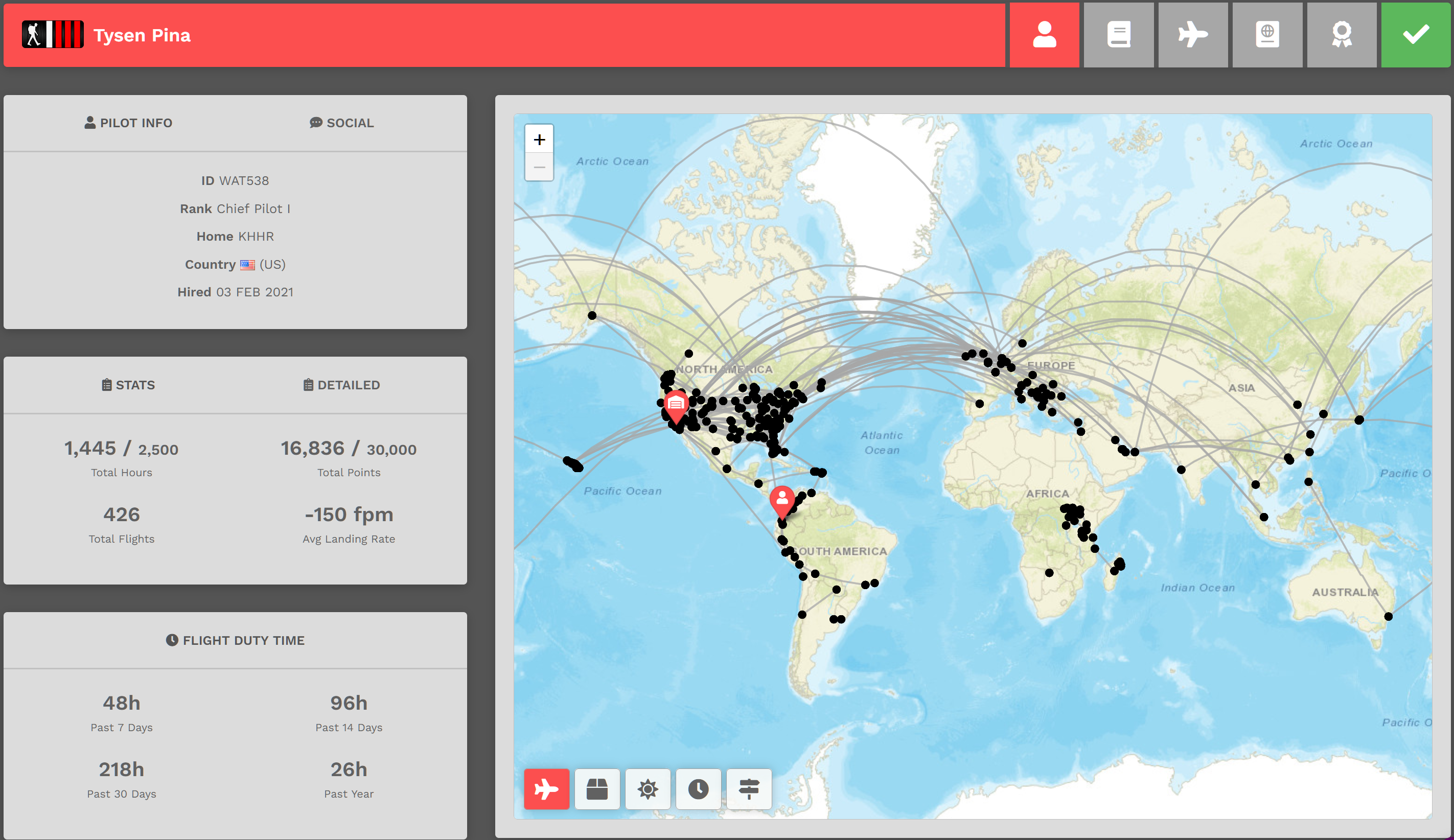
The Left Side :: A significant amount of your personal information can be viewed here – by you and everyone else.
|
|
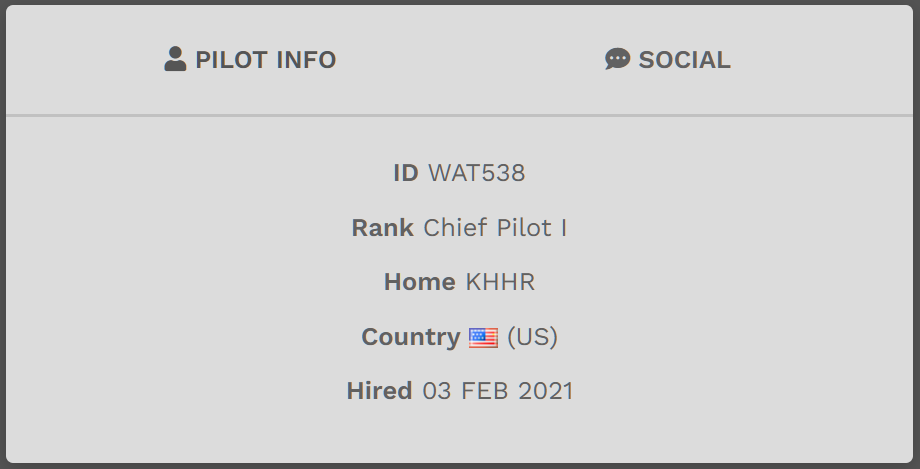
This is the PILOT INFO section displaying high-level personal information.
In this example, you can see this Pilot's WAT ID, their current Rank, Home Base, the Country where they reside and Hire Date.
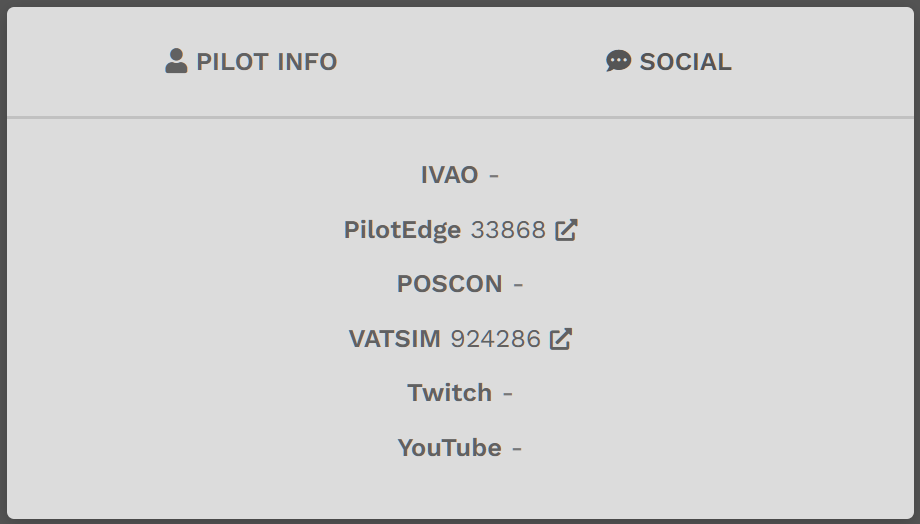
This is the SOCIAL section displaying your basic information. Click SOCIAL to see it. Click PILOT INFO to hide it.
In this example, you can see this Pilot's PilotEdge and VATSIM IDs. If they had identities in the others noted, they'd be listed.
Do yours need to be updated? Go here:
Profile > Settings > My Information > Online ATC Networks
Profile > Settings > My Information > Social Networks
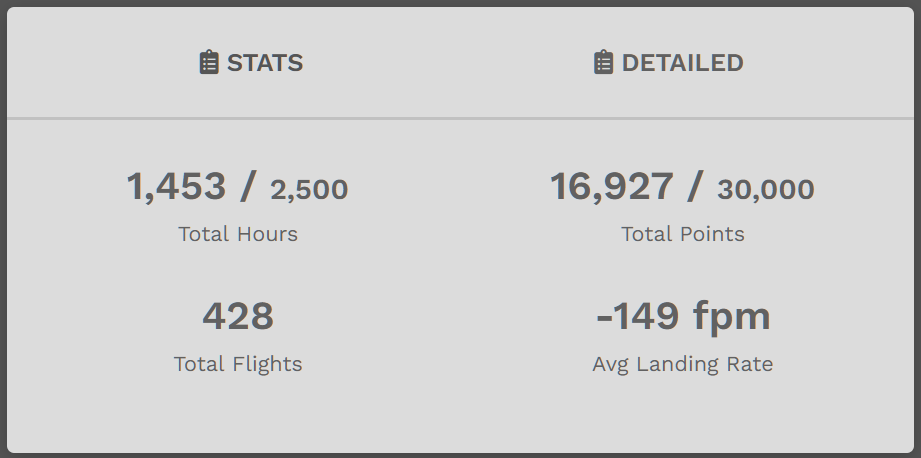
This is the STATS section displaying high-level information related to your flight activity.
In this example, you can see this Pilot's Total Hours (and the hours needed to advance to the next rank), Total Points (and the points needed to advance to the next rank), Total Flights and Average Landing Rate.
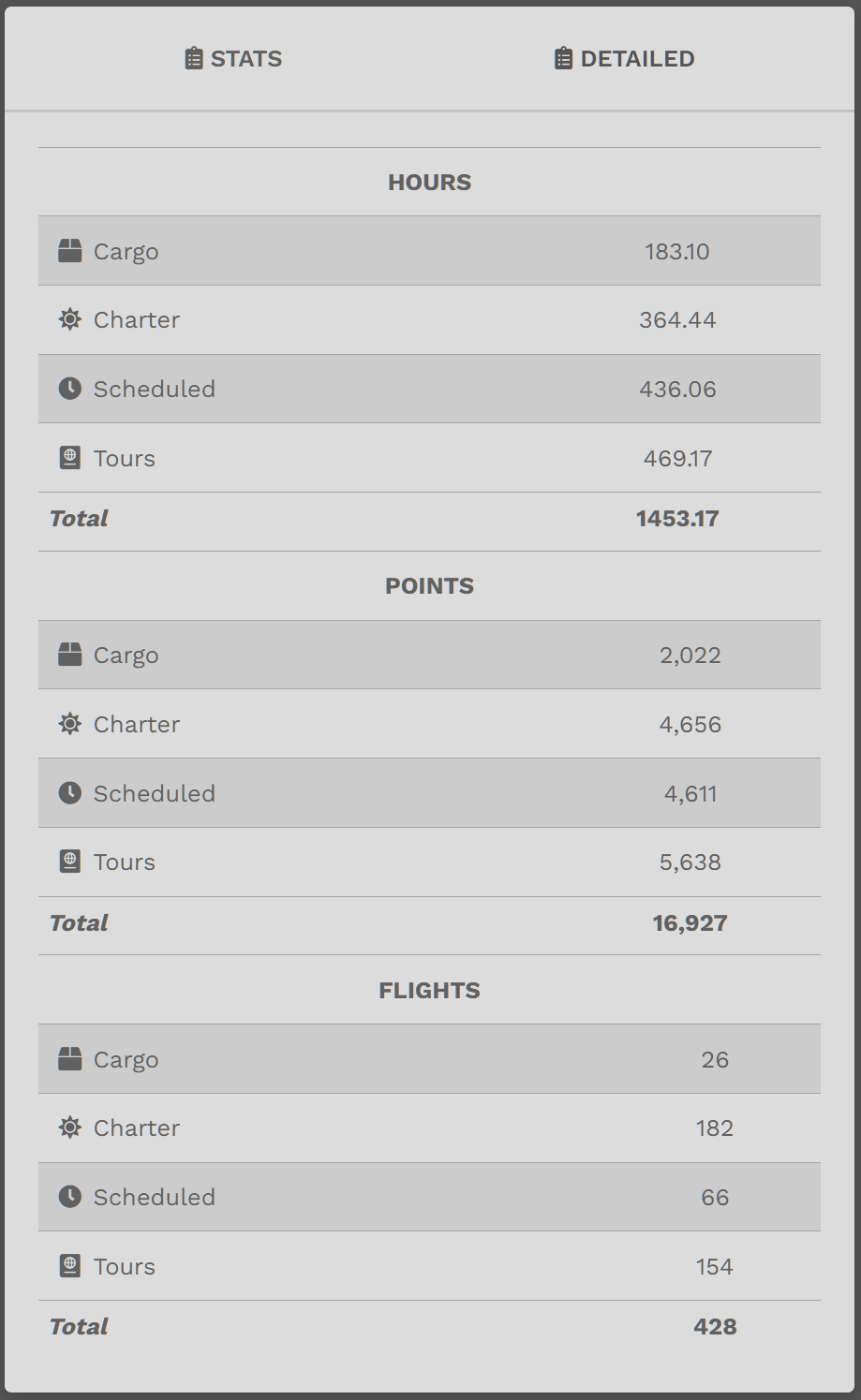
This is the DETAILED section displaying an Hours|Points|Flights breakdown of your flight activity by Fleet.
Click DETAILED to see it. Click STATS to hide it.
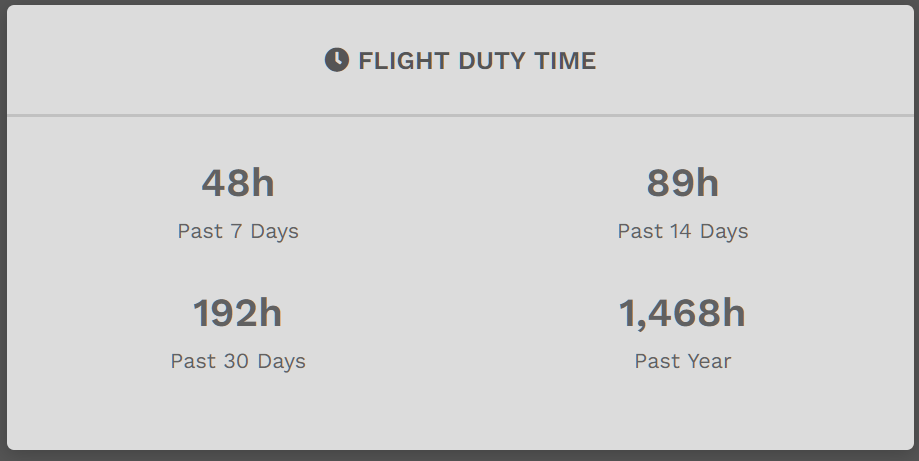
This is the FLIGHT DUTY TIME section displaying an Hours breakdown of your flight activity for the time periods noted.
The Right Side :: A visual display of your flight activity can be viewed here.
|
|
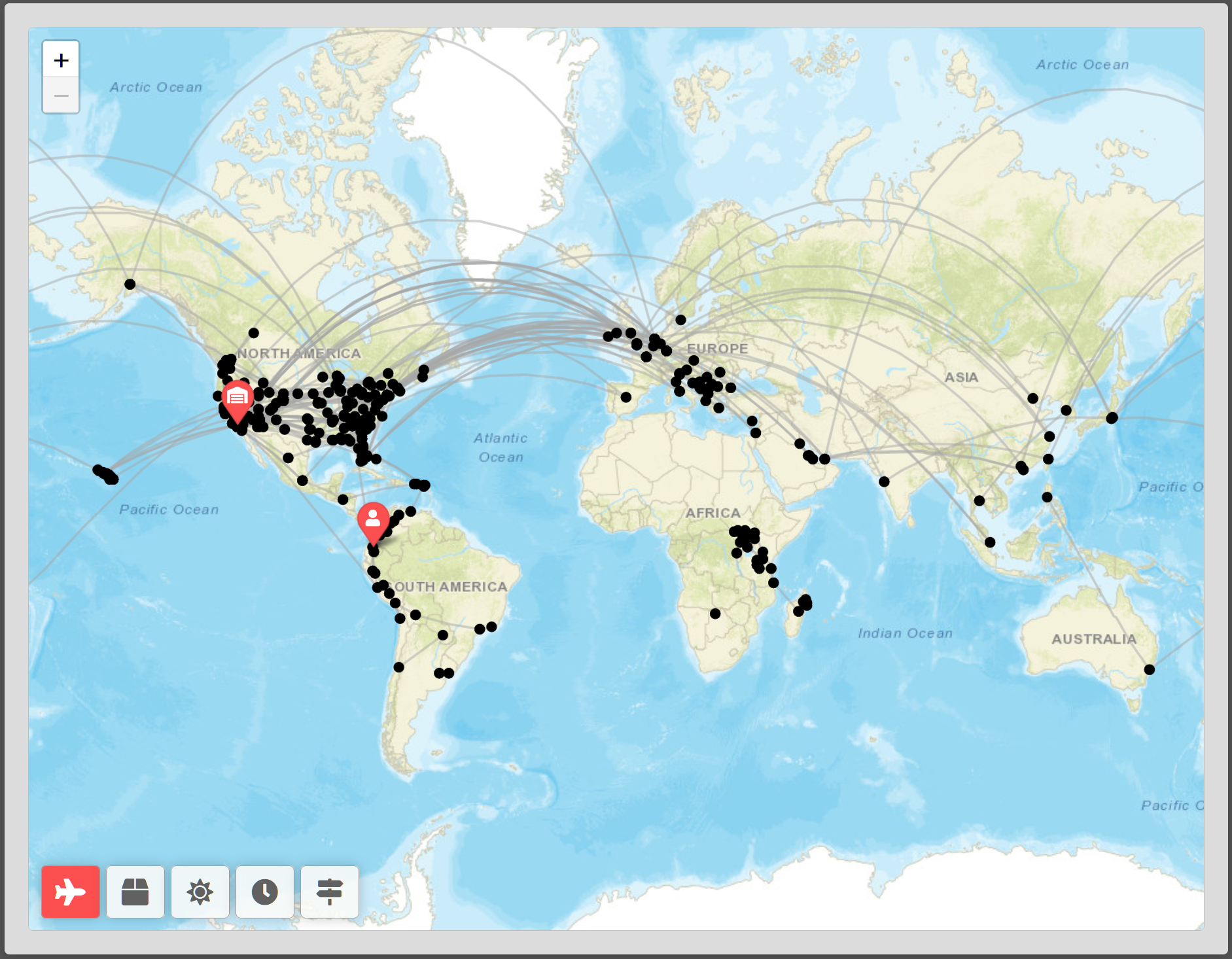
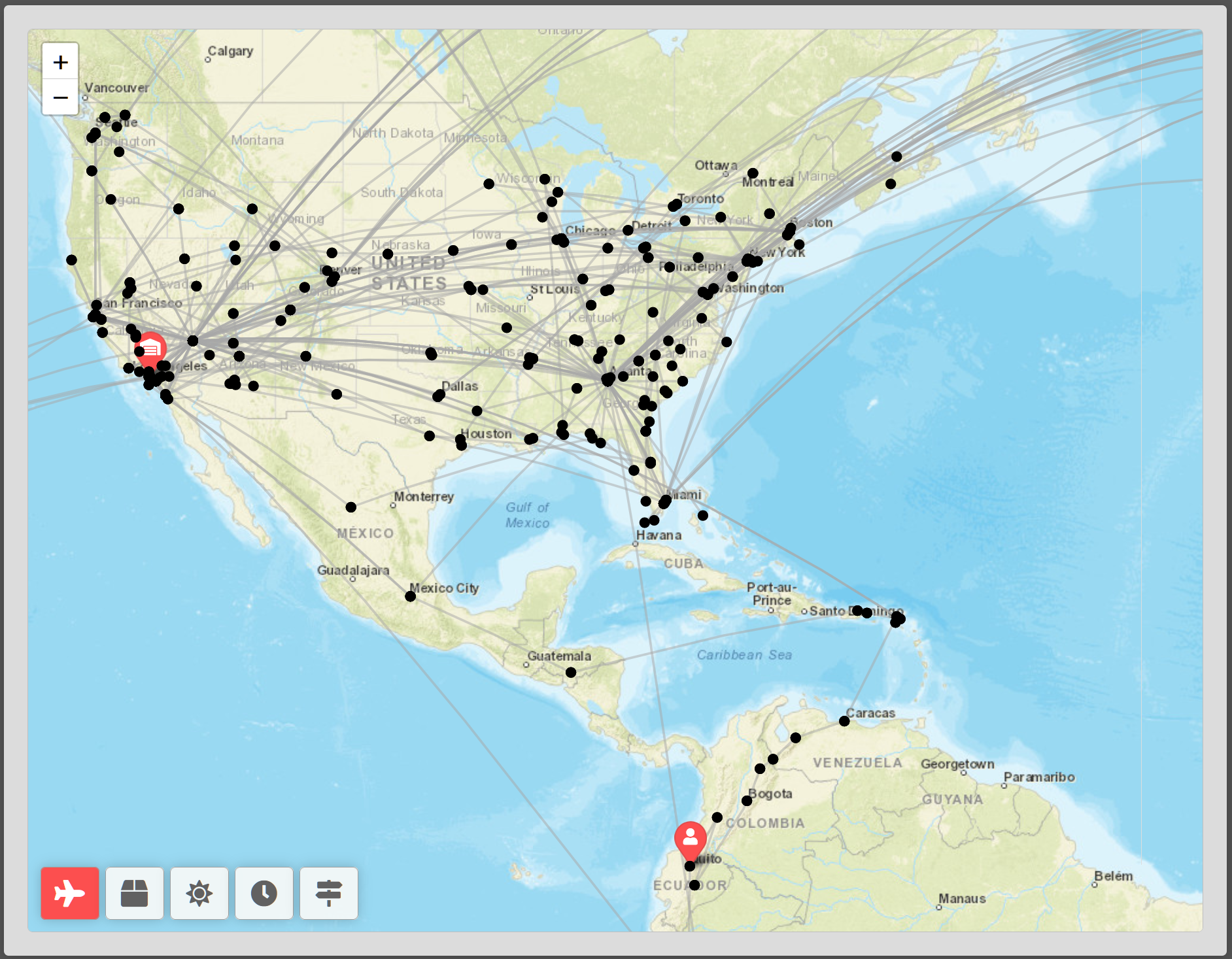
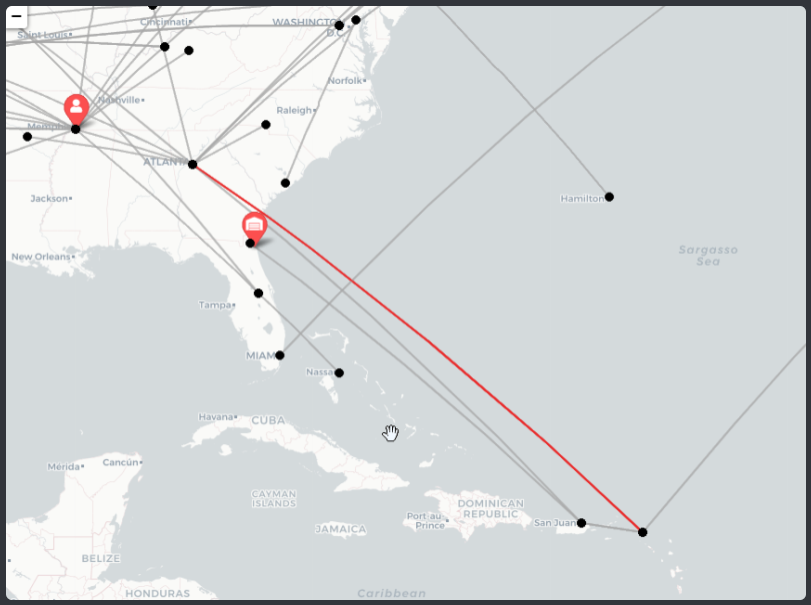
In the World Map, the Black Dots mark every airport where you've landed.
Zoom in to see more detail. Zoom out to see less detail.
And those lines on the Map? The lines between the Black Dots represent flight route pairings you've flown. They will normally be grey.
They begin to turn red once you've flown the same route pairing five (5) times – and turn solid red after you've flown the same route pairing ten (10) or more times.
NOTE: In the example to the left, this Pilot has flown the KATL > TNCM route pairing more than five (5) times.

When you hover your mouse over a Black Dot on the Map, the name of the airport it represents is revealed.

This Red Pin marks your Home Base.
Hover your mouse over it to see the name of the airport.

This Red Pin marks your Current Location.
Hover your mouse over it to see the name of the airport.

Click one of the buttons in the lower left-hand corner of the Map to see where you've landed while flying with us – all aircraft in all Fleets, only Cargo Fleet, only Charter Fleet, only Scheduled Fleet and/or only Tours.
 |
 Cargo
Cargo
 Charter
 Scheduled