Logging In
Before you can begin flying with us, you’ll need to login as a Crew Member by clicking Crew Login in the website’s Navigation Bar. If you’ve already done that, then skip to the next chapter.
Link: https://walkerair.us/

IfTo you'vedo not already done that, thenso, follow these steps:
|
|
Before you'll be able to have full access to the Crew Ops website and its functionality, you must be formally onboarded. Follow the steps below to do that.
Each step in this process must be completed before you'll be able to access the Crew Ops website.
This is for new Pilots only; it only needs to be completed one time.
| Logon to the Crew Ops website. |
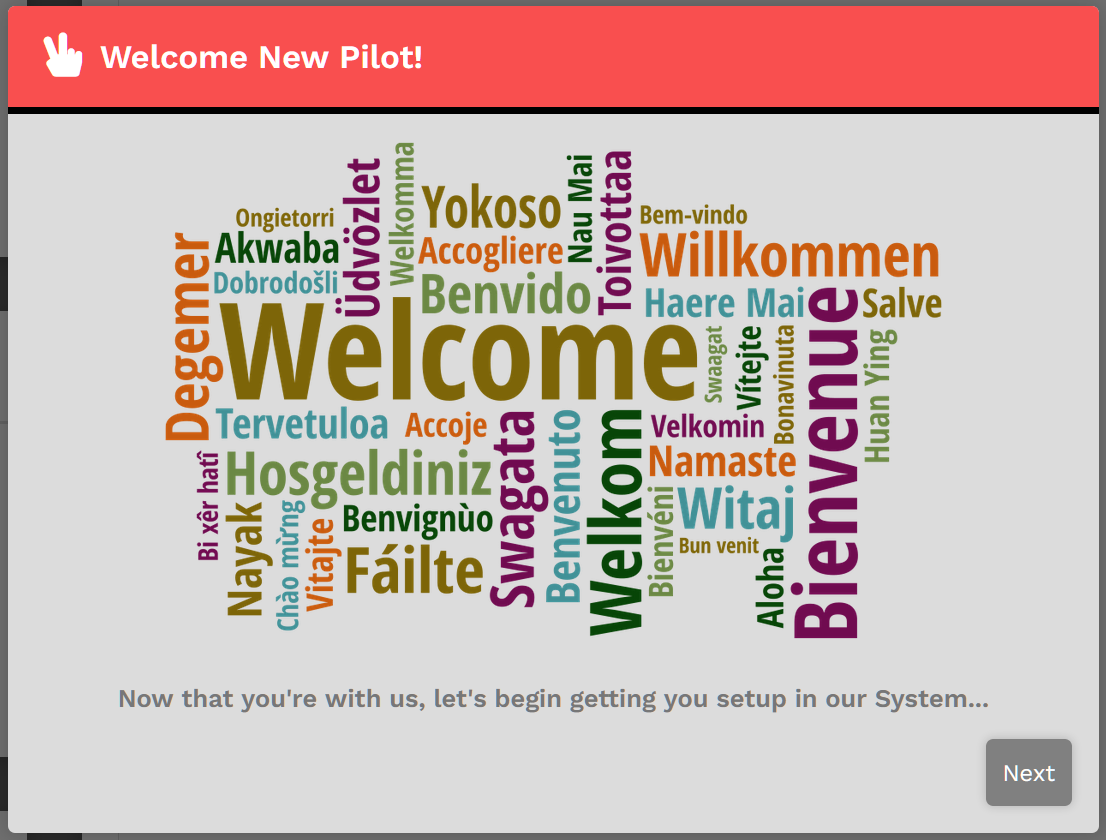
Once open, you'll be presented with a series of Pop-Up Text Boxes on your screen.
This is the Welcome New Pilot pop-up.
To advance to the following pop-up, click the Next button.
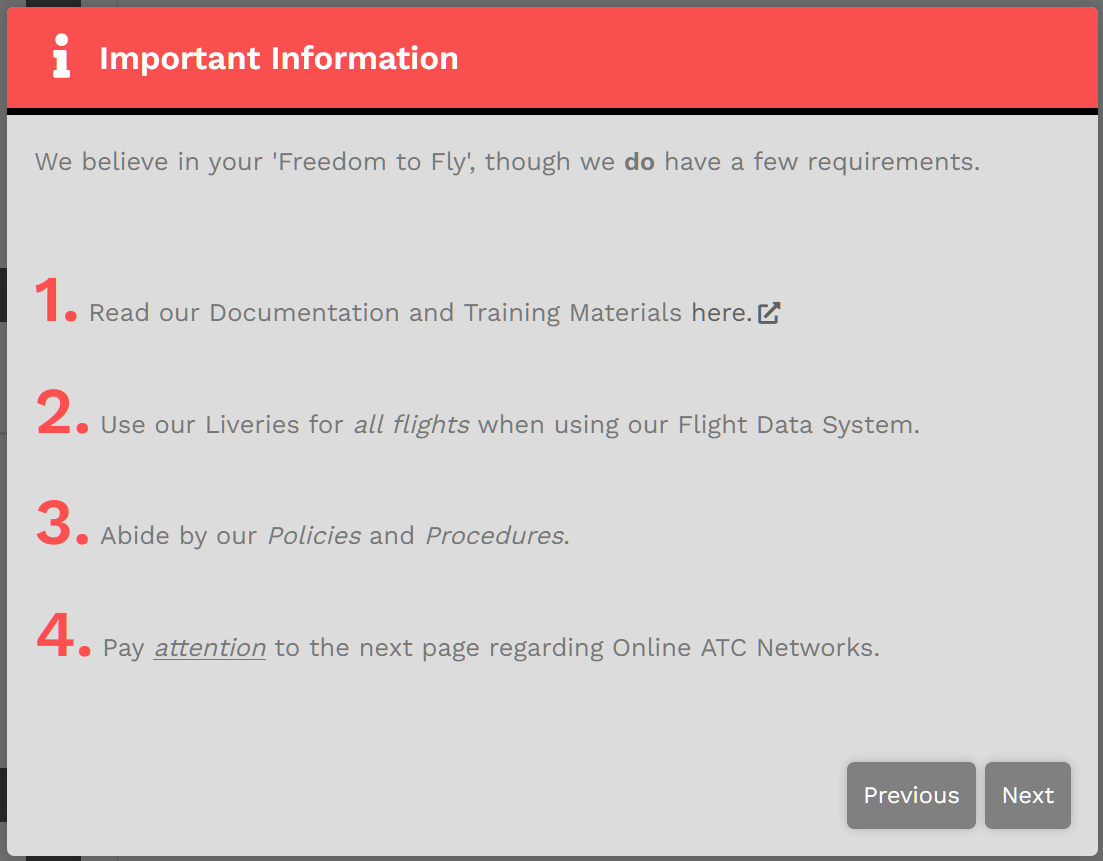
This is the Important Information pop-up.
Read each item it contains very carefully.
To advance to the following pop-up, click the Next button. To return to the previous pop-up, click the Previous button.
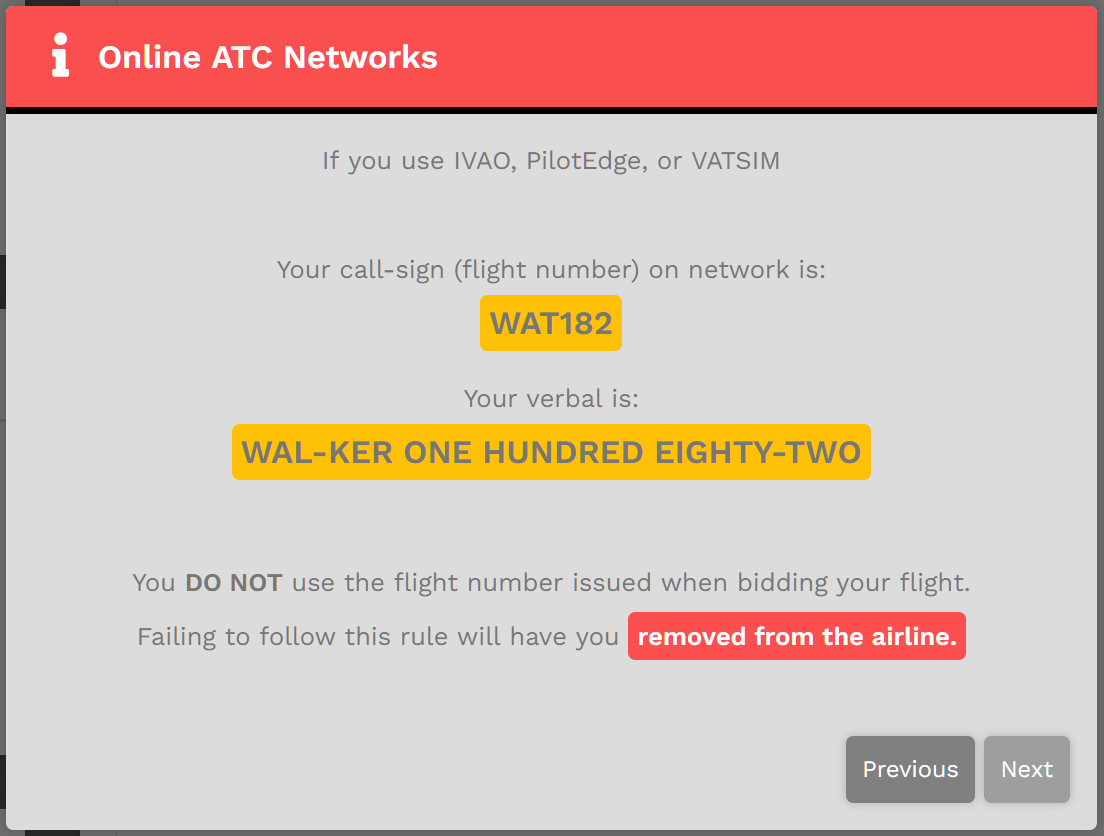
This is the Online ATC Networks pop-up.
This one is specific to WAT182 (to serve as an example); your screen will contain your Pilot ID.
When operating an aircraft on any of the Online ATC Networks, your callsign is always to be your Pilot ID – WAT followed by your ID number.
It's not to be WAX or WAC or anything else.
To advance to the following pop-up, click the Next button. To return to the previous pop-up, click the Previous button.
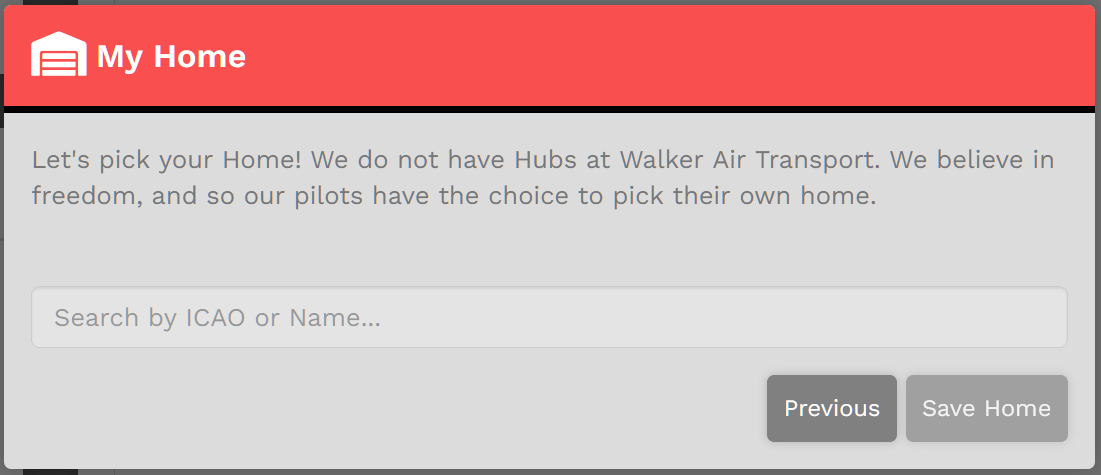
This is the My Home pop-up.
Here, you're asked to select your Home – your personal base of operations.
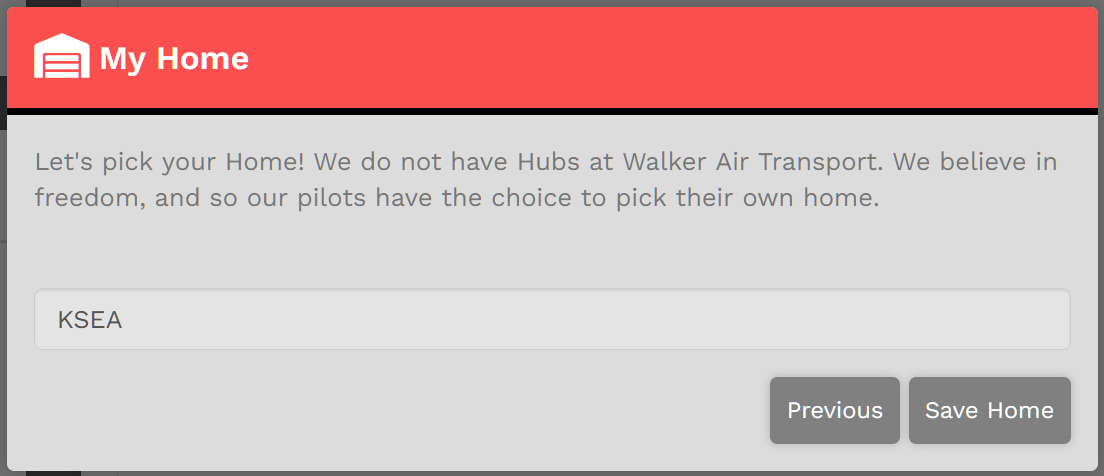
If, for instance, you wish KSEA | Seattle-Tacoma International Airport, a major airport, to be your Home, enter it in in the field as shown.
Click the Save Home button.
You'll then be taken to the Crew Ops website where you'll be ready to begin the next part of the New Pilot Orientation Process.
If, however, you'd like to be based at something smaller or closer to where you actually live, you have that option, as well.
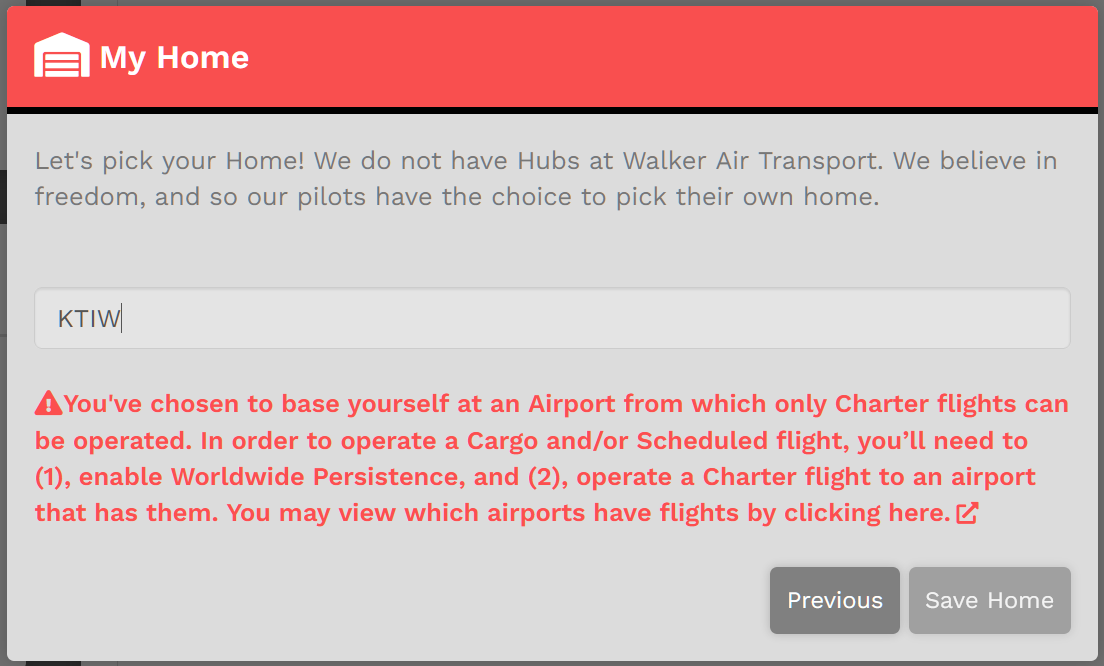
In our example, we'll use KTIW | Tacoma Narrows Airport.
This is a relatively small, GA-only airport and there are no Cargo or Scheduled flights originating or departing from it. In this case, the note in red will appear.
If you want to operate Cargo and/or Scheduled flights on a regular basis, you may wish to select another airport. Otherwise, be aware of this restriction. If necessary, then, enter a new airport in the field.
When done, click the Save Home button. You'll then be taken to the Crew Ops website where you'll be ready to begin the next part of the New Pilot Orientation Process.