Flights – My Bids
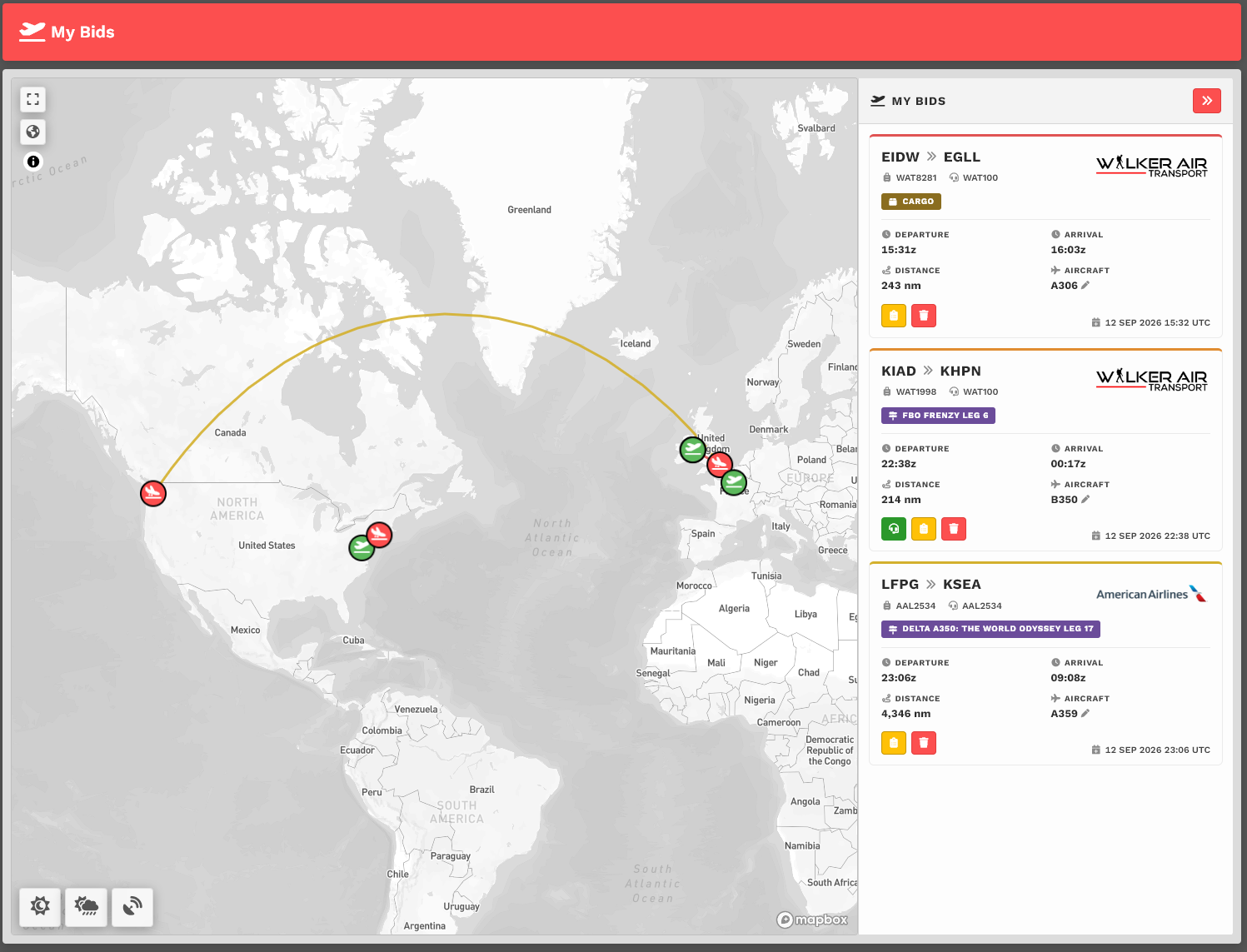
FlightsMy uponBids shows every flight you have booked, both on a map and as a list of cards. Everything on this page updates in place, so you never lose your spot while you work.
The Map
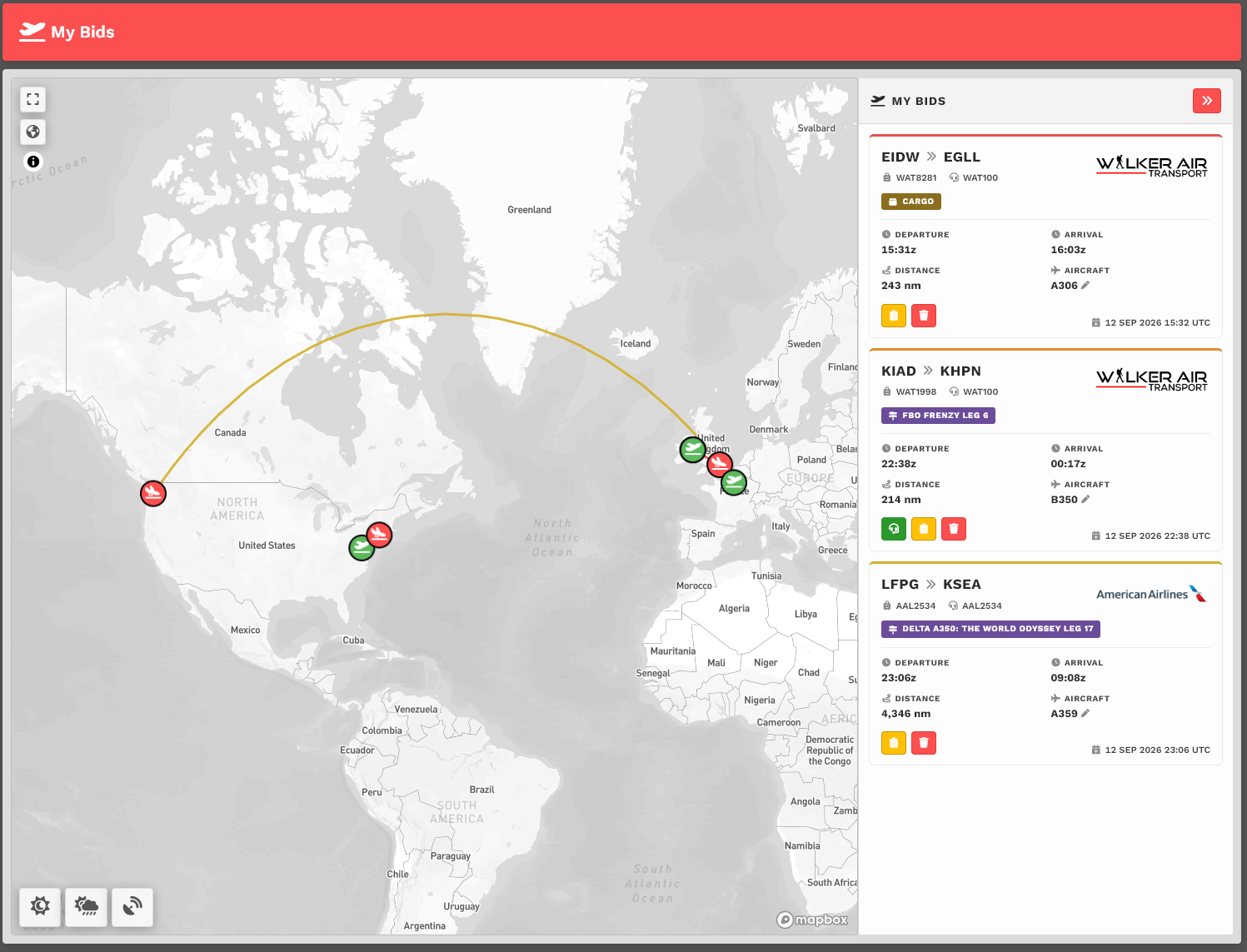
Each bid is drawn as a route line between its departure and arrival airports.
The route line matches the colored bar across the top of its card, so you can tell which
you’veline createdbelongs to which flight.
Green markers are departure airports and red markers are arrival airports. Hover a marker to see the airport details.
When the page opens, the map zooms to show all of your bids. If you have no bids, it shows where you are.
The buttons in the bottom left corner turn on Sunrise/Sunset, Weather and VATSIM. They remember your choice.
The Bid Cards
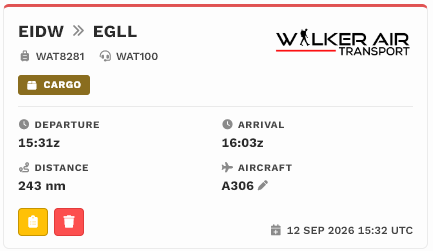
Each card shows:
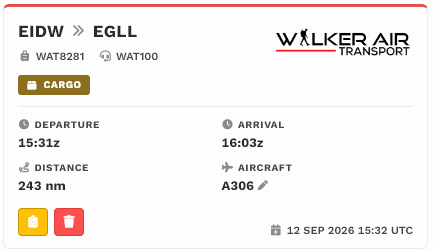
Route: departure and arrival airport. Click either ICAO to open that airport's info page.
Flight number and callsign
Airline logo for the airline operating the flight
Flight type tag, such as Cargo, Scheduled, Charter, Tour, Event, Assignment, Flying Club, Medevac or Search & Rescue
Departure and arrival times in Zulu (UTC)
Distance in nautical miles
Aircraft assigned to the bid
Date added: when you booked the bid, in UTC, at the bottom right of the card
Finding a Bid on the Map
Hover a card to zoom the map to that flight and highlight its route. Move your mouse away and the map returns to all of your bids.
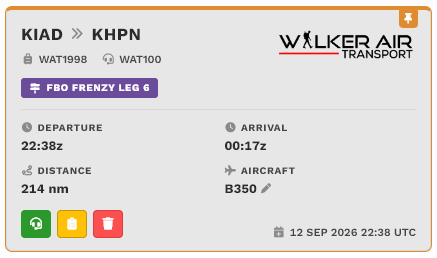
Click a card to pin it. A pin icon appears at the top right of the card and the map stays on that flight. You can still hover other cards to preview them.
Click the pinned card again to unpin it.
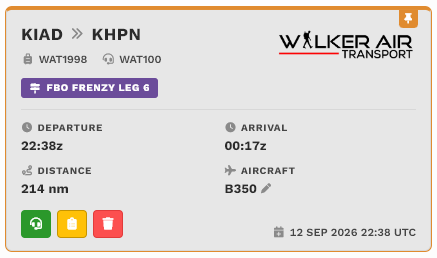
Green headset (SimBrief OFP): opens your SimBrief flight plan. It only appears once you have generated an OFP for that bid.
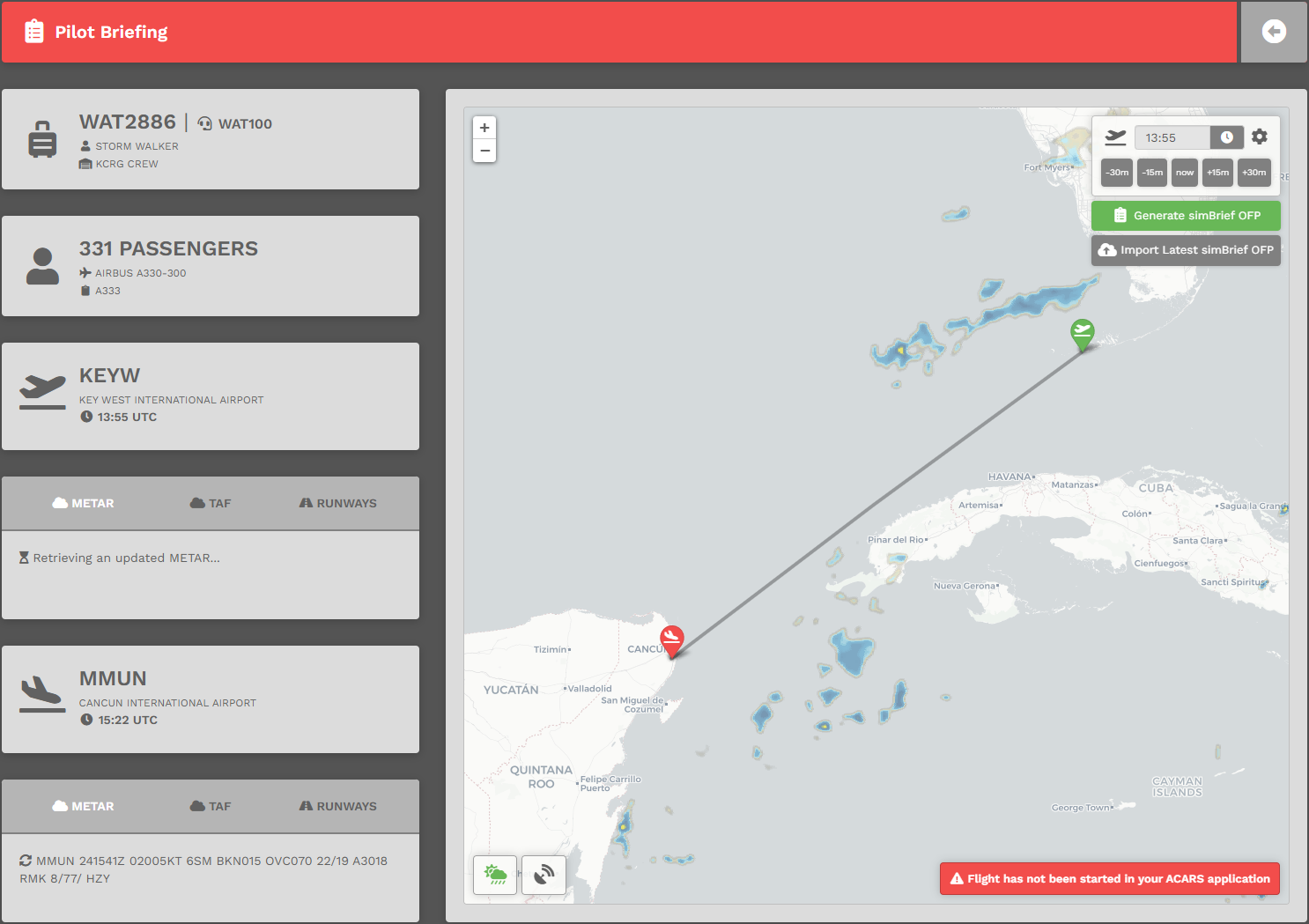
Yellow clipboard (Pilot Briefing): opens the briefing for the flight.
Red trash can (Delete Bid): removes the bid. You are asked "Delete this bid?" first. Choose Yes, delete to remove it or Keep it to cancel.

Changing the Aircraft
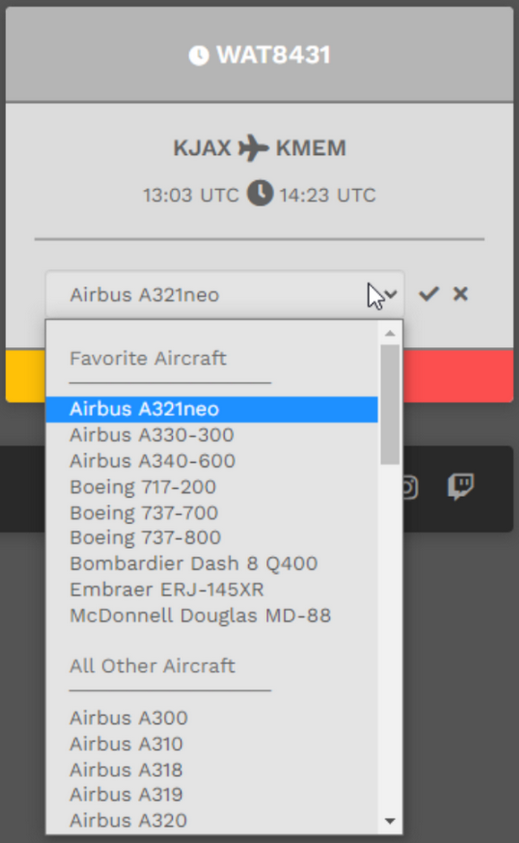
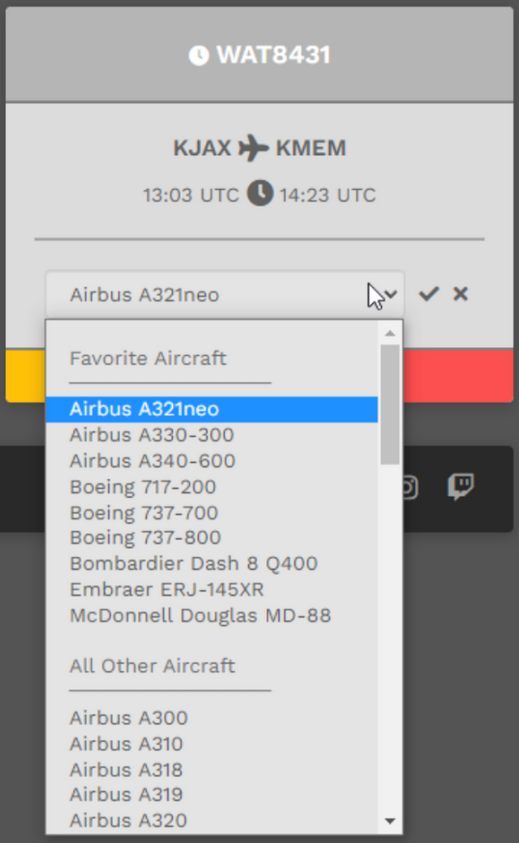
Click the pencil next to the aircraft.
Pick an aircraft from the list. Your favorite aircraft are listed first.
Click the green check to save, or the X to cancel.

Only aircraft with enough range for the flight are listed. Tour bids only list aircraft allowed on that tour. Flying Club bids cannot change aircraft.
Flights in Progress
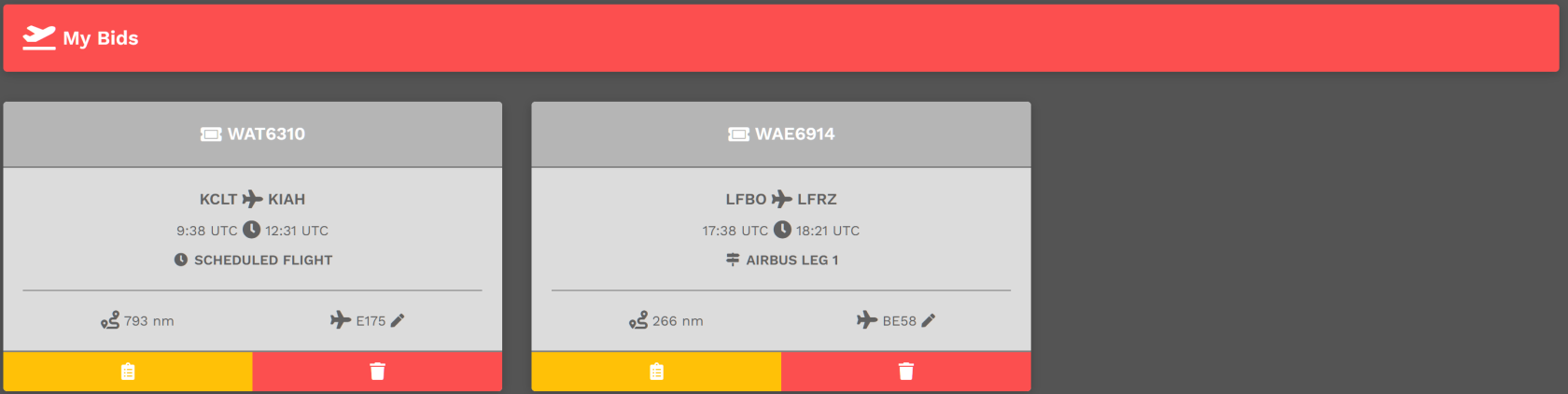
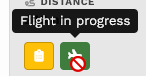
The page checks every few seconds for an active ACARS flight. While a bid willis being flown:
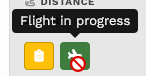
The delete button turns into a green plane and cannot be
listedused.
here.The aircraft cannot be changed.
Both come back once the flight is no longer active.
NEWNo FEATURE!Bids?
WeIf you have nowno introducedbids, the drawer shows shortcuts to places you can book a bidflight: deleteCargo, lockout.Charter, WhenScheduled youand activelyTours. startPatreon yourmembers flightalso loggingsee usingAssignments oneand Club.
Other Tips
Use the red double arrow button at the top of the
ACARS applications available at our VA, we will block you from deleting your bid. This isdrawer to
helpcollapse unintentionalit situationsand wheresee youmore delete a bid while in flight. If you do, you will not be able to submitof the
flightmap. at the end of your flight--the ACARS application will error out. The update interval is set to 5 seconds and should be pretty quick for everyone.
You may change the aircraft you originally selected.
Click the Pencilplane icon.button Fromon the dropmap downto menu,bring selectit back.
On smaller screens, the bid list appears below the map instead of beside it.
If a
replacementdelete aircraft. Once its name appears in the text box, click the Check Mark icon to confirm your selection. To cancel theor aircraft change
–does andnot returngo itthrough, toa message appears on the
aircraftcard inexplaining yourwhy.
original Bid – click the X icon.
Cancel Bid
To cancel a Bid, click the red Trash Can icon in the red box.
Pilot Briefing
To view a Bid's Pilot Briefing, click the Clipboard icon button in the yellow box.
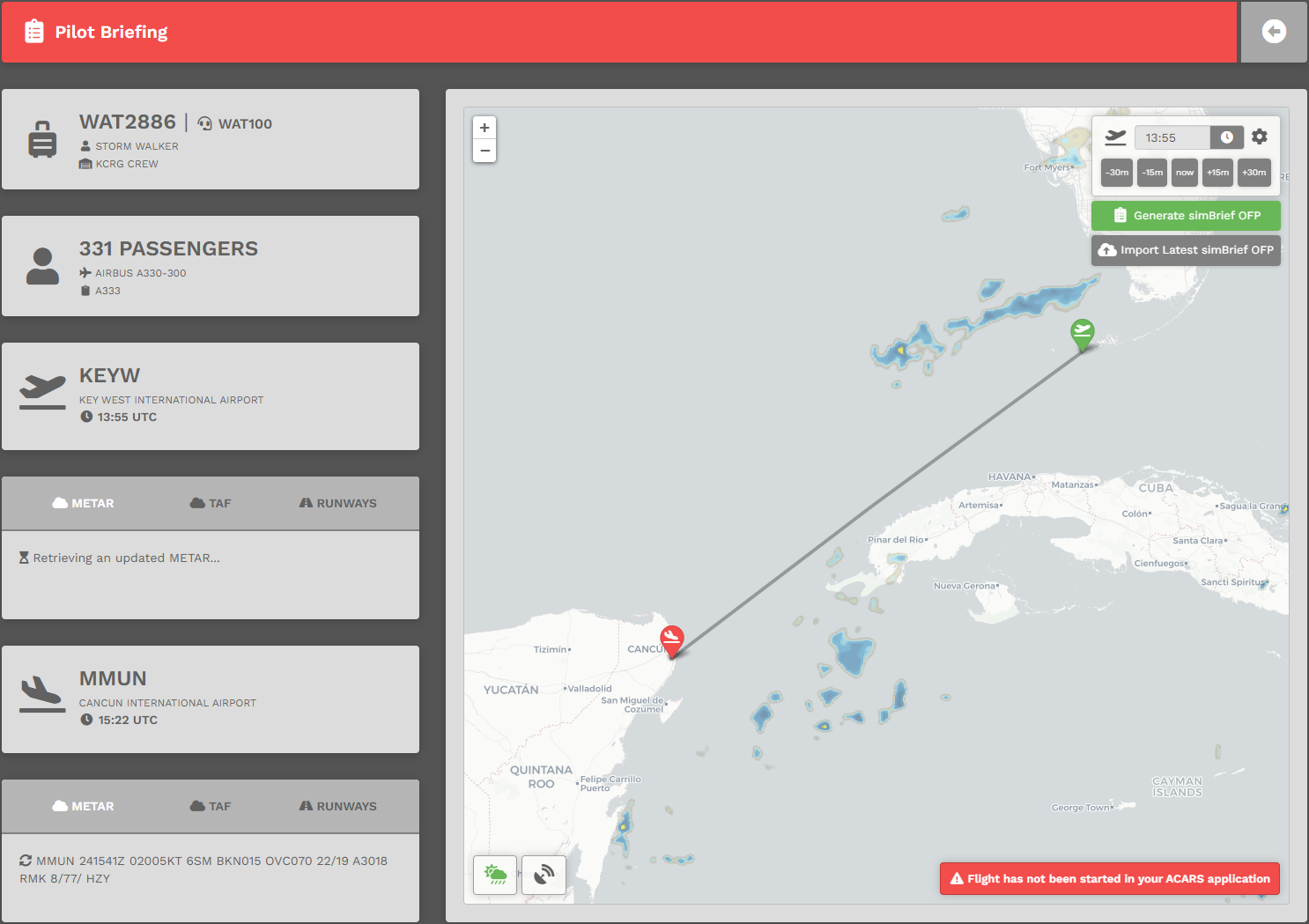
After doing so, the screen below will open providing some valuable information about your planned flight.