Flights – My Bids
Flights upon which you’ve created a bid will be listed here.
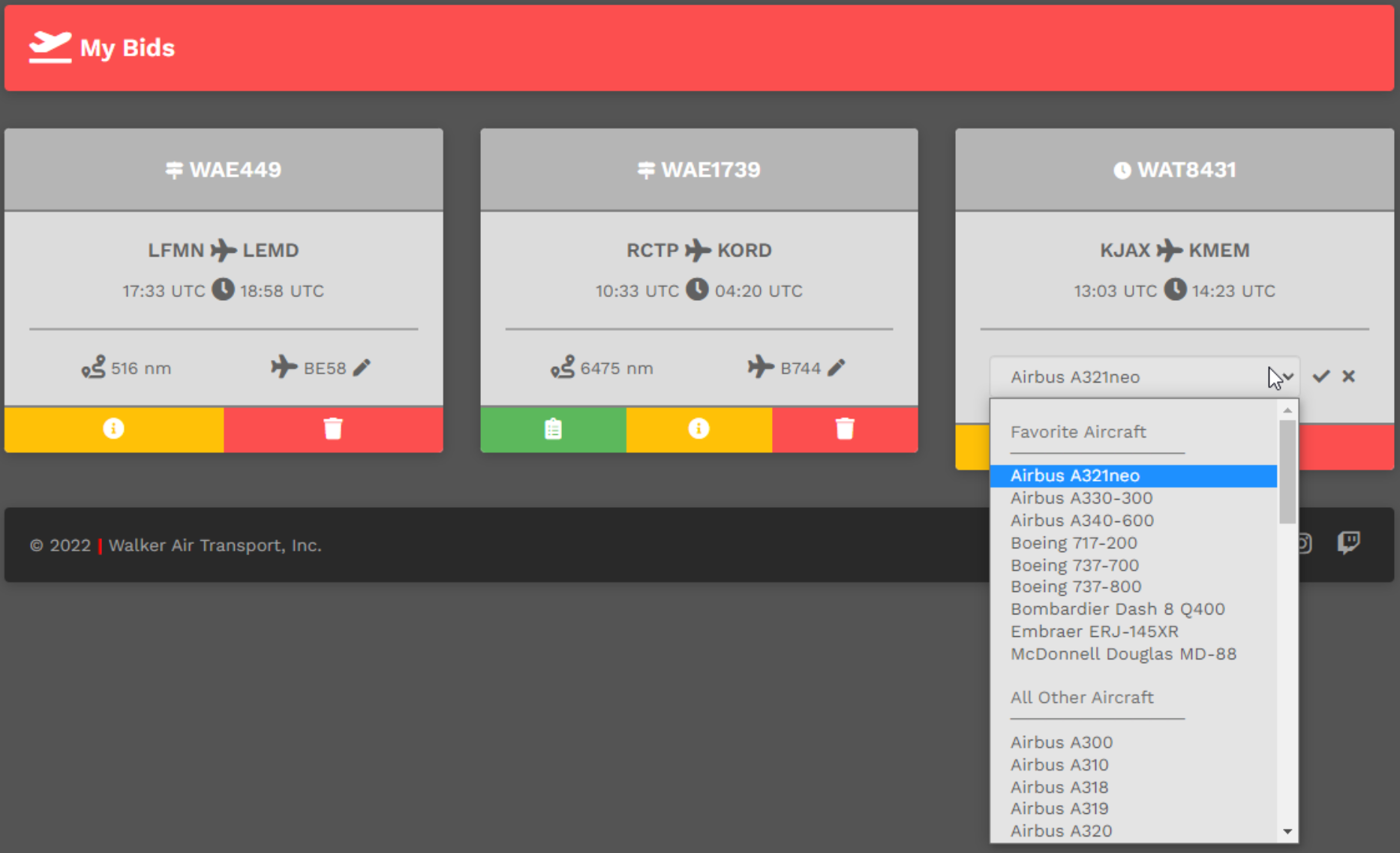
Change Aircraft
You may change the aircraft you originally selected.
Click the Pencil icon. From the drop down menu, select thea replacement aircraft of your choice.aircraft. Once itits name appears in the text box, click the Check Mark icon to confirm your selection. To cancel the aircraft change – and return it to the aircraft in your original Bid – click the X icon.
Cancel Bid
To cancel a Bid, click the red Trash Can icon in the red box.
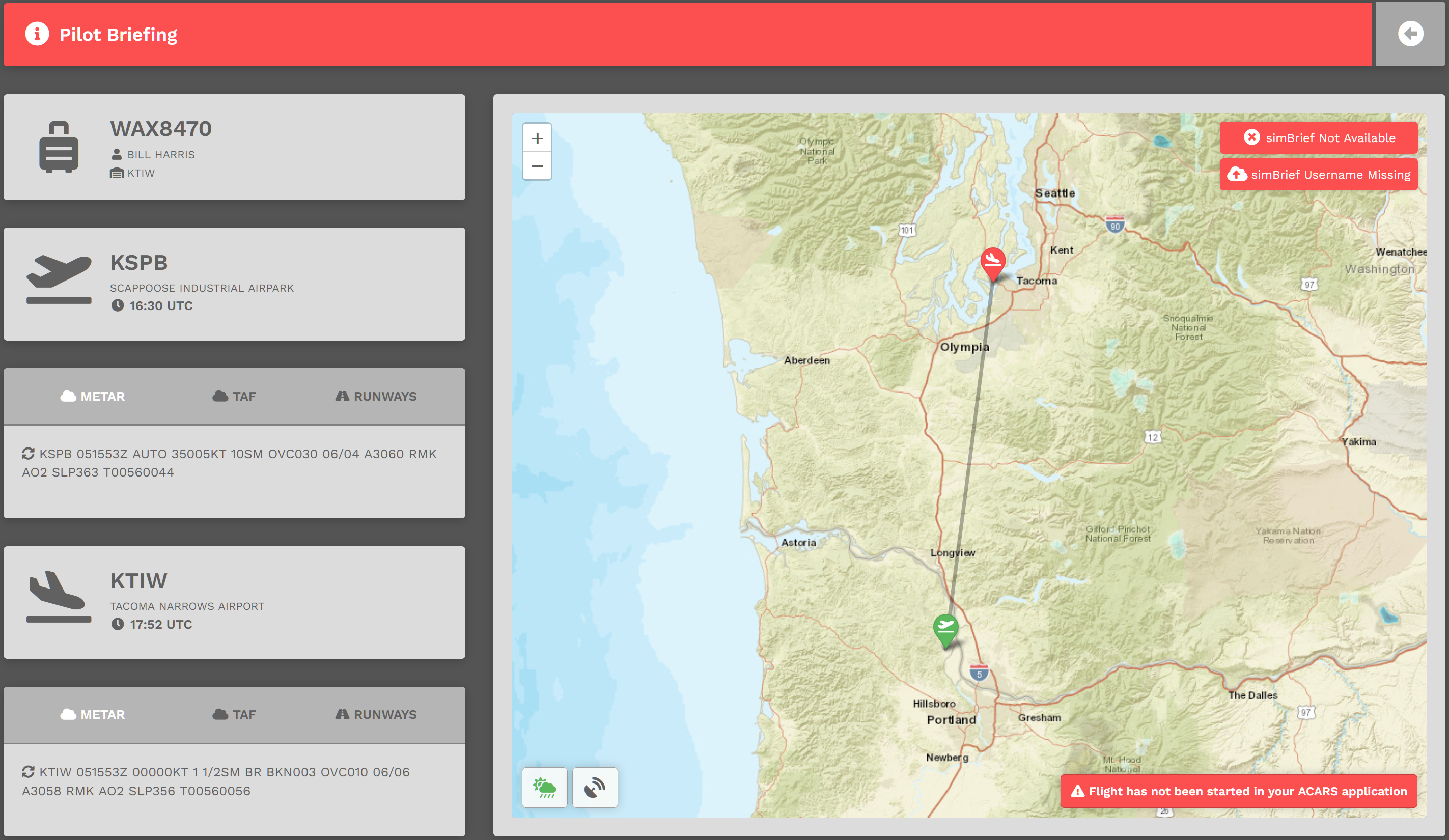
Pilot Briefing
To view a Bid's Pilot Briefing, click the Circled i icon button in the yellow 'i' icon button.box.
After doing so, the screen below will open providing some valuable information about your planned flight. If you're using simBrief, click the red button for more information. In this example, simBrief is not available. If it were available, you'd be able to create or view your Operational Flight Plan (OFP).