Tours
A Tour provides an opportunity for a Pilot to discover the world in a new and unique way. Each one is themed, and unless specified differently, can be completed in an aircraft from any of the Company's Fleets. A Tour is comprised of planned legs, each of which must be flown in the order specified. Once all legs have been completed, an Award is posted to a Pilot's Logbook.
To explore what Tours have been created, click Tours. The Tours page will open.
The default view is for all Tours to be displayed. Once you begin flying them, though, you may find it useful and/or convenient to be able to sort them in any of these ways:
All | Available | In Progress | Completed
In the Text Box to the right of the magnifying glass icon, you can select any sorting options from the drop-down menu.

Beneath the Title Bar above are our Tours. These are from the All view – as you can see from the Text Box in the Title Bar.
They're displayed in alphabetical order.
Due to space and legibility needs, the Tours shown below are only a small portion of the entire offerings.
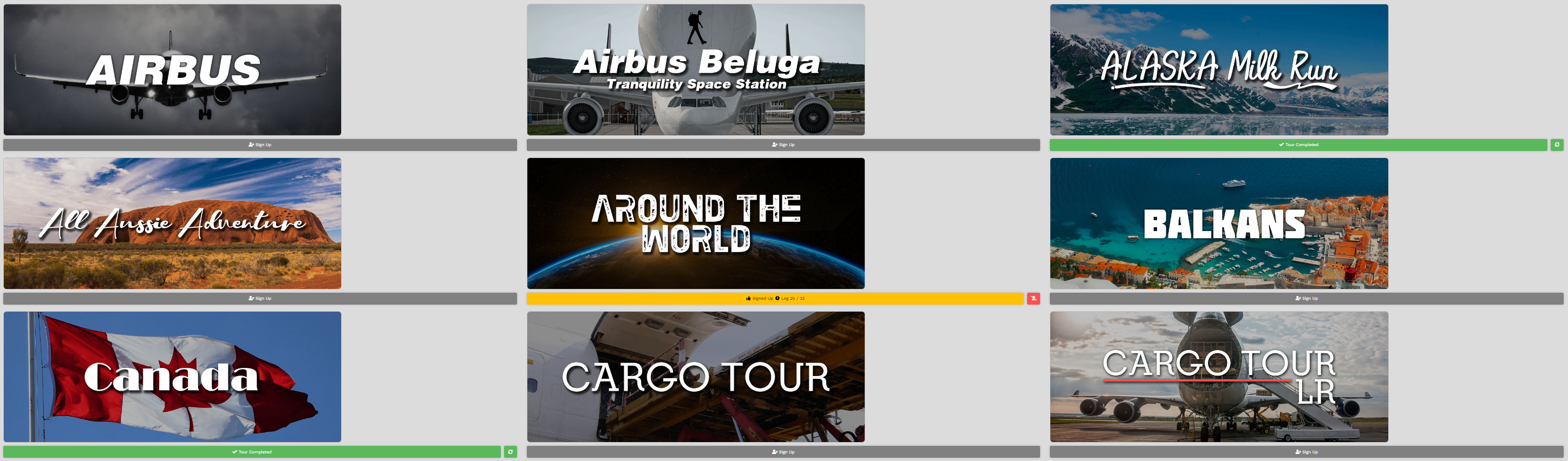
Each Tour has a status. It's either Available, In Process or Completed – and each is anchored by a colored bar providing you a visual indicator of its status. They're noted as follows.
| Tour Status: | Available | In Process | Completed |
| Completion Status: | Grey | Yellow | Green |
... and seen in the examples below.
| Available | In Progress | Completed |
 |
|
 |

Available
Referring to the Tour Page image above, you can see the Airbus Tour is Available because the Sign Up bar is Grey.
To learn more about this Tour, click its image on the Tour page. After doing so, the screen below will open. In it, there are three [3] areas on the page.
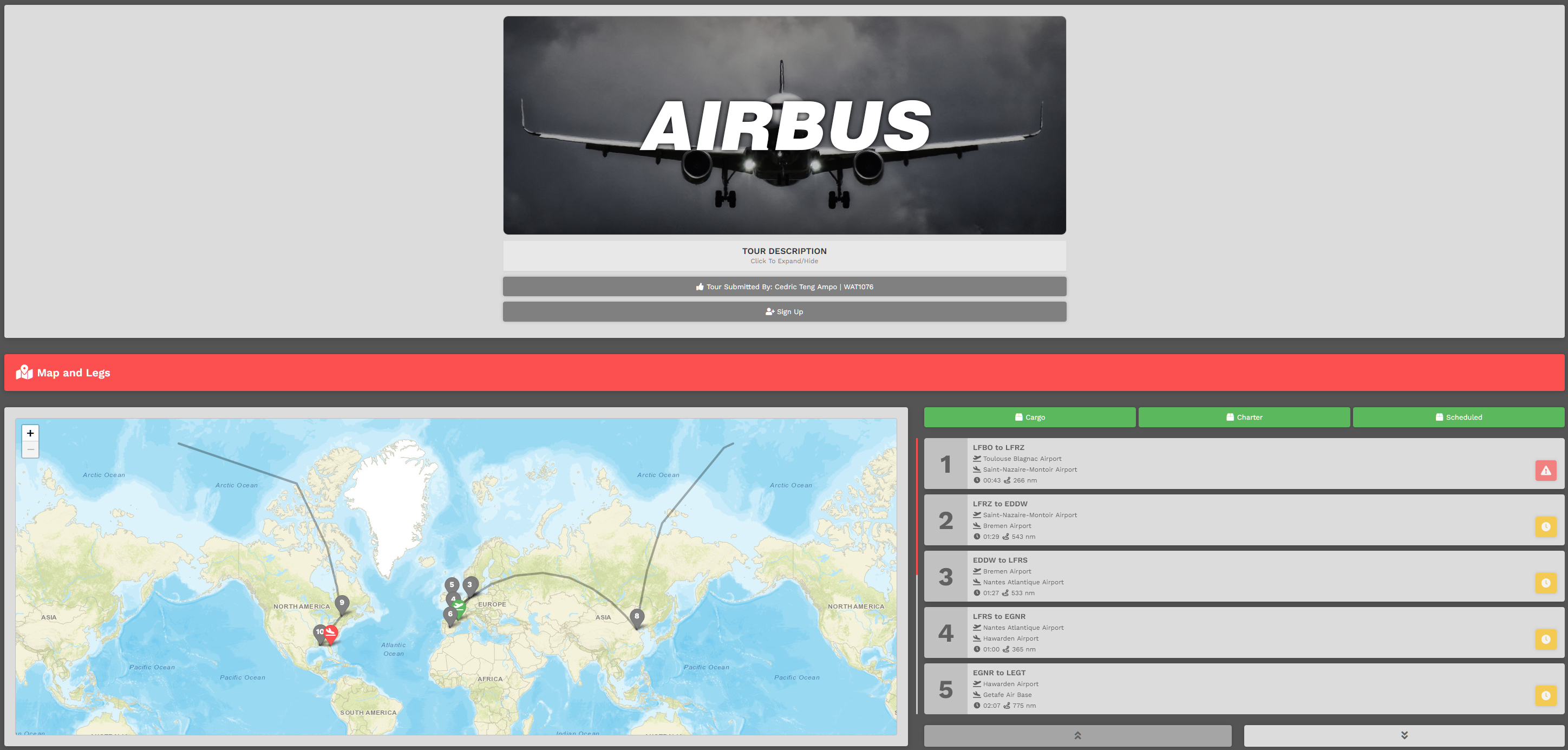
| Area 1 | Tour Description |
Click Tour Description beneath the Tour Image. After doing so, its description will appear. This will provide an narrative overview of the Tour.
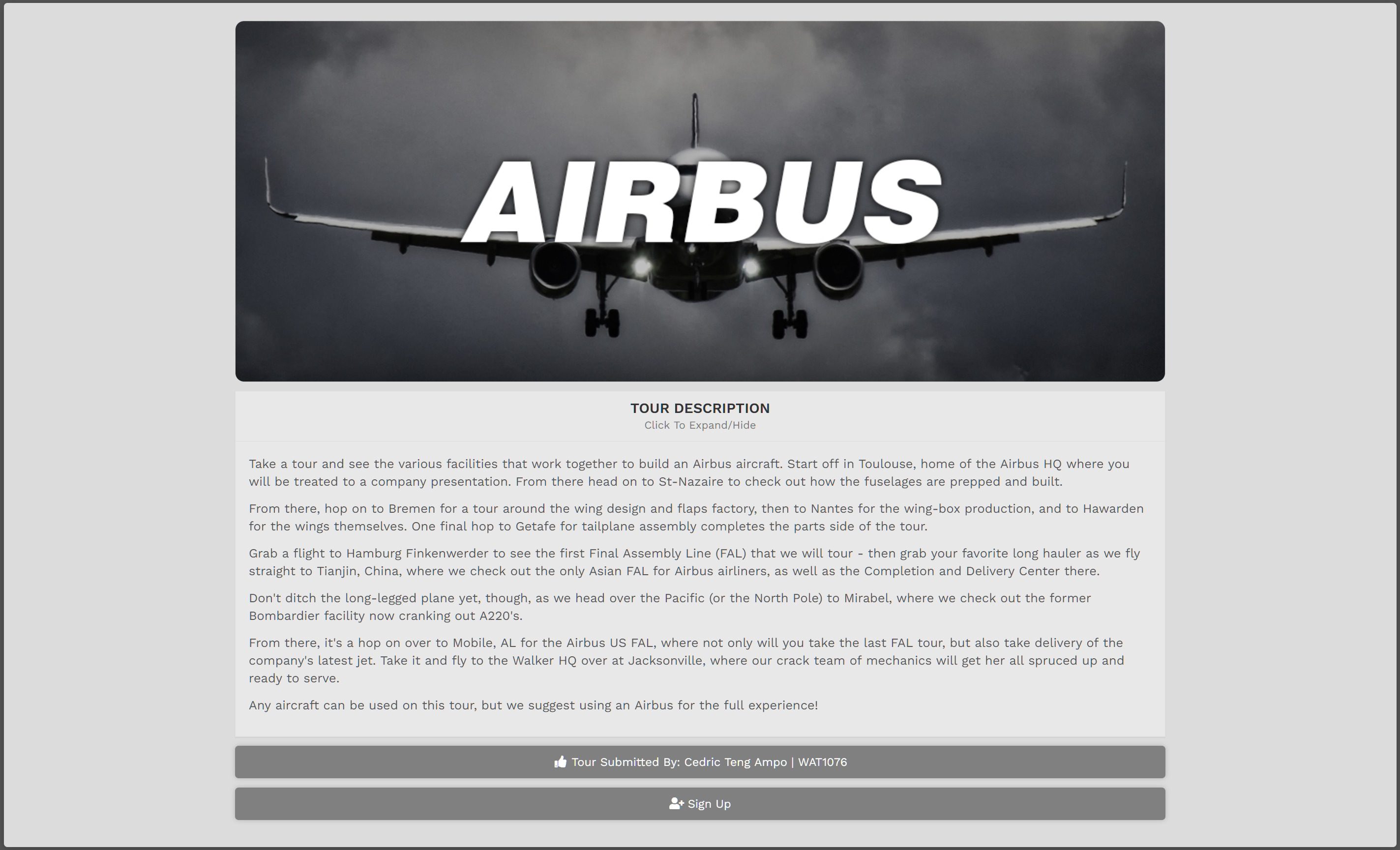
Also on the Tour Page, you'll be able to review a Map where the Tour Legs are displayed. To the right of the Map, detail about each leg is provided.
If you wish to sign up for the Tour, click the Sign Up bar. After doing so, you'll note two [2] new things in the page that opens.
ONE :: If you change your mind about completing the Tour at any time after signing up for it, click the Leave this Tour? button and you'll be removed from it.

TWO :: The Tour's First Leg will now have a grey aircraft icon button. That means you may bid this leg.
Tour Legs must be completed in the order they're sequenced. You will not be able to skip around once you begin.
To bid a Tour Leg, click the grey aircraft icon button.

Afterwards, the screen below will open.
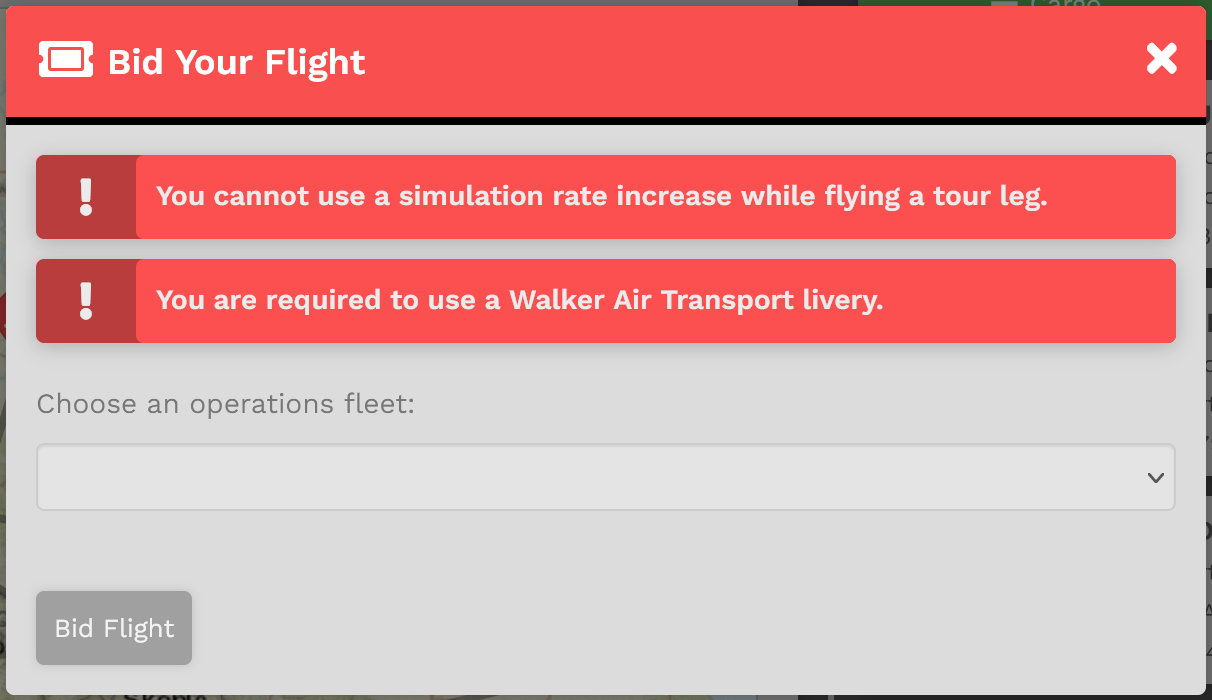
From the drop-down (click the chevron in the right corner of the text box), select a Fleet – Cargo, Charter or Scheduled. Once selected, the screen below will open.
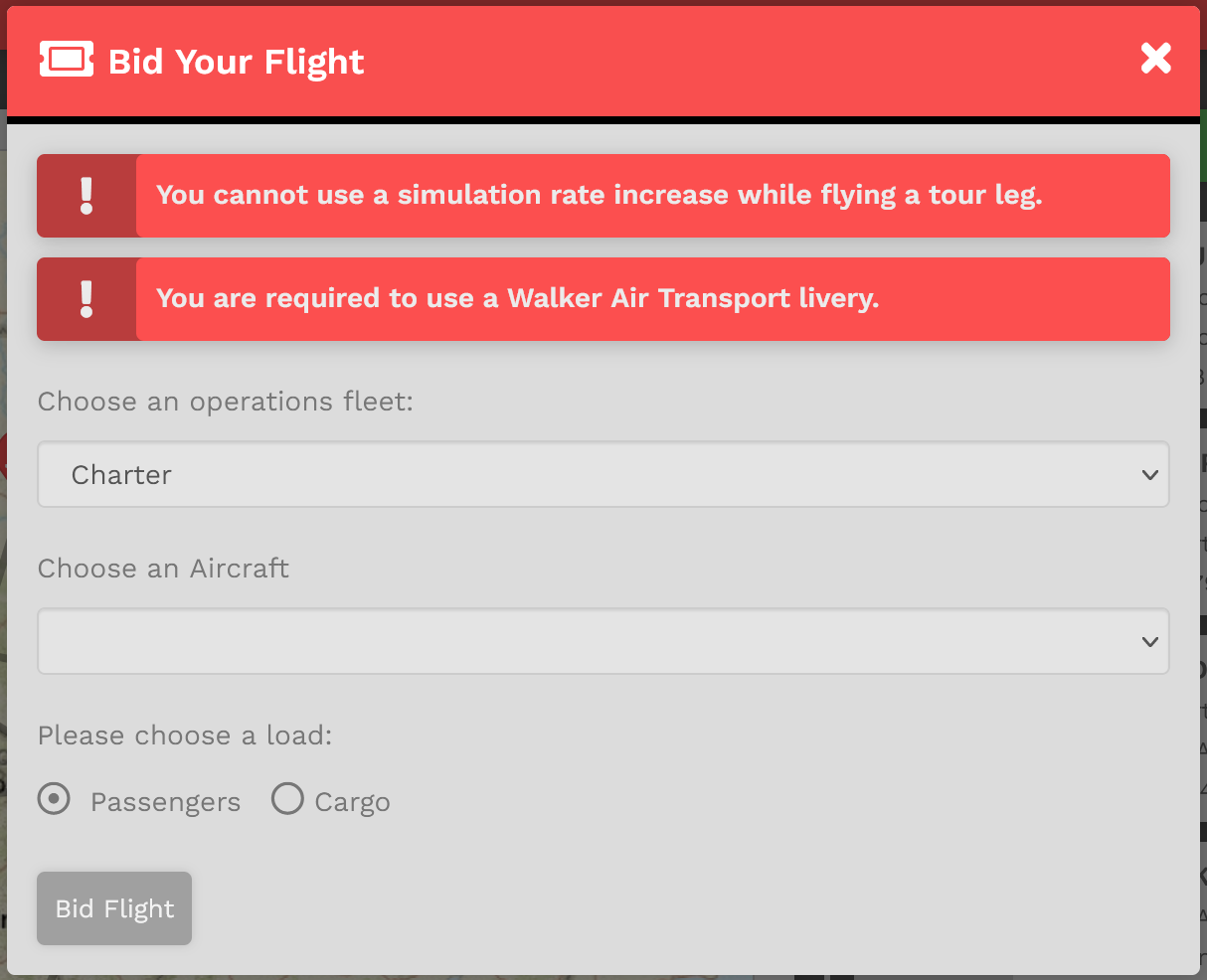
Select the aircraft you wish to fly from those in the drop-down menu (click the chevron in the right corner of the text box).
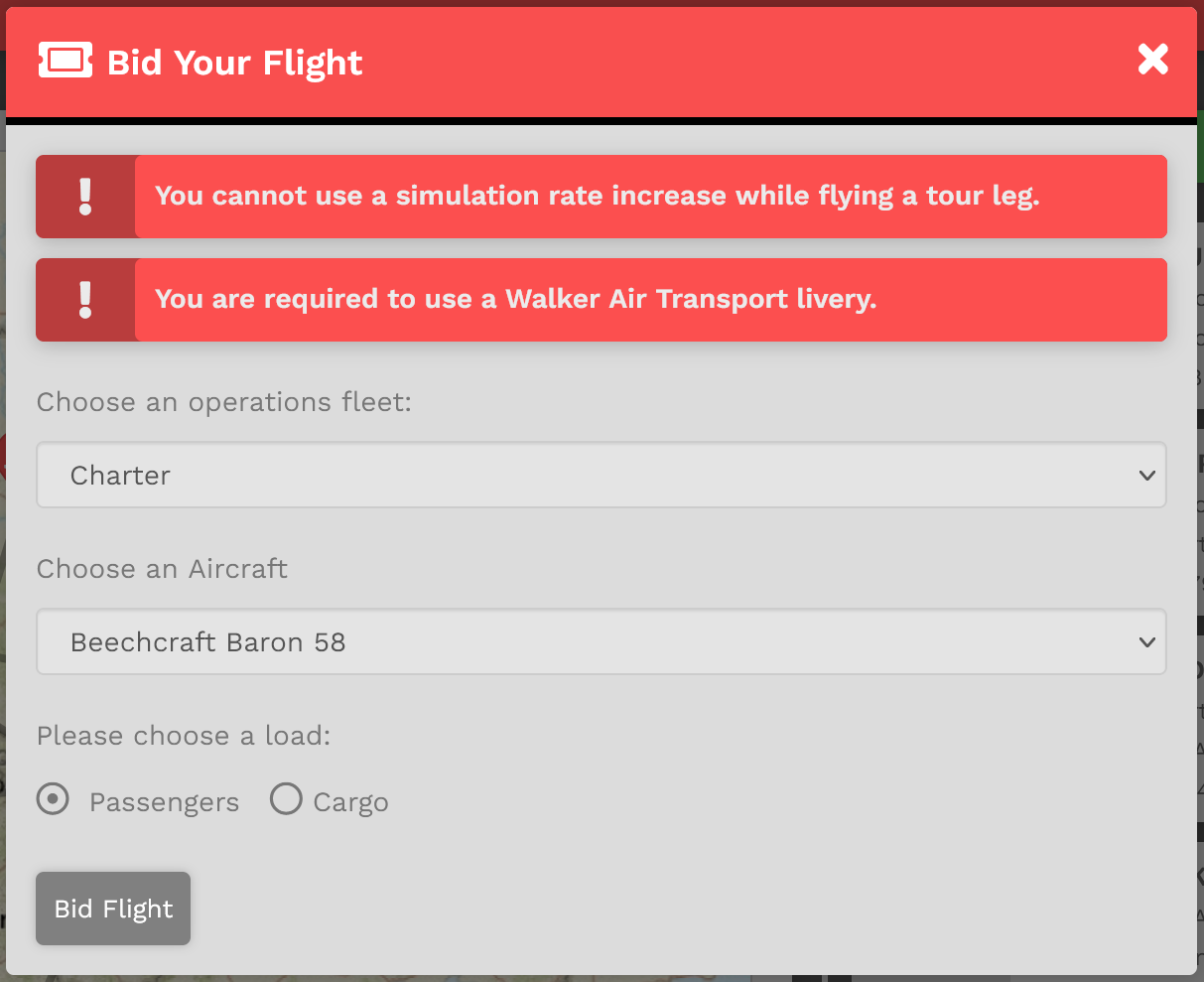
In this example, a Beechcraft Baron 58 from the Charter Fleet will be flown for this Tour Leg.
You now have three (3) options regarding this Tour Leg.
| If you want to... | ... then do this. |
| Fly It | Click the Bid Flight button. |
| Change It | Change the Fleet or Aircraft – and then click the Bid Flight button. |
| Cancel It | Click the 'x' in the upper right corner of the box and the Leg will be canceled. |
After clicking the Bid Flight button, the Tour Leg will appear in My Bids. You may then operate the flight.

And about the colored buttons... Here's another example of a Pilot currently flying a Tour we can use as an illustration:
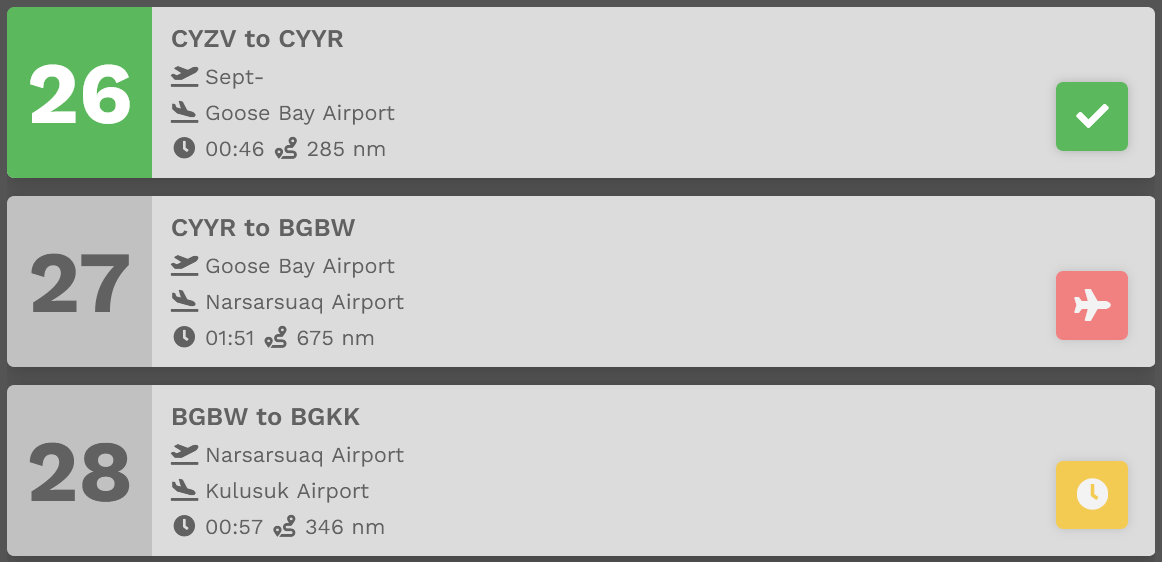
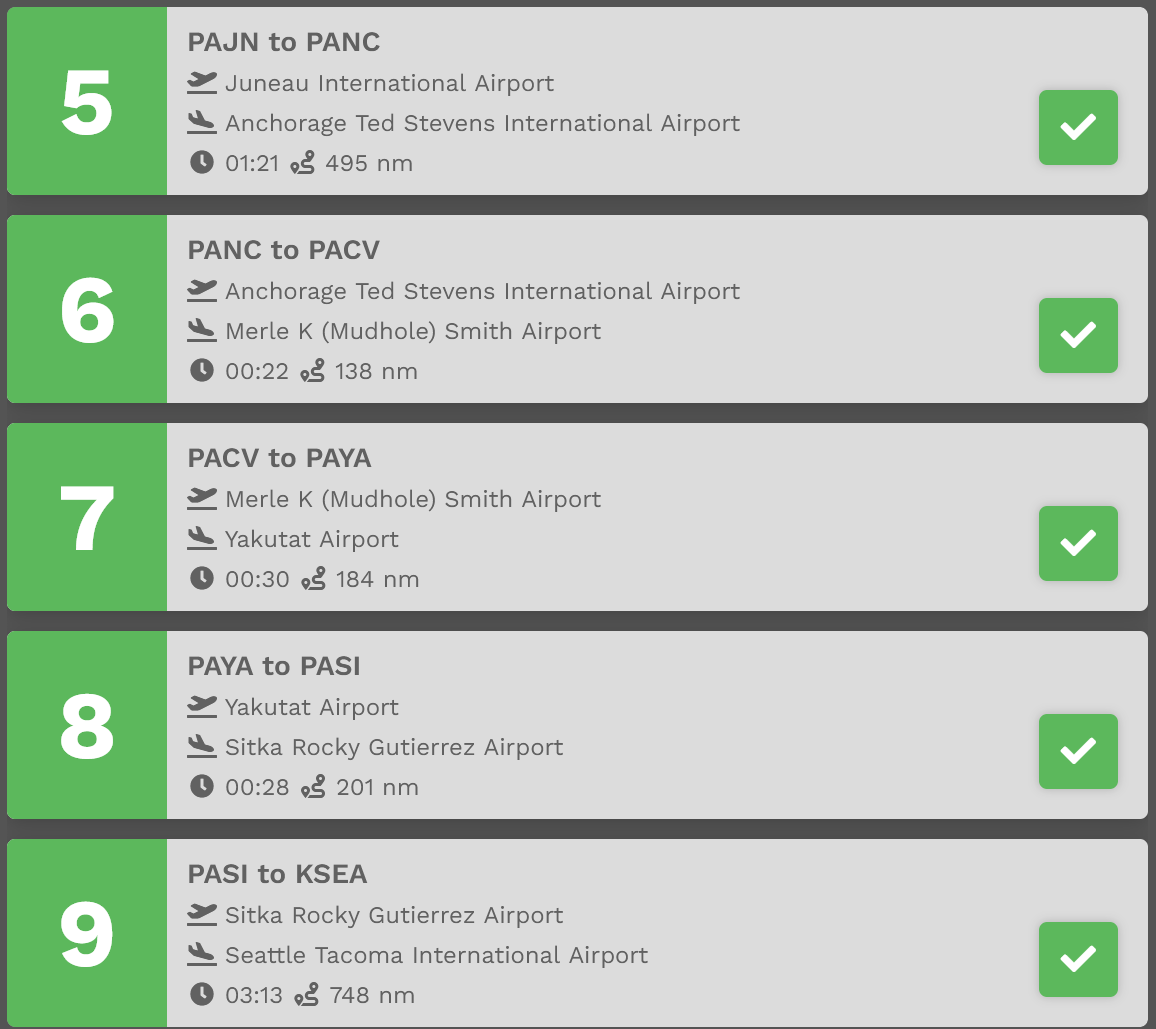
Leg 26 has a green check mark icon indicating that leg has been Completed.
Leg 27 has a red aircraft icon indicating that leg has already been bid and is available to be flown. It cannot be bid again.
Leg 28 has a yellow clock icon indicating it may not be bid upon unless/until Leg 27's flight has been completed.
This color coding has been implemented for all Tours.
| Area 2 | Tour Map & Legs |
In this area of the Tour Page, a map identifying the Legs and their location is presented.
To its right is the list of Tour Legs. Each is numbered and must be flown in that order. The Aircraft Type allowed in this Tour can be seen by clicking the green Cargo, Charter and Scheduled buttons.
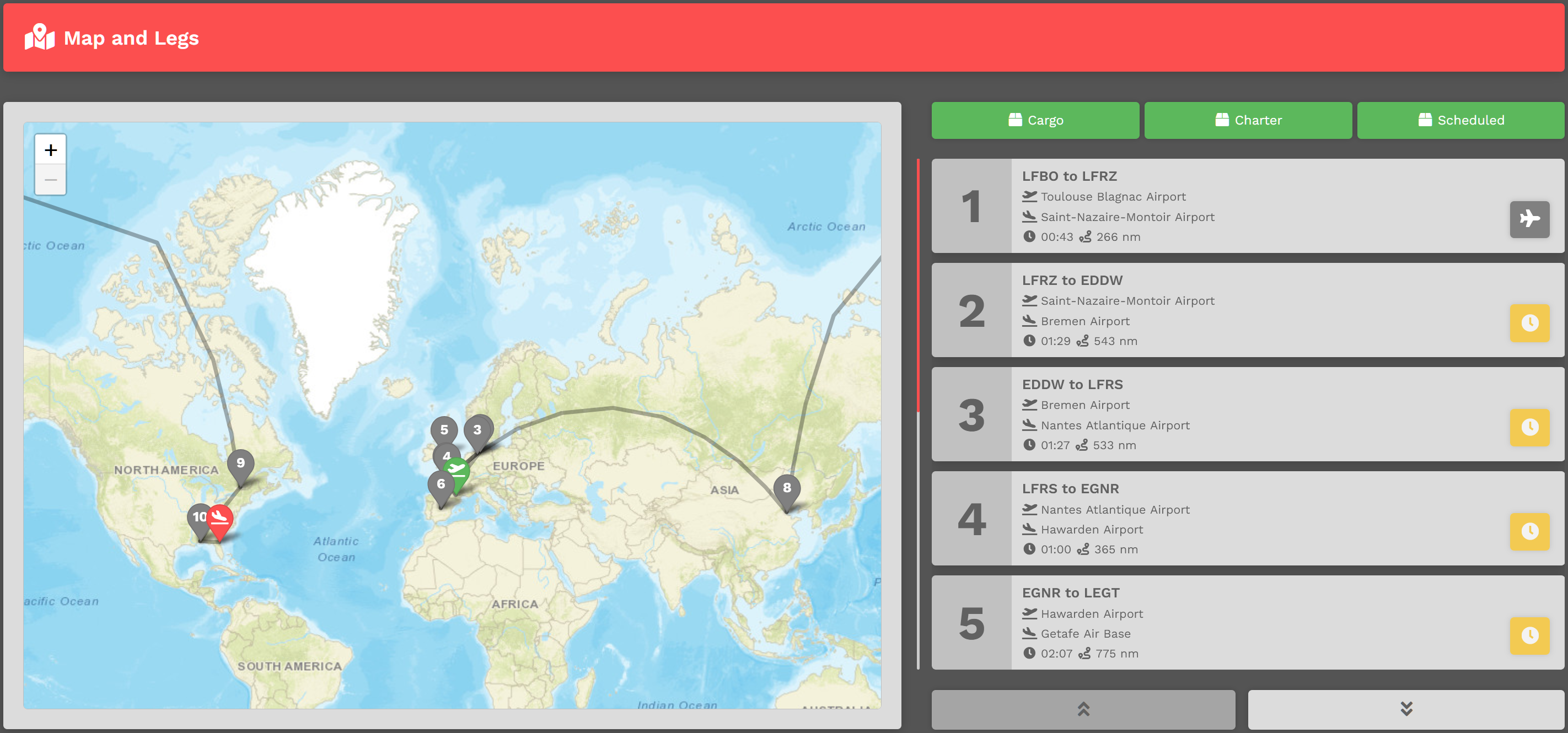
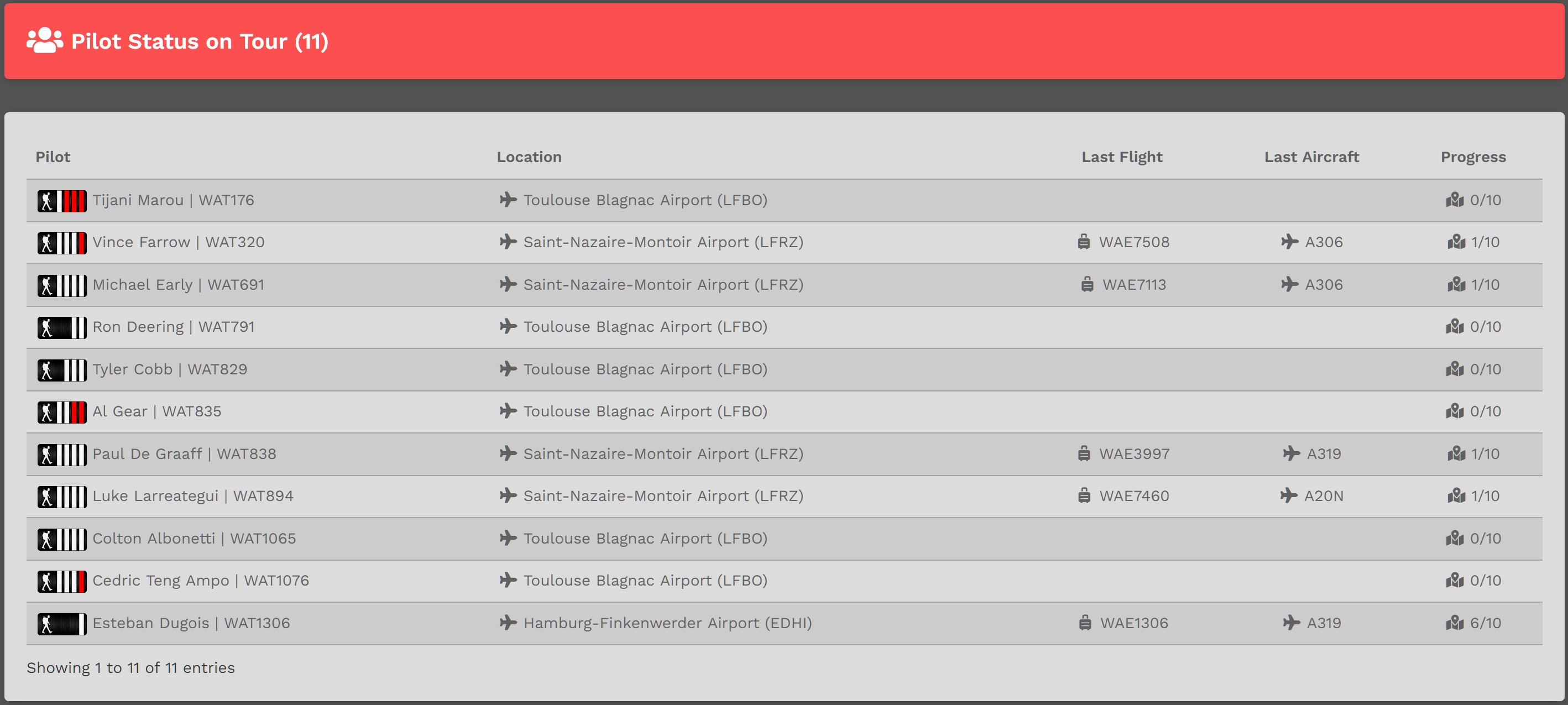
| Area 3 | Pilot Status On Tour |
In this area, the status of all Pilots flying the Tour are noted – Pilot Name, Location, Last Flight, Last Aircraft and Progress. If desired, you can measure your progress against others flying the Tour and view their most recent PIREPs.
In Process
Referring to the Tour Page image above, you can see the Around The World Tour is In Process because the Sign Up bar is Yellow.

All other visual elements of an Available Tour exist for an In Process Tour – with two [2] notable exceptions...
ONE :: A Tour may be canceled at any time. In the image above, clicking the red button will do that.
TWO :: An In Process Tour is underway, so when it's opened to place a bid, the Legs area will look slightly different. In the example below, Leg 26 / 32 has been completed. Leg 27 has been bid; Leg 28 will not be available to bid until Leg 27 is completed. Once it is, it will have a green check mark beside it. Once a Leg has been flown, it cannot be flown again.
Completed
Referring to the Tour Page image above, you can see the Alaska Milk Run Tour has been completed because the Sign Up bar is Green.
All other visual elements of an In Process Tour, exist for a Completed Tour – with two [2] notable exceptions...
ONE :: A Tour may be re-flown at any time. In the image above, clicking the green button will do that. To re-fly a Tour, you'll need to purchase a Tour Pass – and there's a cost for doing that.
After clicking the Green button, the screen below will open. There, you'll see what it'll cost you to re-fly the Tour.
Clicking the Cancel button at any time will cancel the transaction.
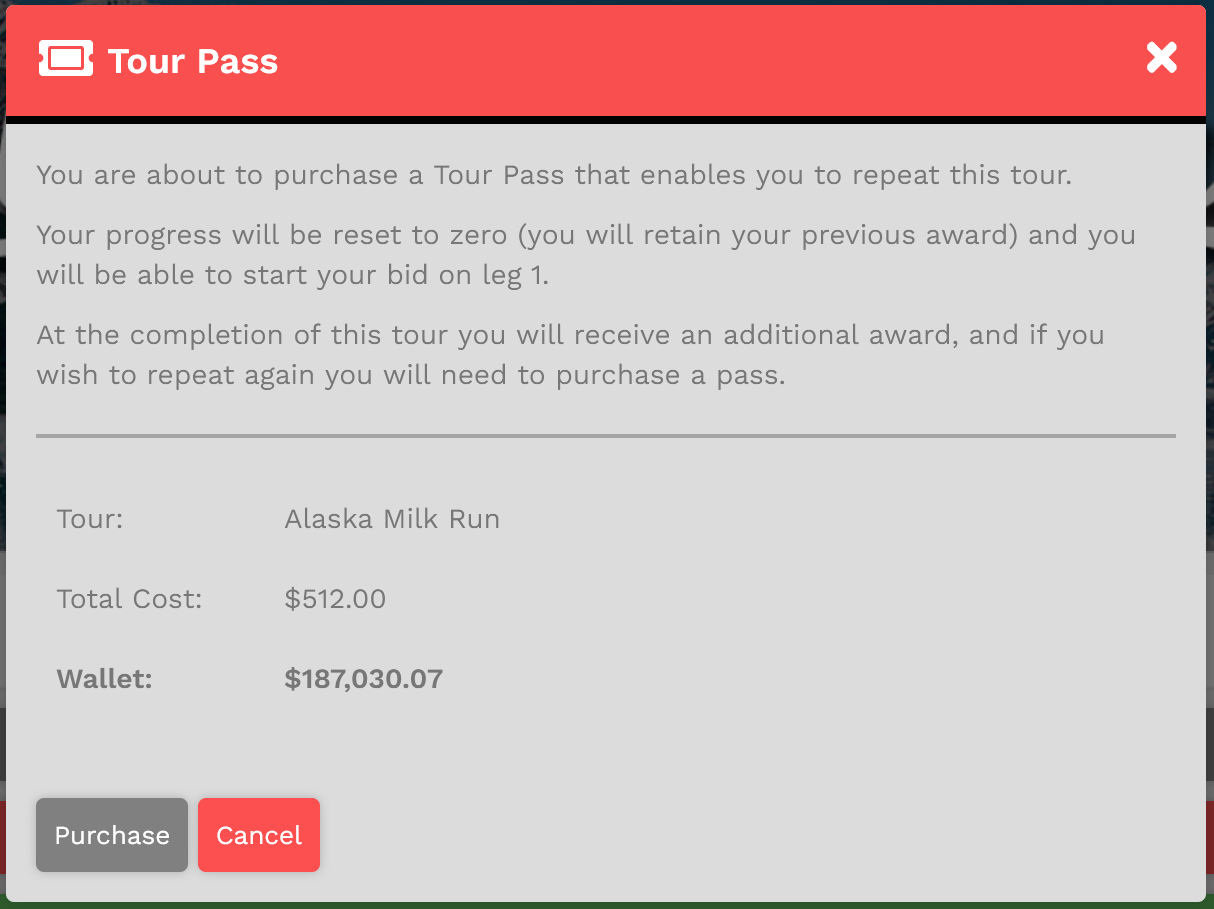 |
If your Wallet Balance is greater than that cost, the transaction will be approved. You will be allowed to re-fly the Tour.
|
TWO :: All Tour Legs have been completed. There are no more Tour Legs to fly, so each one has a green check mark.