
simBrief
simBrief enables Pilots to automatically create an Operational Flight Plan (OFP) based on the details of their intended flight – and, with only a few clicks, easily integrate it into our System.
You must have an active simBrief account in order to use the integration.
If you don't have an account, visit simBrief to create it.
What's the simBrief Operational Flight Plan?
The simBrief OFP, also known as the Operational Flight Plan, is essentially a dispatch packet. It simulates a real world experience with Pilots receiving information about their flight, weather, routing, fuel usage, weights, etc. – everything required to ensure they're operating within the performance standards of the aircraft they're flying.
simBrief does a good job adding to the realism of simulated flying by offering this service. That's why we encourage you to sign up for an account and, when possible, use it.
simBrief Download: https://www.simbrief.com/home/index.php
If you need help understanding the OFP and how to use it, ask your fellow Pilots.
The information contained here is very useful for setting up your aircraft's Flight Management Computer to make your flight as realistic as possible.
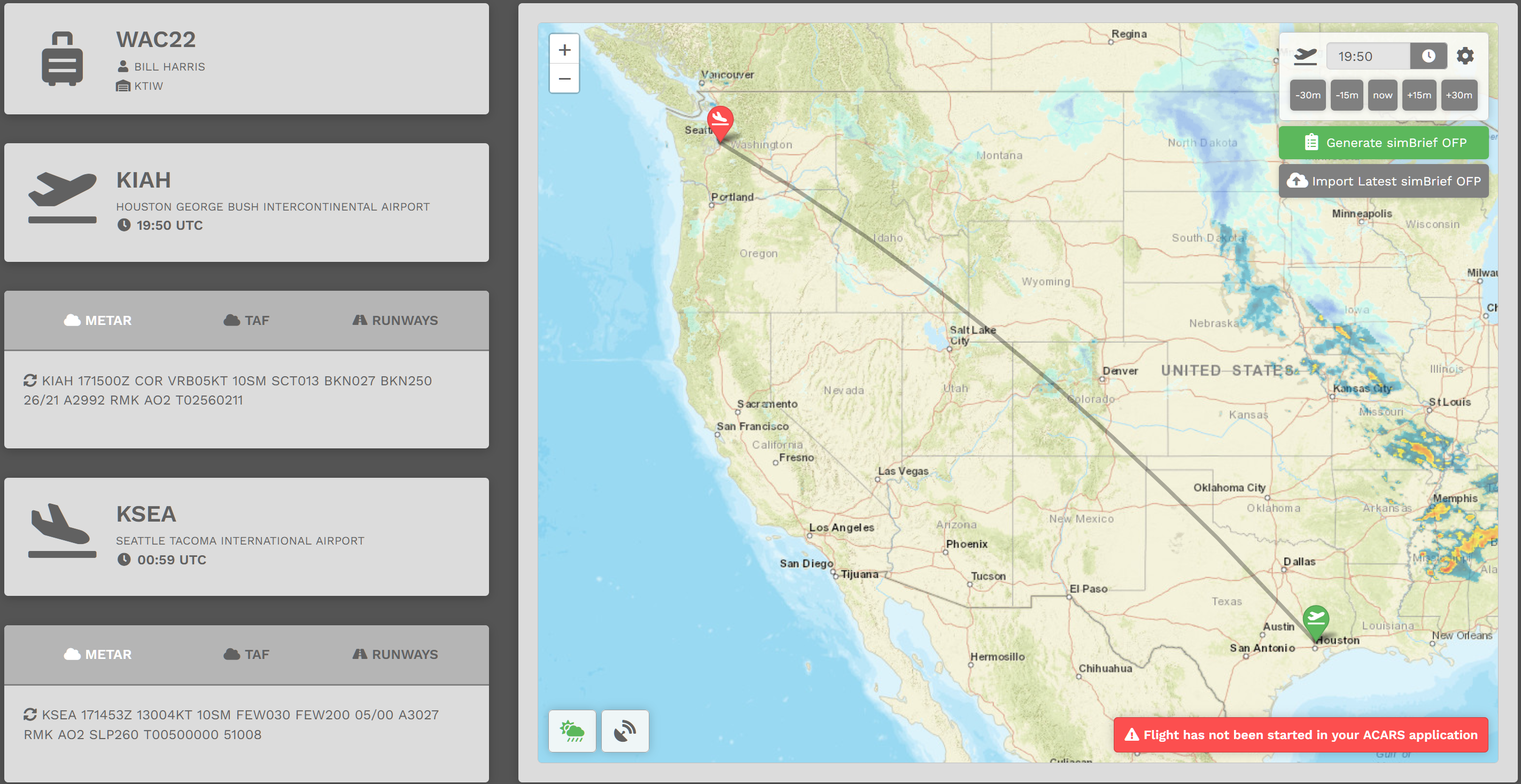
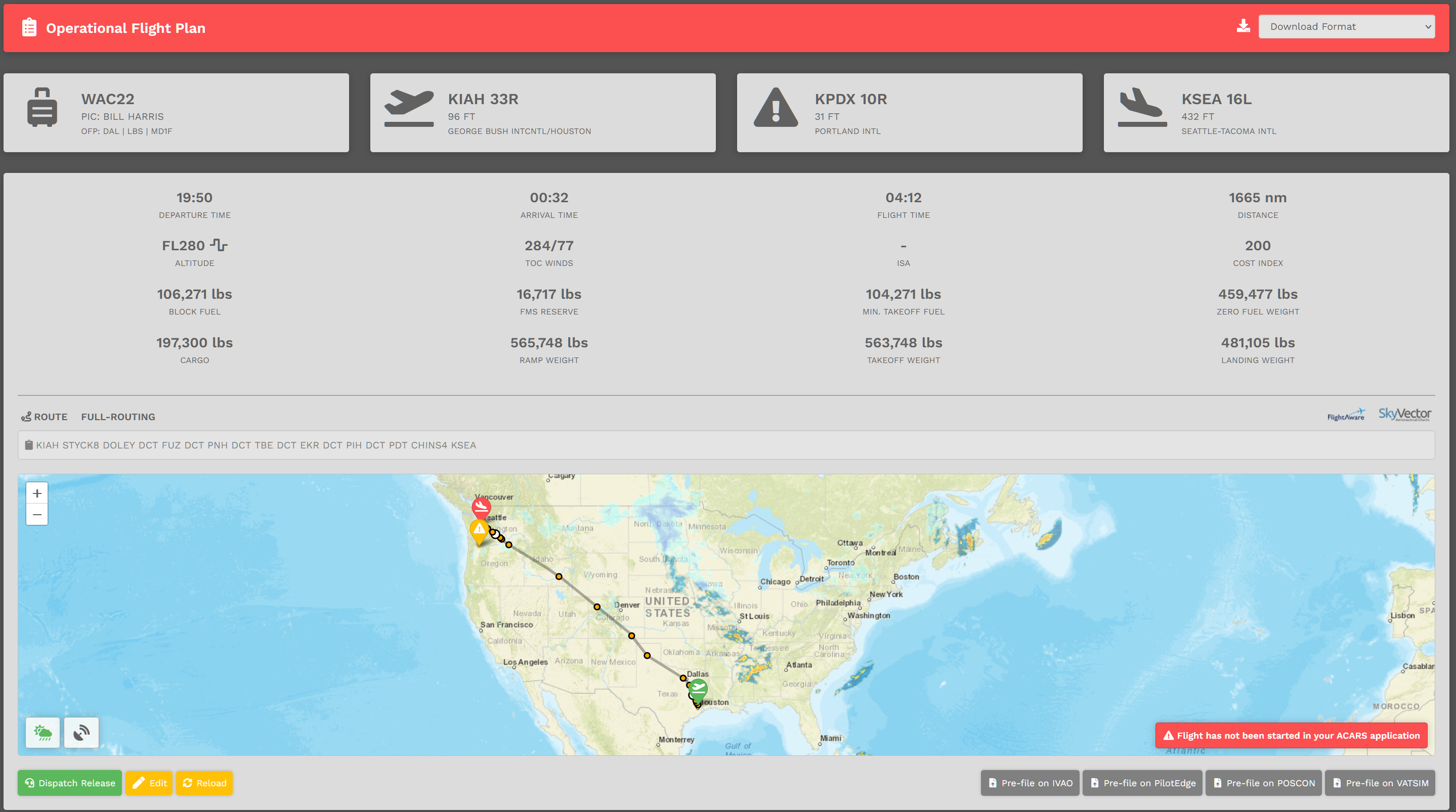
Let's take a look at a number of items:
| 1. |
Flight Tracking – When you start your ACARS application – smartCARS or FlightTrackerXP – you'll see your aircraft on the map and it'll show your flight path as you are flying. |
| 2. |
Route Copy – Click the icon next to the route to copy it to your clipboard. |
| 3. |
Pre-File – These buttons take you to their respective online ATC sites with a pre-filled form to submit your flight plan. |
| 4. |
FlightAware and SkyVector – View active real flights leaving your departure airport – or – open the flight plan route in SkyVector. |
| 5. |
Dispatch Release – View the raw OFP print out. |
| 6. |
Edit – This opens simBrief in another tab. That allows you to edit this specific flight. |
| 7. |
Reload – After completing your OFP edit, you must click the Reload button to refresh its data in the template. |
| 8. |
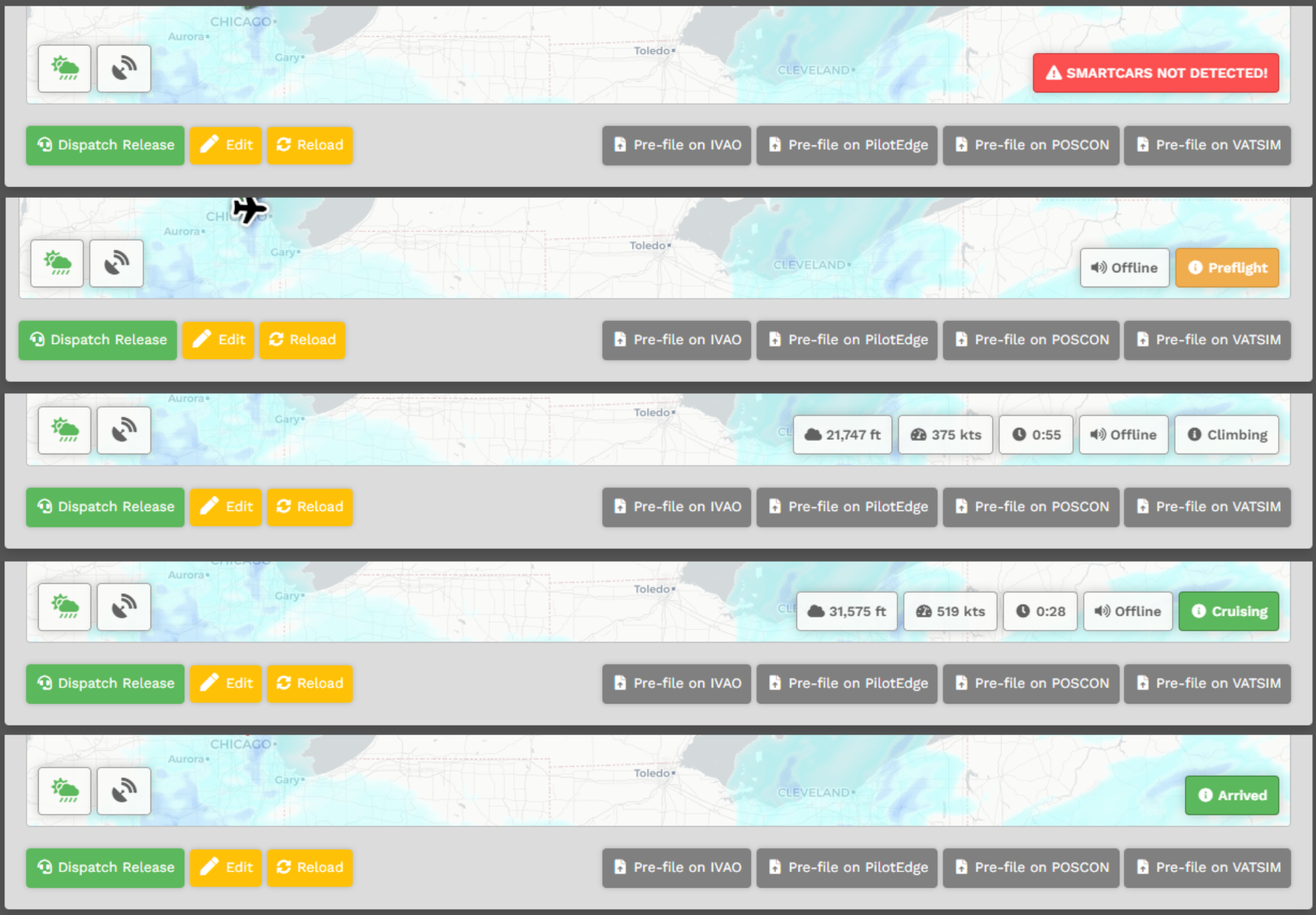
Flight Status – A number of informational items regarding the real-time status of your current flight are displayed on the map.
NOTE: The data updates every 10 seconds.
|
Settings – simBrief
In order to use our integration, a few things will need to be configured on the Crew Center website before you proceed.
To access your settings:
| 1 | Click your name at the top right of the Navigation Bar; |
| 2 | Scroll down and select Settings; |
| 3 | Click simBrief; and, |
| 4 | Complete your user Username and Operational Flight Plan settings: |
|
a. Username – You must enter your simBrief username if you wish to use the Import Latest simBrief OFP option found on your briefing. |
|
|
b. Plan Format – Our default OFP plan is DAL. If you wish to use something else, choose it from the list provided. |
|
|
c. Weights – Weights for simBrief default to pounds (lbs). If you'd rather use kilograms (kgs), be aware of the fact all weights shown on our website will be in kilograms instead of pounds. |
Settings – Operational Flight Plan (OFP)
To reflect the freedoms you have when flying for us, simBrief's OFP settings can be custoimized to your own preferences.
These are the settings usually appearing on the right side of simBrief's New Flight screen.
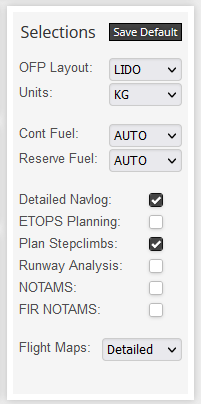
To customize your OFP settings, follow these steps.
1. Go to your Profile settings in the Crew Center website.
Click simBrief.
Scroll down to the Operational Flight Plan section.
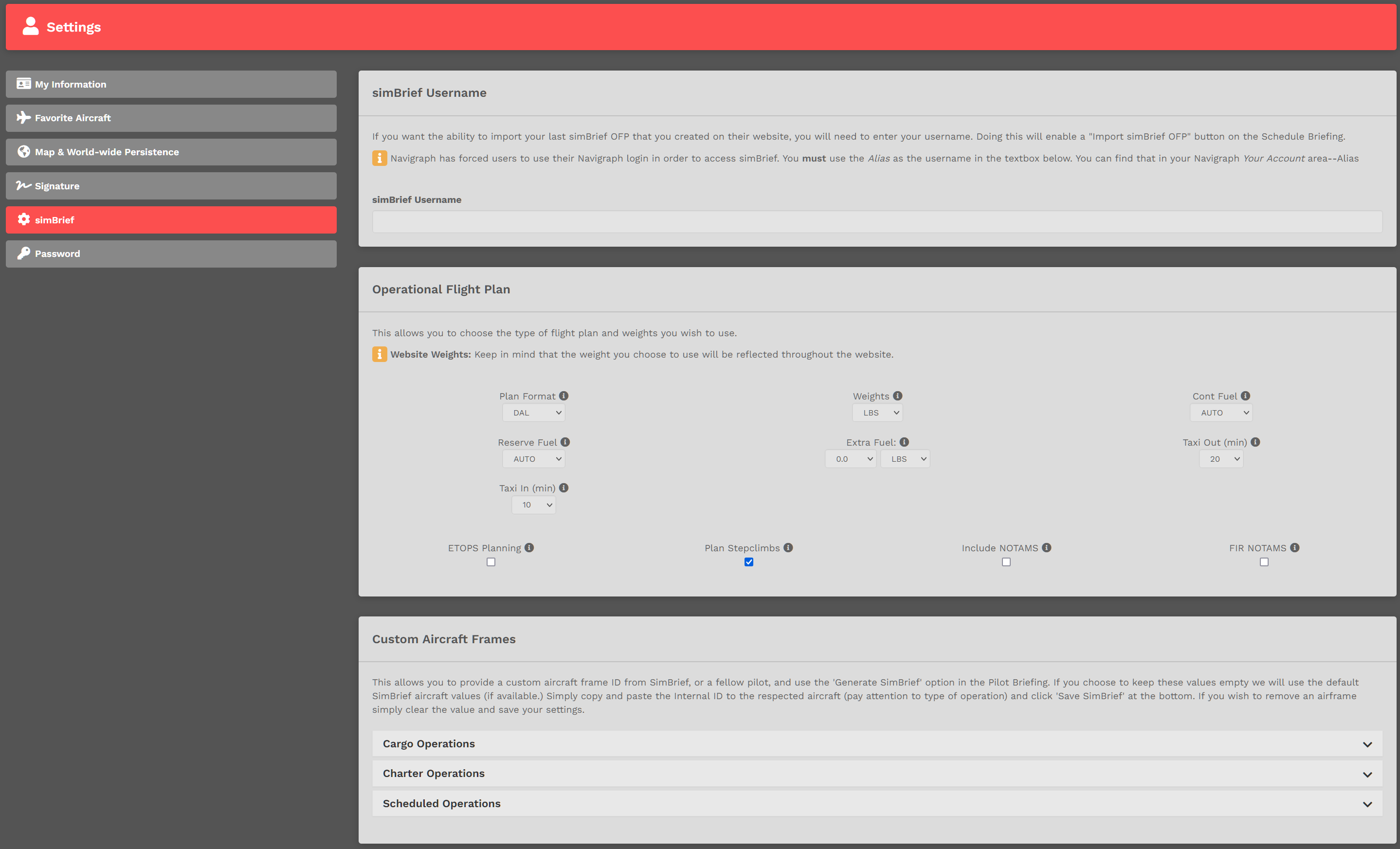
2. Make your preferred selections.
You should be familiar with all of the options shown, so their explanations will not be detailed here.
For more information, review the simBrief User Guide.
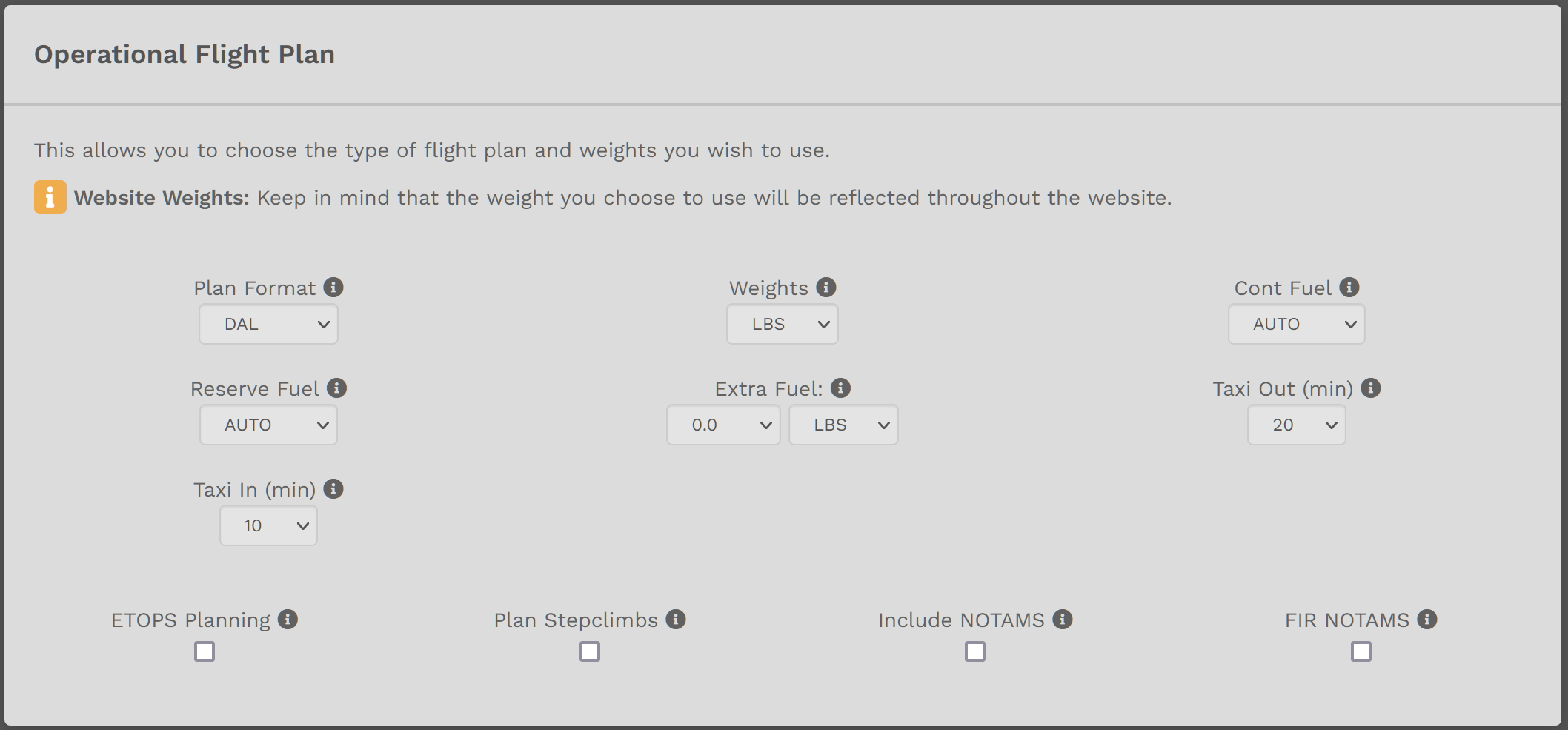
3. Once you've made your selections, scroll to the bottom of the page. Click the Save SimBrief button.
If you forget to click the Save SimBrief button, your preferences will not be saved.
How do I generate a simBrief Operational Flight Plan?
This is the Pilot Briefing for the flight you selected. It'll provide you with your flight information, weather and a route map. The top right section of the map provides the simBrief status – it's either Available or Not Available.
| Available | Not Available |
|
If simBrief has a default airframe for the aircraft you've chosen – or – you entered a saved airframe (Custom Airframe) in your simBrief settings, you're able to generate an OFP from our website.
To learn more about Custom Airframes, scroll down to its section below.
|
If simBrief does not have a default airframe for the aircraft you've chosen – or – you have not entered a saved airframe (Custom Airframe) in your simBrief settings, you'll not be able to generate an OFP from our website.
To learn more about Custom Airframes, scroll down to its section below. |
|
|
COMMENT:
|

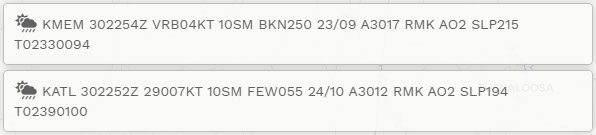
The bottom left section of the map will contain the METAR for your departure and arrival airports. If one, or both, are unavailable you'll see 'NO METAR DATA'.
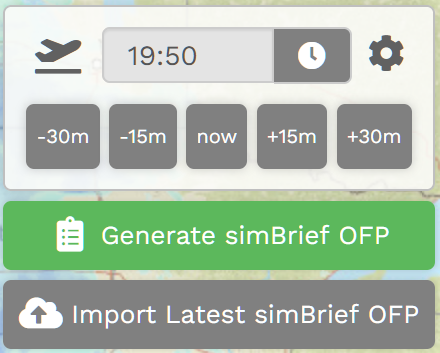
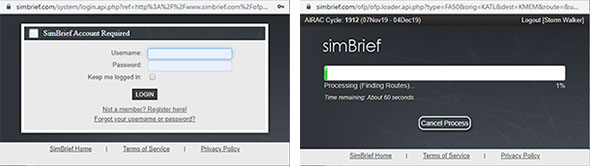
To generate your OFP, click on the 'Green Clipboard'. You'll get a popup window asking you to log into simBrief.
Click on the at top right to see the options you can modify. Once you've finished, click on the icon to return.
NOTE: If you don't understand what the option means, place your mouse over it for more information.
You're logging directly into simBrief through an API. As a result, your credentials are not transmitted through our servers.
simBrief Import
If you entered your simBrief Username in settings, you'll see an Import Latest simBrief OFP option available. This allows you to create an OFP on the simBrief website and import it back into our system so it can be viewed with our OFP template.
There are, however, a few things you must to do to enable that to happen. You must:
- generate the OFP on the simBrief website;
- ensure Airline equals the prefix of your flight (ex. WAT, WAC, WAX, etc.); and,
- ensure Flight-No. equals the number on your bid.
Once you complete your changes, return to the Pilot Briefing. Select Important Latest simBrief OFP. You'll then see our Template with your updated changes.

How do I access the Pilot Briefing?
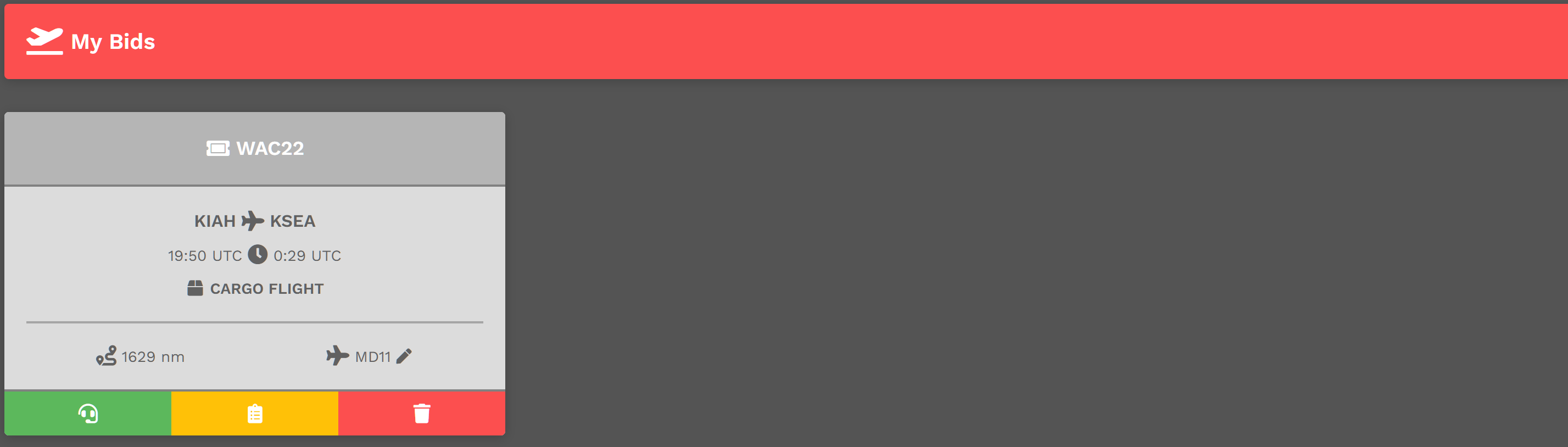
In order to access your Pilot Briefing, use the same navigation described above and select Flights > My Bids. Once there, click the Clipboard icon in the yellow box for your flight.
Returning To Your simBrief Operational Flight Plan
If you leave the OFP page, you can return to it later. Go to My Bids. Click the Headset icon in the green box and it'll return you to the simBrief OFP.

Custom Airframes
To learn more about the Custom Airframe system, see the simbrief Guide (Dispatch Fleet Page).
Custom Airframes allow the flight characteristics of your aircraft to be more in-line with your performance expectations. When you generate a simBrief Flight Plan using a Custom Airframe for a specific aircraft you've stored in the Crew Center, it will be used instead of the simBrief default when selected for a fligtht.
These instructions will assume you've created a Custom Airframe – or have an ID from one shared with you.
Before you begin this process, determine the Fleet assignment of the aircraft for which you wish to create a Custom Airframe – Cargo, Charter or Scheduled.
1. Log in to simBrief. Go to Dispatch > My Fleet.
For our example, we'll use the Daher Kodiak 100.
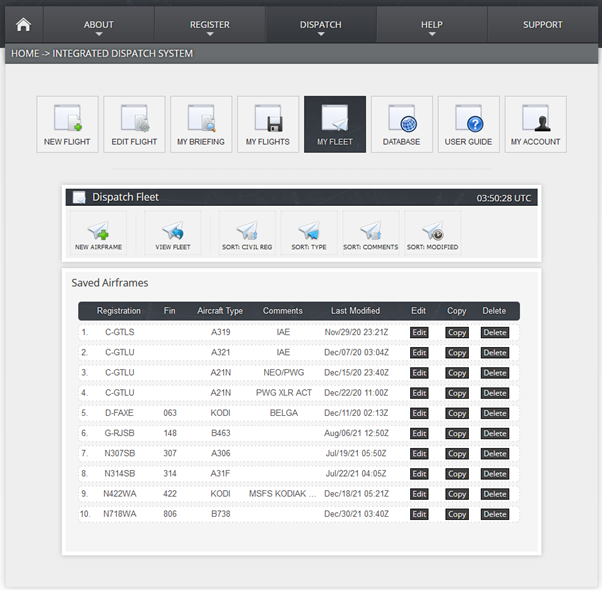
2. Click the Edit button next to the Custom Airframe you want to use.
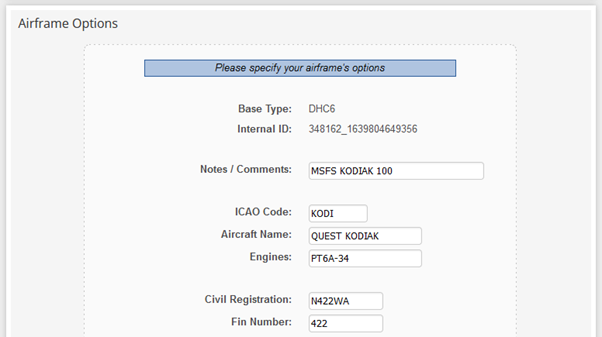
3. Copy the Internal ID from the Airframe Options.
4. Go to your Profile settings in the Crew Center website.
Click simBrief.
Scroll down to the Custom Aircraft Frames section.
5. Each Company aircraft is assigned to a specific Fleet. Because the Daher Kodiak is in the Charter Fleet (Charter Operations), expand the Charter Operations section. This is why knowing the Fleet assignment of your aircraft is important.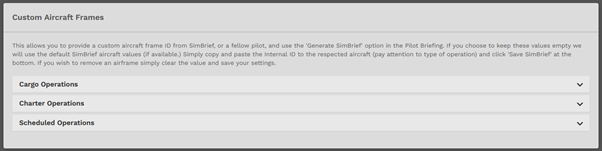
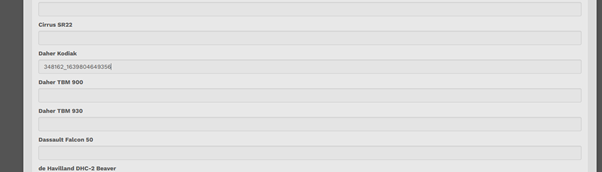
6. Locate your aircraft in the listing. In the Text Box beneath it, paste the Internal ID you copied in Step 3.
7. Scroll to the bottom of the page. Click the Save SimBrief button.
If you forget to click the Save SimBrief button, your Custom Airframe will not be saved.