simBrief
simBrief integration is available at Walker Air Transport. It enables Pilots to automatically create an Operational Flight Plan (OFP) based on the details of their intended flight.
You must have an active simBrief account in order to use the integration. If you do notdon't have an account,one, visit simBrief andto create one.it.
simBrief Settings
In order to use our integration, a few things will need to be configured on the Crew Center website before you proceed. To access your settings:
| 1 | |
| 2 | |
| 3 | |
| 4 | |
a. Username :– You aremust required to type inenter your simBrief username if you wish to use the Import Latest simBrief OFP option found on your briefing.
b. Plan Format:Format – Our default OFP plan is DALDAL., however ifIf you wish to use something else you canelse, choose it from the list provided.
Weights:c. Weights Our– default weightsWeights for simBrief isdefault to pounds (LBS)lbs). ,If howeveryou'd you may choose torather use kilograms (KGS).kgs), Ifbe youaware decideof tothe use kilograms for simBrief,fact all weights shown on our website will be in kilograms instead of pounds.Note:NOTE: If you do change this to kilograms, you must also change smartCARSACARS to kilograms as well (see: smartCARS)
How do I access the Pilot Briefing?
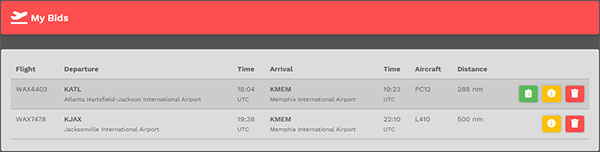
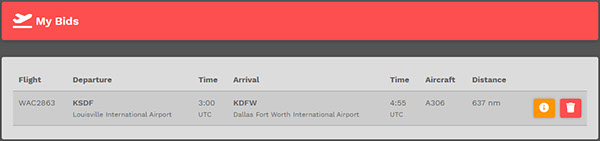
In order to access your Pilot Briefing,Briefing, use the same navigation described above and select Flights > My Bids. Once there, you'll see a an icon for your flight(s). Click the one you wish to use.
How do I generate a simBrief Operational Flight Plan?
This is the Pilot Briefing for the flight on which you chose to click.selected. It'll provide you with your flight information, weather and a route map.
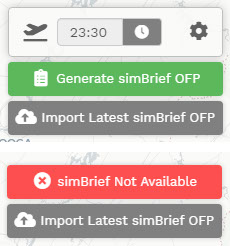
The top right section of the map provides the simBrief status:status it– isit's either available or not available.
If simBrief has a default airframe for the aircraftAvailable :Not Available youyou'vehave chosen,chosen or you entered a saved airframe in your simBriefsettings.settings,You areyou're able to generate an OFP from our website.Not Available: This means thatIf simBrief has no default airframeavailable,available or you did not enter a saved airframe in your simBriefsettings.settings,You areyou're unable to generate an OFP from our website.
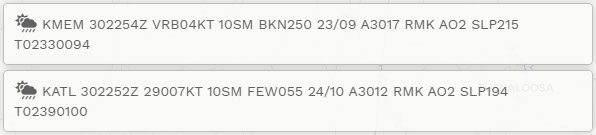
The bottom left section of the map will contain the METAR for your departure and arrival airports. If one, or both, are unavailable you willyou'll see 'NO METAR DATA'.
simBrief Import
If you entered your simBrief Username in settings, you willyou'll see an Import Latest simBrief OFP option available.
This allows you to create an OFP on the simBrief website and then import it back into our system so youit can viewbe itviewed with our OFP template.
However,There thereare, arehowever, a few things you must to do:do to enable that to happen:
- You must generate the OFP on the simBrief
website.website; - You must ensure
thatAirline equals the prefix of your flight (ex. WAT, WAC, WAX, etc.); and, - You must ensure
thatFlight-No. equals the number on your bid.
Once you finishcomplete your changes, simply return to the Pilot BriefingBriefing. and chooseSelect Important Latest simBrief OFPOFP. ,You'll you will nowthen see our template with your updated changes.

Click on the at top right to see the options you can modify. Once youyou've are donefinished, click on the to return.
NOTE: If you do notdon't understand what the option means, place your mouse over the for more information.
To generate your OFP, you will want to click on the 'Green Clipboard'. You willYou'll get a popup window asking you to log into simBrief.simBrief.
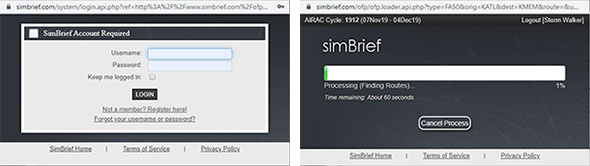
You areYou're logging directly into simBrief through an API. YourAs a result, your credentials are not transmitted through our servers.
What is the simBrief Operational Flight Plan?
The simBrief OFP, also known as the Operational Flight Plan,Plan, is essentially a dispatch packet. It simulates the real world experience where pilotsPilots receiving information about their flight, weather, routing, fuel usage, weights, etc. Everything– that iseverything required to ensure they arethey're operating correctly and within standards of the aircraft theythey're are operating.flying. simBrief does a good job at adding to the realism of simulated flying by offering this server.service. We encourage our pilotsPilots to sign up for an account and use the tool where available.
If you need help understanding the OFP and how to use it please do not hesitate toit, ask your fellow pilots.Pilots. The information contained on this page is very useful for setting up your Flight Management Computer to bemake your flight as realistic to flight as possible.
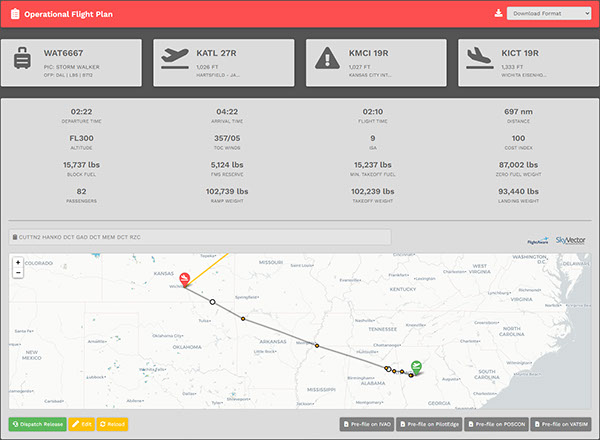
We would like to point out a couplenumber items;of items:
1. Flight Tracking –
- whenWhen you start your ACARS application (smartCARS or Bellerophon),you willyou'll see your aircraft on the map andit willit'll show your flight path as you are flying.
Route Copy – - clickClick the icon next to the route to copy it to your clipboard. This is useful for pasting the route into SmartCARS.ACARS.
Pre-File – - theseThese buttons will take you to their respectedrespective online ATC site with a pre-filled form to submit your flight plan.
FlightAware and SkyVector – - you can viewView active real flights leaving your departure airport,airport – or open the flight plan route in SkyVector.SkyVector.
Dispatch Release – - you can viewView the raw OFP print out.
Edit – -This thisopens will open simBrief in another tabtab. allowingThat allows you to edit this specific flight. If you do this,edit your flight, you must click reloadReload – as explained next.
Reload – - afterAfter completing your edit of the OFP by using the previous button,OFP, you must click this to refresh the OFP data here in the template.
If you accidently, or purposely, leave the OFP pagepage, you can return to it later. Simply goGo to your "'My Bids"Bids'. and you willYou'll see a 'Green Clipboard" on your flight. Click that and it willit'll return you to the simBrief OFP.