
Scheduled
The Scheduled Flight Module gives Pilots an opportunity to experience life as a 'Line Pilot' for a major passenger airline.
If you wish to depart from another location, you may purchase a Jumpseat Ticket to transfer to another airport.
Finding a Scheduled Flight
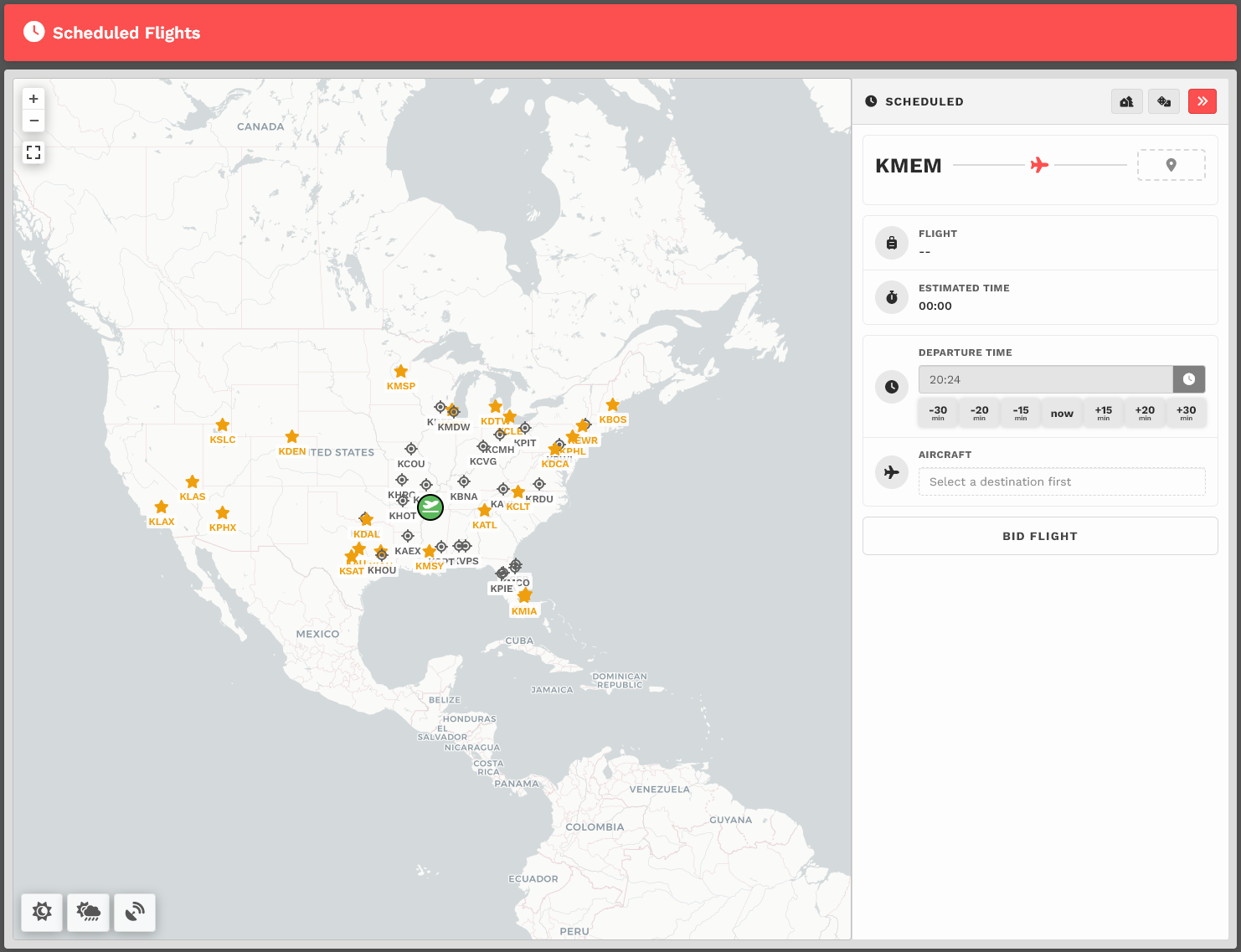
Upon arrival, you'll be presented with a map. You'll see a departure icon (Green Map Pin) and one [1] or more arrival pins (Black Dots), as well as Toggle Weather, Toggle VATSIM and Select Random Arrival buttons at the bottom left of the screen.
The map seen above represents its default view. To see the rest of the world, place your cursor on the map and, with your control wheel, zoom in or out.
The departure location for your next flight is set as follows:
| New Pilots | All Other Pilots |
| New Pilots taking their first flight depart from the Home Airport they requested on registration. |
The Arrival Airport of your last Cargo or Scheduled flight. |
Mouse over pins/black dots to see the names of the airports with flights available from your departure airport.
Once you find a place to which you'd like to fly, click on its black dot. Let's use KIAH > KPDX as an example.
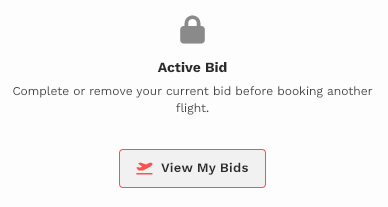
| IMPORTANT :: You may only Bid a new Scheduled flight when no other Scheduled Flights have been bid. If you have already bid another flight – or – that flight is already in progress, you'll see this message. You must complete the flight or cancel it in order to bid a new one. |
 |
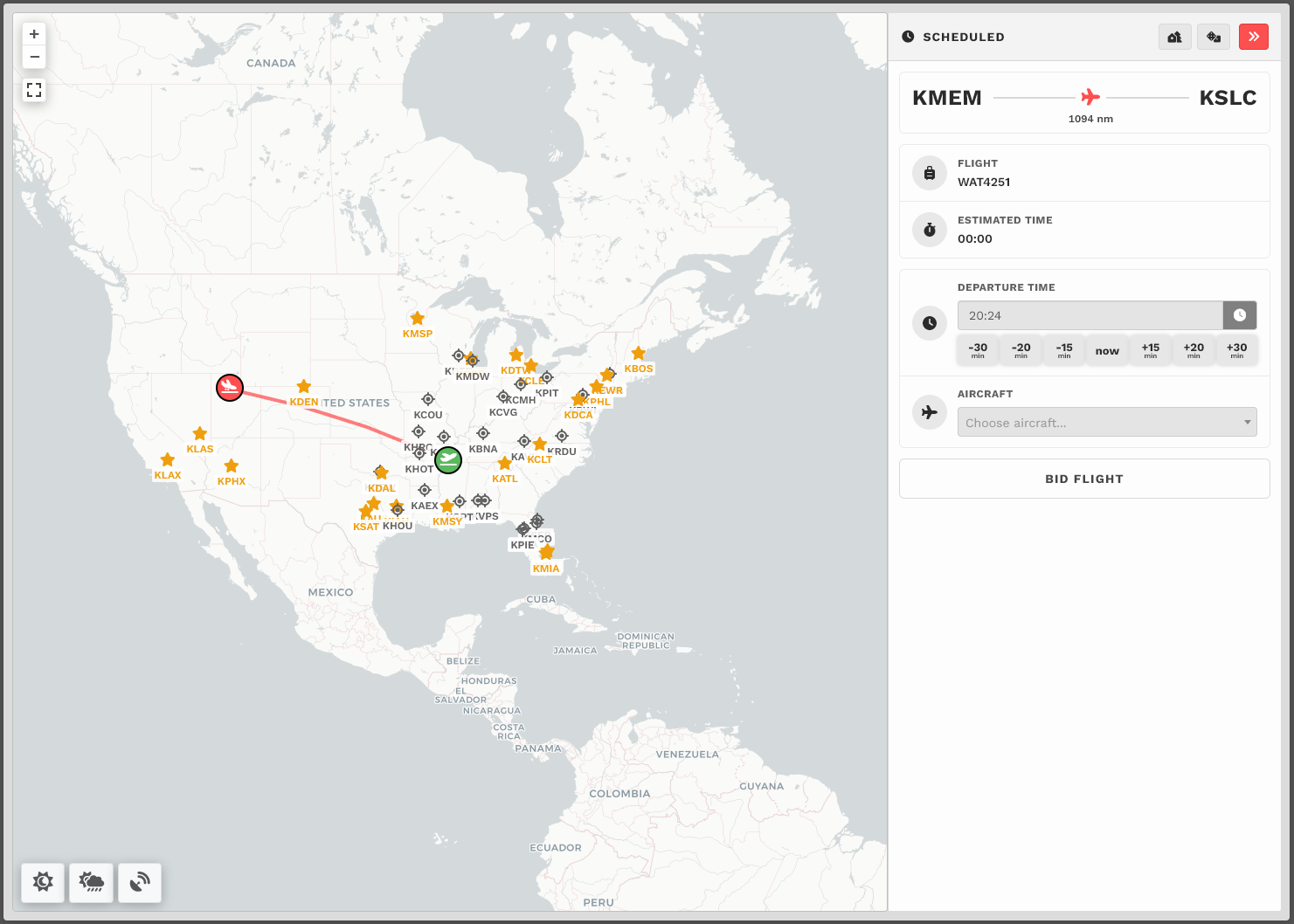
You'll then see your Flight Bid appear listing the Flight Number, Distance and Estimated Time Enroute.
The Estimated Time Enroute is only an estimate and does not reflect the time in the aircraft you select.
Bidding a Scheduled Flight
Choose your aircraft.
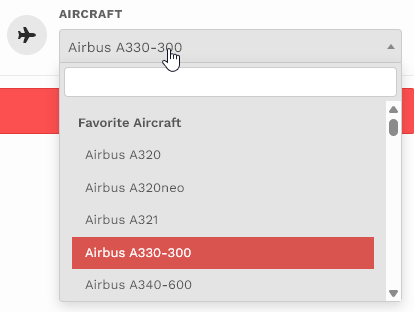
And then click Bid Flight.
