Groups & Channels
There are a number of Groups and Channels within our Discord.
The Groups and Channels are as follows:
Our Discord is dynamic and subject to change at any time to better serve the needs of our Pilot community. As such, the Groups and Channels listed below may not be 100% accurate at the time they’re viewed. The list will be updated periodically, though not on a regularly-scheduled basis. Login to our Discord to view the current list.
| Group | Channel | Description Of What's Posted In The Channel |
| Walker Air Transport | Access: All Pilots |
| events |
Links to live streams by our Pilots. |
| news |
General news from the flight simulation community. |
| notams |
Communications for the entire Pilot community. |
| #info |
An section containing high-level information about a number of things. |
| #roles |
A section containing information about Online Air Traffic Control (ATC) Networks. |
| Squawk | Access: All Pilots |
| lounge |
Voice chat with others in our community. |
| group flight |
Fly with others in our community. |
| live flight |
Share your flight with our community. |
| live flight 2 |
Share your flight with our community. |
| Community | Access: All Pilots |
| #general |
Anything related to flight simulation. |
| #hardware |
Anything related to computer or flight sim hardware. |
| #memes-video |
Any image paired with a concept or catchphrase or video you’d like to share. |
| #real-life |
Anything related to real life you wish to share. |
| #screenshots |
Screen shots of anything related to flight simulation. |
| #support |
Ask for help – for VA-related matters only. |
The Groups noted below have sub-channels which haven’t been listed. To view them in Discord, click on the Group’s name.
| ATC Networks | Access: All Pilots |
| ATC Networks |
Anything related to ATC Networks – IVAO, PilotEdge, POSCON and VATSIM. |
| MSFS |
Access: All Pilots |
| MSFS |
Anything related to Microsoft® Flight Simulator 2020 |
| P3D/FSX |
Access: All Pilots |
| P3D/FSX |
Anything related to Microsoft® Flight Simulator FSX and Lockheed Martin Prepar3D® |
| X-Plane |
Access: All Pilots |
| P3D/FSX |
Anything related to Laminar Research X-Plane |
| Licensed Pilots |
Access: Limited – Viewing and Posting :: For Student and Licensed Pilots |
| Licensed Pilots |
Chat about piloting with Company Pilots having real-world Pilot credentials. |
There are also Channels where you must opt-in to view them. Access them by doing the following:
Right-click your avatar or name.
| In the box that opens, click the chevron to the right of Roles. |  |
|
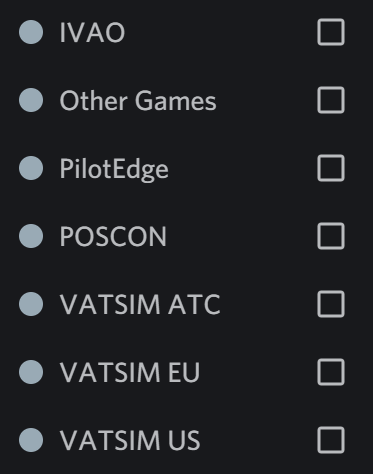
The opt-in Channels available to you are listed in the Text Box.
To opt-in to a Channel, click the box beside it. To opt-out of a Channel, unclick the box beside it.
After completing your actions, click anywhere on your screen to have the Text Box disappear. |
 |
Active comments in any Group or Channel will make its name appear in bold print.
How do I opt-in or opt out of special channels in Discord?
To opt-in or opt-out of any special channel in Discord, do the following:
| Opt-In | Opt-Out |
|
Right-click your Avatar or WAT ID.
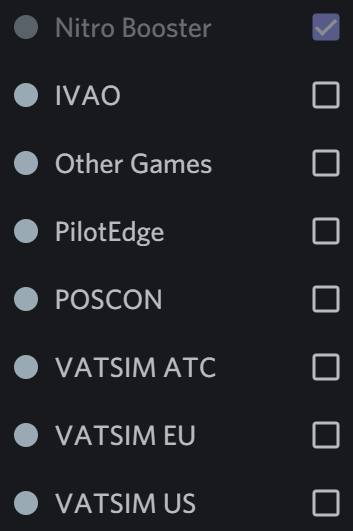
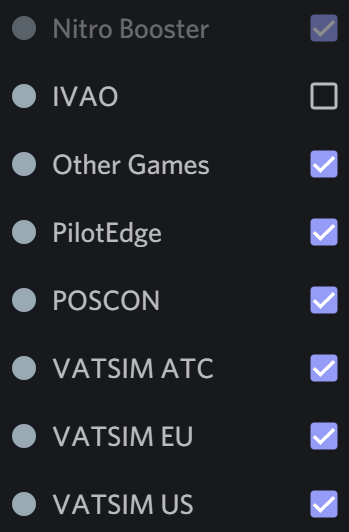
In this box, click the check box beside the channels you wish to join. Above, this Pilot hasn't joined joined any available channels.
If you do not have a check mark within a blue box beside a channel, you will not be able to access it.
Below, this Pilot has joined all available channels, with the exception of IVAO.
|
Right-click your Avatar or WAT ID.
|