
Downloading & Installing ACARS
In order for our customized, proprietary Flight Data System to function properly, it must be connected to your Sim so the data your flight generates can be transmitted to it. That transmission of data is facilitated by ACARS software.
The term ACARS is intended to cover all Fight Tracking Software.
| Windows | PC | MacOS (X-Plane Only) |
| smartCARS | FlightTrackerXP |
Depending on your computer's Operating System and the Sim you use, one of these Flight Tracking Software programs must be installed in order for you to fly with us.
smartCARS | Download
smartCARS is Flight Tracking Software made exclusively for all versions Microsoft® Flight Simulator, Lockheed Martin's Prepar3D, and Laminar Research's X-Plane.
Download smartCARS by clicking the link below.
LINK:
smartCARS | Installation
After clicking the link, the item below will appear on your screen. Click Save File.
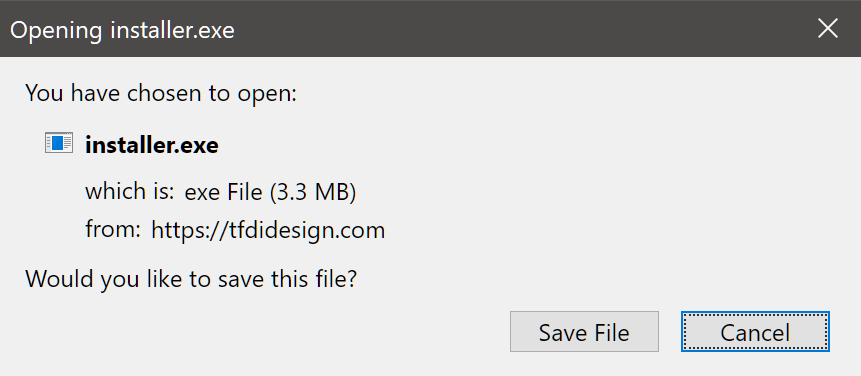
Locate the Installer on your computer. It will likely be in a Downloads Folder.
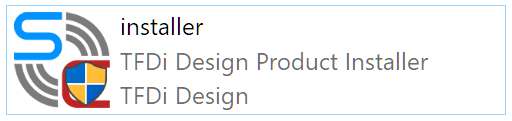
When you find it, right-click the file. Select Run As Administrator and follow the prompts to install it on your computer.
smartCARS | Configure Settings
Before you use this software for the first time, it needs to be properly configured to work with our Flight Data System.
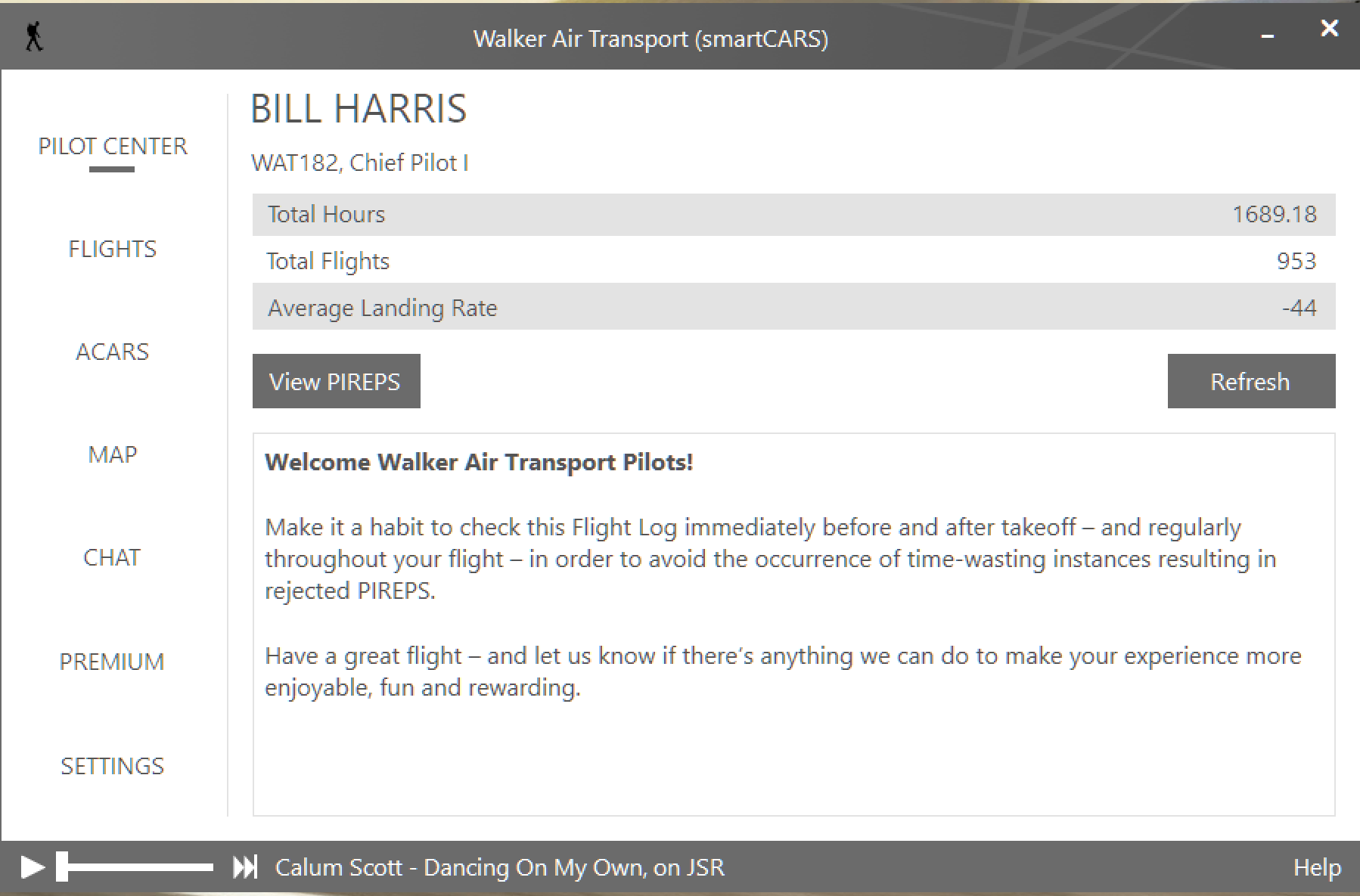
To configure smartCARS, open it. The screen below will appear.
As a new Pilot who hasn't completed any flights, there will be no data in the areas where you see it in the image below. Once you complete your first flight, data capture begins.
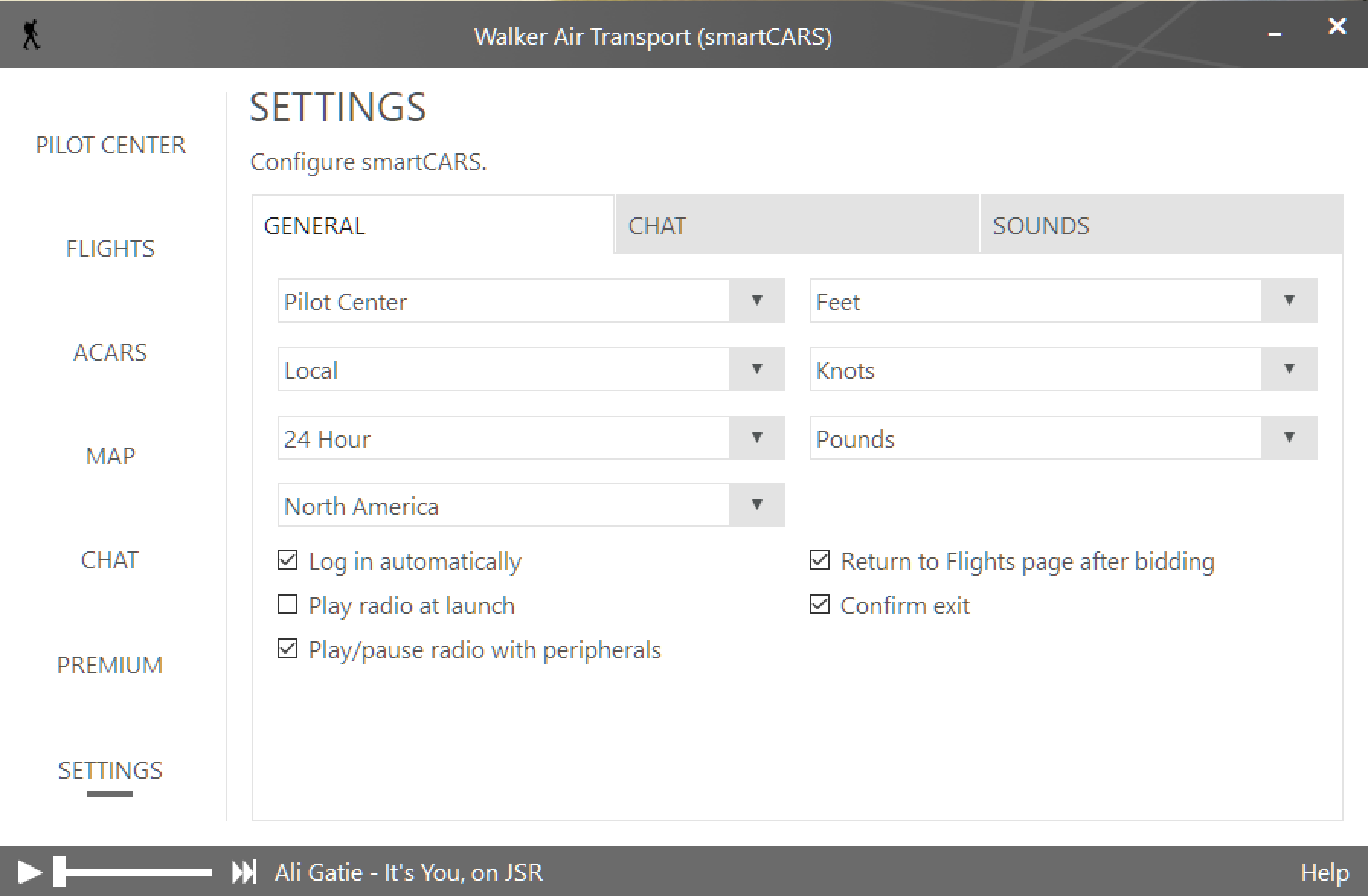
General
Review the settings in the image below, and, as appropriate, customize them to your preferences.
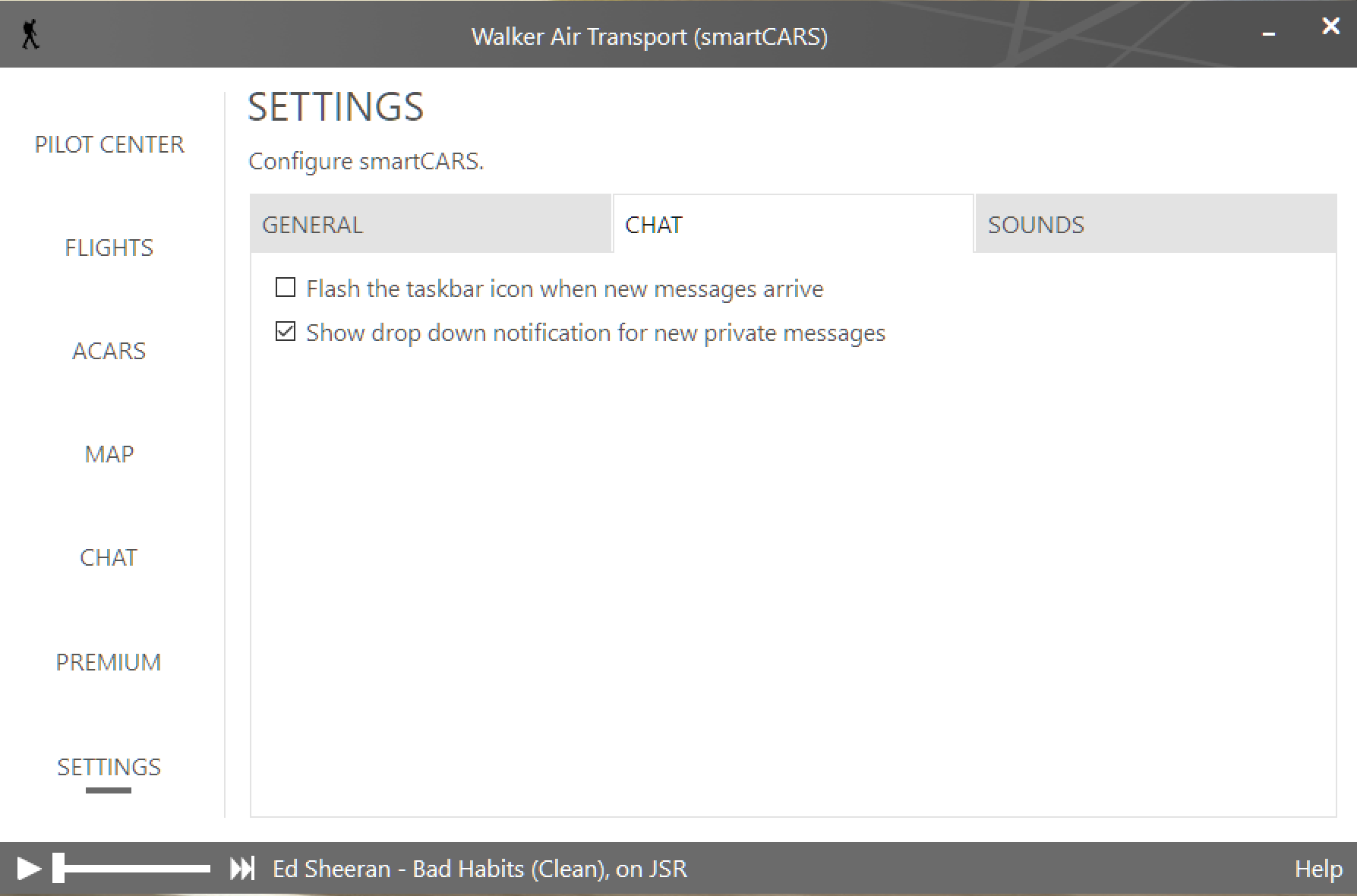
Chat
We do not formally use this feature; however, you're free to use it if you care to do so. Review the settings in the image below, and, as appropriate, customize them to your preferences.
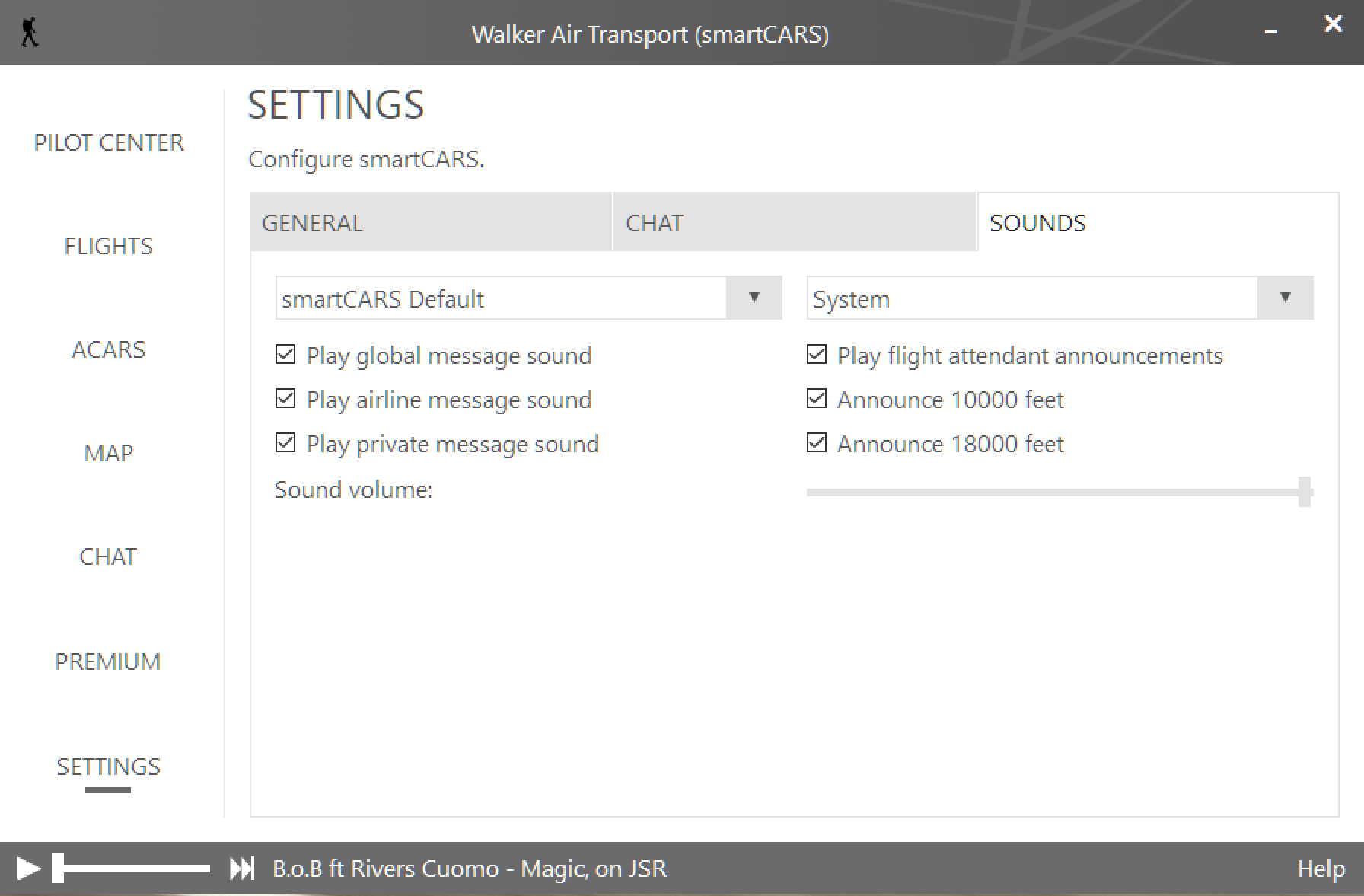
Sounds
Review the settings in the image below, and, as appropriate, customize them to your preferences.
FlightTrackerXP | Download
FlightTrackerXP | Installation
FlightTrackerXP | Configure Settings