
The Navigation Bar – Company
This is the Company page. Here, as you can see below, you'll find additional information about the items listed.
|
|
Airline
This page contains information about the Company’s three [3] Airlines/Fleets:
| Cargo Flight Operations |
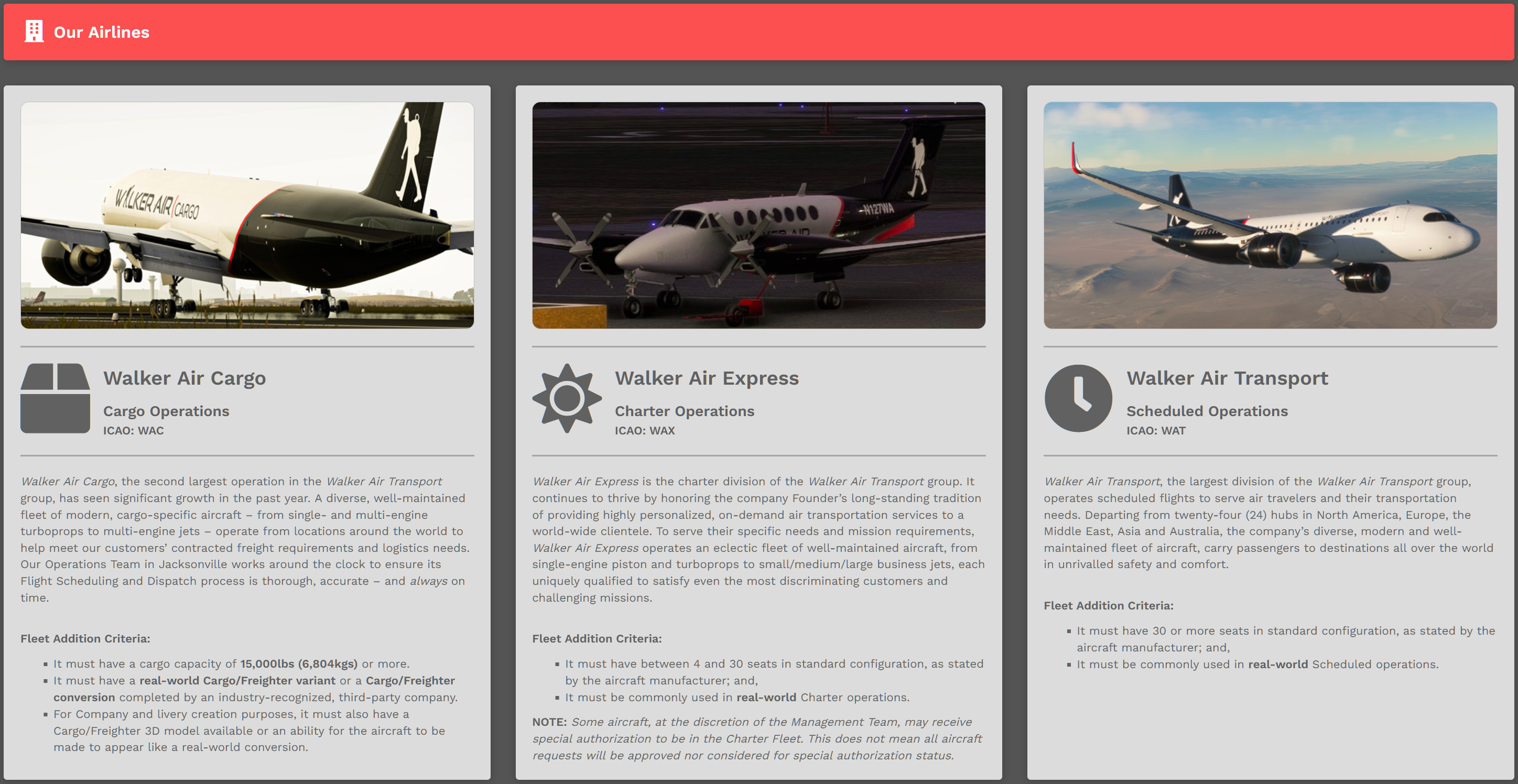
At the bottom of each of these descriptions, you'll see the criteria we use to add new aircraft to it.
Should you ever request a Fleet addition, keep them in mind.
Airports
There are multiple areas within this page you may find helpful when planning flights.
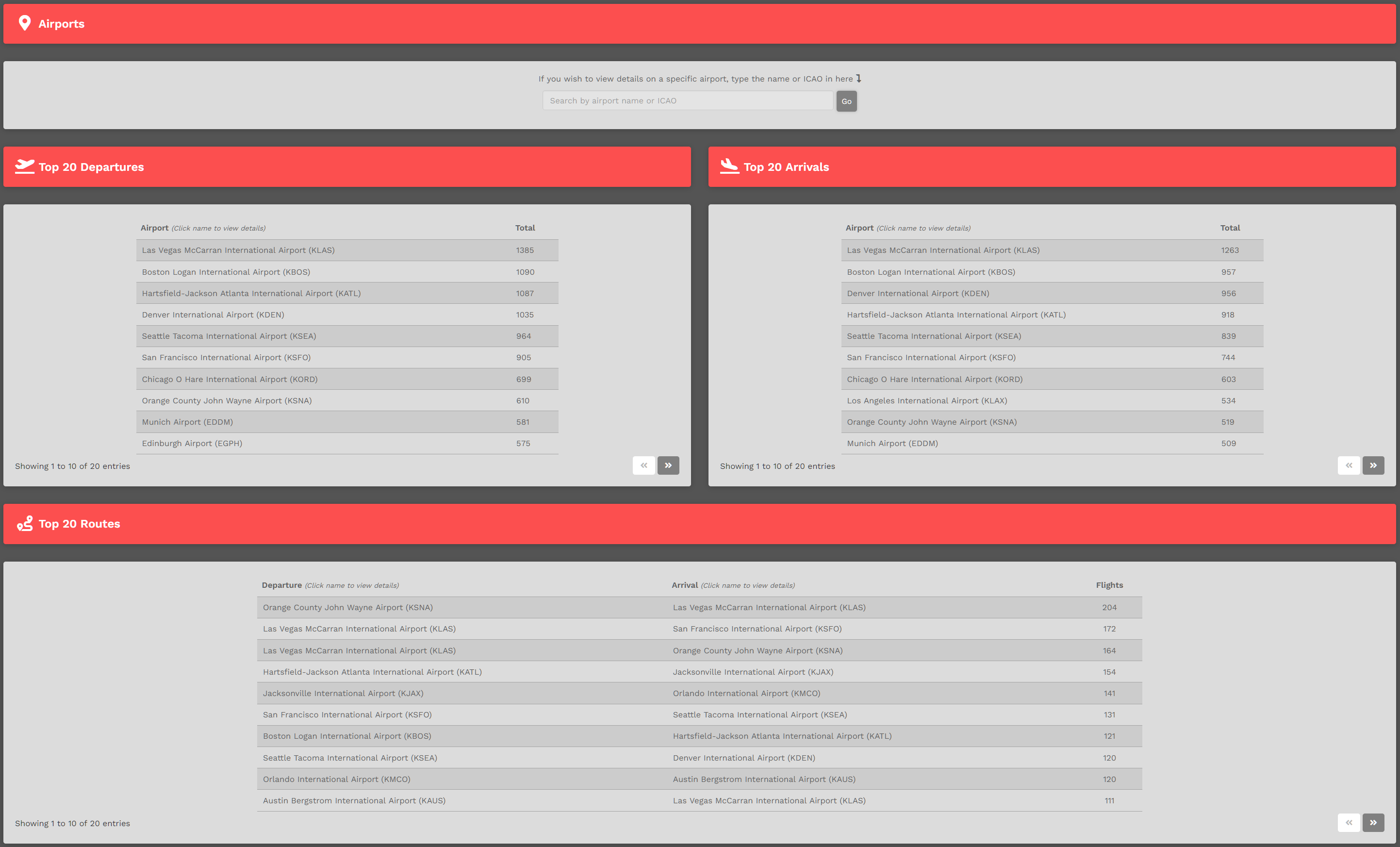
Let's take a closer look at each of this page's areas...
This is the Airport Search Area. Enter an airport’s name or ICAO Code in the Text Box and view detailed information about its activity.

EXAMPLE: KDSM | Des Moines International Airport
Type KDSM in the Text Box.

This is the Page Identification Bar. Here, it shows the name of the airport who's information is displayed.
To return to the Airports page at any time, click the arrow icon in the grey box at the right end of the Bar.

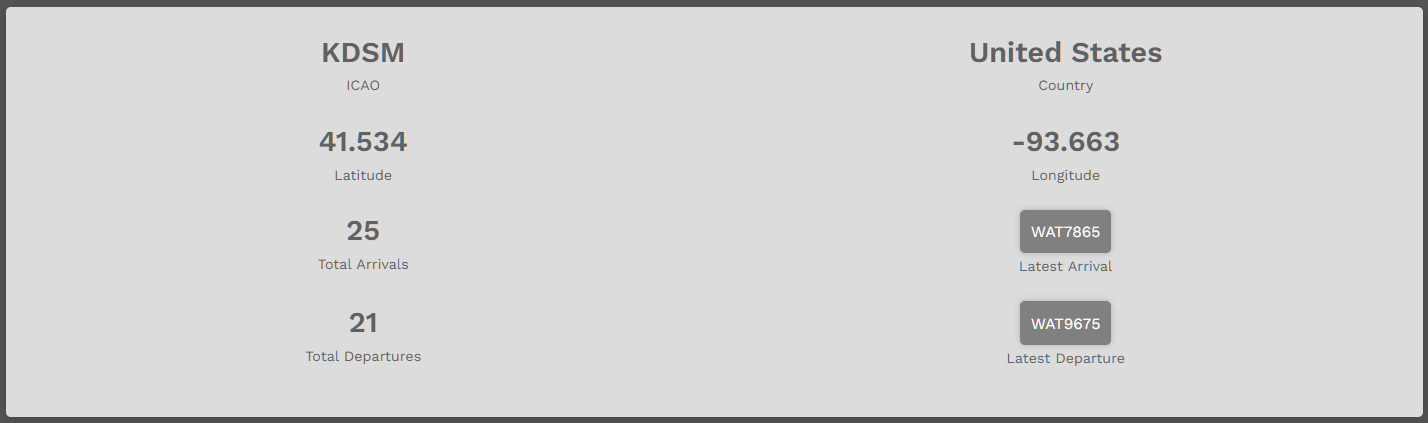
This is the Airport Details area.
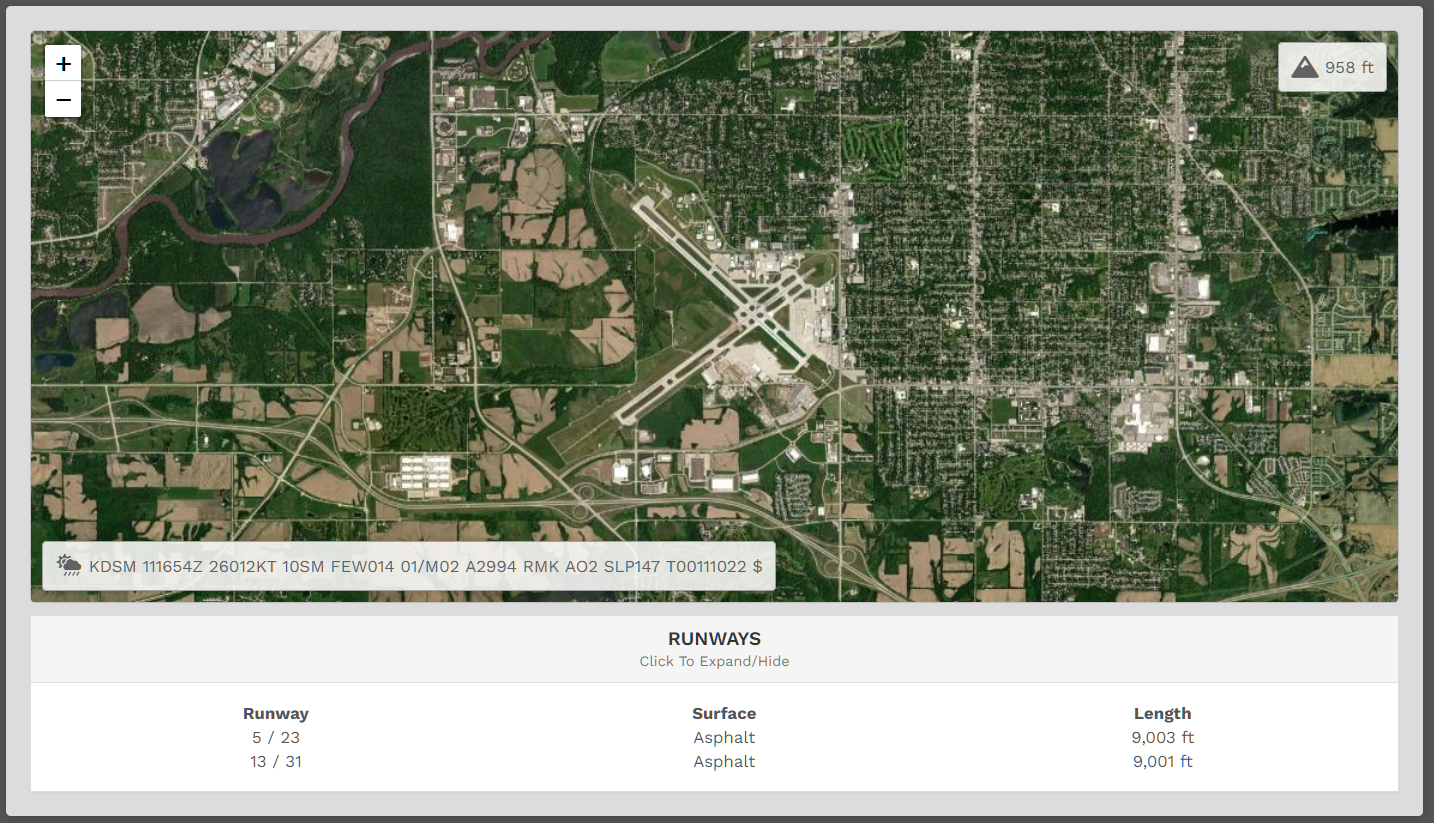
This is the Map View. The Runways | Click To Expand/Hide area is also illustrated. In addition to an overhead view, the airport's field elevation and current METAR are shown.
This is the Top Pilot area. The name of the Company Pilot with the greatest number of Departures and Arrivals at this airport will be noted here. In our example, the Pilot for each just happens to be the same. That will not always be the case.

To view a Top Pilot's Profile/Logbook, click on their name.
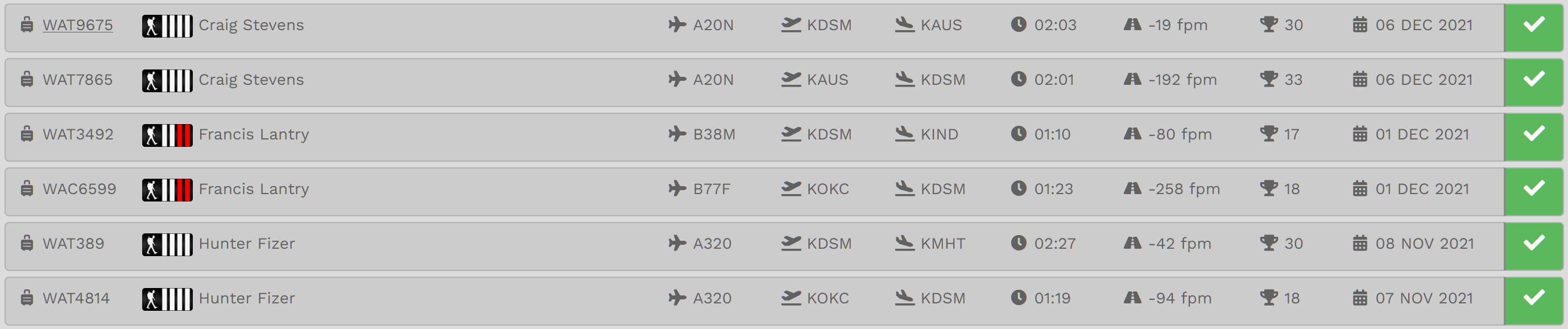
This is the Last 25 Flights area.
To see more detail about any of these flights and/or the Pilots flying them, click the Flight Number, Pilot Name or Colored Box at the end of a row.

Let's now take a look at how this differs when you select your Home Airport...
We'll use WAT182 Bill H. and his Home Base of KTIW | Tacoma Narrows Airport as an example.
In the Airport Search Area, enter KTIW.

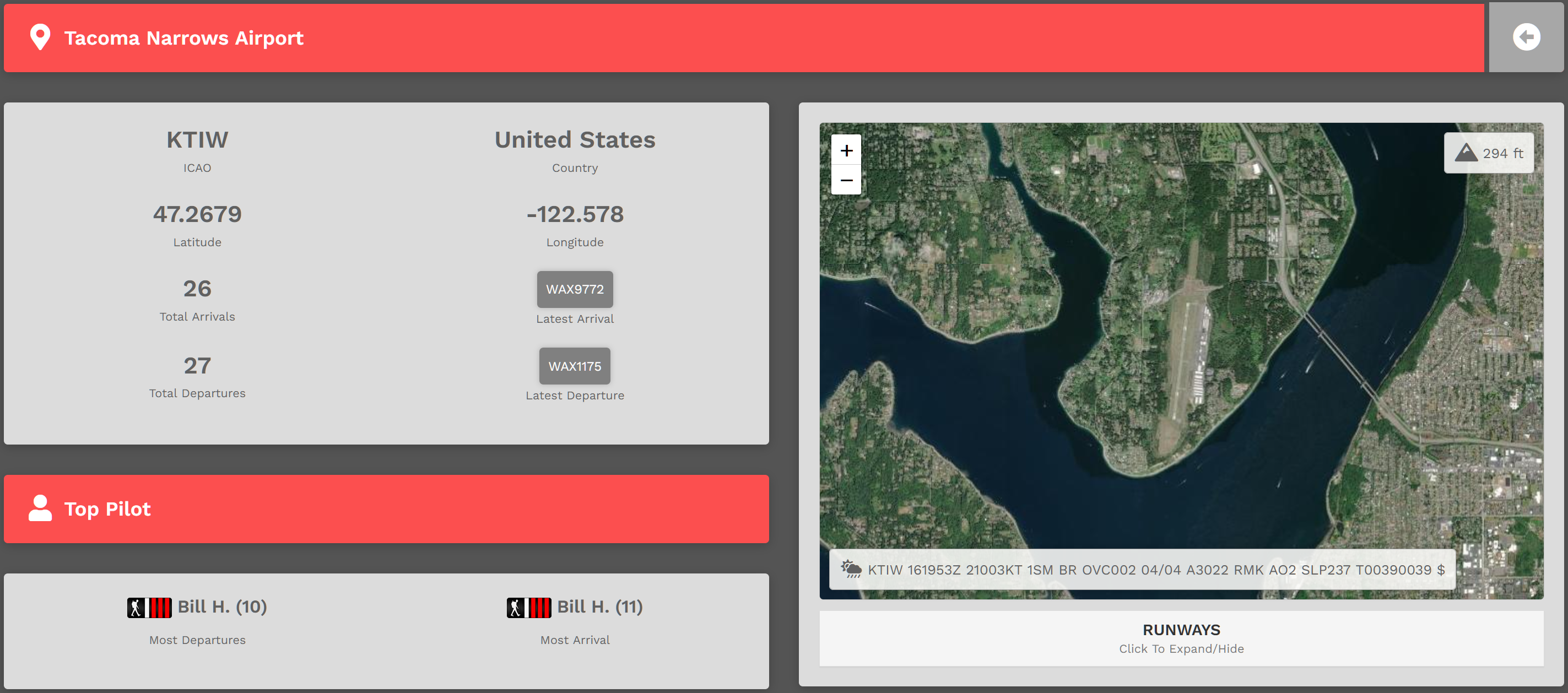
... with the exception of the appearance of the Based at my Home box.

Every Company Pilot having this airport at their Home would be shown here. This, however, is only visible to those with a Home here. It cannot be seen by anyone else.