# Microsoft Flight Simulator
---
Locate your **Community Folder** for **Microsoft Flight Simulator**.
**NOTE:** *The location depends on **how** you installed the simulator and whether it was downloaded from the Windows Store or Steam.*
**For the Windows Store Install:**
C:\\Users\\\[Your User Name\]\\AppData\\Local\\Packages\\Microsoft.FlightSimulator\_8wekyb3d8bbwe\\LocalCache\\Packages\\
**For the Steam install:**
C:\\Users\\\[Your User Name\]\\AppData\\Local\\Packages\\Microsoft.FlightDashboard\_8wekyb3d8bbwe\\LocalCache\\Packages\\
**IMPORTANT:** *Windows 10, by default, hides the “AppData” folder. Go to “View” in File Explorer's Menu and select 'Hidden Items' to see it.*
**For the Custom Install:**
If you happened to use a custom location for your Flight Simulator installation, then proceed there.
---
**1.** Download the livery you wish to install from the [*Walker Air Transport* site](https://crew.walkerair.us/downloads/liveries).
**2.** Open the zip file of the downloaded aircraft livery.
[](https://docs.walkerair.us/uploads/images/gallery/2022-01/image-1642262484899.png)
**3.** Copy the folder to your *Community Folder* location.
**NOTE:** *All of our liveries have a standard naming convention – WAT-ABCD. If that's **not** what you see in the Community Folder, then you incorrectly copied it and/or nested the folder.*
[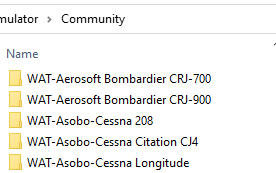](https://docs.walkerair.us/uploads/images/gallery/2022-01/image-1642262755104.png)
**4.** Load MSFS. You should now see a WAT livery for the aircraft you installed.