# 3. Help

Find answers to your questions here.

# ACARS

ACARS is a term used to refer to Flight Tracking software used to provide data to our System. That software is as follows:   
&gt; smartCARS for Windows PC  
&gt; FlightTrackerXP for MacOS (X-Plane only)

# FlightTrackerXP  |  MacOS

---

<p class="callout info">*Prior to 1 December 2021, this was known as **Belerophon**.*</p>

<p class="callout danger">*FlightTrackerXP is a **paid application**. You must purchase and download it from the Apple's App Store.   
We do **not** own, develop or provide support for it. For support, contact the Developer.*</p>

<table border="1" id="bkmrk-the-flighttrackerxp-" style="border-collapse: collapse; width: 100%;"><tbody><tr><td class="align-center" style="width: 19.2593%; vertical-align: middle;">[![image-1639693728883.png](https://docs.walkerair.us/uploads/images/gallery/2021-12/scaled-1680-/image-1639693728883.png)](https://docs.walkerair.us/uploads/images/gallery/2021-12/image-1639693728883.png)

</td><td style="width: 80.7407%; vertical-align: middle;">The **FlightTrackerXP** application is subscription-based flight tracking software created specifically for MacOS in support of Laminar Research's X-Plane.

It may be downloaded [**here**](https://apps.apple.com/pl/app/flighttrackerxp-monthly/id1559610916) from Apple's *App Store*.

Once downloaded, you'll be required to complete a few items to set it up.

</td></tr></tbody></table>

---

##### **Launch**

Once you open up the application, you will want to click on the + at the bottom right to add a virtual airline.

[![image-1691018946772.png](https://docs.walkerair.us/uploads/images/gallery/2023-08/scaled-1680-/image-1691018946772.png)](https://docs.walkerair.us/uploads/images/gallery/2023-08/image-1691018946772.png)

---

##### **Airline Configuration Page**

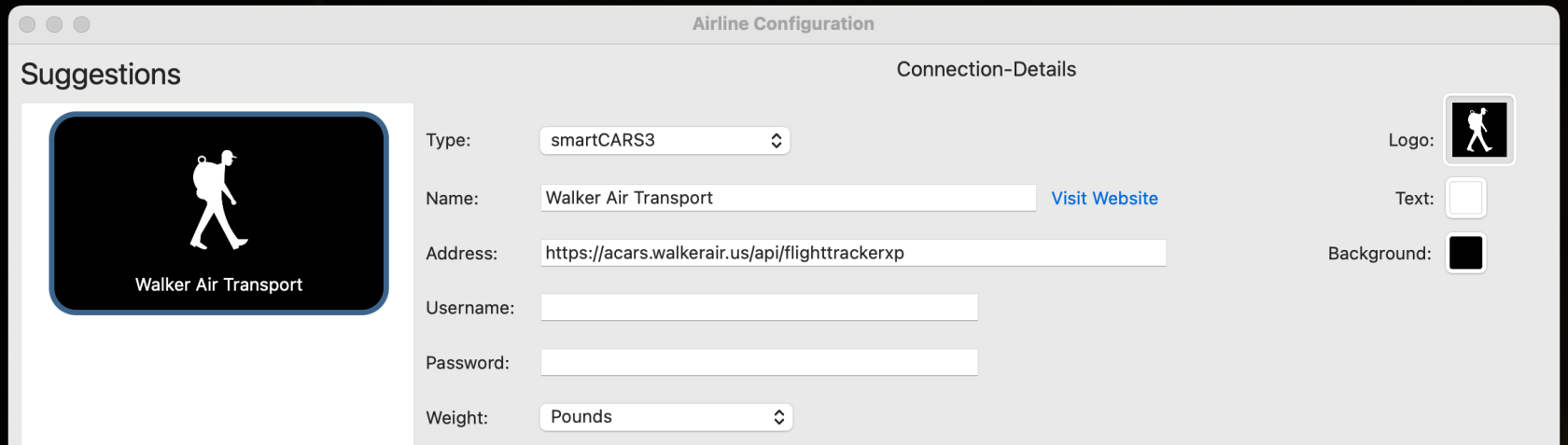
This is the **Airline Configuration Page**.

On the left side, scroll down and find Walker Air Transport and click it.

[![image-1691018953706.png](https://docs.walkerair.us/uploads/images/gallery/2023-08/scaled-1680-/image-1691018953706.png)](https://docs.walkerair.us/uploads/images/gallery/2023-08/image-1691018953706.png)

<p class="callout warning">*When you click on our airline, it is going to default to smartCARS 2 as the TYPE. You **<span style="text-decoration: underline;">must change</span>** this otherwise you will be unable to log in. We do not support FlightTrackerXP on the smartCARS 2 API as of August 15th, 2023.*</p>

[![image-1691019047846.png](https://docs.walkerair.us/uploads/images/gallery/2023-08/scaled-1680-/image-1691019047846.png)](https://docs.walkerair.us/uploads/images/gallery/2023-08/image-1691019047846.png)

<table border="1" id="bkmrk-type-smartcars-3-nam" style="border-collapse: collapse; width: 100%;"><tbody><tr><td style="width: 14.4444%;">**Type**</td><td style="width: 85.5556%;">smartCARS 3</td></tr><tr><td style="width: 14.4444%;">**Name**</td><td style="width: 85.5556%;">Walker Air Transport</td></tr><tr><td style="width: 14.4444%;">**Address**</td><td style="width: 85.5556%;">https://acars.walkerair.us/api/flighttrackerxp</td></tr><tr><td style="width: 14.4444%;">**Username**</td><td style="width: 85.5556%;">This is your email address used to log into CrewOps</td></tr><tr><td style="width: 14.4444%;">**Password**</td><td style="width: 85.5556%;">This is the password used to log into CrewOps

</td></tr><tr><td style="width: 14.4444%;">**Other Settings**</td><td style="width: 85.5556%;">You are free to set these as you wish

</td></tr></tbody></table>

Click the **Save** button.

---

##### **Home Page**

On the **Home Page**, your Pilot stats can be viewed.

[![image-1638193788918.png](https://docs.walkerair.us/uploads/images/gallery/2021-11/scaled-1680-/image-1638193788918.png)](https://docs.walkerair.us/uploads/images/gallery/2021-11/image-1638193788918.png)

---

##### **Bookings Page**

On the **Bookings Page**, you can view your Bids.

Enter your route in the **Route** *Text Box* and and click the **Start Tracking** button to begin your flight.

[![image-1638193953019.png](https://docs.walkerair.us/uploads/images/gallery/2021-11/scaled-1680-/image-1638193953019.png)](https://docs.walkerair.us/uploads/images/gallery/2021-11/image-1638193953019.png)

**Notice about Online Networks**

Do **not** select an online network in the *“Online Network”* dropdown within FlightTrackerXP. We do not use ACARS data to determine whether you are flying on an ATC network.

To appear on our maps and have your PIREPs correctly reflect the network, you must configure your Network ID(s) in your pilot profile.

[***Click here to read how to add your ID(s) to your pilot profile.***](https://docs.walkerair.us/books/2-training/page/pilot-profile-settings-my-information "Pilot Profile – Settings > My Information")

---

##### **ACARS Page**

On the **ACARS Page**, your active flight and log file are displayed.

At end of your flight, click the **Finish** button. Your flight data will be transmitted to our *Flight Data System* to generate your PIREP.

[![image-1638194236210.png](https://docs.walkerair.us/uploads/images/gallery/2021-11/scaled-1680-/image-1638194236210.png)](https://docs.walkerair.us/uploads/images/gallery/2021-11/image-1638194236210.png)

---

##### **Map Page**

On the **Map Page**, you can track your flight.

[![image-1638194424564.png](https://docs.walkerair.us/uploads/images/gallery/2021-11/scaled-1680-/image-1638194424564.png)](https://docs.walkerair.us/uploads/images/gallery/2021-11/image-1638194424564.png)

---

##### **Support**

<table border="1" id="bkmrk-user-manual-flighttr" style="border-collapse: collapse; width: 100%;"><tbody><tr><td style="width: 13.5802%;">**User Manual**</td><td style="width: 86.4198%;">*FlightTrackerXP's* **User Manual** can be accessed here:  
**[https://www.griesslehner.at/flighttrackerxp/manual](https://www.griesslehner.at/flighttrackerxp/manual)**</td></tr><tr><td style="width: 13.5802%;">**Discord**</td><td style="width: 86.4198%;">If you have installation or start-up issues with *FlightTrackerXP*, you must contact the Developer on their *Discord*. The staff at *Walker Air Transport* will **not** be able to provide application support outside an invalid login account.  
*Discord* Link: [**https://discord.com/invite/GF9sEdE**](https://discord.com/invite/GF9sEdE)</td></tr></tbody></table>

# New Page


# smartCARS 3 | Windows PC, Mac OS, and Linux

<p class="callout warning">*If you haven't already read the [Flight Operations](https://docs.walkerair.us/books/3-help/chapter/flight-operations "Flight Operations") chapter, we recommend you do so now before continuing.*</p>

#### **Download and Support**

To download smartCARS 3 for PC, Mac, or Linux, please visit here: [https://smartcars.tfdidesign.com/central/download](https://smartcars.tfdidesign.com/central/download)

If you require support with the application, you need to **contact TFDi Designs** at one of the links below.

*Walker Air Transport cannot provide support for the application.*

Discord: [https://tfdidesign.com/chat](https://tfdidesign.com/chat)  
GitHub: [https://github.com/invernyx/smartcars-3-bugs](https://github.com/invernyx/smartcars-3-bugs)  
Support Portal: [https://support.tfdidesign.com/support/home](https://support.tfdidesign.com/support/home)

You can view the official user manual from TFDi here: [https://docs.invernyx.com/en/smartcars3/user-guide](https://docs.invernyx.com/en/smartcars3/user-guide)

The following details below will walk you through the application from the perspective of a pilot at Walker Air Transport. There are features in the TFDi user manual that we will/do not deploy in our virtual airline.

---

#### **Simulator Specific Settings**

##### **Microsoft Flight Simulator**

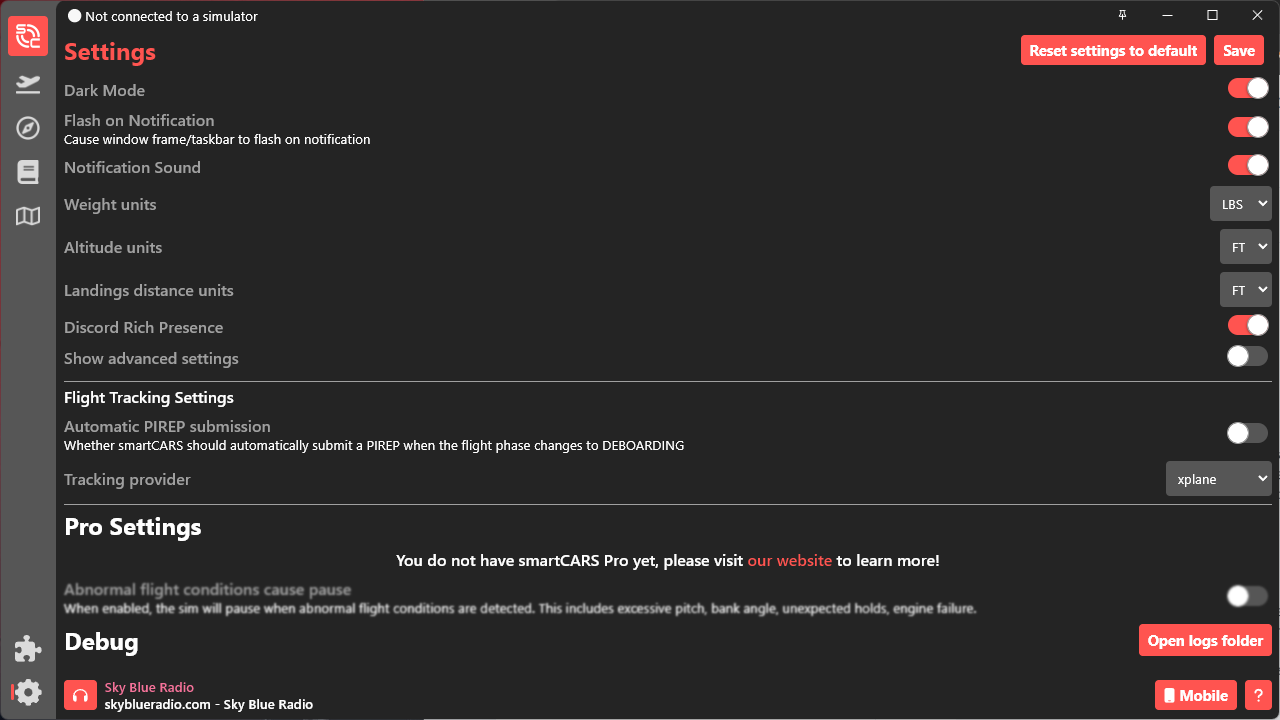
We recommend that "Automatic PIREP submission" be disabled -- this will result in invalid flights being submitted to Walker that will be automatically rejected.

Tracking Provider will be set to "simconnect".

[![image-1743375379469.png](https://docs.walkerair.us/uploads/images/gallery/2025-03/scaled-1680-/image-1743375379469.png)](https://docs.walkerair.us/uploads/images/gallery/2025-03/image-1743375379469.png)

##### **X-Plane**

<p class="callout danger">*If you have a VPN program installed, it needs to be connected, uninstalled, or you need to adjust the network adapter weight (according to Laminar this is a solution for those who need to retain a VPN but don't use it all the time) so that it will not interfere with XP UDP connectivity to 3rd party apps.*</p>

We recommend that "Automatic PIREP submission" be disabled -- this will result in invalid flights being submitted to Walker that will be automatically rejected.

Tracking Provider will be set to "xplane".

[![image-1743375390969.png](https://docs.walkerair.us/uploads/images/gallery/2025-03/scaled-1680-/image-1743375390969.png)](https://docs.walkerair.us/uploads/images/gallery/2025-03/image-1743375390969.png)

2\. You cannot run your simulator as administrator. If you have "User Access Control" enabled on your PC and you received a popup asking you if you wanted to run X-Plane, MSFS, or Prepar3D and you clicked yes -- your application has been hard set to "run as administrator". If you attempt to try and fly you will be presented with this error.

[![image-1693575958087.png](https://web.archive.org/web/20241119071819im_/https://docs.walkerair.us/uploads/images/gallery/2023-09/scaled-1680-/image-1693575958087.png)](https://web.archive.org/web/20241119071819/https://docs.walkerair.us/uploads/images/gallery/2023-09/image-1693575958087.png)

<table border="1" id="bkmrk-how-can-i-fix-this%3F-"><tbody><tr><td>[![image-1693576050086.png](https://web.archive.org/web/20241119071819im_/https://docs.walkerair.us/uploads/images/gallery/2023-09/scaled-1680-/image-1693576050086.png)](https://web.archive.org/web/20241119071819/https://docs.walkerair.us/uploads/images/gallery/2023-09/image-1693576050086.png)

</td><td>**How can I fix this?**

You will need to find your executable file (*not your shortcut file)*, right click and choose properties, compatibility, and uncheck the "Run as Administrator".

Another option is to also completely disable 'User Access Control' but that is your choice. You can watch this video and decide: [https://www.youtube.com/watch?v=D2XlznYAcAQ](https://web.archive.org/web/20241119071819/https://www.youtube.com/watch?v=D2XlznYAcAQ)

If you continue to have problems after doing this, you will need to contact TFDi at the support links above.

</td></tr></tbody></table>

---

#### <span class="font-18">**Using smartCARS 3**</span>

#####  

##### <span class="font-18">**Logging into smartCARS 3**</span>

When you launch smartCARS 3, you will be asked to log in with your TFDi account.

[![image-1688299785001.png](https://web.archive.org/web/20241119071819im_/https://docs.walkerair.us/uploads/images/gallery/2023-07/scaled-1680-/image-1688299785001.png)](https://web.archive.org/web/20241119071819/https://docs.walkerair.us/uploads/images/gallery/2023-07/image-1688299785001.png)

*You do not have to create or login with an account, you can simply click on 'Skip TFDi Design Login.*

<p class="callout info">*If you choose to not create and/or login with a TFDi account, you will not be visible on their map under our virtual airline. You will also be unable to access your premium features you purchased from TFDi.*</p>

On the next screen, choose 'Walker Air Transport'.

[![image-1688299681662.png](https://web.archive.org/web/20241119071819im_/https://docs.walkerair.us/uploads/images/gallery/2023-07/scaled-1680-/image-1688299681662.png)](https://web.archive.org/web/20241119071819/https://docs.walkerair.us/uploads/images/gallery/2023-07/image-1688299681662.png)

You can now log into our virtual airline by using your **email** or **pilot ID number** (do not include WAT, just enter the 3-4 digits.)  
The username and password here is the exact same username and password used to log into our website.

[![image-1688299926444.png](https://web.archive.org/web/20241119071819im_/https://docs.walkerair.us/uploads/images/gallery/2023-07/scaled-1680-/image-1688299926444.png)](https://web.archive.org/web/20241119071819/https://docs.walkerair.us/uploads/images/gallery/2023-07/image-1688299926444.png)

<p class="callout info">*If you cannot log in, please attempt to log into **[https://crew.walkerair.us](https://crew.walkerair.us)** -- if that works then you are typing something wrong in smartCARS 3.*</p>

---

##### **Main Page**

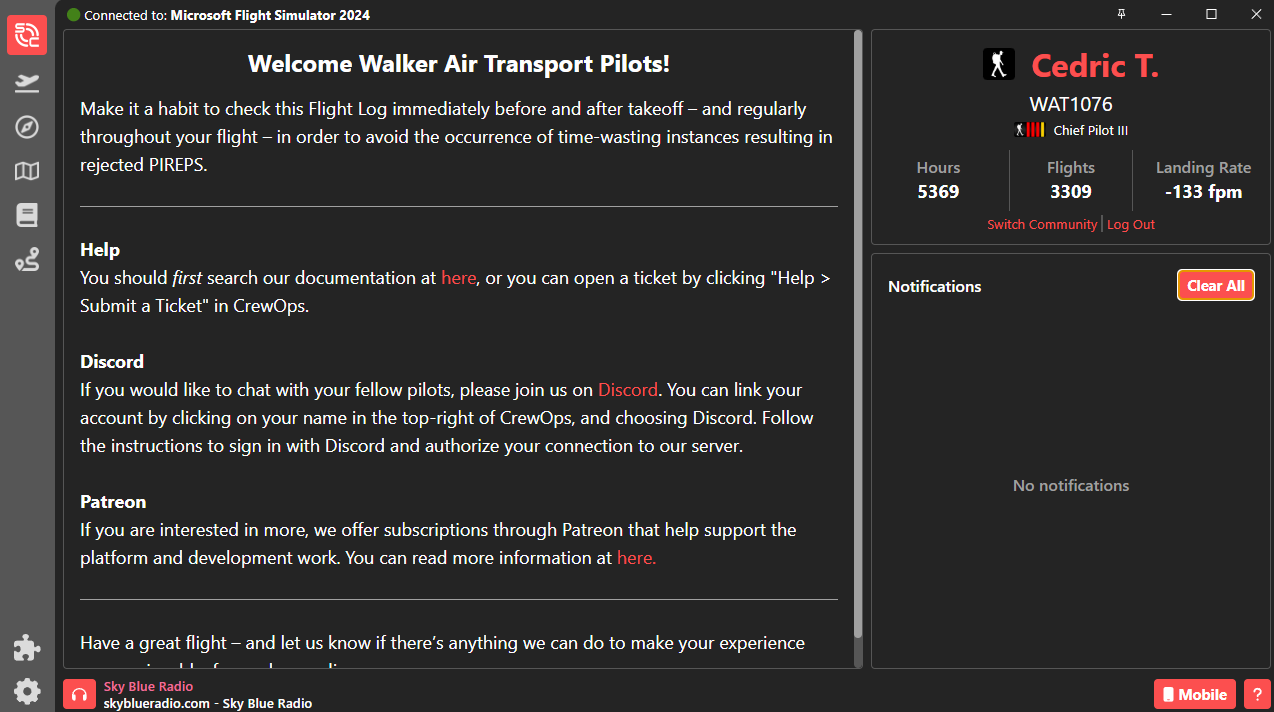
The **Main Page** screen containing your **name, pilot ID,** and **rank** will appear together with your personal statistics – **total hours, total flights** and **average landing rate**. You will also get notifications in this panel as well as be able to logout using the button under your name and rank.

<p class="callout info">*For a new, first time Pilot, these fields will be blank because no flights have been completed.*</p>

To navigate through the remaining sections within *smartCARS*, click the icons in the left column. You can drag these icons around as well to create your preferred menu layout.

[![image-1741425325394.png](https://docs.walkerair.us/uploads/images/gallery/2025-03/scaled-1680-/image-1741425325394.png)](https://docs.walkerair.us/uploads/images/gallery/2025-03/image-1741425325394.png)
---

##### **My Flights**

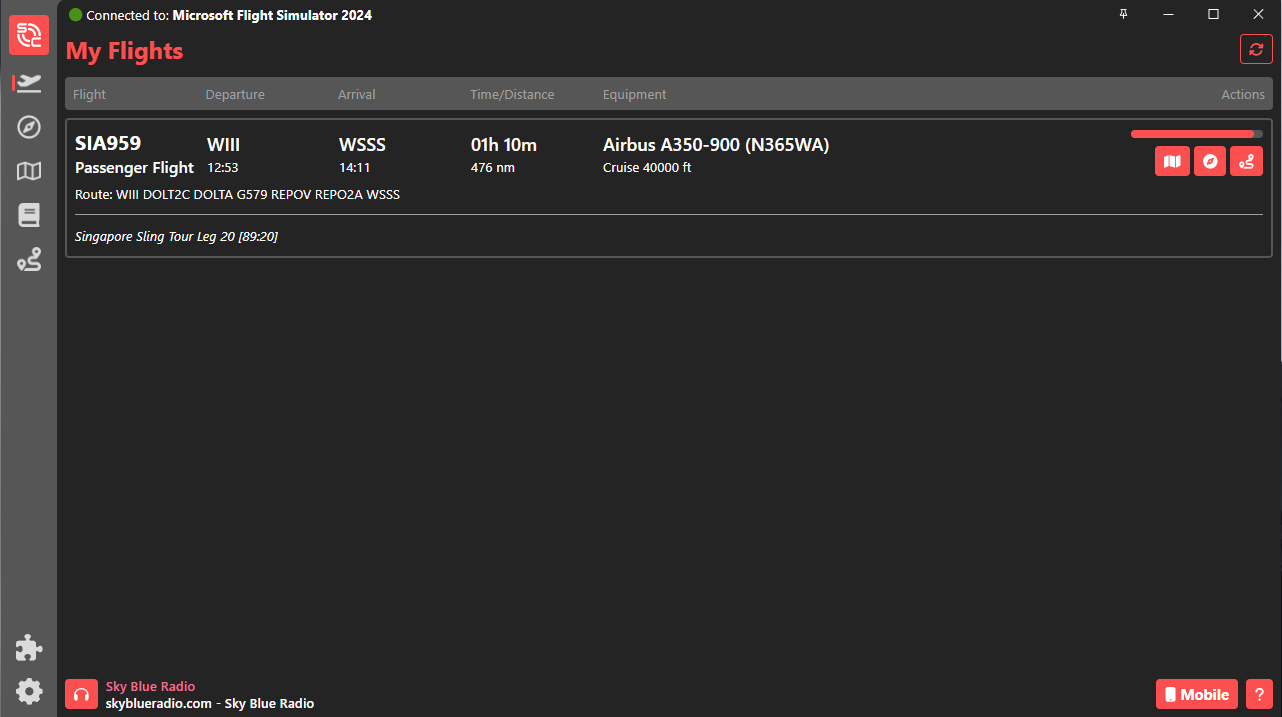
In order to see the flights that you’ve completed a **[bid](https://web.archive.org/web/20241119071819/https://docs.walkerair.us/books/2-training/page/flights-my-bids)** from the crew site, click on this [![image-1688300033767.png](https://web.archive.org/web/20241119071819im_/https://docs.walkerair.us/uploads/images/gallery/2023-07/scaled-1680-/image-1688300033767.png)](https://web.archive.org/web/20241119071819/https://docs.walkerair.us/uploads/images/gallery/2023-07/image-1688300033767.png)icon on the left side of the screen.

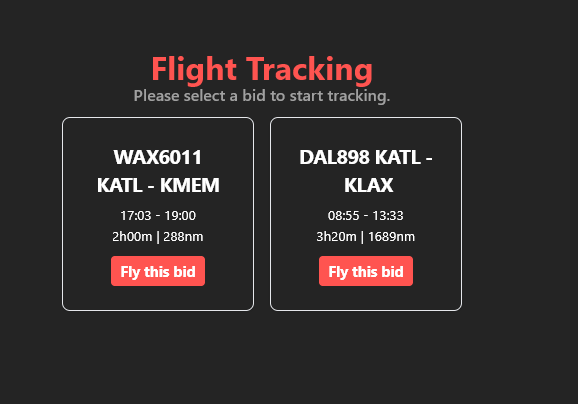
You no longer need to start a flight manually, smartCars3 should automatically detect you are at the departure airport and start the bid. In case you have multiple bids from the same origin airport, SC3 will ask which bid you would like to use.

[![image-1741425562280.png](https://docs.walkerair.us/uploads/images/gallery/2025-03/scaled-1680-/image-1741425562280.png)](https://docs.walkerair.us/uploads/images/gallery/2025-03/image-1741425562280.png)
**NOTE:** *If you've completed a Bid and it doesn't show up, click the [![image-1688300076378.png](https://web.archive.org/web/20241119071819im_/https://docs.walkerair.us/uploads/images/gallery/2023-07/scaled-1680-/image-1688300076378.png)](https://web.archive.org/web/20241119071819/https://docs.walkerair.us/uploads/images/gallery/2023-07/image-1688300076378.png)icon on the top right.*

[![image-1741425341666.png](https://docs.walkerair.us/uploads/images/gallery/2025-03/scaled-1680-/image-1741425341666.png)](https://docs.walkerair.us/uploads/images/gallery/2025-03/image-1741425341666.png)
<p class="callout warning">*Please read this section in it's entirety, the way smartCARS 3 operates is completely different than smartCARS 2.*</p>

In smartCARS 3, a pilot is no longer required to enter their route, cruise altitude, and load. This information comes from a couple different sources within the Walker Air Transport bid as well as simBrief.

<table border="1" id="bkmrk-route-your-route-wil"><tbody><tr><td style="width: 78px;">**Route**</td><td style="width: 731px;">Your route will be blank unless you used our simBrief integration to build your flight plan, and you have the SimBrief plugin installed and SimBrief ID set in smartCARS 3 settings</td></tr><tr><td style="width: 78px;">**Cruise Altitude**</td><td style="width: 731px;">Cruise is automated in smartCARS 3, it will detect when you are in this phase and adjust if you should have to conduct step climbs or descents.</td></tr><tr><td style="width: 78px;">**Load**</td><td style="width: 731px;">Every pilot briefing is given a random load based on a couple variables. You can see this load by visiting your pilot briefing and looking at the left side. If you use our simBrief integration to generate your flight plan, it will use the load provided by our website or a custom load you enter. [Read more here.](https://web.archive.org/web/20241119071819/https://docs.walkerair.us/books/3-help/page/simbrief)</td></tr></tbody></table>

<p class="callout info">*Using our simBrief integration (**[read more here](https://docs.walkerair.us/books/3-help/page/simbrief "simBrief")**) will ensure that your **route** and **load** are prepopulated for your flight.*</p>

**Notice about Online Networks**

Do **not** select an online network in the *“Online Network”* dropdown within smartCARS3. We do not use ACARS data to determine whether you are flying on an ATC network.

To appear on our maps and have your PIREPs correctly reflect the network, you must configure your Network ID(s) in your pilot profile.

[***Click here to read how to add your ID(s) to your pilot profile.***](https://docs.walkerair.us/books/2-training/page/pilot-profile-settings-my-information "Pilot Profile – Settings > My Information")

[![image-1741425648719.gif](https://docs.walkerair.us/uploads/images/gallery/2025-03/image-1741425648719.gif)](https://docs.walkerair.us/uploads/images/gallery/2025-03/image-1741425648719.gif)
Using the [![image-1688300396124.png](https://web.archive.org/web/20241119071819im_/https://docs.walkerair.us/uploads/images/gallery/2023-07/scaled-1680-/image-1688300396124.png)](https://web.archive.org/web/20241119071819/https://docs.walkerair.us/uploads/images/gallery/2023-07/image-1688300396124.png) button here will also delete your bid in our CrewOps.

---

##### **Flight Tracking**

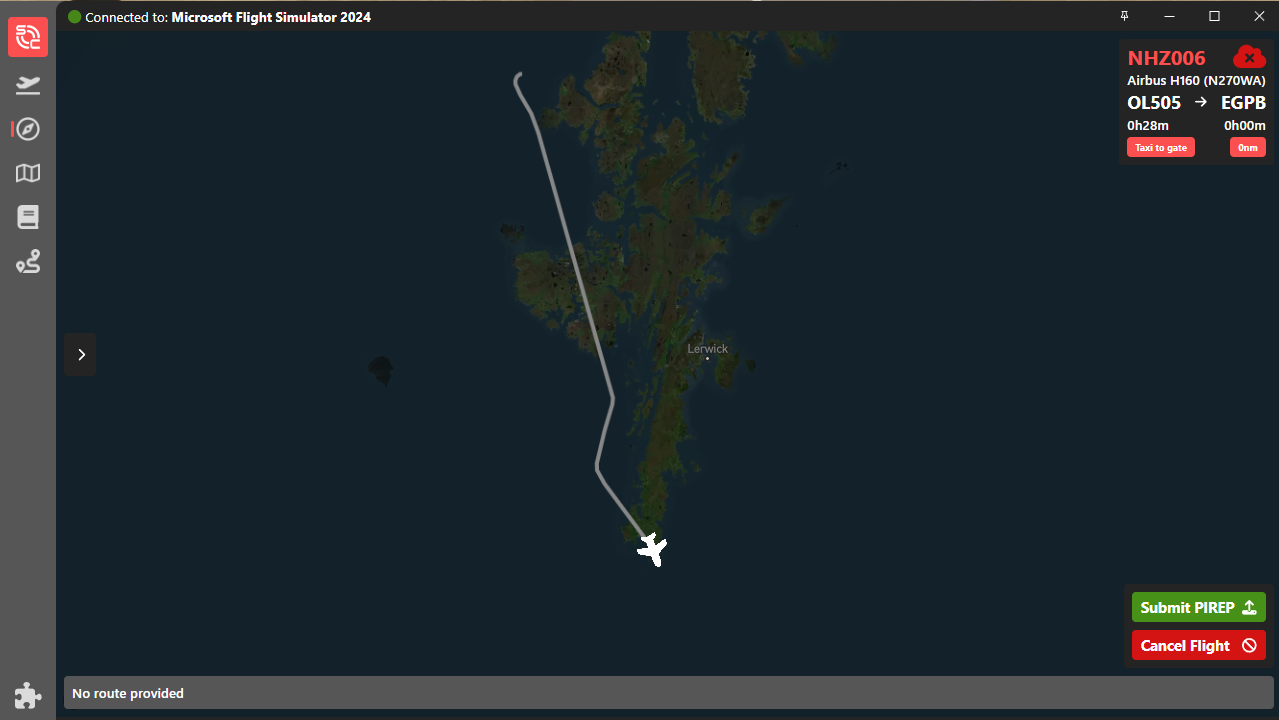
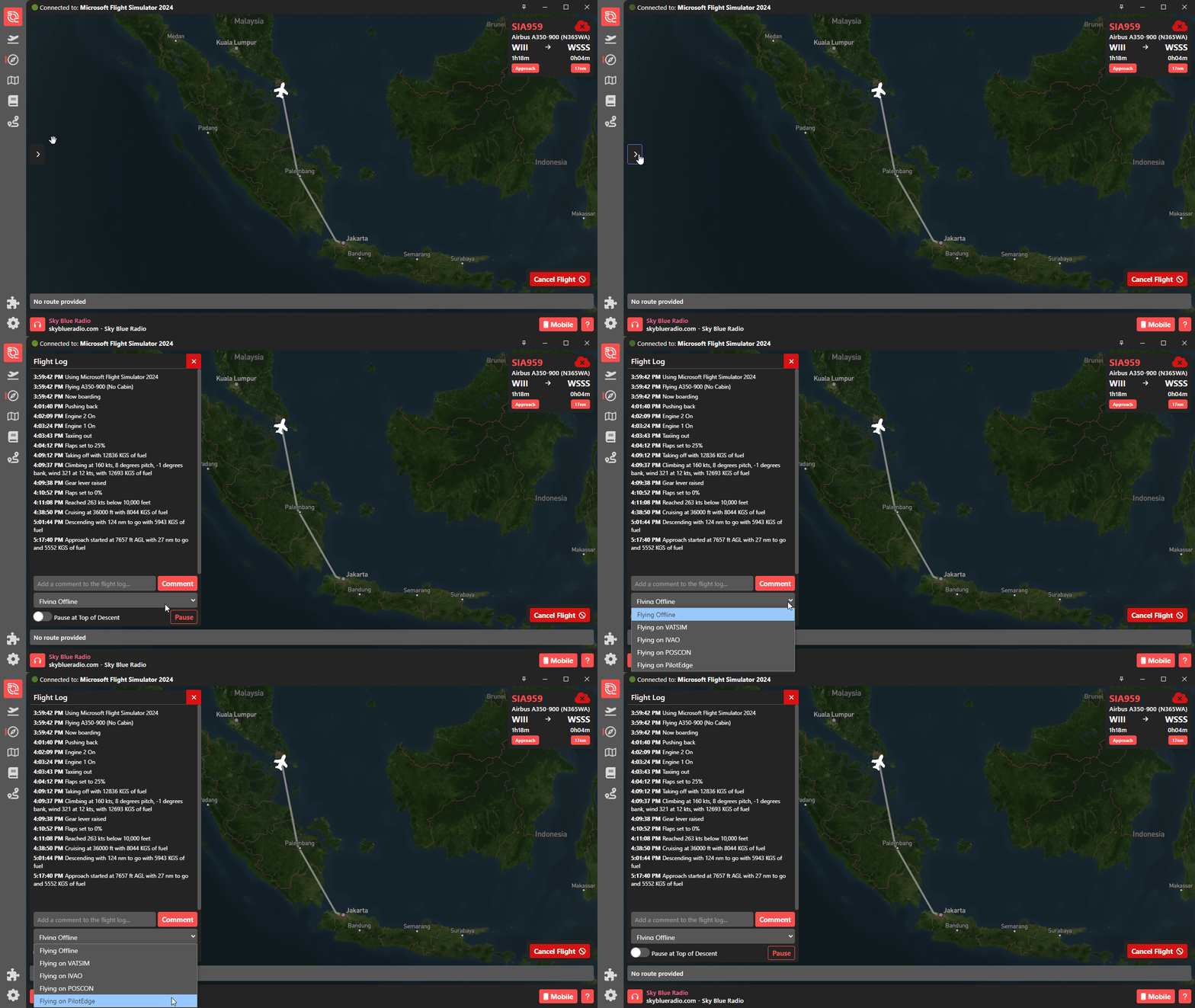
Spawning in the correct origin airport will bring you to the Flight Tracking page. In this page, you can monitor your flight log for any erroneous logs. In this page, you can also change your route (by clicking the Show Route) and add comments (by typing into comment field then pressing enter) to the flight log in realtime as needed. You can find these options by opening the flight log as above.

Pause at TOD is now the toggle button at the bottom left of the screen, under the comment field.

There is also a drop down that will allow you to change your online network status while in flight. If you are on VATSIM or any other online service and accidentally forget to specify that at the start of your flight, you can now do it while in flight.

<p class="callout info">*Your TOD is a rough approximation by the application based on your altitude and thus will not exactly match the TOD on your aircraft's ND and may, in certain cases, be after your FMS-calculated TOD.*</p>

---

##### <span class="font-18">**Flight Completion &amp; PIREP Submission**</span>

<span class="font-18">After landing at your destination, taxi to the ramp, and come to a complete stop.</span><label class="label label-warning font-14"></label>

[![image-1741453582626.png](https://docs.walkerair.us/uploads/images/gallery/2025-03/scaled-1680-/image-1741453582626.png)](https://docs.walkerair.us/uploads/images/gallery/2025-03/image-1741453582626.png)

Once stopped, a Submit PIREP button will show on the lower right hand, which once you hit, will send your PIREP to the Walker system. Once it is processed, a confirmatory notification on the bottom right will show up. If you have smartCARS premium, it will also notify that the logs have been sent to TFDi servers. You can also configure smartCARS 3 to autosend your PIREP through its settings.

[![image-1741453606066.png](https://docs.walkerair.us/uploads/images/gallery/2025-03/scaled-1680-/image-1741453606066.png)](https://docs.walkerair.us/uploads/images/gallery/2025-03/image-1741453606066.png)
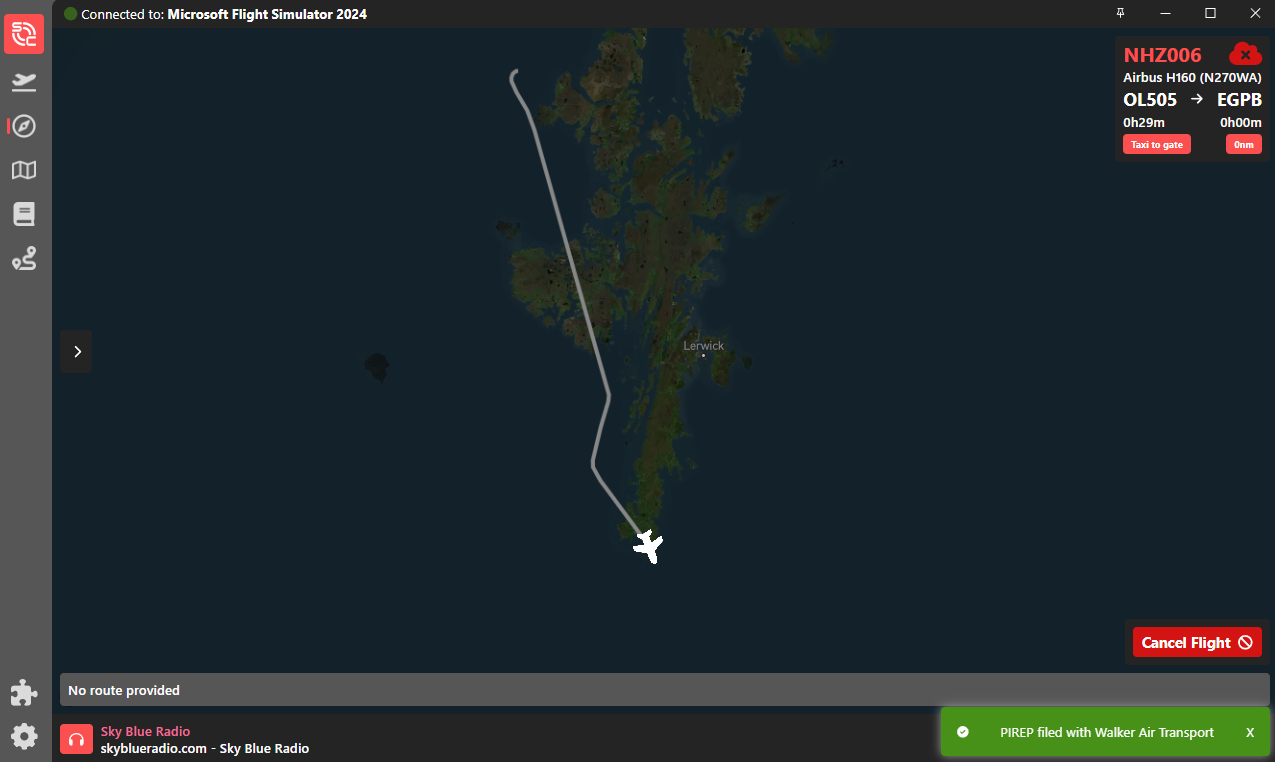
<p class="callout info">*If you didn’t exceed our flight requirements and/or standards, your PIREP will be automatically approved – and that will be verified by its presence in your **Logbook**.*</p>

---

##### **Flight Length Calculation**

Veteran pilots who used smartCARS2 before may be confused with how total flight time is calculated in smartCARS 3 - unlike the previous version where it starts from pushback and ends only once the plane has reached a complete stop, the current version calculates total flight time using off blocks to in blocks.

---

##### **Map Tab**

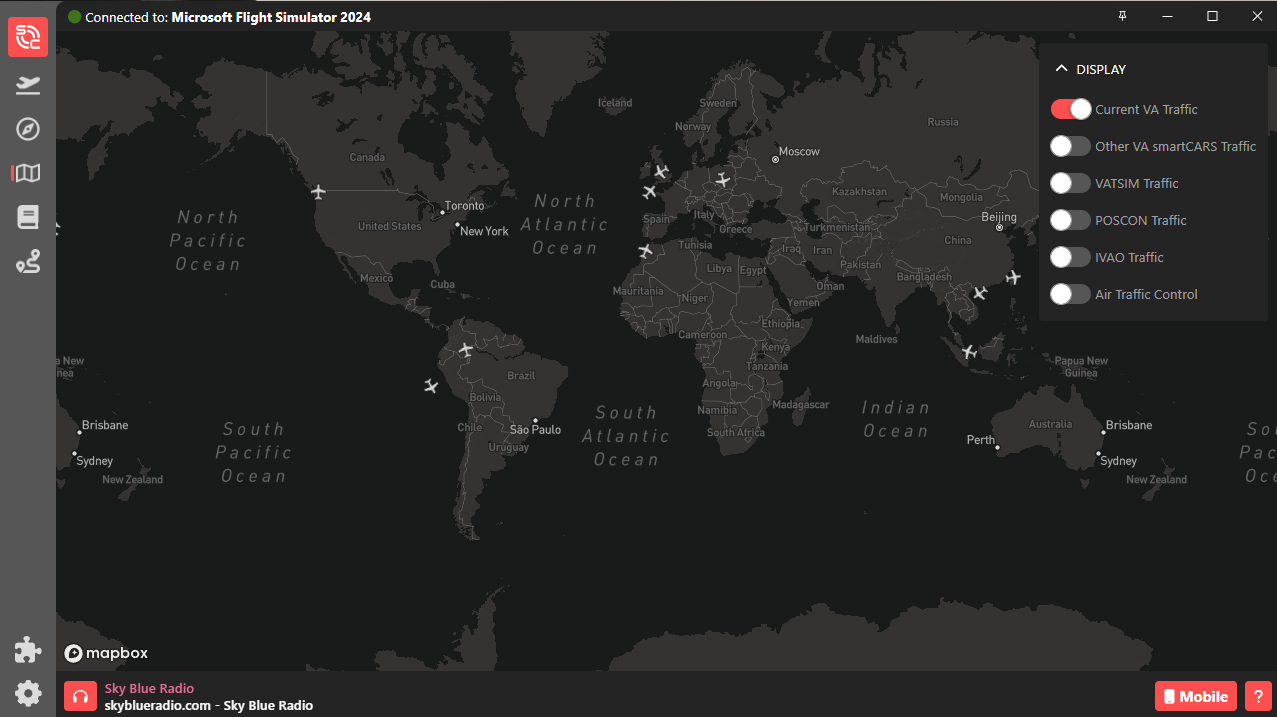
The Map referenced here is **not** the same one on the Crew Ops website. This shows various densities depending on your filter selection on the top right - ranging from VA-only to online networks.

[![image-1741425839831.png](https://docs.walkerair.us/uploads/images/gallery/2025-03/scaled-1680-/image-1741425839831.png)](https://docs.walkerair.us/uploads/images/gallery/2025-03/image-1741425839831.png)
---

##### **Logbook**

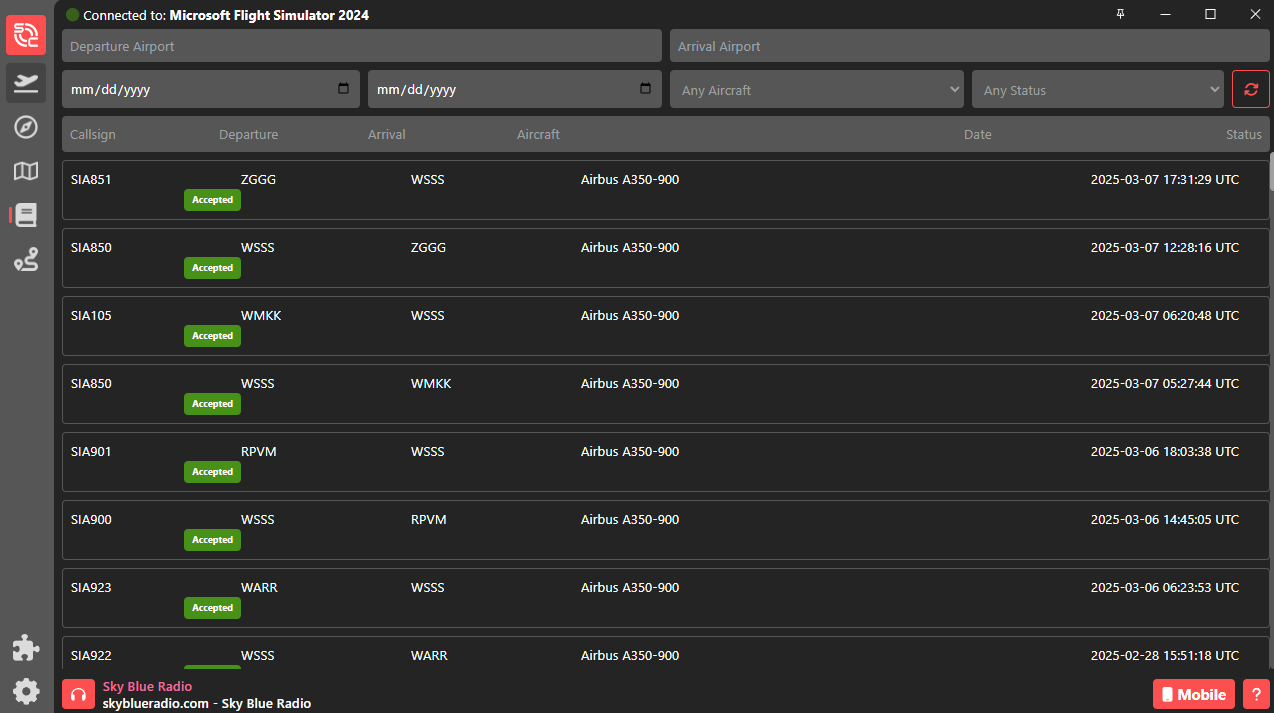
This page allows you to see your previous logged flights with the VA, and its PIREP status. You can also use the search and filter options if you are looking for a certain flight.

[![image-1741425858541.png](https://docs.walkerair.us/uploads/images/gallery/2025-03/scaled-1680-/image-1741425858541.png)](https://docs.walkerair.us/uploads/images/gallery/2025-03/image-1741425858541.png)
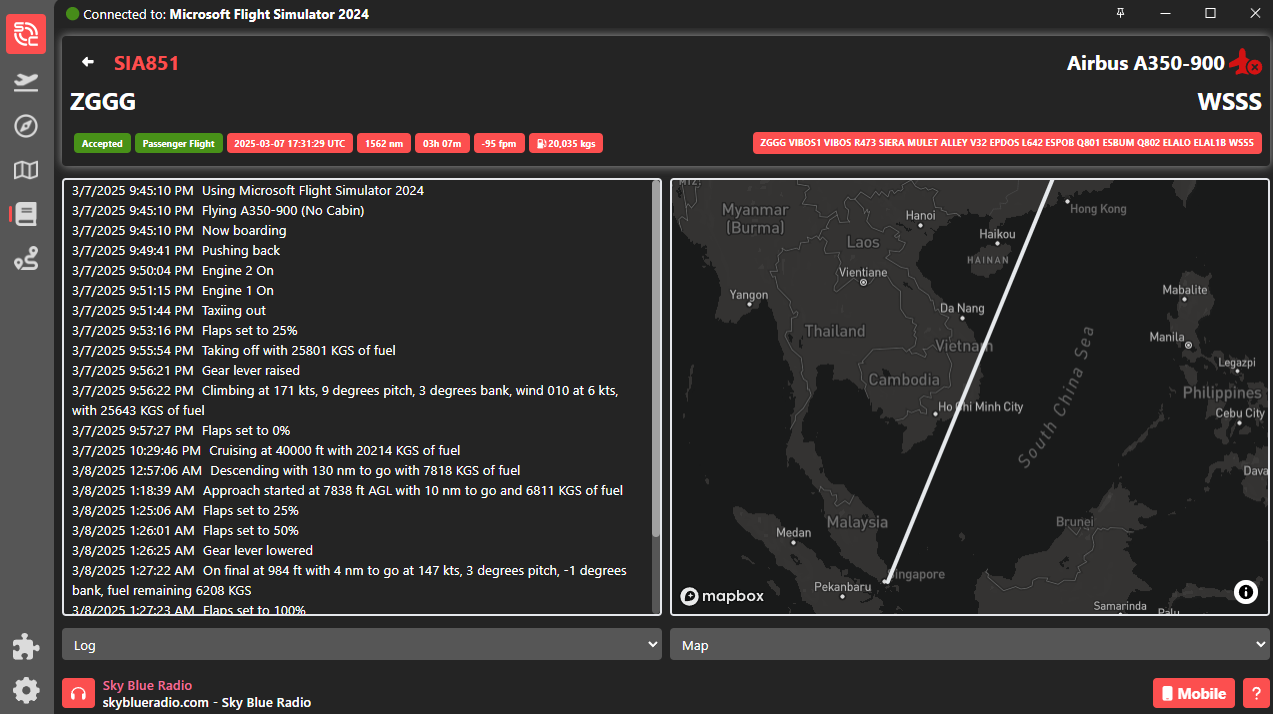
You can click on a flight to see more details, including the flight log, map, route, etc.

[![image-1741425868949.png](https://docs.walkerair.us/uploads/images/gallery/2025-03/scaled-1680-/image-1741425868949.png)](https://docs.walkerair.us/uploads/images/gallery/2025-03/image-1741425868949.png)
<p class="callout info">*We highly recommend using the Walker CrewOps [Logbook](https://docs.walkerair.us/books/2-training/page/pilot-profile-logbook) instead of the smartCARS one as that provides more detailed information. Further, flights logged with SC2 will not show all details in the SC3 viewer - particularly actual route flown on the map.*</p>

---

##### **Plugins**

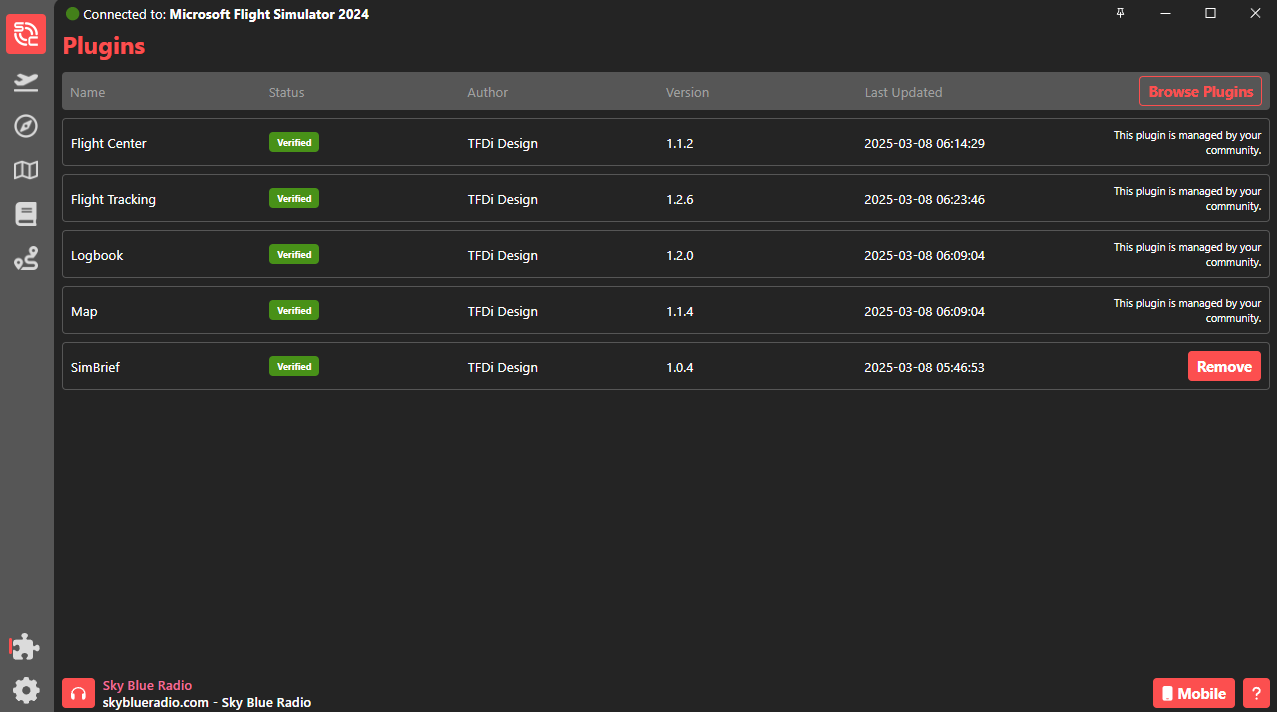
In this page, you may add community-built plugins to enhance your smartCARS user experience.

As of now, there are no Walker-specific plugins added, nor are there any aside from the default ones that you will need to be able to fly for Walker.

<p class="callout warning">*Do note that the available SimBrief plugin in SC3 does not communicate with the Walker website - which means your passenger counts, routes, etc will not automatically sync on the CrewOps OFP page. We highly suggest using Walker's own SimBrief integration available on the CrewOps site, and we will not be liable for any PIREP inaccuracies or rejections resulting from the usage of the SC3 SimBrief plugin.*</p>

[![image-1741425886164.png](https://docs.walkerair.us/uploads/images/gallery/2025-03/scaled-1680-/image-1741425886164.png)](https://docs.walkerair.us/uploads/images/gallery/2025-03/image-1741425886164.png)

---

##### **Settings**

smartCARS 3 has a number of settings that you may adjust as you see fit and to align with your preferences - none of these settings should stop you from being able to log flights with Walker **aside from tracking provider**, so set them as you'd like.

<p class="callout info">*We recommend that "Automatic PIREP submission" be disabled -- this will result in invalid flights being submitted to Walker that will be automatically rejected.*</p>

[![image-1743375621013.png](https://docs.walkerair.us/uploads/images/gallery/2025-03/scaled-1680-/image-1743375621013.png)](https://docs.walkerair.us/uploads/images/gallery/2025-03/image-1743375621013.png)

---

##### **Reconnecting via SmartCars3**

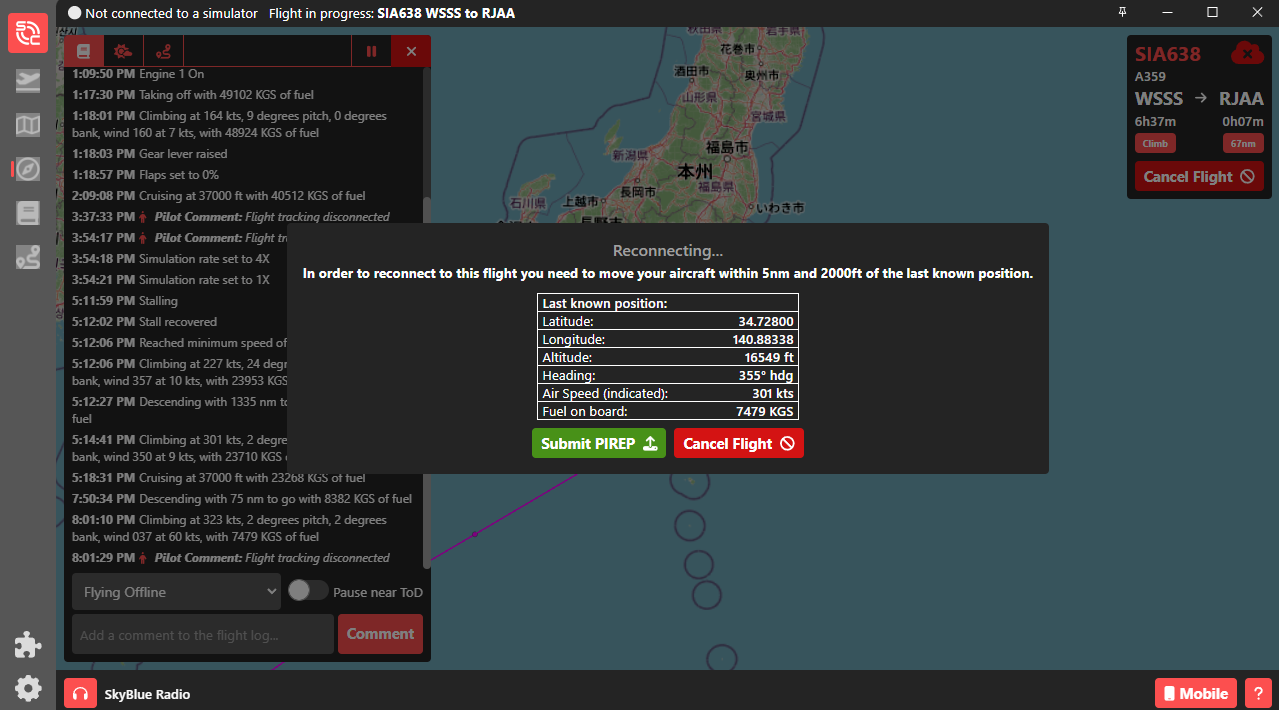
If your simulator crashes, but your SmartCars does not, you may attempt a reconnect following below steps.

1\. SmartCars will tell you the information about your aircraft prior to the crash - please match this as closely as possible and meet the requirement for reconnection (within 5nm and 2000ft of last recorded position). Do **NOT** click on [![image-1754049780378.png](https://docs.walkerair.us/uploads/images/gallery/2025-08/scaled-1680-/image-1754049780378.png)](https://docs.walkerair.us/uploads/images/gallery/2025-08/image-1754049780378.png) as that will be a rejected flight since you did not arrive at destination.

[![image-1754049749325.png](https://docs.walkerair.us/uploads/images/gallery/2025-08/scaled-1680-/image-1754049749325.png)](https://docs.walkerair.us/uploads/images/gallery/2025-08/image-1754049749325.png)
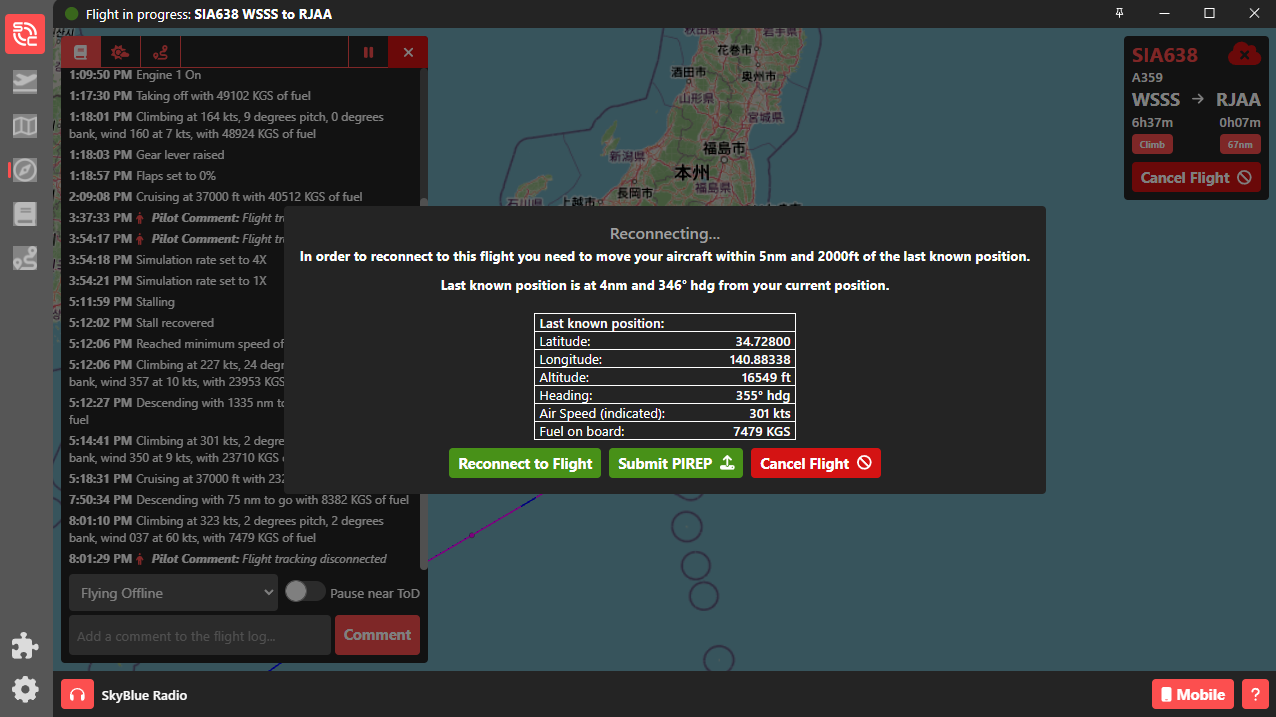
2\. Once within the requirement for reconnection, a green button will show up beside [![image-1754049780378.png](https://docs.walkerair.us/uploads/images/gallery/2025-08/scaled-1680-/image-1754049780378.png)](https://docs.walkerair.us/uploads/images/gallery/2025-08/image-1754049780378.png) - called [![image-1754050266806.png](https://docs.walkerair.us/uploads/images/gallery/2025-08/scaled-1680-/image-1754050266806.png). Click this button to reconnect.](https://docs.walkerair.us/uploads/images/gallery/2025-08/image-1754050266806.png)


[![image-1754050231712.png](https://docs.walkerair.us/uploads/images/gallery/2025-08/scaled-1680-/image-1754050231712.png)](https://docs.walkerair.us/uploads/images/gallery/2025-08/image-1754050231712.png)
3\. Your log should then show *"flight tracking reconnected."*

[![image-1754050421248.png](https://docs.walkerair.us/uploads/images/gallery/2025-08/scaled-1680-/image-1754050421248.png)](https://docs.walkerair.us/uploads/images/gallery/2025-08/image-1754050421248.png)

4\. Once reconnected, confirm with the SmartCars3 moving map and the Walker CrewOps map that you have indeed reconnected, which can be confirmed by seeing your aircraft moving on both maps. If you are not, Alt+F4 the sim and attempt the process again.

# Stratos | Windows, PC, Mac OS, and Linux

<p class="callout warning">*If you haven't already read the [Flight Operations](https://docs.walkerair.us/books/3-help/chapter/flight-operations "Flight Operations") chapter, we recommend you do so now before continuing.*</p>

#### **Other Trackers**

<span style="color: rgb(224, 62, 45);">**Do not run Stratos with smartCARS 3 or Flight Tracker XP running; please make sure you close those applications completely.**</span>

---

#### **Download and Support**

To download Stratos for PC, Mac, or Linux, please visit here: [https://skyvexsoftware.com/download](https://skyvexsoftware.com/download)

If you require support with the application, you can either request support in the Stratos Beta Channels in the Walker Air Transport Discord, or by using the internal Stratos help desk system.

***Stratos Internal Help* Desk**

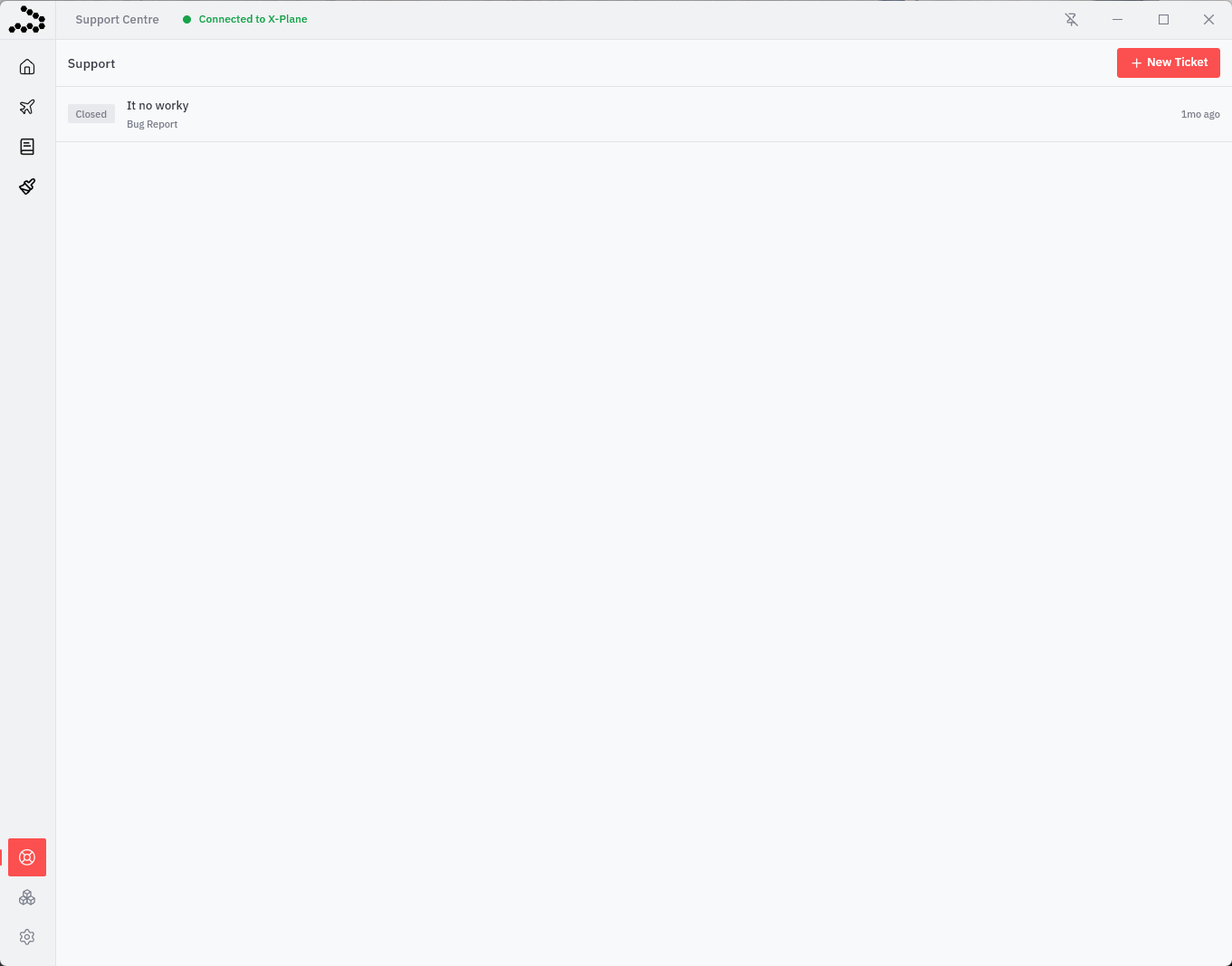
Click the [![image.png](https://docs.walkerair.us/uploads/images/gallery/2026-05/scaled-1680-/kxTimage.png)](https://docs.walkerair.us/uploads/images/gallery/2026-05/kxTimage.png)'Life Ring' icon at the bottom left corner of the application. Inside, you can create a new ticket and/or read your existing tickets.

You can view the official user manual for Stratos here: [https://docs.skyvexsoftware.com/introduction](https://docs.skyvexsoftware.com/introduction)

The following details below will walk you through the application from the perspective of a pilot at Walker Air Transport. There are features in the Stratos user manual that we will/do not deploy in our virtual airline.

---

#### <span class="font-18">**Using Stratos**</span>


##### <span class="font-18">**Logging into Stratos**</span>

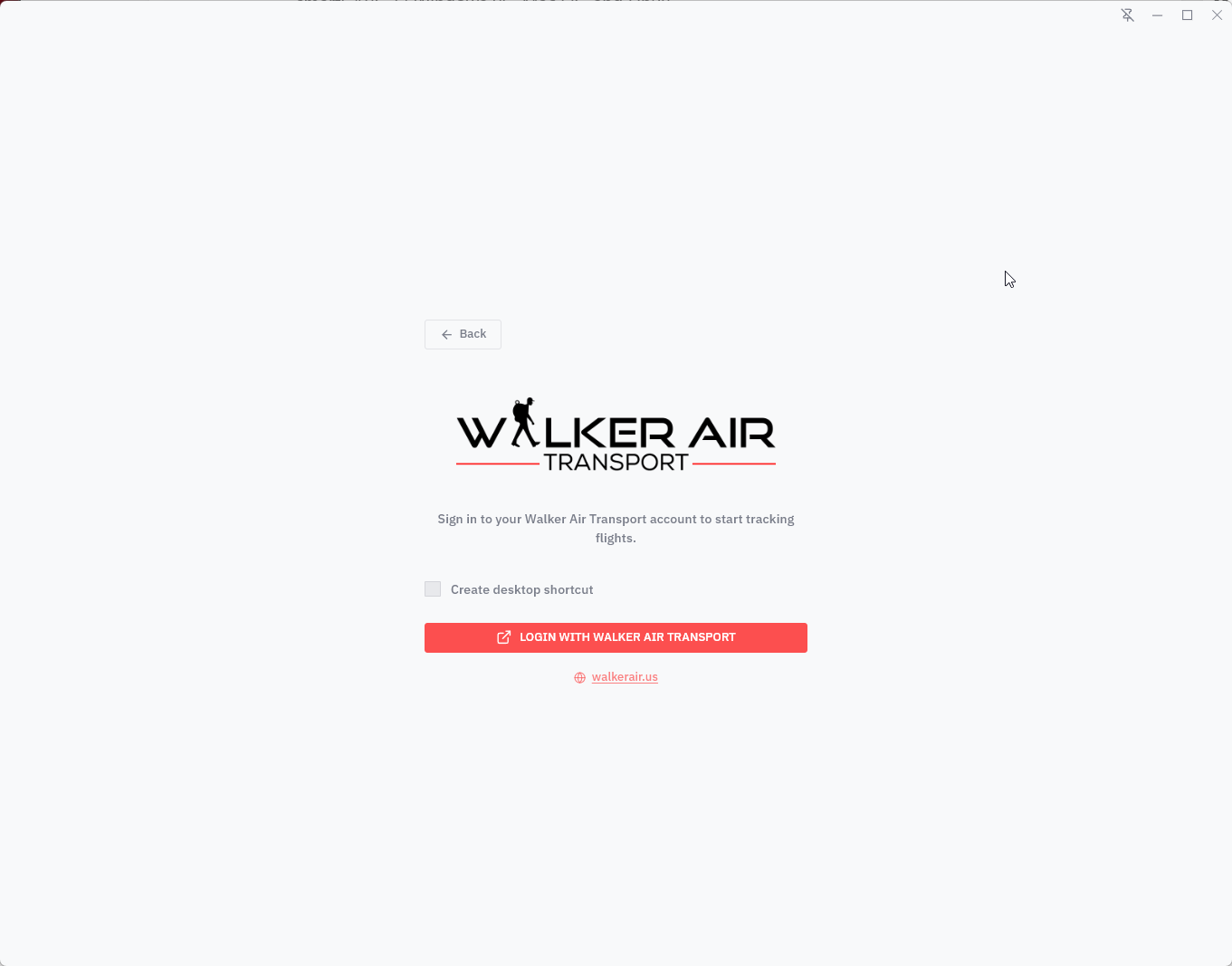
After installing Stratos, you will be asked to pick your Virtual Airline. You will select "Walker Air Transport"

[![image.png](https://docs.walkerair.us/uploads/images/gallery/2026-05/scaled-1680-/oSMimage.png)](https://docs.walkerair.us/uploads/images/gallery/2026-05/oSMimage.png)

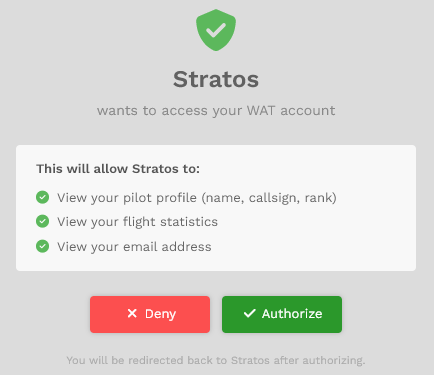
Stratos uses OAuth Single Sign-On (SSO) for authentication. Simply click the “Login with Walker Air Transport” button and sign in using your Walker Air credentials. You’ll be redirected to Walker Air Transport CrewOps to authorize your login securely, eliminating the need to enter your username and password multiple times.

[![image.png](https://docs.walkerair.us/uploads/images/gallery/2026-05/scaled-1680-/AUYimage.png)](https://docs.walkerair.us/uploads/images/gallery/2026-05/AUYimage.png)
If you are already logged into CrewOps, you will be taken directly to the OAuth approval page. Otherwise, you will first log in and then be presented with the approval page. Simply click “Authorize” to grant access, and you will automatically be issued a token and logged into Stratos.

[![image.png](https://docs.walkerair.us/uploads/images/gallery/2026-05/scaled-1680-/DFWimage.png)](https://docs.walkerair.us/uploads/images/gallery/2026-05/DFWimage.png)
---

##### **Pilot Dashboard**

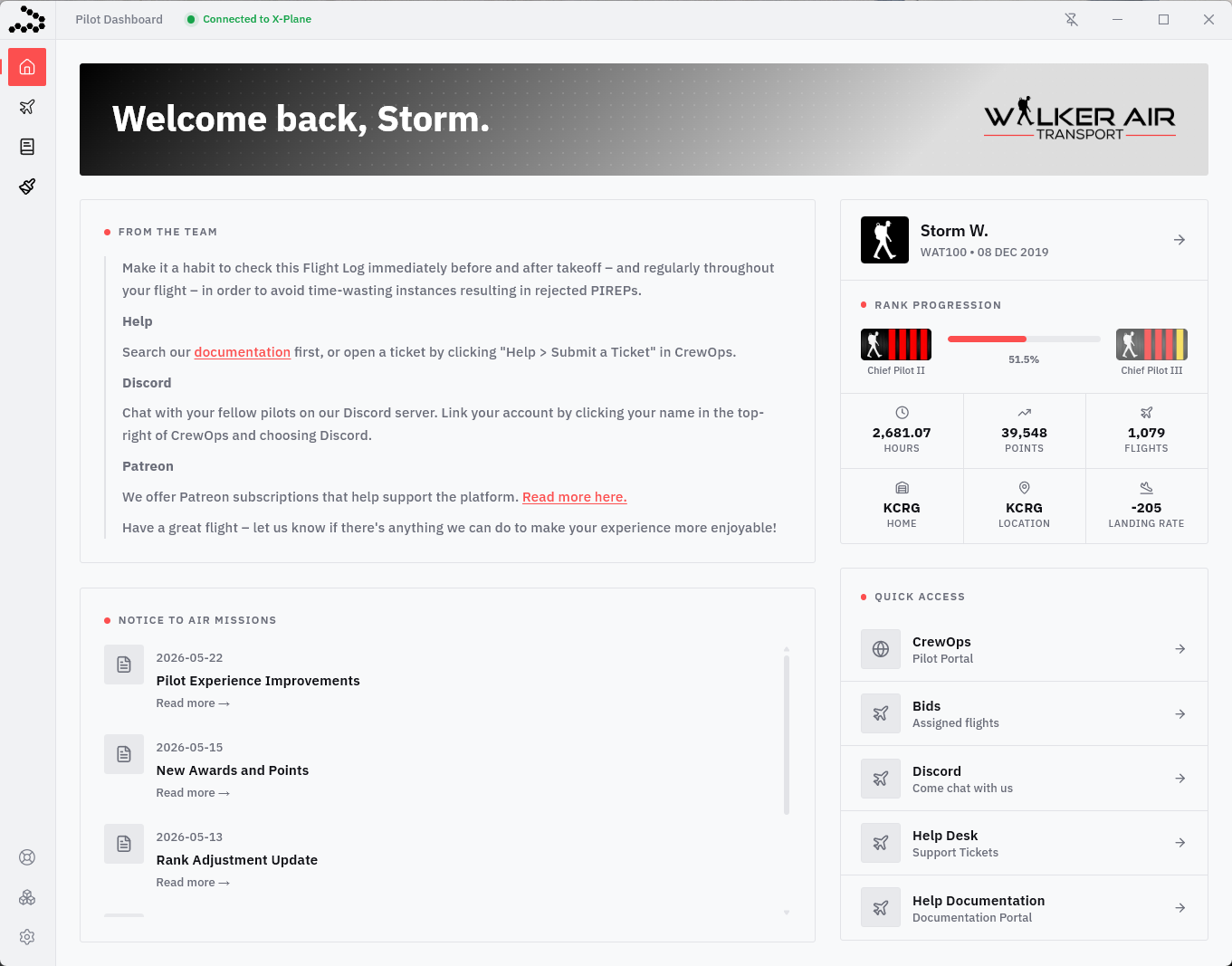
The Pilot Dashboard is the main home screen of Stratos and provides a quick overview of your Walker Air activity. From here, you can view important notices from the team, recent NOTAMs, your current rank progression, pilot statistics, and quick-access links to CrewOps, bids, Discord, support, and documentation. This page is designed to keep key information and tools easily accessible before and during your flight operations.

<p class="callout info">*For a new, first time Pilot, these fields will be blank because no flights have been completed.*</p>

To navigate through the remaining sections within *Stratos*, click the icons in the left column. You can drag these icons around as well to create your preferred menu layout.

[![image.png](https://docs.walkerair.us/uploads/images/gallery/2026-05/scaled-1680-/qtHimage.png)](https://docs.walkerair.us/uploads/images/gallery/2026-05/qtHimage.png)
---

##### **Flight Bookings**

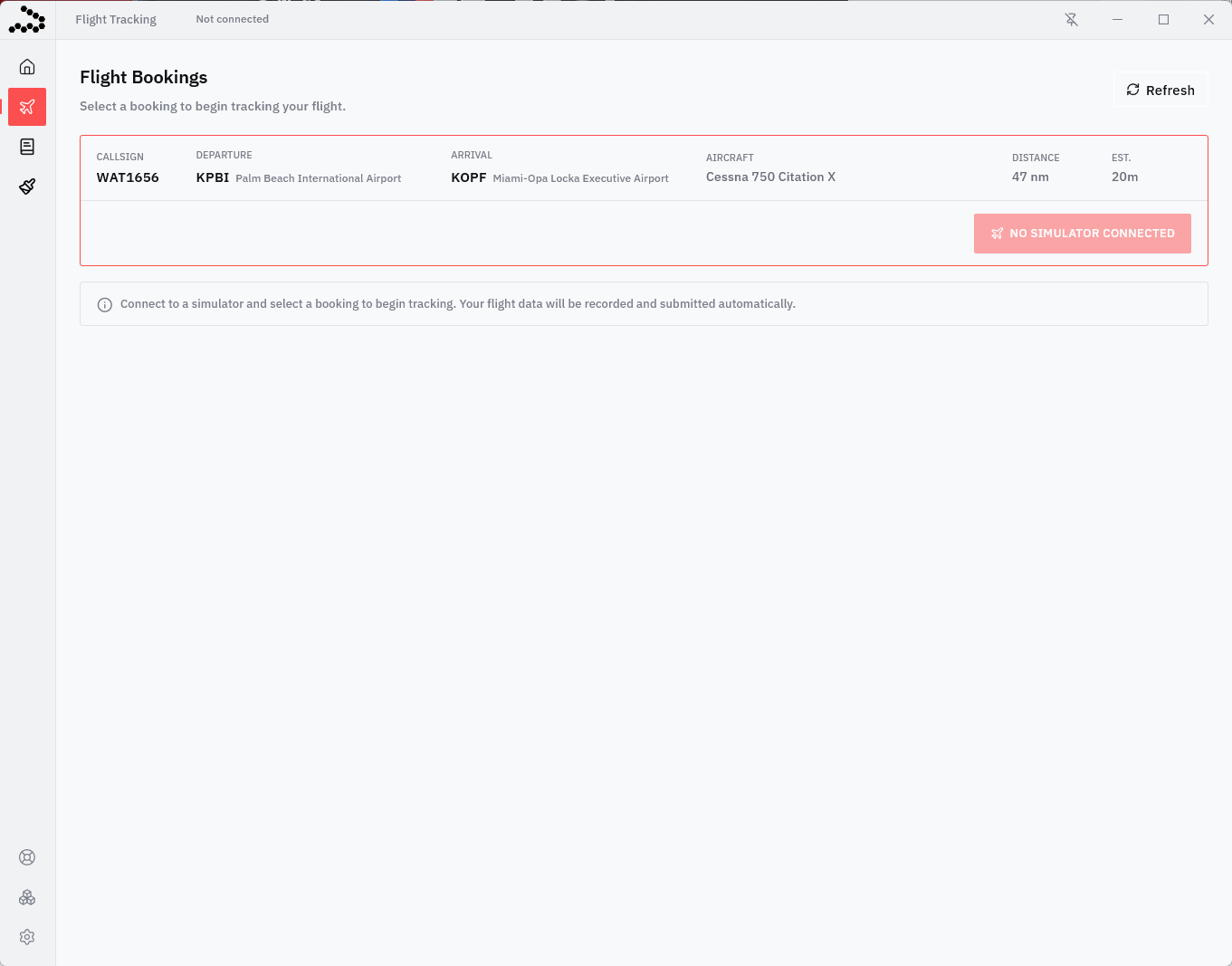
The Flight Tracking page is where you select and monitor your active flight booking. Once connected to your simulator, click on a booking to expand it and reveal the **Start Tracking** button. Clicking **Start Tracking** will begin recording your flight automatically. Stratos will track your flight data in real time and submit your PIREP automatically upon completion. This page also provides a quick overview of your route, aircraft, distance, and estimated flight time before departure.

[![image.png](https://docs.walkerair.us/uploads/images/gallery/2026-05/scaled-1680-/fLNimage.png)](https://docs.walkerair.us/uploads/images/gallery/2026-05/fLNimage.png)
---

##### **Walker Air Transport Validation System**

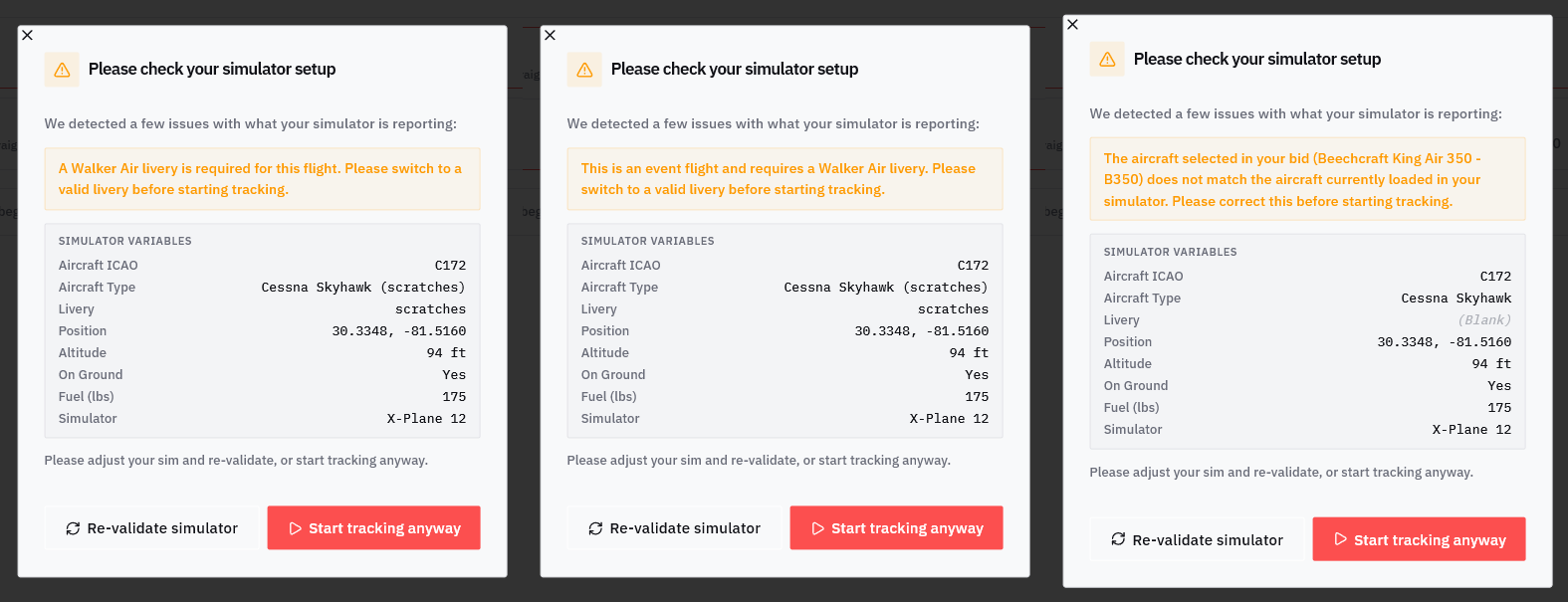
The following validation checks are specific to Walker Air Transport and are designed to help prevent invalid PIREPs, reduce tracking issues, and ensure compliance with Walker Air policies before a flight begins.

**Aircraft Validation** Verifies that the aircraft loaded in your simulator matches the aircraft assigned to your bid.

**Event Validation** Checks that you are using an approved Walker Air livery when flying an official event.

**Livery Validation** Checks that you are using a valid Walker Air livery when required.

Please pay close attention to the following simulator values:

- Aircraft ICAO
- Aircraft Type
- Livery

These fields are critical for validation. If any of them display as **(Blank)** or do not match your bid requirements, validation will fail and should be corrected before tracking begins.

If an issue is detected, Stratos will display a warning and allow you to either:

- Correct the issue and click **Re-validate Simulator**
- Continue by clicking **Start Tracking Anyway**

⚠️ Selecting **Start Tracking Anyway** does not bypass Walker Air policies or validation requirements. Flights that do not meet requirements may still be automatically rejected by our systems. These warnings are provided to help identify issues before your flight begins.

[![image.png](https://docs.walkerair.us/uploads/images/gallery/2026-05/scaled-1680-/1iHimage.png)](https://docs.walkerair.us/uploads/images/gallery/2026-05/1iHimage.png)
---

##### **Flight Tracking**

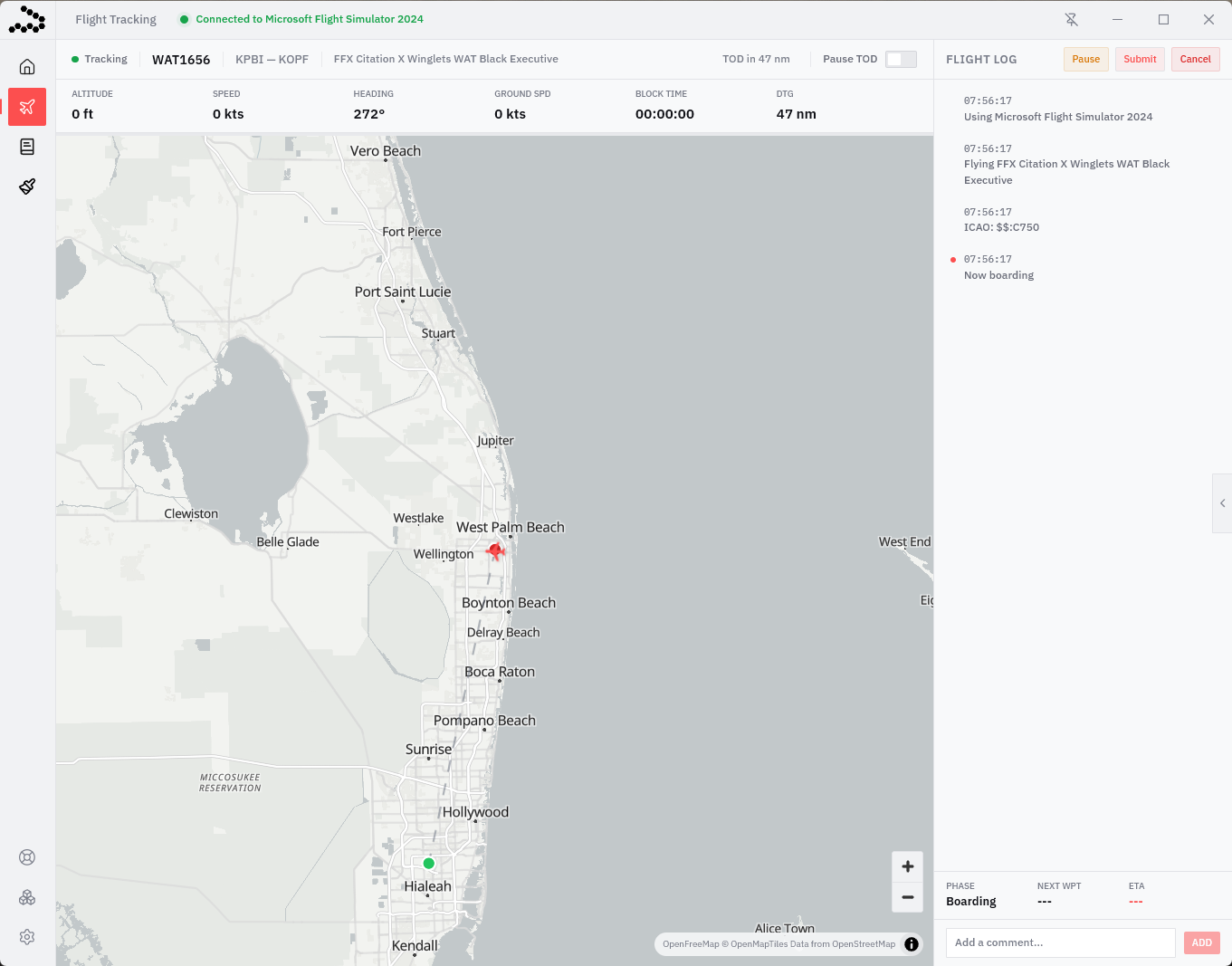
If you successfully pass the Walker Air Transport Validation System, you will be taken to the active Flight Tracking screen. This is where Stratos records your flight in real time from boarding to shutdown.

The main map displays your live aircraft position and flight path, while the top status bar provides important flight information including altitude, speed, heading, ground speed, block time, and remaining distance. The right-side Flight Log records major flight events as they occur, such as boarding, engine start, taxi, takeoff, cruise, descent, and landing.

Additional controls allow you to pause tracking, pause Top of Descent calculations, submit your PIREP, or cancel the flight if needed. The bottom-right panel also displays your current flight phase, next waypoint, and estimated arrival information. This screen serves as the primary real-time tracking interface throughout your flight.

[![image.png](https://docs.walkerair.us/uploads/images/gallery/2026-05/scaled-1680-/nawimage.png)](https://docs.walkerair.us/uploads/images/gallery/2026-05/nawimage.png)
---

##### **Flight Tracking - Top of Descent Pause**

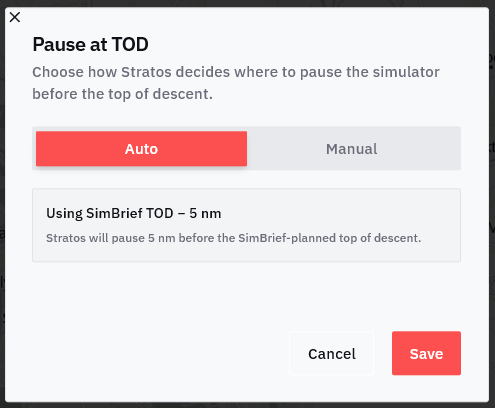
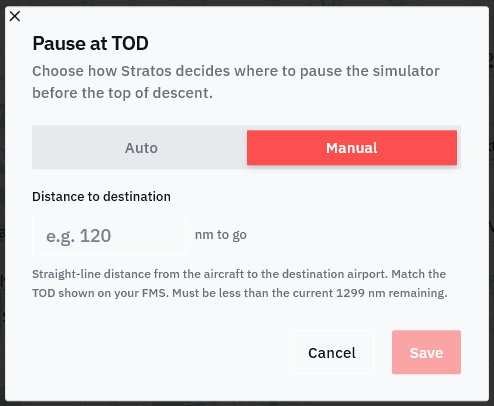
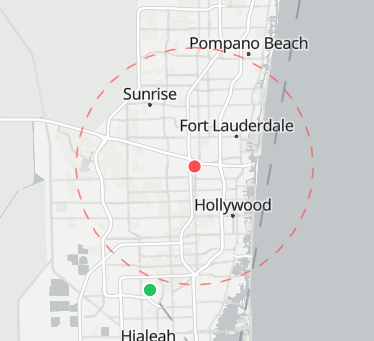
The **Pause at TOD** feature allows Stratos to automatically pause your simulator before reaching Top of Descent (TOD). This is useful for long-haul flights, overnight flights, or situations where you may step away from your computer and want additional time to prepare for descent and arrival.

**Auto Mode**

In **Auto** mode, Stratos uses your SimBrief flight plan data to automatically determine the Top of Descent point. You can configure how many nautical miles before TOD the simulator should pause. In the example shown, Stratos will automatically pause the simulator **5 nm before the SimBrief-planned TOD**.

**Manual Mode**

In **Manual** mode, you manually enter the remaining distance to destination where you want the simulator to pause. This uses straight-line distance to the arrival airport and should generally match the TOD shown in your aircraft FMS or flight planning software.

Once the configured distance is reached, Stratos will automatically pause the simulator, allowing you time to return and prepare for descent procedures.

<table border="1" id="bkmrk-%7Binsert-tod-circle-o" style="border-collapse: collapse; width: 100%; height: 350.188px;"><colgroup><col style="width: 50.0596%;"></col><col style="width: 50.0596%;"></col></colgroup><tbody><tr style="height: 350.188px;"><td style="height: 350.188px;">[![Stratos_gclOZo23tw.png](https://docs.walkerair.us/uploads/images/gallery/2026-05/scaled-1680-/stratos-gclozo23tw.png)](https://docs.walkerair.us/uploads/images/gallery/2026-05/stratos-gclozo23tw.png)

</td><td class="align-center" style="height: 350.188px;">[![Stratos_5yacfeMZ0h.png](https://docs.walkerair.us/uploads/images/gallery/2026-05/scaled-1680-/stratos-5yacfemz0h.png)](https://docs.walkerair.us/uploads/images/gallery/2026-05/stratos-5yacfemz0h.png)

</td></tr><tr><td colspan="2">[![image.png](https://docs.walkerair.us/uploads/images/gallery/2026-05/scaled-1680-/CvPimage.png)](https://docs.walkerair.us/uploads/images/gallery/2026-05/CvPimage.png)

</td></tr></tbody></table>

---

##### <span class="font-18">**Flight Completion &amp; PIREP Submission**</span>

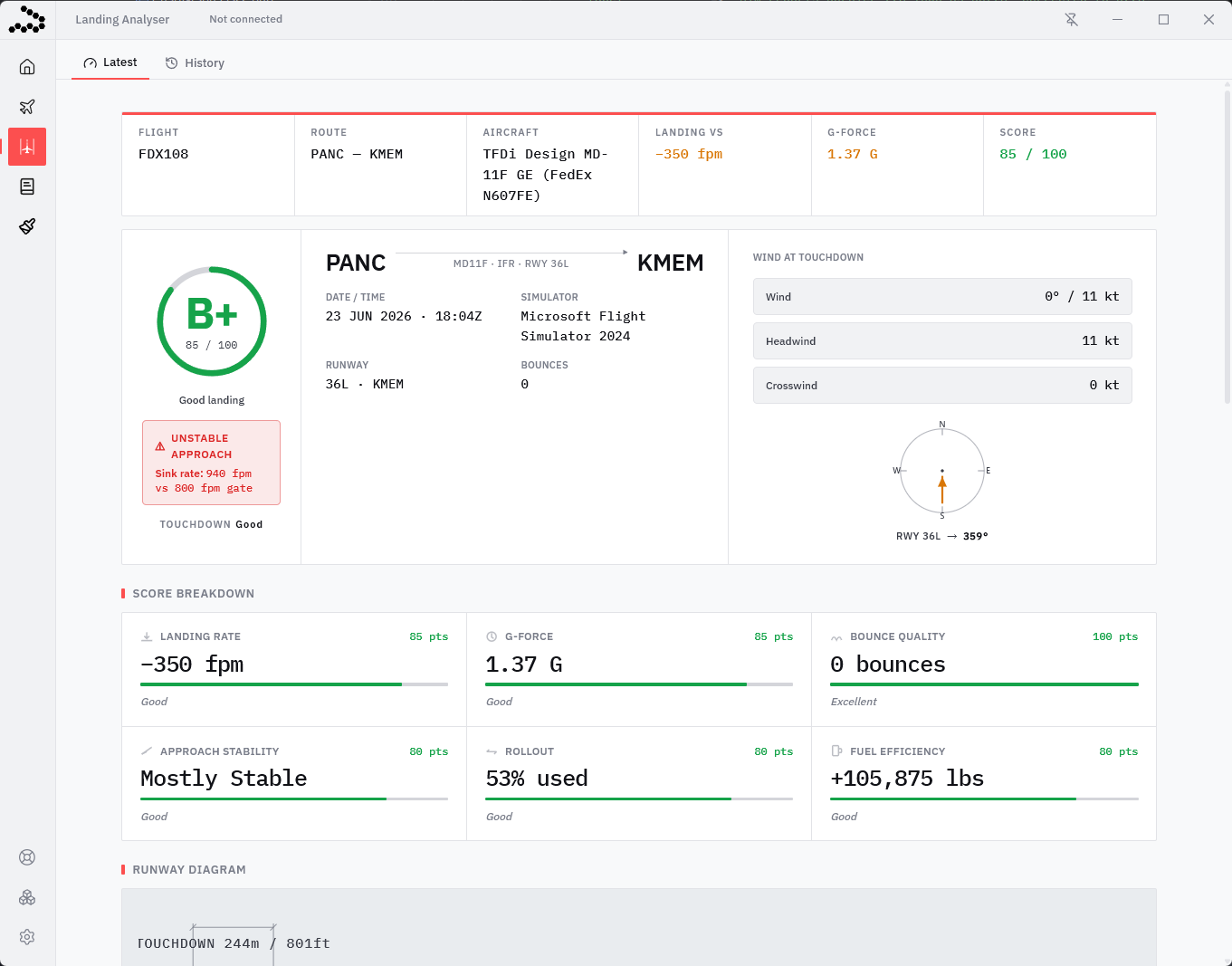
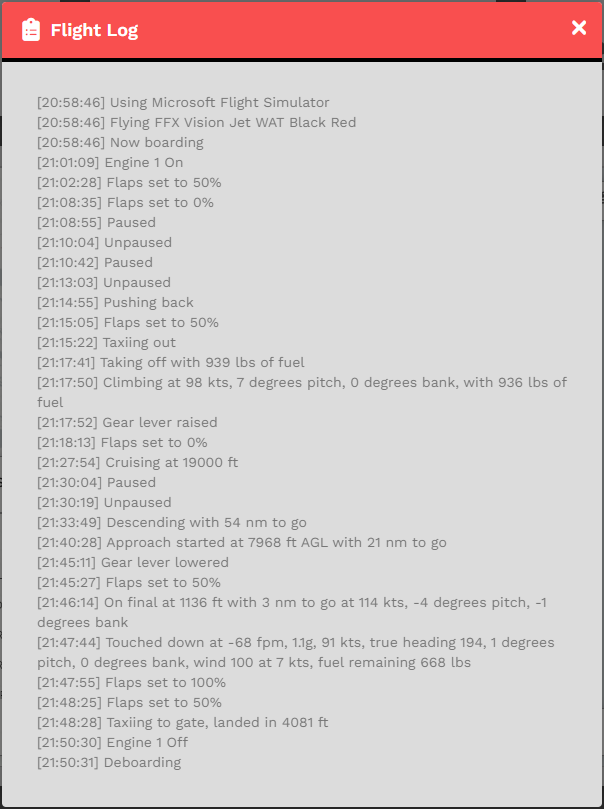
Once your flight has been completed, Stratos will transition into the arrival and deboarding phases while continuing to record final flight events. During this stage, the Flight Log will display important arrival details such as approach configuration changes, touchdown information, taxi events, engine shutdown, and deboarding activity.

The map will display your completed flight path, allowing you to review your full route from departure to arrival. Your final flight statistics, including landing rate and fuel remaining, are also recorded in the activity log for reference.

When you are satisfied that the flight is complete, click the **Submit** button in the top-right corner to finalize and submit your PIREP to Walker Air Transport. Once submitted, your flight data, statistics, and log entries will be uploaded and processed by CrewOps.

If **Auto-Submit Flight** is enabled in Settings, Stratos may automatically submit the flight for you once all required conditions have been met.

[![image.png](https://docs.walkerair.us/uploads/images/gallery/2026-05/scaled-1680-/75Uimage.png)](https://docs.walkerair.us/uploads/images/gallery/2026-05/75Uimage.png)

<p class="callout info">*If you didn’t exceed our flight requirements and/or standards, your PIREP will be automatically approved – and that will be verified by its presence in your **Logbook**.*</p>

---

##### **Logbook**

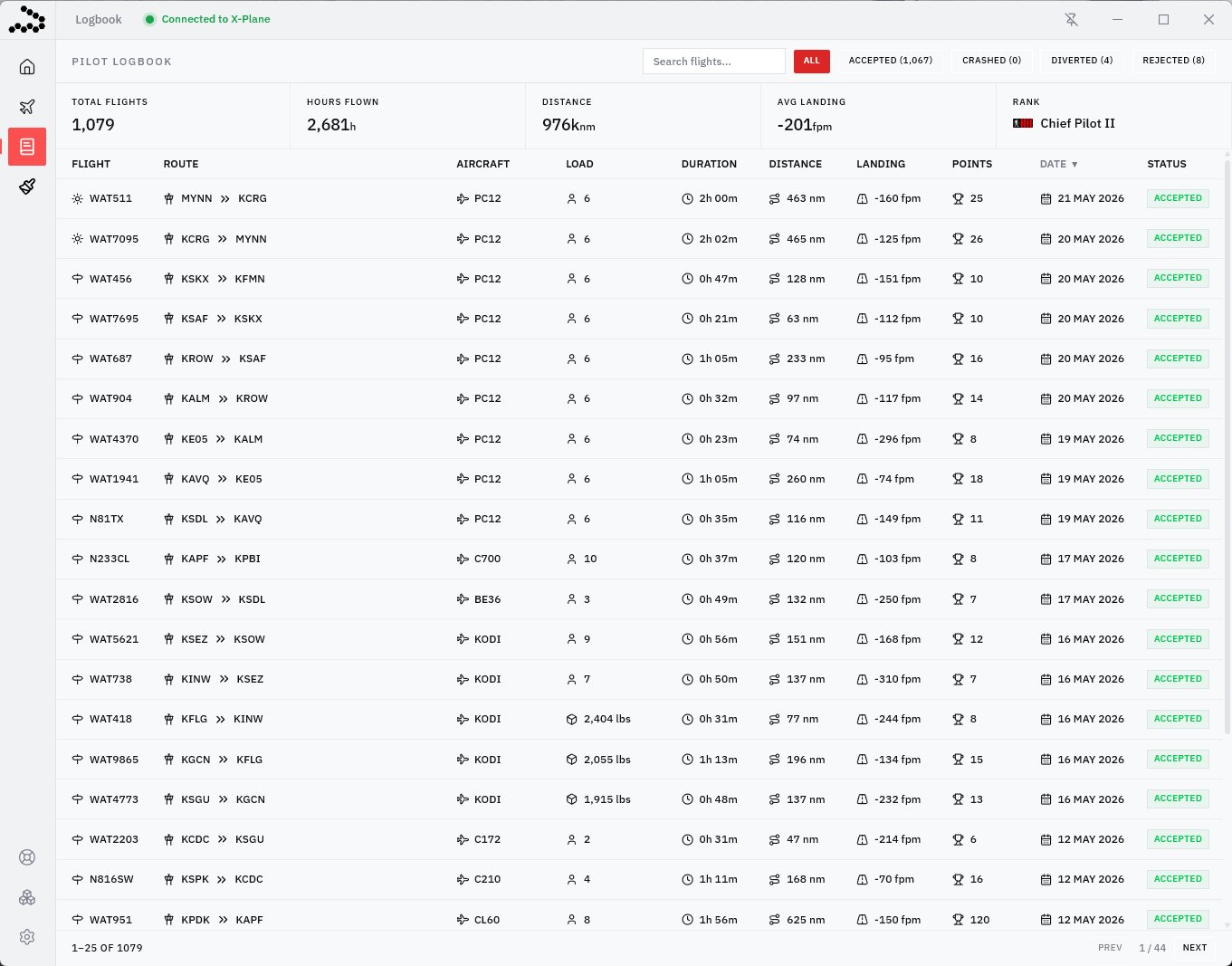
The Logbook page provides a complete history of your flights flown through Walker Air Transport. At the top of the page, you’ll find overall pilot statistics including total flights, hours flown, total distance, average landing rate, and current rank. Below that is a detailed list of your PIREPs showing route information, aircraft used, flight duration, landing rate, points earned, and flight status.

Flights can be filtered by status such as Accepted, Crashed, Diverted, or Rejected, and the search bar allows you to quickly locate specific flights. This page serves as your personal flight history and performance tracker within Stratos.

[![image.png](https://docs.walkerair.us/uploads/images/gallery/2026-05/scaled-1680-/i23image.png)](https://docs.walkerair.us/uploads/images/gallery/2026-05/i23image.png)
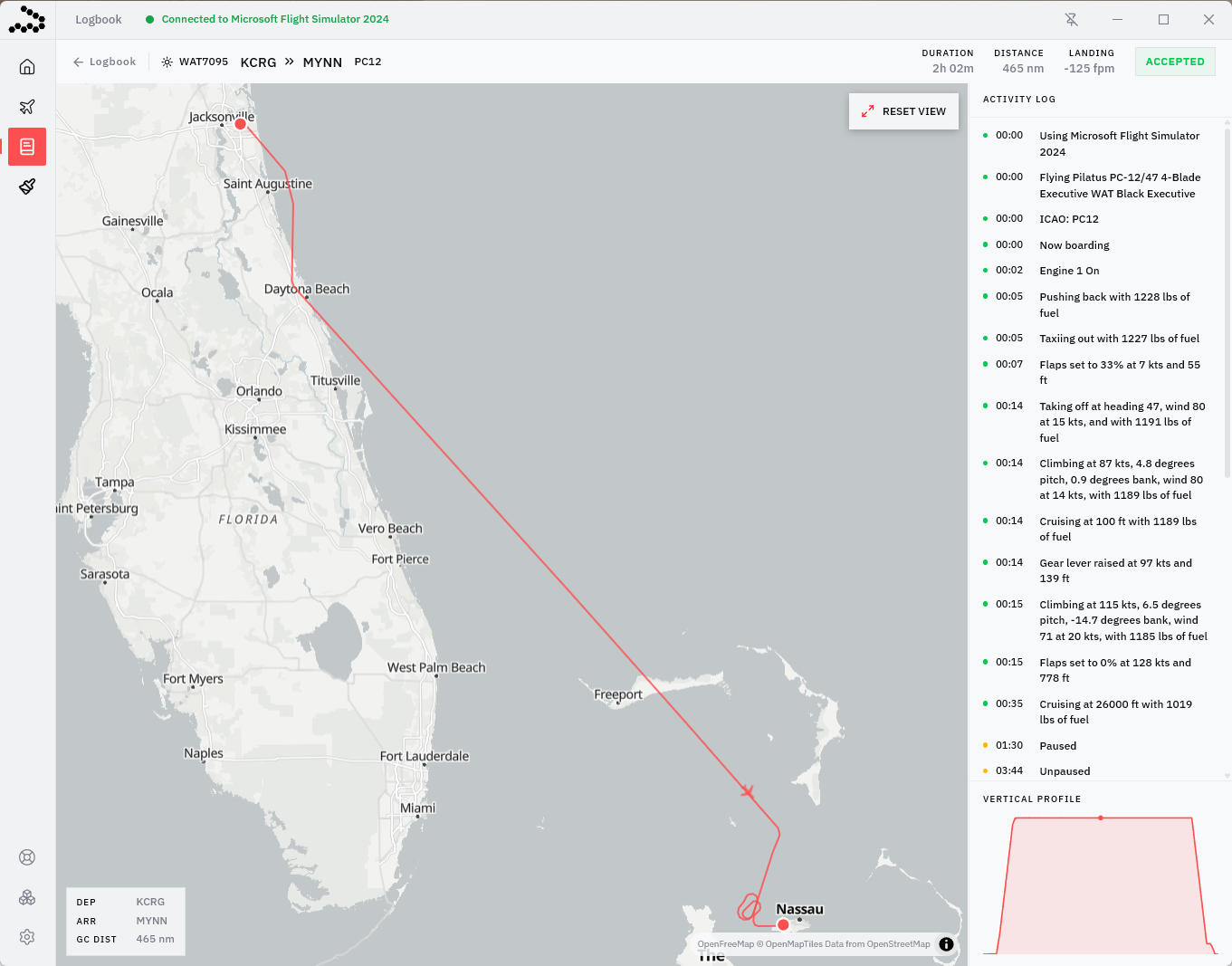
The detailed Logbook view provides a full replay and breakdown of an individual flight. The interactive map displays your recorded flight path from departure to arrival, while the activity log on the right shows a timeline of key events such as boarding, engine start, taxi, takeoff, cruise, pauses, and landing information.

At the top of the page, you can quickly view important flight statistics including duration, distance flown, landing rate, and final PIREP status. The vertical profile graph displays your altitude changes throughout the flight, allowing you to review your climb, cruise, and descent performance. This page is designed to give pilots a complete post-flight review and analysis experience.

[![image.png](https://docs.walkerair.us/uploads/images/gallery/2026-05/scaled-1680-/ks4image.png)](https://docs.walkerair.us/uploads/images/gallery/2026-05/ks4image.png)
---

##### **Support Centre**

The Support Centre allows you to create and manage support tickets directly within Stratos. From this page, you can view the status of existing tickets, track responses from staff, and review previous issues or bug reports.

To open a new support request, click the **New Ticket** button in the top-right corner. This system is intended for reporting bugs, requesting assistance, or getting help with issues related to Stratos or Walker Air operations.

[![image.png](https://docs.walkerair.us/uploads/images/gallery/2026-05/scaled-1680-/Lt8image.png)](https://docs.walkerair.us/uploads/images/gallery/2026-05/Lt8image.png)

---

##### **Plugins**

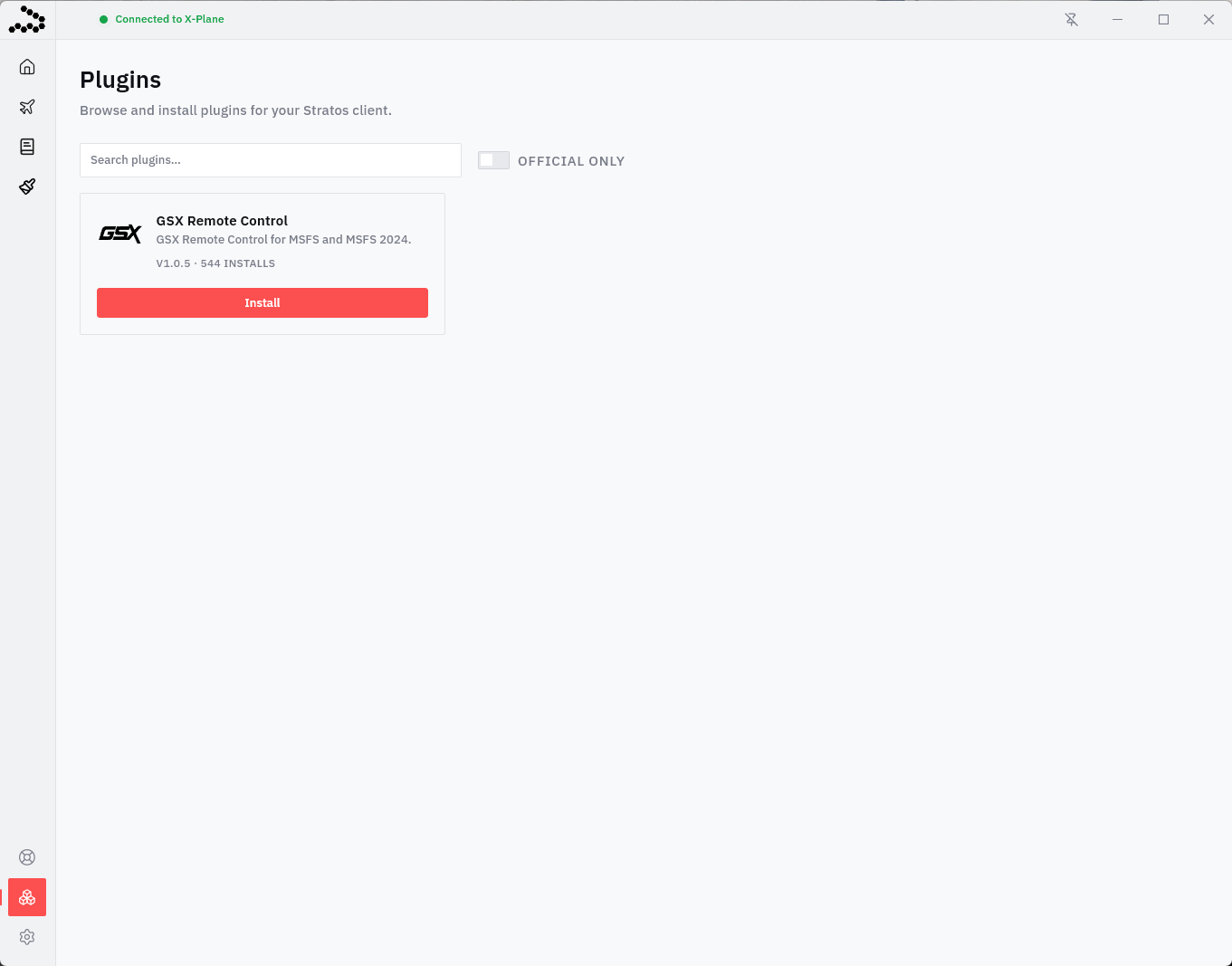
The Plugins page allows you to browse and install optional add-ons for your Stratos client. These plugins extend functionality and can provide integrations, automation tools, or enhanced simulator features. Simply browse the available plugins, review their descriptions and install counts, and click **Install** to add them to your client.

You can also search for specific plugins or filter to show only official plugins published by trusted developers. Installed plugins are managed directly through Stratos, making it easy to expand your flight experience with additional features.

[![image.png](https://docs.walkerair.us/uploads/images/gallery/2026-05/scaled-1680-/KhWimage.png)](https://docs.walkerair.us/uploads/images/gallery/2026-05/KhWimage.png)
---

##### **Settings**

The Settings page allows you to configure your Stratos client preferences and simulator integration settings. From here, you can select your simulator connection type, customize application appearance, adjust text sizing, configure notifications, and choose preferred measurement units for fuel, altitude, and distance.

Additional options include Discord Rich Presence integration, analytics preferences, SimBrief integration, and flight automation features such as Auto-Start Tracking and Auto-Submit Flight. The right side of the page also provides plugin-specific configuration options and access to application updates, logs, and reset tools. This page is designed to let you personalize Stratos to match your simulator setup and flying preferences.

<table border="1" id="bkmrk-auto-start-automatic" style="border-collapse: collapse; width: 100%;"><colgroup><col style="width: 50%;"></col><col style="width: 50%;"></col></colgroup><tbody><tr><td>**Tracking Provider**</td><td>You can set this to Automatic, SimConnect, or X-Plane.  
*Automatic will let you move between simulators without having to touch the settings.*  
</td></tr><tr><td>**Auto-Start**</td><td>Automatically begins flight tracking after the Walker Air Transport Validation System passes successfully. Stratos will attempt validation up to 3 times within 30 seconds. If validation cannot be completed successfully, a warning message will be displayed. Otherwise, tracking will automatically begin without requiring manual input.</td></tr><tr><td>**Auto-Submit**</td><td>Automatically submits your PIREP once all arrival conditions have been met:

- Within 5 nautical miles of the destination airport
- Engines are shut down
- Aircraft has entered the Deboarding phase

This allows Stratos to complete and submit your flight automatically at the end of your operation.

</td></tr></tbody></table>

[![image.png](https://docs.walkerair.us/uploads/images/gallery/2026-06/scaled-1680-/B33image.png)](https://docs.walkerair.us/uploads/images/gallery/2026-06/B33image.png)

---

##### **Reconnecting Your Flight (Crash to Desktop)**

If your simulator disconnects or crashes during a flight, Stratos will automatically pause tracking and enter Recovery Mode. This system is designed to help you safely resume your flight without immediately losing your progress.

The recovery window displays important information from your last known simulator state, including:

- Callsign and route
- Aircraft type
- Last known fuel quantity
- Aircraft position
- Altitude, heading, and speed
- Distance from your previous position

Once your simulator reconnects, Stratos will compare your current aircraft position to the last recorded position. If everything is within acceptable limits, you may resume tracking by clicking **Resume Flight**. Once you click **Resume Flight**, Stratos will ask for final confirmation before tracking resumes from your current aircraft position.

If supported, Stratos may also provide an **Auto Reposition** option to help place your aircraft back near its last recorded location before resuming the flight.

⚠️ Recovery Mode is intended to assist with simulator crashes, disconnects, or accidental closures. It is not intended to bypass Walker Air policies or flight requirements. Significant position changes, aircraft changes, or unrealistic recovery behavior may still result in automatic PIREP rejection or staff review.

[![Stratos_SF1eUFwlT7.gif](https://docs.walkerair.us/uploads/images/gallery/2026-05/stratos-sf1eufwlt7.gif)](https://docs.walkerair.us/uploads/images/gallery/2026-05/stratos-sf1eufwlt7.gif)

# Awards

---

Awards are available for successfully completing a wide variety of flying-related activities with us. Once you meet an award's specific requirement(s), our system will process it automatically and post the avatar to your **Logbook** – as seen in the illustration below. Clicking the box to the left of the green check mark will reveal a pilot's awards.  
**NOTE:** *Awards are processed when flights are completed and submitted.*

[![image-1637582803416.png](https://docs.walkerair.us/uploads/images/gallery/2021-11/scaled-1680-/image-1637582803416.png)](https://docs.walkerair.us/uploads/images/gallery/2021-11/image-1637582803416.png)

<p class="callout info">You can view our complete list of awards by navigating to *Company &gt; Awards* inside CrewOps or clicking [this link](https://crew.walkerair.us/corporate/awards).</p>

# Events

---

<p class="callout danger">*You're required to bid your flights using the 'Bid Flight' button found on the Event page. You do not use the 'Flights' menu above. If you fail to follow this, you will not get the bonus for the Event – and we will not fix that.*</p>

<p class="callout danger">*You have a **3-hour grace period** after the event end time to have your PIREP submitted, **if you took off within the event time**. If it's not submitted by the end of that grace period, you'll forfeit the double points. Please make sure you note when the event ends (indicated on the event page) and add 3 hours to it to determine the submission deadline. **If you took off before the event started, you must land before the event finishes.*** </p>

<p class="callout danger">*The calendar defaults to **UTC** time. If you wish to see this in your local timezone, click the button labeled **UTC** – or if you're mobile, click the button labeled **U**. Doing so will switch you to local time (denoted by **LOCAL** or **L**).   
Click it again to return to **UTC**.*</p>

---

All of our Group Flights can take place on *PilotEdge* or *VATSIM*; however it's **not** required to use any of them or even be a Pilot with their services. It's just the preferred method so we can all see each other in a multiplayer setting and have air traffic control provided.

If you want to join a group flight but you don't want to fly on *PilotEdge* or *VATSIM*, that's perfectly fine. You can participate by joining our *Group Flight* voice channel on *Discord*.

If you wish to learn more about *PilotEdge* and/or *VATSIM*, visit:

<table id="bkmrk-pilotedge-poscon-vat" style="border-collapse:collapse;width:100%;"><tbody><tr><td class="align-center" style="width:33.3333%;background-color:#808080;"><span style="color:#ffffff;">**PilotEdge**</span></td><td class="align-center" style="width:33.3333%;background-color:#808080;"><span style="color:#ffffff;">**VATSIM**</span></td></tr><tr><td class="align-center" style="width:33.3333%;">[**https://pilotedge.net**](https://pilotedge.net)</td><td class="align-center" style="width:33.3333%;">[**https://vatsim.net**](https://vatsim.net)</td></tr></tbody></table>

Find an **Event** by clicking the *Events* icon in the *Navigation Bar* on the *Crew Ops* website.   
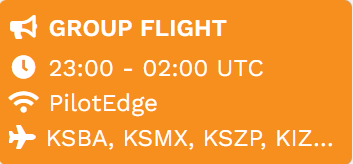
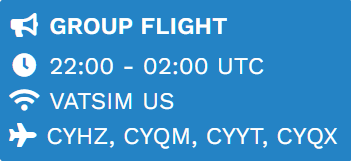
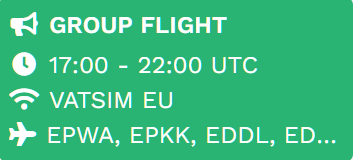
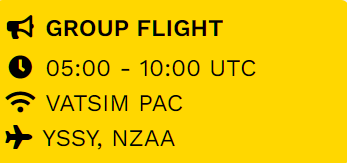
Each Event is color-coded to help you identify the provider of ATC Network Services – as illustrated below.

<table id="bkmrk-pilotedge-poscon-vat-0" style="border-collapse:collapse;width:100%;"><tbody><tr><td class="align-center" style="width:20%;">**PilotEdge**</td><td class="align-center" style="width:20%;">**VATSIM EU**</td><td class="align-center" style="width:20%;">**VATSIM PAC**</td><td class="align-center" style="width:20%;">**VATSIM US**</td></tr><tr><td style="width:20%;">[![image-1650368794593.png](https://docs.walkerair.us/uploads/images/gallery/2022-04/scaled-1680-/image-1650368794593.png)](https://docs.walkerair.us/uploads/images/gallery/2022-04/image-1650368794593.png)

</td><td style="width:20%;">[![image-1650368896964.png](https://docs.walkerair.us/uploads/images/gallery/2022-04/scaled-1680-/image-1650368896964.png)](https://docs.walkerair.us/uploads/images/gallery/2022-04/image-1650368896964.png)

</td><td style="width:20%;">[![image-1650368846819.png](https://docs.walkerair.us/uploads/images/gallery/2022-04/scaled-1680-/image-1650368846819.png)](https://docs.walkerair.us/uploads/images/gallery/2022-04/image-1650368846819.png)

</td><td style="width:20%;">[![image-1650368965843.png](https://docs.walkerair.us/uploads/images/gallery/2022-04/scaled-1680-/image-1650368965843.png)](https://docs.walkerair.us/uploads/images/gallery/2022-04/image-1650368965843.png)

</td></tr></tbody></table>

In the Calendar that appears, review the options for that month. Click on an **Event** that interests you within that day's square. This will take you to the Event's **Details Page**. Here, you can read more information about the **Event**.

- If you're interested in signing up for it, click the **Sign-Up** button.
- If you're **not** interested in signing-up for it, click the **Back To Events** button (*back arrow icon*) to return to the **Event Calendar**.

All Pilots attending an event **and flying on an online network** will receive **double points** for participating.   
  
Pilots will **not receive** double points if they fly offline and/or use time compression during their event flight.

---

<p class="callout info">*You **do not** have to be at the airport location in order to participate.*</p>

<p class="callout info">*Event flights **do not** change your location upon landing.*</p>

There are four (4) types of Group Flights at *Walker Air Transport*. This allows our Event Directors and Pilots to have options and flexibility – in creating the Events *and* flying them. Find the type of event in which you're participating by reading the header *above* the list of airports. The types are explained below.

<table id="bkmrk-fly-in-fly-out-fly-i" style="border-collapse:collapse;width:100%;"><tbody><tr><td class="align-center" style="width:25%;background-color:#808080;"><span style="color:#ffffff;">**Fly-In**</span></td><td class="align-center" style="width:25%;background-color:#808080;"><span style="color:#ffffff;">**Fly-Out**</span></td><td class="align-center" style="width:25%;background-color:#808080;"><span style="color:#ffffff;">**Fly-In/Fly-Out**</span></td><td class="align-center" style="width:25%;background-color:#808080;"><span style="color:#ffffff;">**Specific**</span></td></tr><tr><td class="align-center" style="width:25%;">*You must fly into one   
of these airports.*</td><td class="align-center" style="width:25%;">*You must fly out of one   
of these airports.*</td><td class="align-center" style="width:25%;">*You must fly into or out of   
one of these airports.*</td><td class="align-center" style="width:25%;">*You must fly between*

*these airports.*

</td></tr></tbody></table>

Let's talk about times and how they relate to our *Event System*.

<table id="bkmrk-bidding-opens-biddin" style="border-collapse:collapse;width:100%;"><tbody><tr><td class="align-center" style="width:33.3333%;vertical-align:middle;background-color:#808080;"><span style="color:#ffffff;">**Bidding Opens**</span></td><td class="align-center" style="width:33.3333%;vertical-align:middle;background-color:#808080;"><span style="color:#ffffff;">**Bidding Closes**</span></td><td class="align-center" style="width:33.3333%;vertical-align:middle;background-color:#808080;"><span style="color:#ffffff;">**Submission Period**</span></td></tr><tr><td class="align-center" style="width:33.3333%;vertical-align:middle;">*All bidding opens 3-hours   
**prior to** the start time.*</td><td class="align-center" style="width:33.3333%;vertical-align:middle;">*All bidding closes 30 minutes   
**before** the event end time.*</td><td class="align-center" style="width:33.3333%;vertical-align:middle;">*You have a 3-hour grace period **after** the event ends to submit your PIREP.*</td></tr></tbody></table>

---

So, let's review step-by-step how a group flight works:

<table id="bkmrk-1-sign-up-for-an-eve" style="border-collapse:collapse;width:100%;"><tbody><tr><td class="align-center" style="width:4.5679%;vertical-align:middle;">**1**</td><td style="width:95.4321%;">Sign up for an Event.</td></tr><tr><td class="align-center" style="width:4.5679%;vertical-align:middle;">**2**</td><td style="width:95.4321%;">Make note of the start time *and* end time.

<p class="callout danger">*You only get a 3-hour grace period **after** the end time for your PIREP to be submited.*</p>

</td></tr><tr><td class="align-center" style="width:4.5679%;vertical-align:middle;">**3**</td><td style="width:95.4321%;">**3-hour prior** to the Event *Start Time* and up to **30 minutes before** the Event *End Time*, you'll see a **Bid a Flight** button. It allows you to create a flight using any of our Fleet aircraft in order to participate in the Event.</td></tr><tr><td class="align-center" style="width:4.5679%;vertical-align:middle;">**4**</td><td style="width:95.4321%;">If you see a **Bid Exists** button, that means you already made a Bid. You must delete it in order to make a new one.</td></tr><tr><td class="align-center" style="width:4.5679%;vertical-align:middle;">**5**</td><td style="width:95.4321%;">The **Event Details** page will list a *preferred* route. You can use it or use *simBrief* to create your own routing.</td></tr><tr><td class="align-center" style="width:4.5679%;vertical-align:middle;">**6**</td><td style="width:95.4321%;">**Read the Flight Briefing!** It may include important information such as what airport we will depart from and arrive to if it's necessary.</td></tr><tr><td class="align-center" style="width:4.5679%;vertical-align:middle;">**7**</td><td style="width:95.4321%;">You get credit for flying the Event as long as you meet its requirement(s)*.* </td></tr><tr><td class="align-center" style="width:4.5679%;vertical-align:middle;">**8**</td><td style="width:95.4321%;">All event times are in UTC, though we also show the local time (to you) as well.</td></tr><tr><td class="align-center" style="width:4.5679%;vertical-align:middle;">**9**</td><td style="width:95.4321%;">The **Start Time** is our scheduled Pushback time. Plan to be online *at least* 30 minutes prior to the Event's *Start Time* in order to complete your Pre-Flight Check.  
 **COMMENT:** *Once the Bid Window opens, you may, if you desire, begin the flight. You do **not** have to wait for the Start/scheduled Pushback time.*</td></tr><tr><td class="align-center" style="width:4.5679%;vertical-align:middle;">**10**</td><td style="width:95.4321%;"><p class="callout info">***OPTIONAL** | **NOT REQUIRED**: Get on Discord and join the Group Flight voice channel. This is how we communicate with one another.* </p>

</td></tr></tbody></table>

Continue your reading [**here**](https://docs.walkerair.us/books/2-training/page/events) on **Events** and how to use the system.

# Flight Operations

# New Page


# Introduction

---

There are four \[4\] types of flights available at *Walker Air Transport*:

<table border="1" id="bkmrk-cargo-charter-schedu" style="border-collapse: collapse; width: 100%; height: 29px;"><tbody><tr style="height: 29px;"><td class="align-center" style="width: 25%; vertical-align: middle; background-color: grey; height: 29px;">[<span style="color: #ffffff;">**Cargo**</span>](https://docs.walkerair.us/books/3-help/page/cargo "Cargo")  
<span style="color: #ffffff;">(click to view)</span></td><td class="align-center" style="width: 25%; vertical-align: middle; background-color: grey; height: 29px;">[<span style="color: #ffffff;">**Charter**</span>](https://docs.walkerair.us/books/3-help/page/charter "Charter")  
<span style="color: #ffffff;">(click to view)</span></td><td class="align-center" style="width: 25%; vertical-align: middle; background-color: grey; height: 29px;">[<span style="color: #ffffff;">**Scheduled**</span>](https://docs.walkerair.us/books/3-help/page/scheduled "Scheduled")  
<span style="color: #ffffff;">(click to view)</span></td><td class="align-center" style="width: 25%; vertical-align: middle; background-color: grey; height: 29px;">[<span style="color: #ffffff;">**Tours**</span>](https://docs.walkerair.us/books/3-help/page/scheduled "Scheduled")  
<span style="color: #ffffff;">(click to view)</span></td></tr></tbody></table>

[![image-1742051734069.png](https://docs.walkerair.us/uploads/images/gallery/2025-03/scaled-1680-/image-1742051734069.png)](https://docs.walkerair.us/uploads/images/gallery/2025-03/image-1742051734069.png)

To learn more about each of them, scroll through this document.

<p class="callout info"><label class="label label-warning font-14" data-original-title="Information" data-toggle="tooltip" style="margin: 0px;" title=""></label> ***Location and Home:***   
*When you signed up for Walker Air Transport, you were asked to provide a Home Base location. This location is at your discretion and only affects **one thing**; where your career begins in the 'Scheduled' and 'Cargo' module.*</p>

<p class="callout info"><label class="label label-warning font-14" data-original-title="Information" data-toggle="tooltip" style="margin: 0px;" title=""></label> ***Aircraft Available:** Each flight type has a specific fleet available. Visit our Fleet page by [clicking here.](https://crew.walkerair.us/corporate/fleet)*</p>

<p class="callout danger">***Notice About Worldwide Persistence:***   
*As you read further into each module, remember that our 'Cargo' and 'Scheduled' operations require Pilots to depart from their last arrival airport, unless a Jumpseat to another airport is purchased. We also have an option called 'Worldwide Persistence' which enables Charter flights to be operated in the same manner. [**Read more here.**](https://docs.walkerair.us/books/3-help/page/worldwide-persistence "Worldwide Persistence")  
</p>

<p class="callout danger">***Notice About Diversions or Crashes:***   
*When you divert and land, or crash, our system will use your last known coordinates to determine the airport (or closest) where you are. Your PIREP is then marked as 'Diverted' and you have an additional icon placed on the map. In order to maintain our persistence system, we do one additional task based on having Worldwide Persistence enabled or not (see note above about Worldwide Persistence).*  
 ***WWP is <span style="color: #ff0000;">ON </span>**<span style="color: #ff0000;">|</span>**<span style="color: #ff0000;"> ENABLED</span>:***   
*You'll remain at the airport we identified.*  
***WWP is <span style="color: #ff0000;">OFF </span>**<span style="color: #ff0000;">| </span>***<span style="color: #ff0000;">DISABLED</span>*****:** If the airport where you are has no Cargo or Scheduled flights, we'll identify another airport closest to your location that does have flights and relocate you so you may continue on your journey.*  
  
*If you're on a **Tour** flight, you'll be required to re-fly that leg.*</p>

# Cargo

---

The **Cargo Flight** Module gives Pilots an opportunity to experience life as a 'Freight Dog' for a cargo airlines.

<p class="callout info">*If you wish to depart from another location, purchase a Jumpseat Ticket to transfer to another airport.*</p>

---

#### **Finding a Cargo Flight**

In the *Navigation Bar* of the *Crew Ops* website, select **Flights** &gt; **Cargo**. That will take you to the **Cargo** **Flights** page.

[![image-1650209756511.png](https://docs.walkerair.us/uploads/images/gallery/2022-04/scaled-1680-/image-1650209756511.png)](https://docs.walkerair.us/uploads/images/gallery/2022-04/image-1650209756511.png)
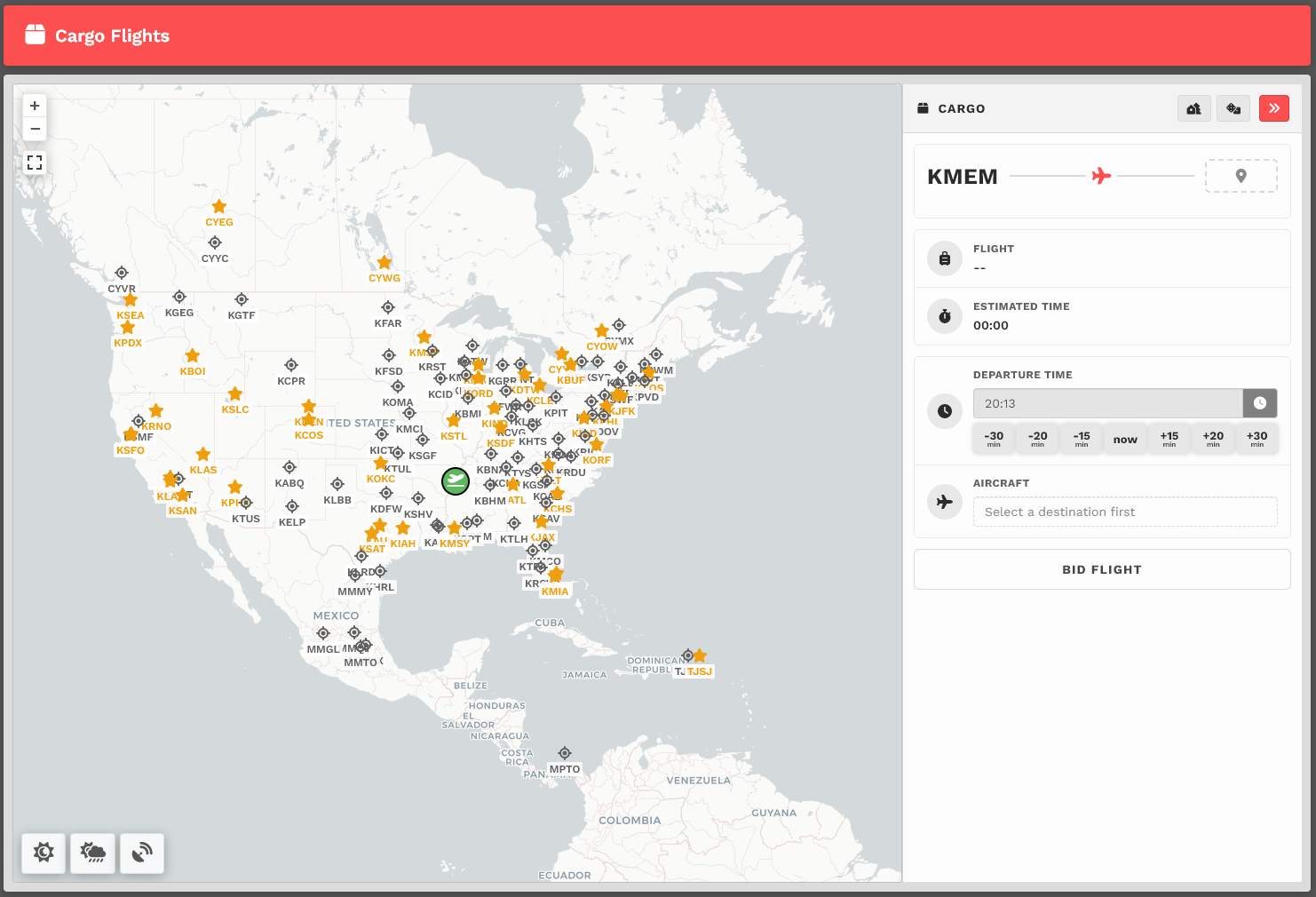
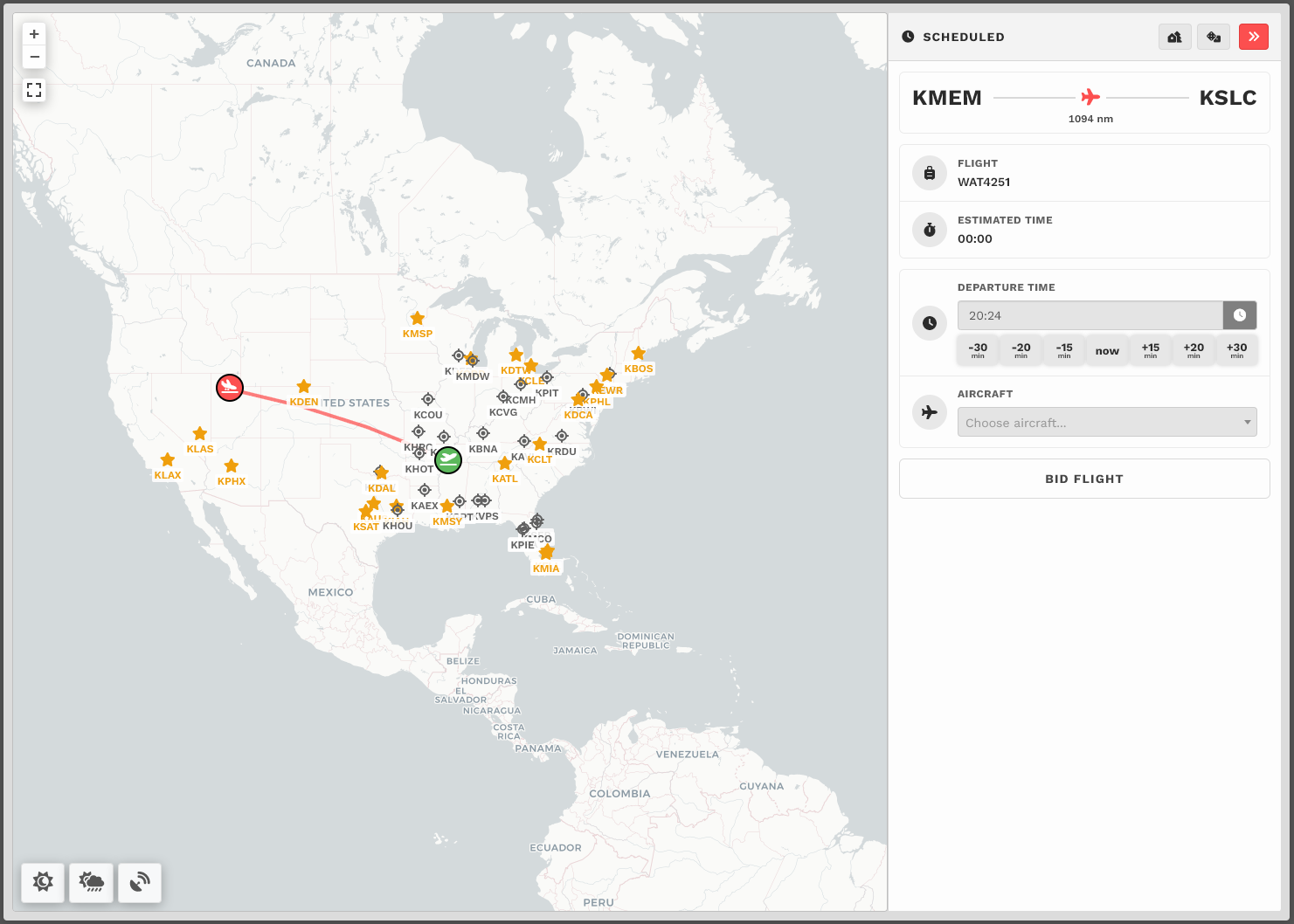
Upon arrival, you'll be presented with a map. You'll see a departure icon (**Green Map Pin**) and 1 or more arrival pins (**Black Dots**), as well a **Toggle Weather**, **Toggle VATSIM** and **Select Random Arrival** buttons at the bottom left of the screen.

<p class="callout info">*The map seen above represents its default view. To see the rest of the world, place your cursor on the map and, with your control wheel, zoom in or out.*</p>

The departure location for your next flight is set as follows:

<table border="1" id="bkmrk-new-pilots-taking-th" style="border-collapse: collapse; width: 100%;"><tbody><tr><td class="align-center" style="width: 50%; vertical-align: middle; background-color: grey;"><span style="color: #ffffff;">**New Pilots**</span></td><td class="align-center" style="width: 50%; vertical-align: middle; background-color: grey;"><span style="color: #ffffff;">**All Other Pilots**</span></td></tr><tr><td class="align-center" style="width: 50%; vertical-align: middle;">New Pilots taking their **first flight** depart   
from the **Home Airport** they requested on registration.</td><td class="align-center" style="width: 50%; vertical-align: middle;">The *Arrival Airport* of your last **Cargo** or **Scheduled** flight.</td></tr></tbody></table>

Mouse over pins/black dots to see the names of the airports with flights available from your departure airport.

Once you find a place to which you'd like to fly, click on its black dot. Lets use KIAH &gt; KSEA as an example.

---

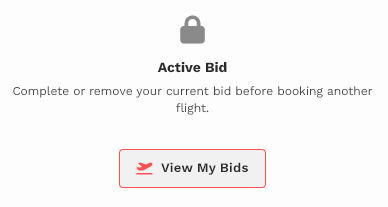
<table border="1" id="bkmrk-important%C2%A0-%3A%3A%C2%A0-you-m" style="border-collapse: collapse; width: 100%;"><tbody><tr><td class="align-left" style="width: 50%; vertical-align: middle;">**IMPORTANT** :: You may only Bid a **new** Cargo flight when no other Cargo Flights have been bid. If you have already bid another flight – or – that flight is already in progress, you'll see this message.   
  
You must complete the flight or cancel it in order to bid a new one.</td><td class="align-left" style="width: 50%; vertical-align: middle;">[![image-1651759347289.png](https://docs.walkerair.us/uploads/images/gallery/2022-05/scaled-1680-/image-1651759347289.png)](https://docs.walkerair.us/uploads/images/gallery/2022-05/image-1651759347289.png)</td></tr></tbody></table>

---

You'll then see your **Flight Bid** appear listing the Flight Number, Distance and Estimated Time Enroute.

[![image-1650209829246.png](https://docs.walkerair.us/uploads/images/gallery/2022-04/scaled-1680-/image-1650209829246.png)](https://docs.walkerair.us/uploads/images/gallery/2022-04/image-1650209829246.png)

<p class="callout info">*The Estimated Time Enroute is only an estimate and does **not** reflect the time in the aircraft you select.*</p>

---

#### **Bidding a Cargo Flight**

Click the **Bid Flight** button to bid on the flight.

[![image-1650209882690.png](https://docs.walkerair.us/uploads/images/gallery/2022-04/scaled-1680-/image-1650209882690.png)](https://docs.walkerair.us/uploads/images/gallery/2022-04/image-1650209882690.png)

After doing so, the confirmation window below will appear.

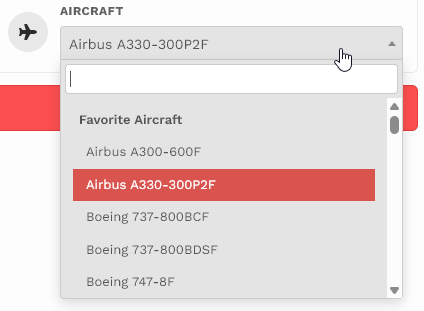
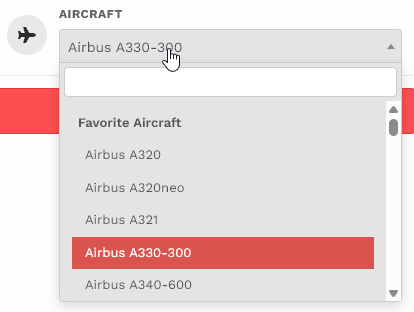
From the drop-down, select an **Aircraft Type**.

[![image-1687629080463.png](https://docs.walkerair.us/uploads/images/gallery/2023-06/scaled-1680-/image-1687629080463.png)](https://docs.walkerair.us/uploads/images/gallery/2023-06/image-1687629080463.png)

<p class="callout info">*We allow our Pilots to chose their preferred aircraft type rather than restricted them to one assigned to the flight.*</p>

After selecting your aircraft, click **Book**.

The **Pilot Briefing** will appear signifying the flight has been added your **My Bids** page.

[![image-1650210039188.png](https://docs.walkerair.us/uploads/images/gallery/2022-04/scaled-1680-/image-1650210039188.png)](https://docs.walkerair.us/uploads/images/gallery/2022-04/image-1650210039188.png)

<table border="1" id="bkmrk-for-both-the-departu" style="border-collapse: collapse; width: 100%;"><tbody><tr><td class="align-left" style="width: 33.8272%; vertical-align: middle;">For both the **Departure** *and* **Arrival** Airports, the METAR (Meteorological Terminal Air Report) will be displayed.

In case of airports with no METAR available, we provide you with a geolocated button directing you to *Windy*, an external site that will provide you with the local conditions of the airport. You can access this by hitting the *Windy* logo at the bottom.

</td><td style="width: 66.1728%;">[![image-1738161644443.png](https://docs.walkerair.us/uploads/images/gallery/2025-01/scaled-1680-/image-1738161644443.png)](https://docs.walkerair.us/uploads/images/gallery/2025-01/image-1738161644443.png)

</td></tr><tr><td class="align-left" style="width: 33.8272%; vertical-align: middle;">Click **TAF** and the *Terminal Arrival Forecast* will be displayed.</td><td style="width: 66.1728%;">[![image-1650209328583.png](https://docs.walkerair.us/uploads/images/gallery/2022-04/scaled-1680-/image-1650209328583.png)](https://docs.walkerair.us/uploads/images/gallery/2022-04/image-1650209328583.png)

</td></tr><tr><td class="align-left" style="width: 33.8272%; vertical-align: middle;">Click **Runways** and those available at the airport will be displayed.</td><td style="width: 66.1728%;">[![image-1650209573586.png](https://docs.walkerair.us/uploads/images/gallery/2022-04/scaled-1680-/image-1650209573586.png)](https://docs.walkerair.us/uploads/images/gallery/2022-04/image-1650209573586.png)

</td></tr></tbody></table>

##### **Map Features**

**Flight Status** – A number of informational items regarding the real-time status of your current flight are displayed on the map.

- When *smartCARS 3* or *FlightTrackerXP* has **not** been started *–* meaning you did **not** click 'Start' *–* this reminder will be seen;
- When you're in Preflight, the **Network Status** is displayed as a means of reminding you to set the flag for the ATC network you're using;
- When in the various phases of flight, your altitude, ground speed, time remaining, network and phase will be displayed. If you're successfully in **Cruise**, the phase indicator will turn green (useful for mistakes with cruising altitude or low pressure problems.); and,
- Once you've arrived and the PIREP is ready to be submitted, the status shows only **Arrived** (in green).

**NOTE:** *The data updates every 10 seconds.*

[![image-1643387911011.png](https://docs.walkerair.us/uploads/images/gallery/2022-01/scaled-1680-/image-1643387911011.png)](https://docs.walkerair.us/uploads/images/gallery/2022-01/image-1643387911011.png)

---

Once you've reviewed the details of your flight, you're ready to go fly it...

# Charter

---

Leveraging a list of all airports around the world, the **Charter** system allows a pilot to create a flight schedule without the constraints of having to adhere to the company's route map. The only limitation is selecting an aircraft with the range to complete the flight, and that will fit in the airports.

<p class="callout info">If you find an airport missing from the list, please send in a [ticket](https://docs.walkerair.us/books/2-training/page/help-submit-a-ticket).</p>

---

#### **Creating &amp; Bidding a Charter Flight**

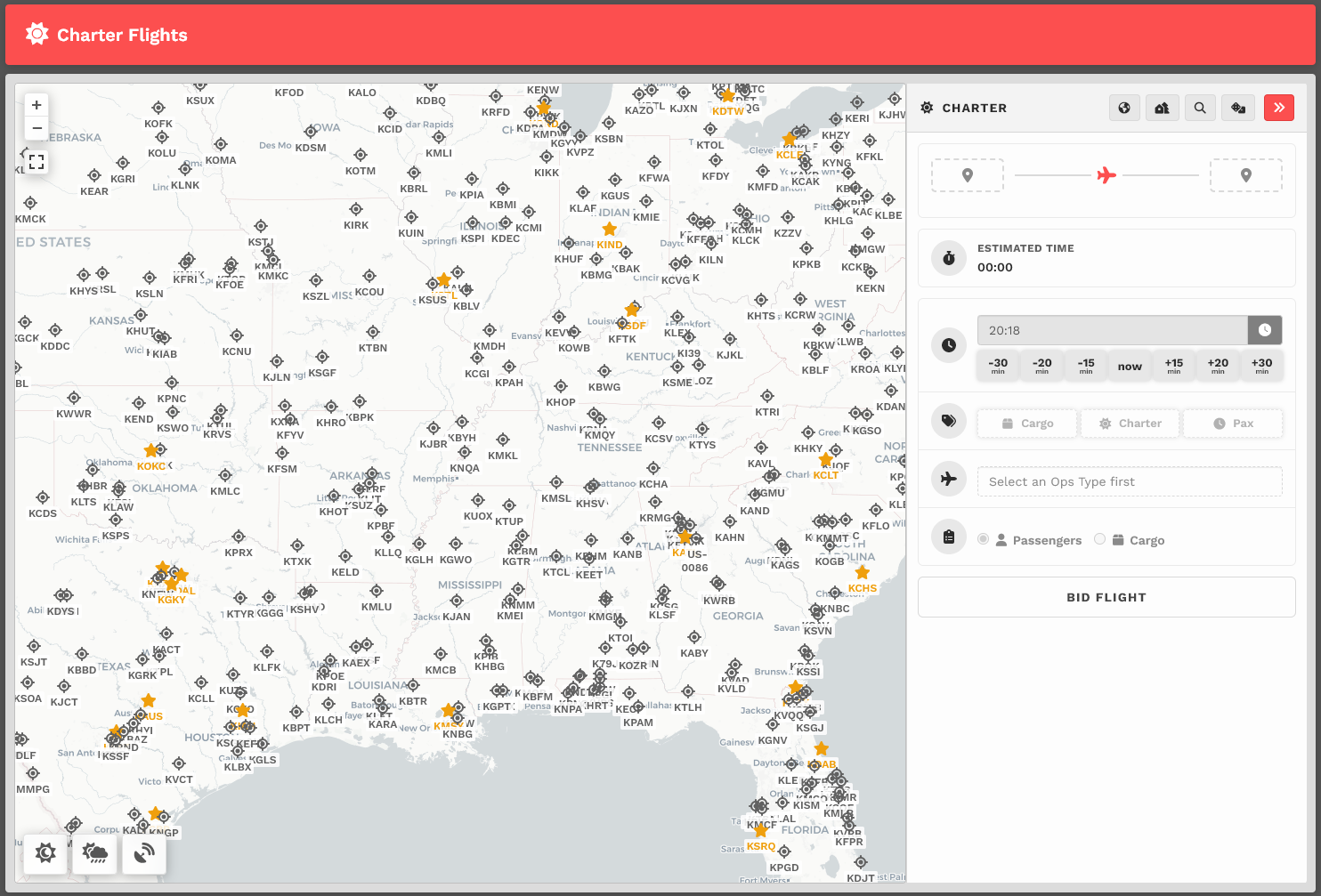
In the *Navigation Bar* in our *Crew Ops* website, select **Flights** &gt; **Charter**.

[![image.png](https://docs.walkerair.us/uploads/images/gallery/2026-05/scaled-1680-/FKJimage.png)](https://docs.walkerair.us/uploads/images/gallery/2026-05/FKJimage.png)

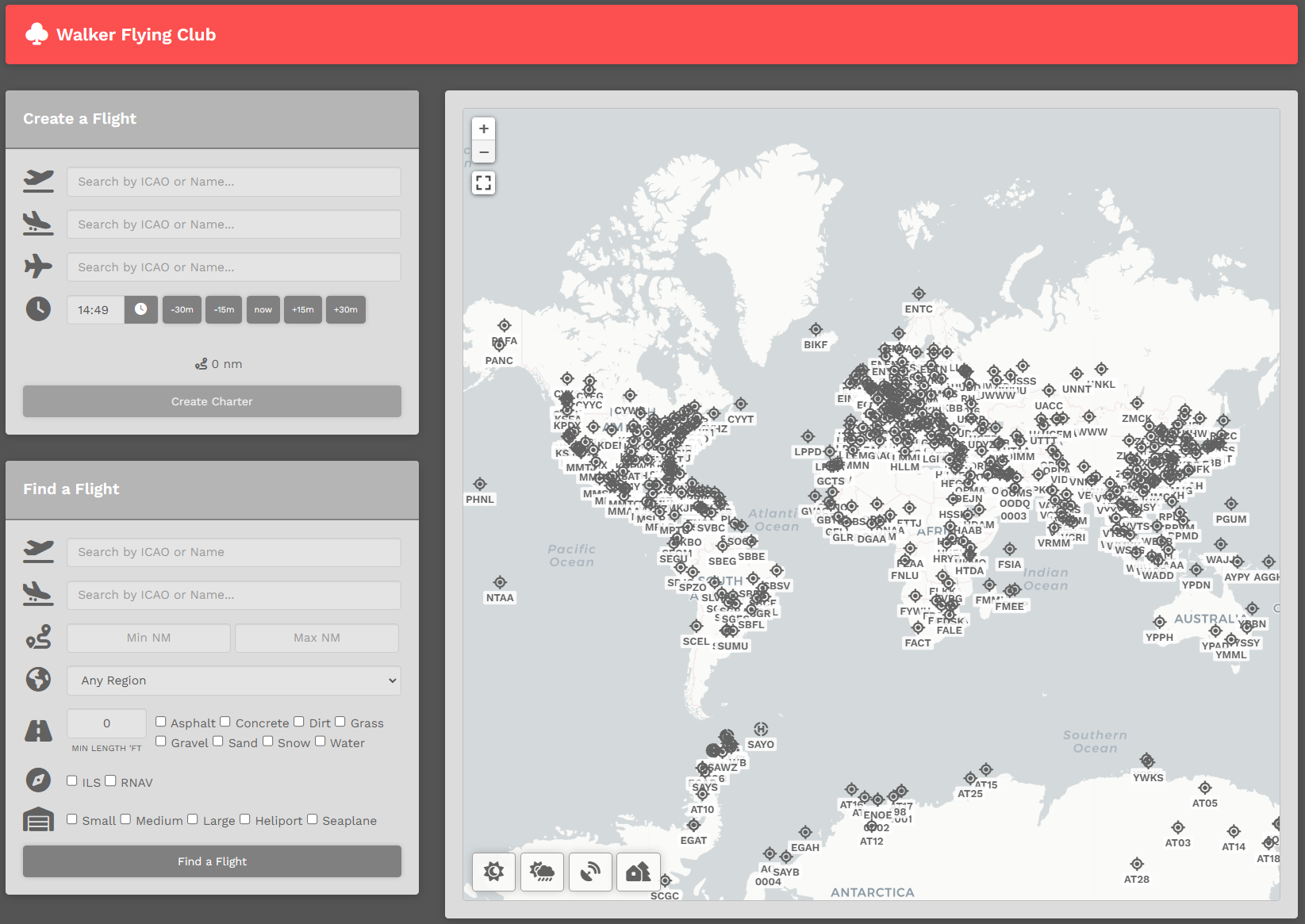
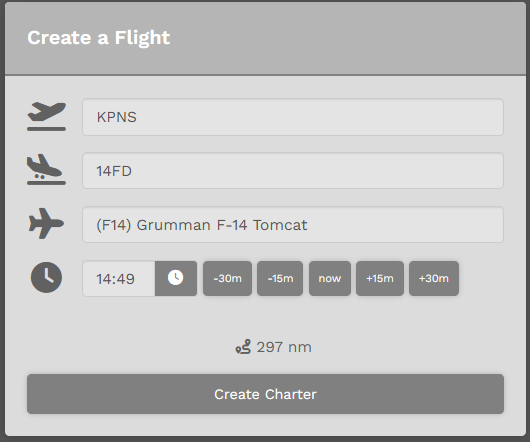
On the **Charter Page**, there are (2) ways you can create a flight. You can choose to use the *Create a Flight* option listed below -- or -- read below that and you can use the *Interactive Map*.

Using the *Create-a-Flight*, there are seven (9) steps you must complete in order to create and bid a **Charter** flight.

[![image.png](https://docs.walkerair.us/uploads/images/gallery/2026-05/scaled-1680-/yD5image.png)](https://docs.walkerair.us/uploads/images/gallery/2026-05/yD5image.png)

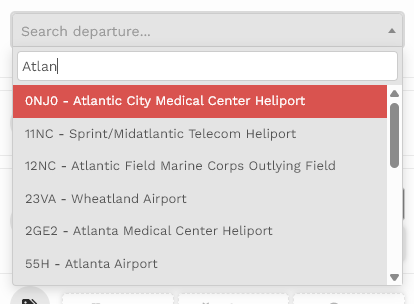
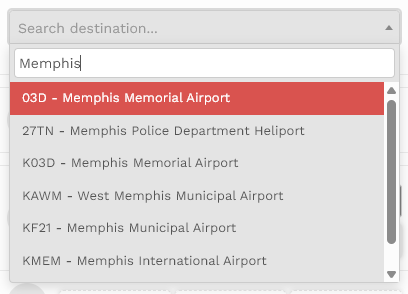
<table id="bkmrk-1.-departure-%E2%80%93-enter" style="border-collapse: collapse; width: 100%; height: 270px;"><tbody><tr style="height: 29px;"><td class="align-center" style="width: 5.80247%; vertical-align: middle; height: 29px;">**1.**</td><td style="width: 94.1975%; height: 29px;">**Departure** – Enter the Name or ICAO Code of any airport from which you wish to *depart*.  
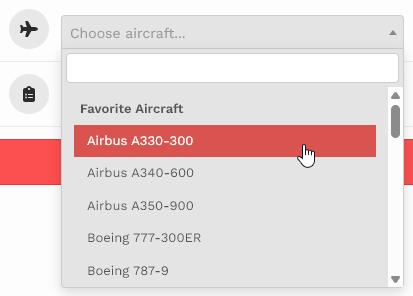
*If you have Worldwide Persistence (WWP) enabled, your departure will be the last location you flew into or jumpseat to.*</td></tr><tr style="height: 29px;"><td class="align-center" style="width: 5.80247%; vertical-align: middle; height: 29px;">**2.**</td><td style="width: 94.1975%; height: 29px;">**Arrival** – Enter the Name or ICAO Code of any airport to which you wish to *arrive*. This may be the same airport as departures, if you wish to simulate circuit training, sightseeing tours, etc.</td></tr><tr style="height: 57px;"><td class="align-center" style="width: 5.80247%; vertical-align: middle; height: 57px;">**3.**</td><td style="width: 94.1975%; height: 57px;">**Ops Type** – Chose an Ops Type, this will load a pre-defined list of aircraft for that operation.

[![image.png](https://docs.walkerair.us/uploads/images/gallery/2026-05/scaled-1680-/IM3image.png)](https://docs.walkerair.us/uploads/images/gallery/2026-05/IM3image.png)

[![image.png](https://docs.walkerair.us/uploads/images/gallery/2026-05/scaled-1680-/2Rrimage.png)](https://docs.walkerair.us/uploads/images/gallery/2026-05/2Rrimage.png)

*If you wish to return and pick another operation, click on the 'Reset Aircraft' to the right of the drop down box.*

<p class="callout info">*You can view our entire fleet by operation by visiting CrewOps &gt; Company &gt; Fleet.*</p>

</td></tr><tr style="height: 29px;"><td class="align-center" style="width: 5.80247%; vertical-align: middle; height: 29px;">**4.**</td><td style="width: 94.1975%; height: 29px;">**Departure Time** – Select a departure time – and remember this is UTC time, **not** local time. You can just leave this as-is, as you do not need to set this time in your flight sim for your flight to count for Walker.</td></tr><tr style="height: 29px;"><td class="align-center" style="width: 5.80247%; vertical-align: middle; height: 29px;">**5.**</td><td style="width: 94.1975%; height: 29px;">**Passengers** or **Cargo** – Choose who or what will be accompanying you on your flight – passengers or cargo.</td></tr><tr><td class="align-center" style="width: 5.80247%; vertical-align: middle;">**6.**</td><td style="width: 94.1975%;">**MEDEVAC** – Toggling this will mark your flight as a Medevac and append the necessary information for online ATC network pre-files. It will also show up as an indicator on the live map, recent flights, and logbook.</td></tr><tr><td class="align-center" style="width: 5.80247%; vertical-align: middle;">**7,**</td><td style="width: 94.1975%;">**Search-and-Rescue (SAR)** – Toggling this will mark your flight as a SAR and append the necessary information for online ATC network pre-files. It will also show up as an indicator on the live map, recent flights, and logbook.</td></tr><tr style="height: 68px;"><td class="align-center" style="width: 5.80247%; vertical-align: middle; height: 68px;">**8.** </td><td style="width: 94.1975%; height: 68px;">**Worldwide Persistence –** Toggle **On** or **Off  
<p class="callout info">*To learn more about Worldwide Persistence, click* ***[here](https://docs.walkerair.us/books/3-help/page/worldwide-persistence "Worldwide Persistence")***.  
</p>

</td></tr><tr style="height: 29px;"><td class="align-center" style="width: 5.80247%; vertical-align: middle; height: 29px;">**9.** </td><td style="width: 94.1975%; height: 29px;">Click the **Create** button.</td></tr></tbody></table>

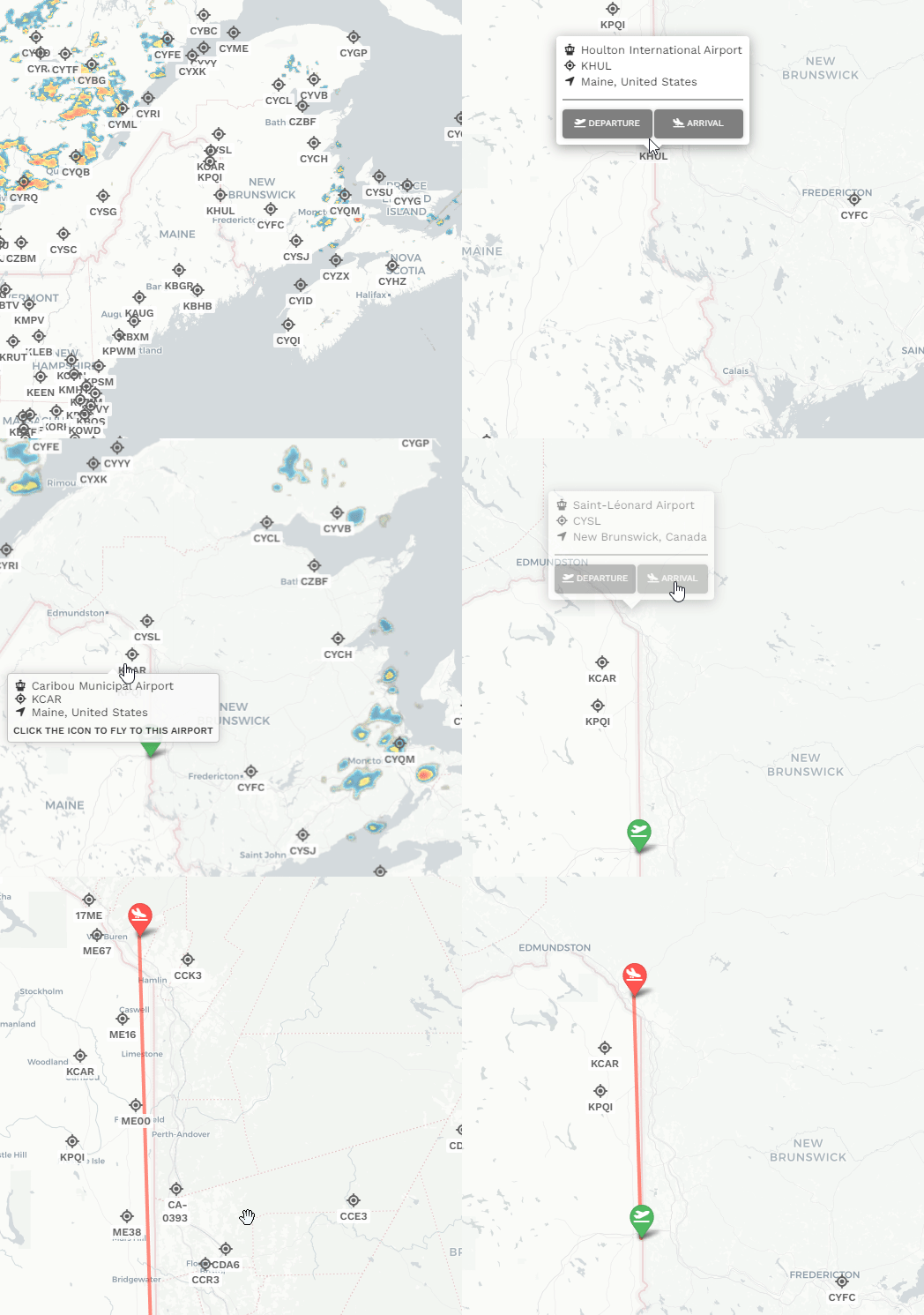
Using the *Interactive Map*, please note the following details.

- The map automatically displays airports by type, based on your zoom level and panning.  
    
    - Further out you are: large airports
    - Closer you are: large, and medium airports
    - Closer closer you are: large, medium, and small airports
    - CLOSE you are: large, medium, small, seaplane, and heliport
- The map now includes icons and ICAO labels. 
    - [![image-1690753163231.png](https://docs.walkerair.us/uploads/images/gallery/2023-07/scaled-1680-/image-1690753163231.png)](https://docs.walkerair.us/uploads/images/gallery/2023-07/image-1690753163231.png) = Airport
    - [![image-1690753179956.png](https://docs.walkerair.us/uploads/images/gallery/2023-07/scaled-1680-/image-1690753179956.png)](https://docs.walkerair.us/uploads/images/gallery/2023-07/image-1690753179956.png) = Heliport
    - [![image-1690753209865.png](https://docs.walkerair.us/uploads/images/gallery/2023-07/scaled-1680-/image-1690753209865.png)](https://docs.walkerair.us/uploads/images/gallery/2023-07/image-1690753209865.png) = Seaplane

<table id="bkmrk-you-can-zoom-in-to-a" style="width: 100%; border-collapse: collapse; border-color: #000000; border-style: solid; height: 618px;"><tbody><tr style="height: 516px;"><td class="align-center" style="width: 100%; height: 516px;">[![image-1690753282539.gif](https://docs.walkerair.us/uploads/images/gallery/2023-07/image-1690753282539.gif)](https://docs.walkerair.us/uploads/images/gallery/2023-07/image-1690753282539.gif)</td></tr><tr style="height: 102px;"><td style="width: 100%; height: 102px;">You can zoom in to any icon, hover over it, and then left mouse click. You will be presented with a box that will enable you to add that airport to either Departure or ICAO. Just click the button as you wish.

The airports can be replaced by simply clicking, and choose the right slot. Over and over.

</td></tr><tr><td style="width: 100%;">[![image.png](https://docs.walkerair.us/uploads/images/gallery/2026-05/scaled-1680-/wm2image.png)](https://docs.walkerair.us/uploads/images/gallery/2026-05/wm2image.png)

It will automatically update the *Create-a-Flight* section, and then simply pick your aircraft and finish out the rest of the flight information. Lastly, click 'Create Charter' and you are done.

</td></tr></tbody></table>

You'll be directed to the **Pilot Briefing** for the charter flight you just created.

[![image.png](https://docs.walkerair.us/uploads/images/gallery/2026-05/scaled-1680-/bt5image.png)](https://docs.walkerair.us/uploads/images/gallery/2026-05/bt5image.png)

---

#### **Find a Flight - Random Flight Generator** 

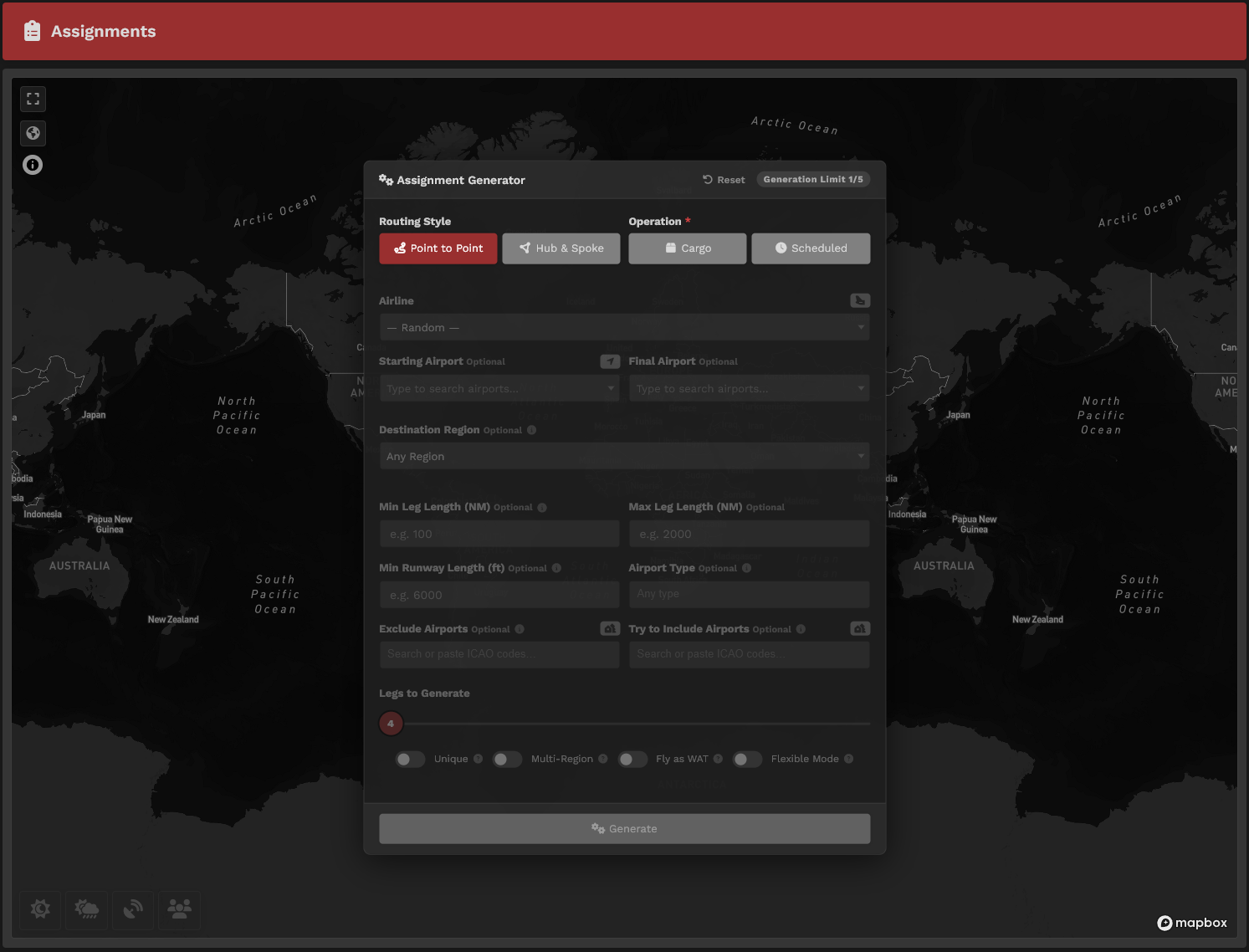
The **Random Generator** is an easy way to address the '*Where am I going to fly today*?' question... Input a few items and generate a random flight.

You access the Find a Flight by clicking on the search button at the top right of Charter Flights.

[![image.png](https://docs.walkerair.us/uploads/images/gallery/2026-05/scaled-1680-/Jp4image.png)](https://docs.walkerair.us/uploads/images/gallery/2026-05/Jp4image.png)

A window will popup that allows you to define details, down to your runway &amp; surfaces, approach &amp; facility types.

[![image.png](https://docs.walkerair.us/uploads/images/gallery/2026-05/scaled-1680-/CLbimage.png)](https://docs.walkerair.us/uploads/images/gallery/2026-05/CLbimage.png)

If you're using **Worldwide Persistence**, your departure airport will be filled in automatically. Otherwise you can fill as many or as little of the following boxes and the system will generate a flight that fits within the constraints you have selected.

Note that if you do not tick any boxes for the runway surface selection and the airport size selection, the system will take this input as allowing all of the options.

You can click on the **Find** button as many times as you like until you get a satisfactory result, then you can proceed to hit **Transfer** to send the airport information to the charter module on the top of the screen.

[![image.png](https://docs.walkerair.us/uploads/images/gallery/2026-05/scaled-1680-/AzRimage.png)](https://docs.walkerair.us/uploads/images/gallery/2026-05/AzRimage.png)

<p class="callout success">*To clear all entries, click the **Clear Generator** button **or** simply refresh the page.*</p>

# Scheduled

---

The **Scheduled Flight** Module gives Pilots an opportunity to experience life as a 'Line Pilot' for a major passenger airline.

<p class="callout info">*If you wish to depart from another location, you may purchase a Jumpseat Ticket to transfer to another airport.*</p>

#####  

---

##### **Finding a Scheduled Flight**

In the *Navigation Bar* of the *Crew Ops* website, select **Flights** &gt; **Scheduled**. That will take you to the **Scheduled Flights** page.

[![image-1650208581546.png](https://docs.walkerair.us/uploads/images/gallery/2022-04/scaled-1680-/image-1650208581546.png)](https://docs.walkerair.us/uploads/images/gallery/2022-04/image-1650208581546.png)
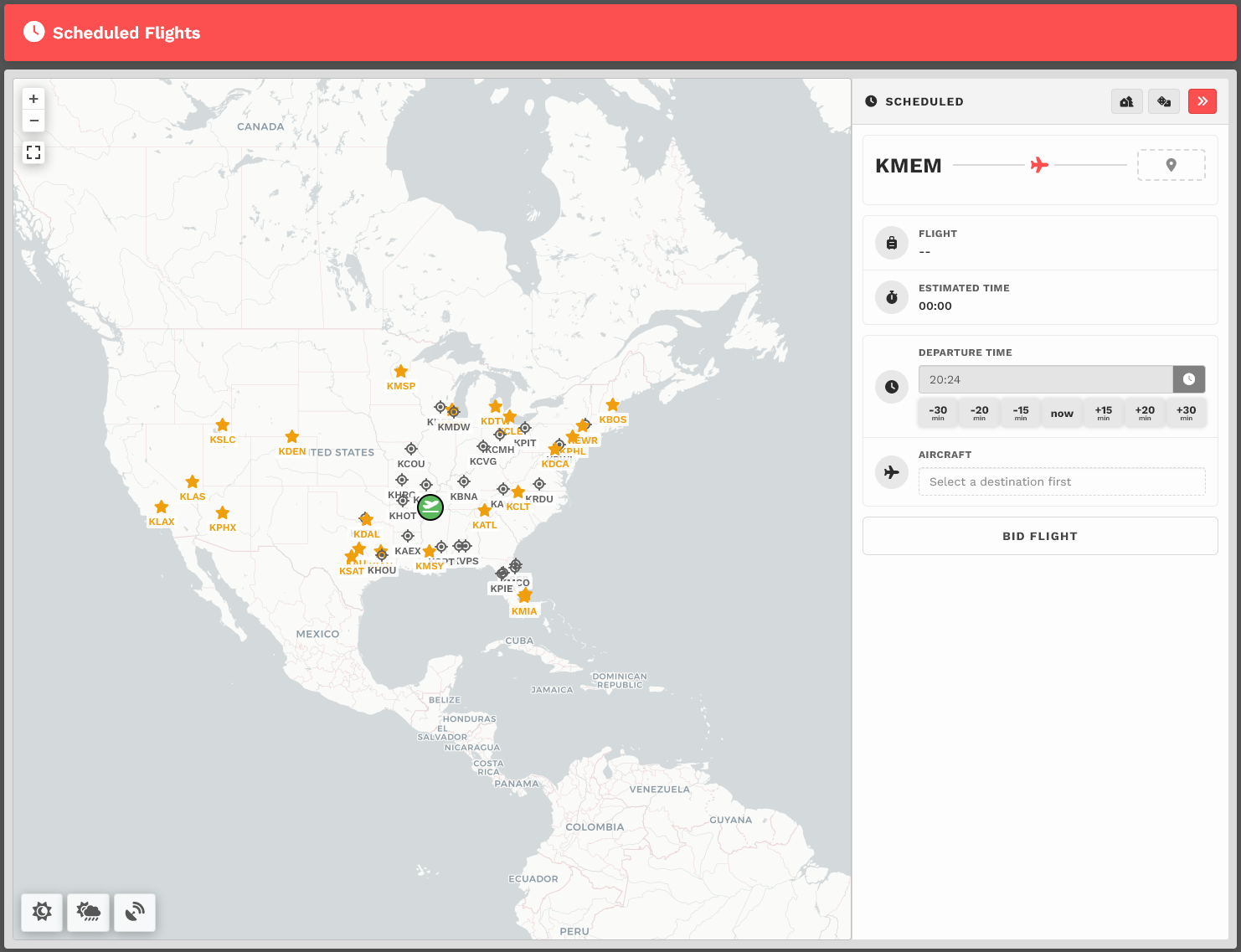
Upon arrival, you'll be presented with a map. You'll see a departure icon (**Green Map Pin**) and one \[1\] or more arrival pins (**Black Dots**), as well as **Toggle Weather**, **Toggle VATSIM** and **Select Random Arrival** buttons at the bottom left of the screen.

<p class="callout info">*The map seen above represents its default view. To see the rest of the world, place your cursor on the map and, with your control wheel, zoom in or out.*</p>

The departure location for your next flight is set as follows:

<table border="1" id="bkmrk-new-pilots-taking-th" style="border-collapse: collapse; width: 100%;"><tbody><tr><td class="align-center" style="width: 50%; vertical-align: middle; background-color: grey;"><span style="color: #ffffff;">**New Pilots**</span></td><td class="align-center" style="width: 50%; vertical-align: middle; background-color: grey;"><span style="color: #ffffff;">**All Other Pilots**</span></td></tr><tr><td class="align-center" style="width: 50%; vertical-align: middle;">New Pilots taking their **first flight** depart   
from the **Home Airport** they requested on registration.</td><td class="align-center" style="width: 50%; vertical-align: middle;">The *Arrival Airport* of your last **Cargo** or **Scheduled** flight.</td></tr></tbody></table>

Mouse over pins/black dots to see the names of the airports with flights available from your departure airport.

Once you find a place to which you'd like to fly, click on its black dot. Let's use KIAH &gt; KPDX as an example.

---

<table border="1" id="bkmrk-important%C2%A0-%3A%3A%C2%A0-you-m" style="border-collapse: collapse; width: 100%;"><tbody><tr><td class="align-left" style="width: 50%; vertical-align: middle;">**IMPORTANT** :: You may only Bid a **new** Scheduled flight when no other Scheduled Flights have been bid. If you have already bid another flight – or – that flight is already in progress, you'll see this message.   
  
You must complete the flight or cancel it in order to bid a new one.</td><td class="align-left" style="width: 50%; vertical-align: middle;">[![image-1651759347289.png](https://docs.walkerair.us/uploads/images/gallery/2022-05/scaled-1680-/image-1651759347289.png)](https://docs.walkerair.us/uploads/images/gallery/2022-05/image-1651759347289.png)</td></tr></tbody></table>

---

  
You'll then see your **Flight Bid** appear listing the Flight Number, Distance and Estimated Time Enroute.

<p class="callout info">*The Estimated Time Enroute is only an estimate and does **not** reflect the time in the aircraft you select.*</p>

[![image-1650208812822.png](https://docs.walkerair.us/uploads/images/gallery/2022-04/scaled-1680-/image-1650208812822.png)](https://docs.walkerair.us/uploads/images/gallery/2022-04/image-1650208812822.png)

---

##### **Bidding a Scheduled Flight**

Click the **Bid Flight** button to bid on the flight.

[![image-1650208891379.png](https://docs.walkerair.us/uploads/images/gallery/2022-04/scaled-1680-/image-1650208891379.png)](https://docs.walkerair.us/uploads/images/gallery/2022-04/image-1650208891379.png)

After doing so, the confirmation window below will appear.

From the drop-down, select an **Aircraft Type**.

[![image-1687629099458.png](https://docs.walkerair.us/uploads/images/gallery/2023-06/scaled-1680-/image-1687629099458.png)](https://docs.walkerair.us/uploads/images/gallery/2023-06/image-1687629099458.png)

<p class="callout info">*We allow our Pilots to chose their preferred aircraft type rather than restricted them to one assigned to the flight.*</p>

After selecting your aircraft, click **Book**.

The **Pilot Briefing** will appear signifying the flight has been added your **My Bids** page.

[![image-1650209007631.png](https://docs.walkerair.us/uploads/images/gallery/2022-04/scaled-1680-/image-1650209007631.png)](https://docs.walkerair.us/uploads/images/gallery/2022-04/image-1650209007631.png)

<table border="1" id="bkmrk-for-both-the-departu" style="border-collapse: collapse; width: 100%;"><tbody><tr><td class="align-left" style="width: 33.8272%; vertical-align: middle;">For both the **Departure** *and* **Arrival** Airports, the METAR (Meteorological Terminal Air Report) will be displayed.  
  
In case of airports with no METAR available, we provide you with a geolocated button directing you to *Windy*, an external site that will provide you with the local conditions of the airport. You can access this by hitting the *Windy* logo at the bottom.</td><td style="width: 66.1728%;">[![image-1738161532316.png](https://docs.walkerair.us/uploads/images/gallery/2025-01/scaled-1680-/image-1738161532316.png)](https://docs.walkerair.us/uploads/images/gallery/2025-01/image-1738161532316.png)

</td></tr><tr><td class="align-left" style="width: 33.8272%; vertical-align: middle;">Click **TAF** and the *Terminal Arrival Forecast* will be displayed.</td><td style="width: 66.1728%;">[![image-1650209328583.png](https://docs.walkerair.us/uploads/images/gallery/2022-04/scaled-1680-/image-1650209328583.png)](https://docs.walkerair.us/uploads/images/gallery/2022-04/image-1650209328583.png)

</td></tr><tr><td class="align-left" style="width: 33.8272%; vertical-align: middle;">Click **Runways** and those available at the airport will be displayed.</td><td style="width: 66.1728%;">[![image-1650209573586.png](https://docs.walkerair.us/uploads/images/gallery/2022-04/scaled-1680-/image-1650209573586.png)](https://docs.walkerair.us/uploads/images/gallery/2022-04/image-1650209573586.png)

</td></tr></tbody></table>

##### **Map Features**

**Flight Status** – A number of informational items regarding the real-time status of your current flight are displayed on the map.

- When *smartCARS 3* or *FlightTrackerXP* has **not** been started *–* meaning you did **not** click 'Start' *–* this reminder will be seen;
- When you're in Preflight, the **Network Status** is displayed as a means of reminding you to set the flag for the ATC network you're using;
- When in the various phases of flight, your altitude, ground speed, time remaining, network and phase will be displayed. If you're successfully in **Cruise**, the phase indicator will turn green (useful for mistakes with cruising altitude or low pressure problems.); and,
- Once you've arrived and the PIREP is ready to be submitted, the status shows only **Arrived** (in green).

**NOTE:** *The data updates every 10 seconds.*

[![image-1643387911011.png](https://docs.walkerair.us/uploads/images/gallery/2022-01/scaled-1680-/image-1643387911011.png)](https://docs.walkerair.us/uploads/images/gallery/2022-01/image-1643387911011.png)

---

Once you've reviewed the details of your flight, you're ready to go fly it...

# Tours

---

A **Tour** provides an opportunity for a pilot to discover the world in a new and unique way. Each one is themed, and unless specified differently, can be completed in an aircraft from *any* of the company's fleets. They are comprised of planned legs, each of which must be flown in the order specified. Once all legs have been completed, an [**award**](https://docs.walkerair.us/books/3-help/page/awards) is posted to a pilot's [**Logbook**](https://docs.walkerair.us/books/2-training/page/pilot-profile-logbook) and the pilot is awarded 5 bonus points for each leg of the tour.

<p class="callout warning">The bonus points is only awarded at the end of the tour, and not everytime you finish one leg. Additionally, this will only be added after you complete another flight (after the last tour flight) or during the server's maintenance refresh.</p>

To explore our **Tours** offerings, click [**Tours**](https://crew.walkerair.us/tours).

The default view is for all **Tours** to be displayed. Once you begin flying them, though, you may find it useful and/or convenient to be able to sort them. We have an assortment of fields for you to narrow down your options.

<p class="callout info">The numbers beside some of the drop down options indicate the number of tours that are under that filter - however note that if you have multiple filters selected, it will still only show what satisfies that single filter, and not all filters.</p>

[![image-1757331286176.png](https://docs.walkerair.us/uploads/images/gallery/2025-09/scaled-1680-/image-1757331286176.png)](https://docs.walkerair.us/uploads/images/gallery/2025-09/image-1757331286176.png)

<table id="bkmrk-all-available-in-pro" style="border-collapse: collapse; width: 100%; height: 1113px;"><tbody><tr style="height: 126px;"><td class="align-center" style="width: 22.3248%; vertical-align: middle; height: 126px;">[![image-1757331346874.png](https://docs.walkerair.us/uploads/images/gallery/2025-09/scaled-1680-/image-1757331346874.png)](https://docs.walkerair.us/uploads/images/gallery/2025-09/image-1757331346874.png)

</td><td style="width: 37.7948%; vertical-align: middle; height: 126px;">**Name -** Self-explanatory, this searches and filters based on characters inputted in the text field.

</td></tr><tr style="height: 467px;"><td style="width: 22.3248%; vertical-align: middle; height: 467px;">[![image-1757331397261.png](https://docs.walkerair.us/uploads/images/gallery/2025-09/scaled-1680-/image-1757331397261.png)](https://docs.walkerair.us/uploads/images/gallery/2025-09/image-1757331397261.png)

</td><td style="width: 37.7948%; vertical-align: middle; height: 467px;">**Category -** These are general categories that we have, based on the tour.

- **Aircraft** - These are tours themed around a certain aircraft and its operations.
- **Challenge -** These tours bring you to places with something challenging, be they hard approaches, oil rig landings, etc.
- **Long** **haul** - These are tours that are designed to push aircraft and pilots to the limit time-wise.
- **Network** - These are tours that revolve around multiplayer network (VATSIM, IVAO, PilotEdge) initiatives. You do not have to be on-network to fly these tours.
- **Regional** - These are tours that see yourself flying around certain regions doing commercial work.
- **Short Haul Heavies** - These are tours that mirror real life services where heavies/widebody aircraft are used on short flights.
- **Sightseeing** - These tours take you around certain places to appreciate the views and the area.
- **Sports** - These tours have stories that revolve around certain sports leagues.
- **Story** - These tours have stories behind them - read the tour description for more info!
- **Wetlease** - These tours put you in the seat of a standard line pilot, flying routes that airlines fly IRL. You may fly this in Walker livery as a wetlease, or use the <span style="text-decoration: underline;">**[Patreon](https://docs.walkerair.us/books/3-help/page/what-is-patreon)**</span> benefit and fly using the real airline's livery and callsign.

</td></tr><tr style="height: 415px;"><td style="width: 22.3248%; vertical-align: middle; height: 415px;">[![image-1757331883782.png](https://docs.walkerair.us/uploads/images/gallery/2025-09/scaled-1680-/image-1757331883782.png)](https://docs.walkerair.us/uploads/images/gallery/2025-09/image-1757331883782.png)

</td><td style="width: 37.7948%; vertical-align: middle; height: 415px;">**Region** - What area of the world will you find yourself flying in while doing the tour

</td></tr><tr style="height: 35px;"><td style="width: 22.3248%; vertical-align: middle; height: 35px;">[![image-1757331915598.png](https://docs.walkerair.us/uploads/images/gallery/2025-09/scaled-1680-/image-1757331915598.png)](https://docs.walkerair.us/uploads/images/gallery/2025-09/image-1757331915598.png)

</td><td style="width: 37.7948%; vertical-align: middle; height: 35px;">**Legs -** Number of legs in the tour

</td></tr><tr style="height: 35px;"><td style="width: 22.3248%; vertical-align: middle; height: 35px;">[![image-1757331938960.png](https://docs.walkerair.us/uploads/images/gallery/2025-09/scaled-1680-/image-1757331938960.png)](https://docs.walkerair.us/uploads/images/gallery/2025-09/image-1757331938960.png)

</td><td style="width: 37.7948%; vertical-align: middle; height: 35px;">**Distance-** Combined total distance of all legs in the tour

</td></tr><tr style="height: 35px;"><td style="width: 22.3248%; vertical-align: middle; height: 35px;">[![image-1757331978197.png](https://docs.walkerair.us/uploads/images/gallery/2025-09/scaled-1680-/image-1757331978197.png)](https://docs.walkerair.us/uploads/images/gallery/2025-09/image-1757331978197.png)

</td><td style="width: 37.7948%; vertical-align: middle; height: 35px;">**Time and Speed -** Time filters by expected tour duration, however this is reliant on the speed (in **kts**) that you enter on the speed box. This allows you to finetune whether you plan to fly GA, heli, prop or jets.

</td></tr><tr><td style="width: 22.3248%; vertical-align: middle;">[![image-1757332048292.png](https://docs.walkerair.us/uploads/images/gallery/2025-09/scaled-1680-/image-1757332048292.png)](https://docs.walkerair.us/uploads/images/gallery/2025-09/image-1757332048292.png)

</td><td style="width: 37.7948%; vertical-align: middle;">**Progress -** This lets you filter tours as per the dropdown options.

</td></tr><tr><td style="width: 22.3248%; vertical-align: middle;">[![image-1757332077094.png](https://docs.walkerair.us/uploads/images/gallery/2025-09/scaled-1680-/image-1757332077094.png)](https://docs.walkerair.us/uploads/images/gallery/2025-09/image-1757332077094.png)

</td><td style="width: 37.7948%; vertical-align: middle;">**Sort Buttons -** This allows you to sort the currently filtered tours by distance, number of legs, number of thumbs (community upvotes) and *favorites (future feature)* that you have marked.

</td></tr></tbody></table>

[![image-1757332480291.png](https://docs.walkerair.us/uploads/images/gallery/2025-09/scaled-1680-/image-1757332480291.png)](https://docs.walkerair.us/uploads/images/gallery/2025-09/image-1757332480291.png)

Each tour panel will show you a number of information.

**On the Image itself**  
Upper Left - This will show a red box with <span style="color: #ffffff; background-color: #800000;">NEW</span> if the tour has been recently launched.  
Upper Right - This will show the category of tour, as discussed in the section above  
Lower Left - This will show a like icon, showing how many other pilots upvoted the tour. You can also hit this button to add your vote - doing this will fill the icon in.  
Lower Right - This shows the region of the tour, as discussed in the section above.

**Status Bar**  
Each **Tour** has a status. It's either <span style="color: #808080;">**Available**</span>, <span style="color: #ffc107;">**In Progress**</span> or <span style="color: #2b982b;">**Completed**</span> – and each is anchored by a colored bar providing you a visual indicator of its status.

For <span style="color: #808080;">**Available**</span> tours, clicking this bar will allow you to sign up for the tour.  
For <span style="color: #ffc107;">**In Progress**</span> tours, the bar will show your current progress as the loading bar, your next tour leg, and the distance of your next leg.  
For <span style="color: #2b982b;">**Completed**</span> tours, it will show you the amount of bonus points you earned by completing the tour.

<table id="bkmrk-tour-status%3A-availab" style="border-collapse: collapse; width: 100%; height: 57px;"><tbody><tr style="height: 29px;"><td class="align-right" style="width: 25%; background-color: #000000; height: 29px;"><span style="color: #ffffff;">**Tour Status:**</span></td><td class="align-center" style="width: 25%; background-color: #808080; height: 29px;"><span style="color: #ffffff;">**Available**</span></td><td class="align-center" style="width: 25%; background-color: #ffc107; height: 29px;"><span style="color: #000000;">**In Progress**</span></td><td class="align-center" style="width: 25%; background-color: #2b982b; height: 29px;"><span style="color: #ffffff;">**Completed**</span></td></tr><tr style="height: 28px;"><td class="align-right" style="width: 25%; background-color: #000000; height: 28px;"><span style="color: #ffffff;">**Completion Status:**</span></td><td class="align-center" style="width: 25%; background-color: #808080; height: 28px;"><span style="color: #ffffff;">**Grey**</span></td><td class="align-center" style="width: 25%; background-color: #ffc107; height: 28px;"><span style="color: #000000;">**Yellow**</span></td><td class="align-center" style="width: 25%; background-color: #2b982b; height: 28px;"><span style="color: #ffffff;">**Green**</span></td></tr></tbody></table>

Below are samples of what you may see in your tours page.

<table id="bkmrk-available-in-progres" style="border-collapse: collapse; width: 100%;"><tbody><tr><td class="align-center" style="width: 33.3333%; background-color: #808080;"><span style="color: #ffffff;">**Available**</span></td><td class="align-center" style="width: 33.3333%; background-color: #ffc107;"><span style="color: #000000;">**In Progress**</span></td><td class="align-center" style="width: 33.3333%; background-color: #2b982b;"><span style="color: #ffffff;">**Completed**</span></td></tr><tr><td style="width: 33.3333%;">[![image-1757332189957.png](https://docs.walkerair.us/uploads/images/gallery/2025-09/scaled-1680-/image-1757332189957.png)](https://docs.walkerair.us/uploads/images/gallery/2025-09/image-1757332189957.png)

</td><td style="width: 33.3333%;">[![image-1757332210187.png](https://docs.walkerair.us/uploads/images/gallery/2025-09/scaled-1680-/image-1757332210187.png)](https://docs.walkerair.us/uploads/images/gallery/2025-09/image-1757332210187.png)

</td><td style="width: 33.3333%;">[![image-1757332229631.png](https://docs.walkerair.us/uploads/images/gallery/2025-09/scaled-1680-/image-1757332229631.png)](https://docs.walkerair.us/uploads/images/gallery/2025-09/image-1757332229631.png)

</td></tr></tbody></table>


---

#### **Individual Tour Page**

To learn more about a specific **Tour**, click its image on the **Tour** page.

After doing so, the screen below will open. In it, there are three areas on the page.

---

##### <span style="color: #ffffff;">**Area 1** | **Tour Description**</span>

Click **Tour Description** beneath the *Tour Image*. After doing so, its description will appear. This will provide an narrative overview of the **Tour**. If you see a yellow Tour Description notice, as below, you are highly enjoined to open the tour description as it contains information regarding add-on mods required, or possible ICAO differences in certain simulators.

[![image-1757334189541.png](https://docs.walkerair.us/uploads/images/gallery/2025-09/scaled-1680-/image-1757334189541.png)](https://docs.walkerair.us/uploads/images/gallery/2025-09/image-1757334189541.png)

You may see the allowed aircraft for the tour by hovering over the three green boxes or the "Specific Aircraft Only" buttons on the right, on top of the legs list.

[![image-1757333355583.png](https://docs.walkerair.us/uploads/images/gallery/2025-09/scaled-1680-/image-1757333355583.png)](https://docs.walkerair.us/uploads/images/gallery/2025-09/image-1757333355583.png)

[![image-1757333350015.png](https://docs.walkerair.us/uploads/images/gallery/2025-09/scaled-1680-/image-1757333350015.png)](https://docs.walkerair.us/uploads/images/gallery/2025-09/image-1757333350015.png)

If you wish to sign up for the Tour, click the **Sign** Up bar. After doing so, you'll note two new things in the page that opens.

<table id="bkmrk-1.-if-you-change-you" style="border-collapse: collapse; width: 100%;"><tbody><tr><td class="align-center" style="width: 5.92593%;">**1.**</td><td style="width: 94.0741%;">If you change your mind about completing the **Tour** *at any time* after signing up for it, click the **Leave this Tour?** button and you'll be removed from it.

[![image-1637958013759.png](https://docs.walkerair.us/uploads/images/gallery/2021-11/scaled-1680-/image-1637958013759.png)](https://docs.walkerair.us/uploads/images/gallery/2021-11/image-1637958013759.png)

</td></tr><tr><td class="align-center" style="width: 5.92593%;">**2.** </td><td style="width: 94.0741%;">The **Tour's** *First Leg* will now have a *grey aircraft icon* button. That means you may bid this leg.

</td></tr></tbody></table>

<p class="callout info">***Tour Legs** must be completed in the order they're sequenced. You will **not** be able to skip around once you begin.*</p>

To bid a Tour Leg, click the *grey aircraft icon* button.

[![image-1757333256712.png](https://docs.walkerair.us/uploads/images/gallery/2025-09/scaled-1680-/image-1757333256712.png)](https://docs.walkerair.us/uploads/images/gallery/2025-09/image-1757333256712.png)
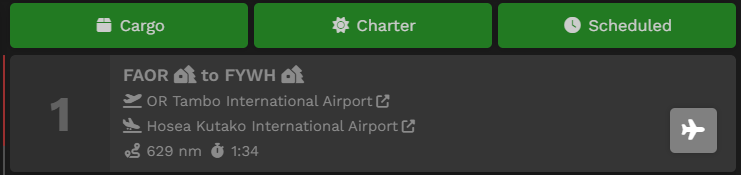
Afterwards, the screen below will open. From here, it is the standard flight bidding process. You may refer [<span style="text-decoration: underline;">**here**</span>](https://docs.walkerair.us/link/15#bkmrk-how-do-i-bid%3F-simply) if unfamiliar.

[![image-1757333448992.png](https://docs.walkerair.us/uploads/images/gallery/2025-09/scaled-1680-/image-1757333448992.png)](https://docs.walkerair.us/uploads/images/gallery/2025-09/image-1757333448992.png)
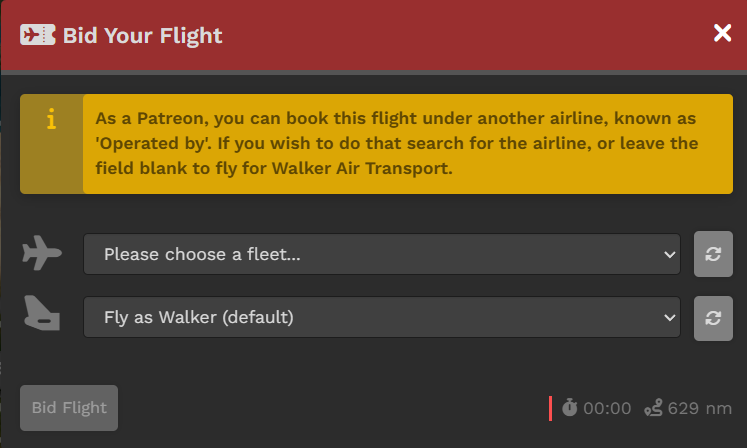
<p class="callout info">*Note that if you are not a Patreon, you will not have the second dropdown box available and will instead see a notice about livery use.*</p>

---

And about the colored buttons... Here's another example of a Pilot currently flying a **Tour** we can use as an illustration:

[![image-1757333685877.png](https://docs.walkerair.us/uploads/images/gallery/2025-09/scaled-1680-/image-1757333685877.png)](https://docs.walkerair.us/uploads/images/gallery/2025-09/image-1757333685877.png)
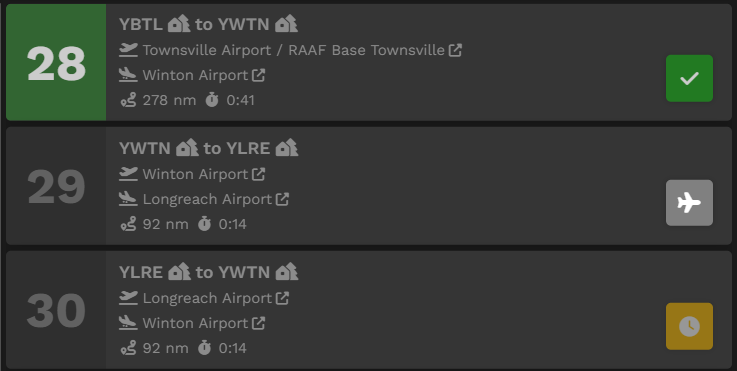
**Leg 28** has a *green check mark* icon indicating that leg has been Completed.

**Leg 29** has a *gray aircraft* icon indicating that leg can be bidded and is available to be flown. Once a bid is in place, the icon will turn red. [![image-1757333731141.png](https://docs.walkerair.us/uploads/images/gallery/2025-09/scaled-1680-/image-1757333731141.png)](https://docs.walkerair.us/uploads/images/gallery/2025-09/image-1757333731141.png)

**Leg 30** has a *yellow clock* icon indicating it may **not** be bid upon unless/until Leg 29's flight has been completed.


---

##### <span style="color: #ffffff;">**Area 2** | **Tour Map &amp; Legs**</span>

In this area of the **Tour Page**, a map identifying the Legs and their location is presented.

To its right is the list of **Tour Legs**. Each is numbered and must be flown in that order. The **Aircraft Type** allowed in this **Tour** can be seen by clicking the green **Cargo**, **Charter** and **Scheduled** buttons.

[![image-1637959445120.png](https://docs.walkerair.us/uploads/images/gallery/2021-11/scaled-1680-/image-1637959445120.png)](https://docs.walkerair.us/uploads/images/gallery/2021-11/image-1637959445120.png)
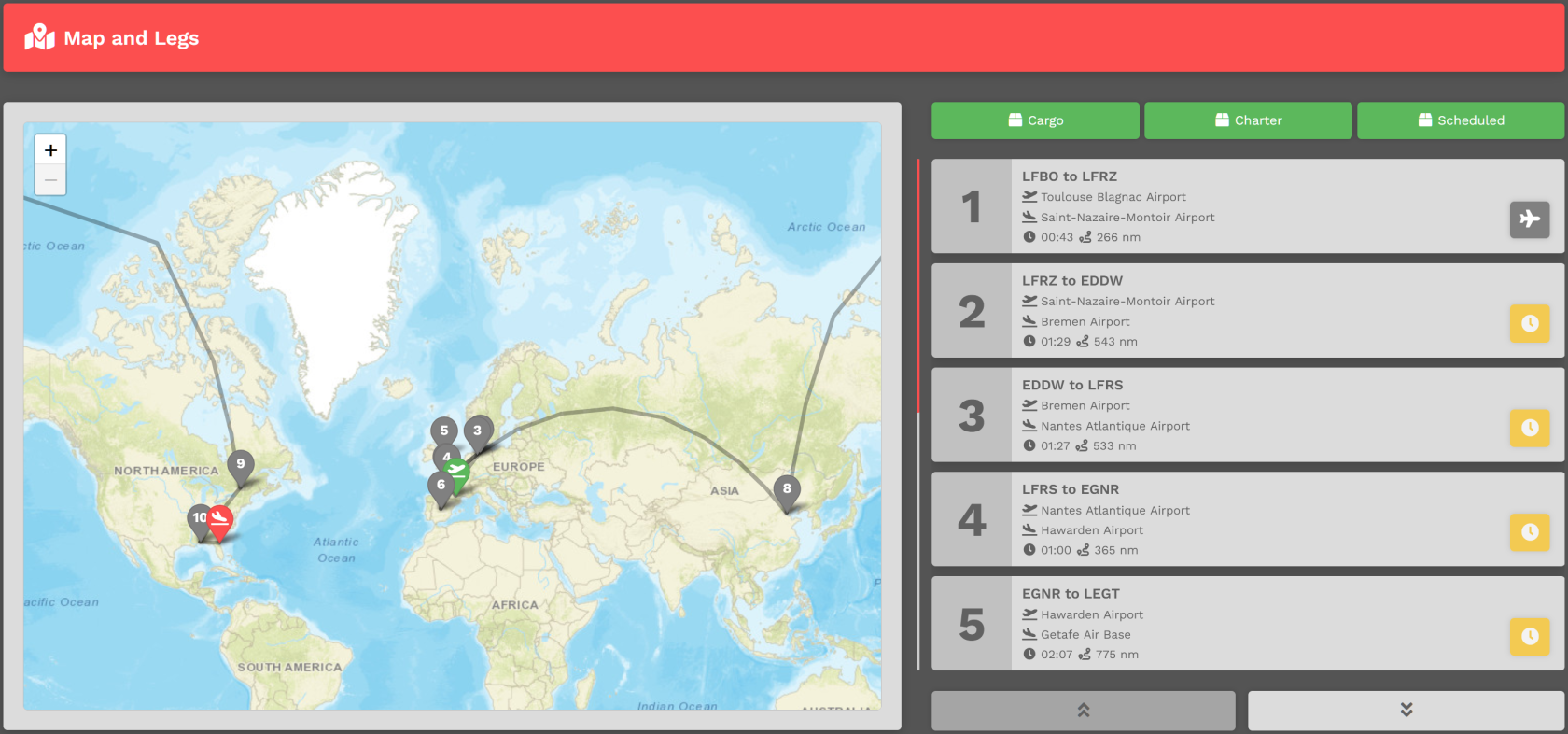
---

##### <span style="color: #ffffff;">**Area 3** | **Pilot Status On Tour**</span>

In this area, the status of *all* Pilots flying the **Tour** are noted – **Pilot Name**, **Location**, **Last Flight**, **Last Aircraft** and **Progress**. If desired, you can measure your progress against others flying the **Tour** *and* view their most recent PIREPs.

For pilots who have completed the tour, they are arranged in order of their date of completion.

[![image-1757333796087.png](https://docs.walkerair.us/uploads/images/gallery/2025-09/scaled-1680-/image-1757333796087.png)](https://docs.walkerair.us/uploads/images/gallery/2025-09/image-1757333796087.png)
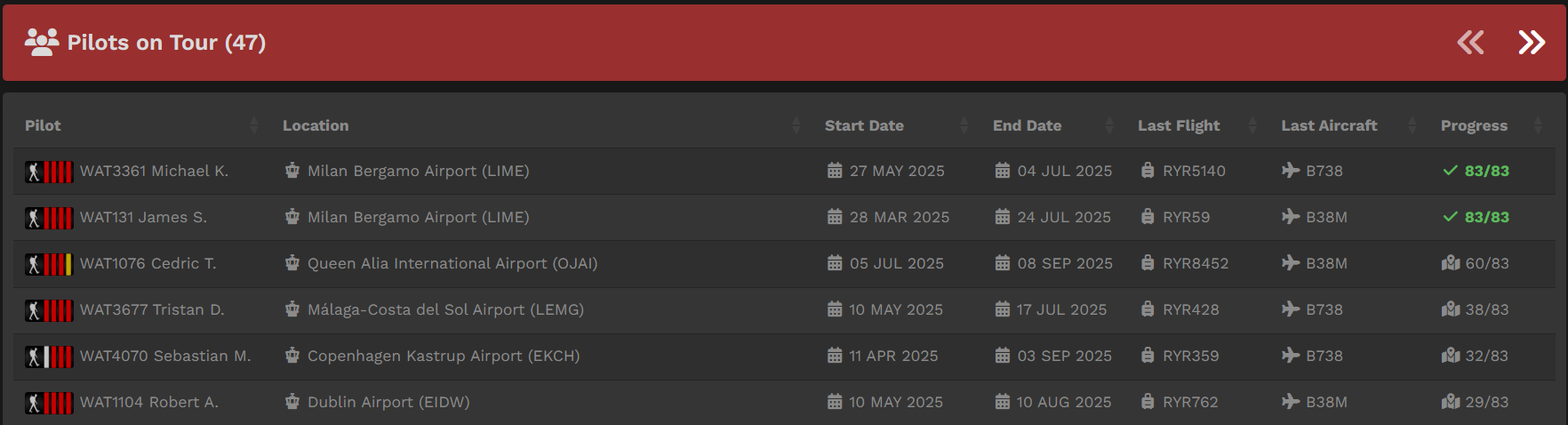
---

#### **Reflying a Tour**

Referring to the **Tour Page** image above, you can see the **Japan Tour** has been completed because the *Sign Up* bar is <span style="color: #2b982b;">**Green**</span>.

[![image-1757332229631.png](https://docs.walkerair.us/uploads/images/gallery/2025-09/scaled-1680-/image-1757332229631.png)](https://docs.walkerair.us/uploads/images/gallery/2025-09/image-1757332229631.png)

A **Tour** may be re-flown at any time. In the image above, clicking the green refresh button [![image-1757334048141.png](https://docs.walkerair.us/uploads/images/gallery/2025-09/scaled-1680-/image-1757334048141.png)](https://docs.walkerair.us/uploads/images/gallery/2025-09/image-1757334048141.png) will do that. To re-fly a **Tour**, you'll need to purchase a **Tour Pass** – *and* there's a cost for doing that.

After clicking the **Green** button, the screen below will open. There, you'll see what it'll cost you to re-fly the Tour.

<p class="callout info">*Clicking the **Cancel** button at any time will cancel the transaction.*</p>

<table id="bkmrk-if-your-wallet-balan" style="border-collapse: collapse; width: 100%;"><tbody><tr><td style="width: 58.8889%;">[![image-1757334125760.png](https://docs.walkerair.us/uploads/images/gallery/2025-09/scaled-1680-/image-1757334125760.png)](https://docs.walkerair.us/uploads/images/gallery/2025-09/image-1757334125760.png)

</td><td style="width: 41.1111%; vertical-align: top;">If your Wallet Balance is *greater than* that cost, the transaction will be **approved**. You will be allowed to re-fly the Tour.

  
If your Wallet Balance is *less than* that cost, the transaction will be **disapproved**. You will **not** be allowed to re-fly the Tour

  
In our example, because the Wallet Balance is *greater than* the Total Cost, the transaction will be approved.

</td></tr></tbody></table>

---

##### **Tour Pause due to Time Compression // Cleared To Fly**

Pilots are allowed to use time compression on tour legs with our new Tour Pause system. When you use TC on a leg, the amount of time remaining after your compression is used to put you in pause mode on that *specific* tour. This means that on that one tour, you cannot start the next leg until the real-time equivalent has passed. You can, however, move on to another tour and do a leg in time compression. The goal here is to keep pilots from speed running one tour within a few hours, but also allow them to enjoy the longer tours without having to sit at a PC for 8 hours or leave it running overnight.

*Example:* you fly a 4 hour leg in 2 hours time compressed. You will be paused for 2 hours on our platform and after that 2 hours expires, you can bid the next leg. If you happen to pause the simulator for those 2 hours because you had to step away, when you land the required time is met and you'll immediately open up the next leg.

When you are not cleared to fly, you will see this icon and the clearance time (in UTC) will be presented to you in the tooltip.

[![image-1722601024822.png](https://docs.walkerair.us/uploads/images/gallery/2024-08/scaled-1680-/image-1722601024822.png)](https://docs.walkerair.us/uploads/images/gallery/2024-08/image-1722601024822.png)

Please note: you will still be deducted points for time compression per our policy and point chart here: [Rank &amp; Points](https://docs.walkerair.us/books/3-help/page/rank-points "Rank & Points")

# Walker Flying Club

---

<p class="callout warning">This feature is only available to Patreon members - please [click here](https://docs.walkerair.us/books/3-help/chapter/patreon) to read up on the membership system.</p>

The Walker Flying Club allows you to fly any plane, any where, and have it tracked in the Walker system. This allows our pilots to fly aircraft that does not fall into our other three aircraft categories - [Scheduled](https://docs.walkerair.us/books/3-help/page/scheduled), [Cargo](https://docs.walkerair.us/books/3-help/page/cargo), or [Charter](https://docs.walkerair.us/books/3-help/page/charter).

The Club represents pilot flying on their off time or as a hobby, thus instead of being paid, the pilot actually pays a nominal sum in order to fly from their pilot wallet, using money earned from flying in the other three categories. This is meant to represent aircraft rental, maintenance, and fuel costs as appropriate.

You will still get hours and points for these flights, and these **will** count towards ranking your seniority up in the airline. Further, as this is not meant to be a simulation of airline operations, there will be no SimBrief import/OFP within Walker for Club flights. However, you are of course welcome to plan your flights separately in SimBrief if you so wish and connect this to the aircraft avionics that you are flying.

In order to avoid exorbitant fuel costs, such as if you choose to fly a jet fighter under Club, you will be billed as per below table, based on your seniority in the airline.

<table border="1" id="bkmrk-rank-%7C-title-insigni" style="border-collapse: collapse; width: 74.1975%; height: 670px;"><tbody><tr style="height: 46px;"><td class="align-center" style="width: 24.4444%; background-color: grey; vertical-align: middle; border-style: solid; border-color: black; height: 46px;"><span style="color: #ffffff;">**Rank | Title**</span></td><td class="align-center" style="width: 15.5556%; background-color: grey; vertical-align: middle; border-style: solid; border-color: black; height: 46px;"><span style="color: #ffffff;">**Insignia**</span></td><td class="align-center" style="width: 11.2344%; background-color: grey; vertical-align: middle; border-style: solid; border-color: black; height: 46px;"><span style="color: #ffffff;">**Pay Rate (Hourly)**</span></td><td class="align-center" style="width: 11.3581%; background-color: grey; vertical-align: middle; border-style: solid; border-color: black; height: 46px;"><span style="color: #ffffff;">**Flying Club Fee (Hourly)**</span></td></tr><tr style="height: 49px;"><td class="align-left" style="width: 24.4444%; vertical-align: middle; border-style: solid; border-color: black; height: 49px;">**Flight Student**</td><td class="align-center" style="width: 15.5556%; vertical-align: middle; border-style: solid; border-color: black; height: 49px;">[![image-1638456445376.png](https://docs.walkerair.us/uploads/images/gallery/2021-12/scaled-1680-/image-1638456445376.png)](https://docs.walkerair.us/uploads/images/gallery/2021-12/image-1638456445376.png)

</td><td style="width: 11.2344%; vertical-align: middle; border-style: solid; border-color: black; height: 49px;">$15.00</td><td style="width: 11.3581%; vertical-align: middle; border-style: solid; border-color: black; height: 49px;">$6.00</td></tr><tr style="height: 49px;"><td class="align-left" style="width: 24.4444%; vertical-align: middle; border-style: solid; border-color: black; height: 49px;">**First Officer**</td><td class="align-center" style="width: 15.5556%; vertical-align: middle; border-style: solid; border-color: black; height: 49px;">[![image-1638456466547.png](https://docs.walkerair.us/uploads/images/gallery/2021-12/scaled-1680-/image-1638456466547.png)](https://docs.walkerair.us/uploads/images/gallery/2021-12/image-1638456466547.png)

</td><td style="width: 11.2344%; vertical-align: middle; border-style: solid; border-color: black; height: 49px;">$35.00</td><td style="width: 11.3581%; vertical-align: middle; border-style: solid; border-color: black; height: 49px;">$15.75</td></tr><tr style="height: 48px;"><td class="align-left" style="width: 24.4444%; vertical-align: middle; border-style: solid; border-color: black; height: 48px;">**Senior First Officer**</td><td class="align-center" style="width: 15.5556%; vertical-align: middle; border-style: solid; border-color: black; height: 48px;">[![image-1638456479788.png](https://docs.walkerair.us/uploads/images/gallery/2021-12/scaled-1680-/image-1638456479788.png)](https://docs.walkerair.us/uploads/images/gallery/2021-12/image-1638456479788.png)

</td><td style="width: 11.2344%; vertical-align: middle; border-style: solid; border-color: black; height: 48px;">$45.00</td><td style="width: 11.3581%; vertical-align: middle; border-style: solid; border-color: black; height: 48px;">$22.50</td></tr><tr style="height: 48px;"><td class="align-left" style="width: 24.4444%; vertical-align: middle; border-style: solid; border-color: black; height: 48px;">**Captain**</td><td class="align-center" style="width: 15.5556%; vertical-align: middle; border-style: solid; border-color: black; height: 48px;">[![image-1638456491667.png](https://docs.walkerair.us/uploads/images/gallery/2021-12/scaled-1680-/image-1638456491667.png)](https://docs.walkerair.us/uploads/images/gallery/2021-12/image-1638456491667.png)

</td><td style="width: 11.2344%; vertical-align: middle; border-style: solid; border-color: black; height: 48px;">$65.00</td><td style="width: 11.3581%; vertical-align: middle; border-style: solid; border-color: black; height: 48px;">$35.75</td></tr><tr style="height: 48px;"><td class="align-left" style="width: 24.4444%; vertical-align: middle; border-style: solid; border-color: black; height: 48px;">**Flight Captain**</td><td class="align-center" style="width: 15.5556%; vertical-align: middle; border-style: solid; border-color: black; height: 48px;">[![image-1638456503699.png](https://docs.walkerair.us/uploads/images/gallery/2021-12/scaled-1680-/image-1638456503699.png)](https://docs.walkerair.us/uploads/images/gallery/2021-12/image-1638456503699.png)

</td><td style="width: 11.2344%; vertical-align: middle; border-style: solid; border-color: black; height: 48px;">$85.00</td><td style="width: 11.3581%; vertical-align: middle; border-style: solid; border-color: black; height: 48px;">$51.00</td></tr><tr style="height: 48px;"><td class="align-left" style="width: 24.4444%; vertical-align: middle; border-style: solid; border-color: black; height: 48px;">**Senior Flight Captain**</td><td class="align-center" style="width: 15.5556%; vertical-align: middle; border-style: solid; border-color: black; height: 48px;">[![image-1638456514845.png](https://docs.walkerair.us/uploads/images/gallery/2021-12/scaled-1680-/image-1638456514845.png)](https://docs.walkerair.us/uploads/images/gallery/2021-12/image-1638456514845.png)

</td><td style="width: 11.2344%; vertical-align: middle; border-style: solid; border-color: black; height: 48px;">$105.00</td><td style="width: 11.3581%; vertical-align: middle; border-style: solid; border-color: black; height: 48px;">$68.25</td></tr><tr style="height: 48px;"><td class="align-left" style="width: 24.4444%; vertical-align: middle; border-style: solid; border-color: black; height: 48px;">**Chief Pilot I**</td><td class="align-center" style="width: 15.5556%; vertical-align: middle; border-style: solid; border-color: black; height: 48px;">[![image-1638456526639.png](https://docs.walkerair.us/uploads/images/gallery/2021-12/scaled-1680-/image-1638456526639.png)](https://docs.walkerair.us/uploads/images/gallery/2021-12/image-1638456526639.png)

</td><td style="width: 11.2344%; vertical-align: middle; border-style: solid; border-color: black; height: 48px;">$115.00</td><td style="width: 11.3581%; vertical-align: middle; border-style: solid; border-color: black; height: 48px;">$80.50</td></tr><tr style="height: 48px;"><td class="align-left" style="width: 24.4444%; vertical-align: middle; border-style: solid; border-color: black; height: 48px;">**Chief Pilot II**</td><td class="align-center" style="width: 15.5556%; vertical-align: middle; border-style: solid; border-color: black; height: 48px;">[![image-1638456540325.png](https://docs.walkerair.us/uploads/images/gallery/2021-12/scaled-1680-/image-1638456540325.png)](https://docs.walkerair.us/uploads/images/gallery/2021-12/image-1638456540325.png)

</td><td style="width: 11.2344%; vertical-align: middle; border-style: solid; border-color: black; height: 48px;">$135.00</td><td style="width: 11.3581%; vertical-align: middle; border-style: solid; border-color: black; height: 48px;">$101.25</td></tr><tr style="height: 48px;"><td class="align-left" style="width: 24.4444%; vertical-align: middle; border-style: solid; border-color: black; height: 48px;">**Chief Pilot III**</td><td class="align-center" style="width: 15.5556%; vertical-align: middle; border-style: solid; border-color: black; height: 48px;">[![image-1638456554321.png](https://docs.walkerair.us/uploads/images/gallery/2021-12/scaled-1680-/image-1638456554321.png)](https://docs.walkerair.us/uploads/images/gallery/2021-12/image-1638456554321.png)

</td><td style="width: 11.2344%; vertical-align: middle; border-style: solid; border-color: black; height: 48px;">$165.00</td><td style="width: 11.3581%; vertical-align: middle; border-style: solid; border-color: black; height: 48px;">$132.00</td></tr><tr style="height: 48px;"><td class="align-left" style="width: 24.4444%; vertical-align: middle; border-style: solid; border-color: black; height: 48px;">**Senior Chief Pilot I**</td><td class="align-center" style="width: 15.5556%; vertical-align: middle; border-style: solid; border-color: black; height: 48px;">[![image-1638456572277.png](https://docs.walkerair.us/uploads/images/gallery/2021-12/scaled-1680-/image-1638456572277.png)](https://docs.walkerair.us/uploads/images/gallery/2021-12/image-1638456572277.png)

</td><td style="width: 11.2344%; vertical-align: middle; border-style: solid; border-color: black; height: 48px;">$192.00</td><td style="width: 11.3581%; vertical-align: middle; border-style: solid; border-color: black; height: 48px;">$163.20</td></tr><tr style="height: 48px;"><td class="align-left" style="width: 24.4444%; vertical-align: middle; border-style: solid; border-color: black; height: 48px;">**Senior Chief Pilot II**</td><td class="align-center" style="width: 15.5556%; vertical-align: middle; border-style: solid; border-color: black; height: 48px;">[![image-1638456585921.png](https://docs.walkerair.us/uploads/images/gallery/2021-12/scaled-1680-/image-1638456585921.png)](https://docs.walkerair.us/uploads/images/gallery/2021-12/image-1638456585921.png)

</td><td style="width: 11.2344%; vertical-align: middle; border-style: solid; border-color: black; height: 48px;">$225.00</td><td style="width: 11.3581%; vertical-align: middle; border-style: solid; border-color: black; height: 48px;">$202.50</td></tr><tr style="height: 48px;"><td class="align-left" style="width: 24.4444%; vertical-align: middle; border-style: solid; border-color: black; height: 48px;">**Senior Chief Pilot III**</td><td class="align-center" style="width: 15.5556%; vertical-align: middle; border-style: solid; border-color: black; height: 48px;">[![image-1638456600978.png](https://docs.walkerair.us/uploads/images/gallery/2021-12/scaled-1680-/image-1638456600978.png)](https://docs.walkerair.us/uploads/images/gallery/2021-12/image-1638456600978.png)

</td><td style="width: 11.2344%; vertical-align: middle; border-style: solid; border-color: black; height: 48px;">$255.00</td><td style="width: 11.3581%; vertical-align: middle; border-style: solid; border-color: black; height: 48px;">$242.25</td></tr><tr style="height: 46px;"><td style="width: 24.4444%; vertical-align: middle; border-style: solid; border-color: black; height: 46px;">**Walker Emeritus**</td><td style="width: 15.5556%; vertical-align: middle; border-style: solid; border-color: black; height: 46px;">[![image-1717025183873.png](https://docs.walkerair.us/uploads/images/gallery/2024-05/scaled-1680-/image-1717025183873.png)](https://docs.walkerair.us/uploads/images/gallery/2024-05/image-1717025183873.png)

</td><td style="width: 11.2344%; vertical-align: middle; border-style: solid; border-color: black; height: 46px;">$300.00</td><td style="width: 11.3581%; vertical-align: middle; border-style: solid; border-color: black; height: 46px;">$300.00</td></tr></tbody></table>

<p class="callout info">If you find an aircraft missing from the list, please send in a [ticket](https://docs.walkerair.us/books/2-training/page/help-submit-a-ticket).</p>

---

#### <label class="label label-warning font-14" data-original-title="Information" data-toggle="tooltip" style="margin: 0px;" title=""></label> **Creating &amp; Bidding a Club Flight**

In the *Navigation Bar* in our *Crew Ops* website, select **Flights** &gt; **Club**.

[![image-1738162213499.png](https://docs.walkerair.us/uploads/images/gallery/2025-01/scaled-1680-/image-1738162213499.png)](https://docs.walkerair.us/uploads/images/gallery/2025-01/image-1738162213499.png)

On the **Club Page**, there are (2) ways you can create a flight. You can choose to use the *Create a Flight* option listed below or read below that for the *Interactive Map*.

Using the *Create-a-Flight*, there are five steps you must complete in order to create and bid a **Charter** flight.

<table border="1" id="bkmrk-1.-departure-%E2%80%93-enter" style="border-collapse: collapse; width: 100%; height: 270px;"><tbody><tr style="height: 29px;"><td class="align-center" style="width: 5.80247%; vertical-align: middle; height: 29px;">**1.**</td><td style="width: 94.1975%; height: 29px;">**Departure** – Enter the Name or ICAO Code of any airport from which you wish to *depart*.</td></tr><tr style="height: 29px;"><td class="align-center" style="width: 5.80247%; vertical-align: middle; height: 29px;">**2.**</td><td style="width: 94.1975%; height: 29px;">**Arrival** – Enter the Name or ICAO Code of any airport to which you wish to *arrive*. This may be the same airport as departures, if you wish to simulate circuit training, sightseeing tours, etc.</td></tr><tr style="height: 57px;"><td class="align-center" style="width: 5.80247%; vertical-align: middle; height: 57px;">**3.**</td><td style="width: 94.1975%; height: 57px;">**Aircraft** – Type the name or the ICAO code of the aircraft you wish to fly

<p class="callout info">*If the aircraft you wish to fly is missing, please raise a ticket.*</p>

</td></tr><tr style="height: 29px;"><td class="align-center" style="width: 5.80247%; vertical-align: middle; height: 29px;">**4.**</td><td style="width: 94.1975%; height: 29px;">**Departure Time** – Select a departure time – and remember this is UTC time, **not** local time. You can just leave this as-is, as you do not need to set this time in your flight sim for your flight to count for Walker.</td></tr><tr style="height: 29px;"><td class="align-center" style="width: 5.80247%; vertical-align: middle; height: 29px;">**5.** </td><td style="width: 94.1975%; height: 29px;">Click the **Create Charter** button.</td></tr></tbody></table>

Using the *Interactive Map*, please note the following details.

- The map automatically displays airports by type, based on your zoom level and panning with below details showing in stages as you zoom in.  
    
    - Large airports
    - Large, and medium airports
    - Large, medium, and small airports
    - Large, medium, small, seaplane, and heliport
- The map now includes icons and ICAO labels. 
    - [![image-1690753163231.png](https://docs.walkerair.us/uploads/images/gallery/2023-07/scaled-1680-/image-1690753163231.png)](https://docs.walkerair.us/uploads/images/gallery/2023-07/image-1690753163231.png) = Airport
    - [![image-1690753179956.png](https://docs.walkerair.us/uploads/images/gallery/2023-07/scaled-1680-/image-1690753179956.png)](https://docs.walkerair.us/uploads/images/gallery/2023-07/image-1690753179956.png) = Heliport
    - [![image-1690753209865.png](https://docs.walkerair.us/uploads/images/gallery/2023-07/scaled-1680-/image-1690753209865.png)](https://docs.walkerair.us/uploads/images/gallery/2023-07/image-1690753209865.png) = Seaplane

<table border="1" id="bkmrk-you-can-zoom-in-to-a" style="width: 100%; border-collapse: collapse; border-color: black; border-style: solid; height: 618px;"><tbody><tr style="height: 516px;"><td class="align-center" style="width: 100%; height: 516px;">[![image-1690753282539.gif](https://docs.walkerair.us/uploads/images/gallery/2023-07/image-1690753282539.gif)](https://docs.walkerair.us/uploads/images/gallery/2023-07/image-1690753282539.gif)</td></tr><tr style="height: 102px;"><td style="width: 100%; height: 102px;">You can zoom in to any icon, hover over it, and then left mouse click. You will be presented with a box that will enable you to add that airport to either Departure or ICAO. Just click the button as you wish.

The airports can be replaced by simply clicking, and choose the right slot.

</td></tr></tbody></table>

<table border="1" id="bkmrk-%C2%A0-it-will-automatica" style="border-collapse: collapse; width: 100%; height: 420px;"><tbody><tr style="height: 420px;"><td style="width: 50%; height: 420px;">[![image-1738163504009.png](https://docs.walkerair.us/uploads/images/gallery/2025-01/scaled-1680-/image-1738163504009.png)](https://docs.walkerair.us/uploads/images/gallery/2025-01/image-1738163504009.png)

  
It will automatically update the *Create-a-Flight* section, and then simply pick your aircraft and finish out the rest of the flight information. Lastly, click 'Create Charter' and you are done.

</td></tr></tbody></table>

You'll be directed to **Pilot Briefing** where you can track your flight.

[![image-1738163550543.png](https://docs.walkerair.us/uploads/images/gallery/2025-01/scaled-1680-/image-1738163550543.png)](https://docs.walkerair.us/uploads/images/gallery/2025-01/image-1738163550543.png)

To delete this **Bid**, head to ***Flights -&gt; My Bids,*** look for the correct flight, then hit the red button. Note that you cannot do this while the flight is live in SmartCars.

[![image-1738163610541.png](https://docs.walkerair.us/uploads/images/gallery/2025-01/scaled-1680-/image-1738163610541.png)](https://docs.walkerair.us/uploads/images/gallery/2025-01/image-1738163610541.png)

---

#### **Find a Flight - Random Flight Generator** 

The **Random Generator** is an easy way to address the '*Where am I going to fly today*?' question... Input a few items and generate a random flight.

[![Screenshot_20230416_000744_Chrome.jpg](https://docs.walkerair.us/uploads/images/gallery/2023-04/scaled-1680-/screenshot-20230416-000744-chrome.jpg)](https://docs.walkerair.us/uploads/images/gallery/2023-04/screenshot-20230416-000744-chrome.jpg)

Note that if you do not tick any boxes for the runway surface selection and the airport size selection, the system will take this input as allowing all of the options.

You can click on the **Find a Flight** button as many times as you like until you get a satisfactory result, then you can proceed to hit **Transfer Flight** to send the airport information to the charter module on the top of the screen.

[![Screenshot_20230416_000840_Chrome.jpg](https://docs.walkerair.us/uploads/images/gallery/2023-04/scaled-1680-/screenshot-20230416-000840-chrome.jpg)](https://docs.walkerair.us/uploads/images/gallery/2023-04/screenshot-20230416-000840-chrome.jpg)

<p class="callout success">*To clear all entries, click the **Clear Generator** button **or** simply refresh the page.*</p>

# Assignments

An **Assignment** is a route generator where you will receive real-life airline routes, depending on the settings you have selected in the generator. The module also includes additional real-life simulation such as duty time limits. Completion of an assignment rewards pilots with a **bonus one point per every flight hour flown**.

<p class="callout warning">**Non-Patreon** members cannot choose an airline, we will build your route based on the route pairs we have available across our entire database. All generated flights will be assigned to the Walker Air Transport brand. The "Fly as WAT" option is also not available, as Walker Air Transport is used automatically.</p>

<p class="callout warning">The bonus points is only awarded at the end of the assignment, and not everytime you finish one leg. </p>

---

##### **Generating your Assignment**

To begin generating your assignment, head over to Flights -&gt; Assignment, which will bring up the initial prompt where you can include your parameters for the assignment to be generated. Some of these are required, while some are optional.

<span style="color: rgb(224,62,45);">**[![chrome_twCiIOzZyz.png](https://docs.walkerair.us/uploads/images/gallery/2026-05/scaled-1680-/chrome-twciiozzyz.png)](https://docs.walkerair.us/uploads/images/gallery/2026-05/chrome-twciiozzyz.png)**</span>

<table class="param-table" id="bkmrk-parameter-what-it-do" style="width: 100%;"><tbody><tr><th style="width: 16.0842%;">Parameter</th><th style="width: 74.2266%;">What it does</th><th style="width: 9.64948%;">Required?</th></tr><tr><td style="width: 16.0842%;">**Routing Style**</td><td style="width: 74.2266%;">**Point to Point** — continuous chain where each arrival is the next departure, not necessarily a hub.

**Hub &amp; Spoke** — strictly alternates hub→spoke→hub→spoke. Must be an even number of legs.

</td><td style="width: 9.64948%;">Yes</td></tr><tr><td style="width: 16.0842%;">**Operation**</td><td style="width: 74.2266%;">Cargo or Scheduled </td><td style="width: 9.64948%;">Yes</td></tr><tr><td style="width: 16.0842%;">**Airline**</td><td style="width: 74.2266%;">Limits routes to a single airline if selected. "Random" picks any airline in the database.</td><td style="width: 9.64948%;">Yes</td></tr><tr><td style="width: 16.0842%;">**Legs**</td><td style="width: 74.2266%;">How many legs to build. In Hub &amp; Spoke mode only even numbers are allowed.</td><td style="width: 9.64948%;">Yes</td></tr><tr><td style="width: 16.0842%;">**Starting Airport** *or* **Hub Airport**</td><td style="width: 74.2266%;">Starting Airport (Point to Point): forces the chain to begin at a specific ICAO; omit for a random start.

Hub Airport (Hub &amp; Spoke): this is the hub — every odd leg departs from here and every even leg returns here. If omitted, a suitable hub is chosen randomly from the airline's network.

</td><td style="width: 9.64948%;">Optional</td></tr><tr><td style="width: 16.0842%;">**Final Airport** </td><td style="width: 74.2266%;">Forces the last leg to land at a specific ICAO, as long as possible.

*Not available in Hub &amp; Spoke mode (the chain always ends at the hub).*

</td><td style="width: 9.64948%;">Optional</td></tr><tr><td style="width: 16.0842%;">**Min / Max Leg Distance**</td><td style="width: 74.2266%;">Each leg must be within this range (nautical miles), unless no suitable options are found.</td><td style="width: 9.64948%;">Optional</td></tr><tr><td style="width: 16.0842%;">**Unique**

(toggle)

</td><td style="width: 74.2266%;">Point to Point: no airport may be visited more than once.

Hub &amp; Spoke: no spoke airport may be repeated.

</td><td style="width: 9.64948%;">Optional</td></tr><tr><td style="width: 16.0842%;">**Multi-Region** (toggle)</td><td style="width: 74.2266%;">When on, at least one arrival must be in a different world region than the origin.

Point to Point: checks against the starting airport's region.

Hub &amp; Spoke: at least one spoke must land in a different region than the hub.

</td><td style="width: 9.64948%;">Optional</td></tr><tr><td style="width: 16.0842%;">**Exclude Airports**</td><td style="width: 74.2266%;">Airport ICAO's inserted here will never show up in the generated result.</td><td style="width: 9.64948%;">Optional</td></tr><tr><td style="width: 16.0842%;">**Try to Include Airports**</td><td style="width: 74.2266%;">The generator tries to route through these ICAOs. </td><td style="width: 9.64948%;">Optional</td></tr><tr><td style="width: 16.0842%;">**Codeshare**

(toggle)

</td><td style="width: 74.2266%;">Routes are generated under the chosen airline's network, but the assignment is stored under Walker Air Transport (WAT). The pilot flies WAT-branded legs on the generated route.</td><td style="width: 9.64948%;">Optional</td></tr></tbody></table>

<p class="callout warning">You are only allowed to generate 5 assignments within a 24-hour period, afterwards you will be locked out of the system until 24 hours passes from your first attempt. You can see current attempts on the upper right side of the Parameters input popup.</p>

<p class="callout info">While we strive to maintain an updated and accurate route database, there will be a few instances of incorrect or old routes generating into your assignment, or newly-launched routes not appearing in the system. The Walker team will continue to push to minimize the instances of these.</p>

---

##### **Flying your Generated Assignment**

**[![chrome_kQ2LkGJtQd.png](https://docs.walkerair.us/uploads/images/gallery/2026-05/scaled-1680-/chrome-kq2lkgjtqd.png)](https://docs.walkerair.us/uploads/images/gallery/2026-05/chrome-kq2lkgjtqd.png)**
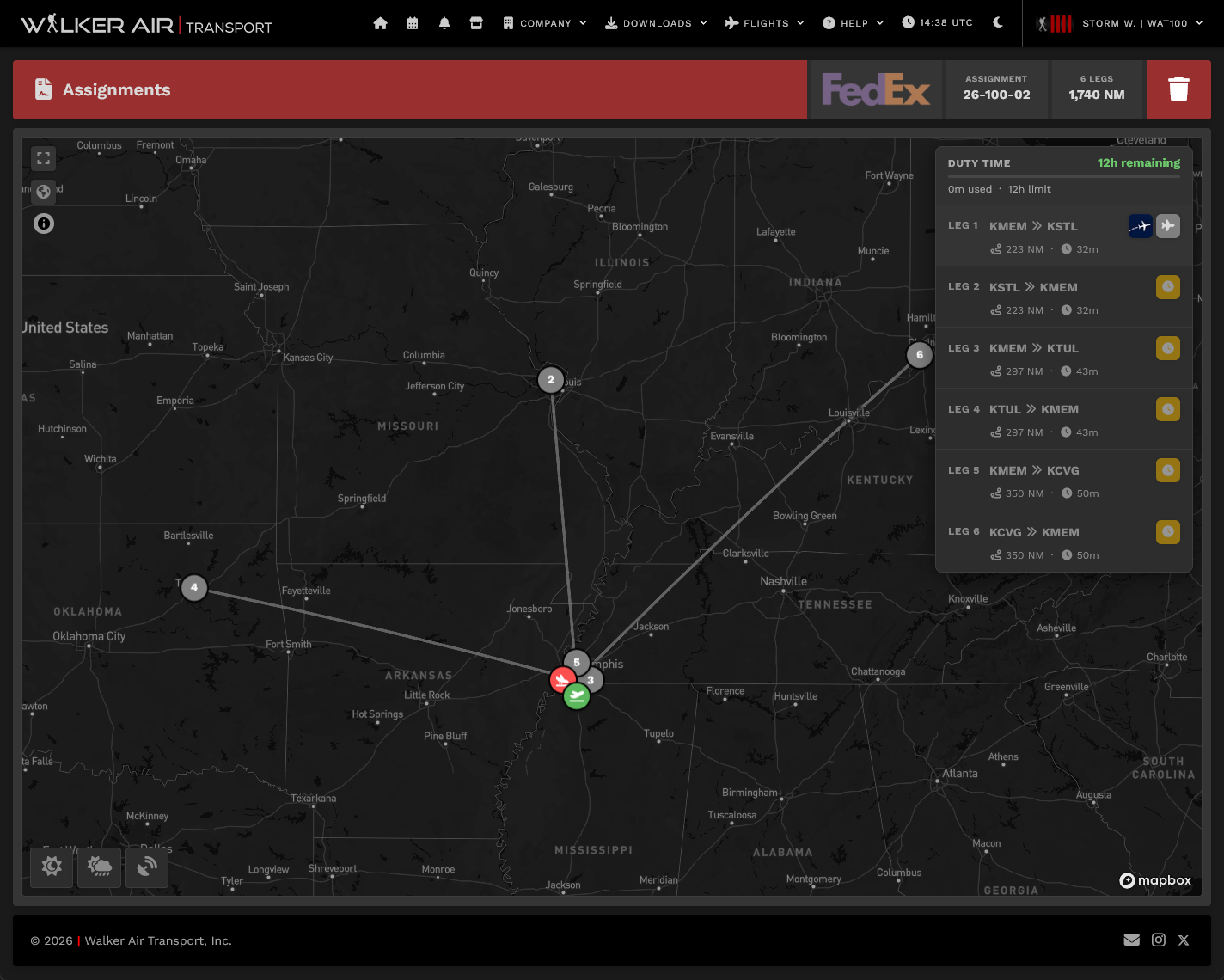
Once you have generated your schedule, the map interface will show up. From here, you can review the generated assignment, choose to discard the assignment by clicking the [![image.png](https://docs.walkerair.us/uploads/images/gallery/2026-05/scaled-1680-/TRgimage.png) ](https://docs.walkerair.us/uploads/images/gallery/2026-05/TRgimage.png)on the upper right, or bid the next flight by clicking the ![image.png](https://docs.walkerair.us/uploads/images/gallery/2026-05/scaled-1680-/tM7image.png) beside the currently active leg.

If you wish to look for real life flights flying the same route, clicking the ![image.png](https://docs.walkerair.us/uploads/images/gallery/2026-05/scaled-1680-/8jwimage.png) button will bring you to FlightAware's Flight Finder for your currently active leg.

From here on, bidding will send you to the OFP page as is the case for our other modules.

<p class="callout danger">You may freely cancel and regenerate another assignment, provided that **you have not hit the generation limit AND have not flown the first leg.** Cancellations after the first leg will lock the Assignments module for **6 hours for every incomplete leg**. (i.e. a 10 leg assignment cancelled after completing leg 3 will lock you out for 42 hours (7 incomplete legs x 6 hours)</p>

---

##### **Time Compression** 

We understand that pilots may not have the time to fly long haul flights at 1x simulation, but would like to log these flights. As such, we allow the use of Time Compression in the Assignment system similar to the Tours system, where the pilot will be locked out of bidding the next leg until the time it would have taken to fly the previous leg at 1x simulation rate.

When you are not cleared to fly, you will see this tooltip and the clearance time (in UTC) will be presented to you. You may fly on other Walker modules (Scheduled/Cargo/Charter/Tours) while you are on cooldown in the Assignments module.

[![image.png](https://docs.walkerair.us/uploads/images/gallery/2026-05/scaled-1680-/w3kimage.png)](https://docs.walkerair.us/uploads/images/gallery/2026-05/w3kimage.png)
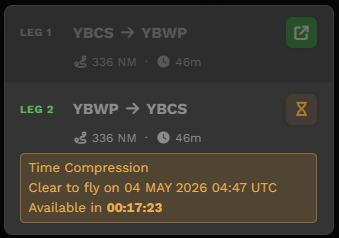
<p class="callout warning">You will still be deducted points for time compression per our policy on top of the lockout. You may refer to the point chart here: [Rank &amp; Points](https://docs.walkerair.us/books/3-help/page/rank-points "Rank & Points")</p>

---

##### **Duty Hours**


Unique to the Assignments module is the simulation of Duty Hours, where pilots are only allowed to fly a maximum of 12 hours in a 24 hour period. Your current "duty day" is shown on the top of the assignments page, and you will only be allowed to bid a flight if the calculated length of the flight is below your remaining duty hours available.

An exception to this is long hauls (flights exceeding 12 hours as calculated), which will allow you to bid as long as you have your whole 12 hour duty time allowance untouched. For these flights, only 12 hours will also be tagged as used in your duty time, to reflect crew rest while airborne.

[![image.png](https://docs.walkerair.us/uploads/images/gallery/2026-05/scaled-1680-/kcoimage.png)](https://docs.walkerair.us/uploads/images/gallery/2026-05/kcoimage.png)
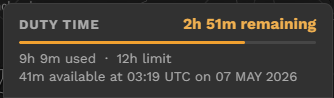
Note that the duty hours are only incurred, and only blocks bids within the Assignments module. This does not affect other modules within Walker.

<p class="callout info">Calculated flight lengths are based off birds eye distance and the average speed of the fleet in Walker. This may not be reflective of wind conditions, traffic, routing requirements, etc.</p>

<p class="callout warning">Flown duty hours count all flights flown under the Assignments module in the past 24 hours, **regardless if it was under an earlier, since completed assignment.**</p>

---

##### **Completed Assignments**

Both completed and in-progress assignments may be viewed in your profile. The hours flown shown here for completed assignments are the basis for your bonus points - rounded up to the nearest hour.

[![image.png](https://docs.walkerair.us/uploads/images/gallery/2026-05/scaled-1680-/nZgimage.png)](https://docs.walkerair.us/uploads/images/gallery/2026-05/nZgimage.png)
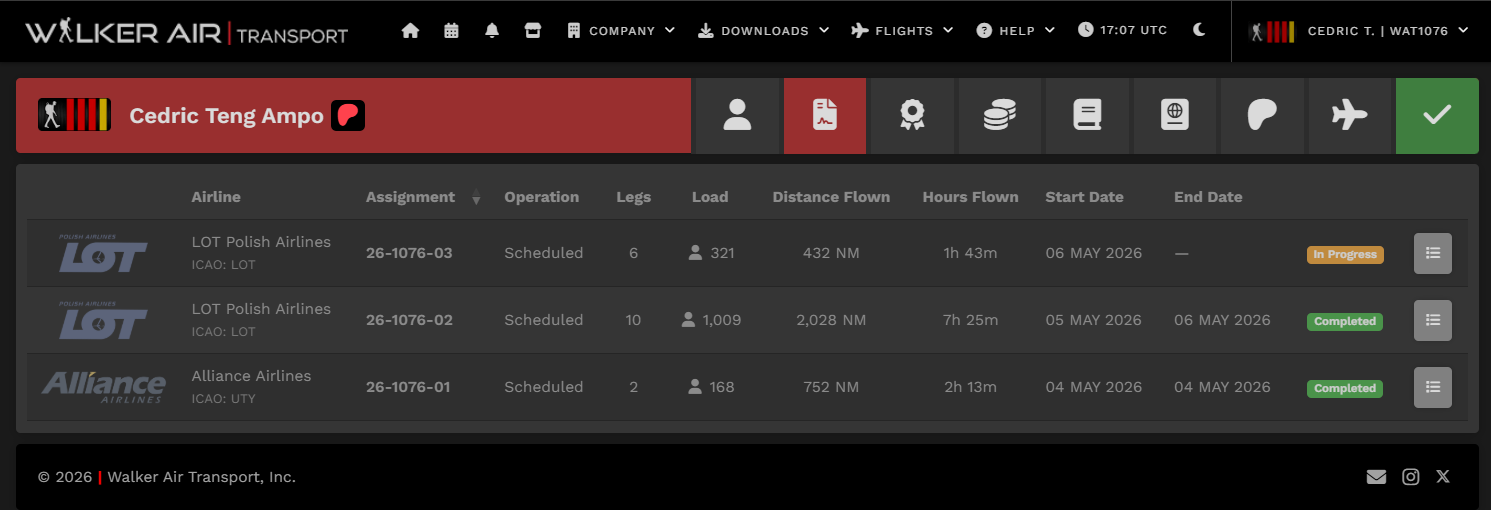
---

# Jumpseat

---

When flying **Cargo** and **Scheduled** flights – and **Charter** flights, though only when *Worldwide Persistence* is on/enabled – your departure airport must be the same as the arrival airport of your previous flight.

A Jumpseat enables you to change that.

With a Ticket, you can move from the airport where you currently are to any other one in the world. With *Worldwide Persistence* on, this *also* includes Charter flights.

[![image-1637532028996.png](https://docs.walkerair.us/uploads/images/gallery/2021-11/scaled-1680-/image-1637532028996.png)](https://docs.walkerair.us/uploads/images/gallery/2021-11/image-1637532028996.png)

Jumpseat tickets, though, are **not** free. They cost money. They're purchased using the virtual money you earn as a Pilot.

---

**EXAMPLE:** You're currently at *KSEA - Seattle-Tacoma International Airport* and wish to get to *KJFK | New York John F. Kennedy International Airport*. When you go to **Flights** &gt; **Jumpseats**, you'll be presented with the screen below. Your **Current Location** will already be noted. Enter the airport where you want to go in the **Transfer To** box. In addition to a distance between the airports, a price will appear below it. If you want to purchase the seat, click the **Purchase Ticket** button. Repeat the process as many times as you wish before making a purchase decision.

[![image-1637532102313.png](https://docs.walkerair.us/uploads/images/gallery/2021-11/scaled-1680-/image-1637532102313.png)](https://docs.walkerair.us/uploads/images/gallery/2021-11/image-1637532102313.png)

<p class="callout danger">*If the price of the Ticket is more than the balance in your **In Your Wallet** account, you will **not** be able to purchase it.*</p>

# Liveries

# Microsoft Flight Simulator

---

Locate your **Community Folder** for **Microsoft Flight Simulator**.   
**NOTE:** *The location depends on **how** you installed the simulator and whether it was downloaded from the Windows Store or Steam.*

**For the <span style="color: #dc4949;">Windows Store</span> Install:**  
C:\\Users\\\[Your User Name\]\\AppData\\Local\\Packages\\Microsoft.FlightSimulator\_8wekyb3d8bbwe\\LocalCache\\Packages\\

**For the <span style="color: #dc4949;">Steam</span> install:**  
C:\\Users\\\[Your User Name\]\\AppData\\Local\\Packages\\Microsoft.FlightDashboard\_8wekyb3d8bbwe\\LocalCache\\Packages\\  
**IMPORTANT:** *Windows 10, by default, hides the “AppData” folder. Go to “View” in File Explorer's Menu and select 'Hidden Items' to see it.*

**For the <span style="color: #dc4949;">Custom</span> Install:**  
If you happened to use a custom location for your Flight Simulator installation, then proceed there.

---

**1.** Download the livery you wish to install from the [*Walker Air Transport* site](https://crew.walkerair.us/downloads/liveries).

**2.** Open the zip file of the downloaded aircraft livery.

[![image-1642262484899.png](https://docs.walkerair.us/uploads/images/gallery/2022-01/scaled-1680-/image-1642262484899.png)](https://docs.walkerair.us/uploads/images/gallery/2022-01/image-1642262484899.png)

**3.** Copy the folder to your *Community Folder* location.  
**NOTE:** *All of our liveries have a standard naming convention – WAT-ABCD. If that's **not** what you see in the Community Folder, then you incorrectly copied it and/or nested the folder.*

[![image-1642262755104.png](https://docs.walkerair.us/uploads/images/gallery/2022-01/scaled-1680-/image-1642262755104.png)](https://docs.walkerair.us/uploads/images/gallery/2022-01/image-1642262755104.png)
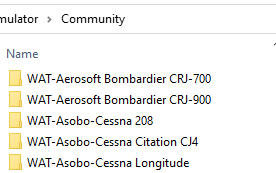
**4.** Load MSFS. You should now see a WAT livery for the aircraft you installed.

# Prepar3D

---

<p class="callout info">*We don't use livery installation programs provided by developers – such as **PMDG Ops Center**. Why? Most of them require their software in order to create their proprietary package. Because our Painters are volunteers, many don't actually own the aircraft; therefore, it makes it very difficult to create those packages. It also means updating liveries or making changes is even more difficult.*</p>

You **have to** manually install all liveries into Prepar3D<sup>®</sup>.

---

**1.** Download the livery you wish to install from the [*Walker Air Transport* site](https://crew.walkerair.us/downloads/liveries).

**2.** Open the .zip file of the downloaded aircraft.

[![image-1642261008062.png](https://docs.walkerair.us/uploads/images/gallery/2022-01/scaled-1680-/image-1642261008062.png)](https://docs.walkerair.us/uploads/images/gallery/2022-01/image-1642261008062.png)
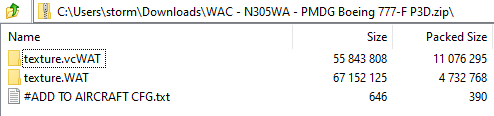
<p class="callout info">*Depending on the livery, you may have (1) or more texture.ABCD folders, or if there is an additional folder for other modifications there will be an accompanying **read-me** file that will instruct you on what to do.*</p>

**3.** Copy the *texture.ABCD* to where the liveries are stored in your aircraft's folder.  
**NOTE:** *If there's more than one (1), copy all of them.*

<p class="callout warning">*Most aircraft are installed to: **{simulatorinstallfolder}\\SimObjects\\Airplanes\\***</p>

<p class="callout warning">*You may also find them located in: **Documents\\{simulator-addons}\\***</p>

---

We're installing the *PMDG Boeing 777-F* livery and will use that as an example.

<table border="1" id="bkmrk-the-aircraft-is-loca" style="border-collapse: collapse; width: 100%;"><tbody><tr><td class="align-left" style="width: 60.9877%; vertical-align: top;">The aircraft is located at:   
***{simulatorinstallfolder}\\SimObjects\\Airplanes\\PMDG 777F***</td><td class="align-center" style="width: 39.0123%; vertical-align: middle;">[![image-1642261146423.png](https://docs.walkerair.us/uploads/images/gallery/2022-01/scaled-1680-/image-1642261146423.png)](https://docs.walkerair.us/uploads/images/gallery/2022-01/image-1642261146423.png)</td></tr><tr><td class="align-left" style="width: 60.9877%; vertical-align: top;">We're going to copy the texture.vcWAT and texture.WAT folders into this folder.

<p class="callout info">*texture.vcWAT is the virtual cockpit for the 777-F; if you were to delete this folder the cockpit would return to the default Boeing Brown instead of the WAT Black Cockpit. This is not the case for every single livery, but is just a FYI if you come across other planes. You can usually find exactly what folder/files pertain to the cockpit panels and simply delete them to return the cockpit to the original color.* **NOTE:** ***We've stopped making black cockpits, however, we left the ones done still out there.***</p>

</td><td class="align-center" style="width: 39.0123%; vertical-align: middle;">[![image-1642261282603.png](https://docs.walkerair.us/uploads/images/gallery/2022-01/scaled-1680-/image-1642261282603.png)](https://docs.walkerair.us/uploads/images/gallery/2022-01/image-1642261282603.png)</td></tr></tbody></table>

Add the aircraft data so the livery shows up. To do that:

<table border="1" id="bkmrk-open-the-aircraft.cf" style="border-collapse: collapse; width: 100%;"><tbody><tr><td style="width: 100%;">Open the *aircraft.cfg* file you see in the PMDG (or other aircraft) Folder. Also open the *\#ADD TO AIRCRAFT CFG.txt.*

</td></tr><tr><td style="width: 100%;">**Left:** aircraft.cfg **Right:** #*ADD TO AIRCRAFT CFG.txt*

[![image-1642261526968.png](https://docs.walkerair.us/uploads/images/gallery/2022-01/scaled-1680-/image-1642261526968.png)](https://docs.walkerair.us/uploads/images/gallery/2022-01/image-1642261526968.png)
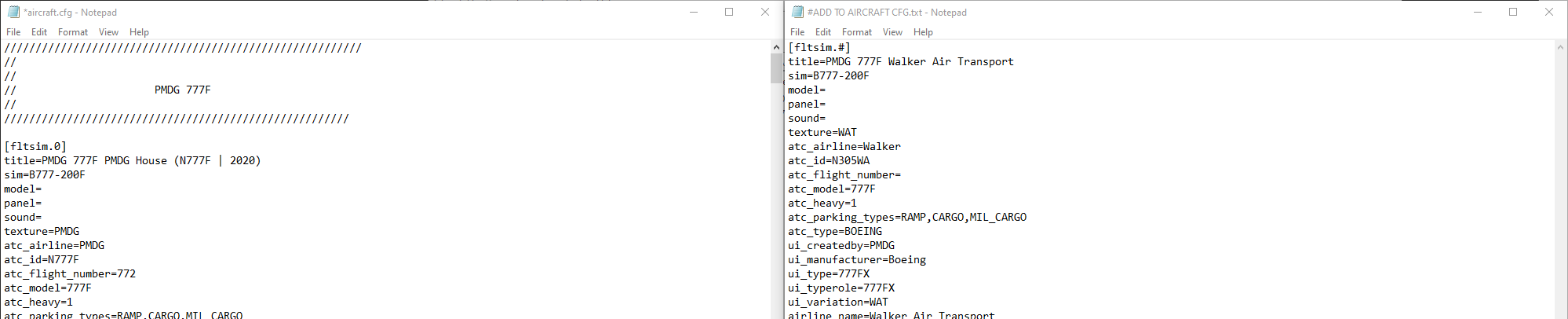
</td></tr><tr><td style="width: 100%;">\[fltsim.#\] is a sequenced header for the liveries – if you look through *aircraft.cfg,* you may notice \[fltsim.1\], \[fltsim.2\], etc. You'll need to scroll to the very **last entry** and note the number. **You're picking the next number after that.**

Copy the contents of the *\#ADD TO AIRCRAFT CFG.txt* and paste them beneath the very **last entry** in *aircraft.cfg –* as illustrated below.

</td></tr><tr><td style="width: 100%;">[![image-1642261573498.png](https://docs.walkerair.us/uploads/images/gallery/2022-01/scaled-1680-/image-1642261573498.png)](https://docs.walkerair.us/uploads/images/gallery/2022-01/image-1642261573498.png)

</td></tr><tr><td style="width: 100%;">In the case of this aircraft, our next \[fltsim.#\] number will be '1' *(they always start with 0.)*

Let's change the # to 1. Then, it should appear like so.

</td></tr><tr><td style="width: 100%;">[![image-1642261616780.png](https://docs.walkerair.us/uploads/images/gallery/2022-01/scaled-1680-/image-1642261616780.png)](https://docs.walkerair.us/uploads/images/gallery/2022-01/image-1642261616780.png)

</td></tr></tbody></table>

Save the file and load your Simulator.

# X-Plane

---

<table border="1" id="bkmrk-there-are-a-signific" style="border-collapse: collapse; width: 100%;"><tbody><tr><td class="align-left" style="width: 57.9013%; vertical-align: top;">There are a significant number of modifications available in the X-Plane community – from 3D engines to fuselage texturing. We try very hard to ensure we provide you with textures for **all** of those. Please keep this in mind when you're downloading a livery.

You may see a #Modifications folder inside the download link. In that, you'll often find things like Engine textures that are required if you installed an *Engine Modification Package –* such as the *Carda* engines for the *Airbus*. You might also find 'Raccoon Masks' too – it truly depends on what the aircraft is.

</td><td class="align-center" style="width: 42.0987%; vertical-align: middle;">[![image-1642262914636.png](https://docs.walkerair.us/uploads/images/gallery/2022-01/scaled-1680-/image-1642262914636.png)](https://docs.walkerair.us/uploads/images/gallery/2022-01/image-1642262914636.png)</td></tr></tbody></table>

**Why do you provide engine textures?**   
Most 3D engine model enhancements use different textures. And because we have a standard design, we must provide *Black* (Modern Livery) and *White* (Vintage Livery) textures for those mods. Otherwise, you'll be flying our colors wrong.

---

**1.** Download the livery you wish to install from the [*Walker Air Transport* site](https://crew.walkerair.us/downloads/liveries).

**2.** Open the .zip file of the downloaded aircraft.

[![image-1642263088567.png](https://docs.walkerair.us/uploads/images/gallery/2022-01/scaled-1680-/image-1642263088567.png)](https://docs.walkerair.us/uploads/images/gallery/2022-01/image-1642263088567.png)

**3.** Navigate to your *aircraft* folder. Choose your plane.  
**NOTE:**  *Depending on how you setup your aircraft folder, it may not look like what's shown below.*

Copy the folder within the .zip file into the *liveries* folder of the aircraft – as illustrated below.

[![image-1642263222596.png](https://docs.walkerair.us/uploads/images/gallery/2022-01/scaled-1680-/image-1642263222596.png)](https://docs.walkerair.us/uploads/images/gallery/2022-01/image-1642263222596.png)

**IMPORTANT:** *Do **not** nest the folders when you unzip, or copy, to your liveries folder. It should look exactly like the image below.*

<table border="1" id="bkmrk-liveries-%3E-folder-na" style="border-collapse: collapse; width: 65.9259%;"><tbody><tr><td class="align-left" style="width: 34.9383%; vertical-align: middle;">liveries &gt; folder name of livery &gt; objects</td><td style="width: 30.9876%;">[![image-1642263323366.png](https://docs.walkerair.us/uploads/images/gallery/2022-01/scaled-1680-/image-1642263323366.png)](https://docs.walkerair.us/uploads/images/gallery/2022-01/image-1642263323366.png)</td></tr></tbody></table>

**4.** Load X-Plane. You should now see a WAT livery for the aircraft you installed.

# Online ATC

---

<table id="bkmrk-your-flight-or-call-" style="border-collapse:collapse;width:100%;"><tbody><tr><td class="align-center" style="background-color:#808080;"><span style="color:#ffffff;">**Your Call Sign**</span></td><td class="align-center" style="width:50%;background-color:#808080;"><span style="color:#ffffff;">**Your Verbal Call Sign For Radio Calls**</span></td></tr><tr><td class="align-center" style="width:50%;vertical-align:middle;">#### **WAT + Flight Number**

</td><td class="align-center" style="width:50%;vertical-align:middle;">#### **Walker + Flight Number**

</td></tr><tr><td class="align-center" style="width:50%;vertical-align:middle;">If your flight number is **325**,  
you flight number is *always* **WAT325**.</td><td class="align-center" style="width:50%;">When making radio calls, if your flight number is **325**, *depending on your region in the world*, you refer to yourself as   
**Walker 325** or **Walker Three Twenty Five** or  
**Walker Three-Two-Five**.</td></tr><tr><td class="align-center" style="width:50%;vertical-align:middle;">If your flight number is **2634**,  
you flight number is *always* **WAT2634**.

</td><td class="align-center" style="width:50%;">When making radio calls, if your flight number is **2634**, *depending on your region in the world*, you refer to yourself as   
**Walker 2634** or **Walker Twenty Six Thirty Four** or  
**Walker Two-Six-Three-Four**.</td></tr></tbody></table>

<p class="callout success">*It is not mandatory you fly using online ATC services; however, we strongly encourage it because it helps spread awareness of who we are. Please remember your behavior online reflects on all of us and our virtual airline. If you are uncomfortable, feel free to ask for tips or assistance in the respective ATC channels on Discord - our community will be more than happy to help.*</p>

<p class="callout info">If you are a member of the [Walker Patreon program](https://docs.walkerair.us/books/2-training/page/pilot-profile-patreon), you may use other callsigns EXCEPT during Walker Events.</p>

Click any link below to view live flights on the respective ATC Network.

<table id="bkmrk-https%3A%2F%2Fivao.aero%2F-h" style="border-collapse:collapse;width:100%;"><tbody><tr><td class="align-center" style="width:33.3333%;vertical-align:middle;">[![image-1637503668937.png](https://docs.walkerair.us/uploads/images/gallery/2021-11/scaled-1680-/image-1637503668937.png)](https://docs.walkerair.us/uploads/images/gallery/2021-11/image-1637503668937.png)</td><td class="align-center" style="width:33.3333%;vertical-align:middle;">[![image-1637503760950.png](https://docs.walkerair.us/uploads/images/gallery/2021-11/scaled-1680-/image-1637503760950.png)](https://docs.walkerair.us/uploads/images/gallery/2021-11/image-1637503760950.png)</td><td class="align-center" style="width:33.3333%;vertical-align:middle;">[![image-1637503719946.png](https://docs.walkerair.us/uploads/images/gallery/2021-11/scaled-1680-/image-1637503719946.png)](https://docs.walkerair.us/uploads/images/gallery/2021-11/image-1637503719946.png)</td></tr><tr><td class="align-center" style="width:33.3333%;">**[https://ivao.aero/](https://ivao.aero/)**</td><td class="align-center" style="width:33.3333%;">**[https://www.vatsim.net/](https://www.vatsim.net/)**</td><td class="align-center" style="width:33.3333%;">**[https://www.pilotedge.net/](https://www.pilotedge.net/)**</td></tr></tbody></table>

---

#### **If you want to use your Pilot ID as your callsign**

We originally required that all pilots use their Walker Pilot ID as their callsign on networks. We did this make it easier to identify them and/or deal with any reported abuse or issues. However, we found it just wasn't worth it. It broke immersion for a lot of folks. However, we do allow you to still do this. You just need to enable the setting in your profile.

Head to CrewOps and go to your Pilot Settings &gt; My Information &gt; Online ATC Networks.

You will see at the bottom, there is a checkbox to enable your pilot ID.

[![image-1769886487751.png](https://docs.walkerair.us/uploads/images/gallery/2026-01/scaled-1680-/image-1769886487751.png)](https://docs.walkerair.us/uploads/images/gallery/2026-01/image-1769886487751.png)

Just check that box and save your settings.

We will lock your pilot ID from being used as a flight number in our system. Nobody will be able to bid on a flight as WAT100 (for example). You will still get the random flight number, but your callsign will be your pilot ID -- the way we used to do it.

[![image-1769886584671.png](https://docs.walkerair.us/uploads/images/gallery/2026-01/scaled-1680-/image-1769886584671.png)](https://docs.walkerair.us/uploads/images/gallery/2026-01/image-1769886584671.png)

# Patreon

# What is Patreon

The Walker Patreon subscription is a way for pilots to financially support Walker Air Transport. We offer a single tier of support, Freedom of Livery, which provides exclusive benefits such as early access to new services, testing opportunities, a Patreon-only Discord channel, and discounts in the Walker Store.

Becoming a Patreon is not mandatory nor expected for Walker pilots. However, it is an option for those who wish to make a recurring financial contribution to support airline operations, including servers, service providers, enhancements, and improvements such as new modules, functionality, and liveries. Funds may also be used in any way the Business Office determines necessary to support the airline and its pilots.

Supporting Walker Air Transport through Patreon does not grant preferential treatment, seniority, or special privileges over other pilots *except as defined in the benefits*. All members of Walker Air Transport are treated equally, and Patreon support does not entitle any individual to priority service, rule exemptions, or influence over airline operations beyond the benefits explicitly outlined in the subscription tier.

Our goal is to maintain a fair and inclusive environment for all pilots, regardless of their financial contributions. We deeply appreciate the support of our Patreon members, as it helps us continue growing and improving the Walker Air Transport experience for everyone.

---

##### **Tiers**

<table border="1" id="bkmrk-rank-%7C-title-insigni" style="border-collapse: collapse; width: 100.003%;"><tbody><tr><td class="align-center" style="width: 14.1282%; background-color: grey; vertical-align: middle; border-style: solid; border-color: black;"><span style="color: #ffffff;">**Tier**</span></td><td class="align-center" style="width: 14.0957%; background-color: grey; vertical-align: middle; border-style: solid; border-color: black;"><span style="color: #ffffff;">**Cost [(excl. VAT)](https://support.patreon.com/hc/en-us/articles/205259549-How-VAT-works-for-creators-on-Patreon)**</span></td><td class="align-center" style="width: 54.6244%; background-color: grey; vertical-align: middle; border-style: solid; border-color: black;"><span style="color: #ffffff;">**Benefits**</span></td></tr><tr><td class="align-left" style="width: 14.1282%; vertical-align: middle; border-style: solid; border-color: grey;">**Freedom of Livery**</td><td class="align-center" style="width: 14.0957%; vertical-align: middle; border-style: solid; border-color: grey;">$5.00</td><td style="width: 54.6244%; vertical-align: middle; border-style: solid; border-color: grey;">- Patreon badge and access to Patreon-only [Discord](https://docs.walkerair.us/books/2-training/page/faq-A0N) channel
- Learn about new and upcoming services before other pilots, as well as access to services under testing prior to release
- Take part in conversations about future services
- Freedom to fly any aircraft livery (excluding [Walker Events](https://docs.walkerair.us/books/3-help/page/events))
- Freedom to fly as any callsign when flying online (excluding [Walker Events](https://docs.walkerair.us/books/3-help/page/events))
- Freedom to fly as any other real-world airline or country-specific private registration (excluding [Walker Events](https://docs.walkerair.us/books/3-help/page/events))
- Freedom to fly an aircraft before the livery is released on the platform (excluding [Walker Events](https://docs.walkerair.us/books/3-help/page/events))
- 10% off the [Walker Store](https://store.walkerair.us/)

</td></tr></tbody></table>

---

##### **Freedom of Livery - Walker Events**

<p class="callout info">*Failure to follow below will result in PIREP rejection and forfeiture of **all** hours and points earned, not just the double multiplier from the event.*</p>

As noted above, Freedom of Livery benefits (use of any livery/callsign) does not apply when flying [Walker Events](https://docs.walkerair.us/books/3-help/page/events). This is to continue to represent the company in these events, particularly during large scale ones such as Cross the Pond.

Outside of flight bids done under the events module, flights (be it online or offline) may be recorded even if using other liveries or callsigns.

# How to Become a Patreon

#### **How to be a Patreon**

If you wish to become a member of the Patreon program, you may do so by heading to the [Patreon page](https://crew.walkerair.us/profile/editprofile/#patreon) on the CrewOps site under Profile - Patreon, or by clicking the hyperlink above.

[![Screenshot 2023-03-19 162612.png](https://docs.walkerair.us/uploads/images/gallery/2023-03/scaled-1680-/screenshot-2023-03-19-162612.png)](https://docs.walkerair.us/uploads/images/gallery/2023-03/screenshot-2023-03-19-162612.png)
---

##### **Subscribe**

The 1st step is to subscribe with us.

You can do that by clicking on the "Subscribe Here!" button or by visiting: [https://patreon.com/walkerairtrans/membership](https://patreon.com/walkerairtrans/membership)

[![image-1743887306514.png](https://docs.walkerair.us/uploads/images/gallery/2025-04/scaled-1680-/image-1743887306514.png)](https://docs.walkerair.us/uploads/images/gallery/2025-04/image-1743887306514.png)

Next you will either create a Patreon account or sign-in with your Patreon account.

If you have an account, chances are you know what to do. Otherwise, click the "Become a member" and go through the payment process.

[![image-1743887186944.png](https://docs.walkerair.us/uploads/images/gallery/2025-04/scaled-1680-/image-1743887186944.png)](https://docs.walkerair.us/uploads/images/gallery/2025-04/image-1743887186944.png)
# How to link Patreon to your Walker Profile

##### **How to link Patreon to your Walker Profile**

You must return to your profile settings in CrewOps, select Patreon, and then click on the "Log in with Patreon" button.

[![image-1743887315008.png](https://docs.walkerair.us/uploads/images/gallery/2025-04/scaled-1680-/image-1743887315008.png)](https://docs.walkerair.us/uploads/images/gallery/2025-04/image-1743887315008.png)

You will need to sign-in with your Patreon account.

<p class="callout info">If you are creating a Patreon account for the first time, please make sure you subscribe first, then return to the page and follow through with the Log in with Patreon process.</p>

[![image-1743866492318.png](https://docs.walkerair.us/uploads/images/gallery/2025-04/scaled-1680-/image-1743866492318.png)](https://docs.walkerair.us/uploads/images/gallery/2025-04/image-1743866492318.png)

[![image-1743942945676.png](https://docs.walkerair.us/uploads/images/gallery/2025-04/scaled-1680-/image-1743942945676.png)](https://docs.walkerair.us/uploads/images/gallery/2025-04/image-1743942945676.png)
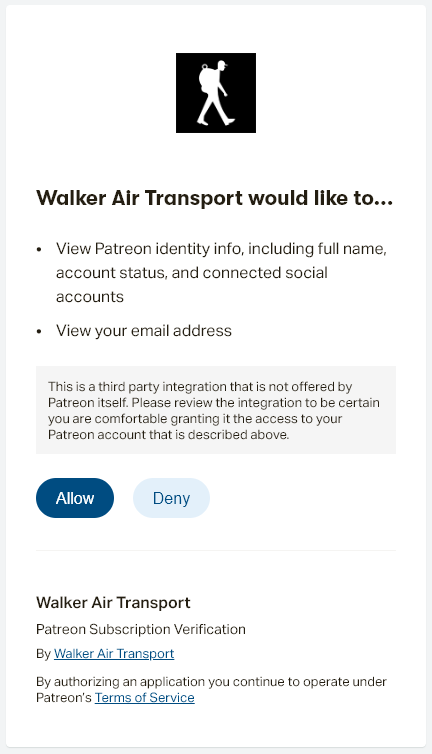
After signing into your account, you will be presented with an authorization request for us to receive your Patreon subscription details in order to validate your benefits. The only information we retain on record is your Patreon ID (this is specific to our subscription only and is not your Patreon ID for their website.) You can click Allow if you accept.

If you **do not have a valid subscription** you will be redirected to the Membership page ([https://patreon.com/walkerairtrans/membership](https://patreon.com/walkerairtrans/membership)), otherwise you will be directed to your Patreon settings.

Once successfully completed, you will see your Patreon status, including the last payment, next payment, and the charge status. If you have any payment problems, Patreon will indicated it here (and on your Patreon profile) as "declined."

You will need to work with Patreon on any issues with payment. We are not responsible nor can we provide assistance.

[![image-1743870558206.png](https://docs.walkerair.us/uploads/images/gallery/2025-04/scaled-1680-/image-1743870558206.png)](https://docs.walkerair.us/uploads/images/gallery/2025-04/image-1743870558206.png)

If you wish to unlink your Patreon, you may do so by clicking the button below. Keep in mind that doing this only removes the benefits from the Walker Air Transport website. It does not stop your payment! You **must** contact Patreon and/or cancel your subscription in your Patreon profile.

If you need to refresh your Patreon subscription due to failed payment, or you did not have a subscription before you linked -- click the refresh button.

---

##### **Important Notes**

- You may start and stop your subscription at any time - payments are valid for the calendar month in which you were charged.
- You cannot use a Patreon account with multiple Walker accounts.

<p class="callout info">*Once you have subscribed in the Patreon website - you **MUST** return to the [Patreon page in CrewOps](https://crew.walkerair.us/profile/editprofile/#patreon) and click the "Refresh" button to link your profile and ensure you get your benefits. You can check if you are properly verified with the presence of a Patreon symbol beside your name on your profile.*  
  
[![Screenshot 2023-03-19 162704.png](https://docs.walkerair.us/uploads/images/gallery/2023-03/scaled-1680-/screenshot-2023-03-19-162704.png)](https://docs.walkerair.us/uploads/images/gallery/2023-03/screenshot-2023-03-19-162704.png)</p>

<p class="callout info">*To access the Patreon-only channel in Discord, you must be in our Discord when you refresh. If you join the Discord after verifying your Patreon subscription, please click the "Refresh" button and you will be given the role.*</p>

# How to Cancel Your Paid Membership

The Walker Air Transport staff have no ability to cancel your membership with us. Patreon requires the account holder "you" to go in and do that yourself. Please see their help document below with instructions to cancel it. Sending an email to the Patreon account, to the Walker Air Transport support email, to Discord Server, or through our help ticket system will not cancel your membership.

Patreon Help Document: [https://support.patreon.com/hc/en-us/articles/360005502572-Canceling-a-paid-membership](https://support.patreon.com/hc/en-us/articles/360005502572-Canceling-a-paid-membership)

# Use Any Aircraft Livery

<p class="callout warning">In order to continue promoting the Walker Air Transport brand, we do not allow Patreon's to use their benefits in official Walker Air Transport events. If you are participating in an event, you must fly with our colors and your official Walker Air callsign.</p>

---

You are exempt from our PIREP review process that checks for the use of Walker Air Transport liveries. This exemption allows you to fly using any real-world airline livery under our "Fly As Any Other Real-World Airline" benefit or any private aircraft livery of your choice. There’s no special process required for bidding—simply place your bid, choose your flight, and proceed as usual.

# Choose Any Callsign for Online Flights

<p class="callout warning">In order to continue promoting the Walker Air Transport brand, we do not allow Patreon's to use their benefits in official Walker Air Transport events. If you are participating in an event, you must fly with our colors and your official Walker Air callsign.</p>

---

When you are building a flight using a real-world airline or a country-specific private registration, as a Patreon, you can use that callsign when using an online ATC network. You can even specify the specific callsign you wish to use by making those selections during your bidding process. Depending on the module you use, there will be an area where you can specify the *flight number* and *callsign* for your flight.

[![image-1731858398772.png](https://docs.walkerair.us/uploads/images/gallery/2024-11/scaled-1680-/image-1731858398772.png)](https://docs.walkerair.us/uploads/images/gallery/2024-11/image-1731858398772.png)
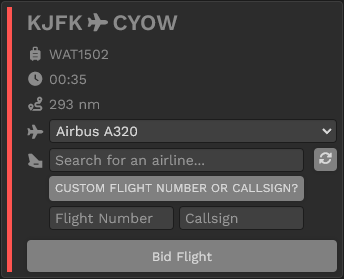
# Fly as Any Real-World Airline or with a Country-Specific Private Registration

<p class="callout warning">In order to continue promoting the Walker Air Transport brand, we do not allow Patreon's to use their benefits in official Walker Air Transport events. If you are participating in an event, you must fly with our colors and your official Walker Air callsign.</p>

---

One of the most popular perks of our Patreon subscription is the option to fly as a real-world airline or use a country-specific private registration. When creating your bid, you can choose to fly for Walker Air Transport, another airline, or, in the Charter module, under a private registration.

Airlines and private registrations are available across our flight modules: Cargo, Charter, Scheduled, and Tours.

You can search our database for your preferred airline. If you don’t find it and would like it added, simply open a ticket by going to **Help &gt; Submit a Ticket** in the navigation bar.

[![image-1731858509234.png](https://docs.walkerair.us/uploads/images/gallery/2024-11/scaled-1680-/image-1731858509234.png)](https://docs.walkerair.us/uploads/images/gallery/2024-11/image-1731858509234.png)
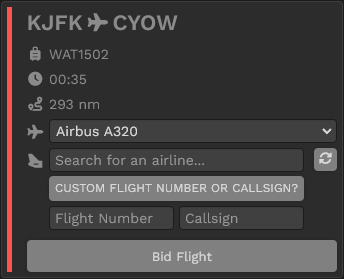
---

##### Airline Favorites

We have introduced a new feature that allows you to select a maximum of 15 favorite airlines you wish to see added throughout our website. These choices that you make will present themselves when you click on the *Search for an airline...* box.

[![image-1731858606252.png](https://docs.walkerair.us/uploads/images/gallery/2024-11/scaled-1680-/image-1731858606252.png)](https://docs.walkerair.us/uploads/images/gallery/2024-11/image-1731858606252.png)
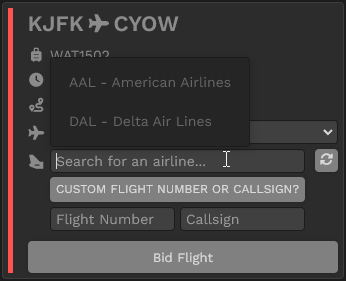
You can access your Airline Favorites by clicking your name (top right), click *Settings,* and then click *Airline Favorites*.

[![image-1731858688463.png](https://docs.walkerair.us/uploads/images/gallery/2024-11/scaled-1680-/image-1731858688463.png)](https://docs.walkerair.us/uploads/images/gallery/2024-11/image-1731858688463.png)
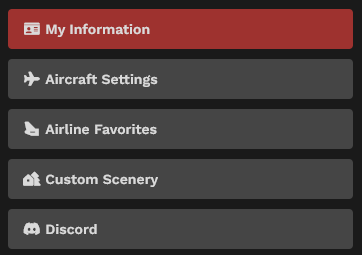
[![image-1731859491167.png](https://docs.walkerair.us/uploads/images/gallery/2024-11/scaled-1680-/image-1731859491167.png)](https://docs.walkerair.us/uploads/images/gallery/2024-11/image-1731859491167.png)
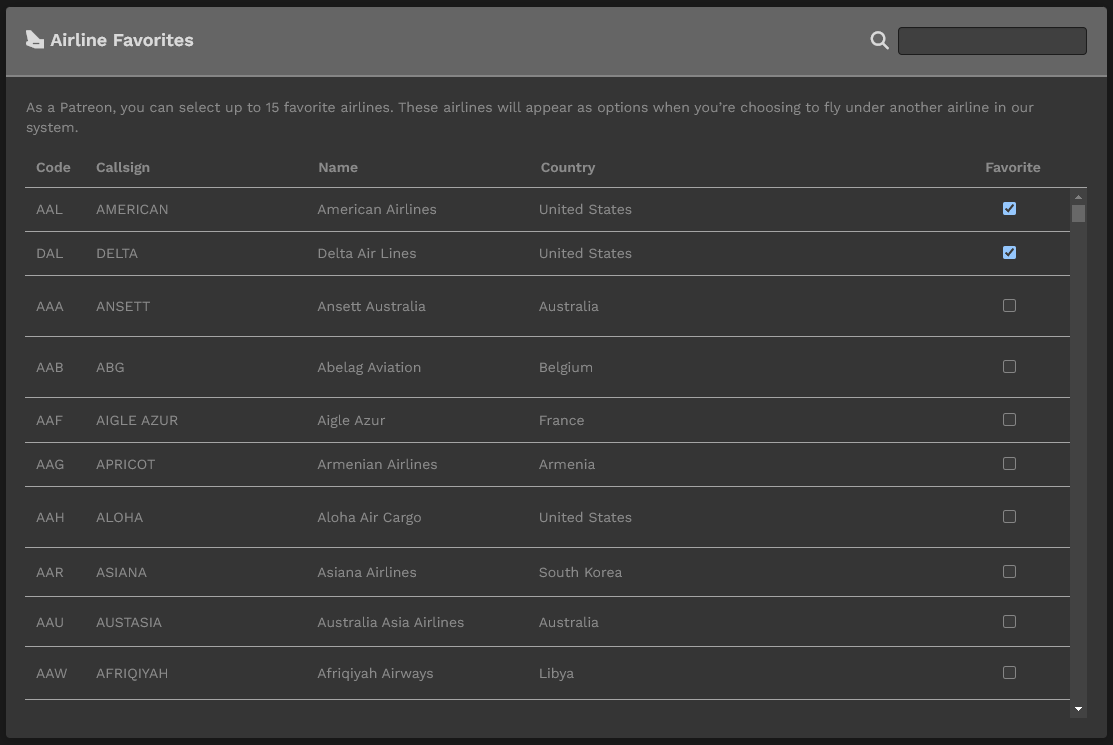
# Fly an Aircraft Before Its Livery Is Released on the Platform

<p class="callout warning">In order to continue promoting the Walker Air Transport brand, we do not allow Patreon's to use their benefits in official Walker Air Transport events. If you are participating in an event, you must fly with our colors and your official Walker Air callsign.</p>

---

Newly released aircraft can be flown by Patreon subscribers before the official Walker Air Transport livery is created and made available. Non-Patreon pilots will need to wait until the official livery is completed and released.

If you do not see the aircraft available in your select window, simply ask in the #patreon Discord channel or submit a ticket. We try to add them as quickly as we can so that our Patreon's can immediately start using them.

# Access to the Walker Flying Club

You will have access to the Walker Flying Club that allows you to fly with any non-Commercial aircraft.

We have 1000's of planes in our database.

Read more here: [**Walker Flying Club**](https://docs.walkerair.us/books/3-help/page/walker-flying-club "Walker Flying Club")

# Advanced Mapbox Maps

As a Patreon, you will have access to our Mapbox environment througout the website.

Here are some examples of what our maps look like.

*All our maps have the ability to switch between flat map and globe view.*

[![image-1764761061179.png](https://docs.walkerair.us/uploads/images/gallery/2025-12/scaled-1680-/image-1764761061179.png)](https://docs.walkerair.us/uploads/images/gallery/2025-12/image-1764761061179.png)
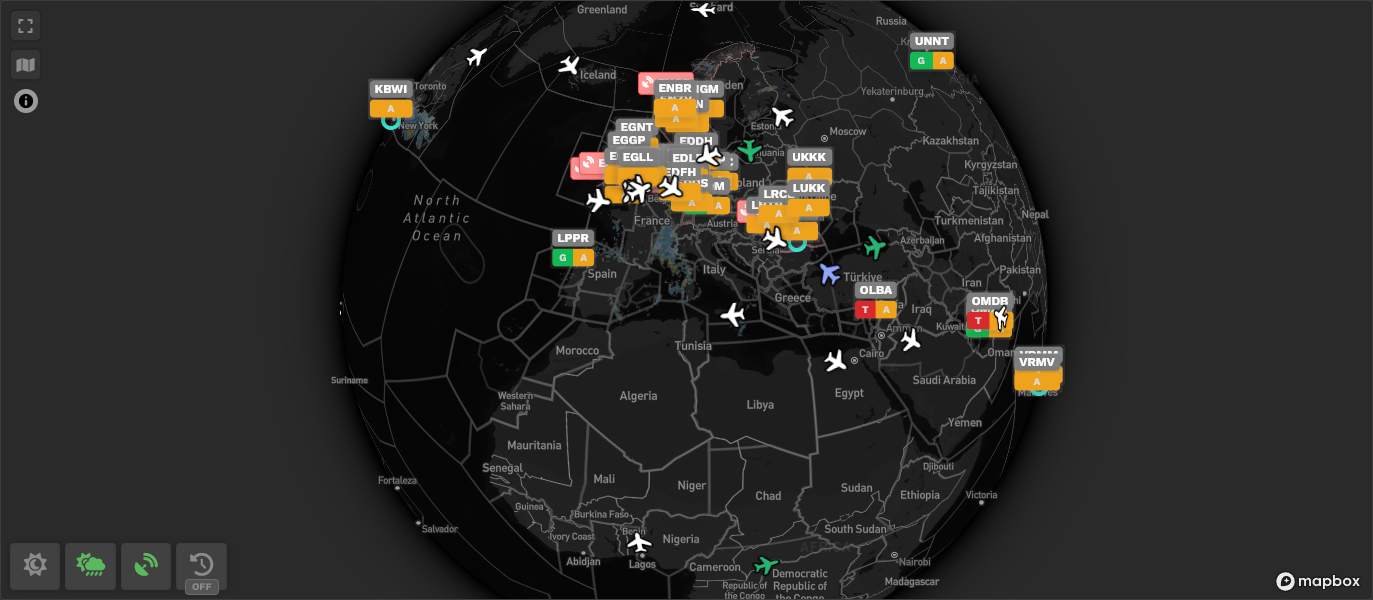
*We implemented deck overlay's to show altitude curtains for your PIREP's using color coding (this is the same tech used in Volanta--Deck.gl allows us to do amazing things with data.)*

[![image-1764761192660.png](https://docs.walkerair.us/uploads/images/gallery/2025-12/scaled-1680-/image-1764761192660.png)](https://docs.walkerair.us/uploads/images/gallery/2025-12/image-1764761192660.png)
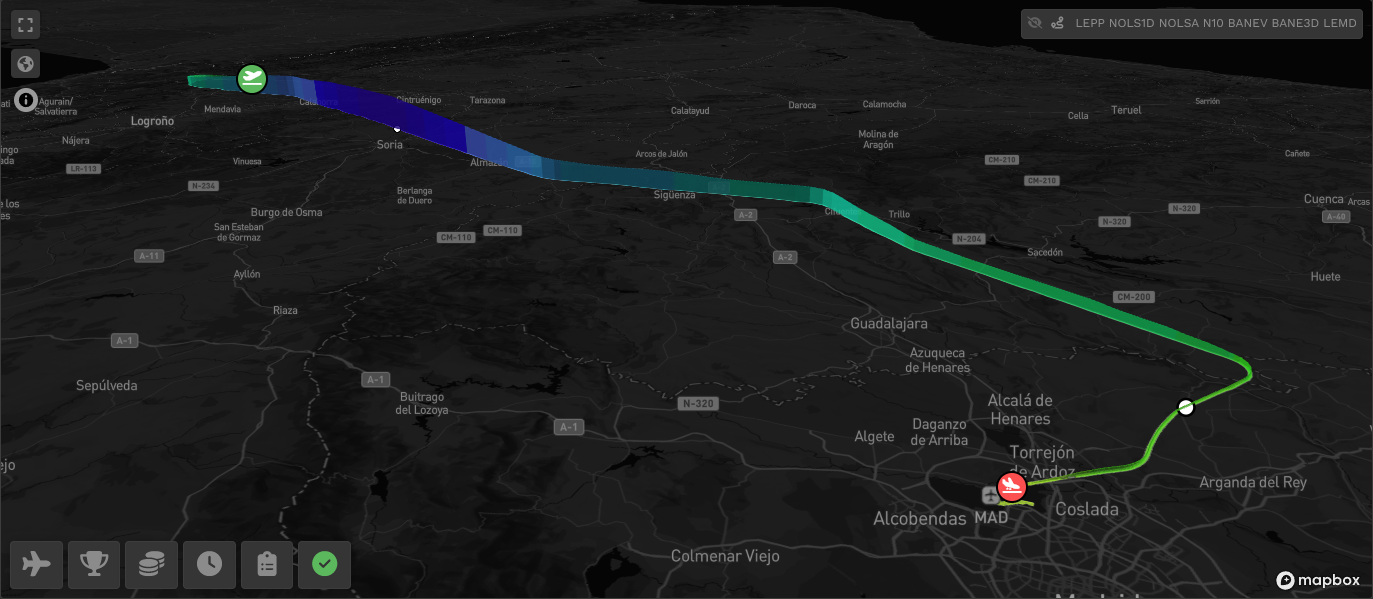
*Mapbox allows for true anti-meridian crossing, which is not possible in our current leaflet maps used by non-Subscribers.*

[![image-1764761253593.png](https://docs.walkerair.us/uploads/images/gallery/2025-12/scaled-1680-/image-1764761253593.png)](https://docs.walkerair.us/uploads/images/gallery/2025-12/image-1764761253593.png)
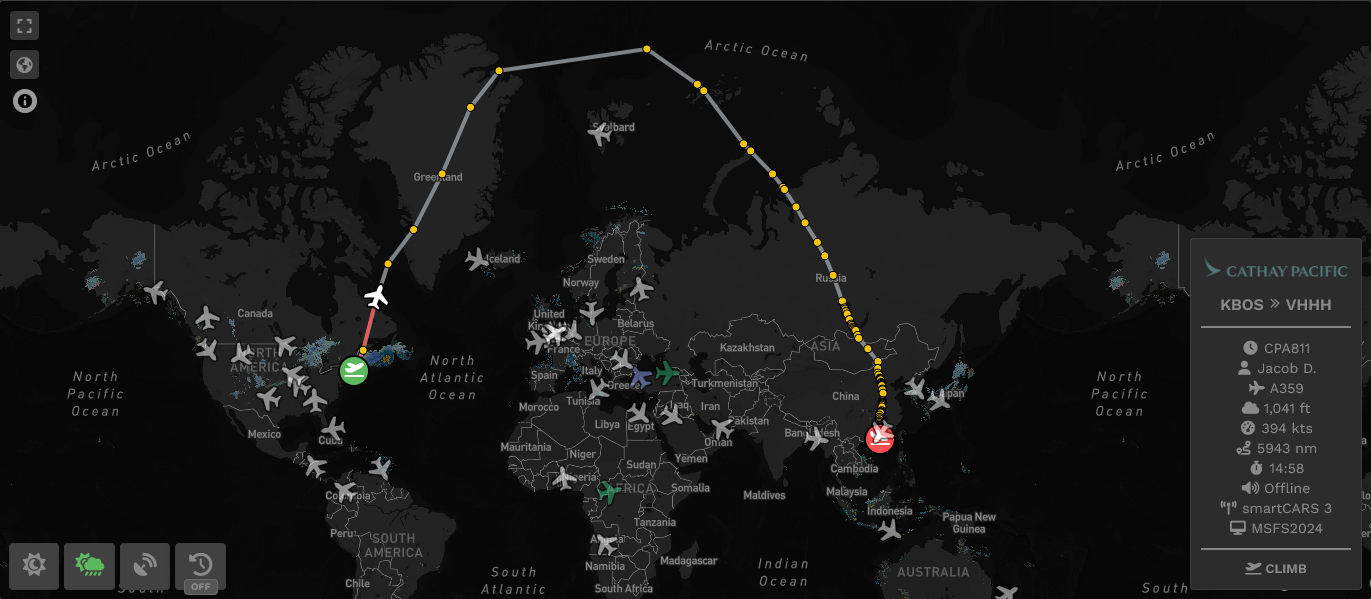
*And when you flip to Globe view, you can see exactly how the flight traverses the globe.*

[![image-1764761300861.png](https://docs.walkerair.us/uploads/images/gallery/2025-12/scaled-1680-/image-1764761300861.png)](https://docs.walkerair.us/uploads/images/gallery/2025-12/image-1764761300861.png)
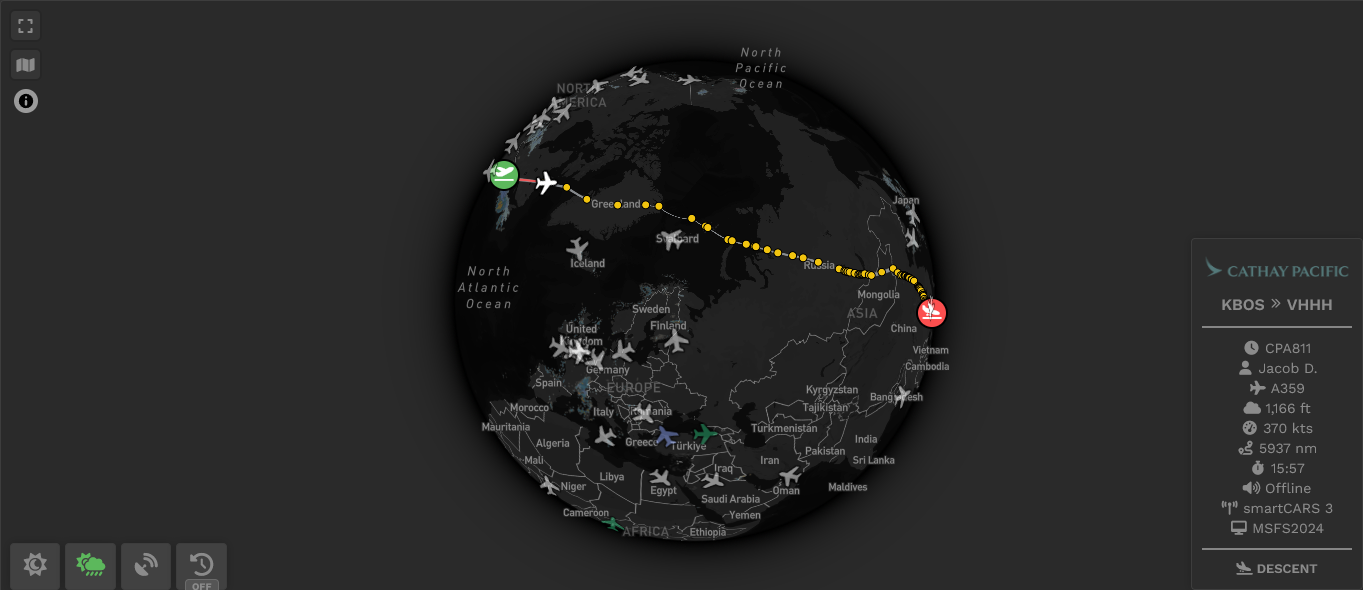
# Pilot Reports (PIREPS)

A PIREP is, quite simply, a Pilot Report. It contains digital data about the flight you flew and completed. After processing that data in our automated, proprietary system, it’s immediately filed, at which time it’s also added to your Pilot Logbook where it's then available for review.  
  
Manually-submitted PIREPS are not allowed.

# Locating Your PIREP

---

PIREPS are stored in your **Logbook**. They may be accessed by using the *Navigation Bar* in the *Crew Ops* website.

Locate your name on the right side of the *Navigation Bar.*

Scroll down to **Profile** and click it.

At the top of the screen opening afterwards, you'll see the Bar below along the top of your screen containing your Insignia, Name and a series of buttons on the right.

[![image-1687626975037.png](https://docs.walkerair.us/uploads/images/gallery/2023-06/scaled-1680-/image-1687626975037.png)](https://docs.walkerair.us/uploads/images/gallery/2023-06/image-1687626975037.png)

---

To view all of your PIREPS, click **this** button.

[![image-1637591872513.png](https://docs.walkerair.us/uploads/images/gallery/2021-11/scaled-1680-/image-1637591872513.png)](https://docs.walkerair.us/uploads/images/gallery/2021-11/image-1637591872513.png)

After doing so, the screen below will open. Here, you'll be able to see your 20 most recent PIREPs in *Summary Form*. Each column contains a piece of data about your flight. To see more detail about a specific flight, click its *Flight Number* in the **Flight** column – or – the colored box \[green, yellow or red\] in the far right-hand column.

[![image-1687627015935.png](https://docs.walkerair.us/uploads/images/gallery/2023-06/scaled-1680-/image-1687627015935.png)](https://docs.walkerair.us/uploads/images/gallery/2023-06/image-1687627015935.png)
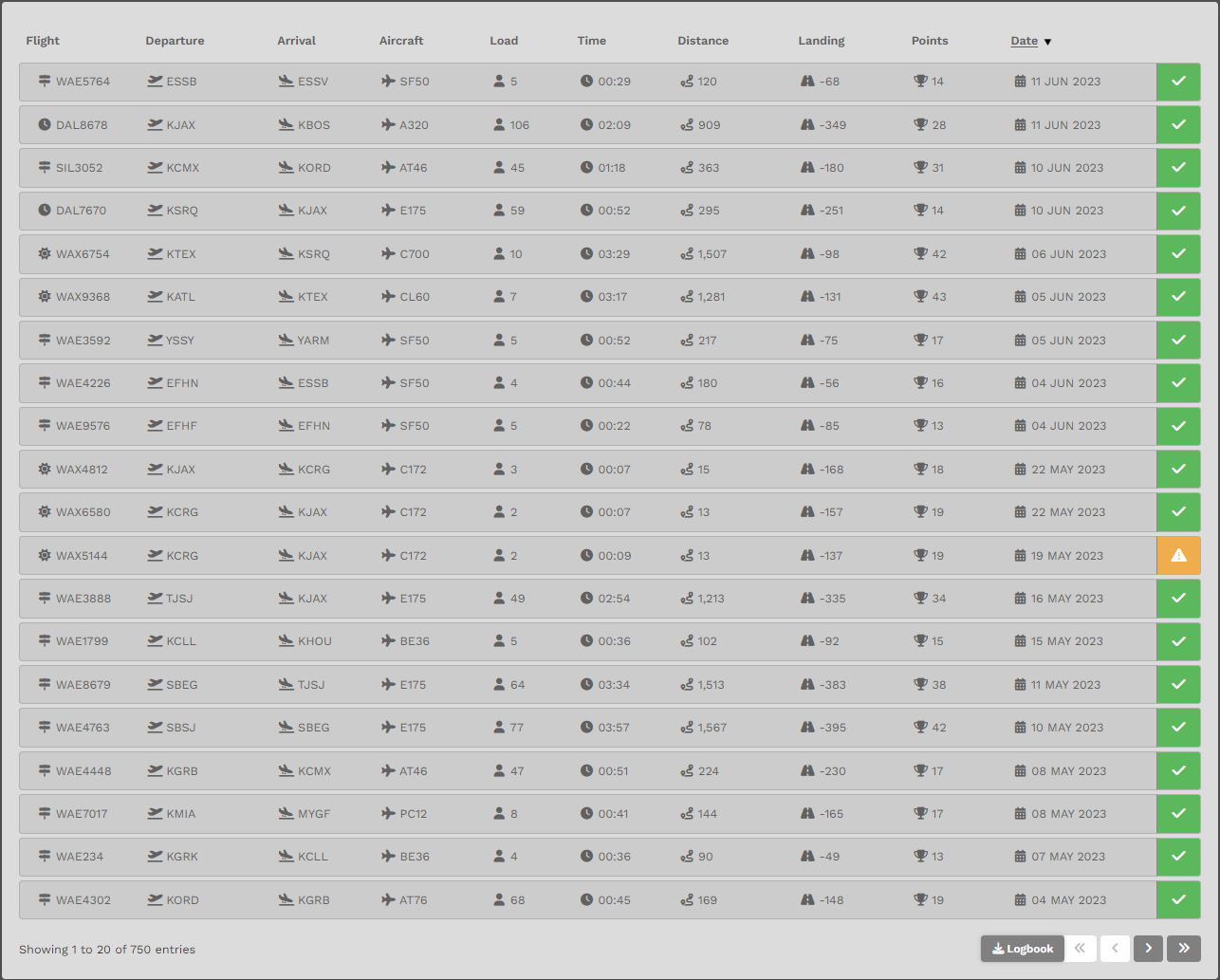
<table border="1" id="bkmrk-to-view-more-of-your" style="border-collapse: collapse; width: 100%;"><tbody><tr><td style="width: 50%;">To view more of your PIREPS, click the arrow buttons at the bottom right of your screen.</td><td style="width: 50%;">To download a .csv file of your Logbook, click the **Logbook** button.</td></tr></tbody></table>

By clicking on the last flight listed above (WAE5764), the screen below is revealed.

[![image-1687627079355.png](https://docs.walkerair.us/uploads/images/gallery/2023-06/scaled-1680-/image-1687627079355.png)](https://docs.walkerair.us/uploads/images/gallery/2023-06/image-1687627079355.png)

---

There are four (4) individual sections in the **Pilot Report**.

##### **Section One:**

*Section One* provides an overview of your pilot report.

The top section will show icons based on specifics of your flight. Please see the icons below and what they mean.

<table border="1" id="bkmrk-this-is-a%C2%A0charter-fl" style="border-collapse: collapse; width: 100%;"><tbody><tr><td style="width: 11.6049%;">[![image-1687627323904.png](https://docs.walkerair.us/uploads/images/gallery/2023-06/scaled-1680-/image-1687627323904.png)](https://docs.walkerair.us/uploads/images/gallery/2023-06/image-1687627323904.png)

</td><td style="width: 88.3951%; vertical-align: top;">This is a *Charter Flight*.</td></tr><tr><td style="width: 11.6049%;">[![image-1687627338472.png](https://docs.walkerair.us/uploads/images/gallery/2023-06/scaled-1680-/image-1687627338472.png)](https://docs.walkerair.us/uploads/images/gallery/2023-06/image-1687627338472.png)

</td><td style="width: 88.3951%; vertical-align: top;">This is an *Event Flight*, and if you click on the icon, it will take you to that event in the calendar.</td></tr><tr><td style="width: 11.6049%;">[![image-1687627348978.png](https://docs.walkerair.us/uploads/images/gallery/2023-06/scaled-1680-/image-1687627348978.png)](https://docs.walkerair.us/uploads/images/gallery/2023-06/image-1687627348978.png)

</td><td style="width: 88.3951%; vertical-align: top;">This is a *Tour Flight*, and if you click on the icon, it will take you to that event in the calendar.</td></tr><tr><td style="width: 11.6049%;">[![image-1687627359044.png](https://docs.walkerair.us/uploads/images/gallery/2023-06/scaled-1680-/image-1687627359044.png)](https://docs.walkerair.us/uploads/images/gallery/2023-06/image-1687627359044.png)

</td><td style="width: 88.3951%; vertical-align: top;">This indicates that the flight was completed with *World Wide Persistence*. We recommend reading our document on this feature by [clicking here.](https://docs.walkerair.us/books/2-training/page/pilot-profile-settings-worldwide-persistence)</td></tr><tr><td style="width: 11.6049%;">[![image-1687627371467.png](https://docs.walkerair.us/uploads/images/gallery/2023-06/scaled-1680-/image-1687627371467.png)](https://docs.walkerair.us/uploads/images/gallery/2023-06/image-1687627371467.png)

</td><td style="width: 88.3951%; vertical-align: top;">This is the date and time that your PIREP was submitted.</td></tr><tr><td style="width: 11.6049%;">[![image-1687627391836.png](https://docs.walkerair.us/uploads/images/gallery/2023-06/scaled-1680-/image-1687627391836.png)](https://docs.walkerair.us/uploads/images/gallery/2023-06/image-1687627391836.png)

</td><td style="width: 88.3951%; vertical-align: top;">This indicates an *approved* PIREP.</td></tr><tr><td style="width: 11.6049%;">[![image-1687627437087.png](https://docs.walkerair.us/uploads/images/gallery/2023-06/scaled-1680-/image-1687627437087.png)](https://docs.walkerair.us/uploads/images/gallery/2023-06/image-1687627437087.png)

</td><td style="width: 88.3951%; vertical-align: top;">This indicates an *approved PIREP* with a diverted landing airport.</td></tr><tr><td style="width: 11.6049%;">[![image-1687627413145.png](https://docs.walkerair.us/uploads/images/gallery/2023-06/scaled-1680-/image-1687627413145.png)](https://docs.walkerair.us/uploads/images/gallery/2023-06/image-1687627413145.png)

</td><td style="width: 88.3951%; vertical-align: top;">This indicates a *rejected* PIREP.</td></tr></tbody></table>

Additionally, your flight number, along with your Pilot Name and Home Base; your Departure Airport Name and departure time; and your Arrival Airport and arrival time are listed in the boxes below the header.

[![image-1687627213475.png](https://docs.walkerair.us/uploads/images/gallery/2023-06/scaled-1680-/image-1687627213475.png)](https://docs.walkerair.us/uploads/images/gallery/2023-06/image-1687627213475.png)

#####  **Section Two:**

*Section Two* shows the route of your flight on a map.   
Use your mouse to move the map; use your *scroll wheel* – or – click the +/- icons to increase or decrease the *size* of the map.

[![image-1687627681679.png](https://docs.walkerair.us/uploads/images/gallery/2023-06/scaled-1680-/image-1687627681679.png)](https://docs.walkerair.us/uploads/images/gallery/2023-06/image-1687627681679.png)

Depending on your ACARS application and the available log information -- you can see additional information pertaining to your take off and landing.

<p class="callout info">As of January 24, 2023, we now log the take off and landing point in relation to your position reports. If you zoom into the departure or arrival airport, you can see the exact moment the airplane left the runway and when it touched down on the runway. We also log additional information such as take off speed, pitch, wind, landing rate, g-force, and more.  
  
If the icons are centered over the airport, or there is information below missing, this means we do not have the appropriate data from the ACARS to provide the information.</p>

<table border="1" id="bkmrk-take-off-landing-%C2%A0ai" style="border-collapse: collapse; width: 100%;"><tbody><tr><td class="align-center" style="width: 50%; background-color: grey;"><span style="color: #ffffff;">**Take Off**</span>

</td><td class="align-center" style="width: 50%; background-color: grey;"><span style="color: #ffffff;">**Landing**</span>

</td></tr><tr><td class="align-center" style="width: 50%;">[![image-1687627841448.png](https://docs.walkerair.us/uploads/images/gallery/2023-06/scaled-1680-/image-1687627841448.png)](https://docs.walkerair.us/uploads/images/gallery/2023-06/image-1687627841448.png)

 *Airport*  
*Rotation Speed, and Pitch*  
*Wind Direction and Speed*

</td><td class="align-center" style="width: 50%;">[![image-1687627850694.png](https://docs.walkerair.us/uploads/images/gallery/2023-06/scaled-1680-/image-1687627850694.png)](https://docs.walkerair.us/uploads/images/gallery/2023-06/image-1687627850694.png)

 *Airport*  
*Rotation Speed, and Pitch*  
*Wind Direction and Speed*

</td></tr></tbody></table>

Within the map, there are four (5) buttons:

<table border="1" id="bkmrk-flight-information-p" style="border-collapse: collapse; width: 100%; height: 58px;"><tbody><tr style="height: 29px;"><td class="align-center" style="width: 20%; height: 29px; background-color: grey;"><span style="color: #ffffff;">**Flight Information**</span></td><td class="align-center" style="width: 20%; height: 29px; background-color: grey;"><span style="color: #ffffff;">**Points**</span></td><td class="align-center" style="width: 20%; height: 29px; background-color: grey;"> <span style="color: #ffffff;">**Financials**</span></td><td class="align-center" style="width: 20%; height: 29px; background-color: grey;"><span style="color: #ffffff;">**Times**</span></td><td class="align-center" style="width: 20%; height: 29px; background-color: grey;"><span style="color: #ffffff;">**Flight Log**</span></td></tr><tr style="height: 29px;"><td style="width: 20%; height: 29px;">Clicking the **Flight Information** button will open the pop-up below.   
  
It shows a very high level summary of your flight's operational details.

  
To close it, click the **Flight Information** button – **or** – the icon at the bottom of the pop-up.  
  
If you completed an event flight, your bonus hours and points will be reflected in this section.  
You will notice ...  
<span style="color: #339966;">**(# FOR EVENT)**</span>

*This is the only area that you can view your bonus hours and points.*

</td><td style="width: 20%; height: 29px;">Clicking the **Points** button will open the pop-up below.

  
It'll show you **how** your *Points* were awarded for this flight.

  
To close it, click on the **Points** button – **or** – the icon at the bottom of the pop-up.

</td><td style="width: 20%; height: 29px;">Clicking the **Financials** button will open the pop-up below.

  
It'll show you how much *Revenue* was generated for this flight.   
  
*A number of items go into calculating the Revenue for each flight, some of which you **can** control (the amount of fuel you use, the length of your flight and your PAX or Cargo load) and others you **cannot**.*

  
To close it, click on the **Financials** button – **or** – the icon at the bottom of the pop-up.

</td><td style="width: 20%; height: 29px;">Clicking the **Times** button will open the pop-up below.

It'll show you your boarding, pushback, take off, landing, and deboarding times.

*These times are based on specific entries in your log file. If a certain time is shown as 00:00, that means the log entry is missing -- you can verify this by opening your Flight Log to the right of the Times button.*

To close it, click on the **Times** button - **or** - the icon at the bottom of the pop-up.

</td><td style="width: 20%; height: 29px;">Clicking the **Flight Log** icon will open the pop-up below.

  
It'll show you the data entries our *Flight Data System* made based on input from your Sim.

  
To close the **Flight Log**, click the 'X'.

</td></tr><tr><td style="width: 20%;">[![image-1687628163846.png](https://docs.walkerair.us/uploads/images/gallery/2023-06/scaled-1680-/image-1687628163846.png)](https://docs.walkerair.us/uploads/images/gallery/2023-06/image-1687628163846.png)

</td><td style="width: 20%;">[![image-1687628174088.png](https://docs.walkerair.us/uploads/images/gallery/2023-06/scaled-1680-/image-1687628174088.png)](https://docs.walkerair.us/uploads/images/gallery/2023-06/image-1687628174088.png)

</td><td style="width: 20%;">[![image-1687628185182.png](https://docs.walkerair.us/uploads/images/gallery/2023-06/scaled-1680-/image-1687628185182.png)](https://docs.walkerair.us/uploads/images/gallery/2023-06/image-1687628185182.png)

</td><td style="width: 20%;">[![image-1687628196629.png](https://docs.walkerair.us/uploads/images/gallery/2023-06/scaled-1680-/image-1687628196629.png)](https://docs.walkerair.us/uploads/images/gallery/2023-06/image-1687628196629.png)

</td><td style="width: 20%;">[![image-1687628206727.png](https://docs.walkerair.us/uploads/images/gallery/2023-06/scaled-1680-/image-1687628206727.png)](https://docs.walkerair.us/uploads/images/gallery/2023-06/image-1687628206727.png)

</td></tr></tbody></table>

#####  **Section Three**

*Section Three* shows a graph of your flight route using Altitude and Ground Speed.

[![image-1687628237571.png](https://docs.walkerair.us/uploads/images/gallery/2023-06/scaled-1680-/image-1687628237571.png)](https://docs.walkerair.us/uploads/images/gallery/2023-06/image-1687628237571.png)

##### **Section Four**

*Section Four* will contain any Comments you provided in the PIREP Comments text box in ACARS and/or the standard comment provided by Flight Operations.

[![image-1687628251001.png](https://docs.walkerair.us/uploads/images/gallery/2023-06/scaled-1680-/image-1687628251001.png)](https://docs.walkerair.us/uploads/images/gallery/2023-06/image-1687628251001.png)

# Approved, Rejected & Diverted

---

A completed flight will ***automatically*** be categorized in one of the following ways:  
  
<span style="color: #ff0000;">**Manually-completed PIREPS are not allowed**</span>.

<table border="1" id="bkmrk-approved-rejected-di" style="border-collapse: collapse; width: 100%;"><tbody><tr><td class="align-center" style="width: 33.3333%; vertical-align: middle; background-color: grey;"><span style="color: #ffffff;">**Approved**</span></td><td class="align-center" style="width: 33.3333%; vertical-align: middle; background-color: grey;"><span style="color: #ffffff;">**Rejected**</span></td><td class="align-center" style="width: 33.3333%; vertical-align: middle; background-color: grey;"><span style="color: #ffffff;">**Diverted**</span></td></tr><tr><td class="align-center" style="width: 33.3333%; vertical-align: middle;">[![image-1637597338960.png](https://docs.walkerair.us/uploads/images/gallery/2021-11/scaled-1680-/image-1637597338960.png)](https://docs.walkerair.us/uploads/images/gallery/2021-11/image-1637597338960.png)

</td><td class="align-center" style="width: 33.3333%; vertical-align: middle;">[![image-1637597313025.png](https://docs.walkerair.us/uploads/images/gallery/2021-11/scaled-1680-/image-1637597313025.png)](https://docs.walkerair.us/uploads/images/gallery/2021-11/image-1637597313025.png)

</td><td class="align-center" style="width: 33.3333%; vertical-align: middle;">[![image-1637597502956.png](https://docs.walkerair.us/uploads/images/gallery/2021-11/scaled-1680-/image-1637597502956.png)](https://docs.walkerair.us/uploads/images/gallery/2021-11/image-1637597502956.png)

</td></tr></tbody></table>

The criteria used to make that decision is as follows.

<table border="1" id="bkmrk-accepted-rejected-di" style="border-collapse: collapse; width: 100%;"><tbody><tr><td class="align-center" style="width: 33.3333%; vertical-align: middle; background-color: grey;"><span style="color: #ffffff;">**Approved**</span></td><td class="align-center" style="width: 33.3333%; vertical-align: middle; background-color: grey;"><span style="color: #ffffff;">**Rejected**</span></td><td class="align-center" style="width: 33.3333%; vertical-align: middle; background-color: grey;"><span style="color: #ffffff;">**Diverted**</span></td></tr><tr><td style="width: 33.3333%;">The criteria for an **Approved** flight are:

- You completed a flight from your planned *departure* airport to your planned *arrival* airport; and,
- The Company’s *Landing Rate Standard – a landing rate equal to or softer than -801 fpm* was **achieved**.

All points, flight hours and pay are awarded.

The PIREP is posted to your Logbook as being Completed | **Approved**.

</td><td style="width: 33.3333%;">The criteria for a **Rejected** flight are:

- The Company’s *Landing Rate Standard – a landing rate equal to or softer than -801 fpm* was **exceeded**; and/or,
- The total points awarded for your flight equals -15 or more.
- Your flight time was 00:00 hours (premature landing).
- You used more fuel than you left the airport with (in-flight refueling); and/or you had unlimited fuel enabled.
- You used slew mode during your flight between takeoff and landing.
- You did **not** fly with a *Walker Air Transport* livery.

No points, flight hours or pay are awarded.

You will not be returned to the starting airport for this flight.

The PIREP is posted to the your Logbook as being Completed | **Rejected**.

</td><td style="width: 33.3333%;">The criteria for an **Diverted** flight are:

- You completed a flight from your planned *departure* airport to an *unplanned arrival* airport; and,
- The Company’s *Landing Rate Standard – a landing rate equal to or softer than -801 fpm* was **achieved**.

All points, flight hours and pay are awarded.

<p class="callout danger">*If this occurs when flying a **Tour** leg, you will **not** be advanced to the next leg. The leg will have to be reflown.*</p>

The PIREP is posted to your Logbook as being Completed | **Diverted**.

</td></tr></tbody></table>

If you think your flight was categorized incorrectly or you'd like to ask a question about it, submit a **Help Ticket**.

# Deleting a PIREP

#### How to delete your PIREP?

Pilots have a <span style="text-decoration: underline;">**72 hour**</span> clock after submitting their flight to delete it. After that, the option is disabled and you will be unable to remove the flight.

<p class="callout warning">*Staff will not remove flights for pilots that fail to use the 72 hour window.*</p>

You can find the delete button on the top banner of your PIREP next to your submitted time (remember, you only have *72 hours.)*

[![image-1699724201376.png](https://docs.walkerair.us/uploads/images/gallery/2023-11/scaled-1680-/image-1699724201376.png)](https://docs.walkerair.us/uploads/images/gallery/2023-11/image-1699724201376.png)

Click on that button and a warning will pop up asking you to confirm.

[![image-1699724296870.png](https://docs.walkerair.us/uploads/images/gallery/2023-11/scaled-1680-/image-1699724296870.png)](https://docs.walkerair.us/uploads/images/gallery/2023-11/image-1699724296870.png)
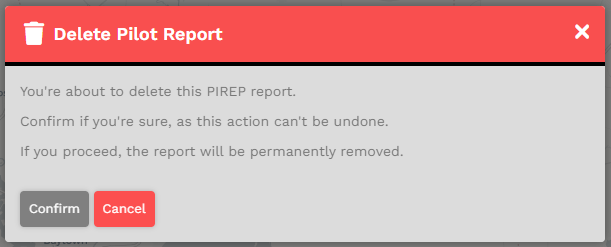
Once confirmed, the PIREP will be removed.

<span style="text-decoration: underline;">***Tour Flight***</span><span style="text-decoration: underline;">*:*</span> *if the flight deleted was your recent leg for a tour, you will be pushed back to the previous leg so that you can complete the leg again.*

<p class="callout warning">*This is not recoverable. If you delete your flight, it is lost for good.*</p>

---

#### Restrictions

You will see a disabled trashcan on certain flights that cannot be deleted.

<table border="1" id="bkmrk-tour-completed-you-c" style="border-collapse: collapse; width: 100%;"><tbody><tr><td style="width: 12.2222%; vertical-align: top;">[![image-1699723498555.png](https://docs.walkerair.us/uploads/images/gallery/2023-11/scaled-1680-/image-1699723498555.png)](https://docs.walkerair.us/uploads/images/gallery/2023-11/image-1699723498555.png)

</td><td style="width: 87.7778%; vertical-align: top;">**Tour Completed**

You cannot delete a flight if a tour is completed.

</td></tr><tr><td style="width: 12.2222%; vertical-align: top;">[![image-1699723498555.png](https://docs.walkerair.us/uploads/images/gallery/2023-11/scaled-1680-/image-1699723498555.png)](https://docs.walkerair.us/uploads/images/gallery/2023-11/image-1699723498555.png)</td><td style="width: 87.7778%; vertical-align: top;">**Not the last completed flight for the Tour**

You cannot delete a flight unless it the most recent leg completed.  
We do not want pilots on leg 8 of a tour, and delete leg 5 and get pushed back to leg 5.

</td></tr></tbody></table>

# Point System

---

Points are awarded for each completed flight receiving an ‘Approved’ designation.

The number of points you earn will depend on several factors – as you can see from the categories and points awards in the chart below.

<table border="1" id="bkmrk-accepted-rejected-di" style="border-collapse: collapse; width: 100%;"><tbody><tr><td class="align-center" style="width: 33.3333%; vertical-align: middle; background-color: grey;"><span style="color: #ffffff;">**Approved**</span></td><td class="align-center" style="width: 33.3333%; vertical-align: middle; background-color: grey;"><span style="color: #ffffff;">**Rejected**</span></td><td class="align-center" style="width: 33.3333%; vertical-align: middle; background-color: grey;"><span style="color: #ffffff;">**Diverted**</span></td></tr><tr><td style="width: 33.3333%;">The criteria for an **Approved** flight are:

- You completed a flight from your planned *departure* airport to your planned *arrival* airport; and,
- The Company’s *Landing Rate Standard – a landing rate equal to or softer than -800 fpm* was **achieved**.

All points, flight hours and pay are awarded.

The PIREP is posted to your Logbook as being Completed | **Approved**.

</td><td style="width: 33.3333%;">The criteria for a **Rejected** flight are:

- The Company’s *Landing Rate Standard – a landing rate equal to or softer than -801 fpm* was **exceeded**; and/or,
- The total points awarded for your flight equals -15 or more.
- Your flight time was 00:00 hours (premature landing); and/or,
- You used more fuel than you left the airport with (in-flight refueling); and/or,
- You did **not** fly with a *Walker Air Transport* livery.

No points, flight hours or pay are awarded.

The PIREP is posted to the your Logbook as being Completed | **Rejected**.

</td><td style="width: 33.3333%;">The criteria for a **Diverted** flight are:

- You completed a flight from your planned *departure* airport to an *unplanned arrival* airport;
- The Company’s *Landing Rate Standard – a landing rate equal to or softer than -800 fpm* was **achieved**.

All points, flight hours and pay are awarded.

<p class="callout danger">*If this occurs when flying a **Tour** leg, you will **not** be advanced to the next leg. The leg will have to be reflown.*</p>

The PIREP is posted to your Logbook as being Completed | **Diverted**.

</td></tr></tbody></table>

<p class="callout warning">*Points are calculated based on log entries from the ACARS client. If your client fails to record all the entries we require you may lose out on points. Flight Operations is unable to modify your log file.*</p>

<p class="callout warning">Microsoft Flight Simulator 2020 has a habit of not registering pilots in 'Cruise' phase due to how their altitude is determined. This will impact your log record, [please click here to read our FAQ item on this in order to ensure you get proper points awarded.](https://docs.walkerair.us/books/3-help/page/flight-operations#bkmrk-i-just-checked-my-ac)</p>

<table border="1" id="bkmrk-completed-flight-%2B5-" style="border-collapse: collapse; width: 808px; height: 875px;"><tbody><tr style="height: 29px;"><td class="align-center" style="width: 420px; height: 29px; background-color: grey;"><span style="color: #ffffff;">**Category**</span></td><td class="align-center" style="width: 72px; height: 29px; background-color: grey;"><span style="color: #ffffff;">**Points**</span></td><td style="width: 316px; background-color: grey;"><span style="color: #ffffff;">**How is it determined?**</span></td></tr><tr style="height: 29px;"><td style="width: 420px; height: 29px;">**Completed Flight**</td><td style="width: 72px; height: 29px;">**+5**</td><td style="width: 316px;"> </td></tr><tr style="height: 29px;"><td style="width: 420px; height: 29px;">**Per Hour of Flight**</td><td style="width: 72px; height: 29px;">**+1**</td><td style="width: 316px;"> </td></tr><tr style="height: 29px;"><td style="width: 420px; height: 29px;">**Per 50 Nautical Miles of Flight**</td><td style="width: 72px; height: 29px;">**+1**</td><td style="width: 316px;"> </td></tr><tr style="height: 29px;"><td style="width: 420px; height: 29px;">**Completed 20-Minute Pre-Flight**</td><td style="width: 72px; height: 29px;">**+3**</td><td style="width: 316px;">*Pre-flight time is calculated between the log entries 'Now boarding' and 'Pushing back'.*</td></tr><tr style="height: 29px;"><td style="width: 420px; height: 29px;">**Flaps Position Set *–* Takeoff** </td><td style="width: 72px; height: 29px;">**+1**</td><td style="width: 316px;">*Takeoff flaps are determined by log entry 'Flaps set to' that occur **before** the log entry 'Taking off'.*</td></tr><tr style="height: 29px;"><td style="width: 420px; height: 29px;">**Flaps Position Set *–* Landing** </td><td style="width: 72px; height: 29px;">**+1**</td><td style="width: 316px;">*Landing flaps are determined by log entry 'Flaps set to' that occur **after** the log entry 'Approaching'. The 'Approaching' log entry will not occur if you are not properly in cruise phase. Please read note above regarding MSFS 2020 and/or ensure you know how to properly use the ACARS application to set your correct cruise level.*

</td></tr><tr style="height: 29px;"><td style="width: 420px; height: 29px;">**Exceed 250kts under 10,000 ft for *more than* 2 minutes**  
<p class="callout info">*Only applicable when aircraft MTOW is **less than** 300,000lbs (136,077kgs).*</p>

</td><td style="width: 72px; height: 29px;">**-5**</td><td style="width: 316px;">*Aircraft that have an MTOW **less than** 300,000lbs (136,077kgs). You can view the MTOW of our fleet by visiting Company &gt; Fleet in CrewOps and viewing the MTOW column.*</td></tr><tr style="height: 29px;"><td style="width: 420px; height: 29px;">**Overspeed**

<p class="callout info">*Only deducted once regardless of number of instances of overspeeding*</p>

</td><td style="width: 72px; height: 29px;">**-2**</td><td style="width: 316px;">*Log indicates 'Overspeed'.*</td></tr><tr style="height: 180px;"><td style="width: 420px; height: 119px; vertical-align: top;">**Time Compression**

</td><td style="width: 72px; height: 119px;"></td><td style="width: 316px;">*Log indicates 'Simulation rate set to'.*

*A 15% penalty will be assessed against the total number of points earned for that flight.*  
 ***EXAMPLE:***

*46 points earned – 7 point penalty (.15 × 46) = 39 points awarded.*

</td></tr><tr style="height: 101px;"><td style="width: 420px; height: 101px;">**Bonus Multiplier**

</td><td style="width: 72px; height: 101px;"> </td><td style="width: 316px;">*The bonus multiplier helps equalize flights in all Fleet aircraft regardless of distance flown and/or cruising speed by using a proprietary algorithm and applying it to those with cruise speeds of 250kts or less and cruise speeds between 251kts and 400kts.*</td></tr><tr style="height: 57px;"><td style="width: 420px; height: 57px;">**Pilots Home Airport**

</td><td style="width: 72px; height: 57px;">**+5**

</td><td style="width: 316px;">*You departed from or arrived at your Hub airport.*

</td></tr></tbody></table>

<p class="callout info">*The MTOW for the aircraft you are flying can be found at Company &gt; Fleet.  
This is the value we use to determine the group below you will receive points from.*</p>

<table border="1" id="bkmrk-landing-rate-mtow-le" style="border-collapse: collapse; width: 100%; height: 404px;"><tbody><tr style="height: 29px;"><td style="width: 61.7284%; height: 29px; background-color: grey; vertical-align: middle;"><span style="color: #ffffff;">**Landing Rate**</span></td><td class="align-center" style="width: 19.3827%; height: 29px; background-color: grey; vertical-align: middle;"><span style="color: #ffffff;">**MTOW less than  
12,500lbs**</span></td><td class="align-center" style="width: 18.8888%; height: 29px; background-color: grey; vertical-align: middle;"><span style="color: #ffffff;">**MTOW more than  
12,500lbs**</span></td></tr><tr style="height: 46px;"><td style="width: 61.7284%; height: 46px; vertical-align: middle;">**-800 fpm to -701 fpm**</td><td class="align-center" style="width: 19.3827%; height: 46px; vertical-align: middle;">**-8**</td><td class="align-center" style="width: 18.8888%; height: 46px; vertical-align: middle;">**-4**</td></tr><tr style="height: 46px;"><td style="width: 61.7284%; height: 46px; vertical-align: middle;">**-700 fpm to -601 fpm**</td><td class="align-center" style="width: 19.3827%; height: 46px; vertical-align: middle;">**-6**</td><td class="align-center" style="width: 18.8888%; height: 46px; vertical-align: middle;">**-2**</td></tr><tr style="height: 46px;"><td style="width: 61.7284%; height: 46px; vertical-align: middle;">**-600 fpm to -501 fpm**</td><td class="align-center" style="width: 19.3827%; height: 46px; vertical-align: middle;">**-4**</td><td class="align-center" style="width: 18.8888%; height: 46px; vertical-align: middle;">**+1**</td></tr><tr style="height: 46px;"><td style="width: 61.7284%; height: 46px; vertical-align: middle;">**-500 fpm to -401 fpm**</td><td class="align-center" style="width: 19.3827%; height: 46px; vertical-align: middle;">**-2**</td><td class="align-center" style="width: 18.8888%; height: 46px; vertical-align: middle;">**+2**</td></tr><tr style="height: 46px;"><td style="width: 61.7284%; height: 46px; vertical-align: middle;">**-400 fpm to -300 fpm**</td><td class="align-center" style="width: 19.3827%; height: 46px; vertical-align: middle;">**+1**</td><td class="align-center" style="width: 18.8888%; height: 46px; vertical-align: middle;">**+4**</td></tr><tr style="height: 29px;"><td style="width: 61.7284%; height: 29px; vertical-align: middle;">**-300 fpm to -201 fpm**</td><td class="align-center" style="width: 19.3827%; height: 29px; vertical-align: middle;">**+2**</td><td class="align-center" style="width: 18.8888%; height: 29px; vertical-align: middle;">**+5**</td></tr><tr style="height: 29px;"><td style="width: 61.7284%; height: 29px; vertical-align: middle;">**-200 fpm to -151 fpm**</td><td class="align-center" style="width: 19.3827%; height: 29px; vertical-align: middle;">**+3**</td><td class="align-center" style="width: 18.8888%; height: 29px; vertical-align: middle;">**+5**</td></tr><tr style="height: 29px;"><td style="width: 61.7284%; height: 29px; vertical-align: middle;">**-150 fpm**</td><td class="align-center" style="width: 19.3827%; height: 29px; vertical-align: middle;">**+100**</td><td class="align-center" style="width: 18.8888%; height: 29px; vertical-align: middle;">**+100**</td></tr><tr style="height: 29px;"><td style="width: 61.7284%; height: 29px; vertical-align: middle;">**-149 fpm to -101 fpm**</td><td class="align-center" style="width: 19.3827%; height: 29px; vertical-align: middle;">**+4**</td><td class="align-center" style="width: 18.8888%; height: 29px; vertical-align: middle;">**+3**</td></tr><tr style="height: 29px;"><td style="width: 61.7284%; height: 29px; vertical-align: middle;">**-100 fpm to 0 fpm**</td><td class="align-center" style="width: 19.3827%; height: 29px; vertical-align: middle;">**+5**</td><td class="align-center" style="width: 18.8888%; height: 29px; vertical-align: middle;">**+2**</td></tr></tbody></table>

<table border="1" id="bkmrk-if-you-happen-to-be-" style="width: 100%; border-collapse: collapse; height: 96px;"><tbody><tr style="height: 96px;"><td style="width: 21.7284%; height: 96px; vertical-align: middle;">![image-1692545978892.png](https://docs.walkerair.us/uploads/images/gallery/2023-08/scaled-1680-/image-1692545978892.png)</td><td style="width: 78.2716%; vertical-align: middle; height: 96px;">*If you happen to be lucky enough to land the illustrious -150fpm. You will be awarded with our super special "BUTTER!" badge and 100 points! Now, we must state for legal reasons that a -150fpm is not the holy grail landing you need to aim for in every single aircraft. Doing this can result in gear breakage, spoilers not activating, autobrakes sitting around, and well, the plane not working right. We warned you!*</td></tr></tbody></table>

Here are some examples illustrating how these category points factor into each completed flight.

<table border="1" id="bkmrk-1-2-3" style="border-collapse: collapse; width: 100%;"><tbody><tr><td class="align-center" style="width: 33.3333%; background-color: grey;"><span style="color: #ffffff;">**1**</span></td><td class="align-center" style="width: 33.3333%; background-color: grey;"><span style="color: #ffffff;">**2**</span></td><td class="align-center" style="width: 33.3333%; background-color: grey;"><span style="color: #ffffff;">**3**</span></td></tr><tr><td style="width: 33.3333%;">[![image-1638202067020.png](https://docs.walkerair.us/uploads/images/gallery/2021-11/scaled-1680-/image-1638202067020.png)](https://docs.walkerair.us/uploads/images/gallery/2021-11/image-1638202067020.png)</td><td style="width: 33.3333%;">[![image-1638202135807.png](https://docs.walkerair.us/uploads/images/gallery/2021-11/scaled-1680-/image-1638202135807.png)](https://docs.walkerair.us/uploads/images/gallery/2021-11/image-1638202135807.png)</td><td style="width: 33.3333%;">[![image-1638202249779.png](https://docs.walkerair.us/uploads/images/gallery/2021-11/scaled-1680-/image-1638202249779.png)](https://docs.walkerair.us/uploads/images/gallery/2021-11/image-1638202249779.png)</td></tr></tbody></table>

If you think your flight was graded incorrectly – **or** – you'd like to ask a question, submit a **Help Ticket**.

# Manual PIREPS

---

**TL;DR:** **Manual PIREPS are <span style="color: #ff0000;">not</span> allowed.**  
  
Data generated by your flight simulator about your flight is transferred, via ACARS*,* to our automated *Flight Data System* for processing. It's that data transfer that enables us to create the PIREP you see and what’s posted in your **logbook**.   
  
The control inputs you make in your flight simulator while flying are the only manual elements of the data recording and transmission process – everything else is data driven.

We recognize, however, there could be an occasion where something doesn’t look right at the end of your flight. In the example illustrated below, something was obviously amiss – it’s not possible to be taxiing to the gate, and, after a brief pause, becoming airborne again.

[![image-1646058765802.png](https://docs.walkerair.us/uploads/images/gallery/2022-02/scaled-1680-/image-1646058765802.png)](https://docs.walkerair.us/uploads/images/gallery/2022-02/image-1646058765802.png)

While exceedingly rare, these kinds of anomalies *can* occasionally occur. We certainly sympathize with you if something like this happens. However, no formal review process exists because we do not have any control over the operation of your computer, your flight simulator, the stability of your Internet connection and/or any other operational factors affecting how data is collected and transmitted to us. As a result, we must trust the data your flight simulator generates and transmits to us via ACARS to be an accurate representation of what occurred during your flight. After that transmission occurs, we do **not** have the ability to change or alter any flight data nor will we ever do so.

What to do?

Simply stated, you'll need to refly that flight.

# Rank & Points

---

#### **Rank**

*Walker Air Transport* utilizes the [smartCARS 3 (Windows/MacOS/Linux)](https://docs.walkerair.us/books/3-help/page/smartcars-3-windows-pc-mac-os-linux "smartCARS 3 |  Windows PC Mac OS Linux") or [FlightTrackerXP (Mac)](https://docs.walkerair.us/books/3-help/page/flighttrackerxp-macos "FlightTrackerXP  |  MacOS") ACARS systems and the company’s proprietary, fully-automated *Flight Data System (FDS)* to log data produced and transmitted to us by your Simulator.

Once you’ve completed your flight and submitted the PIREP, our *FDS* goes to work reviewing it and making a decision on its acceptability. And it’s all done very quickly. Within seconds, you’ll have all of your flight’s data to review, including, though not limited to, these major items:

<table id="bkmrk-1-2-3-4-5-6-aircraft" style="border-collapse:collapse;width:100%;"><tbody><tr><td class="align-center" style="width:16.6667%;background-color:#808080;"><span style="color:#ffffff;">**1**</span></td><td class="align-center" style="width:16.6667%;background-color:#808080;"><span style="color:#ffffff;">**2**</span></td><td class="align-center" style="width:16.6667%;background-color:#808080;"><span style="color:#ffffff;">**3**</span></td><td class="align-center" style="width:16.6667%;background-color:#808080;"><span style="color:#ffffff;">**4**</span></td><td class="align-center" style="width:16.6667%;background-color:#808080;"><span style="color:#ffffff;">**5**</span></td><td class="align-center" style="width:16.6667%;background-color:#808080;"><span style="color:#ffffff;">**6**</span></td></tr><tr><td class="align-center" style="width:16.6667%;vertical-align:middle;">Aircraft Type Flown</td><td class="align-center" style="width:16.6667%;vertical-align:middle;">Flight Time</td><td class="align-center" style="width:16.6667%;vertical-align:middle;">Flight Distance</td><td class="align-center" style="width:16.6667%;vertical-align:middle;">Landing Rate</td><td class="align-center" style="width:16.6667%;vertical-align:middle;">Points Awarded</td><td class="align-center" style="width:16.6667%;vertical-align:middle;">Flight Status (Approved; Rejected; Diverted)</td></tr></tbody></table>

We're pleased and excited to have this system in place because we think it:

- adds more value to the total experience; and,
- by analyzing their performance and applying what they learn from it, our Pilots are challenged to continually improve their flying skills and proficiency.

In order to be promoted to the next **rank**, you must meet **both** of the requirements noted below for *minimum* *hours* **and** *minimum* *points*.

<p class="callout info">*Hours and points do not reset on promotion. They carry over as you progress towards your next rank.*</p>

<table id="bkmrk-rank-%7C-title-insigni" style="border-collapse:collapse;width:74.1975%;height:670px;"><tbody><tr style="height:46px;"><td class="align-center" style="width:24.4444%;background-color:#808080;vertical-align:middle;border-style:solid;border-color:#000000;height:46px;"><span style="color:#ffffff;">**Rank | Title**</span></td><td class="align-center" style="width:15.5556%;background-color:#808080;vertical-align:middle;border-style:solid;border-color:#000000;height:46px;"><span style="color:#ffffff;">**Insignia**</span></td><td class="align-center" style="width:11.6049%;background-color:#808080;vertical-align:middle;border-style:solid;border-color:#000000;height:46px;"><span style="color:#ffffff;">**Minimum Hours**</span></td><td class="align-center" style="width:11.3581%;background-color:#808080;vertical-align:middle;border-style:solid;border-color:#000000;height:46px;"><span style="color:#ffffff;">**Minimum Points**</span></td><td class="align-center" style="width:11.2344%;background-color:#808080;vertical-align:middle;border-style:solid;border-color:#000000;height:46px;"><span style="color:#ffffff;">**Pay Rate (Hourly)**</span></td></tr><tr style="height:49px;"><td class="align-left" style="width:24.4444%;vertical-align:middle;border-style:solid;border-color:#000000;height:49px;">**Flight Student**</td><td class="align-center" style="width:15.5556%;vertical-align:middle;border-style:solid;border-color:#000000;height:49px;">[![image-1638456445376.png](https://docs.walkerair.us/uploads/images/gallery/2021-12/scaled-1680-/image-1638456445376.png)](https://docs.walkerair.us/uploads/images/gallery/2021-12/image-1638456445376.png)

</td><td style="width:11.6049%;vertical-align:middle;border-style:solid;border-color:#000000;height:49px;">0</td><td style="width:11.3581%;vertical-align:middle;border-style:solid;border-color:#000000;height:49px;">0</td><td style="width:11.2344%;vertical-align:middle;border-style:solid;border-color:#000000;height:49px;">$15.00</td></tr><tr style="height:49px;"><td class="align-left" style="width:24.4444%;vertical-align:middle;border-style:solid;border-color:#000000;height:49px;">**First Officer**</td><td class="align-center" style="width:15.5556%;vertical-align:middle;border-style:solid;border-color:#000000;height:49px;">[![image-1638456466547.png](https://docs.walkerair.us/uploads/images/gallery/2021-12/scaled-1680-/image-1638456466547.png)](https://docs.walkerair.us/uploads/images/gallery/2021-12/image-1638456466547.png)

</td><td style="width:11.6049%;vertical-align:middle;border-style:solid;border-color:#000000;height:49px;">25</td><td style="width:11.3581%;vertical-align:middle;border-style:solid;border-color:#000000;height:49px;">400</td><td style="width:11.2344%;vertical-align:middle;border-style:solid;border-color:#000000;height:49px;">$35.00</td></tr><tr style="height:48px;"><td class="align-left" style="width:24.4444%;vertical-align:middle;border-style:solid;border-color:#000000;height:48px;">**Senior First Officer**</td><td class="align-center" style="width:15.5556%;vertical-align:middle;border-style:solid;border-color:#000000;height:48px;">[![image-1638456479788.png](https://docs.walkerair.us/uploads/images/gallery/2021-12/scaled-1680-/image-1638456479788.png)](https://docs.walkerair.us/uploads/images/gallery/2021-12/image-1638456479788.png)

</td><td style="width:11.6049%;vertical-align:middle;border-style:solid;border-color:#000000;height:48px;">75</td><td style="width:11.3581%;vertical-align:middle;border-style:solid;border-color:#000000;height:48px;">1,200</td><td style="width:11.2344%;vertical-align:middle;border-style:solid;border-color:#000000;height:48px;">$45.00</td></tr><tr style="height:48px;"><td class="align-left" style="width:24.4444%;vertical-align:middle;border-style:solid;border-color:#000000;height:48px;">**Captain**</td><td class="align-center" style="width:15.5556%;vertical-align:middle;border-style:solid;border-color:#000000;height:48px;">[![image-1638456491667.png](https://docs.walkerair.us/uploads/images/gallery/2021-12/scaled-1680-/image-1638456491667.png)](https://docs.walkerair.us/uploads/images/gallery/2021-12/image-1638456491667.png)

</td><td style="width:11.6049%;vertical-align:middle;border-style:solid;border-color:#000000;height:48px;">100</td><td style="width:11.3581%;vertical-align:middle;border-style:solid;border-color:#000000;height:48px;">1,600</td><td style="width:11.2344%;vertical-align:middle;border-style:solid;border-color:#000000;height:48px;">$65.00</td></tr><tr style="height:48px;"><td class="align-left" style="width:24.4444%;vertical-align:middle;border-style:solid;border-color:#000000;height:48px;">**Flight Captain**</td><td class="align-center" style="width:15.5556%;vertical-align:middle;border-style:solid;border-color:#000000;height:48px;">[![image-1638456503699.png](https://docs.walkerair.us/uploads/images/gallery/2021-12/scaled-1680-/image-1638456503699.png)](https://docs.walkerair.us/uploads/images/gallery/2021-12/image-1638456503699.png)

</td><td style="width:11.6049%;vertical-align:middle;border-style:solid;border-color:#000000;height:48px;">300</td><td style="width:11.3581%;vertical-align:middle;border-style:solid;border-color:#000000;height:48px;">4,800</td><td style="width:11.2344%;vertical-align:middle;border-style:solid;border-color:#000000;height:48px;">$85.00</td></tr><tr style="height:48px;"><td class="align-left" style="width:24.4444%;vertical-align:middle;border-style:solid;border-color:#000000;height:48px;">**Senior Flight Captain**</td><td class="align-center" style="width:15.5556%;vertical-align:middle;border-style:solid;border-color:#000000;height:48px;">[![image-1638456514845.png](https://docs.walkerair.us/uploads/images/gallery/2021-12/scaled-1680-/image-1638456514845.png)](https://docs.walkerair.us/uploads/images/gallery/2021-12/image-1638456514845.png)

</td><td style="width:11.6049%;vertical-align:middle;border-style:solid;border-color:#000000;height:48px;">500</td><td style="width:11.3581%;vertical-align:middle;border-style:solid;border-color:#000000;height:48px;">8,000</td><td style="width:11.2344%;vertical-align:middle;border-style:solid;border-color:#000000;height:48px;">$105.00</td></tr><tr style="height:48px;"><td class="align-left" style="width:24.4444%;vertical-align:middle;border-style:solid;border-color:#000000;height:48px;">**Chief Pilot I**</td><td class="align-center" style="width:15.5556%;vertical-align:middle;border-style:solid;border-color:#000000;height:48px;">[![image-1638456526639.png](https://docs.walkerair.us/uploads/images/gallery/2021-12/scaled-1680-/image-1638456526639.png)](https://docs.walkerair.us/uploads/images/gallery/2021-12/image-1638456526639.png)

</td><td style="width:11.6049%;vertical-align:middle;border-style:solid;border-color:#000000;height:48px;">1,000</td><td style="width:11.3581%;vertical-align:middle;border-style:solid;border-color:#000000;height:48px;">16,000</td><td style="width:11.2344%;vertical-align:middle;border-style:solid;border-color:#000000;height:48px;">$115.00</td></tr><tr style="height:48px;"><td class="align-left" style="width:24.4444%;vertical-align:middle;border-style:solid;border-color:#000000;height:48px;">**Chief Pilot II**</td><td class="align-center" style="width:15.5556%;vertical-align:middle;border-style:solid;border-color:#000000;height:48px;">[![image-1638456540325.png](https://docs.walkerair.us/uploads/images/gallery/2021-12/scaled-1680-/image-1638456540325.png)](https://docs.walkerair.us/uploads/images/gallery/2021-12/image-1638456540325.png)

</td><td style="width:11.6049%;vertical-align:middle;border-style:solid;border-color:#000000;height:48px;">2,500</td><td style="width:11.3581%;vertical-align:middle;border-style:solid;border-color:#000000;height:48px;">40,000</td><td style="width:11.2344%;vertical-align:middle;border-style:solid;border-color:#000000;height:48px;">$135.00</td></tr><tr style="height:48px;"><td class="align-left" style="width:24.4444%;vertical-align:middle;border-style:solid;border-color:#000000;height:48px;">**Chief Pilot III**</td><td class="align-center" style="width:15.5556%;vertical-align:middle;border-style:solid;border-color:#000000;height:48px;">[![image-1638456554321.png](https://docs.walkerair.us/uploads/images/gallery/2021-12/scaled-1680-/image-1638456554321.png)](https://docs.walkerair.us/uploads/images/gallery/2021-12/image-1638456554321.png)

</td><td style="width:11.6049%;vertical-align:middle;border-style:solid;border-color:#000000;height:48px;">5,000</td><td style="width:11.3581%;vertical-align:middle;border-style:solid;border-color:#000000;height:48px;">80,000</td><td style="width:11.2344%;vertical-align:middle;border-style:solid;border-color:#000000;height:48px;">$165.00</td></tr><tr style="height:48px;"><td class="align-left" style="width:24.4444%;vertical-align:middle;border-style:solid;border-color:#000000;height:48px;">**Senior Chief Pilot I**</td><td class="align-center" style="width:15.5556%;vertical-align:middle;border-style:solid;border-color:#000000;height:48px;">[![image-1638456572277.png](https://docs.walkerair.us/uploads/images/gallery/2021-12/scaled-1680-/image-1638456572277.png)](https://docs.walkerair.us/uploads/images/gallery/2021-12/image-1638456572277.png)

</td><td style="width:11.6049%;vertical-align:middle;border-style:solid;border-color:#000000;height:48px;">7,500</td><td style="width:11.3581%;vertical-align:middle;border-style:solid;border-color:#000000;height:48px;">120,000</td><td style="width:11.2344%;vertical-align:middle;border-style:solid;border-color:#000000;height:48px;">$195.00</td></tr><tr style="height:48px;"><td class="align-left" style="width:24.4444%;vertical-align:middle;border-style:solid;border-color:#000000;height:48px;">**Senior Chief Pilot II**</td><td class="align-center" style="width:15.5556%;vertical-align:middle;border-style:solid;border-color:#000000;height:48px;">[![image-1638456585921.png](https://docs.walkerair.us/uploads/images/gallery/2021-12/scaled-1680-/image-1638456585921.png)](https://docs.walkerair.us/uploads/images/gallery/2021-12/image-1638456585921.png)

</td><td style="width:11.6049%;vertical-align:middle;border-style:solid;border-color:#000000;height:48px;">10,000</td><td style="width:11.3581%;vertical-align:middle;border-style:solid;border-color:#000000;height:48px;">160,000</td><td style="width:11.2344%;vertical-align:middle;border-style:solid;border-color:#000000;height:48px;">$225.00</td></tr><tr style="height:48px;"><td class="align-left" style="width:24.4444%;vertical-align:middle;border-style:solid;border-color:#000000;height:48px;">**Senior Chief Pilot III**</td><td class="align-center" style="width:15.5556%;vertical-align:middle;border-style:solid;border-color:#000000;height:48px;">[![image-1638456600978.png](https://docs.walkerair.us/uploads/images/gallery/2021-12/scaled-1680-/image-1638456600978.png)](https://docs.walkerair.us/uploads/images/gallery/2021-12/image-1638456600978.png)

</td><td style="width:11.6049%;vertical-align:middle;border-style:solid;border-color:#000000;height:48px;">15,000</td><td style="width:11.3581%;vertical-align:middle;border-style:solid;border-color:#000000;height:48px;">240,000</td><td style="width:11.2344%;vertical-align:middle;border-style:solid;border-color:#000000;height:48px;">$255.00</td></tr><tr style="height:46px;"><td style="width:24.4444%;vertical-align:middle;border-style:solid;border-color:#000000;height:46px;">**Walker Emeritus**</td><td style="width:15.5556%;vertical-align:middle;border-style:solid;border-color:#000000;height:46px;">[![image-1717025183873.png](https://docs.walkerair.us/uploads/images/gallery/2024-05/scaled-1680-/image-1717025183873.png)](https://docs.walkerair.us/uploads/images/gallery/2024-05/image-1717025183873.png)

</td><td style="width:11.6049%;vertical-align:middle;border-style:solid;border-color:#000000;height:46px;">50,000</td><td style="width:11.3581%;vertical-align:middle;border-style:solid;border-color:#000000;height:46px;">300,000</td><td style="width:11.2344%;vertical-align:middle;border-style:solid;border-color:#000000;height:46px;">$300.00</td></tr></tbody></table>


---

#### **Points**

Points are awarded for each completed flight receiving an ‘Approved’ designation.

The number of points you earn will depend on several factors – as you can see from the categories and points awards in the chart below.

<table id="bkmrk-accepted-rejected-di" style="border-collapse:collapse;width:100%;"><tbody><tr><td class="align-center" style="width:33.3333%;vertical-align:middle;background-color:#808080;"><span style="color:#ffffff;">**Approved**</span></td><td class="align-center" style="width:33.3333%;vertical-align:middle;background-color:#808080;"><span style="color:#ffffff;">**Rejected**</span></td><td class="align-center" style="width:33.3333%;vertical-align:middle;background-color:#808080;"><span style="color:#ffffff;">**Diverted**</span></td></tr><tr><td style="width:33.3333%;">The criteria for an **Approved** flight are:

- You completed a flight from your planned *departure* airport to your planned *arrival* airport; and,
- The Company’s *Landing Rate Standard – a landing rate equal to or softer than -800 fpm* was **achieved**.

All points, flight hours and pay are awarded.

The PIREP is posted to your Logbook as being Completed | **Approved**.

</td><td style="width:33.3333%;">The criteria for a **Rejected** flight are:

- The Company’s *Landing Rate Standard – a landing rate equal to or softer than -801 fpm* was **exceeded**; and/or,
- The total points awarded for your flight equals -15 or more.
- Your flight time was 00:00 hours (premature landing); and/or,
- You used more fuel than you left the airport with (in-flight refueling); and/or,
- You did **not** fly with a *Walker Air Transport* livery.

No points, flight hours or pay are awarded.

The PIREP is posted to the your Logbook as being Completed | **Rejected**.

</td><td style="width:33.3333%;">The criteria for a **Diverted** flight are:

- You completed a flight from your planned *departure* airport to an *unplanned arrival* airport;
- The Company’s *Landing Rate Standard – a landing rate equal to or softer than -800 fpm* was **achieved**.

All points, flight hours and pay are awarded.

<p class="callout danger">*If this occurs when flying a **Tour** leg, you will **not** be advanced to the next leg. The leg will have to be reflown.*</p>

The PIREP is posted to your Logbook as being Completed | **Diverted**.

</td></tr></tbody></table>

<p class="callout warning">*Points are calculated based on log entries from the ACARS client. If your client fails to record all the entries we require you may lose out on points. Flight Operations is unable to modify your log file.*</p>

<p class="callout warning">Microsoft Flight Simulator 2020 has a habit of not registering pilots in 'Cruise' phase due to how their altitude is determined. This will impact your log record, [please click here to read our FAQ item on this in order to ensure you get proper points awarded.](https://docs.walkerair.us/books/3-help/page/flight-operations#bkmrk-i-just-checked-my-ac)</p>

<table id="bkmrk-completed-flight-%2B5-" style="border-collapse:collapse;width:774px;height:745.297px;"><tbody><tr style="height:29.7969px;"><td class="align-center" style="width:387px;height:29.7969px;background-color:#808080;"><span style="color:#ffffff;">**Category**</span></td><td class="align-center" style="width:77px;height:29.7969px;background-color:#808080;"><span style="color:#ffffff;">**Points**</span></td><td style="width:310px;background-color:#808080;height:29.7969px;"><span style="color:#ffffff;">**How is it determined?**</span></td></tr><tr style="height:29.7969px;"><td style="width:387px;height:29.7969px;">**Per Hour of Flight**</td><td style="width:77px;height:29.7969px;">**+1**</td><td style="width:310px;height:29.7969px;"> </td></tr><tr style="height:29.7969px;"><td style="width:387px;height:29.7969px;">**Per 50 Nautical Miles of Flight**</td><td style="width:77px;height:29.7969px;">**+1**</td><td style="width:310px;height:29.7969px;"> </td></tr><tr style="height:46.5938px;"><td style="width:387px;height:46.5938px;">**Completed 20-Minute Pre-Flight**</td><td style="width:77px;height:46.5938px;">**+3**</td><td style="width:310px;height:46.5938px;">*Pre-flight time is calculated between the log entries 'Now boarding' and 'Pushing back'.*</td></tr><tr><td style="width:387px;">**Engine Warm-Up 3-Minutes**</td><td style="width:77px;">**+1**</td><td style="width:310px;">*Points are awarded when all engines are properly warmed up prior to departure. Each engine must be started and allowed to run for a minimum of **3 minutes** before takeoff. All engines that were started must individually meet this requirement — if any engine was started less than 3 minutes before wheels-up, no points will be awarded.*

</td></tr><tr><td style="width:387px;">**Engine Cooldown 3-Minutes**</td><td style="width:77px;">**+1**</td><td style="width:310px;">*Points are awarded when all engines are properly cooled down after landing. Every engine that was running during the flight must be shut down after touchdown, and each individual engine must remain running for a minimum of **3 minutes** after landing before being switched off. If any engine is shut down too early or is not shut down after landing, no points will be awarded.*</td></tr><tr style="height:63.3906px;"><td style="width:387px;height:63.3906px;">**Flaps Position Set *–* Takeoff** </td><td style="width:77px;height:63.3906px;">**+1**</td><td style="width:310px;height:63.3906px;">*Takeoff flaps are determined by log entry 'Flaps set to' that occur **before** the log entry 'Taking off'.*</td></tr><tr style="height:147.375px;"><td style="width:387px;height:147.375px;">**Flaps Position Set *–* Landing** </td><td style="width:77px;height:147.375px;">**+1**</td><td style="width:310px;height:147.375px;">*Landing flaps are determined by log entry 'Flaps set to' that occur **after** the log entry 'Approaching'. The 'Approaching' log entry will not occur if you are not properly in cruise phase. Please read note above regarding MSFS 2020 and/or ensure you know how to properly use the ACARS application to set your correct cruise level.*

</td></tr><tr style="height:87.3906px;"><td style="width:387px;height:87.3906px;">**Exceed 250kts under 10,000 ft for *more than* 2 minutes**  
<p class="callout info">*Only applicable when aircraft MTOW is **less than** 300,000lbs (136,077kgs).*</p>

</td><td style="width:77px;height:87.3906px;">**-5**</td><td style="width:310px;height:87.3906px;">*Aircraft that have an MTOW **less than** 300,000lbs (136,077kgs). You can view the MTOW of our fleet by visiting Company &gt; Fleet in CrewOps and viewing the MTOW column.*</td></tr><tr style="height:87.3906px;"><td style="width:387px;height:87.3906px;">**Overspeed**

<p class="callout info">*Only deducted once regardless of number of instances of overspeeding*</p>

</td><td style="width:77px;height:87.3906px;">**-2**</td><td style="width:310px;height:87.3906px;">*Log indicates 'Overspeed'.*</td></tr><tr style="height:80.1875px;"><td style="width:387px;height:80.1875px;vertical-align:top;">**Time Compression**

</td><td style="width:77px;height:80.1875px;"></td><td style="width:310px;height:80.1875px;">*Log indicates 'Simulation rate set to'.*

*A penalty is assessed based on the percentage of real-world time flown versus the reported flight time. For example, completing an 8-hour flight in 2 hours of real time results in a 75% deduction of total points earned for that flight.*

</td></tr><tr style="height:113.781px;"><td style="width:387px;height:113.781px;">**Bonus Multiplier**

</td><td style="width:77px;height:113.781px;"> </td><td style="width:310px;height:113.781px;">*The bonus multiplier helps equalize flights in all Fleet aircraft regardless of distance flown and/or cruising speed by using a proprietary algorithm and applying it to those with cruise speeds of 250kts or less and cruise speeds between 251kts and 400kts.*</td></tr><tr style="height:29.7969px;"><td style="width:387px;height:29.7969px;">**Airport Discovery**

</td><td style="width:77px;height:29.7969px;">**+1**</td><td style="width:310px;height:29.7969px;">*First flight into an airport*</td></tr><tr><td style="width:387px;">**Country Discovery**

</td><td style="width:77px;">**+1**</td><td style="width:310px;">*First flight into a country*</td></tr><tr><td style="width:387px;">**Airline Discovery (Patreon Subscribers Only)**

</td><td style="width:77px;">**+1**</td><td style="width:310px;">*First flight for an airline*</td></tr><tr><td style="width:387px;">**Type Rated**

</td><td style="width:77px;">**+1**</td><td style="width:310px;">*First flight on an aircraft type*</td></tr><tr><td style="width:387px;">**Manufacturer Discovery**

</td><td style="width:77px;">**+1**</td><td style="width:310px;">*First flight with an aircraft manufacturer*</td></tr></tbody></table>

<p class="callout info">*The MTOW for the aircraft you are flying can be found at Company &gt; Fleet.  
This is the value we use to determine the group below you will receive points from.*</p>

<table id="bkmrk-landing-rate-mtow-le" style="border-collapse:collapse;width:100%;height:404px;"><tbody><tr style="height:29px;"><td style="width:48.642%;height:29px;background-color:#808080;vertical-align:middle;"><span style="color:#ffffff;">**Landing Rate**</span></td><td class="align-center" style="width:14.6297%;background-color:#808080;vertical-align:middle;"><span style="color:#ffffff;">**Helicopters**</span></td><td class="align-center" style="width:17.8395%;height:29px;background-color:#808080;vertical-align:middle;"><span style="color:#ffffff;">**MTOW less than  
12,500lbs**</span></td><td class="align-center" style="width:18.8888%;height:29px;background-color:#808080;vertical-align:middle;"><span style="color:#ffffff;">**MTOW more than  
12,500lbs**</span></td></tr><tr style="height:46px;"><td style="width:48.642%;height:46px;vertical-align:middle;">**-800 fpm to -701 fpm**</td><td class="align-center" style="width:14.6297%;vertical-align:middle;">**-16**</td><td class="align-center" style="width:17.8395%;height:46px;vertical-align:middle;">**-8**</td><td class="align-center" style="width:18.8888%;height:46px;vertical-align:middle;">**-4**</td></tr><tr style="height:46px;"><td style="width:48.642%;height:46px;vertical-align:middle;">**-700 fpm to -601 fpm**</td><td class="align-center" style="width:14.6297%;vertical-align:middle;">**-12**</td><td class="align-center" style="width:17.8395%;height:46px;vertical-align:middle;">**-6**</td><td class="align-center" style="width:18.8888%;height:46px;vertical-align:middle;">**-2**</td></tr><tr style="height:46px;"><td style="width:48.642%;height:46px;vertical-align:middle;">**-600 fpm to -501 fpm**</td><td class="align-center" style="width:14.6297%;vertical-align:middle;">**-8**</td><td class="align-center" style="width:17.8395%;height:46px;vertical-align:middle;">**-4**</td><td class="align-center" style="width:18.8888%;height:46px;vertical-align:middle;">**+1**</td></tr><tr style="height:46px;"><td style="width:48.642%;height:46px;vertical-align:middle;">**-500 fpm to -401 fpm**</td><td class="align-center" style="width:14.6297%;vertical-align:middle;">**-4**</td><td class="align-center" style="width:17.8395%;height:46px;vertical-align:middle;">**-2**</td><td class="align-center" style="width:18.8888%;height:46px;vertical-align:middle;">**+2**</td></tr><tr style="height:46px;"><td style="width:48.642%;height:46px;vertical-align:middle;">**-400 fpm to -300 fpm**</td><td class="align-center" style="width:14.6297%;vertical-align:middle;">**-1**</td><td class="align-center" style="width:17.8395%;height:46px;vertical-align:middle;">**+1**</td><td class="align-center" style="width:18.8888%;height:46px;vertical-align:middle;">**+4**</td></tr><tr style="height:29px;"><td style="width:48.642%;height:29px;vertical-align:middle;">**-300 fpm to -201 fpm**</td><td class="align-center" style="width:14.6297%;vertical-align:middle;">**+1**</td><td class="align-center" style="width:17.8395%;height:29px;vertical-align:middle;">**+2**</td><td class="align-center" style="width:18.8888%;height:29px;vertical-align:middle;">**+5**</td></tr><tr style="height:29px;"><td style="width:48.642%;height:29px;vertical-align:middle;">**-200 fpm to -151 fpm**</td><td class="align-center" style="width:14.6297%;vertical-align:middle;">**+2**</td><td class="align-center" style="width:17.8395%;height:29px;vertical-align:middle;">**+3**</td><td class="align-center" style="width:18.8888%;height:29px;vertical-align:middle;">**+5**</td></tr><tr style="height:29px;"><td style="width:48.642%;height:29px;vertical-align:middle;">**-150 fpm**</td><td class="align-center" style="width:14.6297%;vertical-align:middle;">**+100**</td><td class="align-center" style="width:17.8395%;height:29px;vertical-align:middle;">**+100**</td><td class="align-center" style="width:18.8888%;height:29px;vertical-align:middle;">**+100**</td></tr><tr style="height:29px;"><td style="width:48.642%;height:29px;vertical-align:middle;">**-149 fpm to -101 fpm**</td><td class="align-center" style="width:14.6297%;vertical-align:middle;">**+4**</td><td class="align-center" style="width:17.8395%;height:29px;vertical-align:middle;">**+4**</td><td class="align-center" style="width:18.8888%;height:29px;vertical-align:middle;">**+3**</td></tr><tr style="height:29px;"><td style="width:48.642%;height:29px;vertical-align:middle;">**-100 fpm to 0 fpm**</td><td class="align-center" style="width:14.6297%;vertical-align:middle;">**+5**</td><td class="align-center" style="width:17.8395%;height:29px;vertical-align:middle;">**+5**</td><td class="align-center" style="width:18.8888%;height:29px;vertical-align:middle;">**+2**</td></tr></tbody></table>

<table id="bkmrk-if-you-happen-to-be-" style="width:100%;border-collapse:collapse;height:96px;"><tbody><tr style="height:96px;"><td style="width:21.7284%;height:96px;vertical-align:middle;">![image-1692545978892.png](https://docs.walkerair.us/uploads/images/gallery/2023-08/scaled-1680-/image-1692545978892.png)</td><td style="width:78.2716%;vertical-align:middle;height:96px;">*If you happen to be lucky enough to land the illustrious -150fpm. You will be awarded with our super special "BUTTER!" badge and 100 points! Now, we must state for legal reasons that a -150fpm is not the holy grail landing you need to aim for in every single aircraft. Doing this can result in gear breakage, spoilers not activating, autobrakes sitting around, and well, the plane not working right. We warned you!*</td></tr></tbody></table>

Here are some examples illustrating how these category points factor into each completed flight.

<table id="bkmrk-1-2-3" style="border-collapse:collapse;width:100%;"><tbody><tr><td class="align-center" style="width:33.3333%;background-color:#808080;"><span style="color:#ffffff;">**1**</span></td><td class="align-center" style="width:33.3333%;background-color:#808080;"><span style="color:#ffffff;">**2**</span></td><td class="align-center" style="width:33.3333%;background-color:#808080;"><span style="color:#ffffff;">**3**</span></td></tr><tr><td style="width:33.3333%;">[![image-1638202067020.png](https://docs.walkerair.us/uploads/images/gallery/2021-11/scaled-1680-/image-1638202067020.png)](https://docs.walkerair.us/uploads/images/gallery/2021-11/image-1638202067020.png)</td><td style="width:33.3333%;">[![image-1638202135807.png](https://docs.walkerair.us/uploads/images/gallery/2021-11/scaled-1680-/image-1638202135807.png)](https://docs.walkerair.us/uploads/images/gallery/2021-11/image-1638202135807.png)</td><td style="width:33.3333%;">[![image-1638202249779.png](https://docs.walkerair.us/uploads/images/gallery/2021-11/scaled-1680-/image-1638202249779.png)](https://docs.walkerair.us/uploads/images/gallery/2021-11/image-1638202249779.png)</td></tr></tbody></table>

If you think your flight was graded incorrectly – **or** – you'd like to ask a question, submit a **Help Ticket**.

---

#### **Bonus Points**

<table id="bkmrk-tours-when-a-tour-is" style="border-collapse:collapse;width:100%;"><tbody><tr><td style="width:25%;">**Module**</td><td style="width:25%;">**Type**</td><td style="width:50%;">**Details**

</td></tr><tr><td style="width:25%;">Assignments</td><td style="width:25%;">Points</td><td style="width:50%;">When an assignment is completed, the pilot will receive bonus points equal to **1 point x total flight hours flown during the assignment**.

If you complete an assignment with 42 total flight hours, the completion bonus would be **42 bonus points**.

</td></tr><tr><td style="width:25%;">Events</td><td style="width:25%;">Points</td><td style="width:50%;">When you fly in a Walker Air event, using our callsign, and livery, You will receive a 2x bonus on your total flight points received for an approved PIREP.

</td></tr><tr><td style="width:25%;">Tours</td><td style="width:25%;">Points</td><td style="width:50%;">When a tour is completed and the award is granted; the Pilot will receive bonus points that equal ***5 points x # of legs in the tour***.

If you complete a tour with 80 legs, the completion bonus points will be ***5 points x 80 = 400 points***.

<p class="callout info">You do receive the completion bonus points when you've purchased a Tour Pass and completed that tour again. (*You can stack these bonus points for tours.)*</p>

</td></tr></tbody></table>

# simBrief

---

*simBrief* enables Pilots to automatically create an **Operational Flight Plan** (OFP) based on the details of their intended flight – and, with only a few clicks, easily integrate it into our System*.*

<p class="callout info">*You must have an active **simBrief** account in order to use the integration.   
If you don't have an account, visit [**simBrief**](https://www.simBrief.com/) to create it.*</p>

---

#### <span class="font-18">**What's the *simBrief* Operational Flight Plan?**</span>

The *simBrief* OFP, also known as the *Operational Flight Plan*, is essentially a dispatch packet. It simulates a real world experience with Pilots receiving information about their flight, weather, routing, fuel usage, weights, etc. – everything required to ensure they're operating within the performance standards of the aircraft they're flying.

*simBrief* does a good job adding to the realism of simulated flying by offering this service. That's why we encourage you to sign up for an account and, when possible, use it.

**simBrief**: [**https://www.simbrief.com/home/index.php**](https://www.simbrief.com/home/index.php)

If you need help understanding the OFP and how to use it, ask your fellow Pilots.

The information contained here is very useful for setting up your aircraft's *Flight Management Computer* to make your flight as realistic as possible.

[![image-1671899457532.png](https://docs.walkerair.us/uploads/images/gallery/2022-12/scaled-1680-/image-1671899457532.png)](https://docs.walkerair.us/uploads/images/gallery/2022-12/image-1671899457532.png)
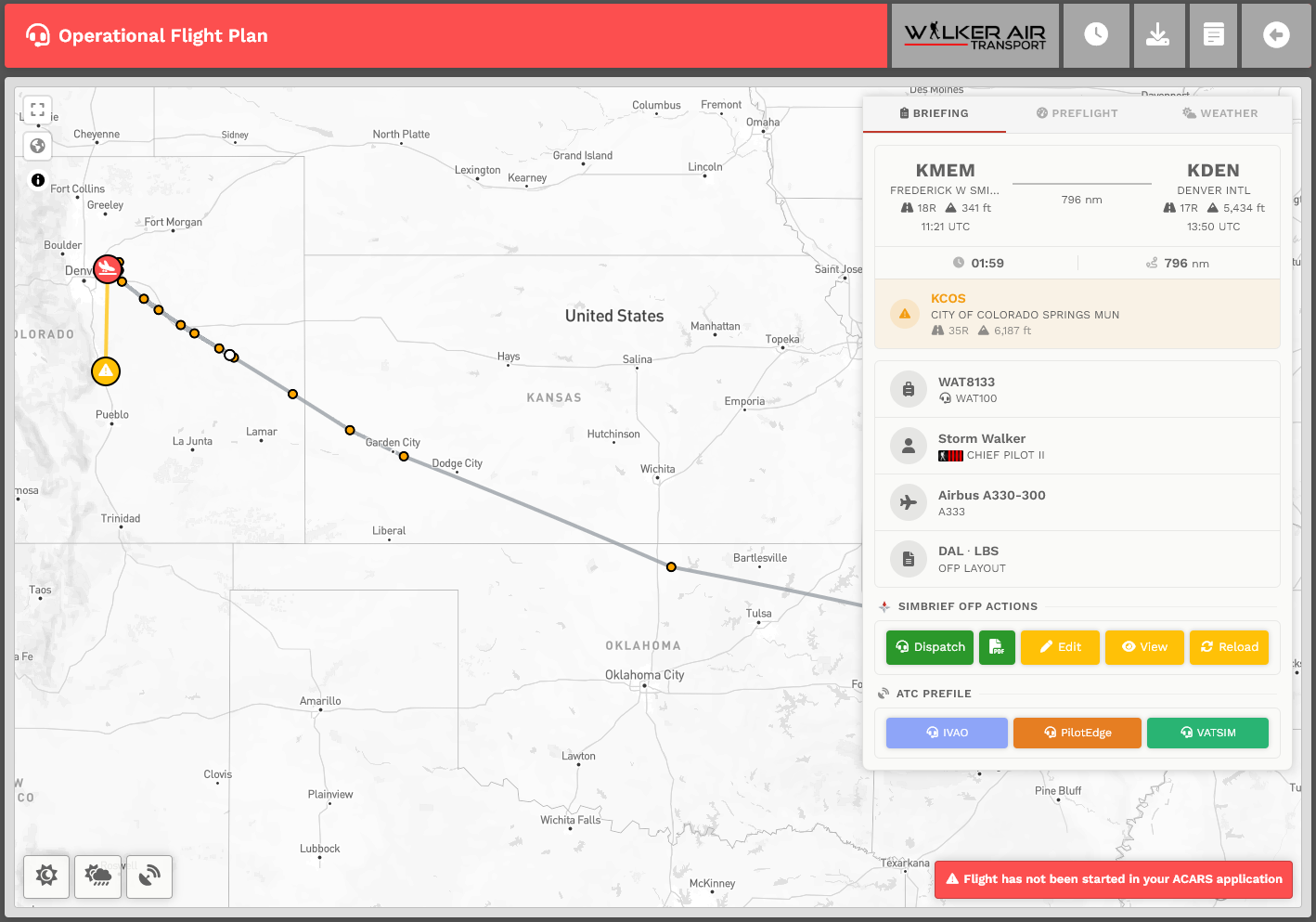
Let's take a look at a number of items:

<table id="bkmrk-1.-flight-tracking-%E2%80%93" style="border-collapse:collapse;width:100%;height:201px;"><tbody><tr style="height:25px;"><td class="align-center" style="width:4.32099%;height:25px;vertical-align:middle;">**1.**</td><td style="width:95.679%;height:25px;">**Flight Tracking** – When you start your ACARS application – *smartCARS 3* or *FlightTrackerXP –* you'll see your aircraft on the map and it'll show your flight path as you are flying.

<p class="callout info">If you want your flights to reflect your ATC network status, you must add your Network ID(s) to your profile. If you do not, your flights and PIREPS will all be listed as "offline." [***Click here to read on how to set this up.***](https://docs.walkerair.us/books/2-training/page/pilot-profile-settings-my-information "Pilot Profile – Settings > My Information")</p>

</td></tr><tr style="height:21px;"><td class="align-center" style="width:4.32099%;height:21px;vertical-align:middle;">**2.**</td><td style="width:95.679%;height:21px;">**Route Copy** – Click the icon next to the route to copy it to your clipboard.   
**NOTE:** *This is useful for pasting the route into ACARS.*

</td></tr><tr style="height:22px;"><td class="align-center" style="width:4.32099%;height:22px;vertical-align:middle;">**3.**</td><td style="width:95.679%;height:22px;">**Pre-File** – These buttons take you to their respective online ATC sites with a pre-filled form to submit your flight plan.

</td></tr><tr style="height:35px;"><td class="align-center" style="width:4.32099%;height:35px;vertical-align:middle;">**4.**</td><td style="width:95.679%;height:35px;">***FlightAware* and *SkyVector*** – View active real flights leaving your departure airport – or – open the flight plan route in *SkyVector*.

</td></tr><tr style="height:35px;"><td class="align-center" style="width:4.32099%;height:35px;vertical-align:middle;">**5.**</td><td style="width:95.679%;height:35px;">**Dispatch Release** – View the raw OFP print out.

</td></tr><tr style="height:35px;"><td class="align-center" style="width:4.32099%;height:35px;vertical-align:middle;">**6.**</td><td style="width:95.679%;height:35px;">**Edit** – This opens *simBrief* in another tab. That allows you to edit this specific flight.   
**NOTE:**  *If you **do** edit your flight, you must click **Reload** – as explained next.*

</td></tr><tr style="height:28px;"><td class="align-center" style="width:4.32099%;height:28px;vertical-align:middle;">**7.**</td><td style="width:95.679%;height:28px;">**Reload** – After completing your OFP edit, you must click the **Reload** button to refresh its data in the template.

</td></tr><tr><td class="align-center" style="width:4.32099%;vertical-align:top;">**8**.  
</td><td style="width:95.679%;">**Flight Status** – A number of informational items regarding the real-time status of your current flight are displayed on the map.

- When *smartCARS 3* has **not** been started *–* meaning you did **not** click 'Start' *–* this reminder will be seen;
- When you're in Preflight, the **Network Status** is displayed as a means of reminding you to set the flag for the ATC network you're using;
- When in the various phases of flight, your altitude, ground speed, time remaining, network and phase will be displayed. If you're successfully in **Cruise**, the phase indicator will turn green (useful for mistakes with cruising altitude or low pressure problems.); and,
- Once you've arrived and the PIREP is ready to be submitted, the status shows only **Arrived** (in green).

**NOTE:** *The data updates every 10 seconds.*

[![image-1652873631959.png](https://docs.walkerair.us/uploads/images/gallery/2022-05/scaled-1680-/image-1652873631959.png)](https://docs.walkerair.us/uploads/images/gallery/2022-05/image-1652873631959.png)
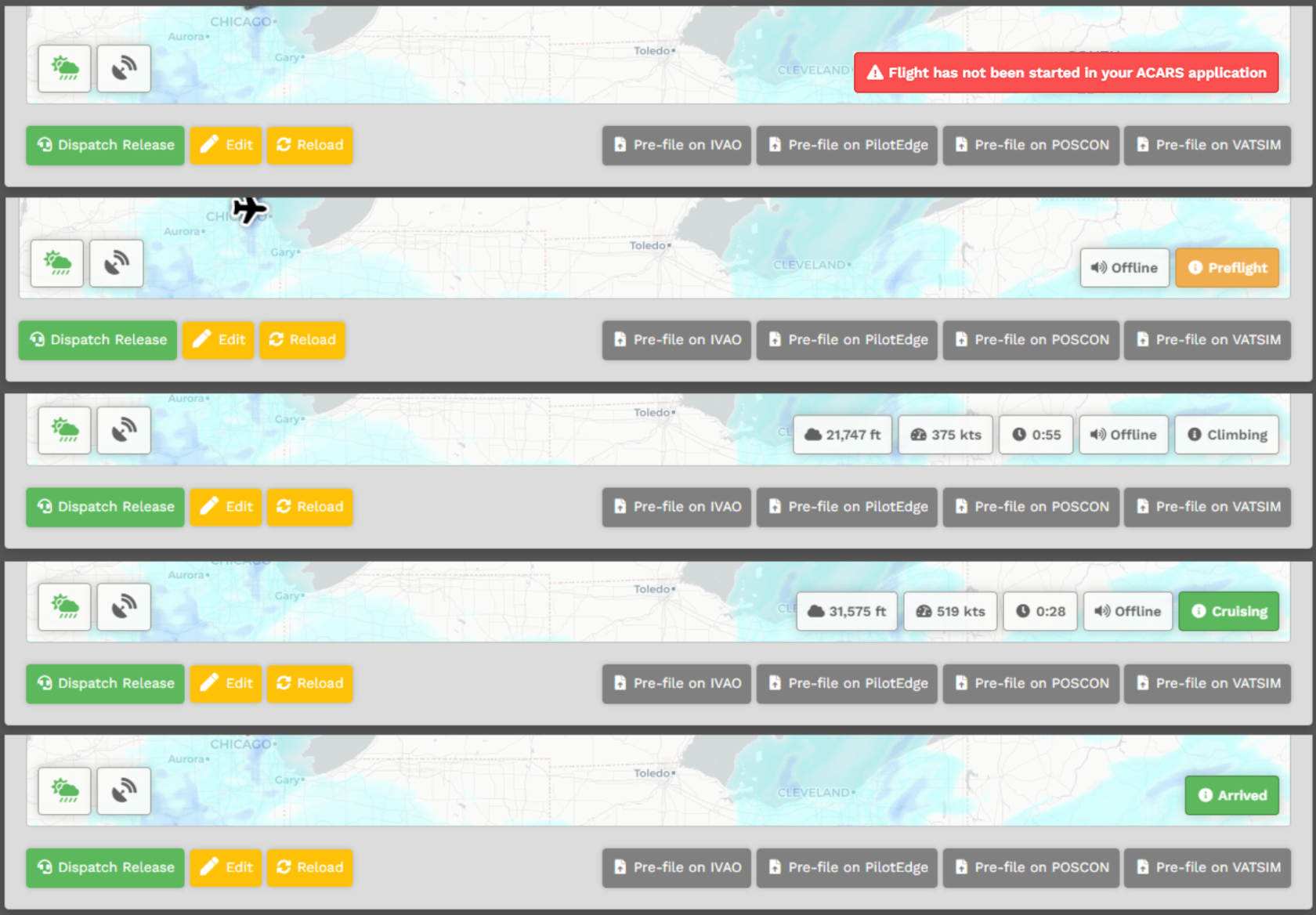
</td></tr><tr><td style="width:4.32099%;vertical-align:top;">**9.**</td><td style="width:95.679%;">**Weather and Runways**

This area will allow you to review the METAR, TAF, and Runway information for your departure, arrival, and alternate airfields.

In case of airports with no METAR available, we provide you with a geolocated button directing you to *Windy*, an external site that will provide you with the local conditions of the airport. You can access this by hitting the *Windy* logo at the bottom.

[![image-1738161704259.png](https://docs.walkerair.us/uploads/images/gallery/2025-01/scaled-1680-/image-1738161704259.png)](https://docs.walkerair.us/uploads/images/gallery/2025-01/image-1738161704259.png)
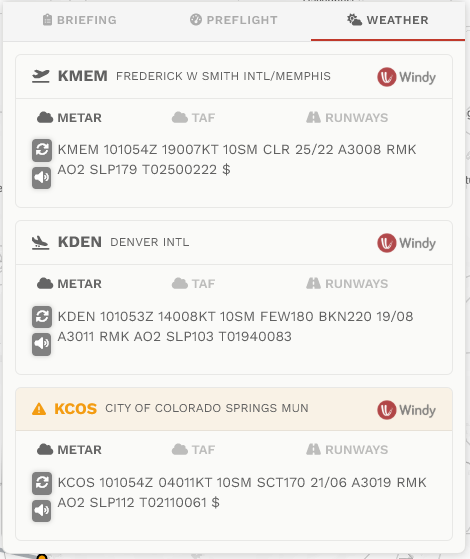
</td></tr></tbody></table>

#### **Flight has not been started in your ACARS application**

<p class="callout info">This section is relevant if you use the "Import Latest simBrief OFP" function. If you simply click the green button, you can proceed past this section.</p>

If you see this message and you are using the "Import Latest simBrief OFP" then you have entered incorrect information. You must fix the following information in your simBrief OFP before you import it to the CrewCenter. Failing to do so will result in the message below showing for the duration of your flight.

[![image-1652873640833.png](https://docs.walkerair.us/uploads/images/gallery/2022-05/scaled-1680-/image-1652873640833.png)](https://docs.walkerair.us/uploads/images/gallery/2022-05/image-1652873640833.png)

Click the "Edit" button on the OFP page and ensure that the following fields match *your* information!

<table id="bkmrk-the-airline-and-flig" style="border-collapse:collapse;width:100%;"><tbody><tr><td style="width:25.5555%;">[![image-1748780231600.png](https://docs.walkerair.us/uploads/images/gallery/2025-06/scaled-1680-/image-1748780231600.png)](https://docs.walkerair.us/uploads/images/gallery/2025-06/image-1748780231600.png)

</td><td style="width:74.4445%;vertical-align:top;">The Airline and Flight Number box ***must*** match the flight prefix and number of the flight you bid. If you are flying WAT1554, you will enter "WAT" in Airline and "1554" in Flight Number.</td></tr></tbody></table>

If you do not match these 2 boxes, the 'Flight has not been started...' message will remain.

---

#### **Settings – *simBrief*** 

In order to use our integration, a few things will need to be configured on the *Crew Center* website before you proceed.   
To access your settings:

<table id="bkmrk-1-click-your-name-at" style="border-collapse:collapse;width:100%;height:224px;"><tbody><tr style="height:29px;"><td class="align-center" style="width:4.81481%;height:29px;">**1**</td><td style="width:95.1852%;height:29px;">Click your name at the top right of the *Navigation Bar*;</td></tr><tr style="height:29px;"><td class="align-center" style="width:4.81481%;height:29px;">**2**</td><td style="width:95.1852%;height:29px;">Scroll down and select **Settings**;</td></tr><tr style="height:29px;"><td class="align-center" style="width:4.81481%;height:29px;">**3**</td><td style="width:95.1852%;height:29px;">Click **simBrief**; and,</td></tr><tr style="height:29px;"><td class="align-center" rowspan="4" style="width:4.81481%;height:29px;">**4**</td><td style="width:95.1852%;height:29px;">Complete your user *Username* and *Operational Flight Plan* settings:</td></tr><tr style="height:19px;"><td style="width:95.1852%;height:19px;">**a. Username** – You must enter your simBrief username if you wish to use the *Import Latest simBrief OFP* option found on your briefing.

</td></tr><tr style="height:33px;"><td style="width:95.1852%;height:33px;">**b. Plan Format** – Our default OFP plan is *DAL.* If you wish to use something else, choose it from the list provided.

</td></tr><tr style="height:56px;"><td style="width:95.1852%;height:56px;">**c. Weights** – Weights for simBrief default to *pounds (lbs).* If you'd rather use kilograms (kgs), be aware of the fact all weights shown on our website will be in kilograms instead of pounds.  
**NOTE:** *If you **do** change to kilograms, you must also change the **Settings** in [**ACARS**](https://docs.walkerair.us/books/help/page/smartcars-windows-pc "smartCARS  |  Windows PC") to kilograms as well.*

</td></tr></tbody></table>

---

#### **Settings –** **Operational Flight Plan (OFP)** 

To reflect the freedoms you have when flying for us, *simBrief's* OFP settings can be customized to your own preferences.

These are the settings usually appearing on the right side of *simBrief's* **New Flight** screen.

[![chrome_gJKKkUM5ee.png](https://docs.walkerair.us/uploads/images/gallery/2023-03/scaled-1680-/chrome-gjkkkum5ee.png)](https://docs.walkerair.us/uploads/images/gallery/2023-03/chrome-gjkkkum5ee.png)

Pressing the cog button will show more options for your flight plan - such as extra fuel load, if you want stepclimbs or not, any custom route variables, and number of passengers or weight of cargo onboard.

[![chrome_YT6JhWuH1n.png](https://docs.walkerair.us/uploads/images/gallery/2023-03/scaled-1680-/chrome-yt6jhwuh1n.png)](https://docs.walkerair.us/uploads/images/gallery/2023-03/chrome-yt6jhwuh1n.png)

To customize your OFP settings permanently, follow these steps.

**1**. Go to your **Profile** settings in the *Crew Center* website.   
 Click *simBrief*.  
 Scroll down to the *Operational Flight Plan* section.

[![image-1671899555935.png](https://docs.walkerair.us/uploads/images/gallery/2022-12/scaled-1680-/image-1671899555935.png)](https://docs.walkerair.us/uploads/images/gallery/2022-12/image-1671899555935.png)
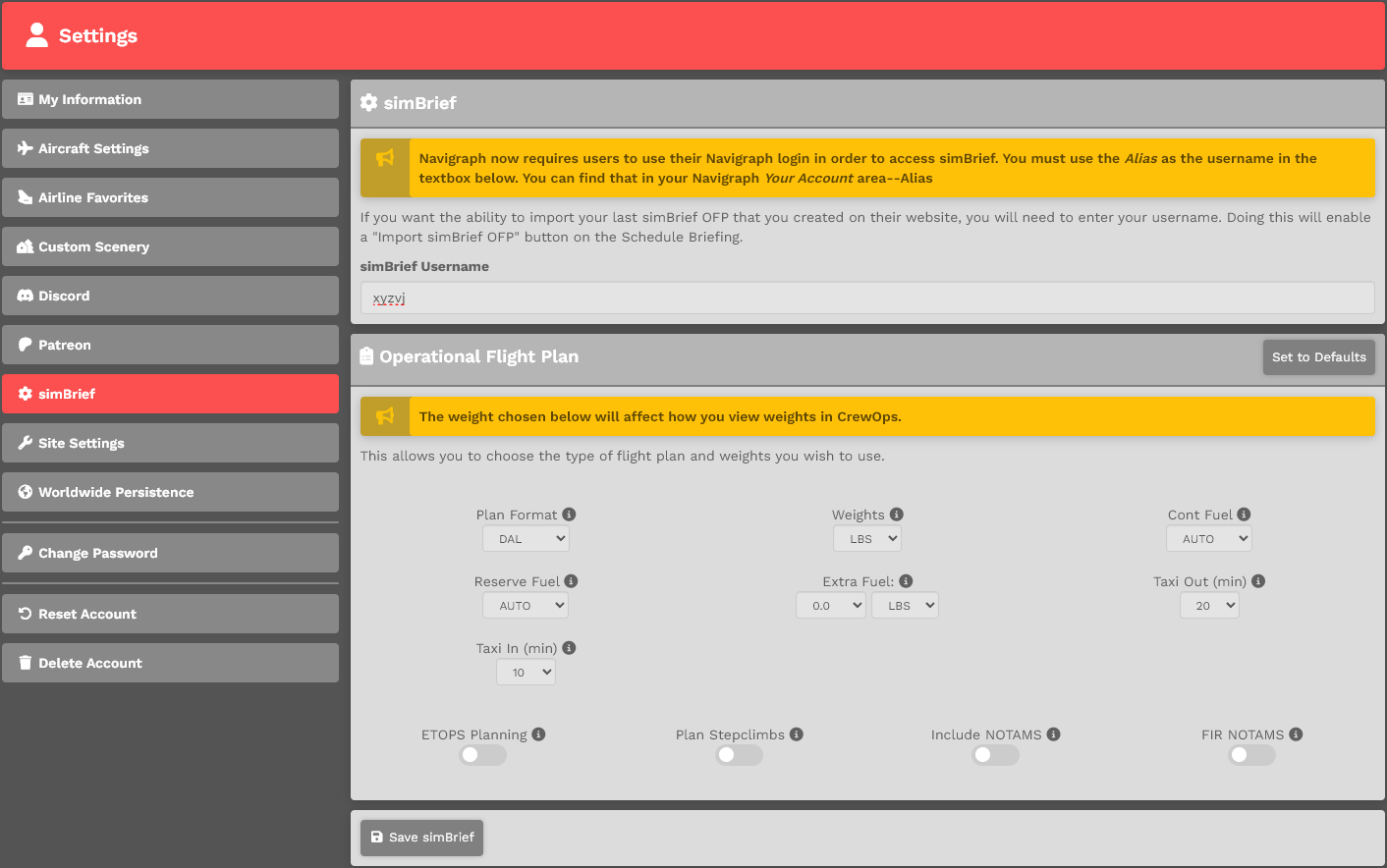
**2**. Make your preferred selections.

<p class="callout warning">*You should be familiar with all of the options shown, so their explanations will **not** be detailed here.   
For more information, review the [**simBrief User Guide**](https://www.simbrief.com/system/guide.php).*</p>

[![image-1671899567297.png](https://docs.walkerair.us/uploads/images/gallery/2022-12/scaled-1680-/image-1671899567297.png)](https://docs.walkerair.us/uploads/images/gallery/2022-12/image-1671899567297.png)

**3**. Once you've made your selections, scroll to the bottom of the page. Click the **Save SimBrief** button.  
  
[![image-1640872440534.png](https://docs.walkerair.us/uploads/images/gallery/2021-12/scaled-1680-/image-1640872440534.png)](https://docs.walkerair.us/uploads/images/gallery/2021-12/image-1640872440534.png)

<p class="callout danger">*If you forget to click the **Save SimBrief** button, your preferences will **not** be saved.*</p>

---

#### <span class="font-18">**How do I generate a *simBrief* Operational Flight Plan?**</span>

This is the *Pilot Briefing* for the flight you selected. It'll provide you with your flight information, weather and a route map. The top right section of the map provides the *simBrief* status – it's either **Available** or **Not Available**.

<table id="bkmrk-available-not-availa" style="border-collapse:collapse;width:100%;"><tbody><tr><td class="align-center" style="width:50%;vertical-align:middle;background-color:#808080;"><span style="color:#ffffff;">**Available**</span></td><td class="align-center" style="width:50%;vertical-align:middle;background-color:#808080;"><span style="color:#ffffff;">**Not Available**</span></td></tr><tr><td class="align-left" style="width:50%;vertical-align:middle;">If *simBrief* has a default airframe for the aircraft you've chosen – **or** – you entered a saved airframe (**Custom Airframe**) in your *simBrief* settings, you're able to generate an OFP from our website.

<p class="callout info">*To learn more about **Custom Airframes**, scroll down to its section below.*</p>

</td><td class="align-left" style="width:50%;vertical-align:top;">If *simBrief* does **not** have a default airframe for the aircraft you've chosen – **or** – you have **not** entered a saved airframe (**Custom Airframe**) in your *simBrief* settings, you'll **not** be able to generate an OFP from our website.

<p class="callout info">*To learn more about **Custom Airframes**, scroll down to its section below.*</p>

</td></tr></tbody></table>

<table id="bkmrk-comment%3A-%C2%A0-when-you-" style="border-collapse:collapse;width:100%;"><tbody><tr><td style="width:50%;">[![image-1650210779843.png](https://docs.walkerair.us/uploads/images/gallery/2022-04/scaled-1680-/image-1650210779843.png)](https://docs.walkerair.us/uploads/images/gallery/2022-04/image-1650210779843.png)

</td><td class="align-left" style="width:50%;vertical-align:top;">**COMMENT:**

[![image-1650210840245.png](https://docs.walkerair.us/uploads/images/gallery/2022-04/scaled-1680-/image-1650210840245.png)](https://docs.walkerair.us/uploads/images/gallery/2022-04/image-1650210840245.png)

  
When you see these times in your OFP, it's important you know they're only ***estimates*** determined using wind data available at the time it was generated. Winds are seldom, if ever, static over time. That's why these times should **not** be considered as absolutes.

</td></tr></tbody></table>

The bottom left section of the map will contain the METAR for your departure and arrival airports. If one, or both, are unavailable you'll see 'NO METAR DATA'.

[![image-1637508187854.png](https://docs.walkerair.us/uploads/images/gallery/2021-11/scaled-1680-/image-1637508187854.png)](https://docs.walkerair.us/uploads/images/gallery/2021-11/image-1637508187854.png)  
  
To generate your OFP, click on the 'Green Clipboard'. You'll get a popup window asking you to log into *simBrief*.

![image-1637508273773.png](https://docs.walkerair.us/uploads/images/gallery/2021-11/scaled-1680-/image-1637508273773.png)  
  
Click on the at top right to see the options you can modify. Once you've finished, click on the icon to return.   
**NOTE:** *If you don't understand what the option means, place your mouse over it for more information.*

[![image-1722813681755.png](https://docs.walkerair.us/uploads/images/gallery/2024-08/scaled-1680-/image-1722813681755.png)](https://docs.walkerair.us/uploads/images/gallery/2024-08/image-1722813681755.png)

<p class="callout info">*You're logging directly into simBrief through an API. As a result, your credentials are **not** transmitted through our servers.*</p>

---

#### ***simBrief* Import**

If you entered your *simBrief* Username in settings, you'll see an *Import Latest simBrief OFP* option available. This allows you to create an OFP on the *simBrief* website and import it back into our system so it can be viewed with our OFP template.

There are, however, a few things you **must** to do to enable that to happen. You must:

- generate the OFP on the *simBrief* website;
- ensure *Airline* equals the *prefix* of your flight (ex. WAT); and,
- ensure *Flight Number* equals the number on your bid.
- ensure *ATC Callsign* matches your Pilot ID

<table id="bkmrk-%C2%A0-the-airline-and-fl" style="border-collapse:collapse;width:100%;"><tbody><tr><td style="width:36.4197%;">[![image-1686576678077.png](https://docs.walkerair.us/uploads/images/gallery/2023-06/scaled-1680-/image-1686576678077.png)](https://docs.walkerair.us/uploads/images/gallery/2023-06/image-1686576678077.png)

</td><td style="width:63.5803%;">The Airline and Flight Number box ***must*** match the flight prefix and number of the flight you bid. If you are flying WAT1076, you will enter "WAT" in Airline and "1076" in Flight Number.</td></tr><tr><td style="width:36.4197%;"> [![image-1686576741487.png](https://docs.walkerair.us/uploads/images/gallery/2023-06/scaled-1680-/image-1686576741487.png)](https://docs.walkerair.us/uploads/images/gallery/2023-06/image-1686576741487.png)

</td><td style="width:63.5803%;">The ATC Callsign must match your Pilot ID in order for the same callsign to be carried over into your online flying pre-files. If you leave this blank, SimBrief will use your flight number above as ATC callsign which will not follow our [online flying rules.](https://docs.walkerair.us/books/3-help/page/online-atc)

<p class="callout info">This does not apply to members of the [Walker Patron program](https://docs.walkerair.us/books/2-training/page/pilot-profile-patreon) as they are allowed to fly any airline/callsign outside of Event flights.</p>

</td></tr></tbody></table>

If you do not match these boxes the import process will stop and you will be notified.


Once you complete your changes, return to the *Pilot Briefing.* Select *Important Latest simBrief OFP.* You'll then see our Template with your updated changes.

[![image-1637508226167.png](https://docs.walkerair.us/uploads/images/gallery/2021-11/scaled-1680-/image-1637508226167.png)](https://docs.walkerair.us/uploads/images/gallery/2021-11/image-1637508226167.png)

If you happen to put in the wrong information, you will be taken to an error page indicating where you made an error.

[![image-1699581589050.png](https://docs.walkerair.us/uploads/images/gallery/2023-11/scaled-1680-/image-1699581589050.png)](https://docs.walkerair.us/uploads/images/gallery/2023-11/image-1699581589050.png)

---

#### <span class="font-18">**How do I access the Pilot Briefing?**</span>

In order to access your *Pilot Briefing*, use the same navigation described above and select **Flights** &gt; **My Bids**. Once there, click the **Clipboard** icon in the <span style="color:#ffff00;">yellow</span> box for your flight.

[![image-1650210464382.png](https://docs.walkerair.us/uploads/images/gallery/2022-04/scaled-1680-/image-1650210464382.png)](https://docs.walkerair.us/uploads/images/gallery/2022-04/image-1650210464382.png)

---

#### <span class="font-18">**Returning To Your *simBrief* Operational Flight Plan**</span>

If you leave the OFP page, you can return to it later. Go to **My Bids**. Click the **Headset** icon in the <span style="color:#00ff00;">green</span> box and it'll return you to the *simBrief* OFP.

[![image-1650211143543.png](https://docs.walkerair.us/uploads/images/gallery/2022-04/scaled-1680-/image-1650211143543.png)](https://docs.walkerair.us/uploads/images/gallery/2022-04/image-1650211143543.png)

---

#### **Custom Airframes**

<p class="callout info">*To learn more about the Custom Airframe system, see the [**simbrief Guide (Dispatch Fleet Page)**](https://www.simbrief.com/system/guide.php).*</p>

**Custom Airframes** allow the flight characteristics of your aircraft to be more in-line with your performance expectations. When you generate a *simBrief* **Flight Plan** using a **Custom Airframe** for a specific aircraft you've stored in the *Crew Center*, it will be used instead of the *simBrief* default when selected for a fligtht.

These instructions will assume you've created a Custom Airframe – or have an ID from one shared with you.

<p class="callout warning">*Before you begin this process, determine the Fleet assignment of the aircraft for which you wish to create a Custom Airframe – Cargo, Charter or Scheduled.*</p>

**1**. Log in to **[*simBrief*](https://www.simbrief.com/home/ "simBrief")**. Go to **Dispatch** &gt; **Saved Airframes**.  
 For our example, we'll use the *Daher Kodiak 100*.

[![image-1690032967706.png](https://docs.walkerair.us/uploads/images/gallery/2023-07/scaled-1680-/image-1690032967706.png)](https://docs.walkerair.us/uploads/images/gallery/2023-07/image-1690032967706.png)
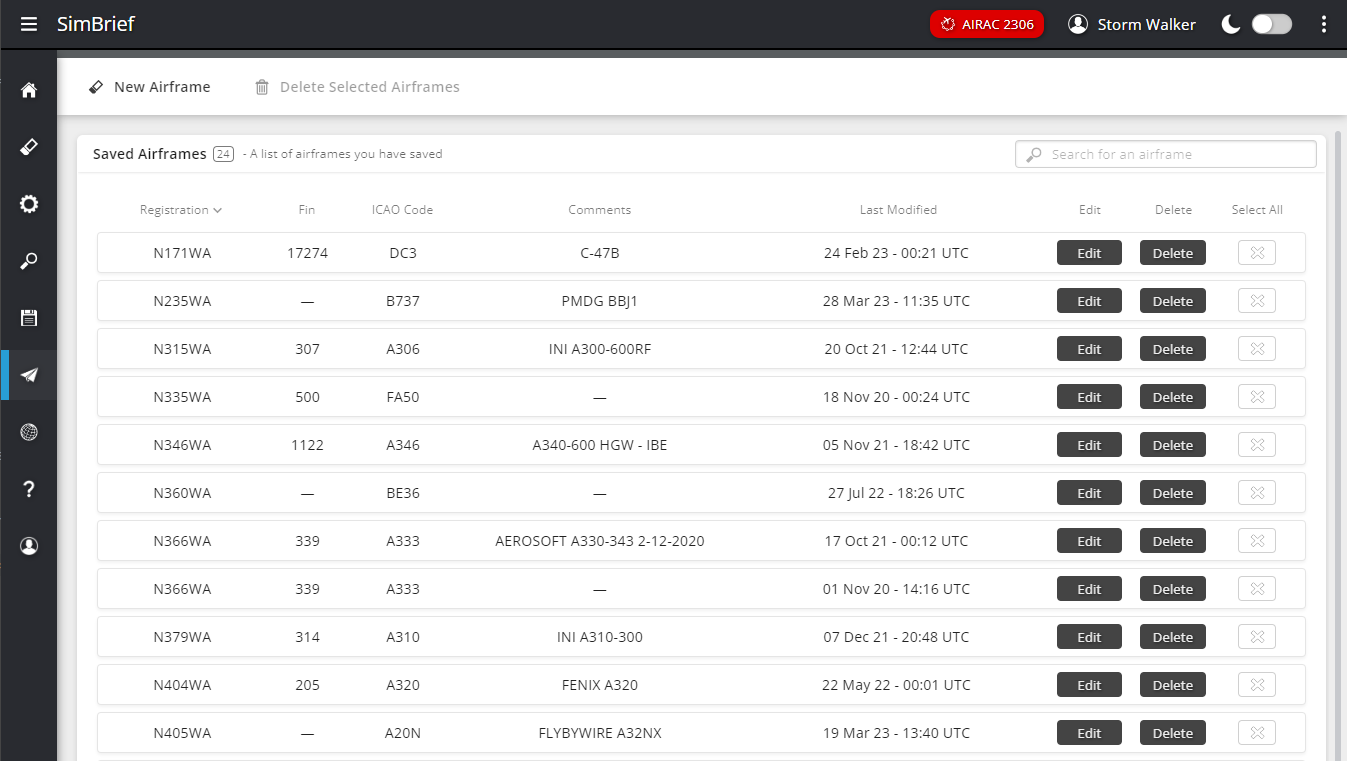
**2**. Click the **Edit** button next to the **Custom Airframe** you want to use.

[![image-1690033018036.png](https://docs.walkerair.us/uploads/images/gallery/2023-07/scaled-1680-/image-1690033018036.png)](https://docs.walkerair.us/uploads/images/gallery/2023-07/image-1690033018036.png)

**3**. Copy the **Internal ID** from the *Airframe Info*, there is a handy "clipboard" button you can click.

[![image-1690033032618.png](https://docs.walkerair.us/uploads/images/gallery/2023-07/scaled-1680-/image-1690033032618.png)](https://docs.walkerair.us/uploads/images/gallery/2023-07/image-1690033032618.png)
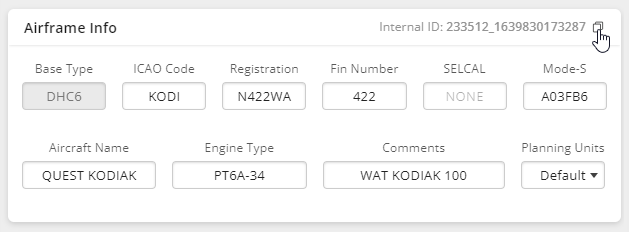
**4**. Go to your **Profile** settings in the *Crew Center* website.   
 Click *Aircraft Settings*.  
 If you wish to read more about Aircraft Settings (and the additional options it provides), [please click here](https://docs.walkerair.us/books/2-training/page/pilot-profile-settings-aircraft-settings "Pilot Profile – Settings > Aircraft Settings").

[![image-1722813368675.png](https://docs.walkerair.us/uploads/images/gallery/2024-08/scaled-1680-/image-1722813368675.png)](https://docs.walkerair.us/uploads/images/gallery/2024-08/image-1722813368675.png)
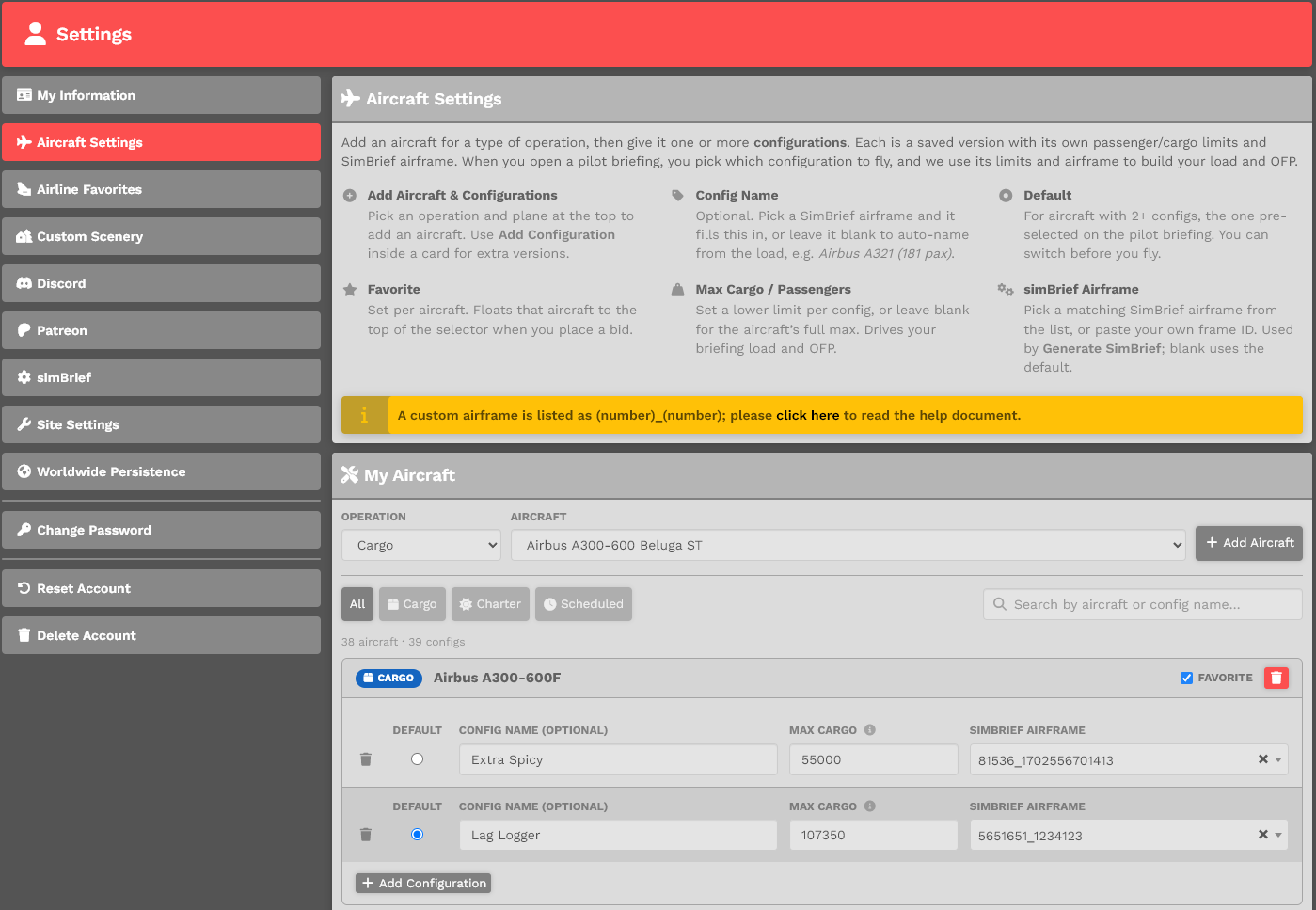
**5**. Each Company aircraft is assigned to a specific Fleet. Because the *Daher Kodiak* is in the Charter Fleet (Charter Operations), click the **Charter** tab. This is why knowing the Fleet assignment of your aircraft is important.

[![image-1722813451498.png](https://docs.walkerair.us/uploads/images/gallery/2024-08/scaled-1680-/image-1722813451498.png)](https://docs.walkerair.us/uploads/images/gallery/2024-08/image-1722813451498.png)

  
**6**. Locate your aircraft in the listing. *Please note: that favorited aircraft at always located at the top.* In the *Text Box* under the column simBrief Airframe, paste the **Internal ID** you copied in Step 3.

[![image-1722813569775.png](https://docs.walkerair.us/uploads/images/gallery/2024-08/scaled-1680-/image-1722813569775.png)](https://docs.walkerair.us/uploads/images/gallery/2024-08/image-1722813569775.png)

  
7\. Scroll to the bottom of the page. Click the **Save Aircraft Settings** button.

[![image-1722813593678.png](https://docs.walkerair.us/uploads/images/gallery/2024-08/scaled-1680-/image-1722813593678.png)](https://docs.walkerair.us/uploads/images/gallery/2024-08/image-1722813593678.png)

<p class="callout danger">*If you forget to click the **Save Aircraft Settings** button, your Custom Airframe will **not** be saved.*</p>

# Worldwide Persistence

##### **What is Worldwide Persistence?**

Worldwide Persistence (WWP) is a location tracking system used across Walker Air Transport.  
When WWP is enabled for a flight type, your next flight must depart from the airport where you last arrived.

Cargo and Scheduled flights always use Worldwide Persistence. Your location updates automatically when those flights are completed.

Charter, Assignments, Events, and Tours can optionally use Worldwide Persistence. You can enable or disable it for each module in your settings.

---

##### <span>**How it works**</span>

When Worldwide Persistence is enabled for a flight type:

- Your next flight must depart from your last arrival airport.
- Your location updates after any completed flight or Jumpseat.
- Departure fields may be restricted or pre-filled based on your current location.

<span>**Charter flights**</span>

- You must depart from your current location for all Charter flights.
- The departure airport field is locked and displays your current airport.
- The Find a Flight departure field is disabled.
- Jumpseat access expands to all airports in the system.

<span>**Assignments**</span>

- Departures are locked to your current location.
- You cannot disable WWP until this assignment is cancelled or completed.
- Available to Freedom to Fly subscribers only.

<span>**Events**</span>

- Departures are locked to your current location when applicable.
- For Fly-Out and Specific events, bidding may be restricted if you are not at a valid departure airport.

<span>**Tours**</span>

- Each tour leg must begin from your current location.
- A lockout is shown when your current airport does not match the required departure airport.

<span>**Configuration**</span>

Each module can be enabled or disabled independently in your settings.

---

##### **Enable or Disable Worldwide Persistence – Within Pilot Settings**

You can manage Worldwide Persistence in your pilot settings:

**Crew Ops (click top right on your name) &gt; Settings &gt; Worldwide Persistence**

Use the toggle to enable or disable Worldwide Persistence, then click Save Settings to apply your changes.

If you do not click Save Settings, your changes will not be applied.

---

<span>**What happens when enabled**</span>

When Worldwide Persistence is enabled for a module:

- Your location updates after completing a flight or using Jumpseat.
- Your next flight in that module must depart from your current location.
- Departure fields may be locked or restricted based on your location.

When disabled:

- Flights in that module can depart from any valid airport.

---

<span>**Module control**</span>

Worldwide Persistence can be enabled or disabled for each module individually:

- Charter
- Assignments
- Events
- Tours

Each module follows its own setting.

---

<span>**Important**</span>

If you have an active flight, assignment, event, or tour that is using Worldwide Persistence, you may not be able to disable it.

In this case:

- The toggle will be disabled
- A message will explain why the setting cannot be changed
- You must complete or remove the active item before changing the setting

[![image.png](https://docs.walkerair.us/uploads/images/gallery/2026-05/scaled-1680-/il8image.png)](https://docs.walkerair.us/uploads/images/gallery/2026-05/il8image.png)
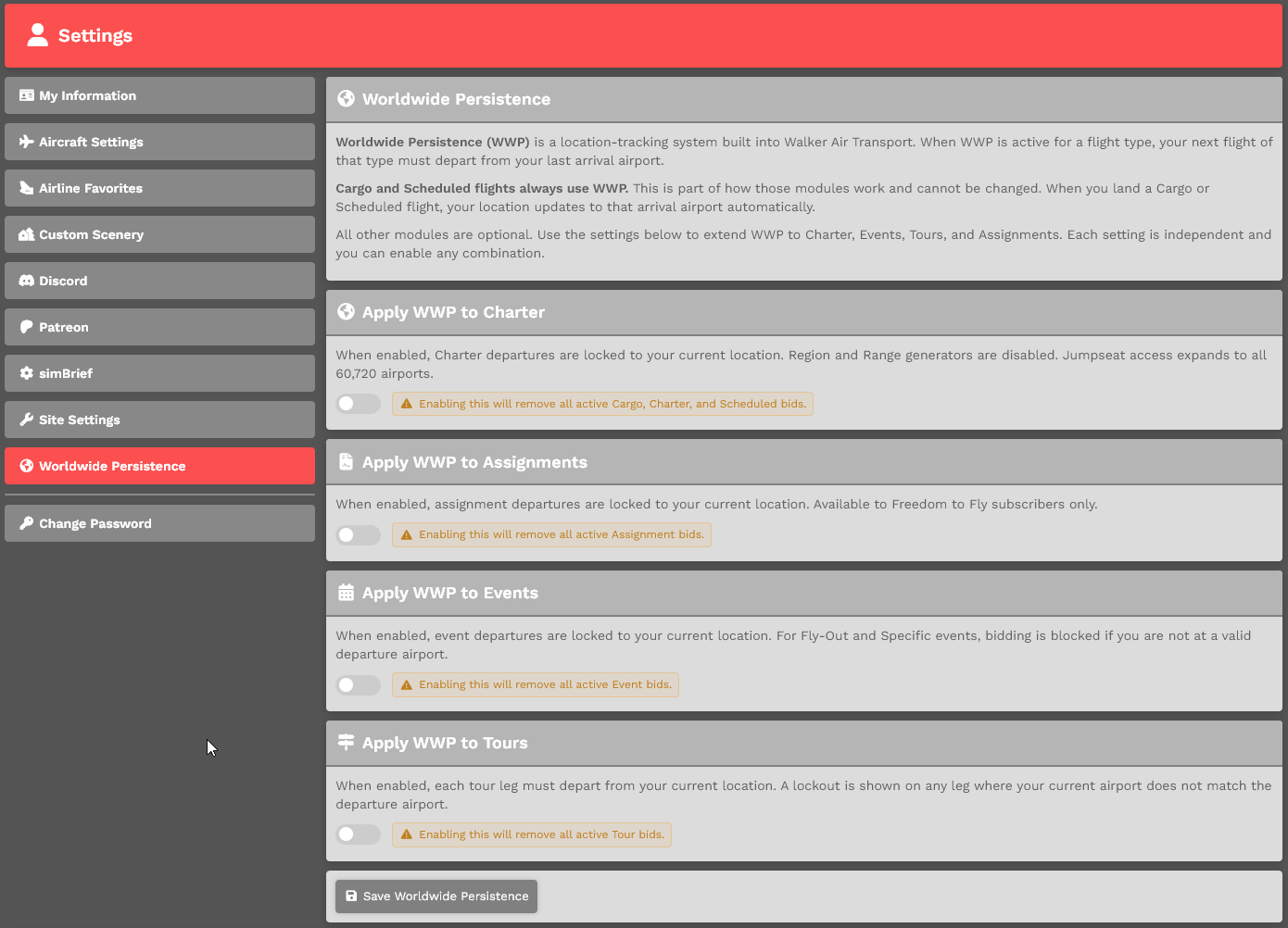
---

##### <span>**Enabling Worldwide Persistence**</span>

Worldwide Persistence can only be enabled when you are not actively flying a bid.

When you enable Worldwide Persistence or its modules:

- You must not be in an active flight
- Existing bids may be cleared to enforce a single active flight
- You will be limited to one active WWP flight at a time across enabled modules

---

##### <span>**Disabling Worldwide Persistence**</span>

When you disable Worldwide Persistence or one of its modules:

- Any active bids that are not currently in flight will have Worldwide Persistence removed
- Flights already in progress will continue under their current rules until completed


---

##### **Bid Lockout**

When Worldwide Persistence (WWP) is enabled, you can only have **one active WWP flight at a time** across all enabled modules.

If you already have an active WWP flight, you will be unable to start another flight in any module that also has WWP enabled.

To continue, you must either:

- Complete your current flight
- Cancel your current flight or bid

This restriction applies based on your enabled modules. For example, if WWP is enabled for both Charter and Assignments, an active Charter flight will prevent you from starting an Assignment, and vice versa.

[![image.png](https://docs.walkerair.us/uploads/images/gallery/2026-05/scaled-1680-/H5Fimage.png)](https://docs.walkerair.us/uploads/images/gallery/2026-05/H5Fimage.png)
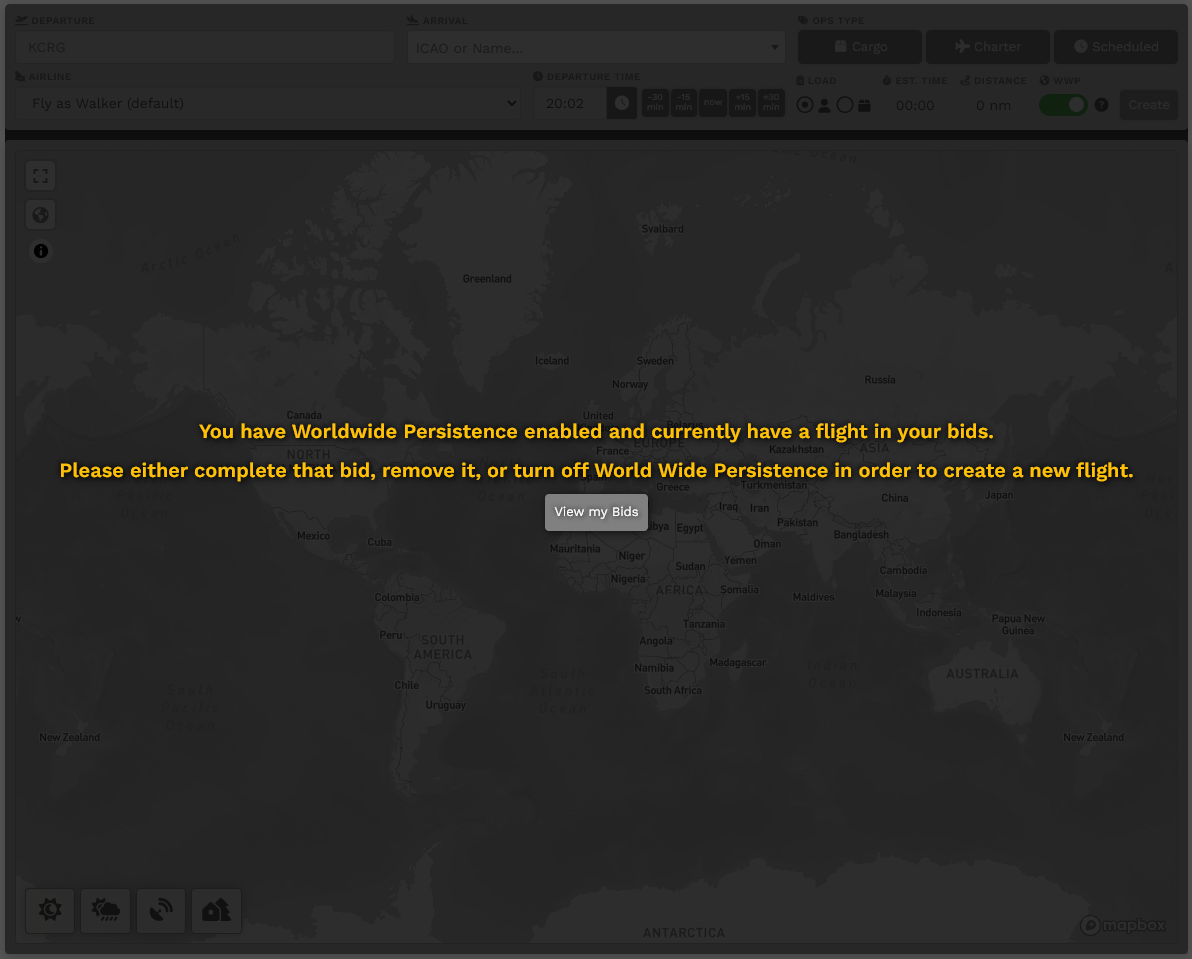
# FAQ

Find answers here to questions frequently asked of us by those in our Pilot community.

# Introduction

---

If you’re just checking us out – or if you’re already a member of our team – thanks very much for your interest in *Walker Air Transport*. While we’ve made every effort to keep things simple and straightforward here, we recognize the fact questions will *always* arise, no matter what we’ve included here. And that’s why we’ve created this *Frequently Asked Questions* (FAQ).

We genuinely consider this to be a living, breathing document and will continually update it in the days ahead as more questions surface whose answers may help make life in our organization easier and more enjoyable.

Let us know what you think of our efforts by submitting a [**Help Ticket**](https://docs.walkerair.us/books/2-training/page/help-submit-a-ticket).

---

<table border="1" id="bkmrk-general-contact-comp" style="border-collapse: collapse; width: 100%;"><tbody><tr><td class="align-center" style="width: 33.3333%; vertical-align: middle; background-color: gray;"><span style="color: #ffffff;">**General Contact**</span></td><td class="align-center" style="width: 33.3333%; vertical-align: middle; background-color: gray;"><span style="color: #ffffff;">**Company Website**</span></td><td class="align-center" style="width: 33.3333%; vertical-align: middle; background-color: gray;"><span style="color: #ffffff;">**Discord Invitation**</span></td></tr><tr><td class="align-center" style="width: 33.3333%; vertical-align: middle;">[**help@walkerair.us**](mailto:help@walkerair.us)</td><td class="align-center" style="width: 33.3333%; vertical-align: middle;">[**https://walkerair.us**](https://walkerair.us)</td><td class="align-center" style="width: 33.3333%; vertical-align: middle;">You can find it in your *Welcome Email* – **or** – click **Discord** in the menu under your name in the *Navigation Bar* on   
the *Crew Operations* website. </td></tr></tbody></table>

<table border="1" id="bkmrk-help-%7C-assistance-%7C-" style="border-collapse: collapse; width: 100%;"><tbody><tr><td class="align-center" style="width: 33.2099%; vertical-align: middle; background-color: grey;"><span style="color: #ffffff;">**Help** | **Assistance** | **Requests**</span></td><td class="align-center" style="width: 66.7901%; vertical-align: middle; background-color: grey;"><span style="color: #ffffff;">**Action Steps**</span></td></tr><tr><td class="align-left" style="width: 33.2099%; vertical-align: middle;">For **Company Pilots**</td><td style="width: 66.7901%;"><table border="1" style="border-collapse: collapse; width: 100%;"><tbody><tr><td class="align-center" style="width: 50%; vertical-align: middle; background-color: #dc4949;"><span style="color: #ffffff;">**Company-Related Issues**</span></td><td class="align-center" style="width: 50%; background-color: #dc4949;"><span style="color: #ffffff;">**All Others**</span></td></tr><tr><td style="width: 50%;">Submit a *Help Ticket* (**Help** &gt; [**Submit A Ticket**](https://docs.walkerair.us/books/2-training/page/help-submit-a-ticket)) **or** post to the **<span style="color: #dc4949;">\#support</span>** channel in *Discord*.</td><td style="width: 50%;">Submit a *Help Ticket* (**Help** &gt;[ **Submit A Ticket**](https://docs.walkerair.us/books/2-training/page/help-submit-a-ticket)) **or** post to the <span style="color: #dc4949;">**\#general**</span> channel in *Discord*.</td></tr></tbody></table>

</td></tr><tr><td class="align-left" style="width: 33.2099%; vertical-align: middle;">For all others</td><td style="width: 66.7901%;">Submit a [**Help Ticket**](https://docs.walkerair.us/books/2-training/page/help-submit-a-ticket) or email [**help@walkerair.us**](mailto:help@walkerair.us).</td></tr></tbody></table>

While every effort has been made to address the questions frequently asked of us, we readily acknowledge there may likely be many others that have not. If you have a question we’ve not covered here – or if one’s been covered in a way leaving you with more questions than answers – please contact us. Allow us an opportunity to improve this document *and* your experience.

# General Questions

---

##### **What’s a Virtual Airline?**

As the name implies, a Virtual Airline (VA) is **not** a real airline. It *simulates* the various operations of a real one, though with only a single element – the Pilot. In a typical VA, the Pilot selects the flights they wish to fly, they fly them on their flight simulator and the data that flight generates is transmitted to a system documenting it. For many, being a Pilot for a VA gives them purpose and creates added realism for their online flying activities.

---

##### **What’s *Walker Air Transport*?**

*Walker Air Transport* is a virtual air transportation and logistics company headquartered in Jacksonville, Florida, at the Jacksonville Executive Airport (KCRG). Founded in 1999, the company began as a small charter outfit operating a single-engine Cessna 172 Skyhawk, and later, a twin-turboprop Beechcraft King Air 350. As years passed, the demand for the company’s general air travel and private charter flight services increased, to the point where, in late 2019, *Walker Air’s* Executive Management Team made a decision to expand operations into scheduled passenger and cargo services. To fuel that expansion plan, staff were hired, systems developed, schedules created – and a fleet of over 75 passenger and cargo aircraft of varying types initially acquired – making us the first small charter company to successfully transition into the global aviation market. *Walker Air Transport* offers flexible options spanning the globe for a wide variety of passenger travel needs *and* timely solutions for those with cargo-hauling challenges.

---

##### **Which flight simulators are supported by *Walker Air Transport*?**

We support the three (3) major Flight Simulator platforms:

<table border="1" id="bkmrk-laminar-research-x-p" style="border-collapse: collapse; width: 82.0988%;"><tbody><tr><td class="align-center" style="width: 28.7654%; vertical-align: middle;">[![image-1638282704910.png](https://docs.walkerair.us/uploads/images/gallery/2021-11/scaled-1680-/image-1638282704910.png)](https://docs.walkerair.us/uploads/images/gallery/2021-11/image-1638282704910.png)

</td><td class="align-left" style="width: 53.3334%; vertical-align: middle;">Laminar Research X-Plane</td></tr><tr><td class="align-center" style="width: 28.7654%; vertical-align: middle;">[![image-1638282723876.png](https://docs.walkerair.us/uploads/images/gallery/2021-11/scaled-1680-/image-1638282723876.png)](https://docs.walkerair.us/uploads/images/gallery/2021-11/image-1638282723876.png)

</td><td class="align-left" style="width: 53.3334%; vertical-align: middle;">Lockheed Martin Prepar3D<sup>®</sup></td></tr><tr><td class="align-center" style="width: 28.7654%; vertical-align: middle;">[![image-1638282760642.png](https://docs.walkerair.us/uploads/images/gallery/2021-11/scaled-1680-/image-1638282760642.png)](https://docs.walkerair.us/uploads/images/gallery/2021-11/image-1638282760642.png)

</td><td class="align-left" style="width: 53.3334%; vertical-align: middle;">Microsoft<sup>®</sup> Flight Simulator 2020   
(Steam *and* non-Steam version)</td></tr></tbody></table>

---

##### **What computer operating systems are supported?**

We support Microsoft<sup>®</sup> Windows-based (PC) versions of the Flight Simulator platforms mentioned above.

We also support the Apple-based (MacOS) version of X-Plane.

---

##### **Can I use an earlier version of any of the flight simulators you support?** 

Our proprietary *Flight Data System* is optimized to work best with X-Plane, Lockheed Martin Prepar3D<sup>®</sup> v4 and Microsoft<sup>®</sup> Flight Simulator 2020.

We do **not** actively support any *earlier versions* of these platforms.

---

##### **Before I can fly for *Walker Air Transport*, what hardware and software will I need to have?**

You must have *at least* the following in order to fly for us:

- a Microsoft<sup>®</sup> Windows (PC) – **or** – Apple (MacOS)-based computer (**X-Plane only**);
- a high-speed Internet connection;
- supported Flight Simulator software (as mentioned above); and,
- ACARS – *smartCARS 3* (PC, Linux, or MacOS) or *FlightTrackerXP* (MacOS) for **X-Plane only**.

You must then complete an *Application Form.* **LINK:** [**https://crew.walkerair.us/registration**](https://crew.walkerair.us/registration)

You’re **not** required to purchase any aircraft, addons or liveries. You may fly with us in a number of the default aircraft provided by the Developers of the flight simulator platforms we support.

*Every* aircraft in our Fleet has a custom-designed, easily-downloadable livery available at no cost.

<span style="color: #ff0000;">**You’re required to use that livery every time you fly using our ACARS-based *Flight Data System***</span>.

---

##### **Where do I find aircraft to download?**

Flight simulation programs provide what are known as ‘default aircraft’ – aircraft the Developer has included with their Flight Simulator software. While not *all* of these default aircraft are in our Fleet, a number of them are. We’ve purposely designed our system to accept these default aircraft – and a number of our Pilots regularly fly and enjoy them. Other freeware *and* payware aircraft can be flown here as well, and they may be found by conducting an Internet search.

For additional assistance, post your request to the **\#general** channel in our *Discord*.

---

##### **How much flying experience do I need to have in order to join *Walker Air Transport*?**

You do **not** need any flight experience to fly with us. Pilots of all levels are welcome.

You may, however, encounter conditions and/or situations when flying that may require you to skillfully operate your aircraft on your chosen route through varying weather conditions and other air traffic. We have what we think is a perfect, non-threatening environment for you to learn and develop those skills.

---

##### **Do you offer a Flight Training Program?**

No. Formal flight training is well beyond the scope of what we do here, though a number of our Pilots have Private Pilot Licenses | advanced ratings and complete flights for training purposes – *especially* when flown online with *IVAO*, *PilotEdge,* and/or *VATSIM*. We **do** think of ourselves, though, as offering a dynamic learning environment that can be as challenging and immersive as you want it to be. Our Staff and Pilots come from all walks of life and possess vast skills and talents they readily share in the Company *Discord*.

---

##### **Do you have any age limits?**

To join *Walker Air Transport* – and in order for us to be in compliance with applicable national and international law – we have stipulated that all of our Pilots must be *at least* **16**​-**years of age​**.

By applying to join the company, you affirm you meet or exceed this minimum age requirement.

---

##### **Do I have to pay for flying for *Walker Air Transport*?**

No. There are no fees required to fly with us. Other than the cost of your computer equipment and related operation and flight simulator software, it costs absolutely nothing to fly with us.

---

##### **Do I get paid for flying for *Walker Air Transport*?**

We pay our Pilots in *virtual currency* that may only be used to purchase a ‘Jumpseat’ ticket within our organization, change their Home base and/or re-fly a Tour – **it has no real-world value**.

---

##### **What if I need help or have a question?**

We enthusiastically welcome new Pilots – and we’re here to help you have fun and enjoy your time in the virtual skies. So, if you have questions, please ask them. After all, we were all new at one time and probably had the same question(s).

Before doing so, though, take a few moments to search our **Documentation Management System** (**DMS**). It's quite possible you'll find your answer(s) there.

If you're **not** able to find the answer you're seeking, then post the question(s) you have in the **\#general** channel in our *Discord*.

If it's related to a specific Simulator, post your question to its sub-channel.

If it's related to the website, post your question to **\#support**.

Otherwise, submit a **Help Ticket**.

---

##### **Are there any restrictions placed on aircraft according to Pilot ranks?**

No. *Walker Air Transport* doesn’t set restrictions on aircraft types by Pilot rank. You may fly any aircraft in our Fleet any time you wish to do so. Depending on your skill level, though – and to ease your transition into our system – you may find it more enjoyable (and potentially less frustrating) for your first several flights to be flown in General Aviation (GA) aircraft so you can gain some familiarity with how your actions on the ground and in the air affect PIREPS and the calculation of points *before* transitioning to larger and more complex aircraft. After all, we want the flying here to be fun – *and* for your enjoyment.

<p class="callout info">*A PIREP is, quite simply, a Pilot Report. It contains digital data about the flight you flew and completed. After processing that data in our automated, proprietary system, it’s immediately filed, at which time it’s also added to your Pilot Logbook and is available for review.*</p>

---

##### **Which online, multiplayer networks are supported by *Walker Air Transport*?**

You can fly online with us using the *IVAO*, *PilotEdge,* and *VATSIM* networks.

---

##### **What if I don't want to or can’t fly on a multiplayer network?**

It’s not a problem at all and there’s *never* any pressure for you to do so. You may fly **offline** with us as much or as little as you desire. And in fact, most of our Pilots do *not* fly online at all.

---

##### **Can I fly for *Walker Air Transport* and another virtual airline at the same time?**

Yes. Our Pilots are **not** prohibited from flying for other VAs. As a matter of practice, though – and in accordance with a provision of our *Code of Conduct* – you may **not** publicly advertise another VA while flying for us.

---

##### **What awards can *Walker Air Transport* Pilots earn?**

We have an achievement-based **Award System** where our Pilots earn badges for successfully completing flight-related goals and objectives.

Go [**here**](https://docs.walkerair.us/books/3-help/page/awards) to view the complete list of our Awards.

---

##### **How’s flight data tracked?**

To log your flight data, we utilize **ACARS** Flight Tracking software:

- TFDi Design’s *smartCARS 3*; and,
- *FlightTrackerXP –* an ACARS-compatible, MacOS Flight Tracker for for **X-Plane only**.

---

##### **How often does a *Walker Air Transport* Pilot fly?**

Our Pilots fly as often as they desire – and they do **not** have formal flight schedules.

We *do*, however, have some guidelines that must be followed. A New Hire/Flight Student must complete their first flight within fourteen (14) days after receiving their *Acceptance Email*. Thereafter, every *Walker Air Transport* Pilot maintains a status based on the frequency of their flight activity.

<table border="1" id="bkmrk-status-description-a" style="border-collapse: collapse; width: 100%;"><tbody><tr><td class="align-center" style="width: 13.9506%; background-color: grey; vertical-align: middle;"><span style="color: #ffffff;">**Status**</span></td><td class="align-center" style="width: 86.0494%; background-color: grey; vertical-align: middle;"><span style="color: #ffffff;">**Description**</span></td></tr><tr><td class="align-right" style="width: 13.9506%; vertical-align: middle;">**Active**</td><td style="width: 86.0494%;">At least one (1) completed flight/PIREP in the past thirty (30) days.

A **New Pilot** must complete their first flight within fourteen (14) days after receiving *Acceptance Email*.

</td></tr><tr><td class="align-right" style="width: 13.9506%; vertical-align: middle;">**On Leave**</td><td style="width: 86.0494%;">No completed flight/PIREP in the past thirty (30) days.

A Pilot will be placed **On Leave** if they do **not** complete *at least* one (1) flight every thirty (30) days.

</td></tr><tr><td class="align-right" style="width: 13.9506%; vertical-align: middle;">**Retired**</td><td style="width: 86.0494%;">No completed flight/PIREP in the past ninety (90) days.

A Pilot will be **Retired** if they do **not** complete *at least* one (1) flight every ninety (90) days.

</td></tr></tbody></table>

<p class="callout info">*A PIREP is, quite simply, a Pilot Report. It contains digital data about the flight you flew and completed. After processing that data in our automated, proprietary system, it’s immediately filed, at which time it’s also added to your Pilot Logbook and is available for review.*</p>

---

##### **It looks I won’t be able to fly at any time in the next month or so. What should I do?**

Life happens – and situations and circumstances change. We understand that… Based on your level of activity (as noted above), you’ll be classified as either **On Leave** or **Retired**. You’ll receive an email from us notifying you of your change in status along with what steps are necessary in order for you to return to **Active** status.

If you have questions about your status, submit a **Help Ticket**.

---

##### **Is there a *minimum* number of flights or hours I have to fly in order to retain ‘Active’ status?**

No. There are no minimum flight time requirements – as long as there’s a takeoff at a departure airport and a landing at an arrival airport, the length of time your aircraft is airborne doesn’t matter.

The key to maintaining and retaining an ‘Active’ status is to complete *at least* one (1) flight every thirty (30) days.

As a matter of practicality, though, we don’t see the value in doing that. Flights of that type lose money. Therefore, if flights of this type become regular occurrences for you, we’ll need to have a conversation about it.

---

##### **Is there a *maximum* number of flights or hours I’m allowed to fly in a day** | **week** | **month** | **year?**

No. You may fly as much and as often as you desire. From a real-world | healthy balance | quality of life perspective, though, you *may* wish to use current FAA regulations as a guide in planning and using your time. Based on what they say:

- Pilots are allowed a *maximum* of 60 hours of flight duty per week (defined as 168 consecutive hours).
- In any consecutive 28-day period, a Pilot cannot exceed 290 hours, of which no more than 100 hours can be flight time.
- During 365 consecutive days, Pilots cannot exceed 1,000 flight-time hours.

---

##### **What do I do if I want to leave *Walker Air Transport*?**

You may terminate your position with us at any time.

If you ever wish to return, though, you’ll be treated as a new applicant – you’ll need to complete an *Application Form* and go through the approval process. If approved, you’ll start with us as a Student Pilot with zero hours and zero points. Any hours and points accumulated under your previous Pilot ID will be lost.

---

##### **Which airplanes can I use to fly with *Walker Air Transport*?**

On our website’s *Fleet* page ([**https://walkerair.us/fleet.php**](https://walkerair.us/fleet.php)), you’ll see the wide variety of aircraft we fly in our Cargo, Charter and Scheduled Fleets – each with a custom and proprietary *Walker Air* livery.

From day one, you may fly any aircraft you desire – **we do not restrict aircraft type to rank**.

Additionally, with each aircraft in the *Fleet* page, you’ll see the flight simulator in which it may be flown and its Developer. A few quick clicks will let you know which aircraft currently in your personal ‘hanger’ can be flown here. Depending on the type of flight you operate, though, you **must** fly an aircraft in that specific fleet. That means:

- For a *Cargo* flight, an aircraft in the Cargo Fleet **must** be flown;
- For a *Charter* flight, an aircraft in the Charter Fleet **must** be flown; and,
- For a *Scheduled* flight, an aircraft in the Scheduled Fleet **must** be flown.

<span style="color: #ff0000;">**No substitutes are allowed**</span>.

---

##### **Do I need to install addon panels** | **sounds** | **mods in addition to aircraft?**

No – all you need to install to fly for us is an appropriate aircraft. Anything else you choose to do with it is up to you. We *do*, however, recommend using a panel and sound package designed for the aircraft you’re flying in order to achieve the greatest realism.

---

##### **Where are *Walker Air Transport’s* Hubs?**

Unlike other VAs, we do **not** have Hubs.

Instead, putting our '*Freedom to Fly*' beliefs into practice, we allow our Pilots to choose their own Home Base (**Home**) from any of over 44,000 airports in our database.

---

##### **Is it possible to change from one Home to another?**

On your *Application Form*, you were asked to specify a Home Base (**Home**). It’s from this assigned location you must make your **first** Cargo or Scheduled flight. Thereafter, it doesn’t factor into your flying – *unless* that’s what you want to do.

If you wish to change your **Home**, you can do so on your own anytime you wish to do so – and as many times as you desire. You can do this yourself in your **Pilot Profile**.

Click [**here**](https://docs.walkerair.us/books/2-training/page/the-navigation-bar-pilot-profile) to learn more about it.

---

##### **How do I complete and submit a Help or Request Form?**

Instructions on how to complete a **Help Ticket** can be found [**here**](https://docs.walkerair.us/books/2-training/page/the-crew-operations-website#bkmrk-help).

---

##### **Where can I fly with *Walker Air Transport*?**

With our new dynamic routing system powered by **real-world data from FlightRadar24 (FR24)**, **Cargo and Scheduled Operations** now reflect **754** **active airline route tables** in the real world. These schedules are updated quarterly, offering pilots a constantly evolving and authentic flight experience across thousands of destinations worldwide.

Looking for more flexibility? **Charter Operations** remain fully open — if the airport exists in your simulator’s database, it’s available to you. Whether you're flying into major hubs or remote airstrips, the sky truly is the limit.

**Note About Our Routing Data:**  
To provide a well-rounded and realistic experience for our pilots, we've categorized certain airlines into two groups: those that operate **Cargo only**, and those that operate **both Cargo and Scheduled services**. These classifications determine how routes appear within our CrewOps platform.

While you may occasionally come across a route that seems unusual, it likely reflects how we’ve interpreted an airline’s real-world operations based on FR24 data. Every routing decision is made with the goal of offering the most engaging and accessible experience for our pilot community.

All other airlines not listed below are labeled as **Scheduled.**

<p class="callout info">*The airline list we focus on is based on the airlines we have in our platform available to [Patreon](https://docs.walkerair.us/books/3-help/chapter/patreon "Patreon") subscribers. You can view the list of airlines by visiting **Flights &gt; Airlines** in CrewOps.*</p>

<table border="1" id="bkmrk-cargo-operators-carg" style="width: 709px; height: 667px;" width="709"><tbody><tr style="height: 29px;"><td colspan="3" style="background-color: gray; width: 489px; height: 29px;"><span style="color: #ffffff;">**Cargo Operators**</span></td><td style="background-color: gray; width: 220px; height: 29px;"><span style="color: #ffffff;">**Cargo &amp; Scheduled Operators**</span></td></tr><tr style="height: 29px;"><td style="width: 163px; height: 29px;">21 Air</td><td style="width: 163px; height: 29px;">Cardig Air</td><td style="width: 163px; height: 29px;">mas</td><td style="width: 220px; height: 29px;">Air France</td></tr><tr style="height: 29px;"><td style="width: 163px; height: 29px;">ABX Air</td><td style="width: 163px; height: 29px;">Cargojet Airways</td><td style="width: 163px; height: 29px;">My Indo Airlines</td><td style="width: 220px; height: 29px;">All Nippon Airways</td></tr><tr style="height: 29px;"><td style="width: 163px; height: 29px;">AeroLogic</td><td style="width: 163px; height: 29px;">Cargolux</td><td style="width: 163px; height: 29px;">Nippon Cargo Airlines</td><td style="width: 220px; height: 29px;">British Airways</td></tr><tr style="height: 29px;"><td style="width: 163px; height: 29px;">Aeronaves TSM</td><td style="width: 163px; height: 29px;">Cavok Air</td><td style="width: 163px; height: 29px;">Northern Air Cargo</td><td style="width: 220px; height: 29px;">Cathay Pacific</td></tr><tr style="height: 29px;"><td style="width: 163px; height: 29px;">Aerosucre</td><td style="width: 163px; height: 29px;">Challenge Airlines BE</td><td style="width: 163px; height: 29px;">Poste Air Cargo</td><td style="width: 220px; height: 29px;">China Airlines</td></tr><tr style="height: 29px;"><td style="width: 163px; height: 29px;">AeroUnion</td><td style="width: 163px; height: 29px;">China Postal Airlines</td><td style="width: 163px; height: 29px;">Raya Airways</td><td style="width: 220px; height: 29px;">Emirates</td></tr><tr style="height: 29px;"><td style="width: 163px; height: 29px;">Air Cargo Carriers</td><td style="width: 163px; height: 29px;">China Southern Cargo</td><td style="width: 163px; height: 29px;">SF Airlines</td><td style="width: 220px; height: 29px;">Korean Air</td></tr><tr style="height: 29px;"><td style="width: 163px; height: 29px;">Air China Cargo</td><td style="width: 163px; height: 29px;">CMA CGM Air Cargo</td><td style="width: 163px; height: 29px;">Silk Way Airlines</td><td style="width: 220px; height: 29px;">Lufthansa</td></tr><tr style="height: 29px;"><td style="width: 163px; height: 29px;">Air Incheon</td><td style="width: 163px; height: 29px;">DHL Air</td><td style="width: 163px; height: 29px;">Silk Way West Airlines</td><td style="width: 220px; height: 29px;">Qatar Airways</td></tr><tr style="height: 29px;"><td style="width: 163px; height: 29px;">AirBridgeCargo Airlines</td><td style="width: 163px; height: 29px;">Egyptair Cargo</td><td style="width: 163px; height: 29px;">Sky Lease Cargo</td><td style="width: 220px; height: 29px;">Singapore Airlines</td></tr><tr style="height: 29px;"><td style="width: 163px; height: 29px;">Allied Air</td><td style="width: 163px; height: 29px;">Estafeta Carga Aerea</td><td style="width: 163px; height: 29px;">SkyLink Express</td><td style="width: 220px; height: 29px;">Swiftair</td></tr><tr style="height: 29px;"><td style="width: 163px; height: 29px;">Aloha Air Cargo</td><td style="width: 163px; height: 29px;">European Air Transport</td><td style="width: 163px; height: 29px;">Team Global Express</td><td style="width: 220px; height: 29px;"> </td></tr><tr style="height: 29px;"><td style="width: 163px; height: 29px;">Ameriflight</td><td style="width: 163px; height: 29px;">Express Air Cargo</td><td style="width: 163px; height: 29px;">Tianjin Air Cargo</td><td style="width: 220px; height: 29px;"> </td></tr><tr style="height: 29px;"><td style="width: 163px; height: 29px;">Amerijet International</td><td style="width: 163px; height: 29px;">FedEx</td><td style="width: 163px; height: 29px;">ULS Airlines Cargo</td><td style="width: 220px; height: 29px;"> </td></tr><tr style="height: 29px;"><td style="width: 163px; height: 29px;">Asia Cargo Airlines</td><td style="width: 163px; height: 29px;">Flightline</td><td style="width: 163px; height: 29px;">UPS</td><td style="width: 220px; height: 29px;"> </td></tr><tr style="height: 29px;"><td style="width: 163px; height: 29px;">Asia Pacific Airlines</td><td style="width: 163px; height: 29px;">Fly Pro</td><td style="width: 163px; height: 29px;">USA Jet Airlines</td><td style="width: 220px; height: 29px;"> </td></tr><tr style="height: 29px;"><td style="width: 163px; height: 29px;">ASL Airlines</td><td style="width: 163px; height: 29px;">Hong Kong Air Cargo</td><td style="width: 163px; height: 29px;">West Atlantic</td><td style="width: 220px; height: 29px;"> </td></tr><tr style="height: 29px;"><td style="width: 163px; height: 29px;">Atran</td><td style="width: 163px; height: 29px;">K-Mile Air</td><td style="width: 163px; height: 29px;">Western Global Airlines</td><td style="width: 220px; height: 29px;"> </td></tr><tr style="height: 29px;"><td style="width: 163px; height: 29px;">Avianca Cargo</td><td style="width: 163px; height: 29px;">LATAM Cargo</td><td style="width: 163px; height: 29px;">World Cargo Airlines</td><td style="width: 220px; height: 29px;"> </td></tr><tr style="height: 29px;"><td style="width: 163px; height: 29px;">Aviastar-TU</td><td style="width: 163px; height: 29px;">Lufthansa Cargo</td><td style="width: 163px; height: 29px;">YTO Cargo Airlines</td><td style="width: 220px; height: 29px;"> </td></tr><tr style="height: 29px;"><td style="width: 163px; height: 29px;">Blue Dart Aviation</td><td style="width: 163px; height: 29px;">Lynden Air Cargo</td><td style="width: 163px; height: 29px;"> </td><td style="width: 220px; height: 29px;"> </td></tr><tr style="height: 29px;"><td style="width: 163px; height: 29px;">Braspress Air Cargo</td><td style="width: 163px; height: 29px;">Maersk Air Cargo</td><td style="width: 163px; height: 29px;"> </td><td style="width: 220px; height: 29px;"> </td></tr></tbody></table>

---

##### **I have hours in another Virtual Airline for which I no longer fly. Can they be transferred and credited here?**

No. All Pilots begin their careers at *Walker Air Transport* with 00:00 hours and zero points.

---

##### **What Rank can I achieve?**

Achieving Rank is based on a very simple model… You’re promoted based on the number of hours you fly *and* the points you earn by completing a flight. To work your way through the ‘ranks’, all you need to do is build your flight hours and your points by completing flights and meeting **both** of the requirements noted below for minimum *hours* **and** *minimum* points.

##### **Rank**

Rank details are illustrated in the following table.

<table border="1" id="bkmrk-rank-%7C-title-insigni" style="border-collapse: collapse; width: 74.1975%; height: 670px;"><tbody><tr style="height: 46px;"><td class="align-center" style="width: 24.4444%; background-color: grey; vertical-align: middle; border-style: solid; border-color: black; height: 46px;"><span style="color: #ffffff;">**Rank | Title**</span></td><td class="align-center" style="width: 15.5556%; background-color: grey; vertical-align: middle; border-style: solid; border-color: black; height: 46px;"><span style="color: #ffffff;">**Insignia**</span></td><td class="align-center" style="width: 11.6049%; background-color: grey; vertical-align: middle; border-style: solid; border-color: black; height: 46px;"><span style="color: #ffffff;">**Minimum Hours**</span></td><td class="align-center" style="width: 11.3581%; background-color: grey; vertical-align: middle; border-style: solid; border-color: black; height: 46px;"><span style="color: #ffffff;">**Minimum Points**</span></td><td class="align-center" style="width: 11.2344%; background-color: grey; vertical-align: middle; border-style: solid; border-color: black; height: 46px;"><span style="color: #ffffff;">**Pay Rate (Hourly)**</span></td></tr><tr style="height: 49px;"><td class="align-left" style="width: 24.4444%; vertical-align: middle; border-style: solid; border-color: black; height: 49px;">**Flight Student**</td><td class="align-center" style="width: 15.5556%; vertical-align: middle; border-style: solid; border-color: black; height: 49px;">[![image-1638456445376.png](https://docs.walkerair.us/uploads/images/gallery/2021-12/scaled-1680-/image-1638456445376.png)](https://docs.walkerair.us/uploads/images/gallery/2021-12/image-1638456445376.png)

</td><td style="width: 11.6049%; vertical-align: middle; border-style: solid; border-color: black; height: 49px;">0</td><td style="width: 11.3581%; vertical-align: middle; border-style: solid; border-color: black; height: 49px;">0</td><td style="width: 11.2344%; vertical-align: middle; border-style: solid; border-color: black; height: 49px;">$15.00</td></tr><tr style="height: 49px;"><td class="align-left" style="width: 24.4444%; vertical-align: middle; border-style: solid; border-color: black; height: 49px;">**First Officer**</td><td class="align-center" style="width: 15.5556%; vertical-align: middle; border-style: solid; border-color: black; height: 49px;">[![image-1638456466547.png](https://docs.walkerair.us/uploads/images/gallery/2021-12/scaled-1680-/image-1638456466547.png)](https://docs.walkerair.us/uploads/images/gallery/2021-12/image-1638456466547.png)

</td><td style="width: 11.6049%; vertical-align: middle; border-style: solid; border-color: black; height: 49px;">25</td><td style="width: 11.3581%; vertical-align: middle; border-style: solid; border-color: black; height: 49px;">300</td><td style="width: 11.2344%; vertical-align: middle; border-style: solid; border-color: black; height: 49px;">$35.00</td></tr><tr style="height: 48px;"><td class="align-left" style="width: 24.4444%; vertical-align: middle; border-style: solid; border-color: black; height: 48px;">**Senior First Officer**</td><td class="align-center" style="width: 15.5556%; vertical-align: middle; border-style: solid; border-color: black; height: 48px;">[![image-1638456479788.png](https://docs.walkerair.us/uploads/images/gallery/2021-12/scaled-1680-/image-1638456479788.png)](https://docs.walkerair.us/uploads/images/gallery/2021-12/image-1638456479788.png)

</td><td style="width: 11.6049%; vertical-align: middle; border-style: solid; border-color: black; height: 48px;">75</td><td style="width: 11.3581%; vertical-align: middle; border-style: solid; border-color: black; height: 48px;">900</td><td style="width: 11.2344%; vertical-align: middle; border-style: solid; border-color: black; height: 48px;">$45.00</td></tr><tr style="height: 48px;"><td class="align-left" style="width: 24.4444%; vertical-align: middle; border-style: solid; border-color: black; height: 48px;">**Captain**</td><td class="align-center" style="width: 15.5556%; vertical-align: middle; border-style: solid; border-color: black; height: 48px;">[![image-1638456491667.png](https://docs.walkerair.us/uploads/images/gallery/2021-12/scaled-1680-/image-1638456491667.png)](https://docs.walkerair.us/uploads/images/gallery/2021-12/image-1638456491667.png)

</td><td style="width: 11.6049%; vertical-align: middle; border-style: solid; border-color: black; height: 48px;">100</td><td style="width: 11.3581%; vertical-align: middle; border-style: solid; border-color: black; height: 48px;">1,200</td><td style="width: 11.2344%; vertical-align: middle; border-style: solid; border-color: black; height: 48px;">$65.00</td></tr><tr style="height: 48px;"><td class="align-left" style="width: 24.4444%; vertical-align: middle; border-style: solid; border-color: black; height: 48px;">**Flight Captain**</td><td class="align-center" style="width: 15.5556%; vertical-align: middle; border-style: solid; border-color: black; height: 48px;">[![image-1638456503699.png](https://docs.walkerair.us/uploads/images/gallery/2021-12/scaled-1680-/image-1638456503699.png)](https://docs.walkerair.us/uploads/images/gallery/2021-12/image-1638456503699.png)

</td><td style="width: 11.6049%; vertical-align: middle; border-style: solid; border-color: black; height: 48px;">300</td><td style="width: 11.3581%; vertical-align: middle; border-style: solid; border-color: black; height: 48px;">3,600</td><td style="width: 11.2344%; vertical-align: middle; border-style: solid; border-color: black; height: 48px;">$85.00</td></tr><tr style="height: 48px;"><td class="align-left" style="width: 24.4444%; vertical-align: middle; border-style: solid; border-color: black; height: 48px;">**Senior Flight Captain**</td><td class="align-center" style="width: 15.5556%; vertical-align: middle; border-style: solid; border-color: black; height: 48px;">[![image-1638456514845.png](https://docs.walkerair.us/uploads/images/gallery/2021-12/scaled-1680-/image-1638456514845.png)](https://docs.walkerair.us/uploads/images/gallery/2021-12/image-1638456514845.png)

</td><td style="width: 11.6049%; vertical-align: middle; border-style: solid; border-color: black; height: 48px;">500</td><td style="width: 11.3581%; vertical-align: middle; border-style: solid; border-color: black; height: 48px;">6,000</td><td style="width: 11.2344%; vertical-align: middle; border-style: solid; border-color: black; height: 48px;">$105.00</td></tr><tr style="height: 48px;"><td class="align-left" style="width: 24.4444%; vertical-align: middle; border-style: solid; border-color: black; height: 48px;">**Chief Pilot I**</td><td class="align-center" style="width: 15.5556%; vertical-align: middle; border-style: solid; border-color: black; height: 48px;">[![image-1638456526639.png](https://docs.walkerair.us/uploads/images/gallery/2021-12/scaled-1680-/image-1638456526639.png)](https://docs.walkerair.us/uploads/images/gallery/2021-12/image-1638456526639.png)

</td><td style="width: 11.6049%; vertical-align: middle; border-style: solid; border-color: black; height: 48px;">1,000</td><td style="width: 11.3581%; vertical-align: middle; border-style: solid; border-color: black; height: 48px;">12,000</td><td style="width: 11.2344%; vertical-align: middle; border-style: solid; border-color: black; height: 48px;">$115.00</td></tr><tr style="height: 48px;"><td class="align-left" style="width: 24.4444%; vertical-align: middle; border-style: solid; border-color: black; height: 48px;">**Chief Pilot II**</td><td class="align-center" style="width: 15.5556%; vertical-align: middle; border-style: solid; border-color: black; height: 48px;">[![image-1638456540325.png](https://docs.walkerair.us/uploads/images/gallery/2021-12/scaled-1680-/image-1638456540325.png)](https://docs.walkerair.us/uploads/images/gallery/2021-12/image-1638456540325.png)

</td><td style="width: 11.6049%; vertical-align: middle; border-style: solid; border-color: black; height: 48px;">2,500</td><td style="width: 11.3581%; vertical-align: middle; border-style: solid; border-color: black; height: 48px;">30,000</td><td style="width: 11.2344%; vertical-align: middle; border-style: solid; border-color: black; height: 48px;">$135.00</td></tr><tr style="height: 48px;"><td class="align-left" style="width: 24.4444%; vertical-align: middle; border-style: solid; border-color: black; height: 48px;">**Chief Pilot III**</td><td class="align-center" style="width: 15.5556%; vertical-align: middle; border-style: solid; border-color: black; height: 48px;">[![image-1638456554321.png](https://docs.walkerair.us/uploads/images/gallery/2021-12/scaled-1680-/image-1638456554321.png)](https://docs.walkerair.us/uploads/images/gallery/2021-12/image-1638456554321.png)

</td><td style="width: 11.6049%; vertical-align: middle; border-style: solid; border-color: black; height: 48px;">5,000</td><td style="width: 11.3581%; vertical-align: middle; border-style: solid; border-color: black; height: 48px;">60,000</td><td style="width: 11.2344%; vertical-align: middle; border-style: solid; border-color: black; height: 48px;">$165.00</td></tr><tr style="height: 48px;"><td class="align-left" style="width: 24.4444%; vertical-align: middle; border-style: solid; border-color: black; height: 48px;">**Senior Chief Pilot I**</td><td class="align-center" style="width: 15.5556%; vertical-align: middle; border-style: solid; border-color: black; height: 48px;">[![image-1638456572277.png](https://docs.walkerair.us/uploads/images/gallery/2021-12/scaled-1680-/image-1638456572277.png)](https://docs.walkerair.us/uploads/images/gallery/2021-12/image-1638456572277.png)

</td><td style="width: 11.6049%; vertical-align: middle; border-style: solid; border-color: black; height: 48px;">7,500</td><td style="width: 11.3581%; vertical-align: middle; border-style: solid; border-color: black; height: 48px;">90,000</td><td style="width: 11.2344%; vertical-align: middle; border-style: solid; border-color: black; height: 48px;">$192.00</td></tr><tr style="height: 48px;"><td class="align-left" style="width: 24.4444%; vertical-align: middle; border-style: solid; border-color: black; height: 48px;">**Senior Chief Pilot II**</td><td class="align-center" style="width: 15.5556%; vertical-align: middle; border-style: solid; border-color: black; height: 48px;">[![image-1638456585921.png](https://docs.walkerair.us/uploads/images/gallery/2021-12/scaled-1680-/image-1638456585921.png)](https://docs.walkerair.us/uploads/images/gallery/2021-12/image-1638456585921.png)

</td><td style="width: 11.6049%; vertical-align: middle; border-style: solid; border-color: black; height: 48px;">10,000</td><td style="width: 11.3581%; vertical-align: middle; border-style: solid; border-color: black; height: 48px;">120,000</td><td style="width: 11.2344%; vertical-align: middle; border-style: solid; border-color: black; height: 48px;">$225.00</td></tr><tr style="height: 48px;"><td class="align-left" style="width: 24.4444%; vertical-align: middle; border-style: solid; border-color: black; height: 48px;">**Senior Chief Pilot III**</td><td class="align-center" style="width: 15.5556%; vertical-align: middle; border-style: solid; border-color: black; height: 48px;">[![image-1638456600978.png](https://docs.walkerair.us/uploads/images/gallery/2021-12/scaled-1680-/image-1638456600978.png)](https://docs.walkerair.us/uploads/images/gallery/2021-12/image-1638456600978.png)

</td><td style="width: 11.6049%; vertical-align: middle; border-style: solid; border-color: black; height: 48px;">15,000</td><td style="width: 11.3581%; vertical-align: middle; border-style: solid; border-color: black; height: 48px;">180,000</td><td style="width: 11.2344%; vertical-align: middle; border-style: solid; border-color: black; height: 48px;">$255.00</td></tr><tr style="height: 46px;"><td style="width: 24.4444%; vertical-align: middle; border-style: solid; border-color: black; height: 46px;">**Walker Emeritus**</td><td style="width: 15.5556%; vertical-align: middle; border-style: solid; border-color: black; height: 46px;">[![image-1717025183873.png](https://docs.walkerair.us/uploads/images/gallery/2024-05/scaled-1680-/image-1717025183873.png)](https://docs.walkerair.us/uploads/images/gallery/2024-05/image-1717025183873.png)

</td><td style="width: 11.6049%; vertical-align: middle; border-style: solid; border-color: black; height: 46px;">50,000</td><td style="width: 11.3581%; vertical-align: middle; border-style: solid; border-color: black; height: 46px;">300,000</td><td style="width: 11.2344%; vertical-align: middle; border-style: solid; border-color: black; height: 46px;">$300.00</td></tr></tbody></table>

##### **Points**

Points are awarded for each completed flight receiving an ‘Accepted’ designation.

The number of points you earn will depend on several factors – as you can see from the categories and points awards in the chart below.

<table border="1" id="bkmrk-completed-flight-%2B5-" style="border-collapse: collapse; width: 842px; height: 875px;"><tbody><tr style="height: 29px;"><td class="align-center" style="width: 420px; height: 29px; background-color: grey;"><span style="color: #ffffff;">**Category**</span></td><td class="align-center" style="width: 72px; height: 29px; background-color: grey;"><span style="color: #ffffff;">**Points**</span></td><td style="width: 350px; background-color: grey;"><span style="color: #ffffff;">**How is it determined?**</span></td></tr><tr style="height: 29px;"><td style="width: 420px; height: 29px;">**Completed Flight**</td><td style="width: 72px; height: 29px;">**+5**</td><td style="width: 350px;"> </td></tr><tr style="height: 29px;"><td style="width: 420px; height: 29px;">**Per Hour of Flight**</td><td style="width: 72px; height: 29px;">**+1**</td><td style="width: 350px;"> </td></tr><tr style="height: 29px;"><td style="width: 420px; height: 29px;">**Per 50 Nautical Miles of Flight**</td><td style="width: 72px; height: 29px;">**+1**</td><td style="width: 350px;"> </td></tr><tr style="height: 29px;"><td style="width: 420px; height: 29px;">**Completed 20-Minute Pre-Flight**</td><td style="width: 72px; height: 29px;">**+3**</td><td style="width: 350px;">*Pre-flight time is calculated between the log entries 'Now boarding' and 'Pushing back'.*</td></tr><tr style="height: 29px;"><td style="width: 420px; height: 29px;">**Flaps Position Set *–* Takeoff** </td><td style="width: 72px; height: 29px;">**+1**</td><td style="width: 350px;">*Takeoff flaps are determined by log entry 'Flaps set to' that occur **before** the log entry 'Taking off'.*</td></tr><tr style="height: 29px;"><td style="width: 420px; height: 29px;">**Flaps Position Set *–* Landing** </td><td style="width: 72px; height: 29px;">**+1**</td><td style="width: 350px;">*Landing flaps are determined by log entry 'Flaps set to' that occur **after** the log entry 'Approaching'. The 'Approaching' log entry will not occur if you are not properly in cruise phase. Please read note above regarding MSFS 2020 and/or ensure you know how to properly use the ACARS application to set your correct cruise level.*

</td></tr><tr style="height: 29px;"><td style="width: 420px; height: 29px;">**Exceed 250kts under 10,000 ft for *more than* 2 minutes**  
<p class="callout info">*Only applicable when aircraft MTOW is **less than** 300,000lbs (136,077kgs).*</p>

</td><td style="width: 72px; height: 29px;">**-5**</td><td style="width: 350px;">*Aircraft that have an MTOW **less than** 300,000lbs (136,077kgs). You can view the MTOW of our fleet by visiting Company &gt; Fleet in CrewOps and viewing the MTOW column.*</td></tr><tr style="height: 29px;"><td style="width: 420px; height: 29px;">**Overspeed**

<p class="callout info">*Only deducted once regardless of number of instances of overspeeding*</p>

</td><td style="width: 72px; height: 29px;">**-2**</td><td style="width: 350px;">*Log indicates 'Overspeed'.*</td></tr><tr style="height: 180px;"><td style="width: 420px; height: 119px; vertical-align: top;">**Time Compression**

</td><td style="width: 72px; height: 119px;"></td><td style="width: 350px;">*Log indicates 'Simulation rate set to'.*

*A 15% penalty will be assessed against the total number of points earned for that flight.*  
 ***EXAMPLE:***

*46 points earned – 7 point penalty (.15 × 46) = 39 points awarded.*

</td></tr><tr style="height: 101px;"><td style="width: 420px; height: 101px;">**Bonus Multiplier**

</td><td style="width: 72px; height: 101px;"> </td><td style="width: 350px;">*The bonus multiplier helps equalize flights in all Fleet aircraft regardless of distance flown and/or cruising speed by using a proprietary algorithm and applying it to those with cruise speeds of 250kts or less and cruise speeds between 251kts and 400kts.*</td></tr><tr style="height: 57px;"><td style="width: 420px; height: 57px;">**Pilots Home Airport**

</td><td style="width: 72px; height: 57px;">**+5**

</td><td style="width: 350px;">*You departed from or arrived at your Hub airport.*

</td></tr></tbody></table>

<table border="1" id="bkmrk-landing-rates-%28aircr" style="height: 670px;"><tbody><tr style="height: 22px;"><td style="width: 420px; height: 22px; background-color: grey;"><span style="color: #ffffff;">**Landing Rates (Aircraft MTOW &lt; 12,500lb)**</span></td><td style="width: 72px; height: 22px; background-color: grey;"> </td></tr><tr style="height: 35px;"><td style="width: 282.883px; height: 35px;">**-800 fpm to -701 fpm**

</td><td style="width: 48.7266px; height: 35px;">**-8**

</td></tr><tr style="height: 35px;"><td style="width: 282.883px; height: 35px;">**-700 fpm to -601 fpm**

</td><td style="width: 48.7266px; height: 35px;">**-6**

</td></tr><tr style="height: 35px;"><td style="width: 282.883px; height: 35px;">**-600 fpm to -501 fpm**

</td><td style="width: 48.7266px; height: 35px;">**-4**

</td></tr><tr style="height: 35px;"><td style="width: 282.883px; height: 35px;">**-500 fpm to -401 fpm**

</td><td style="width: 48.7266px; height: 35px;">**-2**

</td></tr><tr style="height: 35px;"><td style="width: 282.883px; height: 35px;">**-400 fpm to -300 fpm**

</td><td style="width: 48.7266px; height: 35px;">**+1**

</td></tr><tr style="height: 35px;"><td style="width: 282.883px; height: 35px;">**-300 fpm to -201 fpm**

</td><td style="width: 48.7266px; height: 35px;">**+2**

</td></tr><tr style="height: 35px;"><td style="width: 282.883px; height: 35px;">**-200 fpm to -101 fpm**

</td><td style="width: 48.7266px; height: 35px;">**+4**

</td></tr><tr style="height: 35px;"><td style="width: 282.883px; height: 35px;">**-100 fpm to 0 fpm**

</td><td style="width: 48.7266px; height: 35px;">**+5**

</td></tr><tr style="height: 35px;"><td style="width: 282.883px; height: 35px;">**-150 fpm**

</td><td style="width: 48.7266px; height: 35px;">**+100**

</td></tr><tr style="height: 22px;"><td style="width: 420px; height: 22px; background-color: grey;"><span style="color: #ffffff;">**Landing Rates (Aircraft MTOW &gt; 12,500lb)**</span></td><td style="width: 72px; height: 22px; background-color: grey;"> </td></tr><tr style="height: 35px;"><td style="width: 282.883px; height: 35px;">**-800 fpm to -701 fpm**

</td><td style="width: 48.7266px; height: 35px;">**-4**

</td></tr><tr style="height: 35px;"><td style="width: 282.883px; height: 35px;">**-700 fpm to -601 fpm**

</td><td style="width: 48.7266px; height: 35px;">**-2**

</td></tr><tr style="height: 35px;"><td style="width: 282.883px; height: 35px;">**-600 fpm to -501 fpm**

</td><td style="width: 48.7266px; height: 35px;">**+1**

</td></tr><tr style="height: 35px;"><td style="width: 282.883px; height: 35px;">**-500 fpm to -401 fpm**

</td><td style="width: 48.7266px; height: 35px;">**+2**

</td></tr><tr style="height: 35px;"><td style="width: 282.883px; height: 35px;">**-400 fpm to -301 fpm**

</td><td style="width: 48.7266px; height: 35px;">**+4**

</td></tr><tr style="height: 35px;"><td style="width: 282.883px; height: 35px;">**-300 fpm to -101 fpm**

</td><td style="width: 48.7266px; height: 35px;">**+5**

</td></tr><tr style="height: 35px;"><td style="width: 282.883px; height: 35px;">**-100 fpm to 0 fpm**

</td><td style="width: 48.7266px; height: 35px;">**+2**

</td></tr><tr style="height: 35px;"><td style="width: 282.883px; height: 35px;">**-150 fpm**

</td><td style="width: 48.7266px; height: 35px;">**+100**

</td></tr></tbody></table>

Here are some examples illustrating how these category points factor into each flight.

<table border="1" id="bkmrk-1-2-3" style="border-collapse: collapse; width: 100%;"><tbody><tr><td class="align-center" style="width: 33.3333%; background-color: grey;"><span style="color: #ffffff;">**1**</span></td><td class="align-center" style="width: 33.3333%; background-color: grey;"><span style="color: #ffffff;">**2**</span></td><td class="align-center" style="width: 33.3333%; background-color: grey;"><span style="color: #ffffff;">**3**</span></td></tr><tr><td style="width: 33.3333%;">[![image-1638202067020.png](https://docs.walkerair.us/uploads/images/gallery/2021-11/scaled-1680-/image-1638202067020.png)](https://docs.walkerair.us/uploads/images/gallery/2021-11/image-1638202067020.png)</td><td style="width: 33.3333%;">[![image-1638202135807.png](https://docs.walkerair.us/uploads/images/gallery/2021-11/scaled-1680-/image-1638202135807.png)](https://docs.walkerair.us/uploads/images/gallery/2021-11/image-1638202135807.png)</td><td style="width: 33.3333%;">[![image-1638202249779.png](https://docs.walkerair.us/uploads/images/gallery/2021-11/scaled-1680-/image-1638202249779.png)](https://docs.walkerair.us/uploads/images/gallery/2021-11/image-1638202249779.png)</td></tr></tbody></table>

# Application & Registration

---

##### **I’ve just completed your *Application Form*. How long will it take for it to be approved?**

All *Application Forms* are acknowledged and confirmed as soon as staff is available. Historically, decisions for applications are sent out within 24 hours of receipt, though circumstances may cause this to be longer.

---

##### **What happens when my application is confirmed?**

Once your application has been approved, you’ll receive a welcome email from the Walker Business Office. Within that email, you will receive your Walker Pilot ID, as well as key links to get you started as a pilot for Walker Air.

# Getting Started

---

##### **I’m signed up and want to take my first flight. Now what?**

The steps you need to take to prepare yourself for your first flight are detailed in our **New Pilot Orientation** document. It may be found **[here](https://docs.walkerair.us/books/2-training/chapter/new-pilot-orientation)**.

Review it carefully. Afterwards, if you have any questions, complete and submit a **Help Ticket**.

---

##### **Can I start flying immediately?** 

Yes; however, we *very strongly recommend* reading our *New Pilot Orientation* document **before** doing so. It may be found **[here](https://docs.walkerair.us/books/2-training/chapter/new-pilot-orientation)**.

Once you've finished that, you’re all set. Bid your flight, fly it – *and* have fun!

---

#####  **I'm flying in an Event... Can I start a flight as soon as the Bid Window opens 3 hours before the event -- *or* -- do I have to wait until the scheduled Start/Pushback time?**

Yes, you may begin your flight as soon as the Bid Window opens.

---

##### **How do I find flights to fly?**

The process of finding a flight is covered in great detail in our *New Pilot Orientation* document. It may be found **[here](https://docs.walkerair.us/books/2-training/chapter/new-pilot-orientation)**.

---

##### **Where can I get weather reports for my flights?**

There are a number of sources you may use to obtain weather reports for your flight. Flight simulators typically allow weather to be generated realistically using internal weather generation methods. In addition to a number of free, online resources, there are also a number of payware addons that can be used to receive up-to-the-minute weather information.

---

##### **Do I have to fly using real weather?**

While using actual weather conditions can enhance your overall flight experience, you do **not** have to use it. Configure it any way you like.

---

##### **What if I can't find a suitable Cargo or Scheduled flight to fly?**

You *always* have the option to create, bid and fly a **Charter** flight. You may also purchase a Jumpseat and explore flight options at another airport.

Learn more about Jumpseats [**here**](https://docs.walkerair.us/books/3-help/page/jumpseat-kgW).

---

##### **Can I start my flight early?**

Yes. Actually, you may start your flight at any convenient time so there won’t be clashes or conflicts with what you have going on in your real-world life. This is, after all, a virtual environment, not a real one – and, more than anything else, it’s about having fun.

Flight times shown in *Crew Ops* are displayed in UTC. This is simulator time, **not** real-world time. If a flight is scheduled to depart at 1600 UTC, we encourage you to fly it at that time to enhance the overall experience; however, that’s **not** mandated.

---

##### **I completed a bid on a flight, but it looks like I’m not going to be able to fly it. Now what do I do?**

You don’t have to do anything. It will remain in your *Completed Bids* page for 48 hours. If you don’t complete the flight *before* that time period expires, it will be automatically deleted – or you may go to *My Bids* and manually delete it.

<p class="callout info">*Tour bids do **not** expire*.</p>

---

##### **Will my bid expire if I don't complete the flight?**

It will be saved in your *Completed Bids* page for 48 hours. After that, it’ll be automatically deleted. If you wish to bid the same flight at a later date, you’ll need to re-enter it.

<p class="callout info">*Tour bids do **not** expire*.</p>

---

##### **How long before a scheduled flight’s departure time can I bid on it?**

You can create and submit a bid on any **Cargo** and/or **Scheduled** flight at any time. Once the bid has been submitted, you can fly it *immediately*, irrespective of the published departure time.

---

##### **Do I have to use real airport charts and maps when flying for *Walker Air Transport*?**

No – although a number of our Pilots choose to enhance their experience with us by doing so and find it useful and rewarding. It’s completely up to you. Their use, however, can certainly add an element of realism to your flying experience.

When flying online with *IVAO*, *PilotEdge* and *VATSIM*, though, you’ll probably need them when you arrive or depart under the ATC guidance they provide.

By the way – many of these items can be downloaded from the Internet at no cost.

---

##### **How can I obtain airport charts?**

Airport Charts suitable for simulation purposes are typically available within your flight simulator. There are also many other options – free *and* subscription-based – that can be explored using the Internet.

---

##### **When I use *Google* to find something on the Internet, I can never seem to find what I'm looking for. Can you help me?**

It's well beyond the scope of what we do here to provide lessons on how to conduct a search using *Google –* or any other Internet Search Engine. We *can,* however, *s*uggest a tutorial many others here and elsewhere have found helpful. You may find it [**here**](https://coursebuilder.withgoogle.com/sample/course?use_last_location=true).

---

##### **Does *Walker Air Transport* use ACARS (flight tracking software) Programs?**

Yes. We currently utilize TFDi Design’s *smartCARS 3* program and *FlightTrackerXP,* an ACARS-compatible flight tracker for MacOS (**X-Plane only**). They seamlessly interface with our custom-designed and automated *Flight Data System* by pulling flight data directly into our database, enabling us to create PIREPs and populate the *Crew Ops* website with data. That allows you to concentrate on flying, **not** manually completing and filing reports.

---

##### **What’s a PIREP?**

A PIREP is, quite simply, a *Pilot Report*. It contains digital data about the flight you flew and completed. After processing that data in our automated, proprietary system, it’s immediately filed, at which time it’s also added to your *Pilot Logbook* and is available for review.  
  
<span style="color: #ff0000;">**Manual PIREPS are not allowed**</span>.

---

##### **When will my PIREP be posted to my Flight Log?**

Instantly. We use a custom-designed, automated PIREP system that, with the simple click of a couple of buttons, files it before you ever leave your aircraft at the end of a flight.  
  
<span style="color: #ff0000;">**Manual PIREPS are not allowed**</span>.

---

##### **How do I file a PIREP?**

You don’t ever need nor will you ever be able to manually file a PIREP – our automated, proprietary system does that for you.

Click a couple of buttons once your aircraft has come to a stop and it's done.  
  
<span style="color: #ff0000;">**Manual PIREPS are not allowed**</span>.

---

##### **Do you accept manual PIREPS?**

No. Manually-completed PIREPS are **not** allowed.

---

##### **When will my PIREP be approved?**

Technically, **all** PIREPS are **automatically processed** and approved once they’re submitted.  
  
<span style="color: #ff0000;">**Manually-completed PIREPS are not allowed**</span>.

Depending on a number of factors, though, a PIREP will be classified in one (1) of the following ways:

<table border="1" id="bkmrk-accepted-rejected-di" style="border-collapse: collapse; width: 71.8519%;"><tbody><tr><td class="align-center" style="width: 20.7407%; background-color: yellowgreen; border-style: solid; border-color: Black;"><span style="color: #ffffff;">**Approved**</span></td><td class="align-center" style="width: 24.495%; background-color: red; border-style: solid; border-color: Black;"><span style="color: #ffffff;">**Rejected**</span></td><td class="align-center" style="width: 24.787%; background-color: gold; border-style: solid; border-color: Black;"><span style="color: #000000;">**Diverted**</span></td></tr></tbody></table>

The criteria used to make that decision is as follows.

<table border="1" id="bkmrk-approved-rejected-di" style="border-collapse: collapse; width: 100%;"><tbody><tr><td class="align-center" style="width: 33.3333%; vertical-align: middle; background-color: grey;"><span style="color: #ffffff;">**Approved**</span></td><td class="align-center" style="width: 33.3333%; vertical-align: middle; background-color: grey;"><span style="color: #ffffff;">**Rejected**</span></td><td class="align-center" style="width: 33.3333%; vertical-align: middle; background-color: grey;"><span style="color: #ffffff;">**Diverted**</span></td></tr><tr><td style="width: 33.3333%;">The criteria for an **Approved** flight are:

- You completed a flight from your planned *departure* airport to your planned *arrival* airport; and,
- The Company’s *Landing Rate Standard – a landing rate equal to or softer than -800fpm* was **achieved**.

All points, flight hours and pay are awarded.

The PIREP is posted to your Logbook as being Completed | **Approved**.

</td><td style="width: 33.3333%;">The criteria for a **Rejected** flight are:

- The Company’s *Landing Rate Standard – a landing rate equal to or softer than -800fpm* was **exceeded**; and/or,
- Your flight time was 00.00 hours (premature landing); and/or,
- You used more fuel than you left the airport with (in-flight refueling); and/or,
- You did **not** fly with a *Walker Air Transport* livery.

No points, flight hours or pay are awarded.

The PIREP is posted to the your Logbook as being Completed | **Rejected**.

</td><td style="width: 33.3333%;">The criteria for a **Diverted** flight are:

- You completed a flight from your planned *departure* airport to an *unplanned arrival* airport; and,
- The Company’s *Landing Rate Standard –* *a landing rate equal to or softer than -800fpm* was **achieved**.

All points, flight hours and pay are awarded.

<p class="callout danger">*If this occurs when flying a **Tour** leg, you will **not** be advanced to the next leg. The leg will have to be reflown.*</p>

The PIREP is posted to your Logbook as being Completed | **Diverted**.

  
</td></tr></tbody></table>

---

##### **What if I disagree with what the PIREP says about my flight? Is there a Formal Review process?**

Data generated by your flight simulator about your flight is transferred, via ACARS*,* to our automated *Flight Data System* for processing. It's that data transfer that enables us to create the PIREP you see and what’s posted in your **Logbook**.   
  
The control inputs you make in your flight simulator while flying are the only manual elements of the data recording and transmission process – everything else is data driven.

Once you arrive at your final destination, land and taxi to a stop. Before doing anything else, take a moment to review your ACARS log to ensure its entries look normal.

Here's an example of a typical ACARS Flight Log whose entries appear to be Normal. Each entry represents a data point the Sim transmitted to our *Flight Data System*, and its that data we used to generate the PIREP.

[![image-1638030126705.png](https://docs.walkerair.us/uploads/images/gallery/2021-11/scaled-1680-/image-1638030126705.png)](https://docs.walkerair.us/uploads/images/gallery/2021-11/image-1638030126705.png)

<table border="1" id="bkmrk-entries-look-normal-" style="border-collapse: collapse; width: 100%;"><tbody><tr><td class="align-right" style="width: 25.9259%; vertical-align: middle;">**Entries Look Normal**</td><td style="width: 74.0741%;">Submit the PIREP.

</td></tr><tr><td class="align-right" style="width: 25.9259%; vertical-align: middle;">**Entries Don't Look Normal**</td><td style="width: 74.0741%;">Click **Cancel**. Doing so will **not** affect your Logbook in any way – it’ll be like the flight never occurred.

</td></tr></tbody></table>


<span style="color: #ff0000;">**Manual PIREPS are not allowed**</span>.  
  
We recognize, however, there *could* be an occasion where something doesn’t look right at the end of your flight. In the example illustrated below, something was *obviously* amiss – it’s not possible to be taxiing to the gate, and, after a brief pause, becoming airborne again…

[![image-1638025022364.png](https://docs.walkerair.us/uploads/images/gallery/2021-11/scaled-1680-/image-1638025022364.png)](https://docs.walkerair.us/uploads/images/gallery/2021-11/image-1638025022364.png)

While exceedingly rare, these kinds of anomalies *can* occasionally occur. We certainly sympathize with you if something like this happens. However, no Formal Review process exists because we do **not** have any control over the operation of your computer, your flight simulator, the stability of your Internet connection and/or any other operational factors affecting how data is collected and transmitted to us. As a result, we must trust the data your flight simulator generates and transmits to us via ACARS to be an accurate representation of what occurred during your flight. After that transmission occurs, we do **not** have the ability to change or alter any flight data nor will we ever do so.

---

##### **Something doesn’t look right to me on the PIREP for the flight I just completed. What do I do?**

We certainly sympathize with you if something like this occurs. However, we do **not** have any control over the operation of your computer, your flight simulator, the stability of your Internet connection and/or any other operational factors affecting how data is collected and transmitted to us. As a result, we must trust the data your flight simulator generates and transmits to our *Flight Data System* via ACARS to be an accurate representation of what occurred during your flight. After that transmission occurs, though, we do **not** have the ability to change or alter any flight data nor will we ever do so.

What to do?

Simply stated, you’ll need to re-fly that flight.

# Flight Operations

---

##### **What if my computer or flight simulator crashes? 

You can attempt to recover this using SmartCars3's reconnect feature, as discussed [here](https://docs.walkerair.us/link/195#bkmrk-reconnecting-via-sma). However, if the ACARS crashes as well, then there is nothing we can do and you must re-fly from the start. Manual PIREP's are strictly not accepted.

---

##### **What if I crash during one of my flights?**

If you crash or have any other in-flight event preventing you from completing your flight as planned, you’ll need to **cancel** ACARS and **restart** that flight.

---

##### **Is a Pilot allowed to change the simulation rate?**

Changing the simulation rate during a flight **is** permitted as often as desired; however, a 15% penalty will be assessed against the total number of points earned for that flight if its use is detected by ACARS.  
**EXAMPLE:** 53 points earned – 8 point penalty (.15 × 53) = 45 points awarded

<p class="callout danger">*Changing the simulation rate is **not** permitted on any **Tour** flight. If you submit a PIREP and increase the simulation rate in any way, you’ll be required to re-fly that leg in order to advance in the **Tour***.</p>

---

##### **Do you allow a Pilot to pause the flight simulator while a flight is underway?**

Yes. As long as you’re flying *offline* and don’t do anything to interrupt the operation of ACARS, you may pause your flight and resume it at any time afterwards *without penalty*.

If you’re flying online in a simulated, real-world environment, though, the controllers at *IVAO*, *PilotEdge*, or *VATSIM* will likely **not** be as accommodating. They typically do **not** allow flights to be paused.

---

##### **Can I fly flights to/from Home Bases other than the one I was assigned?**

The **Home Base** (**Home**) you initially requested on your *Application Form* is your primary operating base and only needs to be used for your **first** **Cargo** and **Scheduled** flights. After that, you’re allowed to operate flights starting *or* ending at *any* airport you choose as long as there are flights in the schedule linking them.

For **Charter** flights, your **Home** holds no special or unique significance – *unless* you have enabled **Worldwide Persistence**. In which case, these flights will be treated the same as **Cargo** and **Scheduled** flights.

<p class="callout info">*Learn more about **Worldwide Persistence** by [reading this.](https://docs.walkerair.us/books/3-help/page/worldwide-persistence "Worldwide Persistence")*</p>

Once you’ve flown from your **Home**, you **never** have to return to it *unless* you wish to do so (and there’s a 5-point bonus for doing that).

---

##### **I created a Flight Plan in *simBrief*. Do I have to follow the route and runway assignment it generated?**

No. You're free to fly any route you want. The one provided by *simBrief –* or any other flight planning tool you may use *–* is only a suggestion and **not** a requirement.

---

##### **I like flying helicopters. Can I fly them here?**

Yes, you can fly helicopters that we have in our fleet.

If there is a helicopter or livery not in our platform, please do not hesitate to open a ticket on our CrewOps and we will look into adding it.

---

##### **How are new aircraft added to the *Walker Air Transport* Fleet?**

We’re aviation and flight simulation enthusiasts who enjoy flying aircraft of all kinds. Our Pilots are as well. As a result, we’re constantly evaluating freeware and payware aircraft Developers release and making our decision to add or not add them to our Fleet based on aircraft availability, operational factors and available resources; therefore, not all requests can be honored.

If you’d like to make an aircraft-related suggestion (aircraft *or* livery), submit a **Help Ticket**.

Before submitting a request, though, please keep our **Fleet Assignment Criteria** in mind:

<table border="1" id="bkmrk-cargo-charter-schedu" style="border-collapse: collapse; width: 100%;"><tbody><tr><td class="align-center" style="width: 33.3333%; background-color: grey;"><span style="color: #ffffff;">**Cargo**</span></td><td class="align-center" style="width: 33.3333%; background-color: grey;"><span style="color: #ffffff;">**Charter**</span></td><td class="align-center" style="width: 33.3333%; background-color: grey;"><span style="color: #ffffff;">**Scheduled**</span></td></tr><tr><td style="width: 33.3333%;">In order for an aircraft to be added to the *Cargo Fleet*, it must have:

- a cargo capacity of 15,000lbs (6,804kgs) or more;
- a real-world Cargo/Freighter variant or a Cargo/Freighter conversion completed by an industry-recognized, third-party company; and,
- for Company and livery creation purposes, it must also have a Cargo/Freighter 3D model available **or** an ability for the aircraft to be made to appear like a real-world conversion.

</td><td style="width: 33.3333%;">In order for an aircraft to be added to the *Charter Fleet*:

- It must have between 4 and 30 seats in standard configuration, as stated by the aircraft manufacturer; and,
- It must be commonly used in **real-world** Charter operations.  
      
    **NOTE**: *Some aircraft, at the discretion of the Management Team, may receive special authorization to be in the Charter Fleet. This does **not** mean all aircraft requests will be approved nor considered for special authorization status.*

</td><td style="width: 33.3333%;">In order for an aircraft to be added to the *Scheduled Fleet:*

- It must have 30 or more seats in standard configuration, as stated by the aircraft manufacturer; and,
- It must be commonly used in **real-world** Scheduled operations.

</td></tr></tbody></table>

---

##### **Do you allow aircraft substitutions?**

No. Our flight modules are built in a way substituting aircraft isn’t necessary.

If a PIREP documents a different aircraft than what was initially selected, it will be rejected.

---

##### **Is it permissible for me to fly aircraft that aren’t in *Walker Air Transport’s* Fleet?**

When you log a flight in Walker, you may only fly an aircraft specifically approved for a **Cargo**, **Charter** or **Scheduled** flight. In other words...

<table border="1" id="bkmrk-cargo-charter-schedu-0" style="border-collapse: collapse; width: 100%;"><tbody><tr><td class="align-center" style="width: 33.3333%; background-color: grey;"><span style="color: #ffffff;">**Cargo**</span></td><td class="align-center" style="width: 33.3333%; background-color: grey;"><span style="color: #ffffff;">**Charter**</span></td><td class="align-center" style="width: 33.3333%; background-color: grey;"><span style="color: #ffffff;">**Scheduled**</span></td></tr><tr><td style="width: 33.3333%;">For a **Cargo** Flight, you must fly an aircraft in the **Cargo** Fleet.   
  
If the aircraft you wish to fly is **not** in this Fleet, then you will **not** be allowed to fly a Cargo flight.</td><td style="width: 33.3333%;">For a **Charter** Flight, you must fly an aircraft in the **Charter** Fleet.  
  
If the aircraft you wish to fly is **not** in this Fleet, then you will **not** be allowed to fly a Charter flight.</td><td style="width: 33.3333%;">For a **Scheduled** Flight, you must fly an aircraft in the **Scheduled** Fleet.  
  
If the aircraft you wish to fly is **not** in this Fleet, then you will **not** be allowed to fly a Scheduled flight.</td></tr></tbody></table>

<p class="callout info">*To view the aircraft in each of our Fleets, go here: **Downloads &gt; Liveries &gt; Active***</p>

If the aircraft you wish to fly is **not** listed in a Fleet, you may request it be added by completing a **Help Ticket**.

<p class="callout warning">*There is no guarantee the aircraft will be added.*</p>

Additionally, that aircraft must also be flown in our company livery. Any flight you complete while using our ACARS system in a non-fleet aircraft – or one **not** in our livery – will be r**ejected**. And should this happen more than once, you risk being terminated. Members of the [Patreon](https://docs.walkerair.us/books/2-training/page/pilot-profile-patreon) program are excluded from this requirement.

---

##### **I have an aircraft type listed in your Fleet whose Developer I don’t see. Can I still fly it?**

If you wish to fly an aircraft listed in our **Cargo**, **Charter**, and/or **Scheduled** Fleets created by a Developer that’s **not** noted/listed, you may submit a **Help Ticket** requesting it be added to the Fleet.

<p class="callout warning">*There is no guarantee the aircraft will be added.*</p>

<span style="color: #ff0000;">**You may not, however, under any circumstances whatsoever, fly an aircraft in our System *without* a Company livery.**</span>

Submit a **Help Ticket** – **or** – if you have additional questions, post a comment to the **\#general** channel in *Discord*.

---

##### **Do I have to fly my entire flight in a single session?**

No. From a Company standpoint, you may begin a flight, pause and resume it at a later time as often as you think it necessary. As long as ACARS is **not** interrupted, you can complete the flight – and do so without penalty.

<p class="callout info">*Make sure you review your flight simulator’s operating instructions to ensure pausing it will **not** interfere with the operation of ACARS.*</p>

---

##### **During a night flight, I discovered my arrival airport did not have any runway lighting. Can I adjust the time-of-day setting to complete the flight?**

Yes. You may adjust the time-of-day setting during your flight – at any time *and* as many times as you like.

---

##### **I just checked my ACARS Flight Log and see the altitude shown there is different than the one being displayed in my aircraft. Is that going to be a problem?**

Certain aircraft, altimeter settings, simulators and other factors *can* have an effect on the altitude ACARS receives and displays. In this case, it may not have switched to Cruising mode. If this happens, simply adjust the target altitude (Cruise Altitude) in the SC window until it registers ‘Cruise’. This does **not** have to be the altitude planned – and it has **no effect** on your flight.<span style="color: #dcddde; font-family: Whitney, 'Helvetica Neue', Helvetica, Arial, sans-serif; font-size: 16px; font-style: normal; font-variant-ligatures: normal; font-variant-caps: normal; font-weight: 400; letter-spacing: normal; orphans: 2; text-align: left; text-indent: 0px; text-transform: none; white-space: break-spaces; widows: 2; word-spacing: 0px; -webkit-text-stroke-width: 0px; background-color: rgba(4, 4, 5, 0.07); text-decoration-thickness: initial; text-decoration-style: initial; text-decoration-color: initial; display: inline !important; float: none;">  
</span>

---

##### **I am not getting points for landing flaps?**

This happens because the altitude in your simulator is different from the altitude you entered in the ACARS prior to clicking "Fly". In order to resolve this, you need to verify what altitude you are reporting in your simulator. The easiest way to do this is to find yourself on our map, or look at your simBrief OFP (on our website) and check your altitude showing. It is not uncommon for you to have entered FL360, but you find yourself registering at FL380.

<p class="callout info">*X-Plane 12 and Microsoft Flight Simulator are known to report altitude differently than X-Plane and Prepar3D. It has to do with the difference in atmospheric pressure and typically happens at higher altitudes and regions. Due to this, we implemented the green "cruise mode" buttons on the simBrief OFP and Flight Briefing pages for pilots to ensure that they are correctly in cruise phase. You can also verify that by monitoring the log in your ACARS.*</p>

simBrief OFP information can be found here: [https://docs.walkerair.us/books/3-help/page/simbrief#bkmrk-what-is-the-simbrief](https://docs.walkerair.us/books/3-help/page/simbrief#bkmrk-what-is-the-simbrief)

If that is the case, simply click the gear icon next to the altitude on the ACARS application and enter FL380. If don't correctly you will see a log entry in your ACARS that reads "Cruising at XXXX". If that line exists, you have successfully entered cruise phase and you will receive points.

Cruise phase is activated when your aircraft matches the flight level cruise you specified in the ACARS--see Flight Tab section here: [https://docs.walkerair.us/books/3-help/page/smartcars-windows-pc#bkmrk-on-the-flights-page%2C](https://docs.walkerair.us/books/3-help/page/smartcars-windows-pc#bkmrk-on-the-flights-page%2C)

---

##### **Do I need to fly with online ATC?**

No – we don’t require our Pilots to fly with online ATC. And while it’s *always* encouraged, there’s *never* any pressure for you to do so. To provide online ATC services for our Pilots, we’ve partnered with *PilotEdge* and *VATSIM*.

Pilots are still able to fly on IVAO as Walker Air Transport regardless of them not being a partner.

---

##### **When I fly online, what should my Callsign be?**

Whenever flying online, enter the following information in the remarks section of your pre-file.

**CALLSIGN IS WALKER // VISIT US AT WALKERAIR US**

Your callsign will ***always*** be your *Walker Air Transport* flight number.

---

##### **My simulator crashed while I was almost finished with my flight. Can these hours be logged?**

No. Manually-submitted PIREPs (Manual PIREPS) are **not** allowed because we don’t have a process in place to accommodate them nor do we have any plans to develop and implement an accommodation process.

---

##### **My flight was Rejected for a fuel-related reason. How can I make sure that doesn't happen again?**

There are three (3) fuel-related issues detected by ACARS and, by extension, our *Flight Data System*, causing a flight to be Rejected: [**Unlimited Fuel**](https://docs.walkerair.us/books/1-policies-procedures/page/unlimited-fuel), [**Mid-Air Refueling**](https://docs.walkerair.us/books/1-policies-procedures/page/mid-air-refueling) and [**Enroute Refueling**](https://docs.walkerair.us/books/1-policies-procedures/page/enroute-fueling).

Of these, a significant number of **Rejected** flights fall into the **Mid-Air Refueling** category. That category title, however, can be misleading and confusing because it covers much more than what its name implies. Let's bring some clarity to it...  
  
ACARS has a **Fuel Check Process** utilizing a log entry – *Pushing back with (number)lb of fuel* **or** *Pushing back with (number)kgs of fuel* – to identify whether or not a Pilot has added fuel inflight, where *inflight* is defined as 'push back to the end of the flight'. In other words, as soon as your aircraft moves in *any detectable way*, whether you initiated it or your Sim did it on its own in some manner, ACARS records that as *pushing back* – and the amount of fuel you have on board at *that exact moment* is what's documented.

If you add fuel at ***any time*** after that, it will be noted as **adding fuel inflight**, thereby triggering the **Reject** notice.

There are seldom, if any, guarantees this will not happen. After all, it's technology and sometimes it will not work. You can, however, help matters by ensuring all of the fuel you need for your flight has been added to your aircraft *before* starting ACARS – **or** – if you've already started ACARS, add your fuel *before* you push back. Also, make it a habit to check your Flight Log frequently throughout your flight to ensure you won't be surprised by an unexpected entry – and potentially, a **Rejected Flight** notice.

---

##### **Do I fly from gate-to-gate/stand-to-stand or from runway-to-runway?**

We like to see our Pilots simulate real flight operations to the greatest degree possible. You will, however, *always* have the freedom to fly as you wish to fly. Complete your flight in any manner you like. Some considerations when doing so:

- Ideally, all Scheduled flights *should* begin at a gate/stand and end at a gate/stand (any one of your choosing);
- Ideally, all Cargo flights *should* originate on a Cargo Ramp (when available) and end at one;
- It's **not** mandatory, nor is it always realistic to do so, based on the limitations of a flight simulator’s airport scenery; and,
- Charter flights can originate from *any* location on an airport or airfield.

Because you may encounter something not addressed here or elsewhere, though, we *always* encourage you to use ‘Pilot discretion’ and good judgment.

---

##### **How do I know which gates/stands to use?**

It’s helpful to have an airport map to know where to taxi once you’ve exited the runway; however, as a practical matter, finding the first open gate will usually suffice. We do not 'own' any gates/stands at any airport.

---

##### **How do you know I actually flew a flight?**

We use ACARS to track all flights. As long as you remember to activate it *before* your aircraft begins to taxi (and submit it once it’s parked at your destination), your flight data will be logged – and we will know you actually flew a flight… You can confirm that yourself by reviewing the entries in your *Pilot Logbook*.

---

##### **Someone told me about *Worldwide Persistence*. What exactly is it?**

Worldwide Persistence is, quite simply, a setting forcing **Charter** Flights to be flown in a route-like manner similar to how **Cargo** and **Scheduled** Flights are flown.

**Enable** it and you’ll be required to depart from your previous flight’s arrival airport.  
**Disable** it and depart from any of the 43,000+ airports in our database.

It may be *enabled* or *disabled* **at any time**. Visit your **Profile** page in *Crew Ops* to do so.

**EXAMPLE:** *You land at **KTIW** | **Tacoma Narrows Airport** and plan your next Charter flight.*

<table border="1" id="bkmrk-if-worldwide-persist" style="border-collapse: collapse; width: 68.3951%;"><tbody><tr><td class="align-center" style="width: 20.7408%; background-color: grey;"><span style="color: #ffffff;">**If *Worldwide Persistence* is...**</span></td><td style="width: 47.6543%; background-color: grey; vertical-align: middle;"><span style="color: #ffffff;">**... then the Departure Airport for your next flight is...**</span></td></tr><tr><td class="align-center" style="width: 20.7408%;">**Enabled** </td><td style="width: 47.6543%;">KTIW | Tacoma Narrows Airport.</td></tr><tr><td class="align-center" style="width: 20.7408%;">**Disabled**</td><td style="width: 47.6543%;">*any* airport in our database.</td></tr></tbody></table>

<p class="callout info">*With Worldwide Persistence enabled,* *Events and Tours are **not** affected.*</p>

---

##### **I just landed in Salt Lake City and my Profile says I’m in Minneapolis. How do I fix that?**

There’s actually nothing to fix. Your location -- ‘*Current Location*’ in the graphics below -- only changes when you complete a **Cargo** or **Scheduled** flight. It doesn’t change for **Charter** flights.

To see how this works, let’s take a look at some examples…

<table border="1" id="bkmrk-example-one%3A-wat118%E2%80%99" style="border-collapse: collapse; width: 100%;"><tbody><tr><td style="width: 50%;">**EXAMPLE ONE:**

- WAT528’s Home is CYYZ | Toronto Pearson International Airport.
- Their current location is PGSN | Saipan International Airport.
- This means their most recently completed flight was either a **Cargo** or **Scheduled** flight.
- Their next **Cargo** or **Scheduled** flight *must* originate at PGSN | Saipan International Airport.
- If *Worldwide Persistence* is: 
    - **Enabled**, their next **Charter** flight *must* originate at PGSN | Saipan International Airport.
    - **Disabled**, their next **Charter** flight may originate anywhere.

</td><td style="width: 50%;">**EXAMPLE TWO:**

- WAT100’s Hub is KJAX | Jacksonville International Airport.
- Their current location is KJAX | Jacksonville International Airport.
- This means their most recently completed flight was a **Charter** flight.
- Their next **Cargo** or **Scheduled** flight *must* originate at KJAX | Jacksonville International Airport.
- If *Worldwide Persistence* is: 
    - **Enabled**, their next **Charter** flight *must* originate at KJAX | Jacksonville International Airport.
    - **Disabled**, their next **Charter** flight may originate anywhere.

</td></tr><tr><td class="align-center" style="width: 50%; vertical-align: middle;">  
[![image-1641231284451.png](https://docs.walkerair.us/uploads/images/gallery/2022-01/scaled-1680-/image-1641231284451.png)](https://docs.walkerair.us/uploads/images/gallery/2022-01/image-1641231284451.png)

</td><td style="width: 50%; vertical-align: middle;">[![image-1638126852042.png](https://docs.walkerair.us/uploads/images/gallery/2021-11/scaled-1680-/image-1638126852042.png)](https://docs.walkerair.us/uploads/images/gallery/2021-11/image-1638126852042.png)

</td></tr></tbody></table>

---

##### **I want to begin flying the Canada Tour. My Profile says I'm in Rome and the Tour's first airport is in Toronto. Do I need to fly to Toronto or buy a Jumpseat to get there?**

No. The Tour System operates independently of the **Cargo** and **Scheduled** Systems.

You do **not** have to fly from wherever you currently are to any airport in any Tour for which you've signed up.

You also do **not** need to purchase a Jumpseat.

<p class="callout warning">*A Special Note For Those Operating Charter Flights and **Worldwide Persistence (WP)** When Flying Tours:  
If WP is **enabled**, disable it.*   
*If WP is **disabled**, you don't need to do anything. Leave it that way.*</p>

# Squawks & Comments

---

##### **Something doesn’t seem to be working properly on the website. How do I report that?**

Submit a [**Help Ticket**](https://docs.walkerair.us/books/2-training/page/help-submit-a-ticket) or post to the **\#support** channel in our *Discord*.

---

##### **I see my name is no longer on the Pilot Roster. What do I have to do to get back on it?**

Submit a [**Help Ticket**](https://docs.walkerair.us/books/2-training/page/help-submit-a-ticket) or let us know using the **\#support** channel in our *Discord*.

---

##### **I’m unable to log in to *Crew Login* on the website.**

Make sure you're using the Pilot ID and password you used during your registration. If, for some reason, that doesn’t work, contact us at [**help@walkerair.us**](mailto:help@walkerair.us) **or** let us know using the **\#support** channel in our *Discord*.

---

##### **I lost my Password. What do I do?**

Contact us at [**help@walkerair.us**](mailto:help@walkerair.us). A new password will be sent to you as soon as possible – *usually* within 24-hours. If you don't receive the email within that time period, please check your Spam/Junk folder.

---

##### **I can't track my flights because ACARS isn't working.**

If you have an ACARS-related issue and/or are told by us you *have* ACARS-related issues, you must contact your application's developer for assistance.

<p class="callout danger">*We do not provide support for ACARS applications nor do we accept responsibility for failed PIREPs, corrupted log files or data transmitted to our servers by these applications.*</p>

<table border="1" id="bkmrk-smartcars-developer%3A" style="border-collapse: collapse; width: 100%;"><tbody><tr><td style="width: 21.4815%;">**smartCARS 3**</td><td style="width: 78.5185%;">Developer: TFDi smartCARS 3  
Platform: Windows PC   
Simulators: MSFS | Prepar3D | X-Plane

Support: [**https://www.tfdidesign.com/knowledgebase.php**](https://www.tfdidesign.com/knowledgebase.php)

</td></tr><tr><td style="width: 21.4815%;">**FlightTrackerXP** </td><td style="width: 78.5185%;">Developer: Markus Griesslehner   
Platform: MacOS   
Simulator: X-Plane   
Support: *Discord*: **[https://discord.gg/GF9sEdE](https://discord.gg/GF9sEdE)**

User Manual: **[https://www.griesslehner.at/flighttrackerxp/manual](https://www.griesslehner.at/flighttrackerxp/manual)**

</td></tr></tbody></table>

---

##### **How can I make suggestions or submit comments regarding *Walker Air Transport*?**

What you have to say about your experience with our website, along with any concerns, suggestions and/or ideas you have to improve our company are encouraged *and* always welcome.

If you’d like to communicate with the Business Office, submit a [**Help Ticket**](https://docs.walkerair.us/books/2-training/page/help-submit-a-ticket). Please refrain from sending DM's directly to Business Office members.

---

##### **I have an idea to improve the website** | ***Discord*** | ***Walker Air Transport*. How do I communicate that?**

What you have to say about your experience with our website, along with any concerns, suggestions and/or ideas you have to improve our company are encouraged *and* always welcome.

If you’d like to communicate with the Business Office, submit a [**Help Ticket**](https://docs.walkerair.us/books/2-training/page/help-submit-a-ticket). Please refrain from sending DM's directly to Business Office members.

---

##### **I want to fly a real-world Cargo/Scheduled route and see the one I want to fly isn't available. Could I have it added to the database?**

Yes - you can! Simply use the [charter module](https://docs.walkerair.us/books/3-help/page/charter) to bid the flight, then select the correct aircraft fleet (Scheduled or Cargo) when selecting your aircraft. Once the bid is completed, the flight will also be added to the Scheduled or Cargo route map for future use.

In addition to these routes built by the pilots in the company, we also have route maps from below airlines integrated into the Scheduled and Cargo map.

<p class="callout info">*These routes were acquired with FlightAware data before COVID -- they will not account for new routes recently added or effected by COVID.*</p>

<table border="1" id="bkmrk-aeroflot-canadian-no" style="border-collapse: collapse; width: 100%;"><tbody><tr><td style="width: 25%;">Aeroflot</td><td style="width: 25%;">Canadian North</td><td style="width: 25%;">IrAero</td><td style="width: 25%;">Norwegian Air Shuttle</td></tr><tr><td style="width: 25%;">Aer Lingus</td><td style="width: 25%;">Cape Air</td><td style="width: 25%;">Japan Airlines</td><td style="width: 25%;">PSA Airlines</td></tr><tr><td style="width: 25%;">Air Canada</td><td style="width: 25%;">Cargolux</td><td style="width: 25%;">Jazz</td><td style="width: 25%;">Qantas</td></tr><tr><td style="width: 25%;">Air France</td><td style="width: 25%;">Cebu Pacific</td><td style="width: 25%;">JetBlue Airways</td><td style="width: 25%;">QantasLink</td></tr><tr><td style="width: 25%;">Air Greenland</td><td style="width: 25%;">Delta Air Lines</td><td style="width: 25%;">Kenya Airways</td><td style="width: 25%;">Qatar</td></tr><tr><td style="width: 25%;">Air India</td><td style="width: 25%;">DHL</td><td style="width: 25%;">KLM</td><td style="width: 25%;">Ravn Alaska</td></tr><tr><td style="width: 25%;">Air Malta</td><td style="width: 25%;">Air UK</td><td style="width: 25%;">LATAM Argentina</td><td style="width: 25%;">Ryanair</td></tr><tr><td style="width: 25%;">Air Mauritius</td><td style="width: 25%;">easyJet</td><td style="width: 25%;">LATAM Brasil</td><td style="width: 25%;">S7 Airlines</td></tr><tr><td style="width: 25%;">Air New Zealand</td><td style="width: 25%;">easyJet Europe</td><td style="width: 25%;">LATAM Chile </td><td style="width: 25%;">SkyWest Airlines</td></tr><tr><td style="width: 25%;">Alaska Airlines</td><td style="width: 25%;">Emirates</td><td style="width: 25%;">LATAM Colombia</td><td style="width: 25%;">Southwest Airlines</td></tr><tr><td style="width: 25%;">Allegiant Airlines</td><td style="width: 25%;">Endeavor Air</td><td style="width: 25%;">LATAM Ecuador</td><td style="width: 25%;">Swiss International Air Lines</td></tr><tr><td style="width: 25%;">All Nippon Airways</td><td style="width: 25%;">Ethiopian Airlines</td><td style="width: 25%;">LATAM Paragauy</td><td style="width: 25%;">United Airlines</td></tr><tr><td style="width: 25%;">American Airlines</td><td style="width: 25%;">Etihad</td><td style="width: 25%;">LATAM Peru</td><td style="width: 25%;">UPS Airlines</td></tr><tr><td style="width: 25%;">Atlantic Airways</td><td style="width: 25%;">Eurowings</td><td style="width: 25%;">Loganair</td><td style="width: 25%;">WestJet</td></tr><tr><td style="width: 25%;">Atlas Air</td><td style="width: 25%;">ExpressJet</td><td style="width: 25%;">LOT</td><td style="width: 25%;">Widerøe</td></tr><tr><td style="width: 25%;">BA CityFlyer</td><td style="width: 25%;">FedEx</td><td style="width: 25%;">Lufthansa</td><td style="width: 25%;">Wizz Air</td></tr><tr><td style="width: 25%;">British Airways Shuttle</td><td style="width: 25%;">Flybe </td><td style="width: 25%;">Lufthansa Cargo</td><td style="width: 25%;"> </td></tr><tr><td style="width: 25%;">Brussels Airlines</td><td style="width: 25%;">Horizon Air</td><td style="width: 25%;">Norwegian Air International</td><td style="width: 25%;"> </td></tr></tbody></table>

---

##### **I have an idea for a Tour. How do I communicate that?**

Before you submit a **Tour** suggestion, take a few moments to review our existing list of **Tours** to ensure what you intend to suggest is *substantially different* than one we already have. Because there are always a number of Tours in development that have **not** been publicized or released, submit a [**Help Ticket**](https://docs.walkerair.us/books/2-training/page/help-submit-a-ticket) very briefly describing your **Tour** suggestion to ensure it's **not** something already in the development process.   
  
If your **Tour** suggestion is approved by the **Business Office** through your ticket, then do the following:

- Write a full description of your **Tour**;  
    **NOTE:** *Before doing so, though, you should review other **Tour** descriptions to ensure what you write is similar in style, length and format*.
- Write the list of the **Tour's** airports using their ICAO codes in the following manner: KSFO KLAX KJFK etc.; and,
- Submit your **Tour** suggestion using a [**Help Ticket**](https://docs.walkerair.us/books/2-training/page/help-submit-a-ticket).

The **Vice President for Tour Operations** or the **Director for Tour Operations** will contact you if they have any questions or concerns. Otherwise, look for an announcement of its availability.

<p class="callout info">There are currently quite an amount of tours in the system backlog. While the company is making an effort to clear these, including adding manpower to improve turnaround time, please expect delays when a tour is accepted until it is released.</p>

<p class="callout warning">*The Review Process takes time. Do **not** expect a response from the Tour Director or an announcement about its availability immediately – and do **not** ask about when it will be available.* </p>