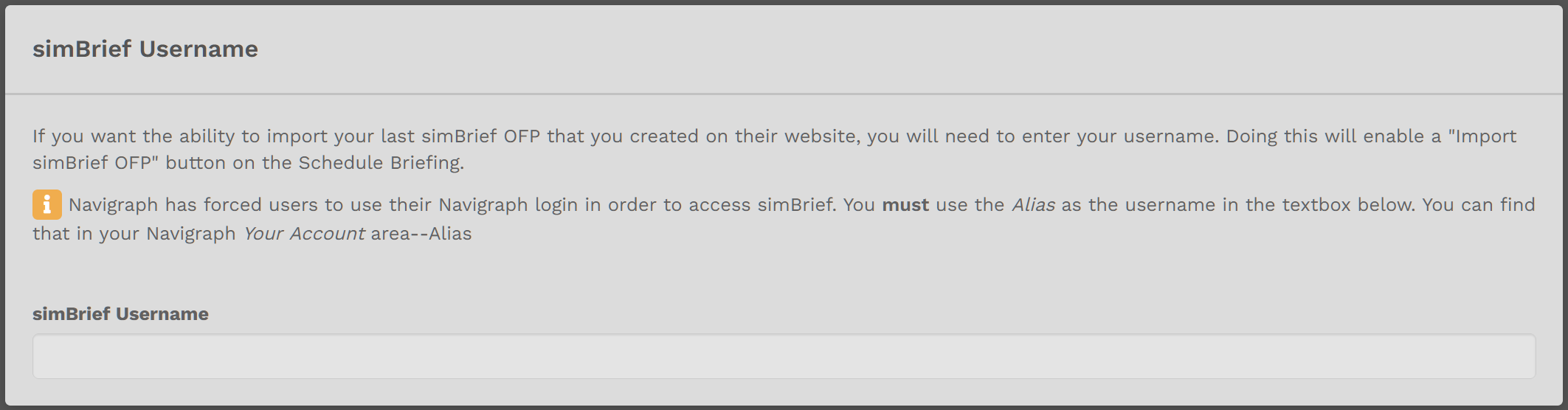
*If you do **not** click the **SimBrief** button, the action you completed will **not** appear.*
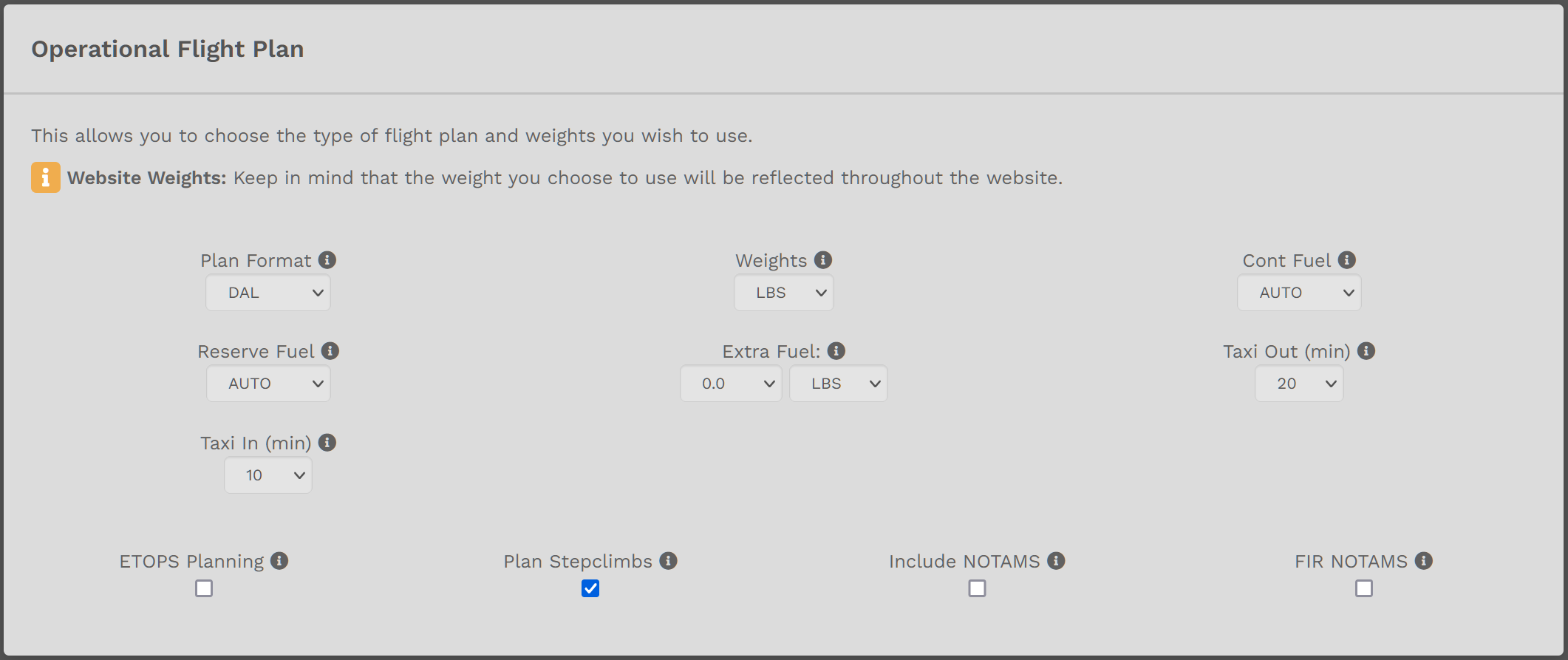
[](https://docs.walkerair.us/uploads/images/gallery/2021-12/image-1638452896713.png) As you can see by examining the image below, in this section, a number of Operational Flight Plan variables can be assigned. Make your selections from each item's drop-down menu If this is the only action you want to complete, click the **Save SimBrief** button at the bottom of the page. If you have other actions to complete, though, scroll down to the next section.*If you do **not** click the **SimBrief** button, the action(s) you completed will **not** appear.*
[](https://docs.walkerair.us/uploads/images/gallery/2021-12/image-1638452933072.png) As a convenient time-saver when completing OFPs, *simBrief* allows you to create *and* use **Custom Aircraft Frames**. Here, you have the opportunity to enter them for any aircraft in our Fleet – Cargo, Charter and Scheduled. Select the desired Fleet. Click the down chevron to access the aircraft in that Fleet. [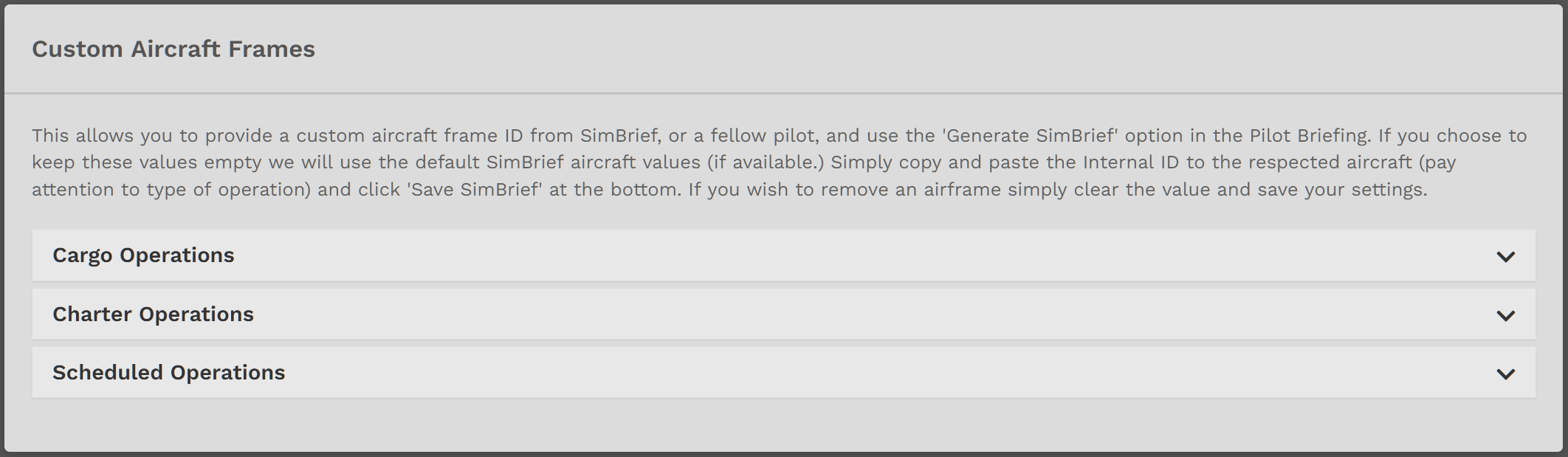](https://docs.walkerair.us/uploads/images/gallery/2021-12/image-1638454257314.png) Here is an example of a small portion of the aircraft available in the **Cargo Fleet**. Paste the data for the aircraft you select in the *Text Box* beneath its name. When you've completed all of the entries you desire in the **Cargo Fleet**, click the *up chevron* to collapse the section. Repeat this process to add/edit any entries in the **Charter** and **Scheduled Fleets**.*The manner in which aircraft are listed in each Fleet is the same.*
If this is the only action you want to complete, click the **Save SimBrief** button at the bottom of the page. If you have other actions to complete, though, scroll up to the sections above.*If you do **not** click the **SimBrief** button, the action(s) you completed will **not** appear.*
[](https://docs.walkerair.us/uploads/images/gallery/2021-12/image-1638453129427.png)