Pilot Profile – Settings > Aircraft Settings
This section lets you build and customize your Aircraft Settings. Instead of a single set of options per aircraft, you can now save one or more configurations for each aircraft, and choose which one to fly when you open a pilot briefing.
How it works
Start by adding an aircraft for a type of operation, then add one or more configurations to it. Each configuration is its own saved version of that aircraft, with its own passenger and cargo limits and its own SimBrief airframe. For example, one Airbus A321 can hold several cabin layouts side by side.
Adding an aircraft and configurations
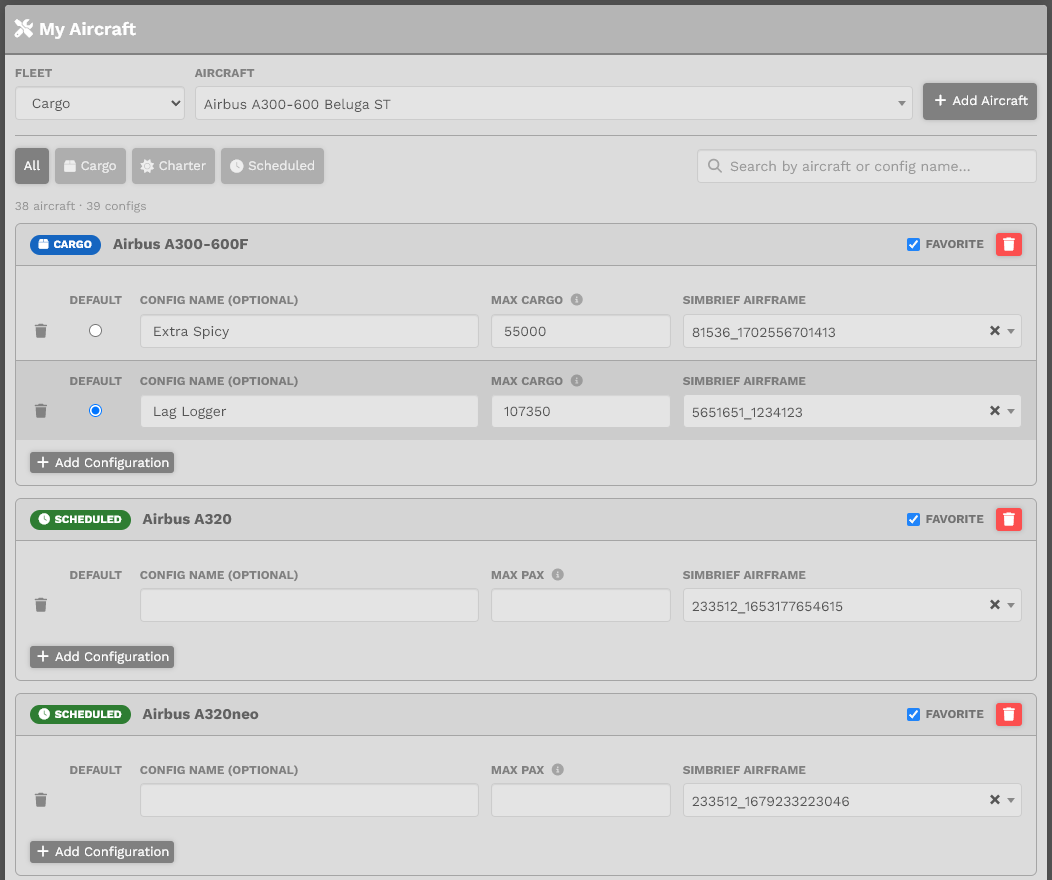
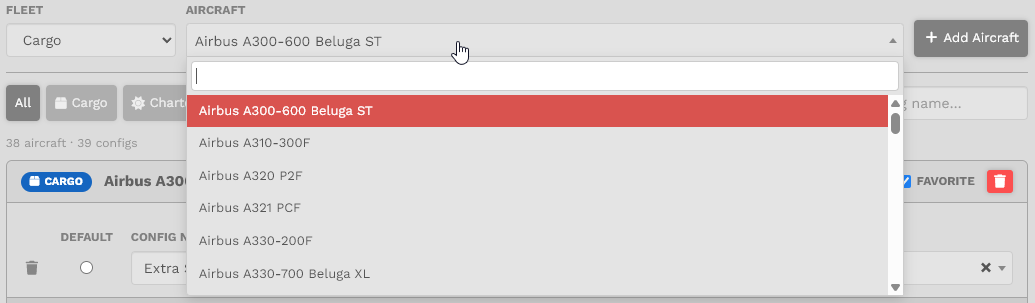
- At the top, choose the Fleet (Cargo, Charter, or Scheduled) and the Aircraft, then click Add Aircraft. The aircraft picker is searchable, so you can start typing a name.
- Inside an aircraft card, click Add Configuration to add another version of that aircraft.
- You can filter your list by fleet using the buttons at the top, or search by aircraft or config name.
The settings on each configuration
- Config Name (optional): A short name so you can tell your configurations apart, such as "A321 High-Density" or "A321 Business". If you pick a SimBrief airframe, we fill this in for you. If you leave it blank, we auto-name it from the load, for example "Airbus A321 (181 pax)".
- Default: When an aircraft has more than one configuration, mark one as the default using the button in the card. That configuration is the one pre-selected for you on the pilot briefing. You can always switch to another before you fly.
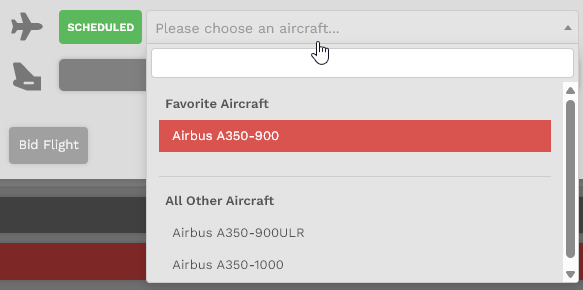
- Favorite: Set per aircraft using the checkbox in the card header. Marking it floats that aircraft to the top of the aircraft selector the next time you place a bid in any of our modules or events.
- Max Cargo / Max Passengers: Every aircraft in our fleet has a maximum cargo and/or passenger load defined. On each configuration you may set a lower number of your own, like choosing a cabin-class layout. Whatever you enter drives the load calculation in the pilot briefing and the SimBrief OFP generator. Leave it blank to use the aircraft's full maximum.
If you have our website configured to use Kilograms (KGS), enter the cargo value in KGS. We store it correctly in our database.
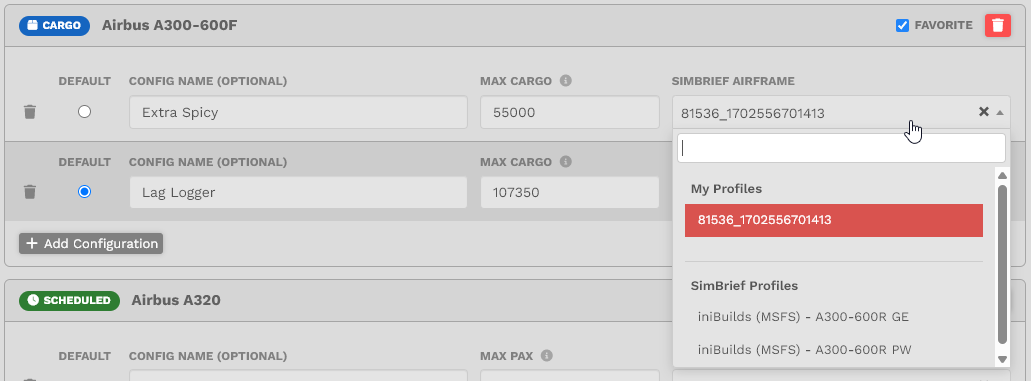
- simBrief Airframe: This field lists the SimBrief community airframes that match the aircraft, grouped under SimBrief Profiles. Pick one and it also fills in the Config Name, or paste your own custom frame ID (your own entries appear under My Profiles). Leave it blank to use the default SimBrief values, if available.
A custom airframe ID looks like (number)_(number). You can copy it from your SimBrief airframe list.
Saving and removing
When you have made your changes, click the Save Aircraft Settings button at the bottom.
If you do not click Save Aircraft Settings, your changes will not be saved.
- To remove a single configuration, click the trash icon at the start of its row.
- To remove an aircraft and all of its configurations, click the red trash icon in the card header.
Then click Save Aircraft Settings to confirm.
Choosing a configuration on the Pilot Briefing
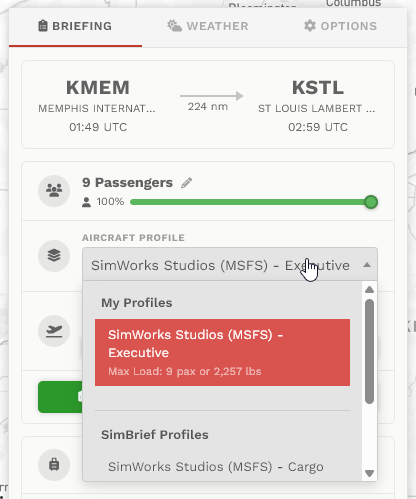
When you open a pilot briefing, the Aircraft Profile selector shows the configurations you saved for that aircraft under My Profiles, along with any matching SimBrief community airframes under SimBrief Profiles. Each of your profiles shows its max load beneath the name.
The configuration you marked as default is selected automatically. Pick a different one before you generate your OFP and we will recalculate your load and switch the SimBrief airframe to match.
Favorites on the bidding screens
Any aircraft you marked as a Favorite appears at the top of the aircraft list when you place a bid, across the Cargo, Charter, and Scheduled fleets.