On a phone, the bar keeps only the **Back to Bids** arrow. The airline logo and flight type move down into the top of the Briefing tab so nothing is lost.
#### **The map and its controls** The map draws a line from your departure airport to your arrival airport. In the **bottom-left corner** of the map are the map toggle buttons. Tap one to turn it on (it turns green) and tap again to turn it off:| Button | What it does |
|---|---|
| **Sunrise / Sunset** | Shades the map to show where it is currently day and night. |
| **Weather** | Overlays live weather on the map. |
| **VATSIM** | Shows live VATSIM online traffic and controllers. |
| **Following** | Shows the pilots you follow who are airborne (only appears if you follow anyone). |
On a narrow window or a phone, this panel stacks its items into a single vertical column so it never overlaps the map buttons.
[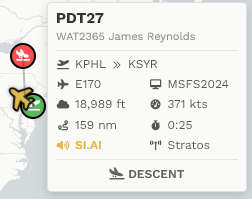](https://docs.walkerair.us/uploads/images/gallery/2026-09/55Limage.png) --- #### **The briefing drawer** The drawer on the right has five tabs. Click a tab (or its icon) to switch sections. [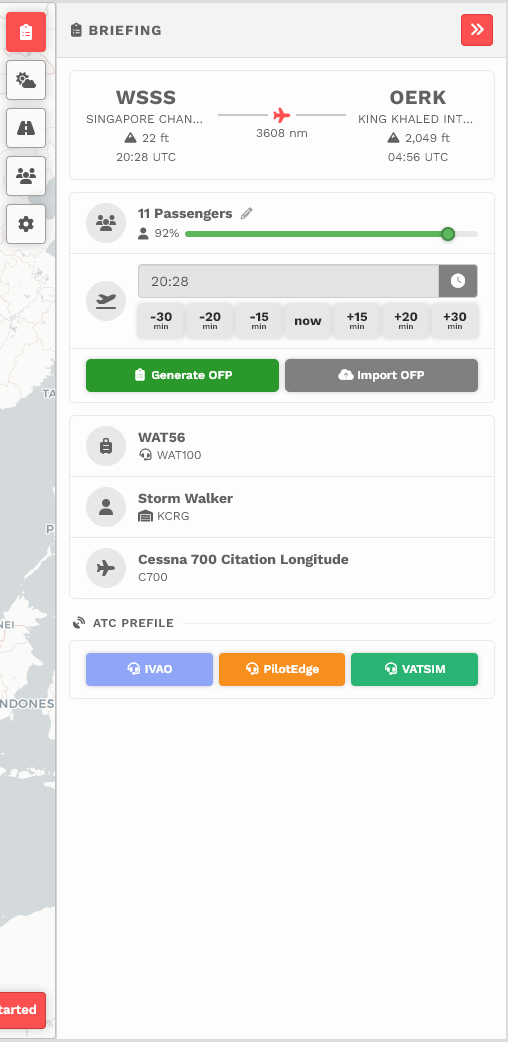](https://docs.walkerair.us/uploads/images/gallery/2026-09/ZJQimage.png) ##### Briefing The main tab. At the top is the **flight strip**: - **Departure** on the left and **Arrival** on the right, each showing the ICAO code, airport name, runway, field elevation, and the scheduled time. - Between them is a line with a **red aircraft** in the middle and the **route distance** below it. - Airport ICAO codes are links. Click one to open that airport's page in a new tab. Below the strip you will find your **load** (passengers or cargo) and the rest of the route details. [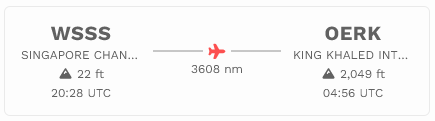](https://docs.walkerair.us/uploads/images/gallery/2026-09/DX1image.png) ##### **Weather** Live **METAR** and **TAF** for both your departure and arrival airports. Use the refresh button to pull the latest report, and the **speaker button** to hear the weather read aloud. [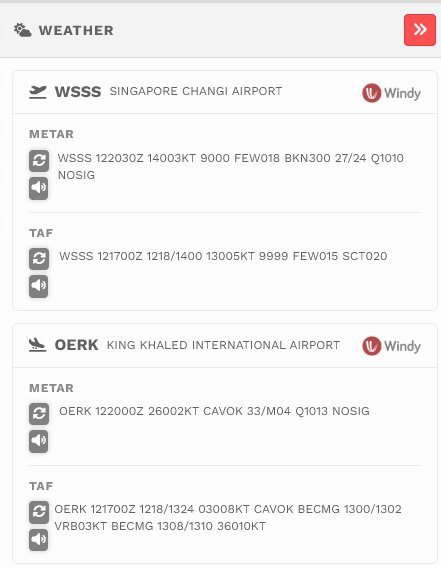](https://docs.walkerair.us/uploads/images/gallery/2026-09/Luuimage.png) ##### **Runways** The runways available at your departure and arrival airports: runway identifier, length, surface, ILS availability, and course. [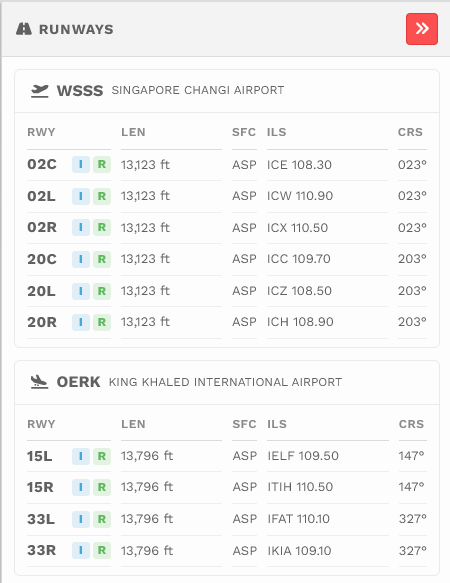](https://docs.walkerair.us/uploads/images/gallery/2026-09/zY5image.png) ##### **Following** A list of the pilots you follow who are **currently flying**, so you can see who is up at a glance. Click one to focus the map on them. This tab only appears if you follow pilots and at least one of them is airborne. [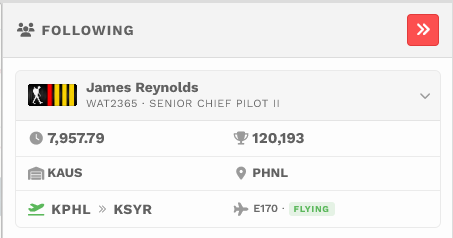](https://docs.walkerair.us/uploads/images/gallery/2026-09/UvMimage.png) ##### **OFP Options** Generate or import your **SimBrief OFP** (Operational Flight Plan) for this route and set its options. This requires your SimBrief account to be linked in your profile. [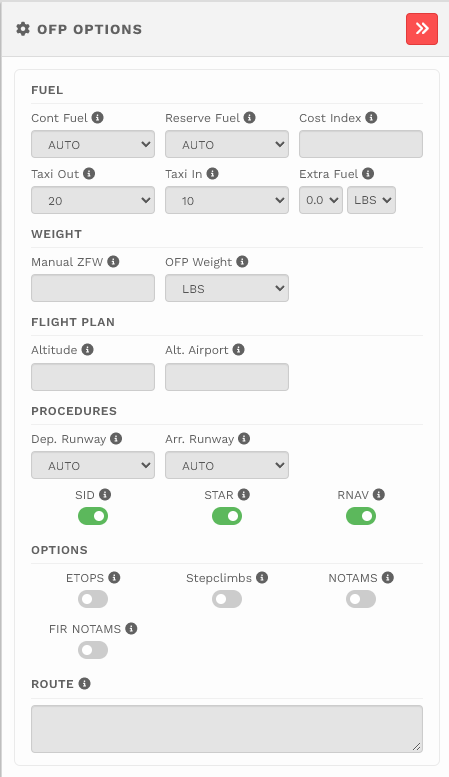](https://docs.walkerair.us/uploads/images/gallery/2026-09/EUeimage.png) --- ## Quick tips - Toggle buttons turn **green** when active, so you can see at a glance what is on. - Turn on **Weather** and **VATSIM** together to plan around both the weather and live traffic. - The **airport ICAO codes** in the flight strip are shortcuts to full airport pages. - Generate your **OFP** early so your load and route are ready before you fly.