Pilot Briefing
The Pilot Briefing page is your pre-flight home for a booked route. It shows your route on a live map, the departure and arrival details, weather, runways, other Walker Air pilots you follow, and your SimBrief flight plan (OFP), all in one place.
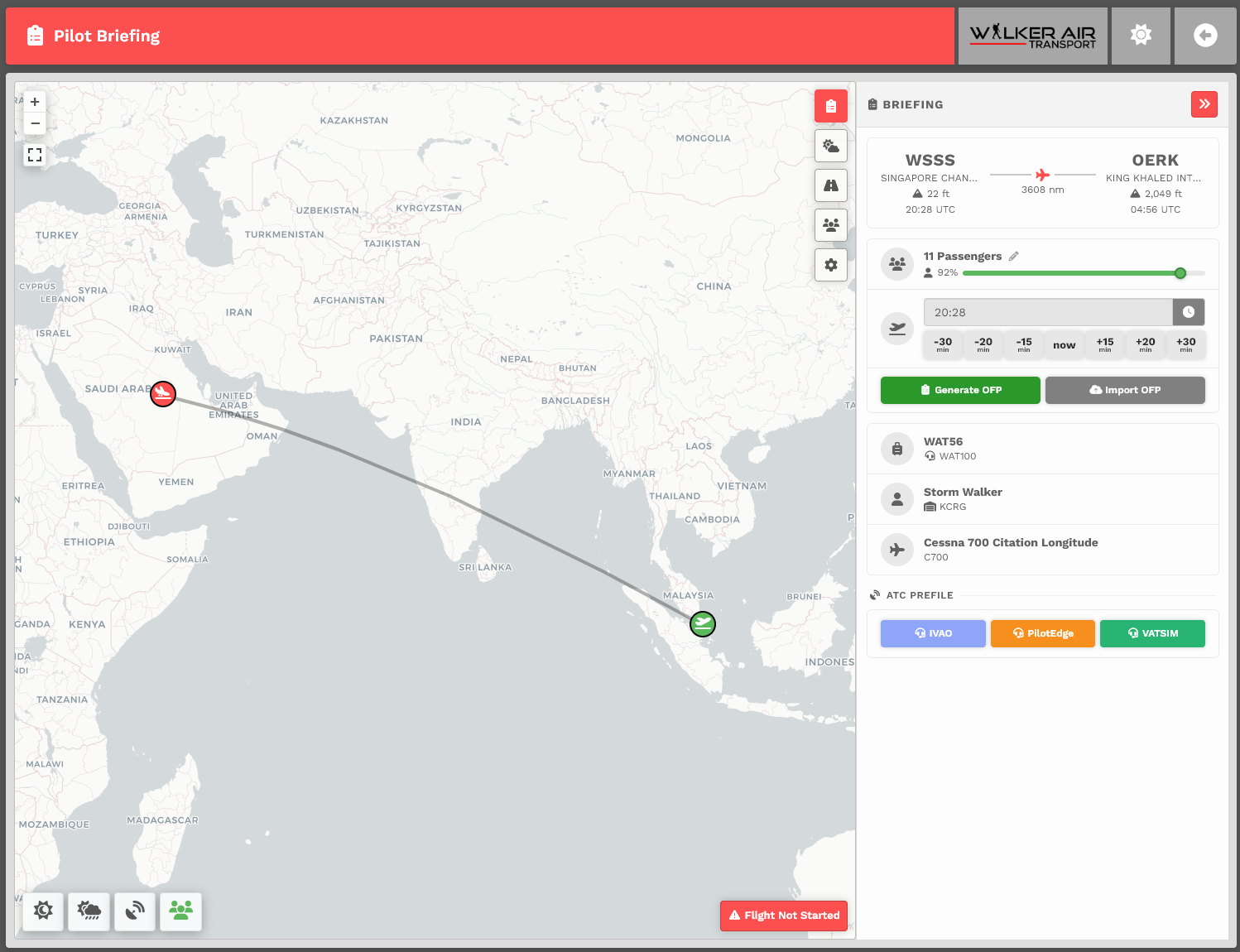
The page has two parts:
- The map, which fills most of the screen and draws your route from departure to arrival.
- The briefing drawer, the panel on the right with tabs for Briefing, Weather, Runways, Following, and OFP Options.
The red bar across the top shows:
- Pilot Briefing: the page title.
- Your airline and flight type: the operating airline logo and an icon for the flight type (Cargo, Charter, Scheduled, etc.).
- Back to Bids: the circular arrow on the right returns you to your bids.
On a phone, the bar keeps only the Back to Bids arrow. The airline logo and flight type move down into the top of the Briefing tab so nothing is lost.
The map and its controls
The map draws a line from your departure airport to your arrival airport.
In the bottom-left corner of the map are the map toggle buttons. Tap one to turn it on (it turns green) and tap again to turn it off:
| Button | What it does |
|---|---|
| Sunrise / Sunset | Shades the map to show where it is currently day and night. |
| Weather | Overlays live weather on the map. |
| VATSIM | Shows live VATSIM online traffic and controllers. |
| Following | Shows the pilots you follow who are airborne (only appears if you follow anyone). |

Following other pilots on the map
If you follow other Walker Air pilots, turn on the Following toggle to see the ones who are currently flying appear on the map.
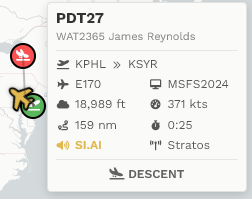
Click a flying pilot and a flight-status panel appears in the bottom-right corner with their live flight details:
- Follow: locks the map onto that aircraft so it stays centered as it moves. Tap again to release.
- Altitude, Groundspeed, and Time remaining.
- Network (offline / VATSIM / IVAO, etc.) and the current flight phase (climb, cruise, descent, and so on).
On a narrow window or a phone, this panel stacks its items into a single vertical column so it never overlaps the map buttons.
The briefing drawer
The drawer on the right has five tabs. Click a tab (or its icon) to switch sections.
Briefing
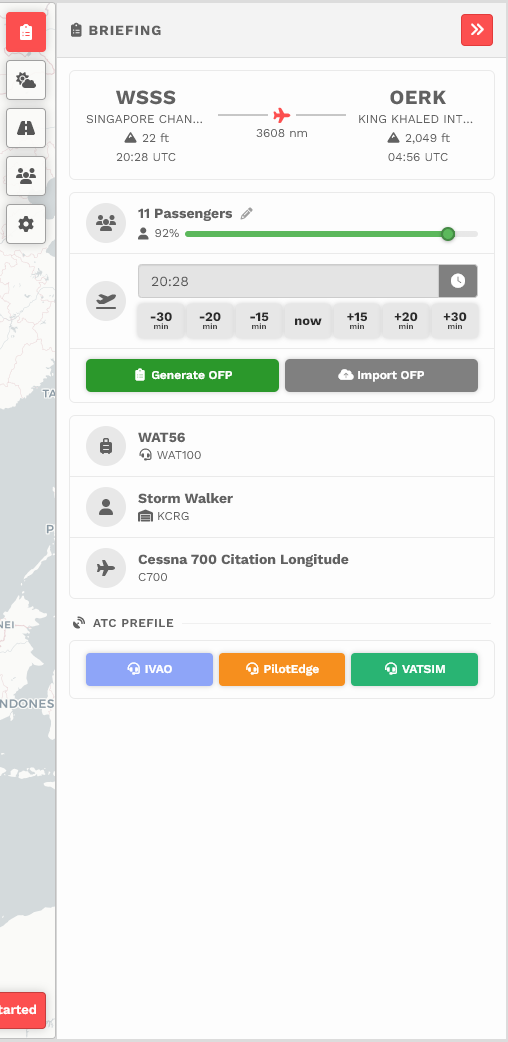
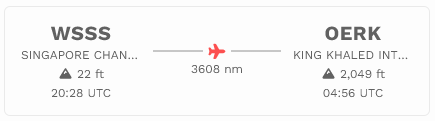
The main tab. At the top is the flight strip:
- Departure on the left and Arrival on the right, each showing the ICAO code, airport name, runway, field elevation, and the scheduled time.
- Between them is a line with a red aircraft in the middle and the route distance below it.
- Airport ICAO codes are links. Click one to open that airport's page in a new tab.
Below the strip you will find your load (passengers or cargo) and the rest of the route details.
Weather
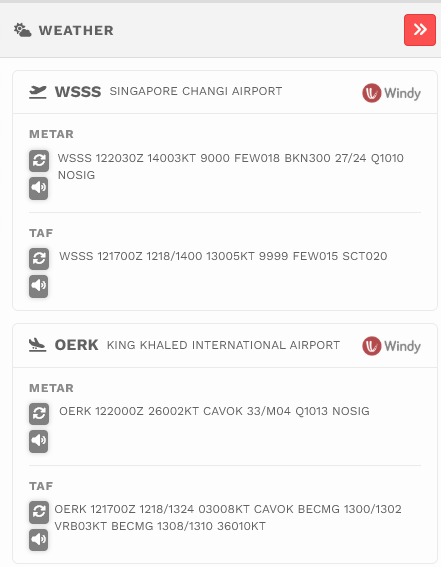
Live METAR and TAF for both your departure and arrival airports. Use the refresh button to pull the latest report, and the speaker button to hear the weather read aloud.
Runways
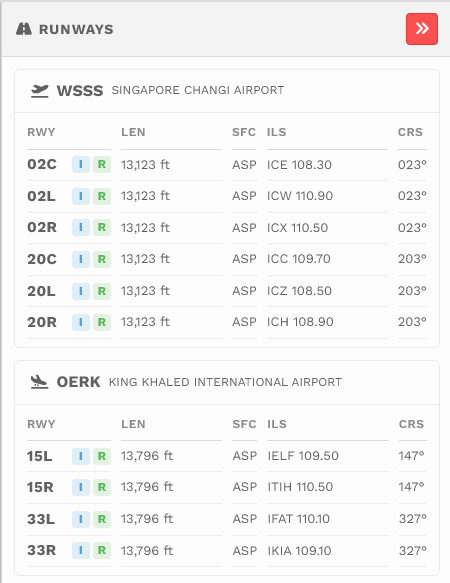
The runways available at your departure and arrival airports: runway identifier, length, surface, ILS availability, and course.
Following
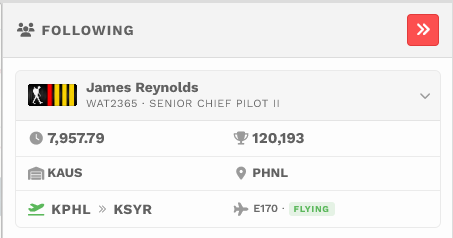
A list of the pilots you follow who are currently flying, so you can see who is up at a glance. Click one to focus the map on them. This tab only appears if you follow pilots and at least one of them is airborne.
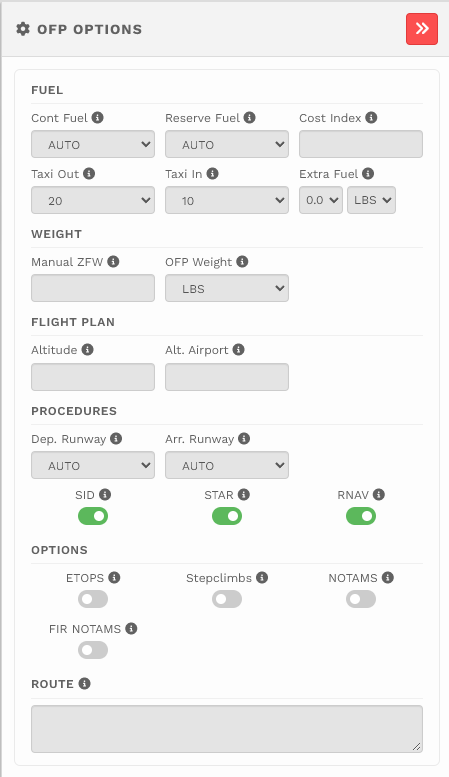
OFP Options
Generate or import your SimBrief OFP (Operational Flight Plan) for this route and set its options. This requires your SimBrief account to be linked in your profile.