| Go to [**https://walkerair.us/**](https://walkerair.us/). Click **Crew Login** in the *Navigation Bar*. After doing so, the login box will appear. | [](https://docs.walkerair.us/uploads/images/gallery/2021-11/image-1637613303295.png) |
| Enter your **Email** address and **Password** in the spaces provided.
*If you wish to have the website remember you, click the box beside **Remember Me**.* Click the **Log In** button. | [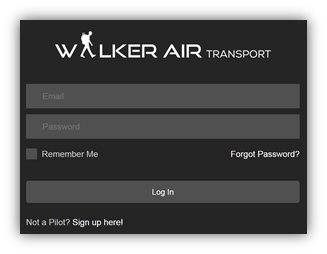](https://docs.walkerair.us/uploads/images/gallery/2021-11/image-1637613329420.png) |
| **Cargo** | To plan and fly a **Cargo Flight**, click the link below and follow the instructions. **LINK:** [**Cargo Flights**](https://docs.walkerair.us/books/help/page/cargo) |
| **Charter** | To plan and fly a **Charter Flight**, click the link below and follow the instructions. **LINK: [Charter Flights](https://docs.walkerair.us/books/help/page/charter)** |
| **Scheduled** | To plan and fly a **Scheduled Flight**, click the link below and follow the instructions. **LINK: [Scheduled Flights](https://docs.walkerair.us/books/help/page/scheduled)** |
| **Tour** | To plan and fly a **Tour** **Flight**, click the link below and follow the instructions. **LINK: [Tour Flights](https://docs.walkerair.us/books/3-help/page/tours)** |
| **simBrief** | **SkyVector** |
| To plan your flight using ***simBrief***, click the link and follow the instructions.
**LINK:** **[simBrief](https://docs.walkerair.us/books/help/page/simbrief)**
*The Flight Plan simBrief generates is merely a suggestion. There's no requirement you actually fly it.* | To plan your flight using ***SkyVector***, click the link and follow the instructions. **LINK:** [**https://skyvector.com/**](https://skyvector.com/) |
*If you fail to use a Walker Air Transport livery and operate your flight using our ACARS-based Flight Data System, your flight will be rejected and, if this becomes a pattern, you risk being terminated.*
##### --- ##### **Start ACARS** Open *ACARS.****Make this a habit**. If you fail to start ACARS **before** you pushback and begin your flight, none of its data can be transferred to our Flight Data System – and that means you will **not** receive credit for the flight.*
To start *ACARS*, click [**here**](https://docs.walkerair.us/books/3-help/chapter/acars) and follow the instructions specific to your computer's *Operating System* and supported Flight Simulator. ** ** --- ##### **Online Air Traffic Control** If you're using live Air Traffic Control for your flight – *IVAO*, *PilotEdge* or *VATSIM* – log in to their system and follow their instructions and/or prompts. --- ##### **Fly Your Flight** Once you've reached this point, your aircraft is on the ramp at your departure airport – and your Pre-Flight is underway. Complete your checks – and with your engine(s) running, you're ready for pushback. Enjoy! **NOTE:** *Once your aircraft moves, the Pre-Flight segment of your flight is complete.*