Operations
- Flight Classification
- Flight Logs
- Departure & Arrival Times
- Pausing Your Sim
- Time Compression
- Diversions & Emergencies
- Sim Crashes
- PIREP Flight Time 00:00 Entry
- ‘The Flight May Now Be Ended’ Line Entry In ACARS
- Unlimited Fuel, Mid-Air Refueling, and Enroute Fueling
- Aircraft Substitutions
- Virtual Money
- IVAO, PilotEdge & VATSIM
- Usage of Slew Mode
- PIREP Accepted With Erroneous Data
- Extended Route Distances
Flight Classification
A completed flight is classified as being Approved, Rejected or Diverted.
A flight is classified as being Completed when it was:
(1) flown from a departure airport to an arrival airport, and,
(2) documented by our ACARS-based Flight Data System.
The Company’s Landing Rate Standard is -800 fpm or softer.
| Approved | Rejected | Diverted |
|
|
|
|


The criteria used to make that decision is as follows.
| Approved | Rejected | Diverted |
|
The criteria for an Approved flight are:
All points, flight hours and pay are awarded.
The PIREP is posted to your Logbook as being Completed | Approved. |
The criteria for a Rejected flight are:
No points, flight hours or pay are awarded.
The PIREP is posted to the your Logbook as being Completed | Rejected. |
The criteria for a Diverted flight are:
All points, flight hours and pay are awarded.
If this occurs when flying a Tour leg, you will not be advanced to the next leg. The leg will have to be reflown.
The PIREP is posted to your Logbook as being Completed | Diverted. |
If you think your flight was categorized incorrectly or you'd like to ask a question about it, submit a Help Ticket.
Flight Logs
You will only receive credit for a completed flight by using our automated, ACARS-based Flight Data System.
Manual PIREPS are not are permitted. No exceptions.
Departure & Arrival Times
Scheduled flight times shown in Crew Ops are displayed in UTC. This is simulator time, not real-world time.
While not mandated, we still encourage you to fly those scheduled times within your simulator.
In summary – if a flight departs at 1600 UTC, you do not have to fly it at the real-world time of 1600 UTC.
Pausing Your Sim
As long as you’re flying offline and don’t do anything to interrupt the operation of ACARS, you may pause your flight and resume it at any time afterwards without penalty.
If you’re flying online in a simulated, real-world environment, though, the controllers at IVAO, PilotEdge, or VATSIM will likely not be as accommodating. They typically do not allow flights to be paused.
Time Compression
Time compression – changing the simulation rate during a flight – is permitted as often as desired; however, a 15% penalty will be assessed against the total number of points earned for that flight if its use is detected by ACARS.
EXAMPLE: 53 points earned – 8 point penalty (.15 × 53) = 45 points awarded.
Diversions & Emergencies
If you experience an in-flight emergency, or you simply have to divert to another airport, treat it as a real life experience.
You may find the information below helpful in your recovery planning.
| Worldwide Persistence | If You Stop ACARS and Submit PIREP | If You Do Not Stop ACARS | ||
|
Divert to Departure Airport |
||||
| Cancel your flight and re-start it. |
||||
|
Divert to Any Other Airport |
||||
| Disabled |
Your flight will be classified as Diverted. The Starting point for the next flight:
The flight’s hours, distance and points will be calculated from your Departure airport to this airport – not the Arrival airport noted in your Bid. EXAMPLE: If you fly from KJAX to KDAL and land at KATL, you’ll only get hours, distance and points for KJAX to KATL. |
Settle what needs to be done, restart the SIM and continue to your planned Arrival airport. ACARS will reacquire your simulator and continue pushing data to our Flight Data System.
Based upon your landing rate and flight duration, the flight will be classified as either Approved or Rejected.
The Starting point for the next flight:
Cancel your flight and re-start it. |
||
| Enabled |
Your flight will be classified as Diverted. The Starting point for the next flight:
EXAMPLE: If you fly from KJAX to KDAL and land at KATL, the departure airport for your next flight will be KATL. |
|||
Once you arrive at your final destination and land, take a moment to review the Flight Log to ensure its entries appear to be normal and logically sequenced.
| If Log Entries appear... |
Action Step |
| Normal | Submit the PIREP. As noted above, if your landing has not exceeded the Company’s Landing Rate Standard and meets all other flight-related criteria, it’ll be automatically approved. |
| Not Normal | Click Cancel. Manual PIREPS are not allowed under any conditions. |
PIREP REVIEWS: We certainly sympathize with you if something appears abnormal in your PIREP. However, we do not have any control over the operation and functionality of your computer, the stability of your flight simulator and addons, the performance of your Internet connection or any other operational factors affecting how data is collected and transmitted to us. As a result, we must trust the data your flight simulator generates and transmits to us via ACARS to be an accurate representation of what occurred during your flight. After that transmission occurs, we do not have the ability to change or alter any flight data nor will we ever do so. |
Afterwards, if you review the PIREP and flight tracker Map, you’ll see you landed at an interim airport and subsequently continued on to your final destination.
If you experience difficulties with this process or ACARS, submit a Help Ticket for assistance.
Make it a habit to check your Flight Log immediately before and after takeoff – and regularly throughout your flight – in order to avoid time-wasting instances like this resulting in rejected PIREPS.
Sim Crashes
If entries in your Flight Log file are determined to be improperly sequenced as a result of a SIM crash, the PIREP will be removed from your Logbook.
Manual changes cannot and will not be made.
PIREP Flight Time 00:00 Entry
If you see a Flight Time 00:00 entry in your PIREP, then, to ACARS, it means you triggered a landing before you took off.
It can happen in a number of ways while flight logging is taking place – for instance, by moving the plane or rolling across bad airport mesh during your taxi to the runway or on takeoff.
If you see this entry, the PIREP will be automatically rejected.
Manual changes cannot and will not be made.
‘The Flight May Now Be Ended’ Line Entry In ACARS
It’s wise to monitor your Flight Log periodically throughout your flight to ensure its data is being logged/recorded and transmitted correctly.
If, at any time before you land and taxi to a stop at the end of your flight, you see the entry below in your Flight Log, your PIREP will be Rejected.
[xx:xx:xx] The flight may now be ended
No hours, distance or points will be awarded – and we will not be able to fix it.
Unlimited Fuel, Mid-Air Refueling, and Enroute Fueling
Unlimited Fuel
The use of unlimited fuel – a PIREP indicating no fuel was consumed during a flight – is not permitted.
If the use of unlimited fuel is detected, your PIREP will be Rejected.
No hours, distance or points will be awarded – and it will not be overridden.
You can identify that unlimited fuel has been recorded by reviewing the log file and your PIREP.
Click on the Financials tab of your PIREP

You will see Fuel Used is 0

Click on the Log tab of your PIREP

Look at the following lines in your log and you will see that each fuel amount is the same as the previous. This indicates that your simulator has unlimited fuel turned on and it must be disabled.
- Taking off: with 42375 lbs
- Climbing: with 42375 lbs
- Touched Down: fuel remaining 42375 lbs
Another Possibility
You may have added fuel after pushback but before taxi or takeoff. Fuel must be set before pushback begins.
- Pushback: with 472 lbs
- Taxi: with 583 lbs
- Taking off: with 572 lbs
- Climbing: with 540 lbs
- Touched Down: fuel remaining 145 lbs
Mid-Air Refueling
The use of mid-air refueling – manually adding fuel to your aircraft while in flight to extend its range – is not permitted.
If the use of mid-air refueling is detected, your PIREP will be Rejected.
No hours, distance or points will be awarded – and we will not fix it.
Enroute Fueling
The use of enroute refueling – landing at an airport not noted in your Bid and refueling to extend the range of your aircraft – is not permitted.
You will be required to submit your flight and it will be treated as a diverted flight. You can read more about the diversion system by clicking here.
Aircraft Substitutions
Our flight modules are built in a way substituting aircraft isn’t necessary. Therefore, substitutions are not accepted.
If a PIREP log documents a different aircraft than what was bidded, it will be Rejected.
No exceptions.
Stratos provides the ability for us to see what aircraft and ICAO you used in the simulator and cross reference it with our liveries and bids
How do I know this is wrong?
Open the PIREP report up.
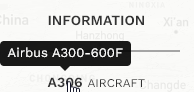
Click on the  to open the Information panel.
Look at the Aircraft; this is the aircraft that was on your bid, it is not the plane you flew in the simulator.
Click on the  to open your ACARS log.
Look at the 1st few lines and you will see the log entries from your ACARS. This is the information that your simulator sends to the ACARS application. If this is not correct, then you need to contact TFDi and raise a ticket. We have no control over what your computer sends to the application.
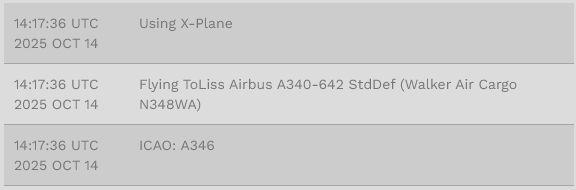
If these 2 things do not match, your flight will get rejected. Your aircraft must match the one you bid on.
Virtual Money
When you complete a flight and it’s Approved, you’re compensated in virtual currency – what's referred to as our Virtual Money. The amount you make per hour – and subsequently, for each completed flight – depends on the Pilot Rank you hold.
Your Virtual Money can be used for:
| 1 | 2 | 3 |
|
Purchasing Jumpseat Tickets
Purchasing a Jumpseat for Charter flights if Worldwide Persistence |
Changing your Home. | Re-Flying a Tour you've already completed. |
Any virtual money you earn with us has no real world value. As such, it can’t be redeemed, exchanged or otherwise used.
IVAO, PilotEdge & VATSIM
While we do not require you to fly online, it’s strongly encouraged. To assist you in doing so, we’ve partnered with PilotEdge and VATSIM.
You can fly on the IVAO network, however Walker Air Transport is not partnered with this company nor will we be due to their unnecessary requirements.
Whenever flying online, enter the following information in the remarks section of your pre-file.
CALLSIGN = Either your WALKER Pilot ID or WALKER Flight Number
How to Use Your Pilot ID as Your Callsign
Head to:
Pilot Settings → My Information → Online ATC Networks
At the bottom of the page, you’ll see Online ATC Callsigns.
Read the description, check the box, and save.

What Happens When This Is Enabled?
-
Your callsign will be locked
-
No one else will be able to receive a WAT flight number that matches your Pilot ID
-
You will see a random flight number assigned internally
-
Your actual callsign online will remain your Pilot ID, just like before
-
Pre-file, ACARS, and all related functionality will continue to work exactly as you’re used to

And a final note…
When using any of these online networks and the WAT Callsign, you’re considered a Company Ambassador. As such, at all times, you're expected to:
- be professional;
- be courteous and respectful of others;
- exercise good judgment; and,
- engage in behavior that could not be interpreted as being argumentative or disruptive.
Additionally, in order to maintain a sense of professionalism, general chat with other Company Pilots while flying online should only be conducted on our Discord, not on an active network frequency.
If, at any time, we learn about a Pilot's questionable or disruptive behavior while flying on an online network, the matter will be fully investigated and, if deemed appropriate, they'll be formally disciplined.
Usage of Slew Mode
Use of slew mode while on the ground to adjust your parking position or whatever purpose you need it to be is allowed. Other usage of slew mode will lead to your PIREP being immediately rejected.
Unlike time compression, slew mode is not allowed in flight for all flights, regardless if tour or not.
You can identify that slew mode has been recorded by reviewing the log file in your PIREP.
Click on the Log tab of your PIREP
Look for the Slew mode entered and Slew mode left lines between the Taking off and Touched down lines.
PIREP Accepted With Erroneous Data
With SmartCars3 now featuring autosubmit, as well as its new detection system, it is possible to have a PIREP submitted with incorrect information. These may include erroneous locations, distances travelled and so on.
If the data sent to the Walker system is far from the reality, then we request pilots to come clean and delete these PIREP's on their own accord. You may click here to see how this may be done.
The Business Office reserves the right to reject PIREPs seen with highly erroneous data logged.
Extended Route Distances
While real-world flights do not strictly follow direct airport-to-airport distances, pilots are expected to fly routes that remain within a reasonable and realistic flown distance for their departure and arrival airports.
Walker Air Transport automatically evaluates every flight using a proprietary route analysis system that considers factors such as geopolitical concerns, airspace and overflight restrictions, ATC vectoring, operations on online ATC networks, VFR or sightseeing operations, base training flights, and other legitimate operational requirements.
Flights that significantly exceed these reasonable operational allowances may be automatically rejected.
Holding patterns and excessive route extensions are not permitted unless they are the result of instructions received while operating on an online ATC network or approved AI ATC service such as VATSIM, PilotEdge, POSCON, SayIntentions, or BeyondATC (BATC). Outside of these environments, intentionally remaining airborne to increase flight time, points, or hours is not permitted.
If you need to step away from the simulator for an extended period prior to descent or arrival, please use the Top of Descent Pause feature available in ACARS rather than entering holding patterns or circling the destination area.
If you believe your flight was rejected in error, please submit a ticket through the website so the Business Office can review the flight and make a determination.